Knowledge base
1000 FAQs, 500 tutorials and instructional videos. Here, there are only solutions!
Disable two-factor authentication (2FA)
This guide explains how to disable two-factor authentication, also known as two-factor authentication (2FA) or two-step verification, for logging into the Infomaniak Manager (manager.infomaniak.com) or Mail Infomaniak (ksuite.infomaniak.com/mail).
Introduction
- For security reasons, Infomaniak support will never disable alogin validation method enabled on an accountupon simple request.
- You must follow the procedures below.
- Please note that if you were using SMS authentication, once it is deactivated, you will only be able to re-enable this method if you reside in CH / FR / BE / DE.
- Outside of these countries, you will need to use Infomaniak Authenticator or any other OTP application.
Disable Two-Factor Authentication
If two-factor authentication is enabled and you want to disable it:
- Click here to access the 2FA management section in the Infomaniak Manager.
- Click the Delete button to remove the security:
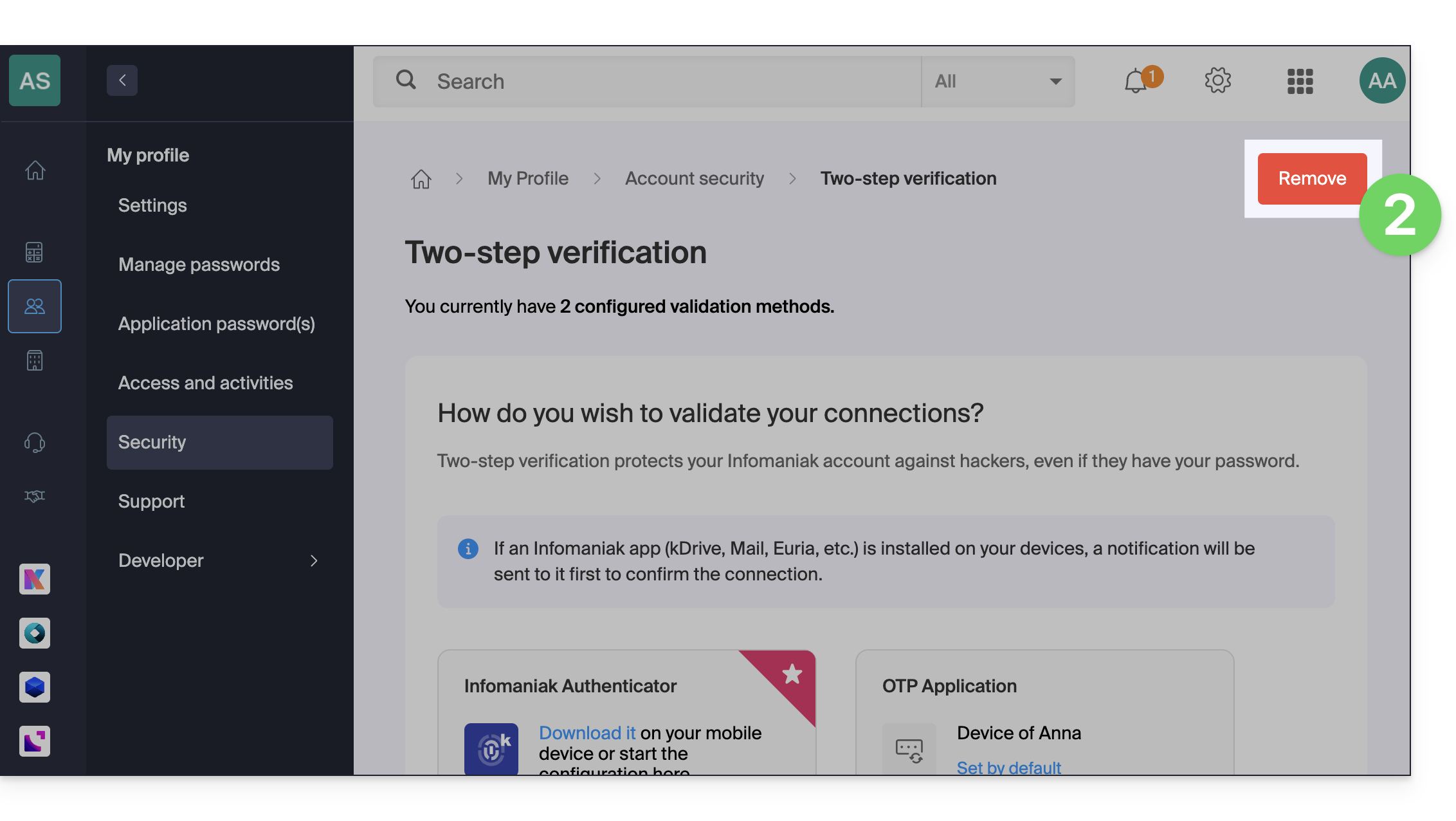
- If the red button is inactive / grayed out…
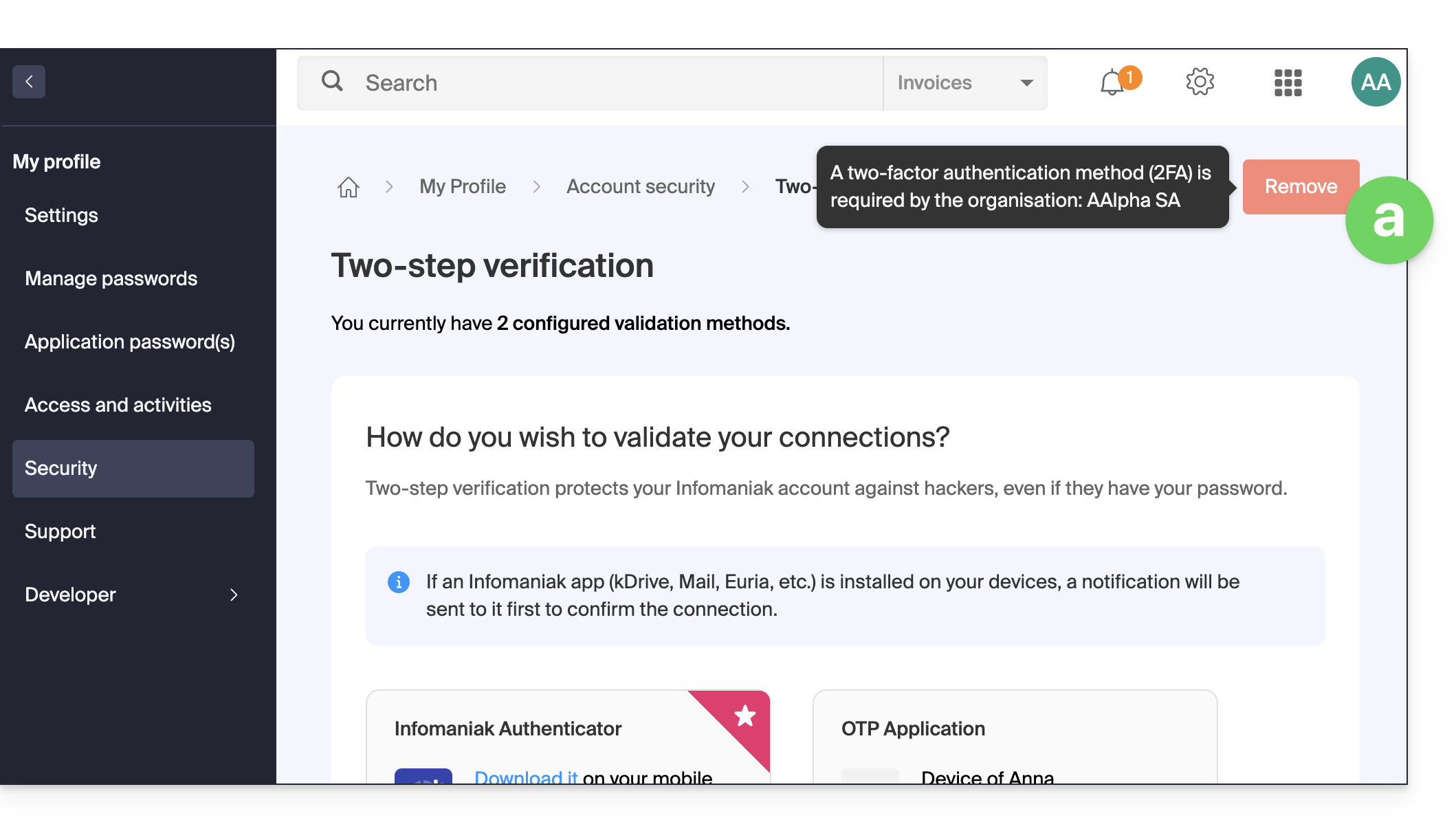
- … there is probably a security setting in place that prevents you from disabling 2FA:
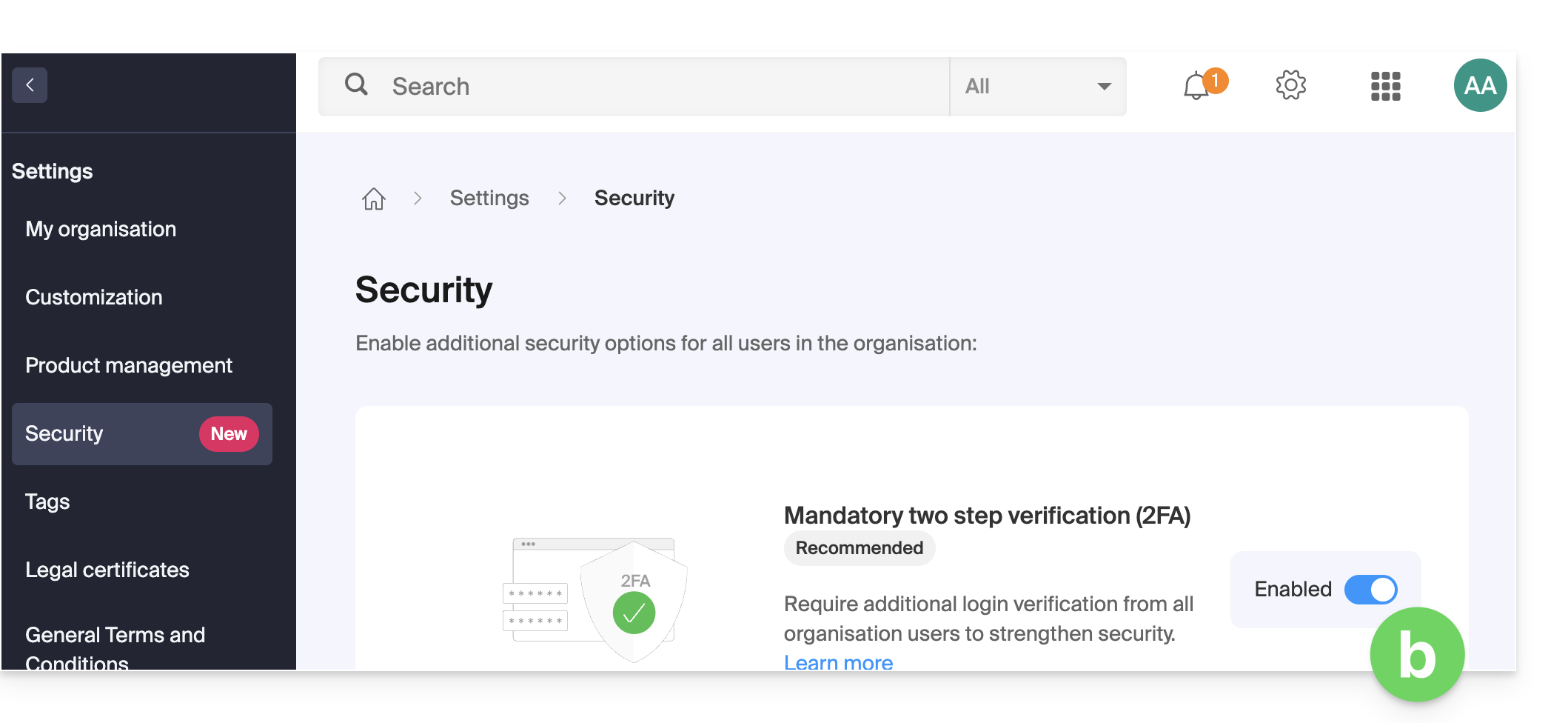
- If the red button is inactive / grayed out…
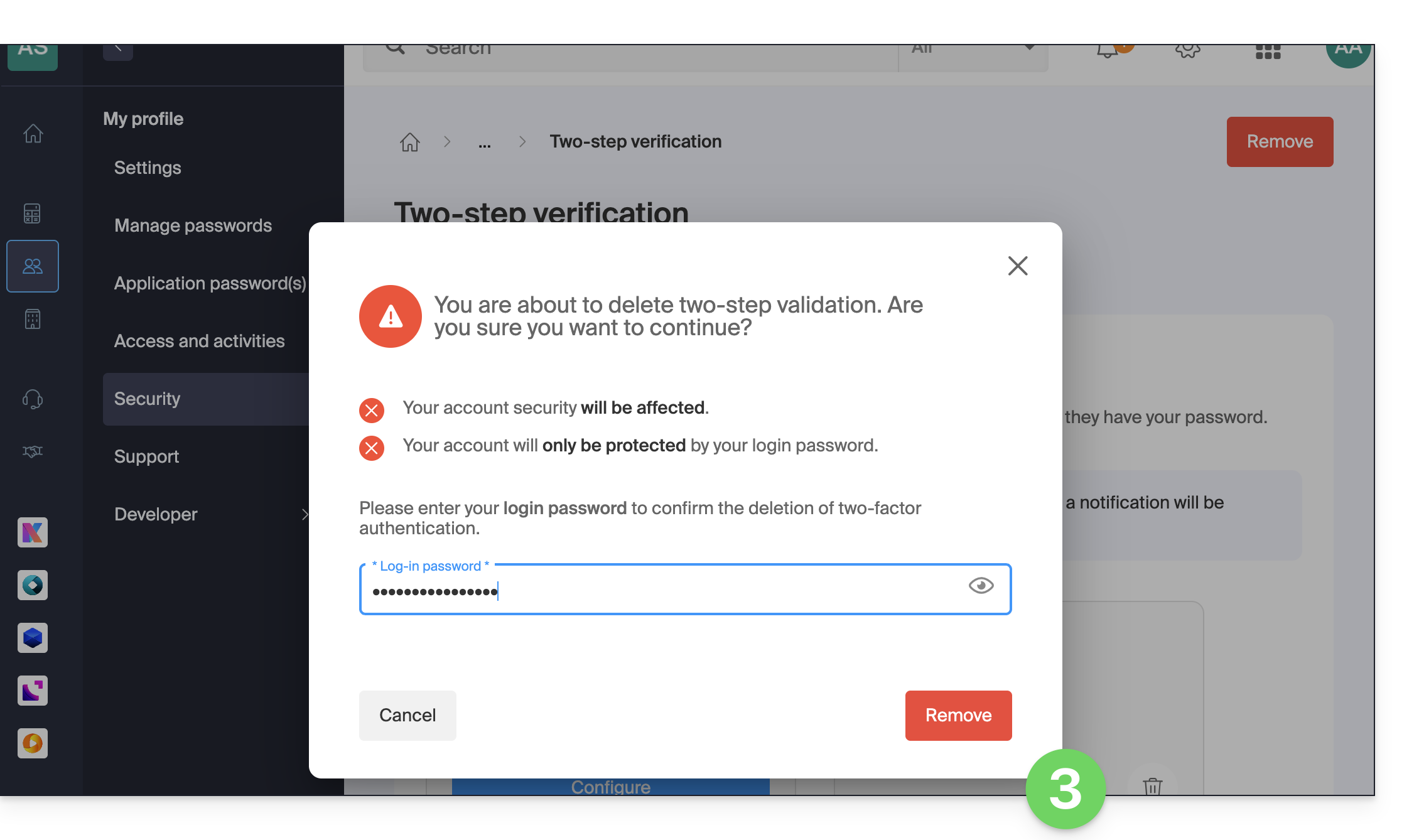
- Enter the password for logging into your account to confirm:
In case of problems
Obviously, the procedure above requires you to log in one last time with two-factor authentication, so that you can then disable it.
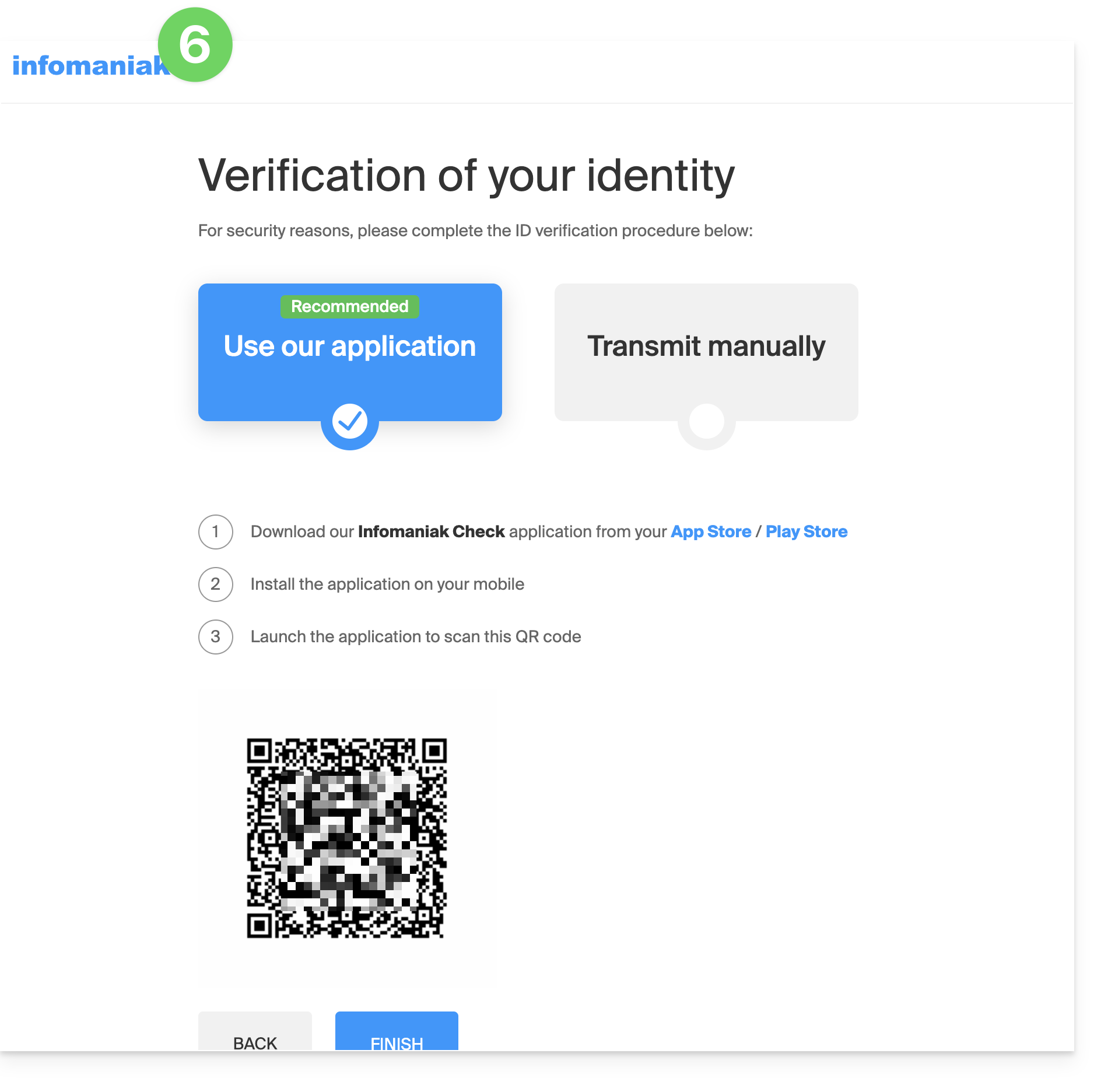
If you have no access to the Infomaniak Authenticator application, the device that receives the verification SMS, or any other authentication method that you have configured, there is no need to call Infomaniak. In this case, you will have to provide a number of security details manually or via the Infomaniak Check (kCheck) app to regain access to your account:
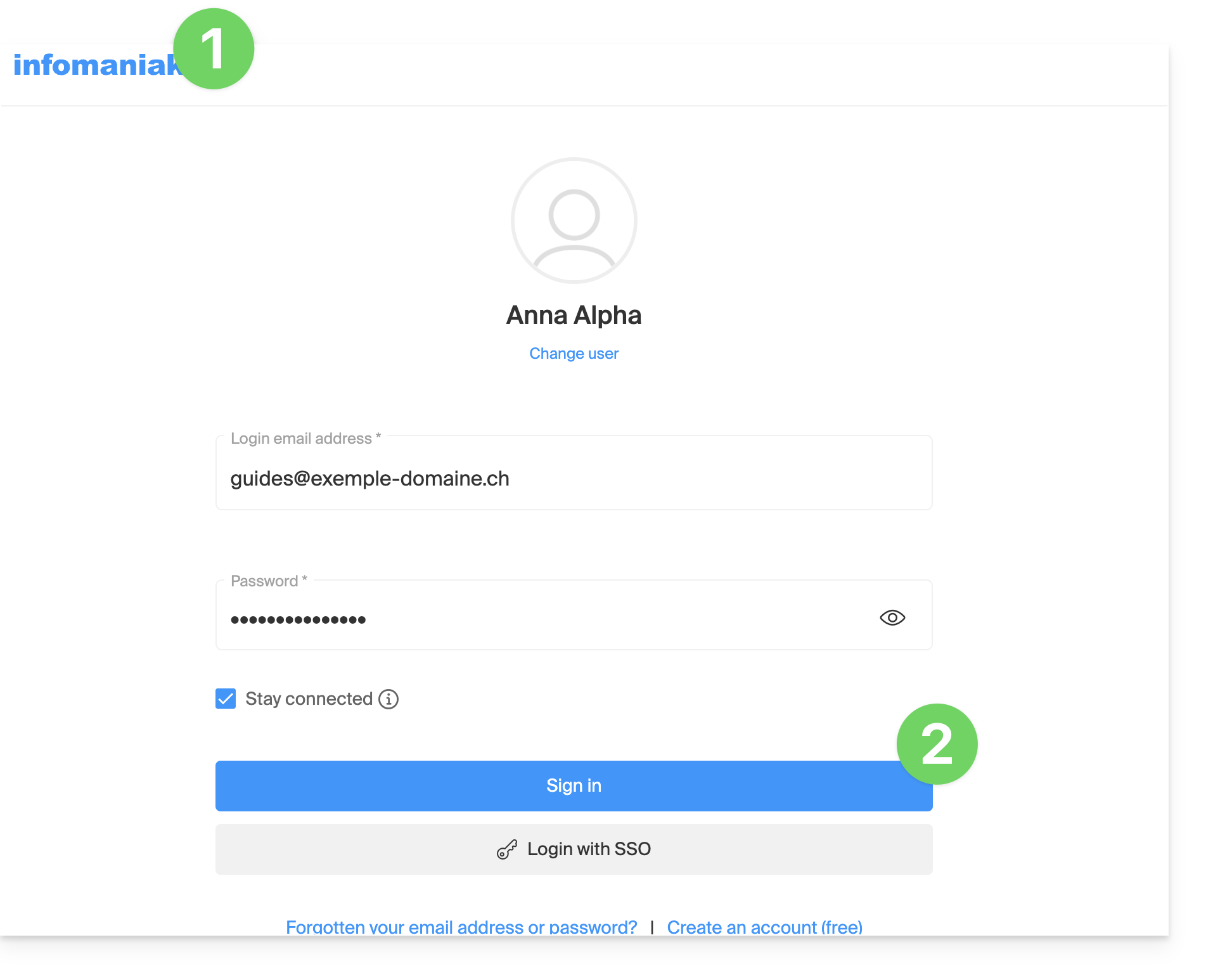
- Click here to access the Infomaniak Manager login page.
- Enter your username and your usual and correct password:
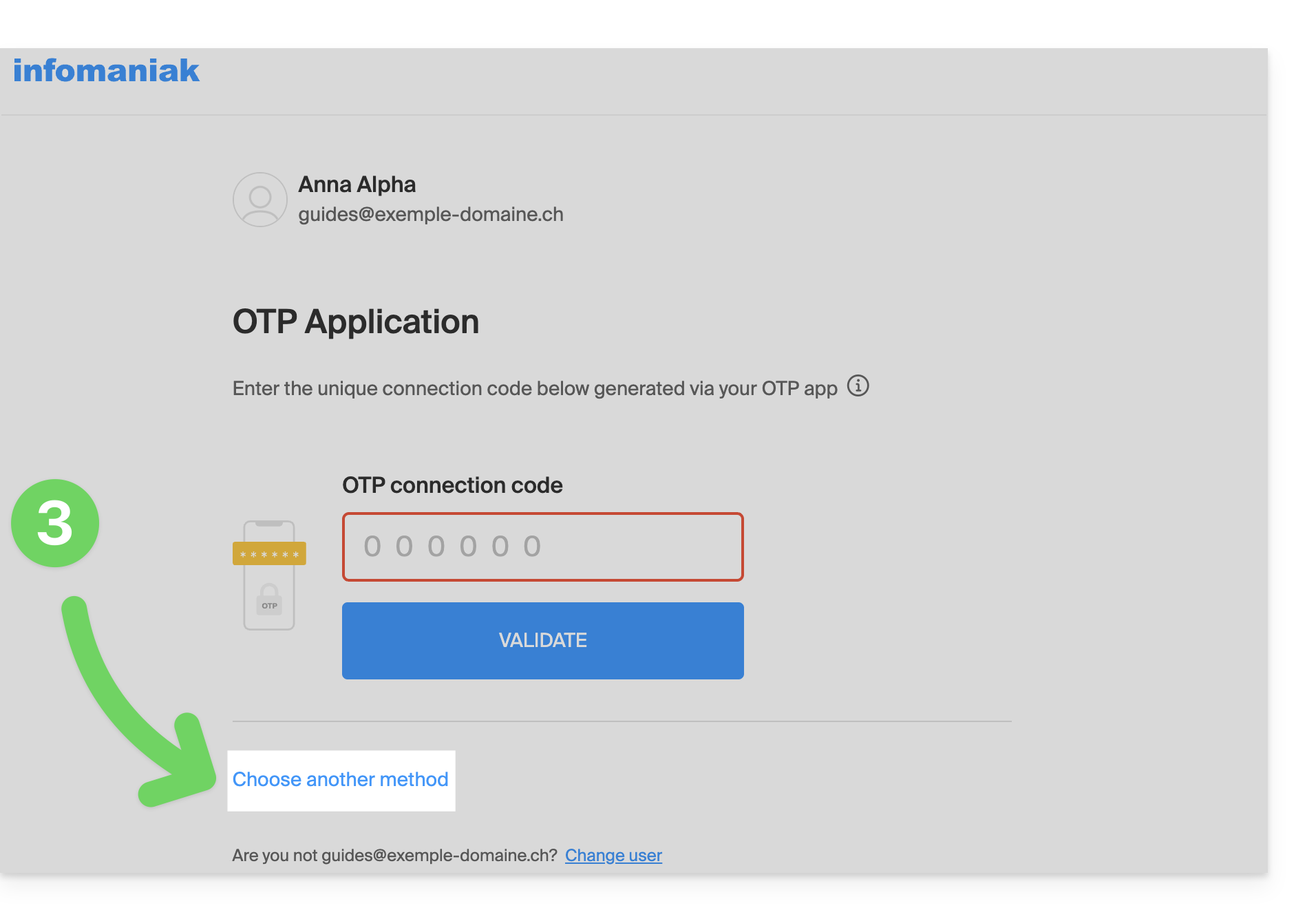
- When prompted for additional authentication, click on alternative methods:
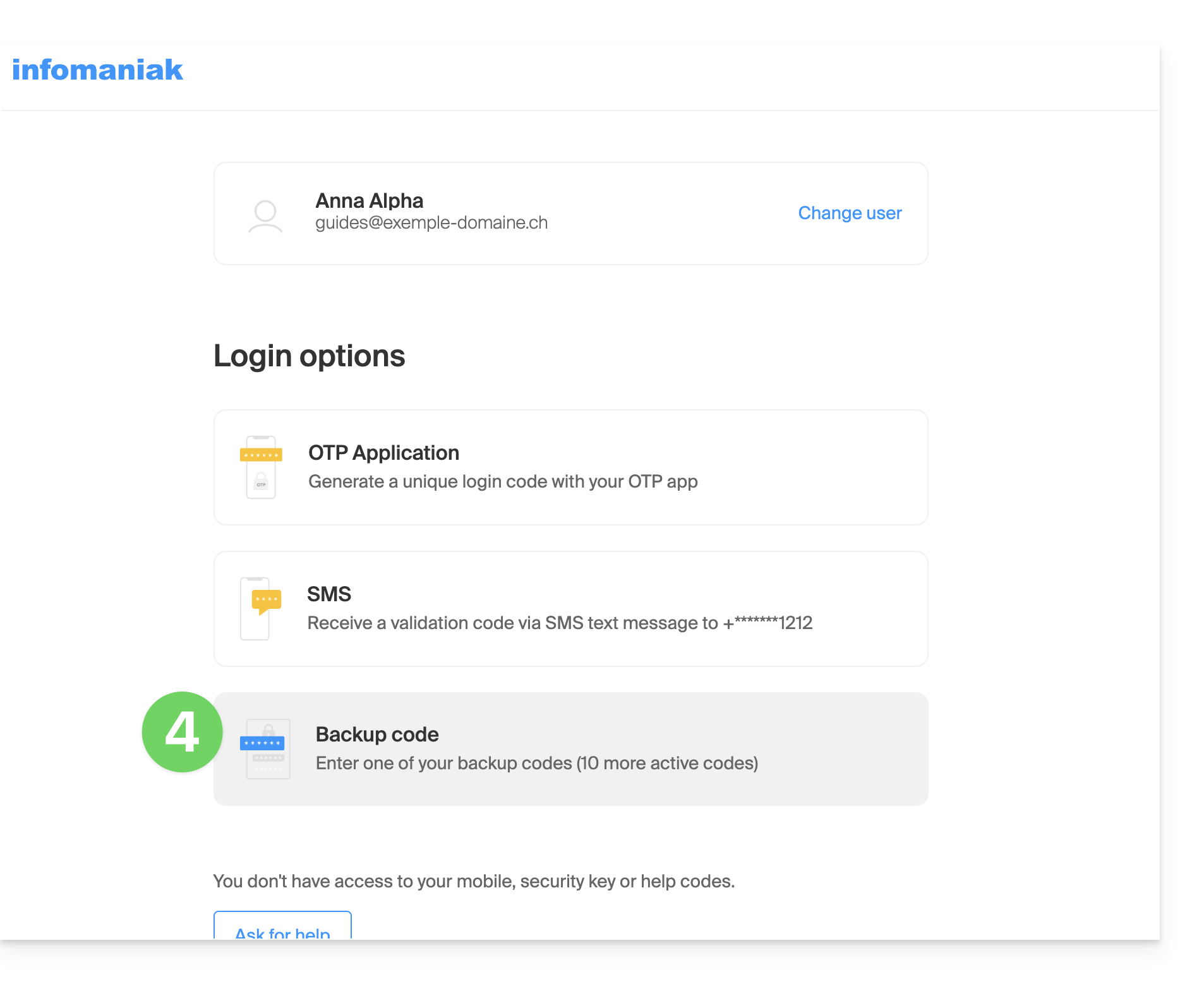
- Choose to enter one of your backup codes if you downloaded the sheet when activating 2FA:
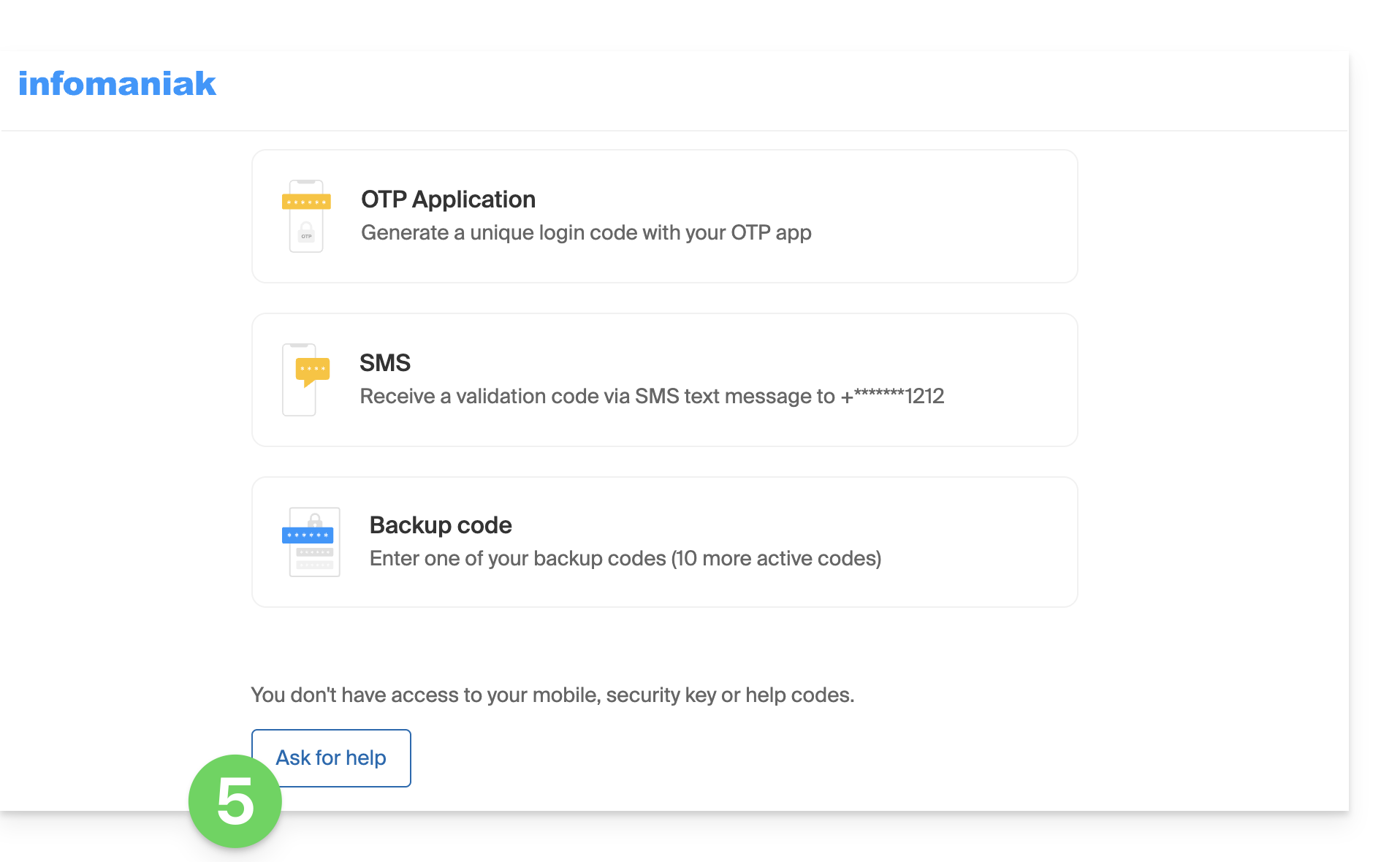
- Otherwise, select the last option to request assistance, which will take you to the form where you can submit your identification documents and a selfie for verification:
- Follow the procedure to the end and wait:
Link to this FAQ: https://faq.infomaniak.com/2021
Has this FAQ been helpful?