Knowledge base
1000 FAQs, 500 tutorials and instructional videos. Here, there are only solutions!
Change the domain name of an Infomaniak WordPress site
This guide explains how to change the URL of your website from the WordPress app installed on your Infomaniak Web Hosting (only if you installed WordPress using the dedicated tools provided by Infomaniak).
This allows you to assign a different domain name to your WordPress site.
Prerequisites
- The domain name you want to use must be added as an alias to the main domain on the relevant website.
Change a WordPress Site Address
To change the address of the site created with WordPress Infomaniak to another domain name that is already in the same Organization:
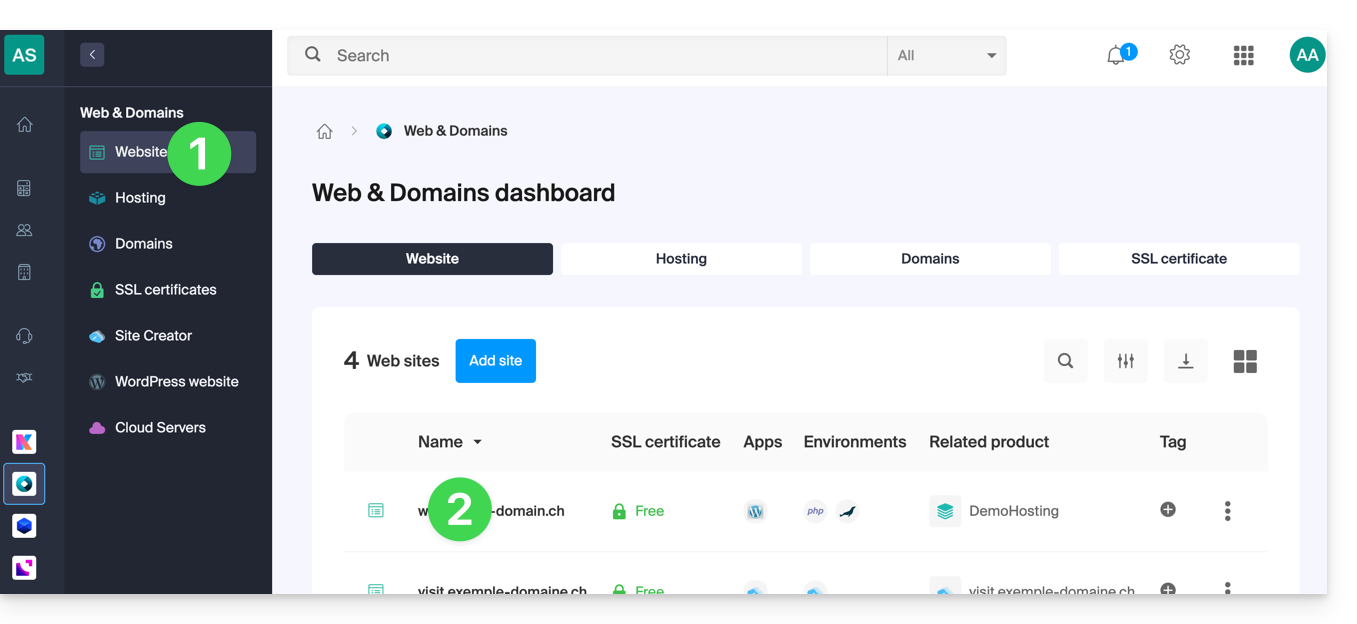
- Click here to access the management of your WordPress site on the Infomaniak Manager (need help?).
- If your site does not appear here, it means it was not installed using Infomaniak tools... refer to the official documentation.
- Click directly on the name assigned to the site in question:
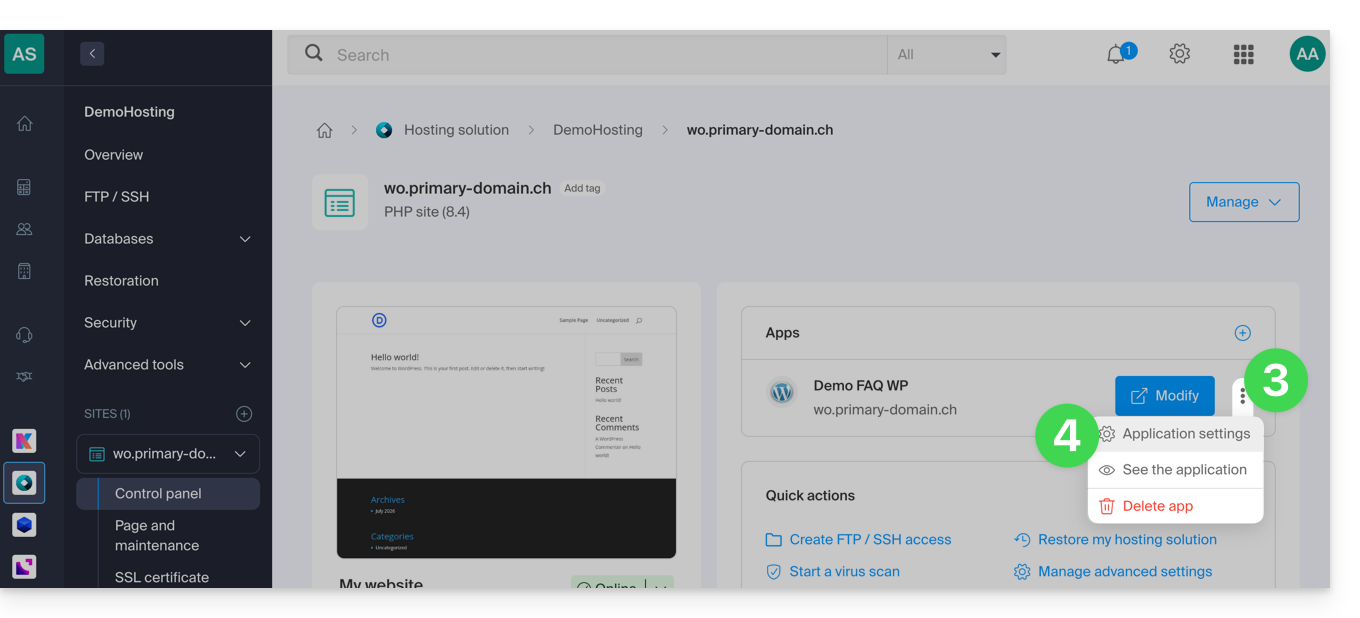
- Click on the action menu ⋮ located to the right of the relevant Web Application.
- Click on Settings for the application:
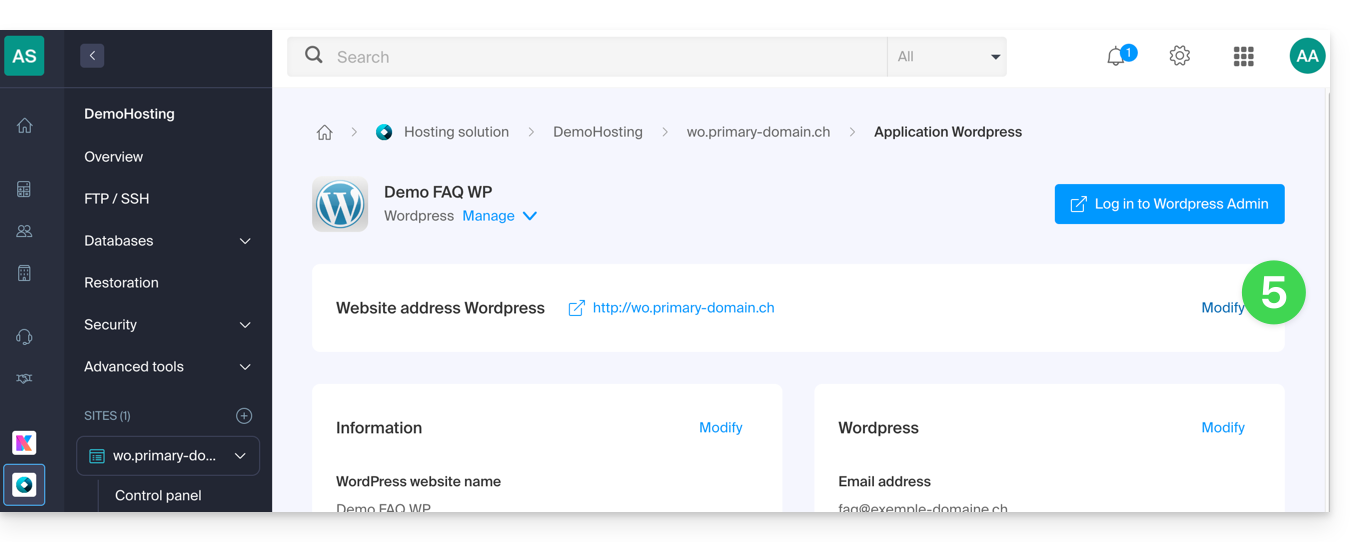
- Click on Edit to the right of WordPress:
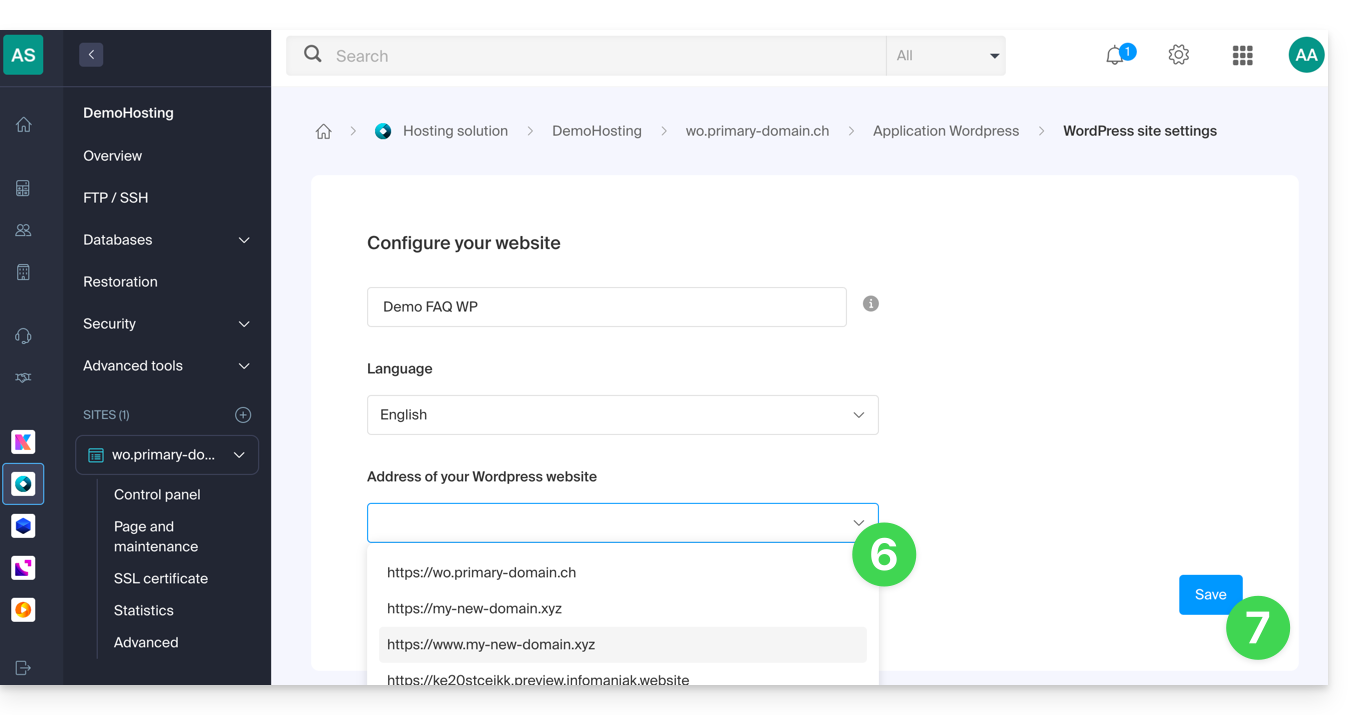
- Under Site URL, select the desired address from the drop-down menu:
- If you have not followed the prerequisites above, the desired domain will not appear even if it is registered in the same Organization.
- If you have added the domain as an alias for the site, the desired domain will appear and you can select it to replace the previous domain.
- Click the Save button:
Domain… .preview.infomaniak.website?
Among the URLs present in the drop-down menu, the preview URL allows you to access your WordPress site in the event that the site's domain name is not yet correctly configured to point to your WordPress app.
Link to this FAQ: https://faq.infomaniak.com/2016
Has this FAQ been helpful?