Knowledge base
1000 FAQs, 500 tutorials and instructional videos. Here, there are only solutions!
Unlink a domain name linked to the Mail service
Update 10/12/2026
This guide explains how to remove additional designations from an existing Mail Service (everything that comes after the @ symbol in your email address), by detaching its associated domain names.
Introduction
- Once removed, the domain name is again available to order a new Mail Service or to be linked to another existing Mail Service.
- It should also be noted that you can rename your product in the Infomaniak Manager, but changing the name of a Mail Service has absolutely no effect on its addresses; you must act on the domain name.
Remove the associated domain
Prerequisites
- Make sure the synonymous domain name is no longer associated with the main domain name if it was previously associated.
- Define the domain name to be disassociated as a secondary domain (instead of a primary domain) – this change can be made by following this other guide in the section called "a" starting from point 3.
To unlink a domain name from your Mail Service:
- Click here to access the Mail Service management in your Infomaniak Manager (❓: help).
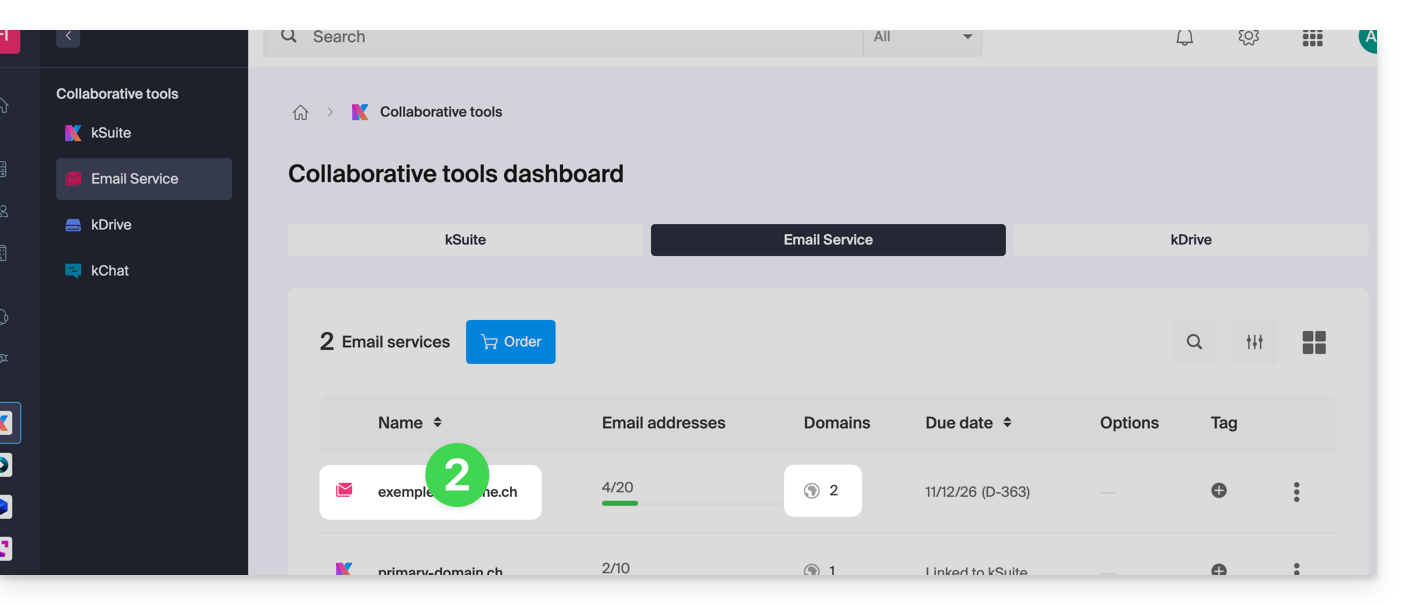
- Click on the name of the Mail Service in question:
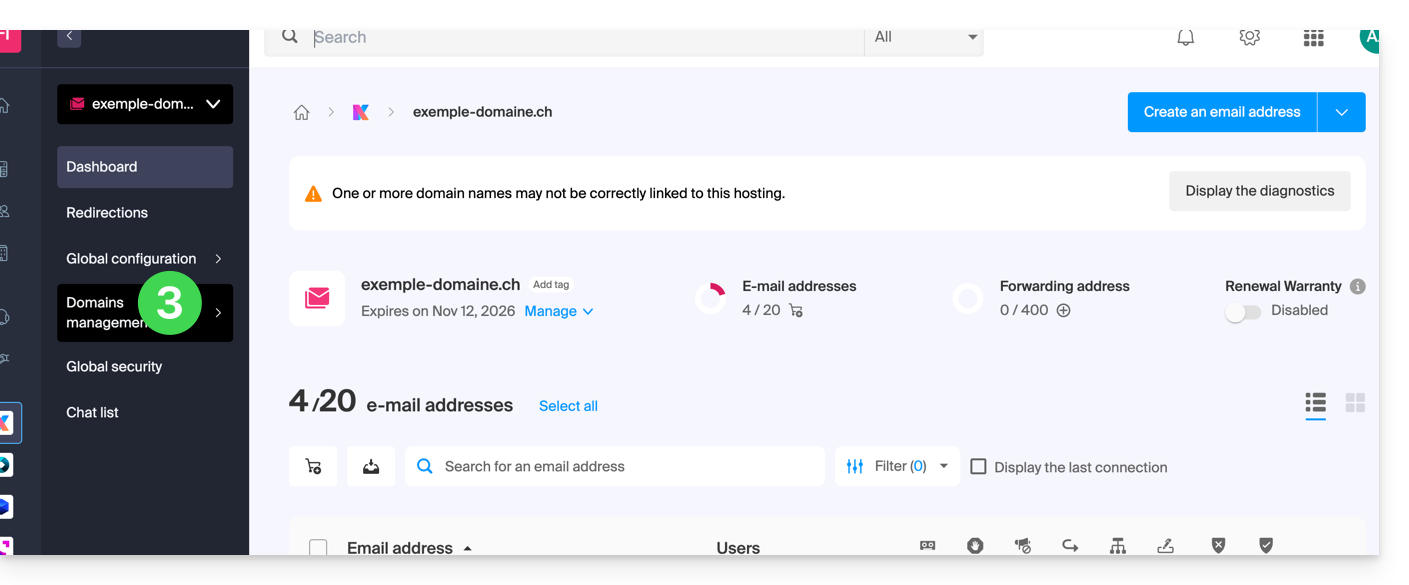
- Click on Domain Management in the left-hand menu:
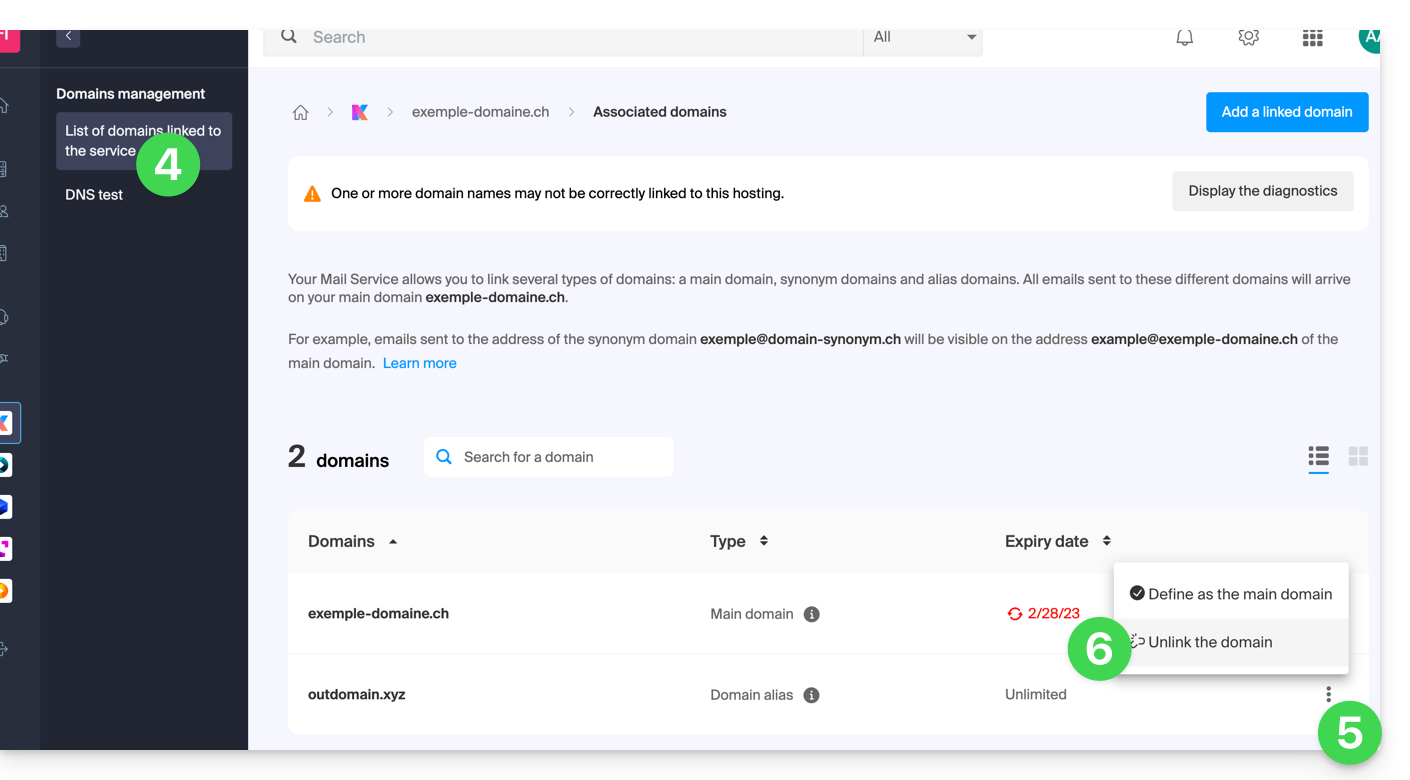
- Click on List of Domains linked to the service in the left-hand menu.
- Click on the ⋮ icon to the right of the domain name you want to unlink.
- Click on Unlink domain (see prerequisites if this option is not available):
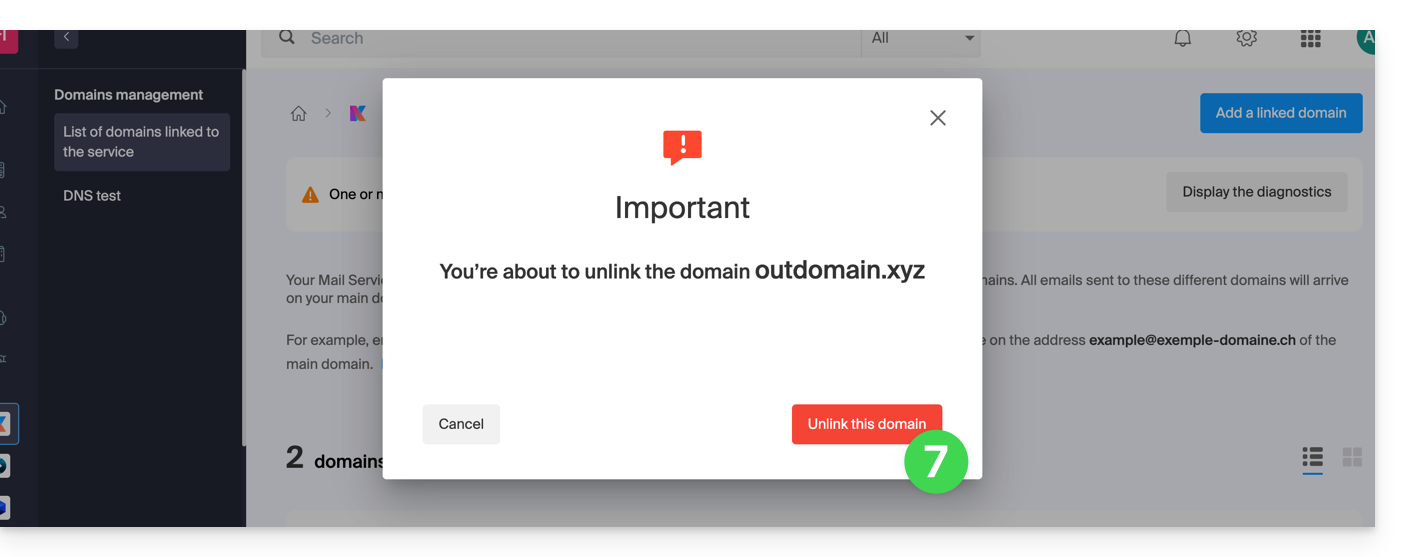
- Confirm the unlinking:
Link to this FAQ: https://faq.infomaniak.com/1996
Has this FAQ been helpful?