Knowledge base
1000 FAQs, 500 tutorials and instructional videos. Here, there are only solutions!
Create a new email address within a Mail service
Update 10/12/2026
This guide explains how to create an email address from the Infomaniak Mail Service, the powerful and secure solution for hosting your email addresses.
Introduction
- To create multiple email addresses in bulk, please refer to this other guide.
- To delete one or more email addresses, please refer to this other guide.
Create an address on a Mail Service
Prerequisites
- Have a Mail service on your Infomaniak Manager (❓: help).
- Be at least an Administrator of the Organization (❓: help).
- Have a quota of available addresses or adjust it beforehand if necessary (❓: help).
Then, to create a new email address:
- Click here to access the Mail Service management in your Infomaniak Manager (❓: help).
- Click on the name of the Mail Service in question:
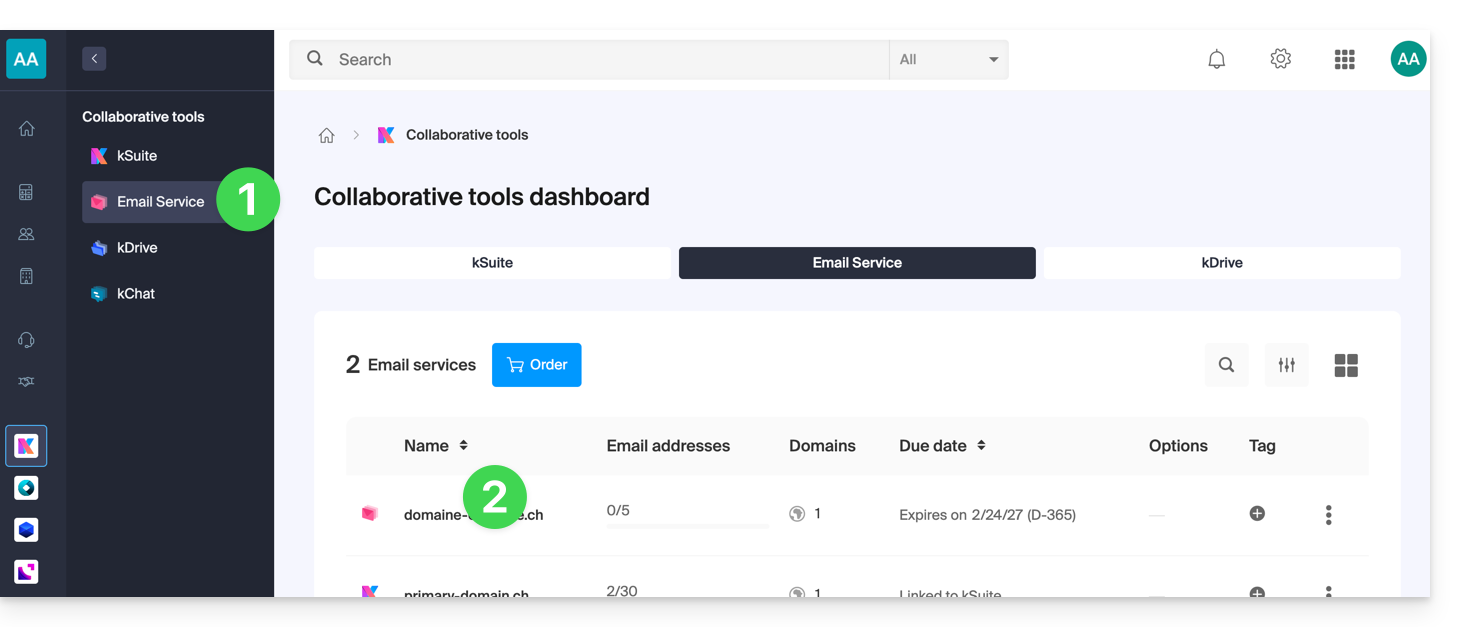
- Click on the blue Create a mail address button in the top right corner:
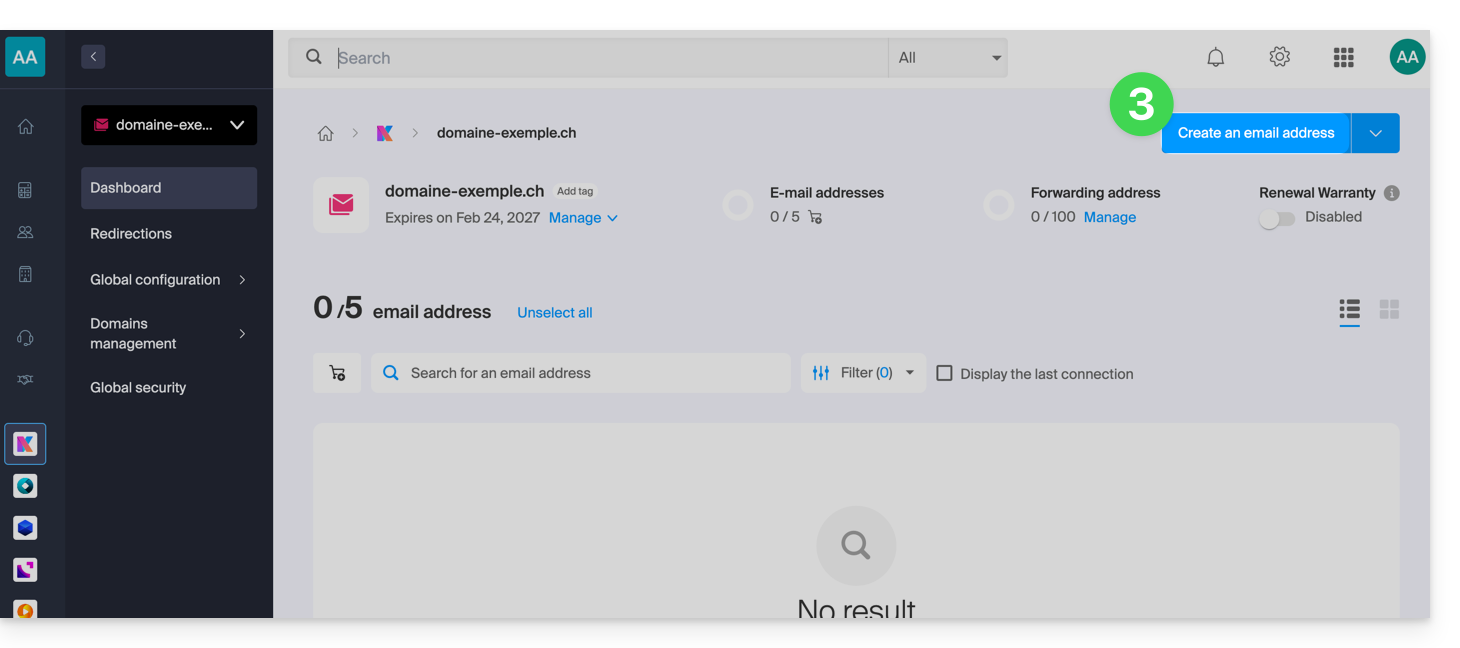
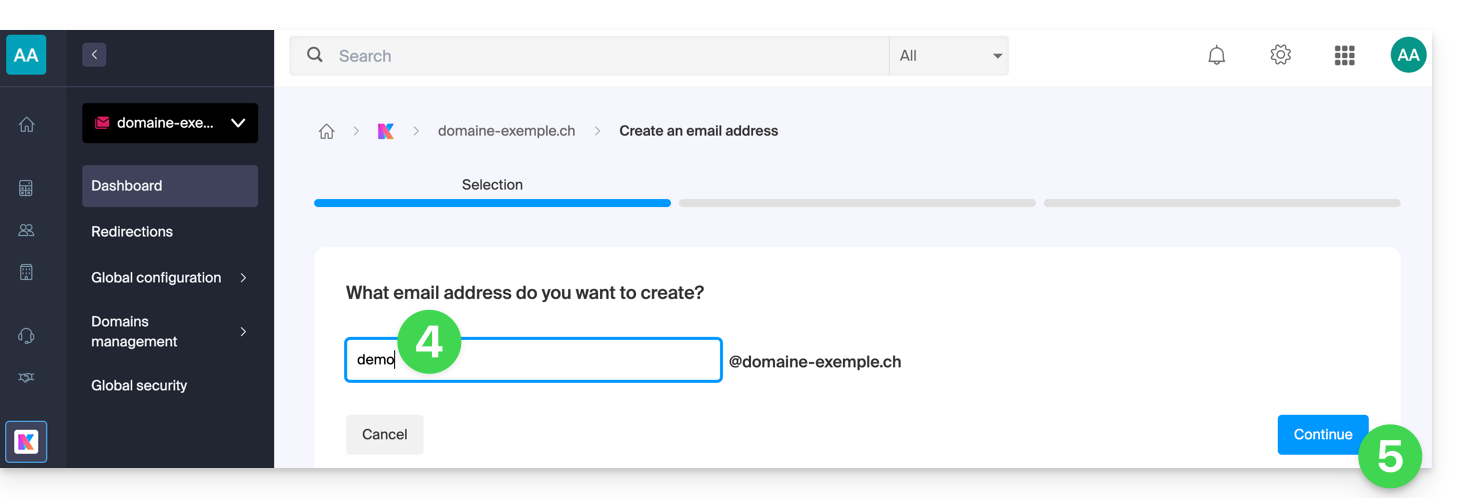
- Enter the name that will make up the mail address.
- Click the button to continue:
- Select the creation mode that suits your needs:
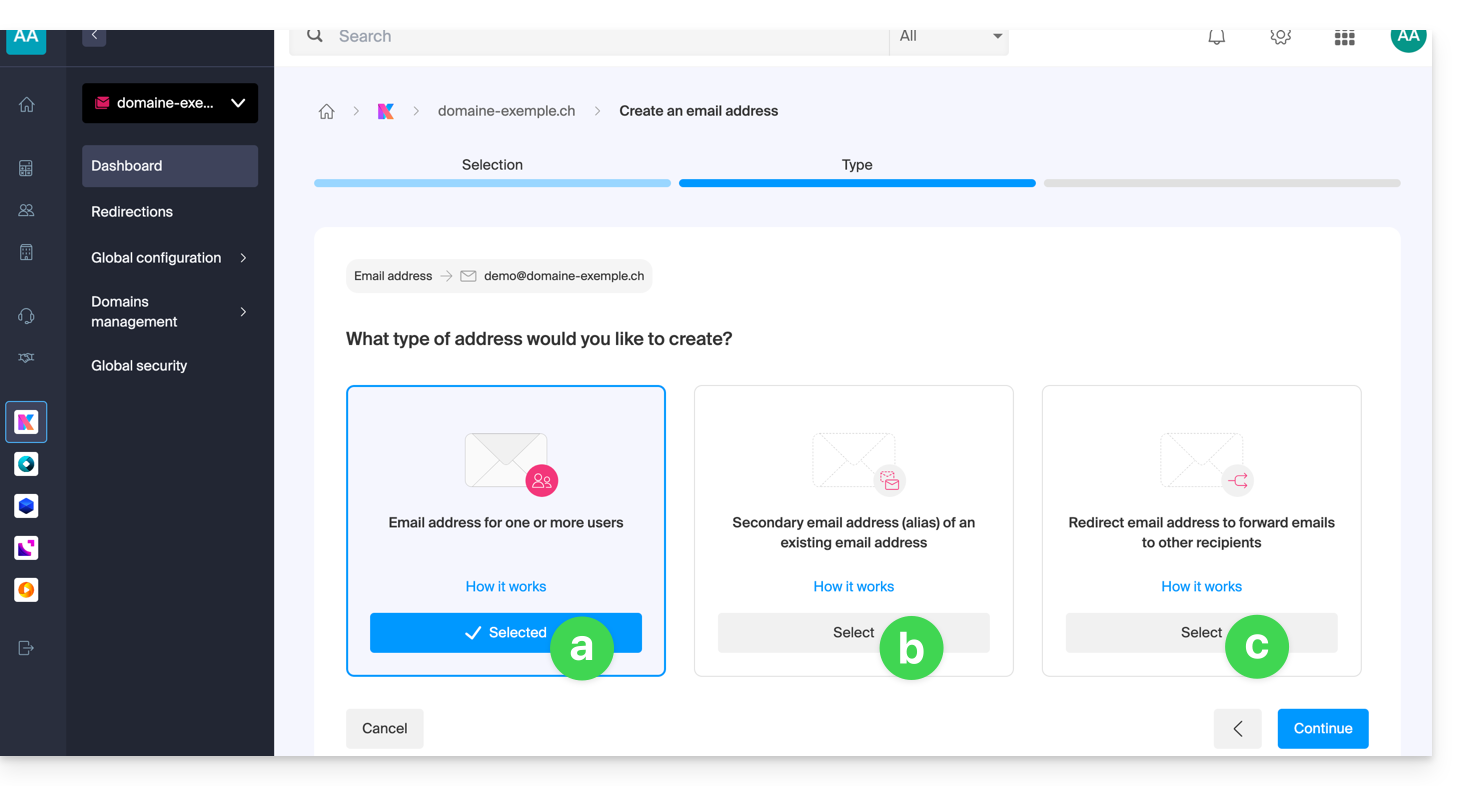
An address for you or other users (❓: help)
- Example: make the address directly visible in your Mail interface, or send invitations so that others can use it.
A secondary or alias address (❓: help) that will not be counted against your main quota
- Requires you to have a primary email address, to which the new name will be linked.
An address that is only used to forward emails (❓: help) and will not be counted against your main quota
- You will not be able to send messages from this address, but only forward incoming emails to the existing address of your choice.
- Click the button to continue after making your selection.
Additional actions (button )
Click on the chevron to the right of the Create a mail address button to access additional actions: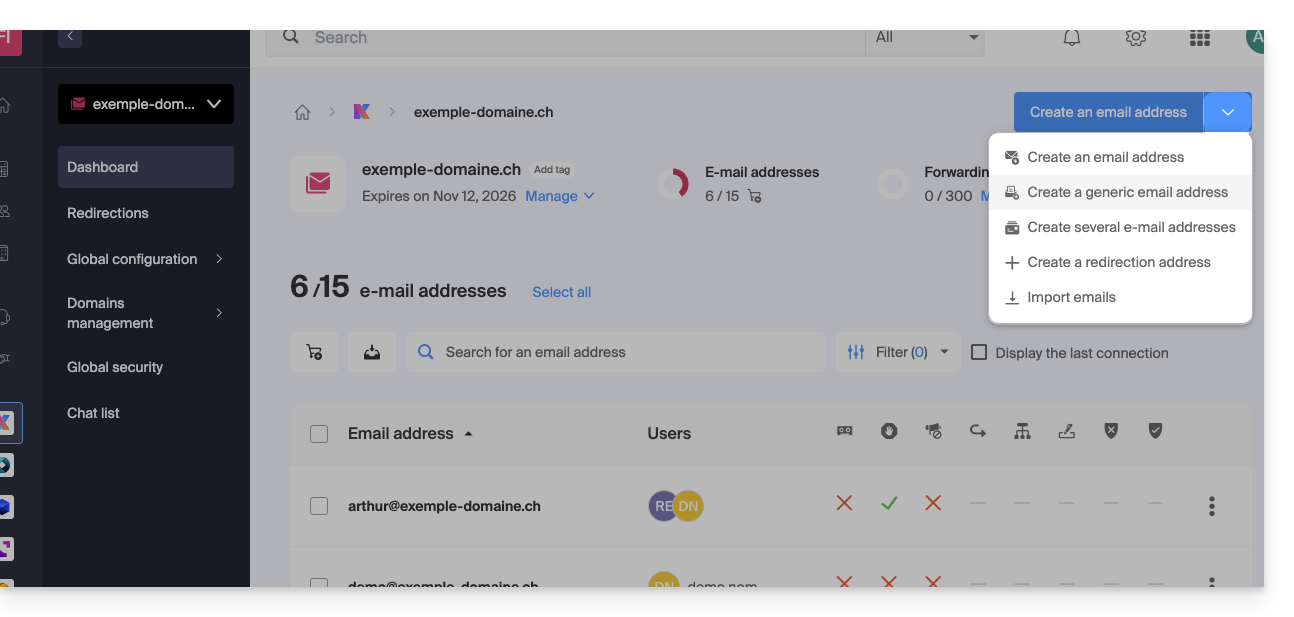
- Create a generic mail address of the following type:
- no-reply (for sending confirmations, validations, invoices, etc.)
- catchall (❓: help) to receive all messages for which there is no specific mail address on your domain
- Create multiple email addresses at once (❓: help) using a
CSVfile - Create “virtual” addresses that serve as redirects(❓: help)
- Import content from other email addresses (❓: help)
Link to this FAQ: https://faq.infomaniak.com/1993
Has this FAQ been helpful?