Knowledge base
1000 FAQs, 500 tutorials and instructional videos. Here, there are only solutions!
Install a Web Application (+ uninstall)
Update 10/05/2026
This guide explains how to install a new Web Application (Joomla, Drupal, Typo3, PrestaShop, etc.) in just a few clicks on the paid Web Hosting plans.
Prerequisites
- Have an Infomaniak web hosting plan (order if needed).
Specific guides
Refer to these guides if you need specific installation instructions for:
Refer to this other guide about additional technologies that can be installed with just a few clicks, but only on Cloud Server.
Guides for any other Web Application
To access the Hosting and install a new website and a Web Application on it:
- Click here to access the hosting & website management section in your Infomaniak Manager (❓: help).
- Click on the name of the relevant hosting.
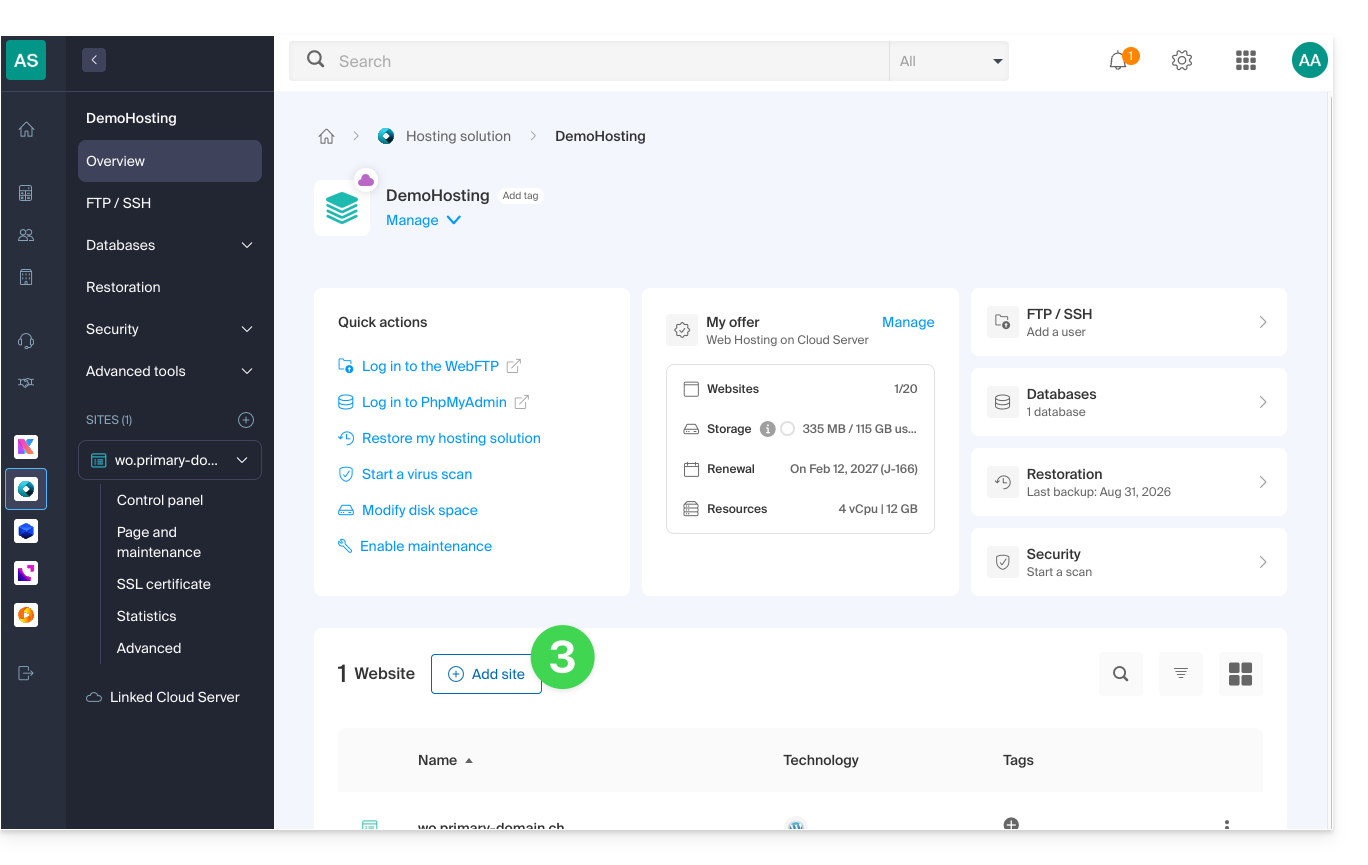
- Click on the Add a website button:
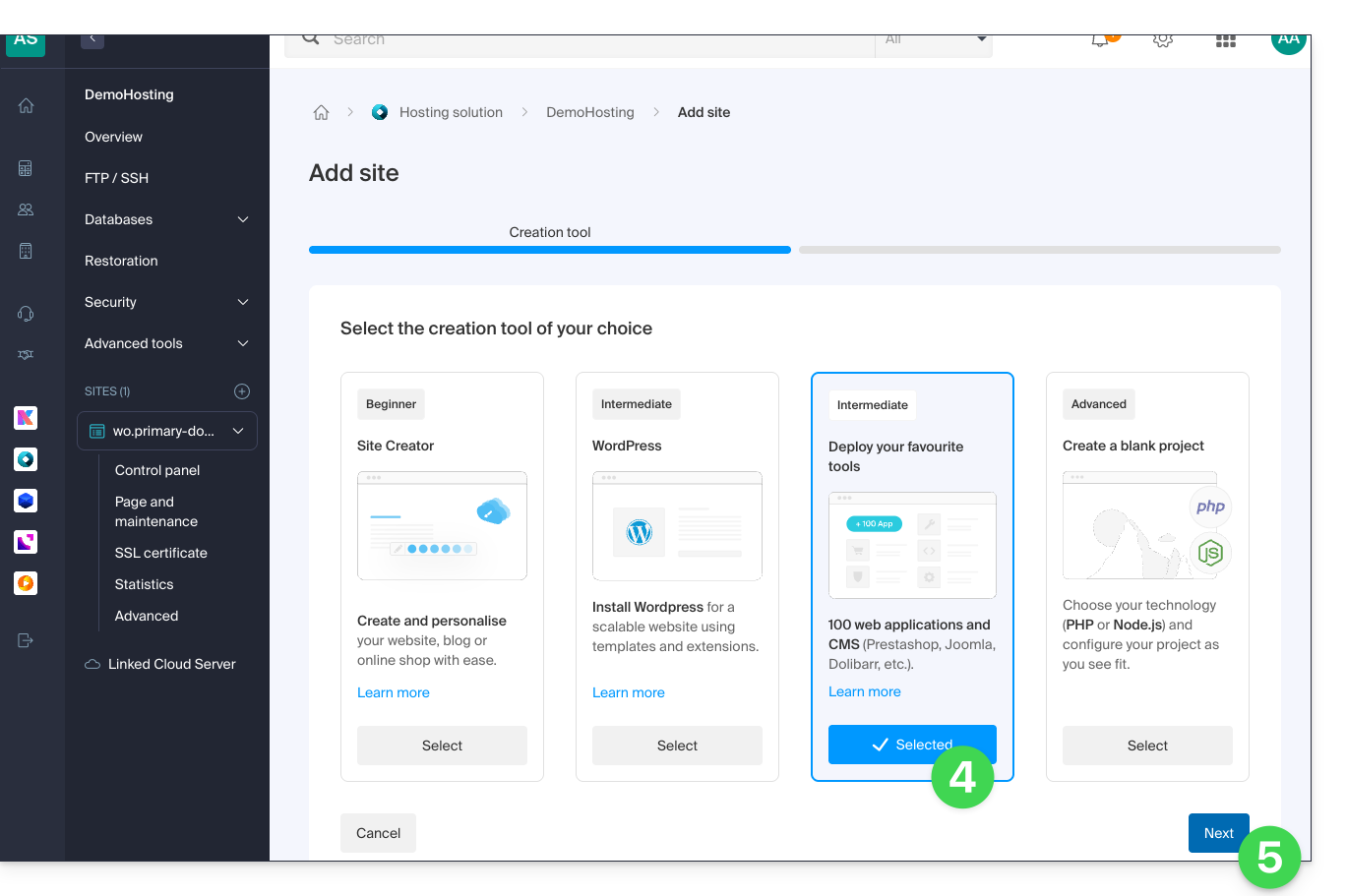
- Choose to install a website with a selected application.
- Click on Next at the bottom of the page:
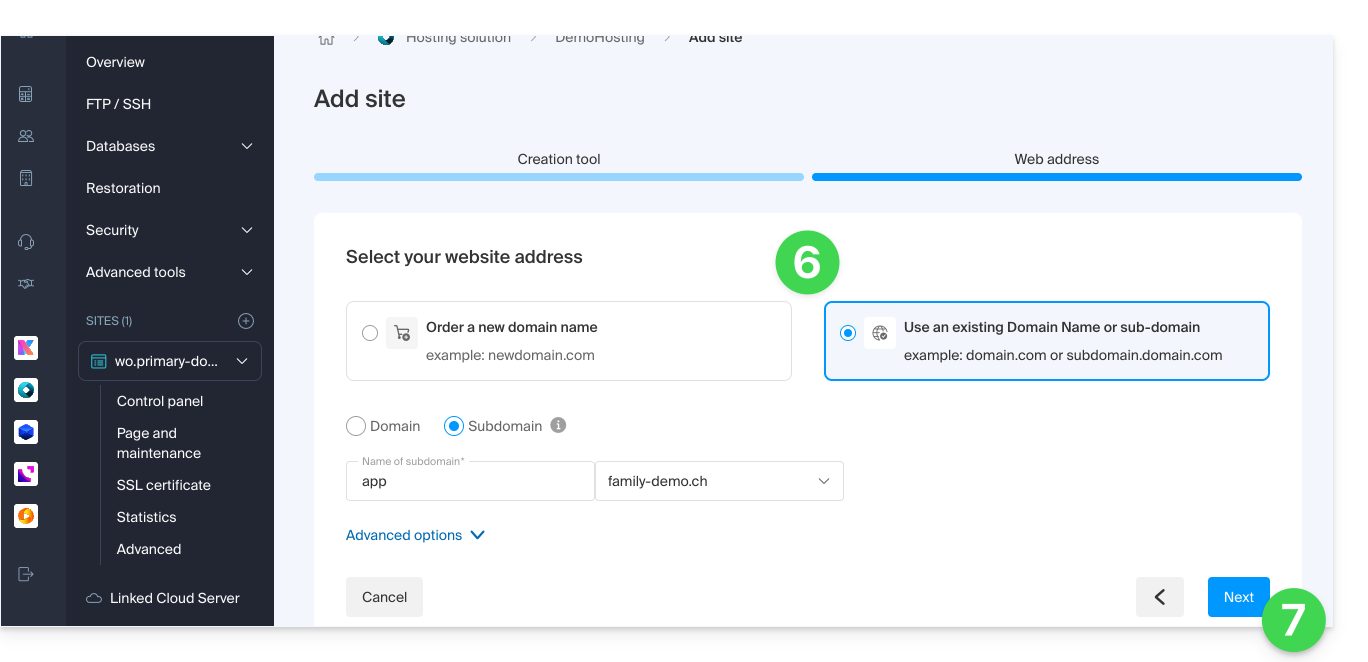
- Choose the domain name that should match the website and the application.
- Click on Next:
- Wait while the website is created on the hosting.
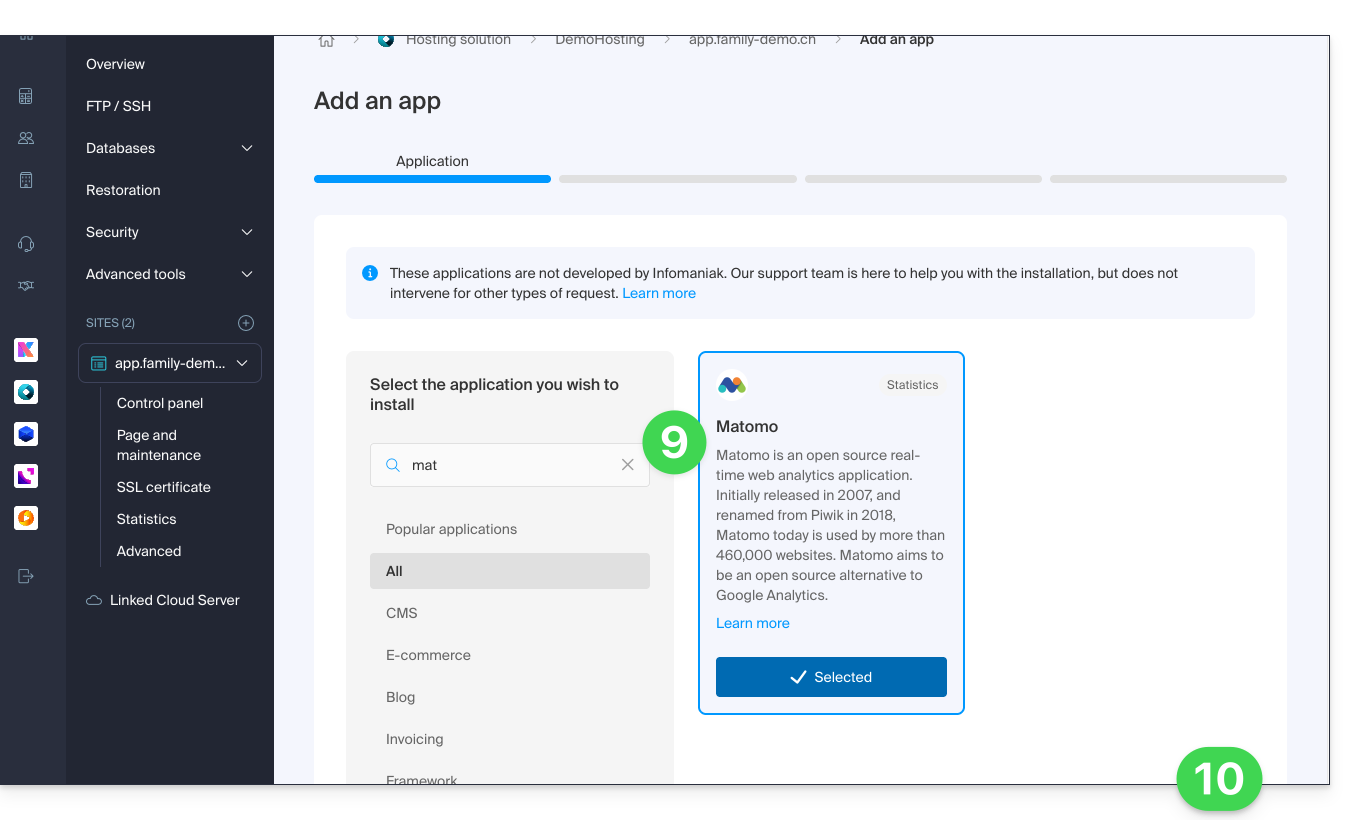
- Select the application to install (if necessary, filter and search).
- Click on Next at the bottom of the page:
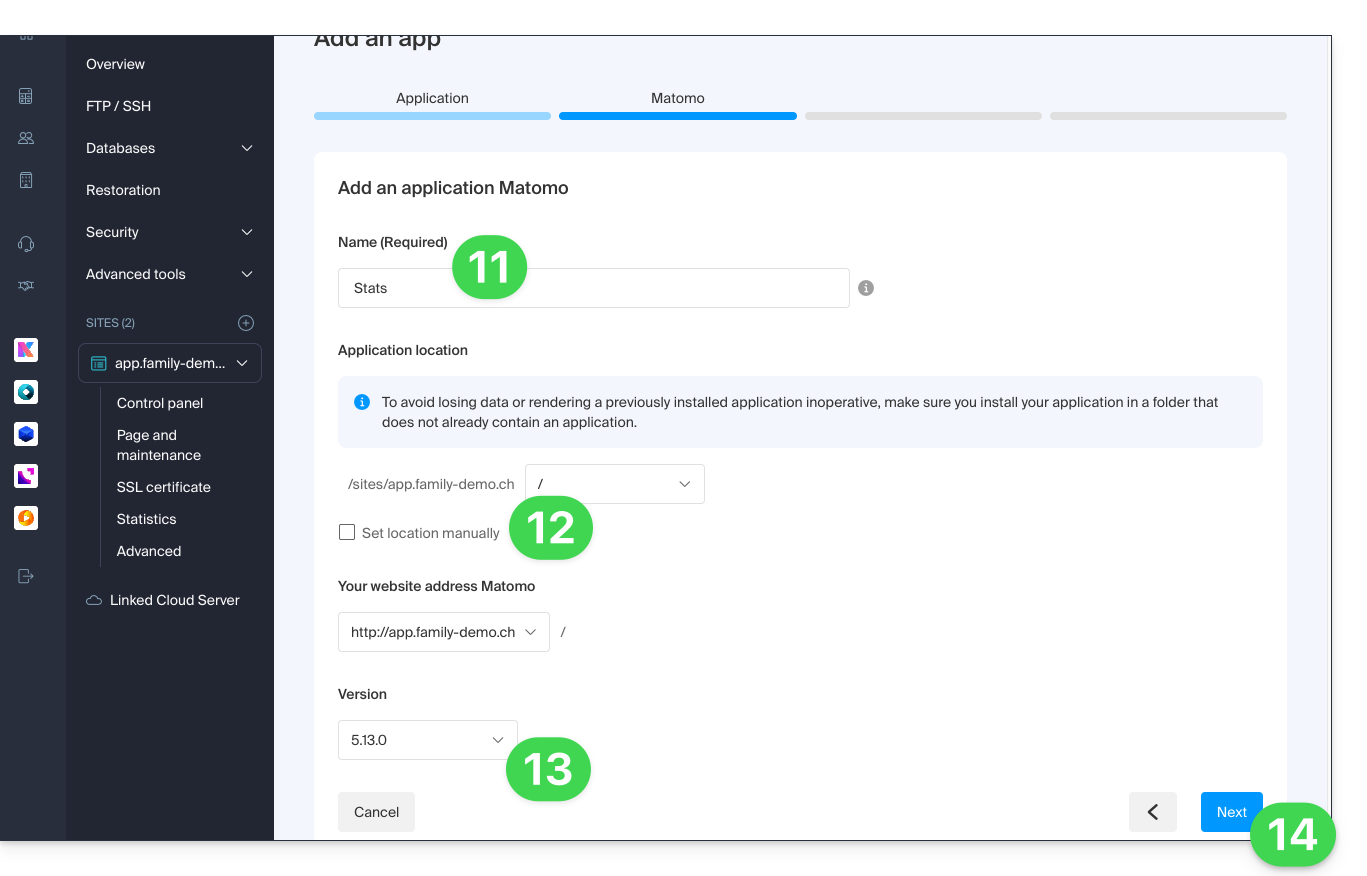
- Enter a name.
- Leave the default location or choose to install the app in a new folder, which you can create using the icon visible to the right of point 8 in the image.
- If necessary, select the option to install an older version.
- Click on Next:
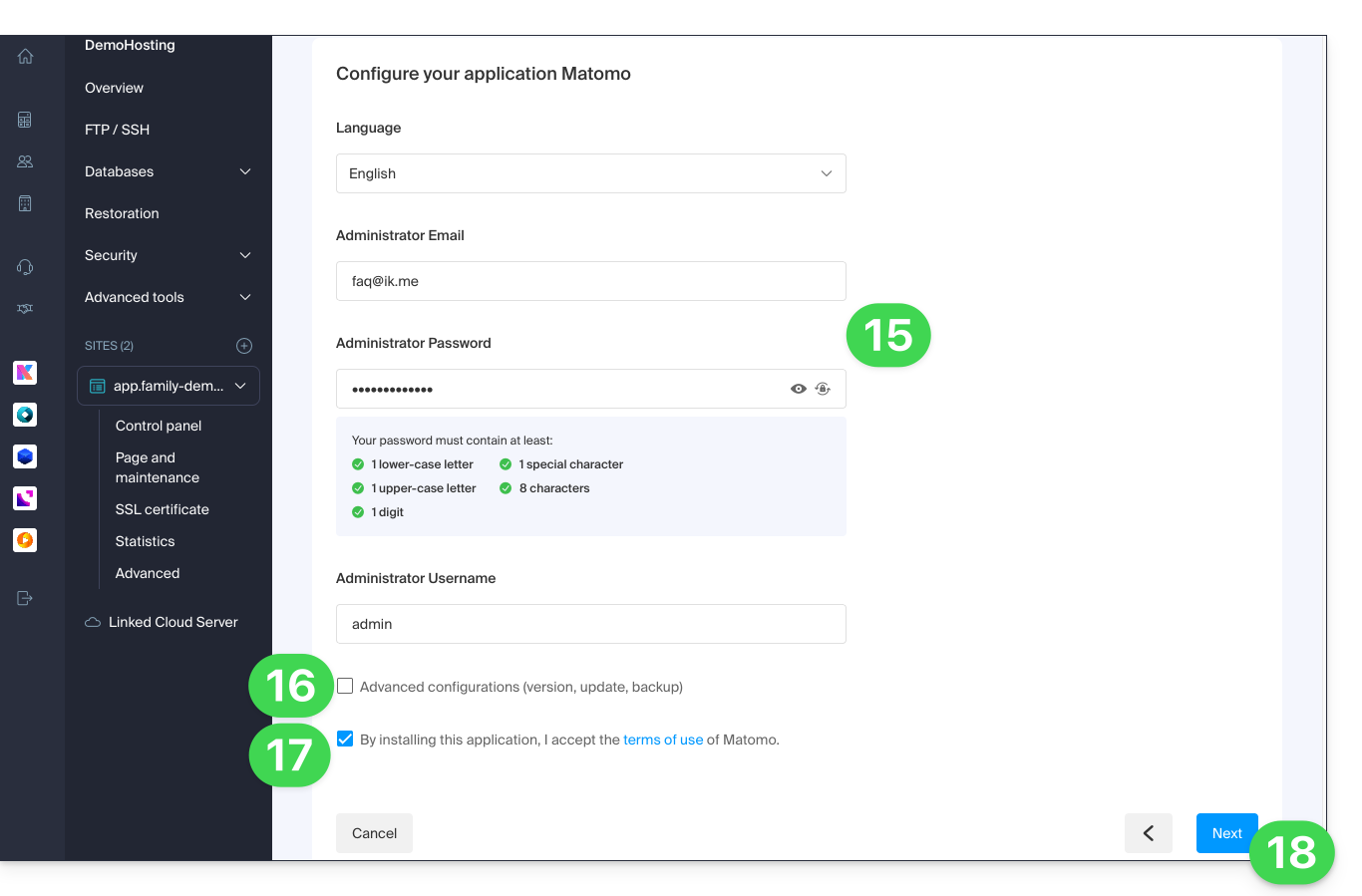
- Configure the username and password.
- Specify certain advanced settings if necessary (e.g., backup type).
- Read and accept the terms of use for the selected app.
- Click on Next:
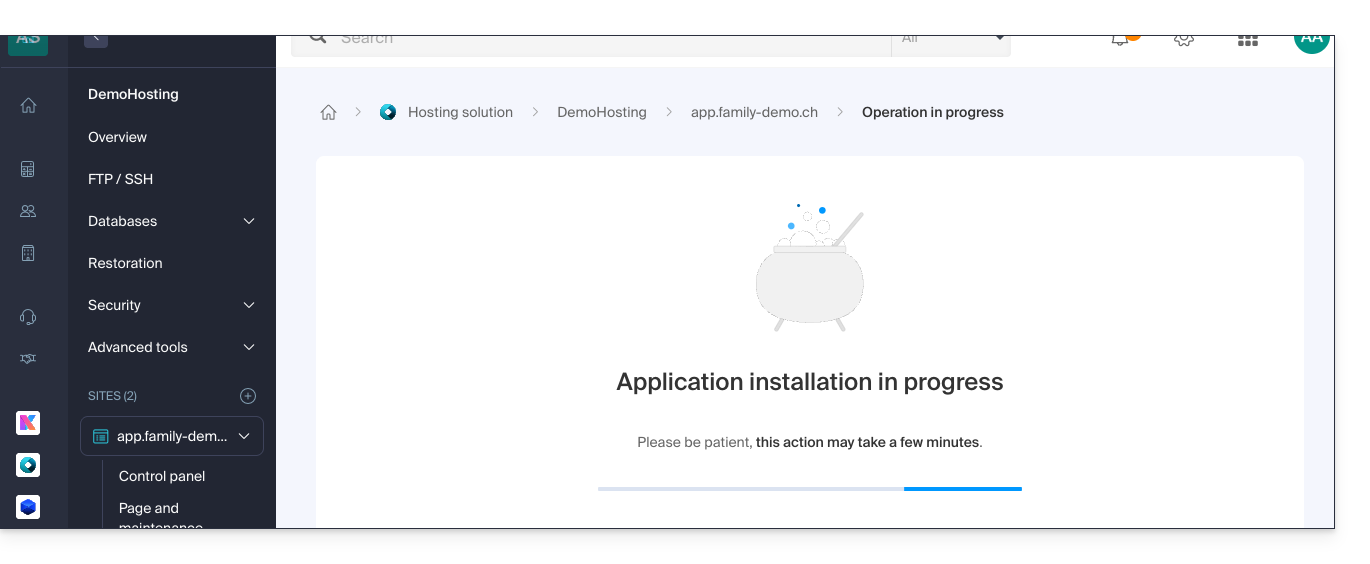
- Confirm the application installation in the next step and wait:
- Check for any error messages on the screen, for example, if the selected installation folder is not empty or if the PHP version of the website on which you are attempting the installation is not compatible.
Uninstall a Web Application
To access Web Hosting and uninstall the previously installed application:
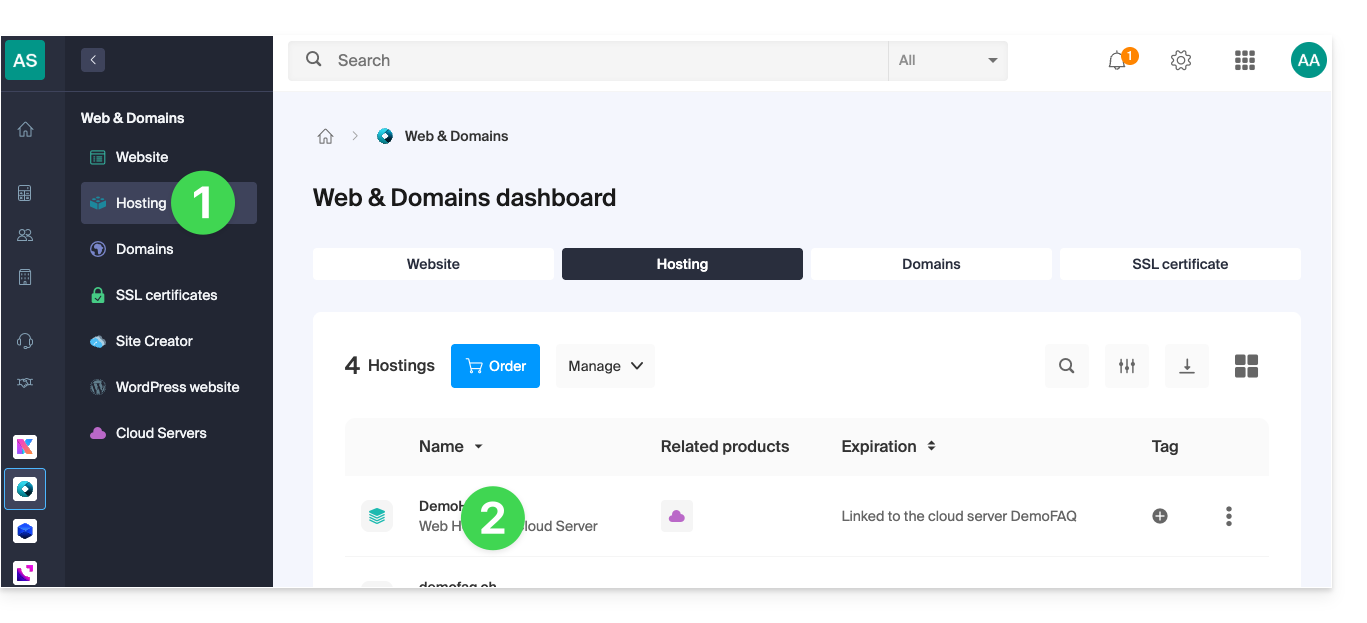
- Click here to access the management of your hosting on the Infomaniak Manager (need help?).
- Click directly on the name assigned to the hosting in question:
- If you remove the site from the hosting:
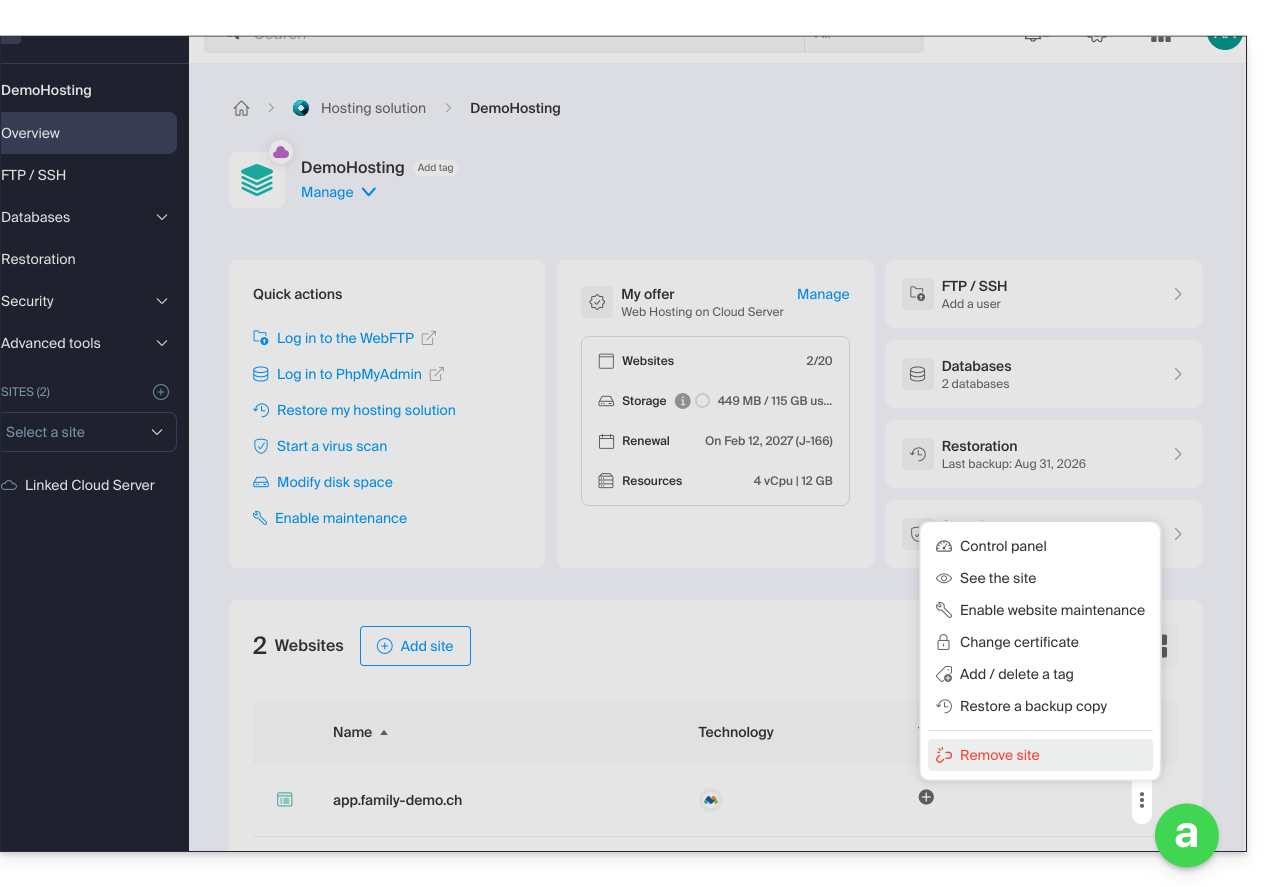
- The application files can be deleted or kept on the server, but in all cases the site is deleted and disappears (the URL assigned to the site will no longer correspond to anything).
- If you click on the site name first:
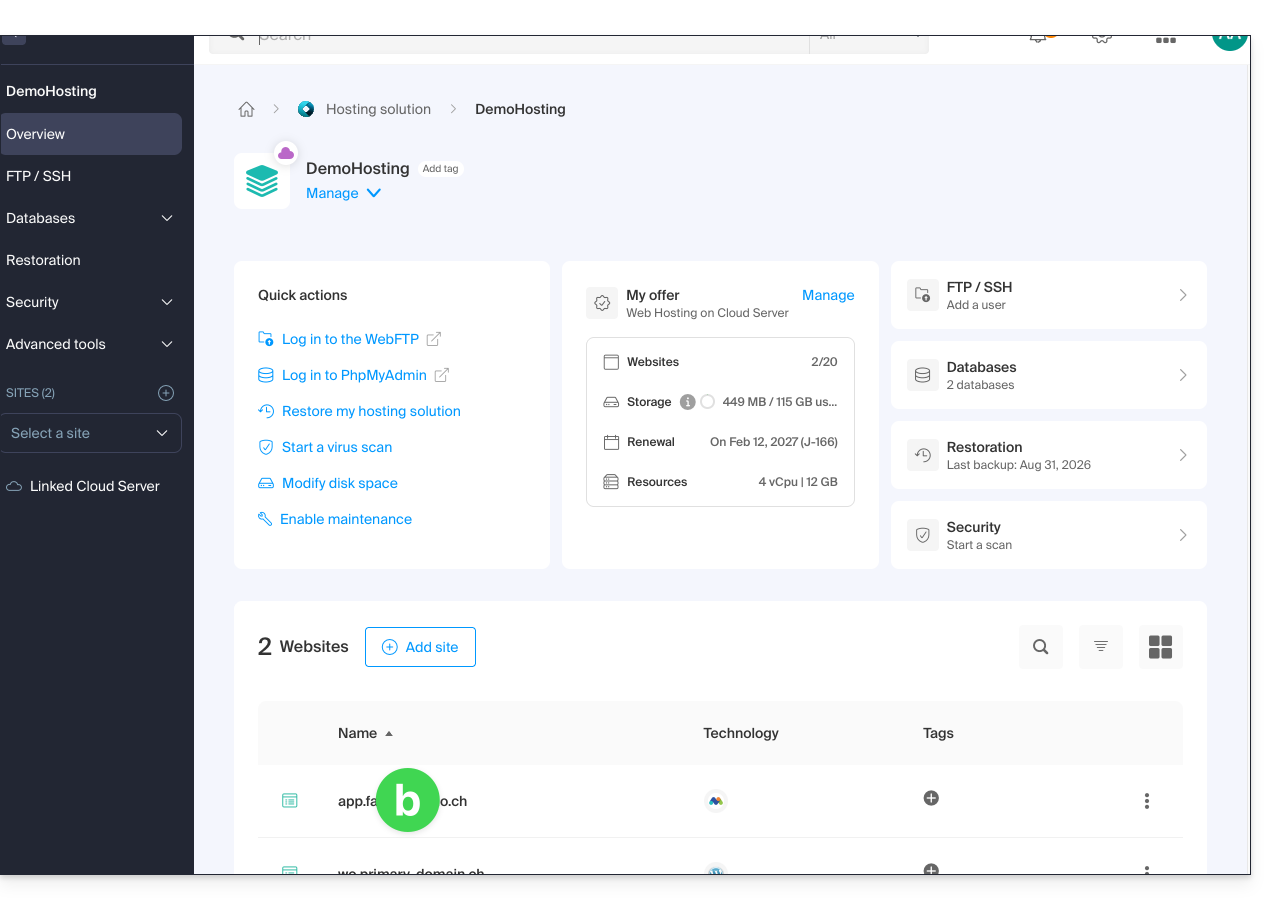
- You can choose to uninstall the previously installed application:
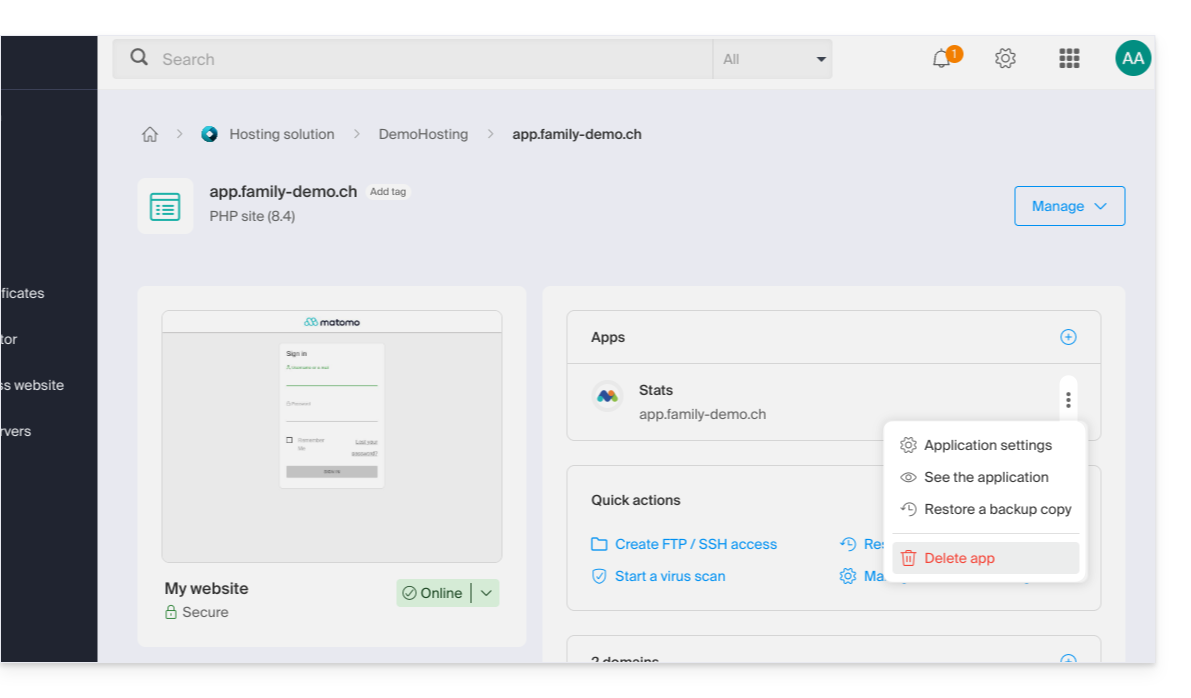
- You can choose to uninstall the previously installed application:
- If you remove the site from the hosting:
Learn more
Link to this FAQ: https://faq.infomaniak.com/1977
Has this FAQ been helpful?