Knowledge base
1000 FAQs, 500 tutorials and instructional videos. Here, there are only solutions!
Link an additional domain name to a website
This guide explains how to add a new domain name to a website on Infomaniak.
Introduction
- When you add a new domain name to a website, it is referred to as a linked domain, but also as an alias.
- In this case, a domain alias is an additional domain name that is also linked to an existing website.
- For example, to make the website
domain.xyzaccessible with a completely different domain name likeprivate.abc, you need to addprivate.abcas an alias to the website. - Second example, to make the website
domain.xyzalso accessible withwww.domain.xyz, you need to add it as an alias to the domaindomain.xyz. In this example,domain.xyzis the parent site of the aliaswww.domain.xyz. In general, thewwwalias is already added automatically and is present…
- For example, to make the website
Add an alias to an existing website
Prerequisites
- If the domain name (intended to become an alias) or its DNS zone is managed by Infomaniak, everything is fine. If not:
- The A record of the domain name must point to Infomaniak.
- To simplify, you can entrust the domain management to Infomaniak.
- It is also necessary that the future alias is not already linked to another website; if it is, you will need to unlink it from the current website beforehand (the same applies if it is a synonym).
To add an additional domain that will be linked to your website:
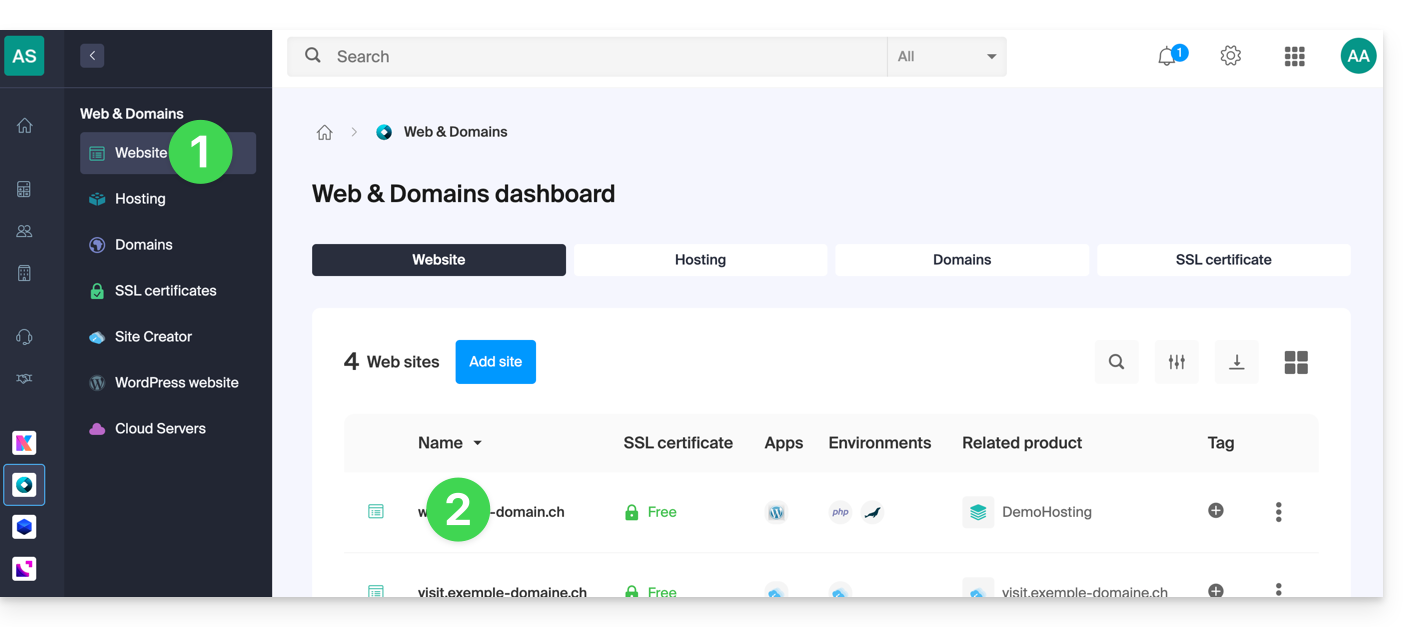
- Click here to access the management of your website in the Infomaniak Manager (need help?).
- Click directly on the name assigned to the website in question:
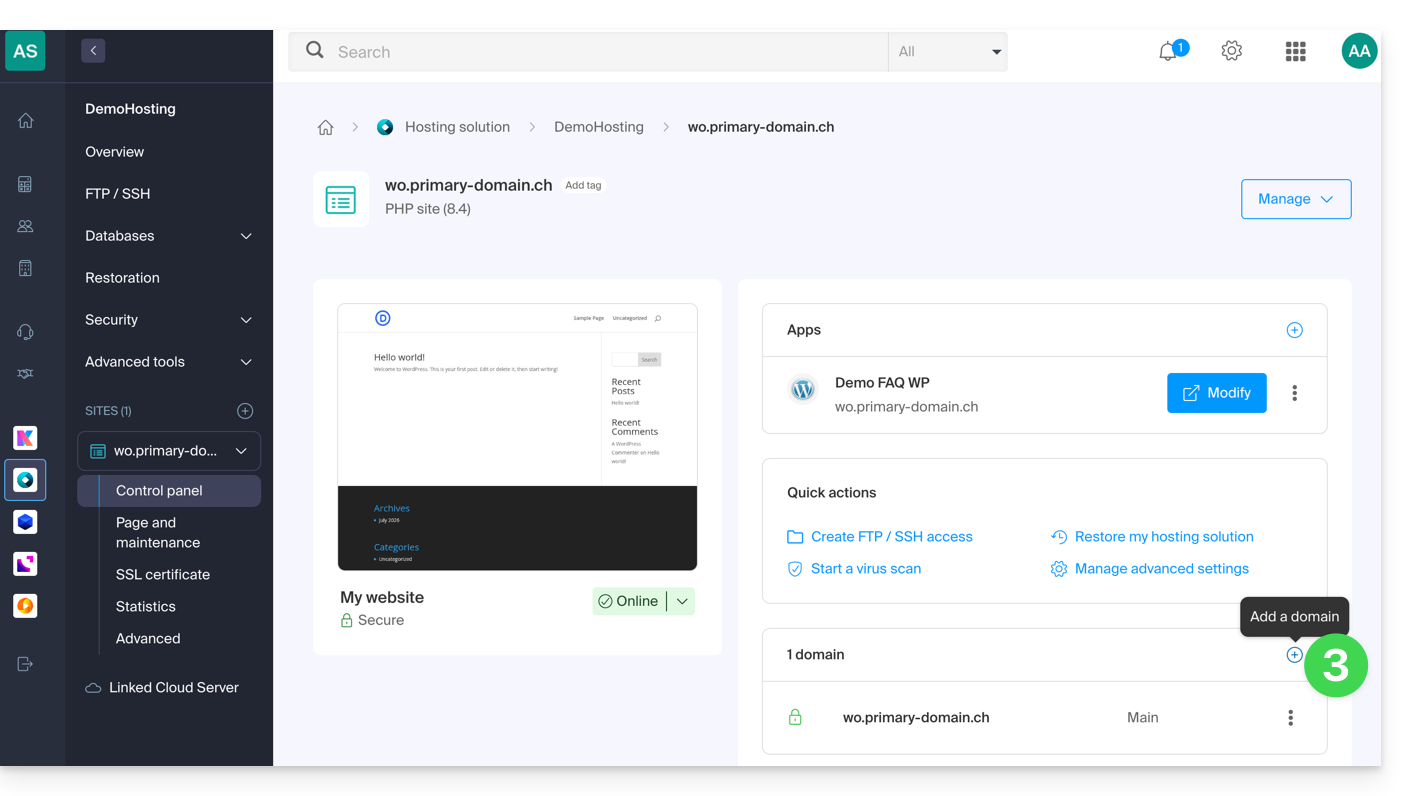
- Then, click on the Add a domain button:
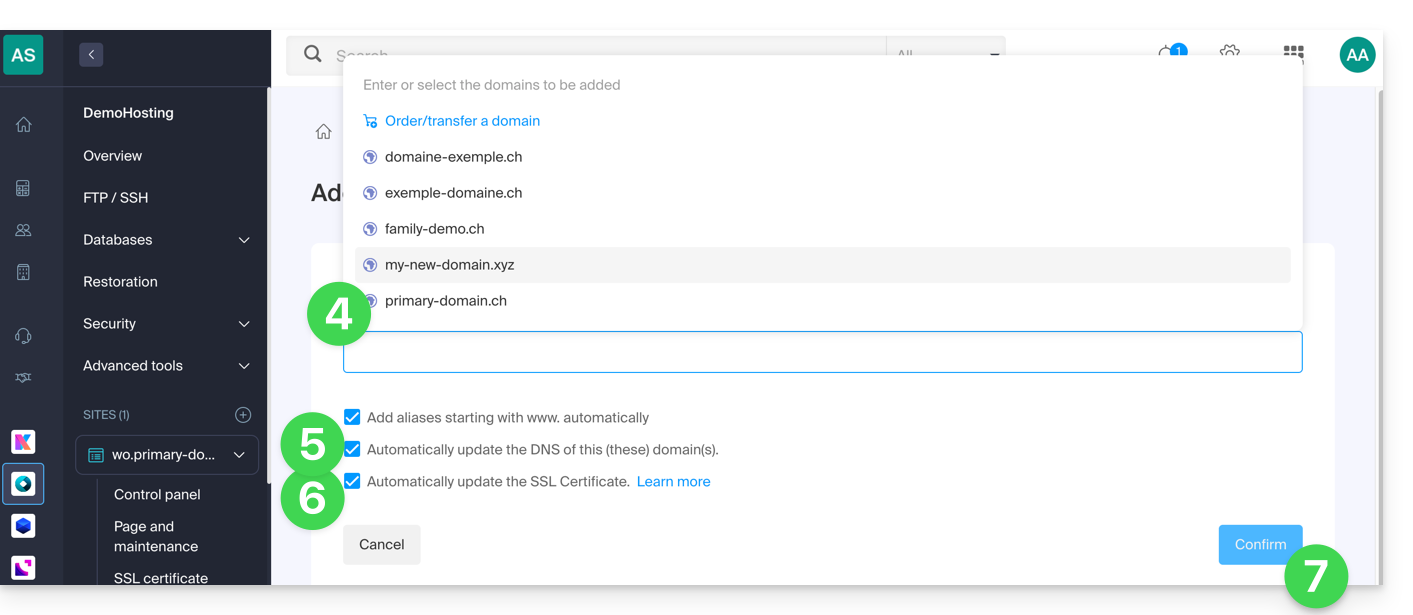
- Enter the domain name(s) to add, separating them with the Enter key.
- If the alias or its DNS zone is managed by Infomaniak, it is possible to automatically update the DNS entries. Otherwise, make any necessary changes with your registrar or transfer the domain name management to Infomaniak.
- If you have an SSL certificate, such as Let's Encrypt, you can request to update it here to include the new names.
- Click on Validate to complete the process:
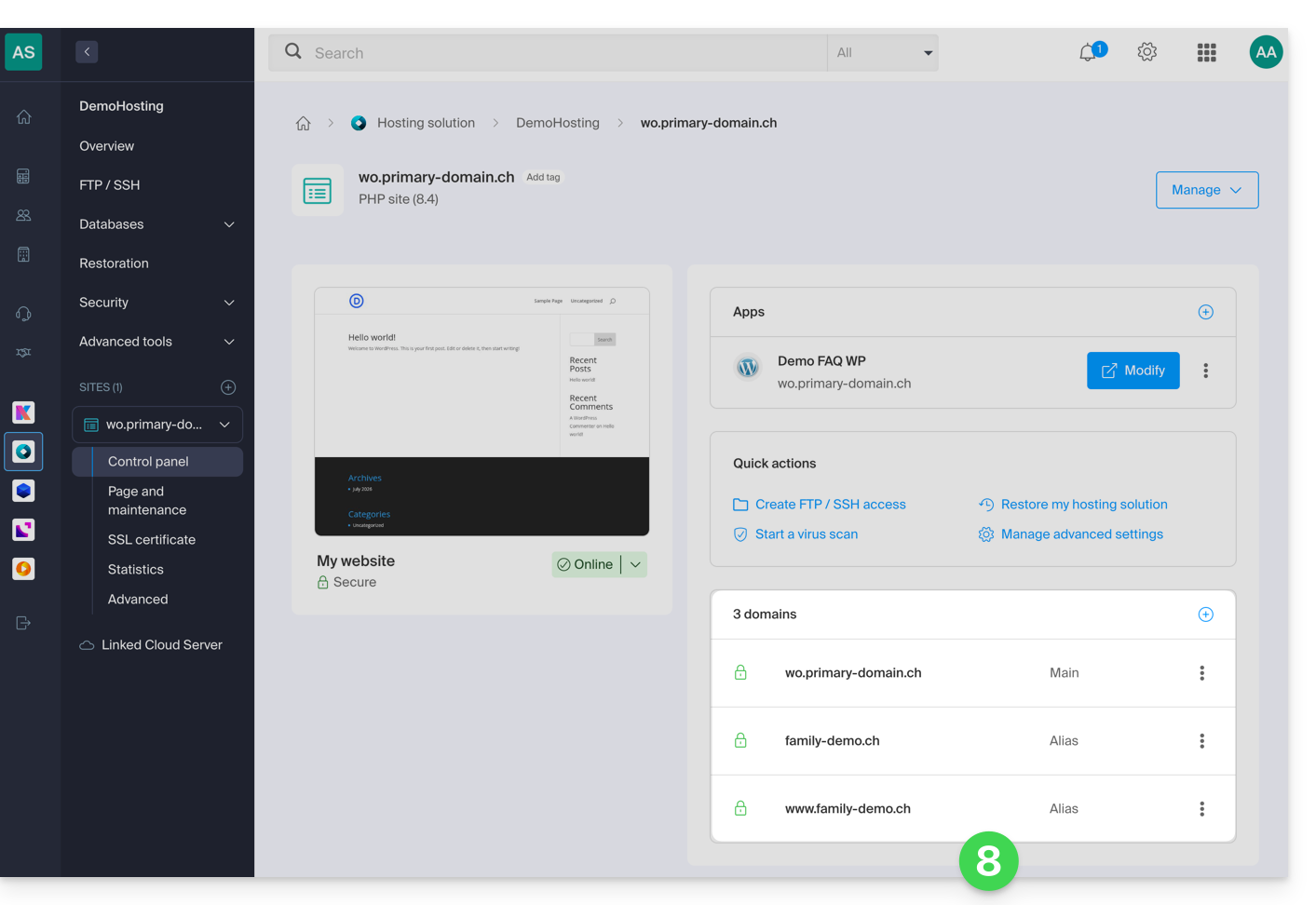
- The domains linked to the website are updated:
To define the alias as the main domain, please refer to this other guide.
Link to this FAQ: https://faq.infomaniak.com/1946
Has this FAQ been helpful?