Knowledge base
1000 FAQs, 500 tutorials and instructional videos. Here, there are only solutions!
Import a database
Update 10/13/2026
This guide explains how to import a MySQL/MariaDB database to an Infomaniak Web Hosting account.
Importing a database
To import an Infomaniak database:
- Click here to access the hosting & website management section in your Infomaniak Manager (❓: help).
- Click on the name of the hosting in question.
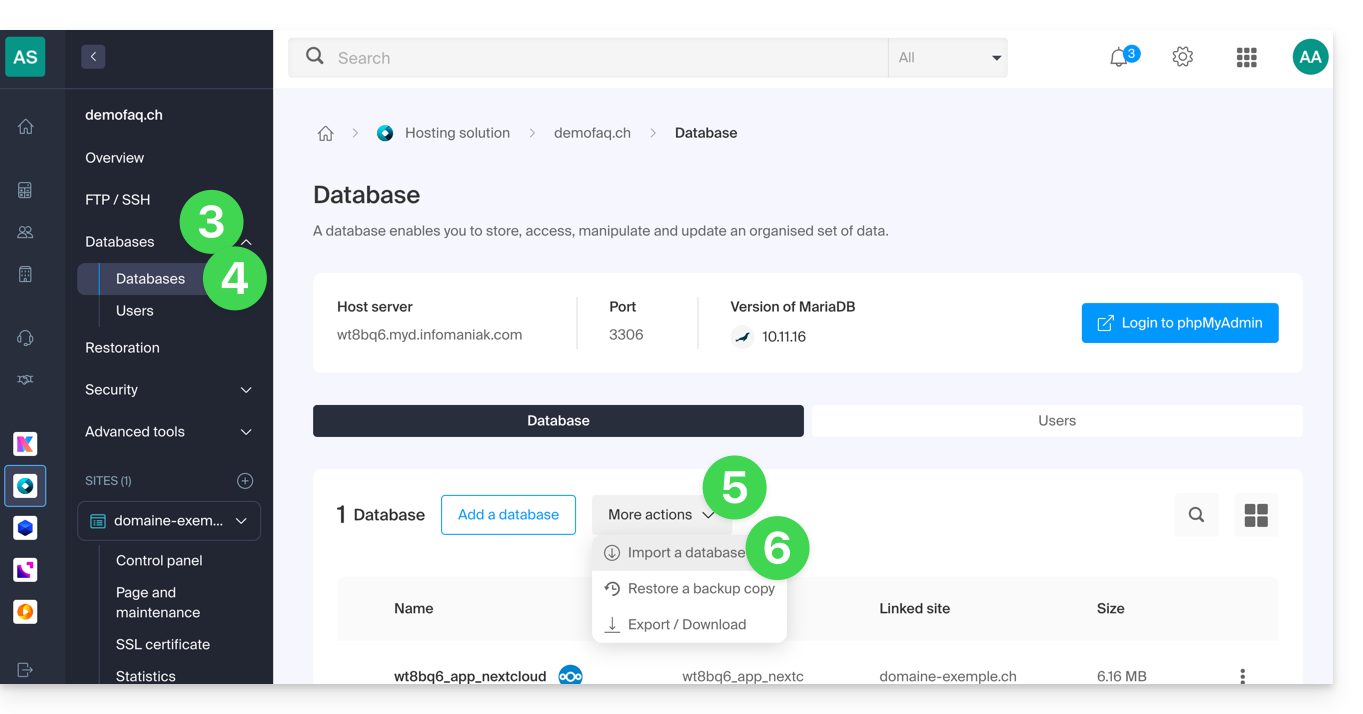
- Click on the downward-pointing chevron to the right of the database menu in the left-hand sidebar.
- Click on Databases.
- Click on the “More actions” button/menu to access different options.
- Choose Import a database:
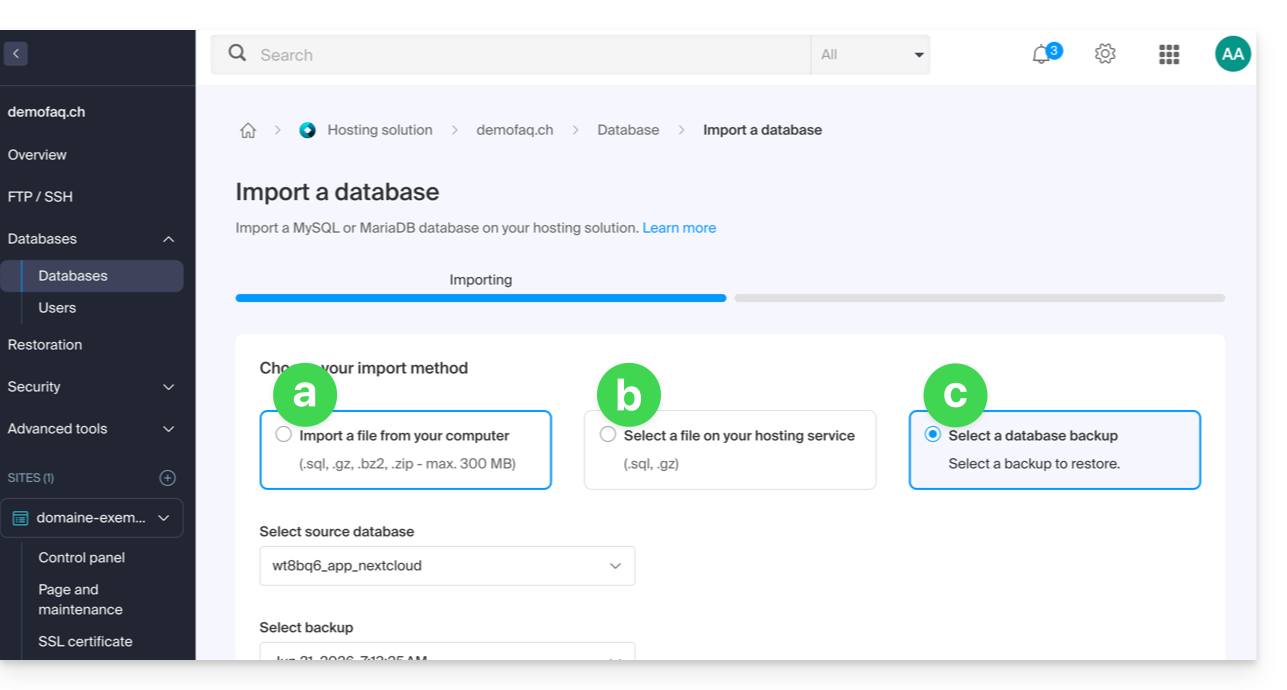
- You will then have the following options:
- you can also choose:
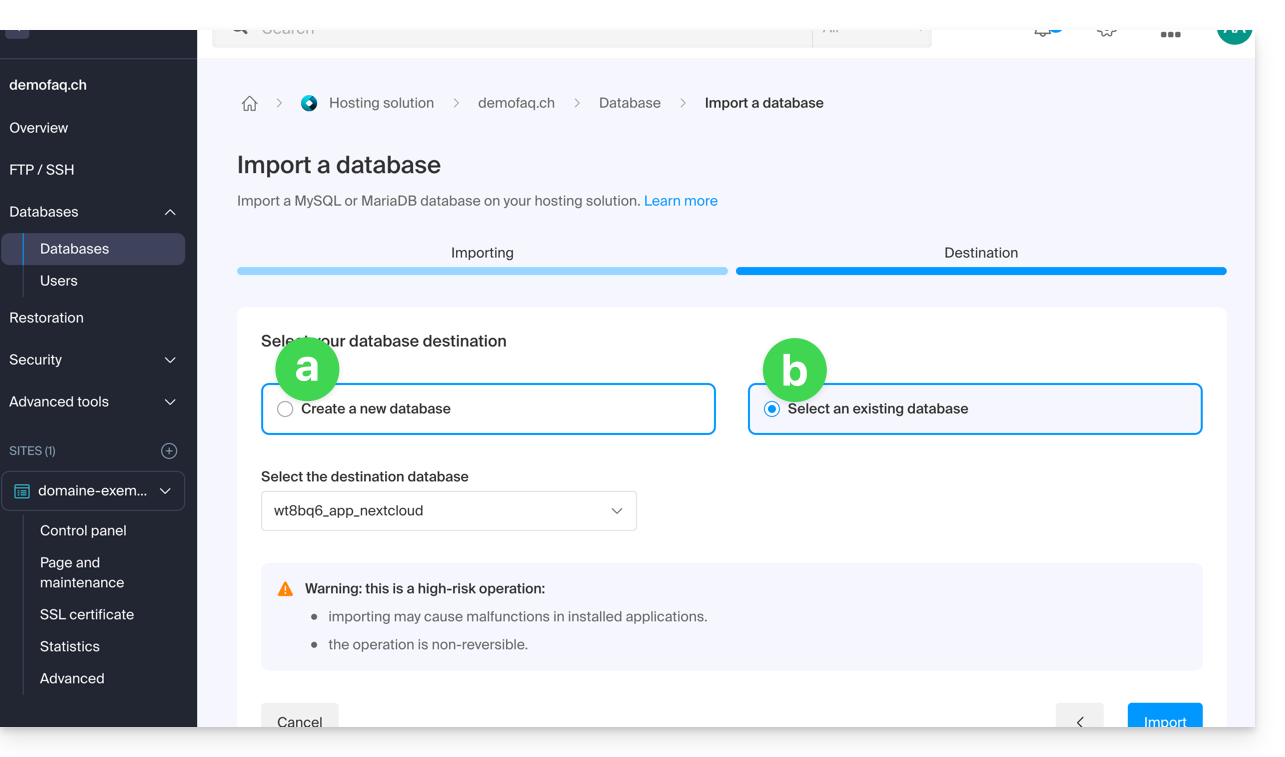
- import the data into a new database (creation),
- import into an existing database (replacement/overwrite).
Note:MySQL/MariaDB import following an exportrequires action on your part if you are using TRIGGERS/VIEWS (❓: help).
Alternative method (SSH - for advanced users)
Prerequisites
- Have the
.sqlfile of the database to be imported. - Have created a new, empty database (❓: help).
- Have a user who has all rights on the database (❓: help).
- Have an FTP + SSH account (❓: help).
To import via SSH:
- Upload the database to be imported via FTP to your hosting account (❓: help).
- Open an SSH terminal/console,
- From a
Terminalapplication (command-line interface,CLI) on your device, for example the PuTTY application (which you can download and install on Windows) or Terminal (installed by default on macOS), run and adapt the following command: ssh ftp-user@adresse-du-serveur- Replace
ftp-userwith the username of your FTP + SSH account (e.g.abcd_user). - Replace
adresse-du-serveurwith the address of your web hosting server (❓: help).
- Replace
- Enter the password for your FTP + SSH account.
Enter and adapt the following command:
mysql --verbose -u db-user -p db-name -h db-host < path- replace
db-userwith the database username (e.g.abcd_user) - replace
db-namewith the database name (e.g.abcd_sample) - replace
db-hostwith your hosting's MySQL server (❓: help) - replace
pathwith the path where you uploaded the database in step 1 of this procedure (if you have a single website stored in the default location, the path would be, for example,~/web/test.sql)
- replace
- Wait for the import to complete (this may take several minutes depending on the size).
Link to this FAQ: https://faq.infomaniak.com/1942
Has this FAQ been helpful?