Knowledge base
1000 FAQs, 500 tutorials and instructional videos. Here, there are only solutions!
Change the domain name of a Mail Service
This guide explains how to replace the primary domain name associated with a Mail Service in the event that you want to change, for example, the spelling of everything that comes after the @ symbol in your email address (i.e., the domain name). If your Mail Service is part of a kSuite, you will need to modify the kSuite domain directly.
Introduction
- You can also follow this procedure if the goal is to have completely new email addresses while preserving the history of your emails in Mail (since the email address will continue to exist; for example, info@premier-domaine.xyz will become info@nouveau-domaine.xyz without any modification to its content).
- IndeedIt is not possible to simply change the spelling of the domain name in question; therefore, it is necessary to replace the current domain name associated with your email addresses with another domain name.
- To simply add an additional domain name, please refer to this other guide.
- To instead modify the part of your email address that appears before the at symbol
@, please refer to this other guide. - It should also be noted that you can rename your product (example) in the Infomaniak Manager, but changing the name of a Mail Service has absolutely no impact on its addresses; you need to act on the domain name.
If your Mail Service is part of a kSuite, then you will need to act on the kSuite domain directly.
Change the domain name for your Mail Service
Prerequisites
- Own the new domain name (if necessary, create it beforehand).
- Consult the instructions in this other guide and apply the instructions that correspond to your situation (to ensure that the domain name works when it is linked to your Mail service).
Once the new domain name is ready to be used instead of the old one, you need to add it to the Mail Service and then perform a switchover:
- Click here to access the Mail Service management in your Infomaniak Manager (❓: help).
- Click on the name of the Mail Service in question.
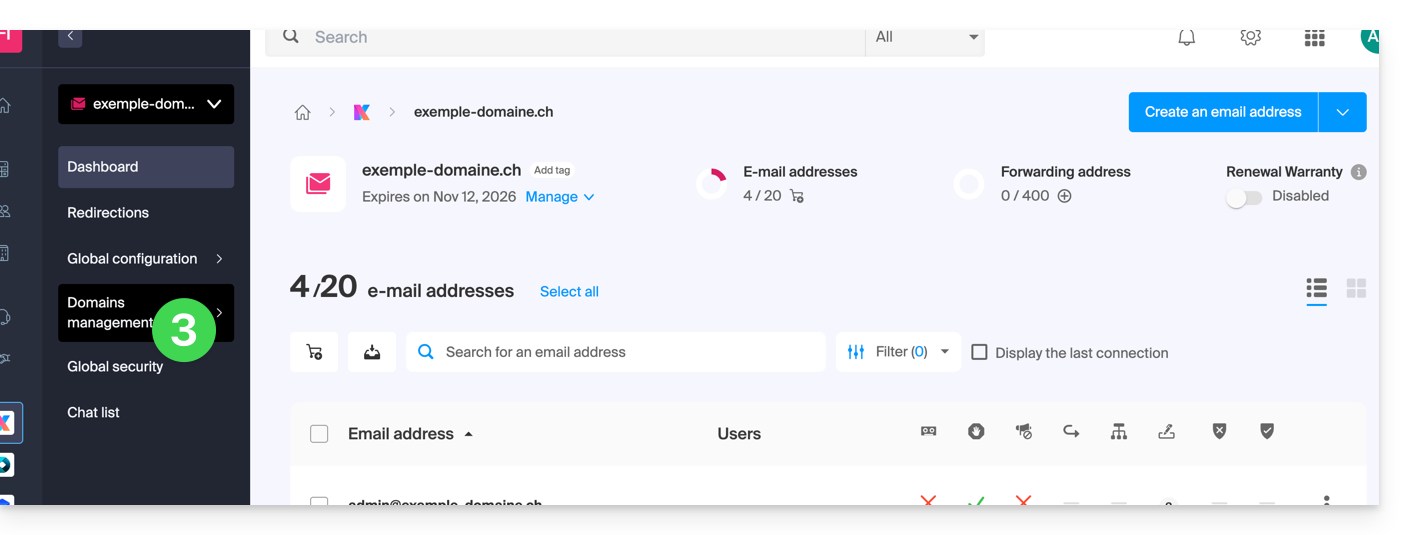
- Click on Domain Management in the left-hand menu.
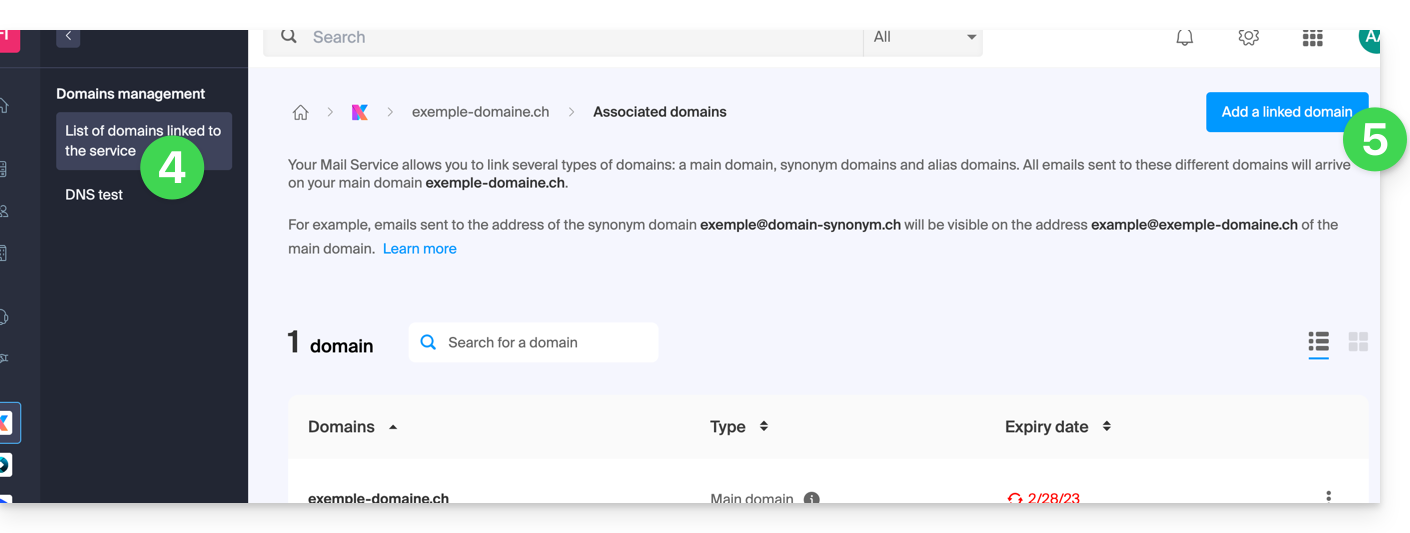
- Click on Domains linked to the service in the left-hand menu.
- Click the blue Add a linked domain button:
- You can:
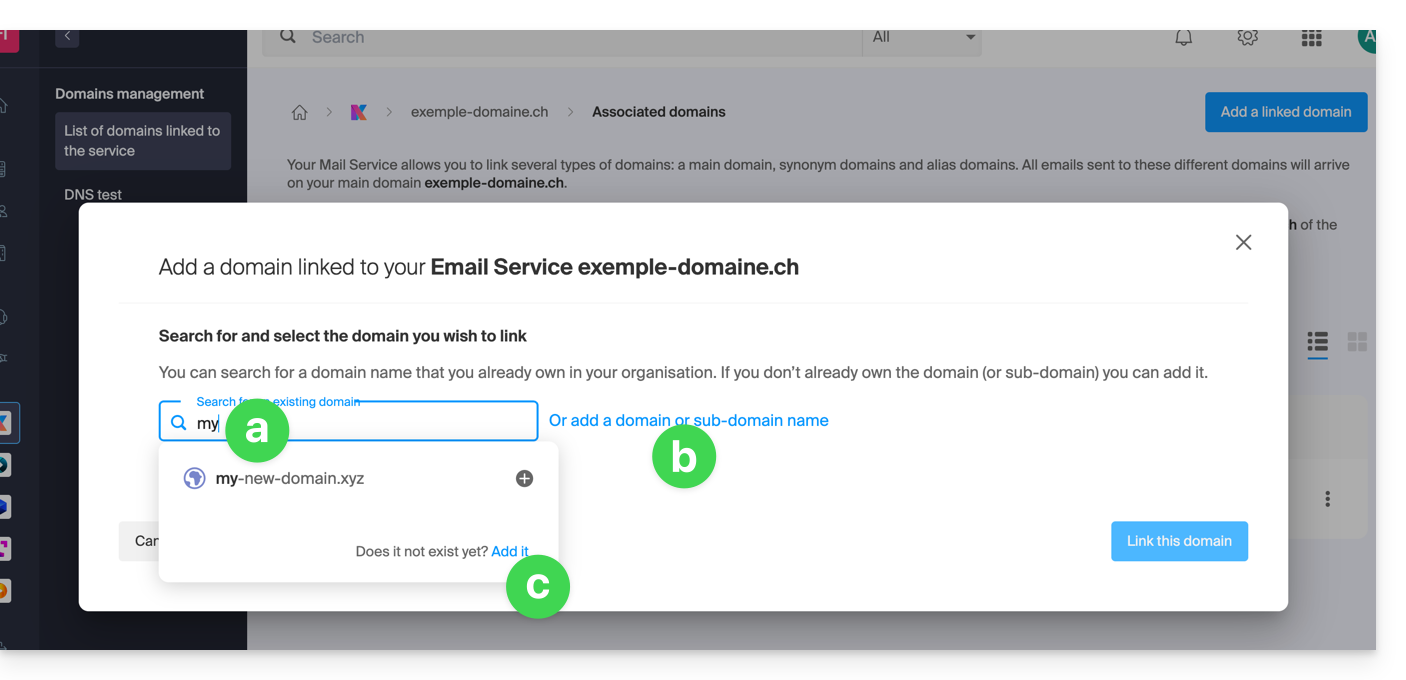
- Search for an existing domain within the Organization you are connected to; this will automatically link and update the DNS zone of the added domain.
- Add a domain name or subdomain to manually specify the domain name or subdomain to use (ideal if the domain name is located elsewhere).
- Purchase a new domain name (see prerequisites).
a: The domain exists at the Organization level
Before proceeding, be sure to unlink the domain name if it was previously defined as a synonym domain.
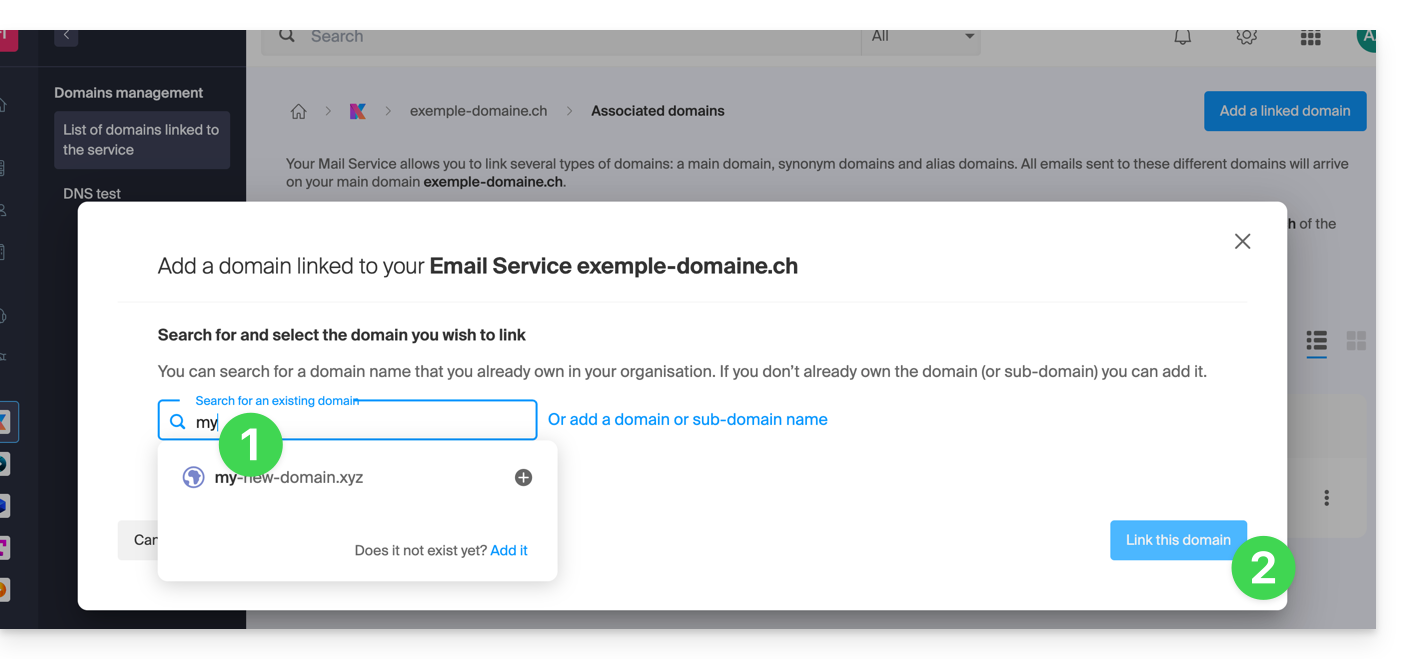
- Click on the proposed domain name.
- Click on the blue Link this domain button:
- Click on the ⋮ icon to the right of the newly added domain name.
- Click on Set as primary domain (you must have disassociated the alias domain from the primary domain if there was a previous association):

- Confirm the reversal and then wait for the operation to complete.
- Click on the ⋮ icon to the right of the old domain name.
- Click on Detach the domain:
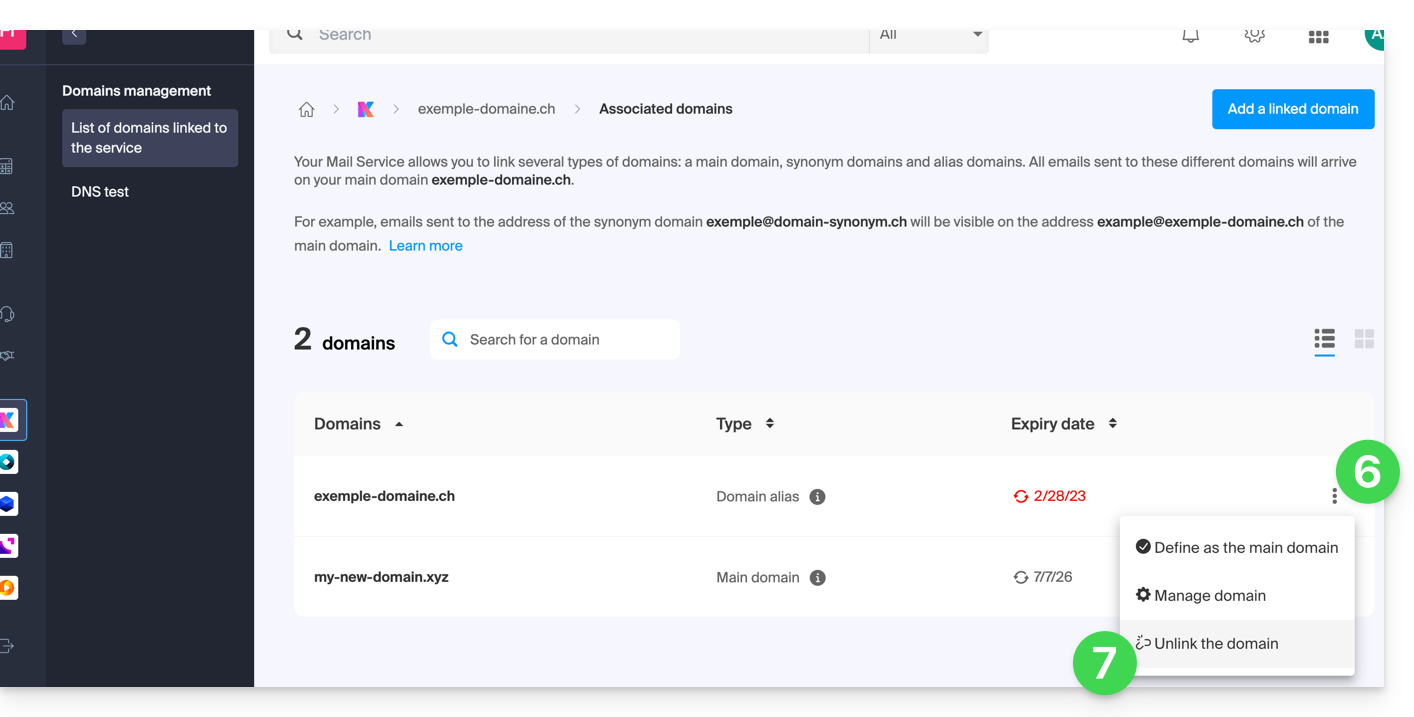
- Confirm the detachment by checking if you want to delete the associated DNS records during the detachment process.
That's it, the Mail service now responds to a new domain name.
b: The domain exists but is hosted elsewhere
- After clicking Add a domain or subdomain, enter the domain name that will be used to replace the current one.
- Enable the DNS record update (if the domain name's status allows it, the domain name's DNS zone will be updated automatically).
- If the above point 2 is active, then enable the replacement of any existing entries.
- Enable domain name reversal (to avoid additional steps as in point "a" above).
- Click on the blue Link this domain button:
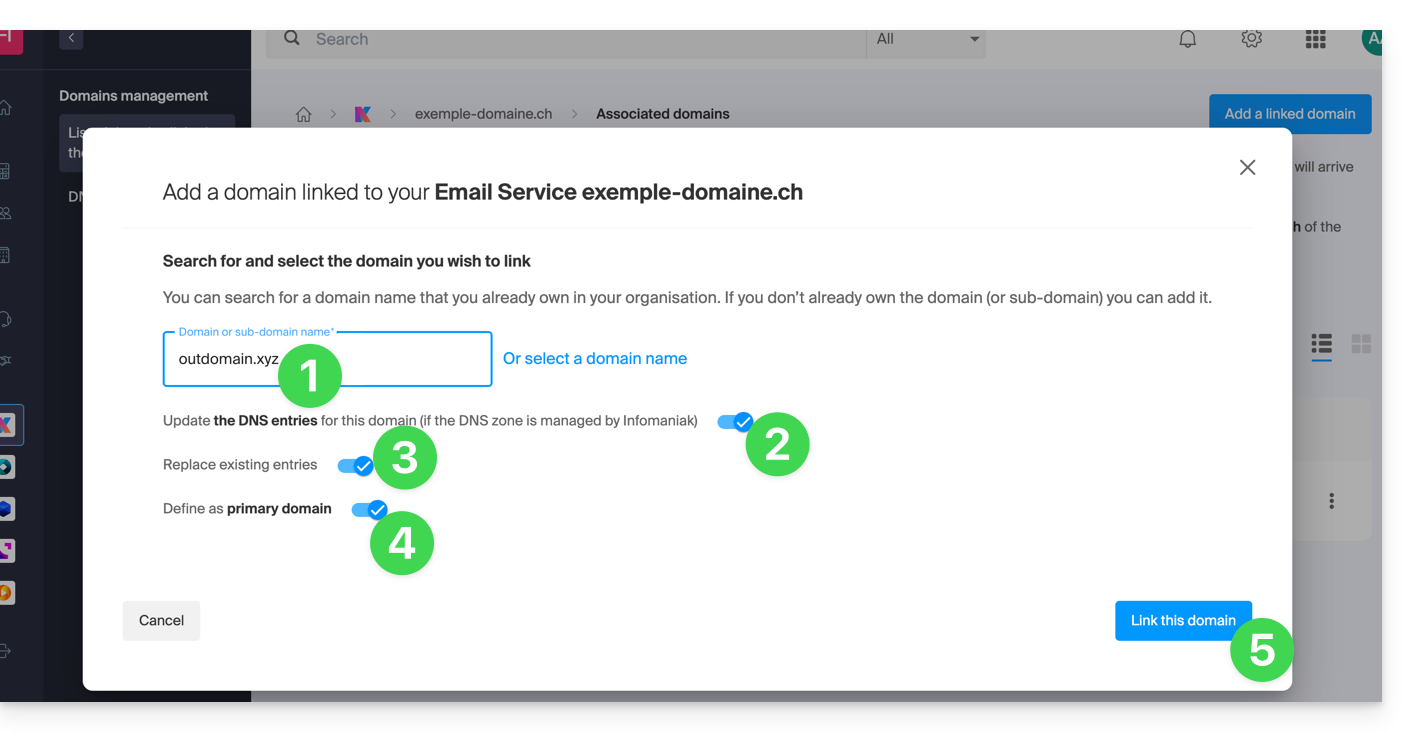
- Wait for the operation to complete.
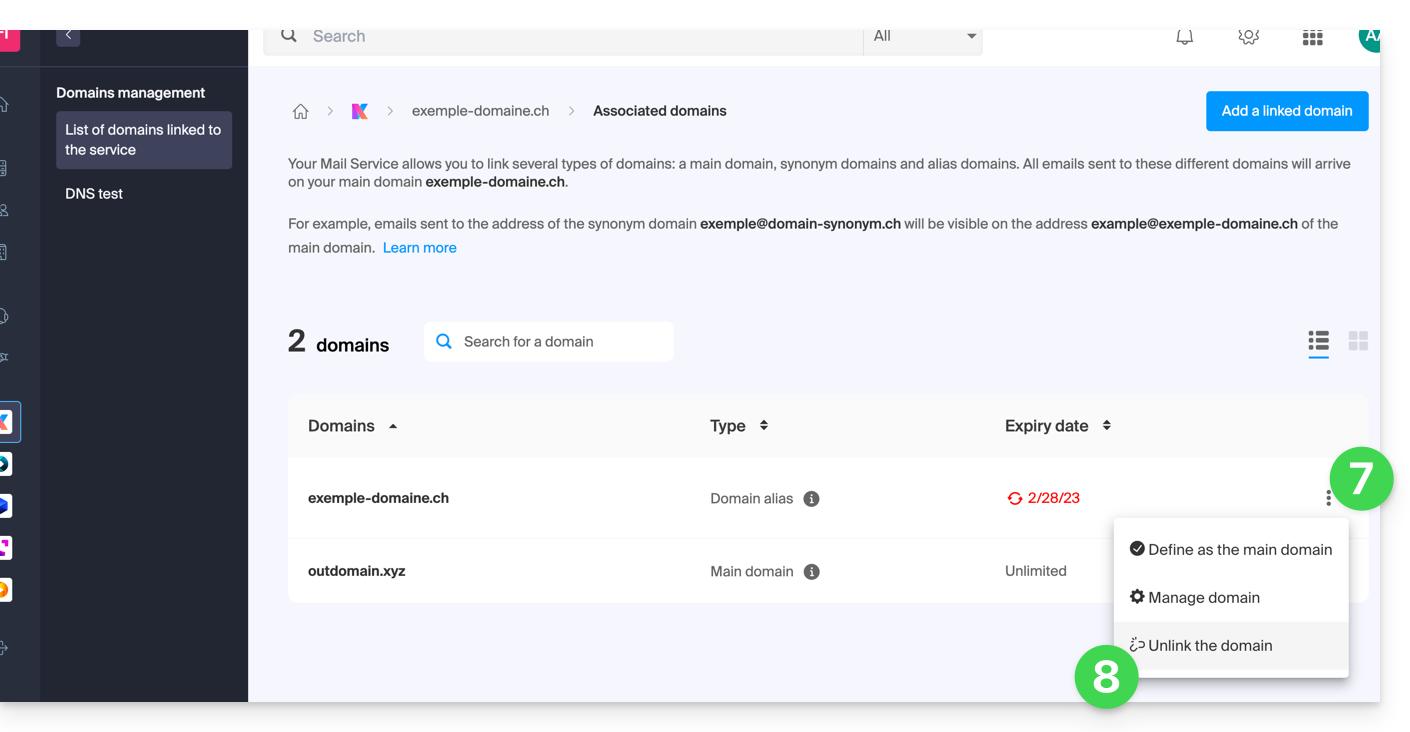
- Click on the ⋮ icon to the right of the old domain name.
- Click on Unlink domain:
Link to this FAQ: https://faq.infomaniak.com/1934
Has this FAQ been helpful?