Knowledge base
1000 FAQs, 500 tutorials and instructional videos. Here, there are only solutions!
Quickly install WordPress (+ uninstall)
Update 10/13/2026
This guide explains how to install a new Infomaniak WordPress site included in the paid Web Hosting plans. You will find 2 different ways to create a WordPress site, as well as explanations about uninstalling it.
Create a WordPress site on an existing hosting account
To access your Web Hosting and add a new website by installing WordPress at the same time:
- Click here to access your hosting management in the Infomaniak Manager (need help?).
- Click directly on the name assigned to the relevant hosting.
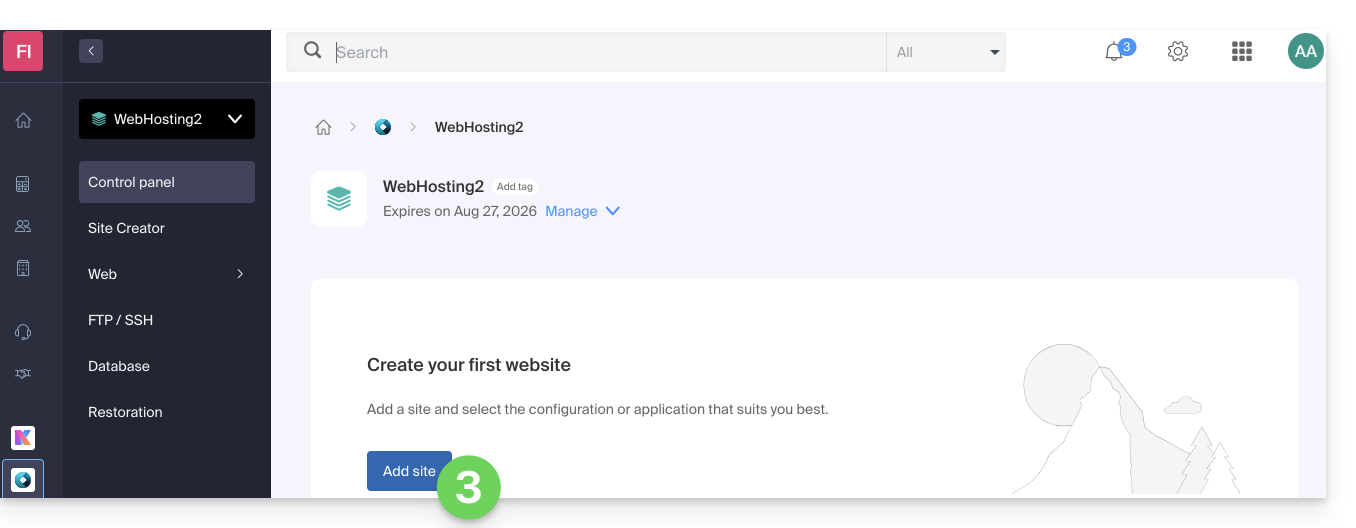
- Click on the button to add a site:
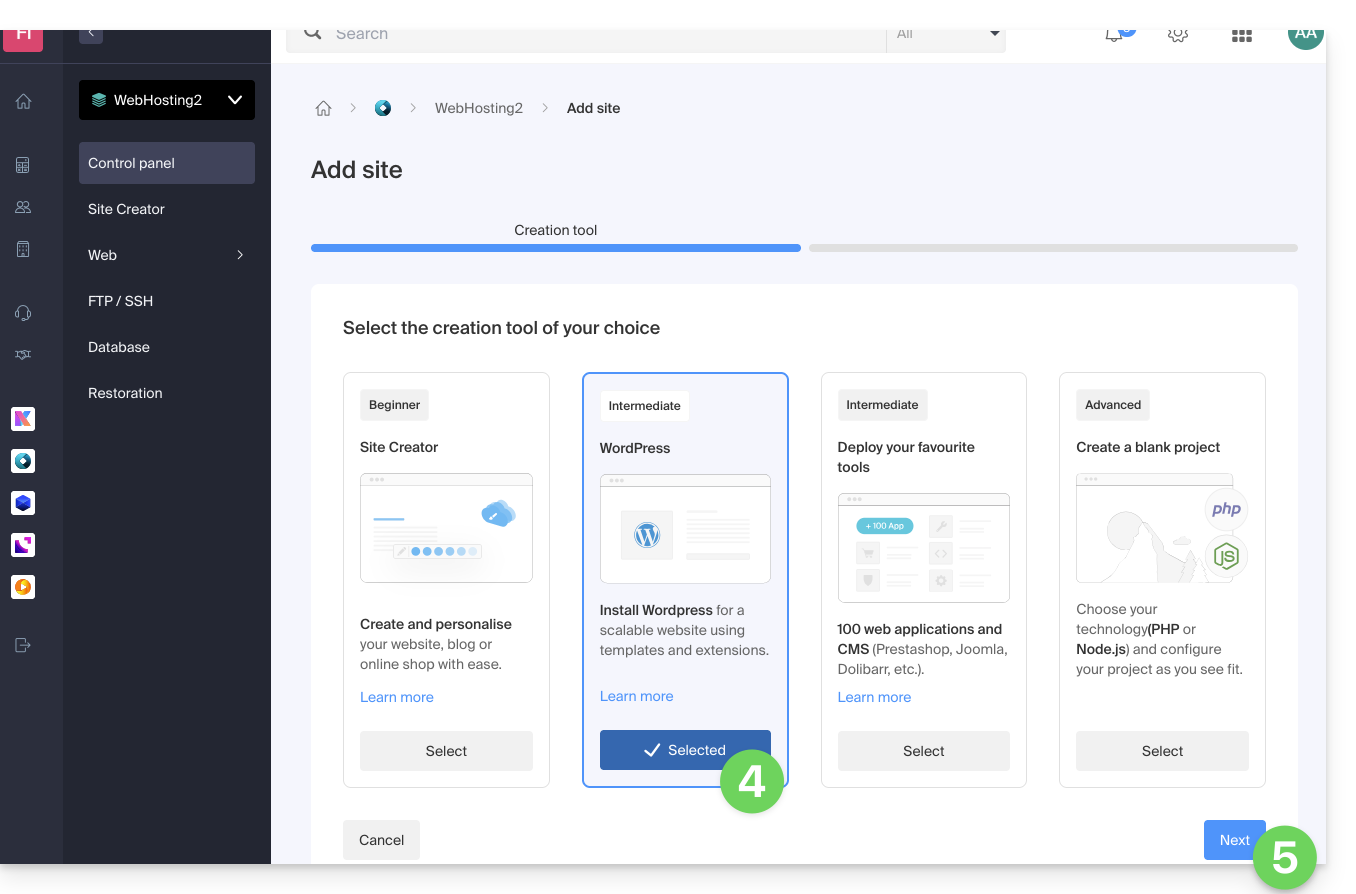
- Choose to install WordPress.
- Click on the Next button:
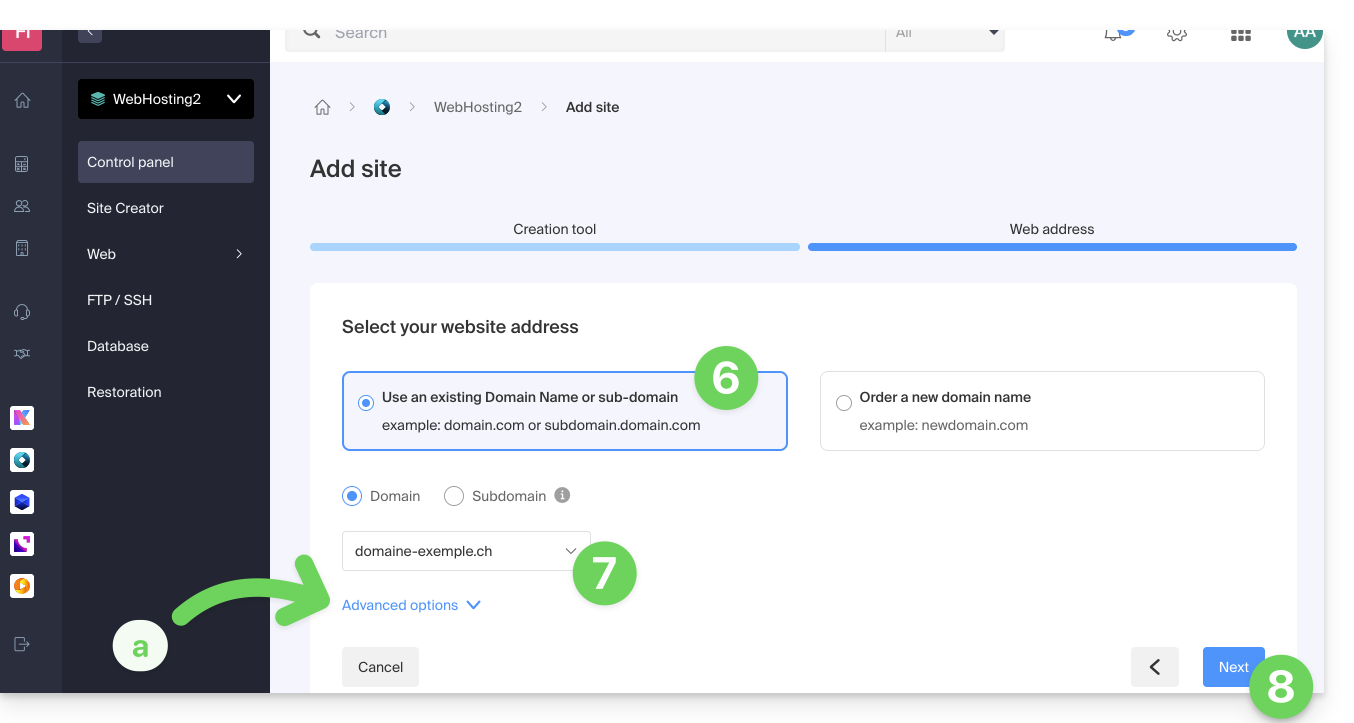
- Click the button to use a domain name that is already present in your Organization (or click the other button if you need to order a new domain first).
- Select the domain name from your existing domains.
- The advanced options allow you, in particular, to choose a custom location on the hosting server and an older version of PHP.
- Click on the Next button:
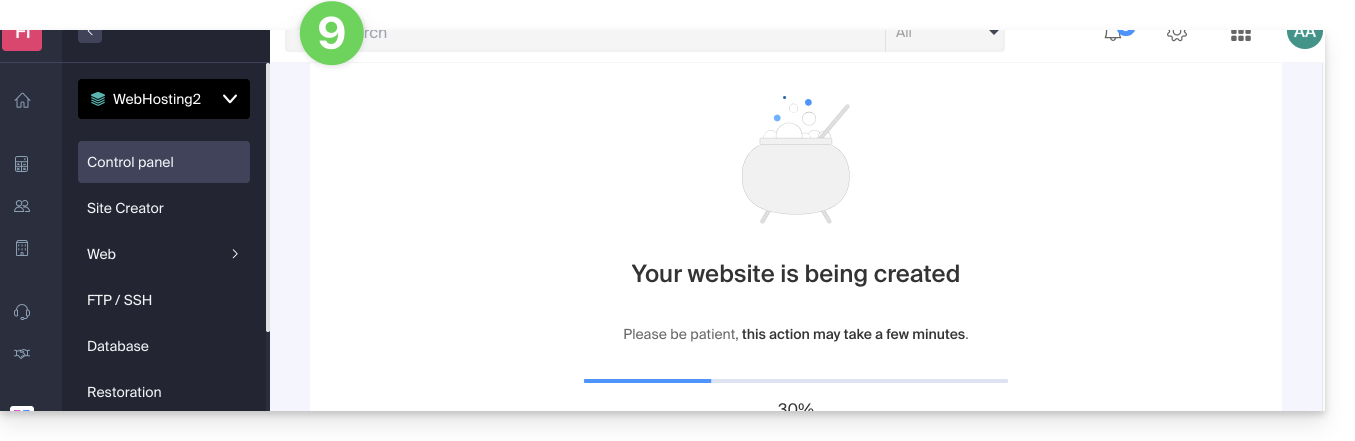
- Wait a few minutes while the site is being created on the hosting server:
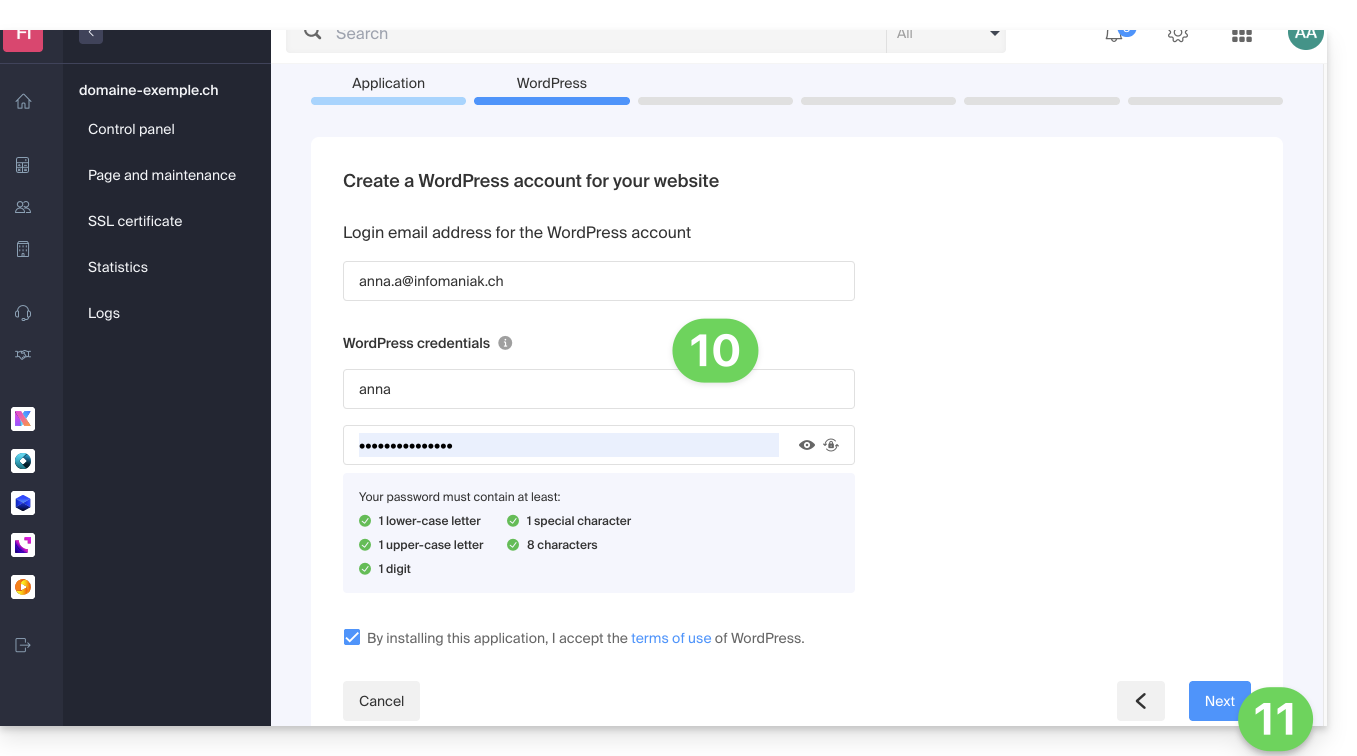
- Enter the requested information, as it will be used to log in to your WordPress dashboard(you can modify this information at any time after installation).
- Click on the Next button:
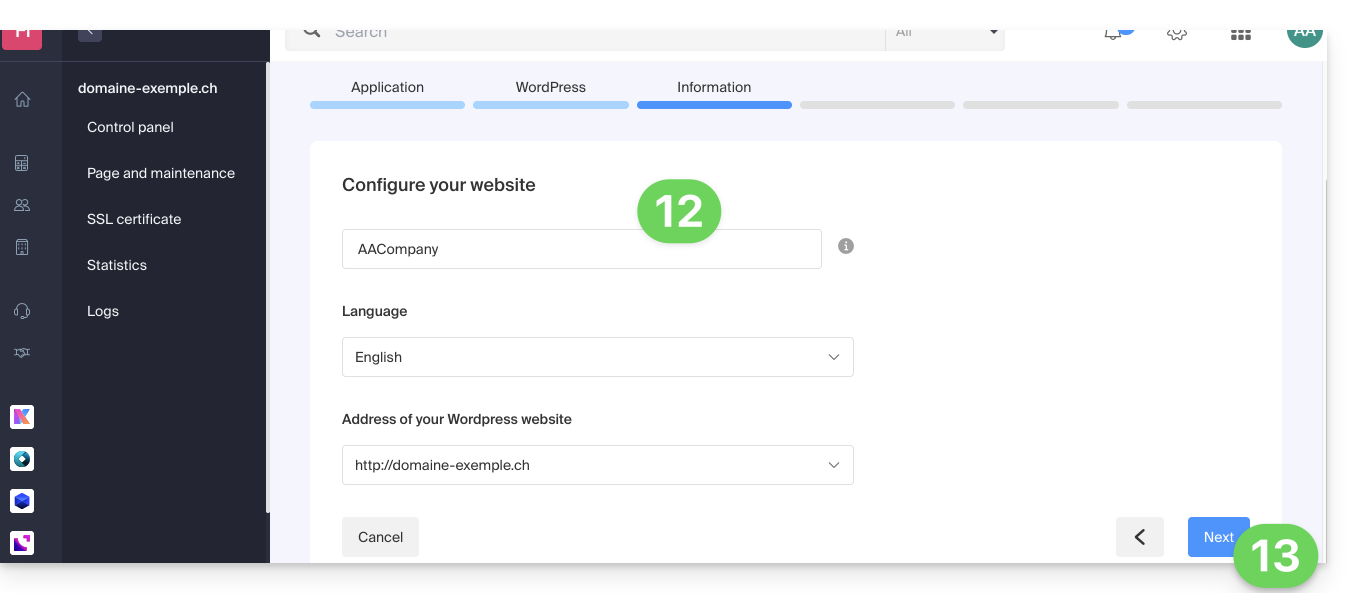
- Enter the information related to your website (you can modify this information at any time after installation).
- Click on the Next button:
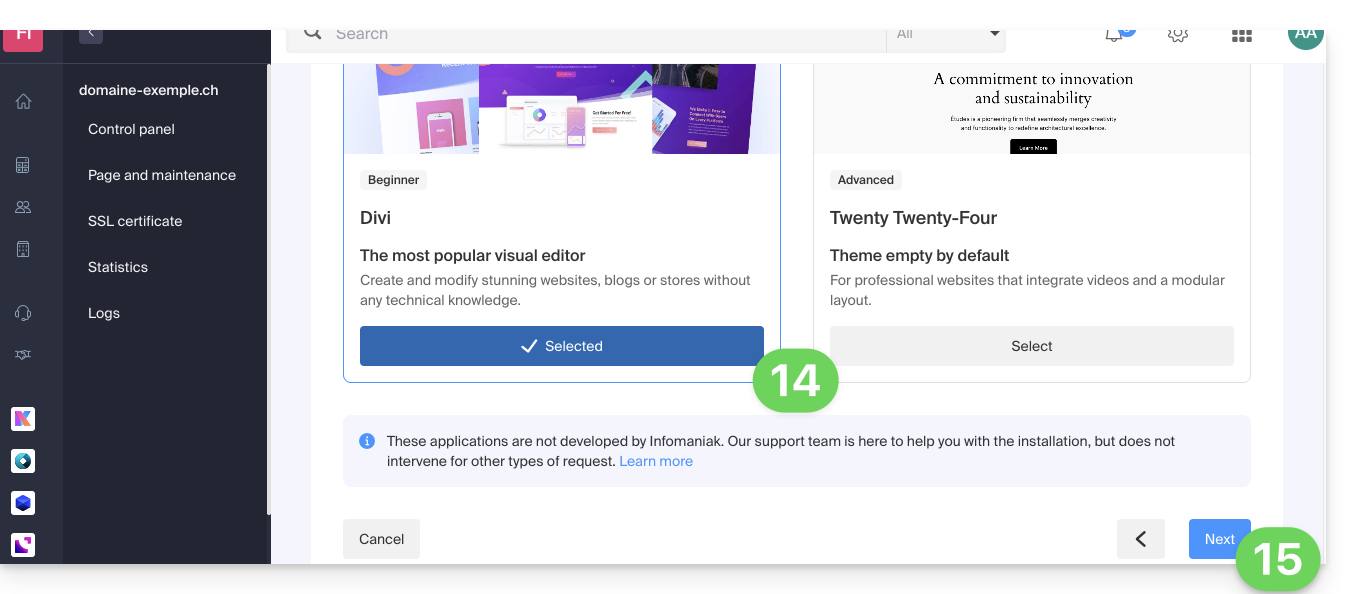
- Choose between the Divi theme and the official theme of the latest WordPress version (you can change this information at any time after installation).
- Click on Next:
- Confirm the installation from the summary page.
- You can then log in to the WordPress dashboard or return to the site management interface.
Install WordPress on an existing blank website
To access the existing blank website on your hosting and install WordPress:
- Click here to access your website management in the Infomaniak Manager (need help?).
- Click directly on the name assigned to the website in question.
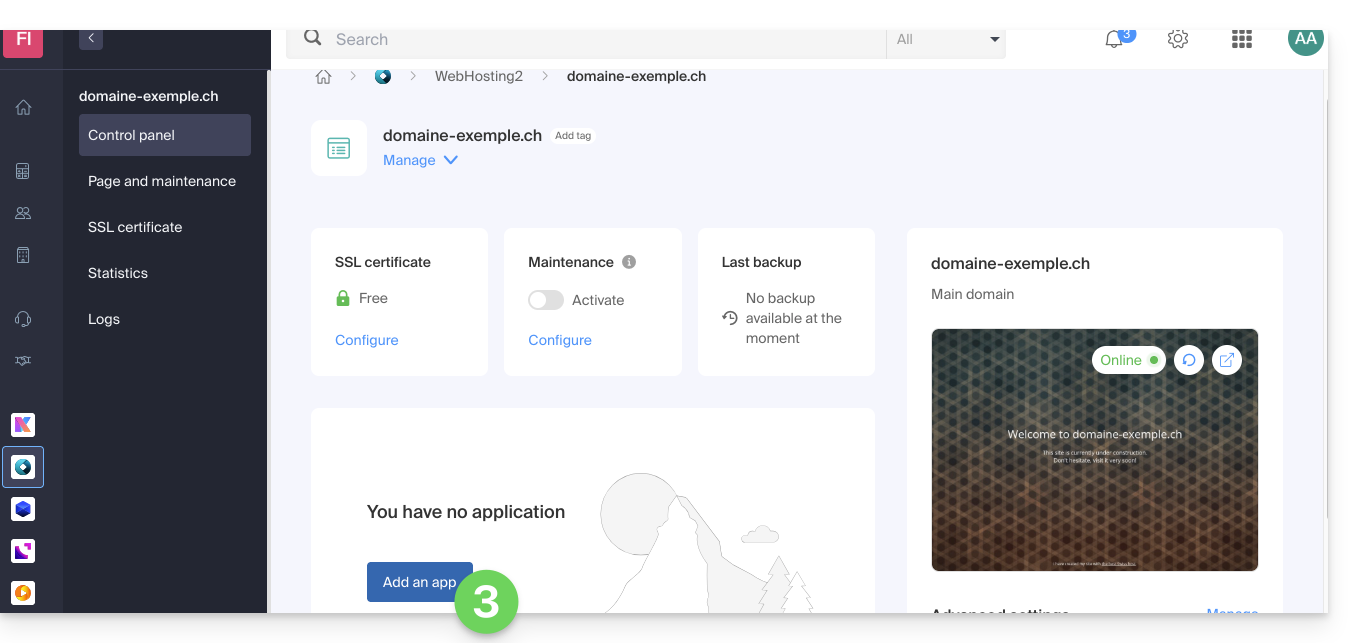
- Click the button to add an application:
- Choose to install WordPress:
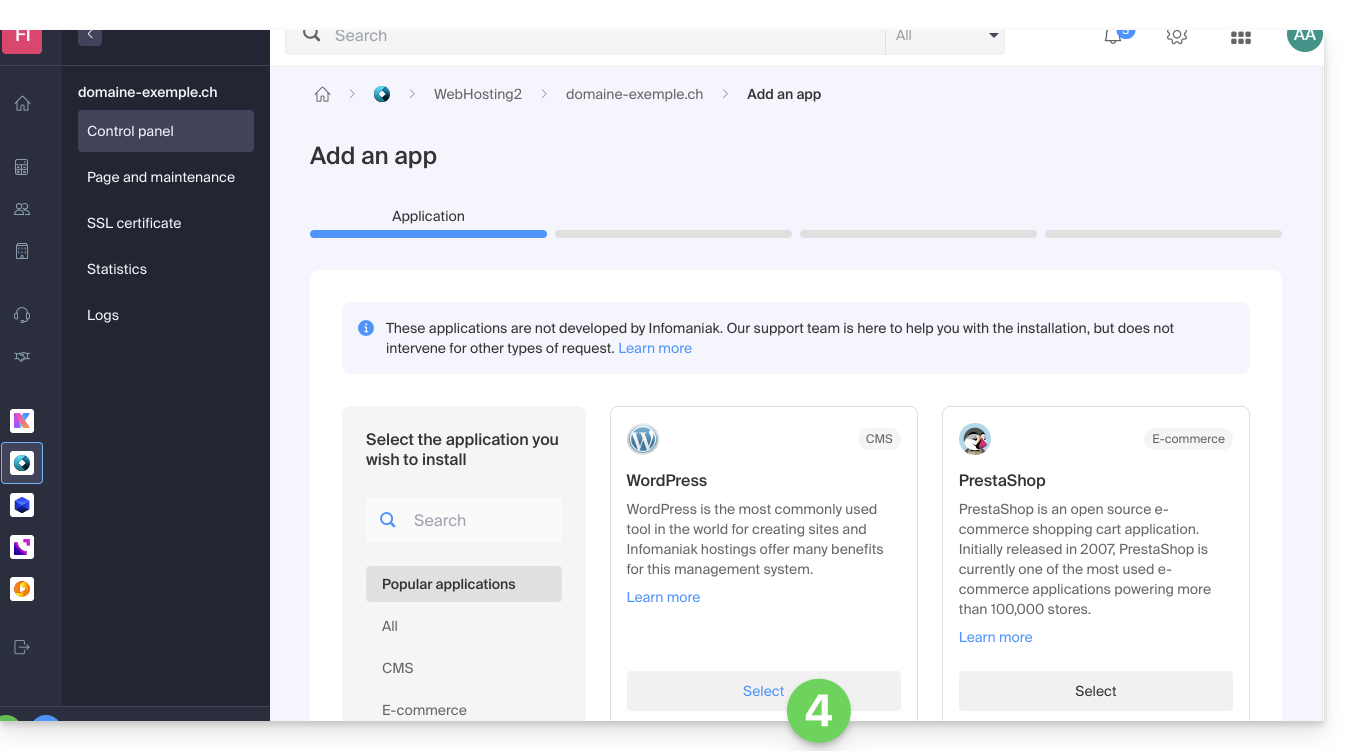
- Click on the Next button at the bottom of the page.
- Enter the requested information, as it will be used tolog in to your WordPress dashboard (you can change this information at any time after installation).
- Click on the Next button:
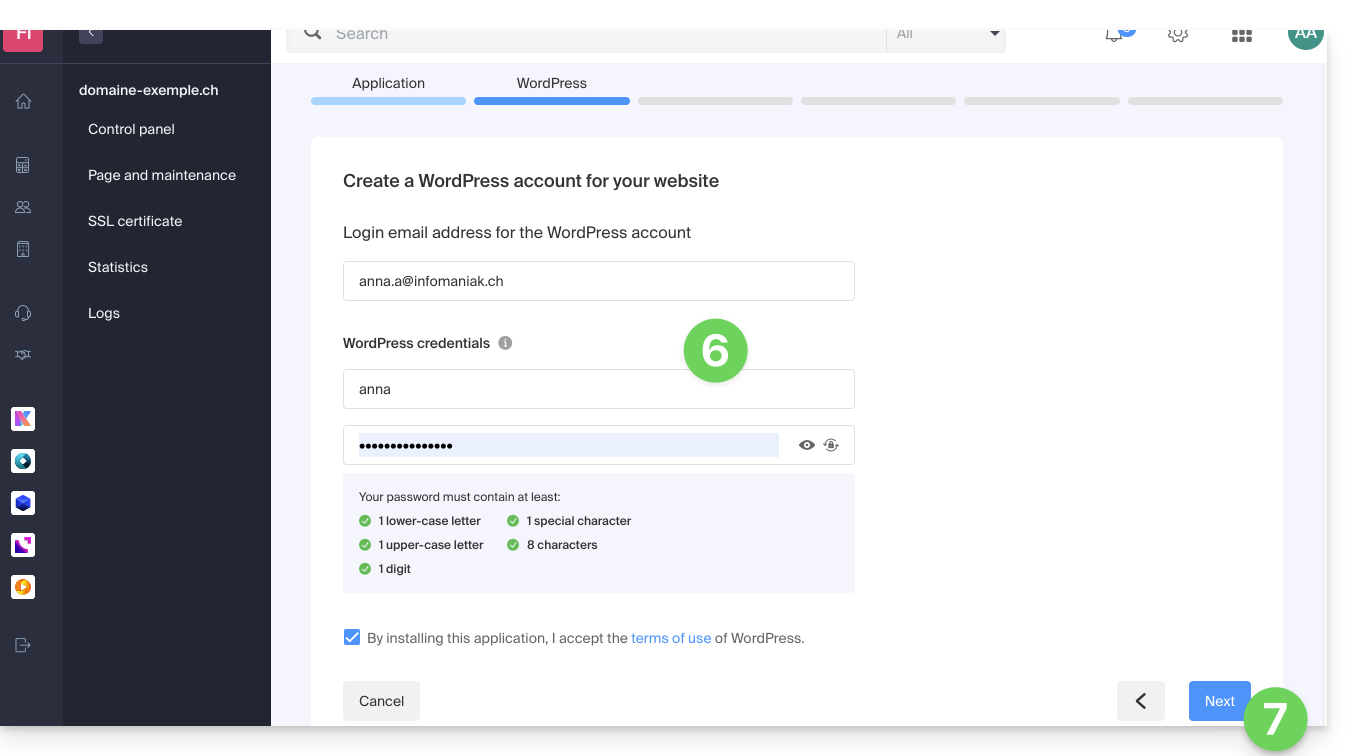
- Continue in the same way as from step 12 of the previous chapter above.
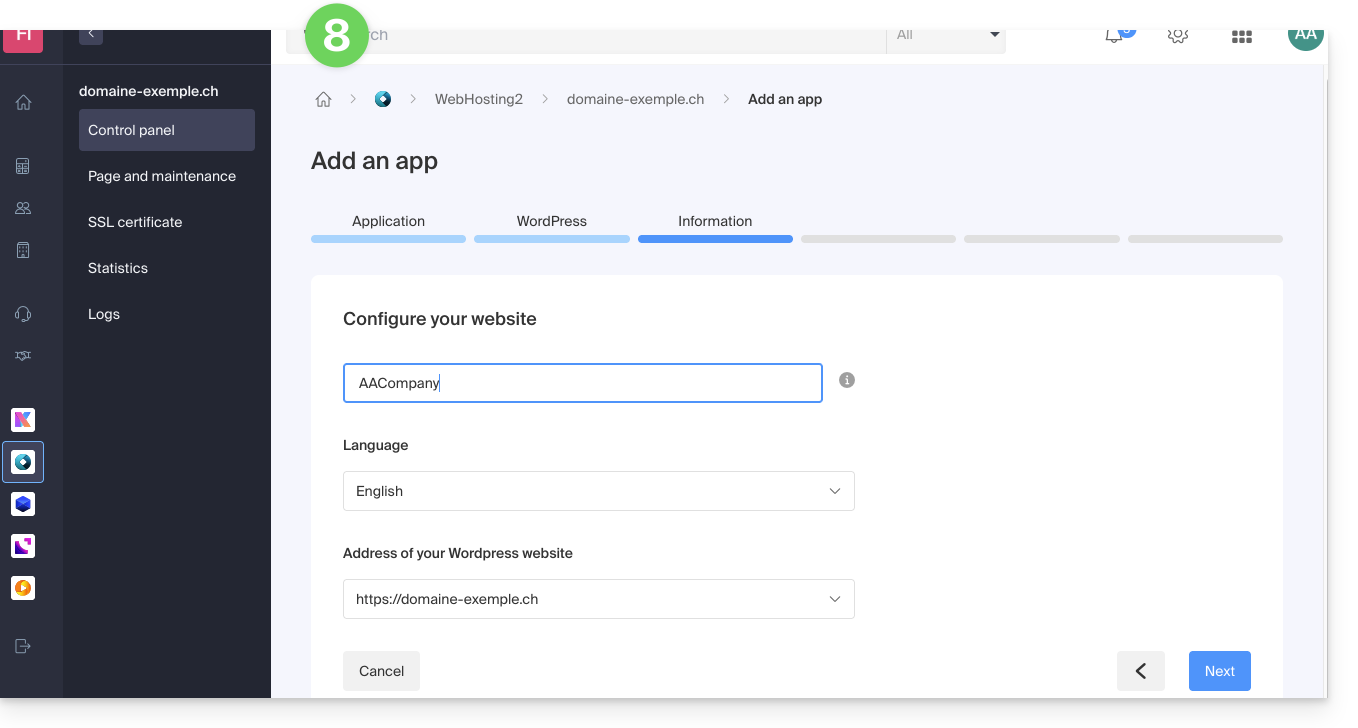
Uninstall Infomaniak WordPress
You can delete a WordPress site:
- by completely removing the site from the hosting (and keeping or not the WordPress data, databases, etc.)
- by keeping the site on the hosting but removing the WordPress app…
Option 1
- Click here to access the management of your WordPress site in the Infomaniak Manager (need help?).
- Click on the action menu ⋮ located to the right of the item in question.
- Click on Unlink site:
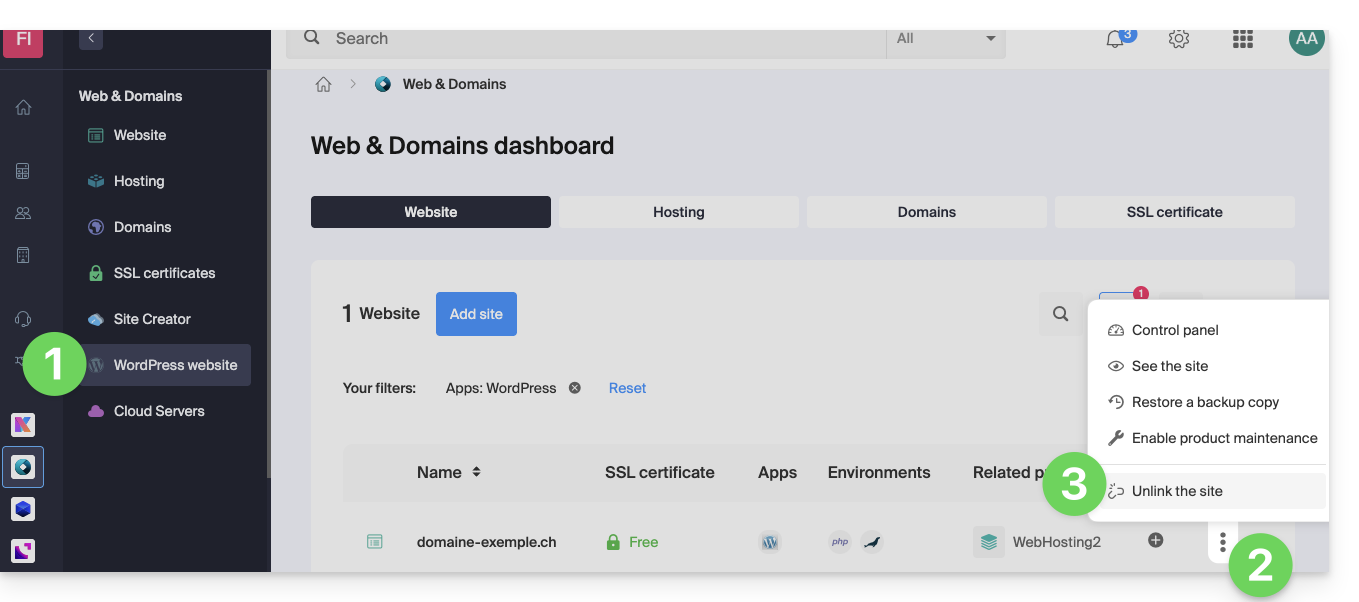
- Choose whether you want to delete everything or keep a trace of the WordPress data on the hosting server:
- If you check the box, there will be nothing left in the Manager (except for backups):
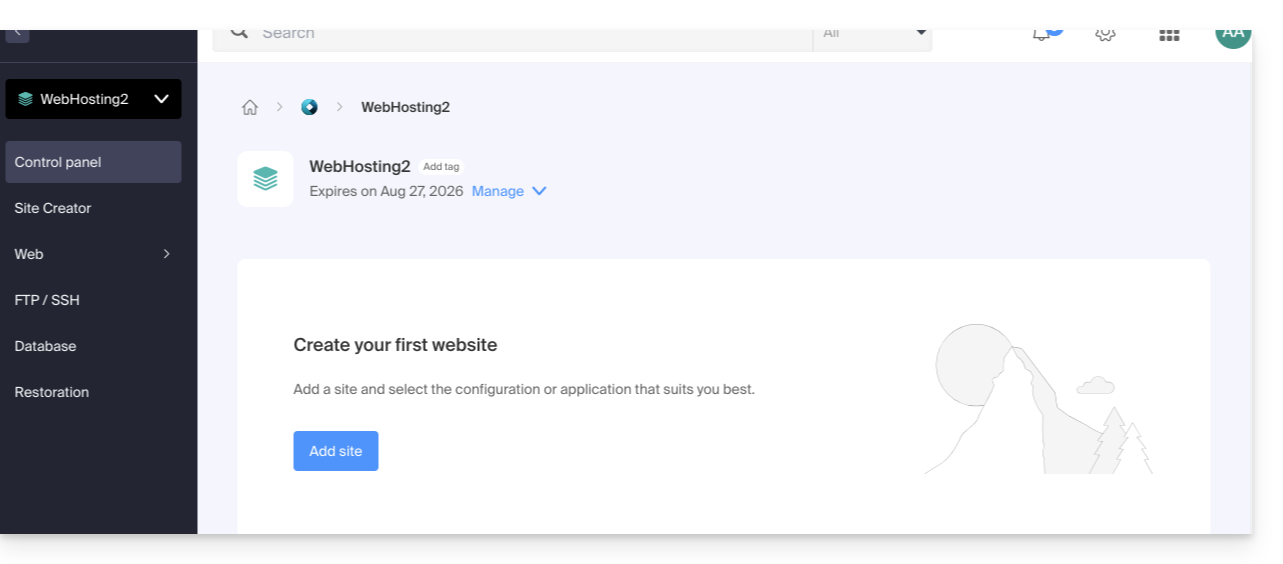
and nothing left on the server: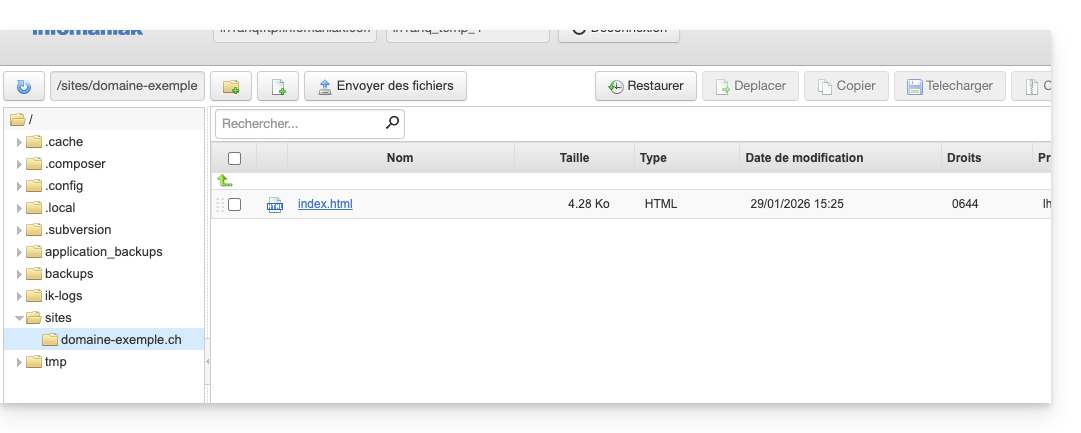
- If you do not check the box, there will be nothing left in the Manager (except for backups):
but the WordPress files will still be accessible on the server: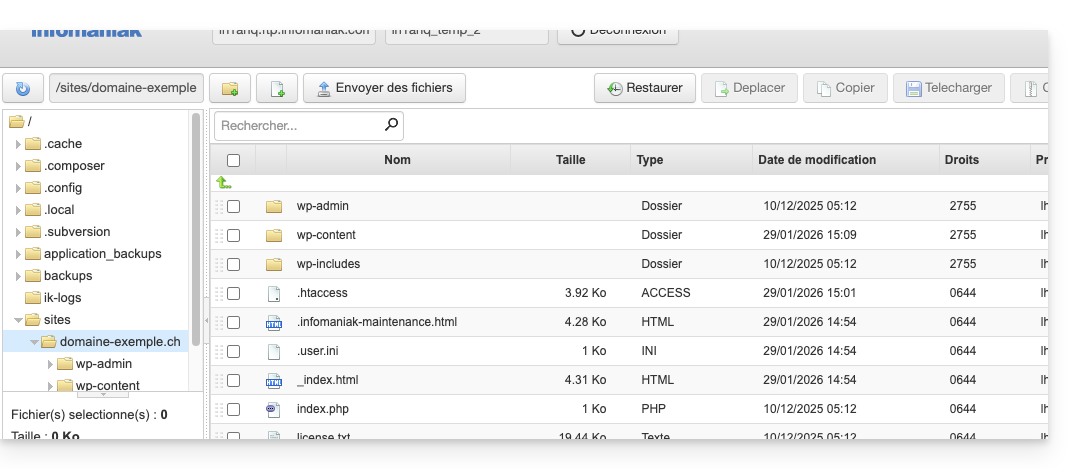
And you will get an error if you later try to reinstall a new WordPress site in the same location with the same domain name: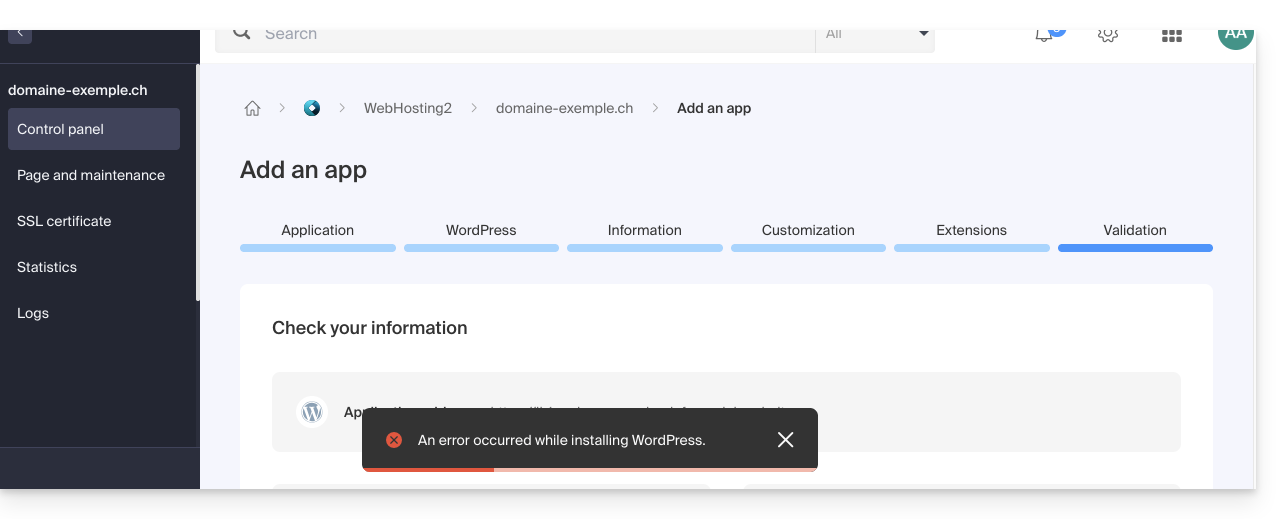
- If you check the box, there will be nothing left in the Manager (except for backups):
- Confirm the deletion.
- Click to delete and wait.
Option 2
- Click here to access the management of your WordPress site in the Infomaniak Manager (need help?).
- Click directly on the name assigned to the site in question:
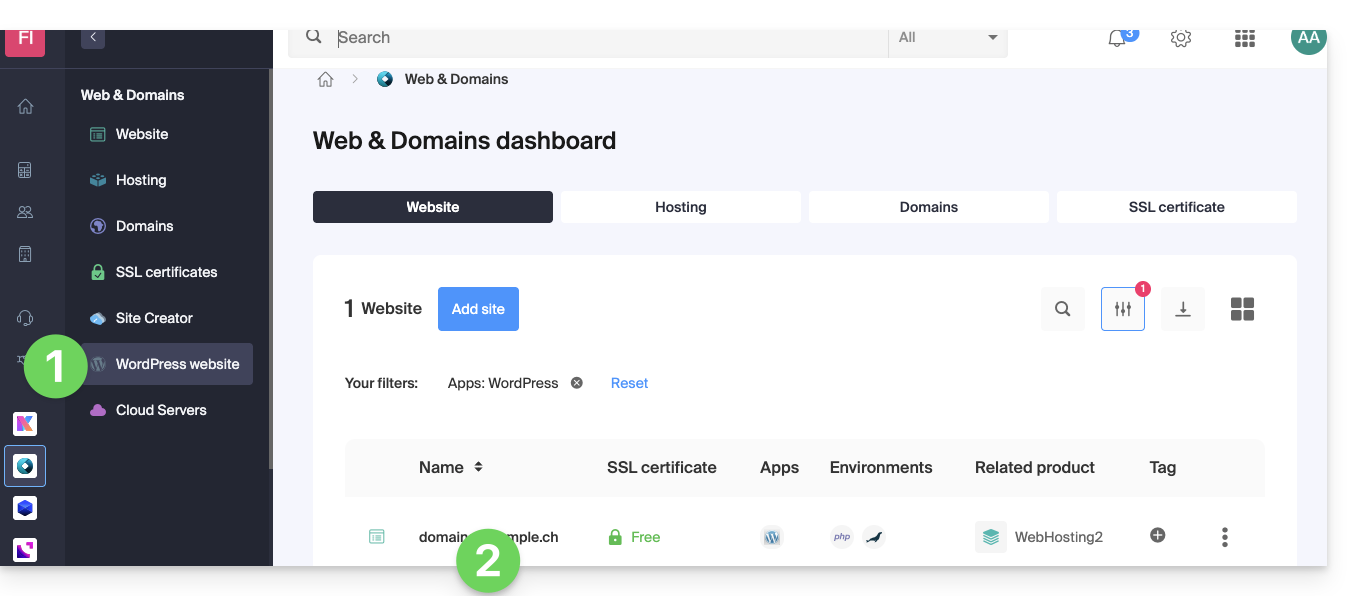
- Click on the action menu ⋮ located to the right of the item in question.
- Click on Remove app:
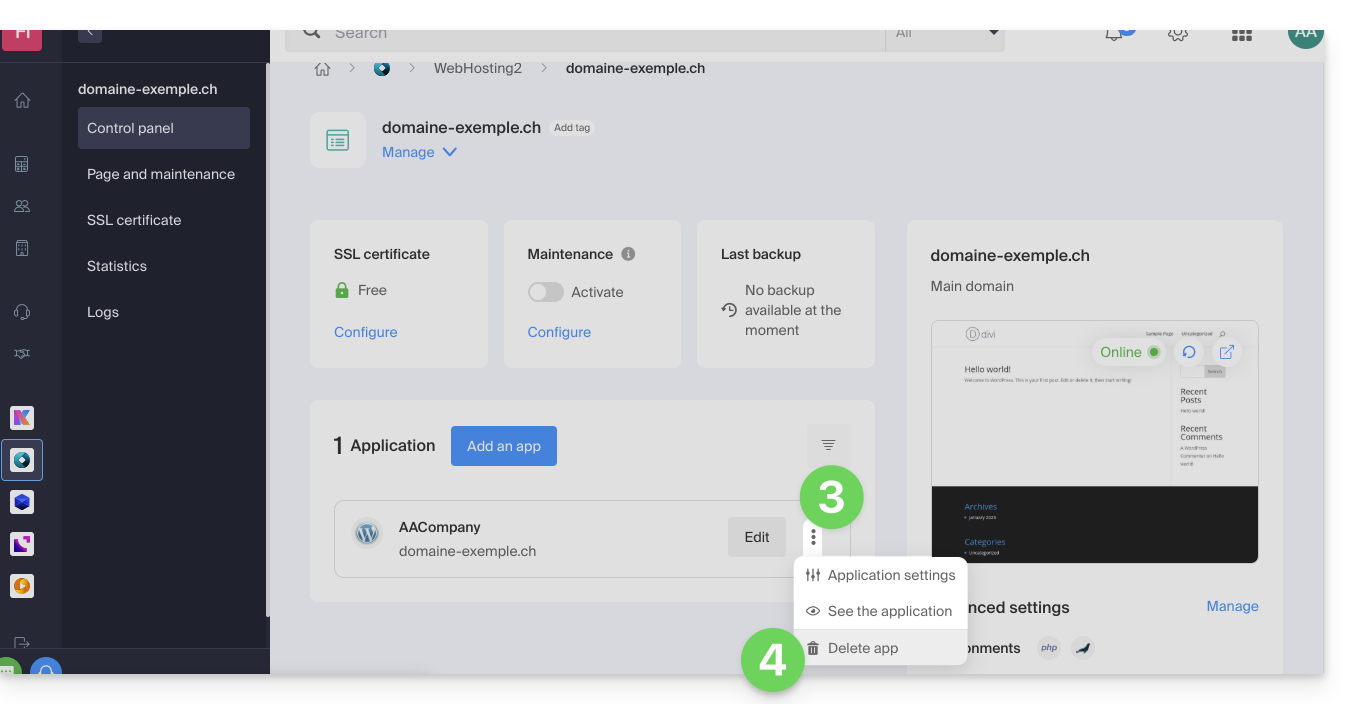
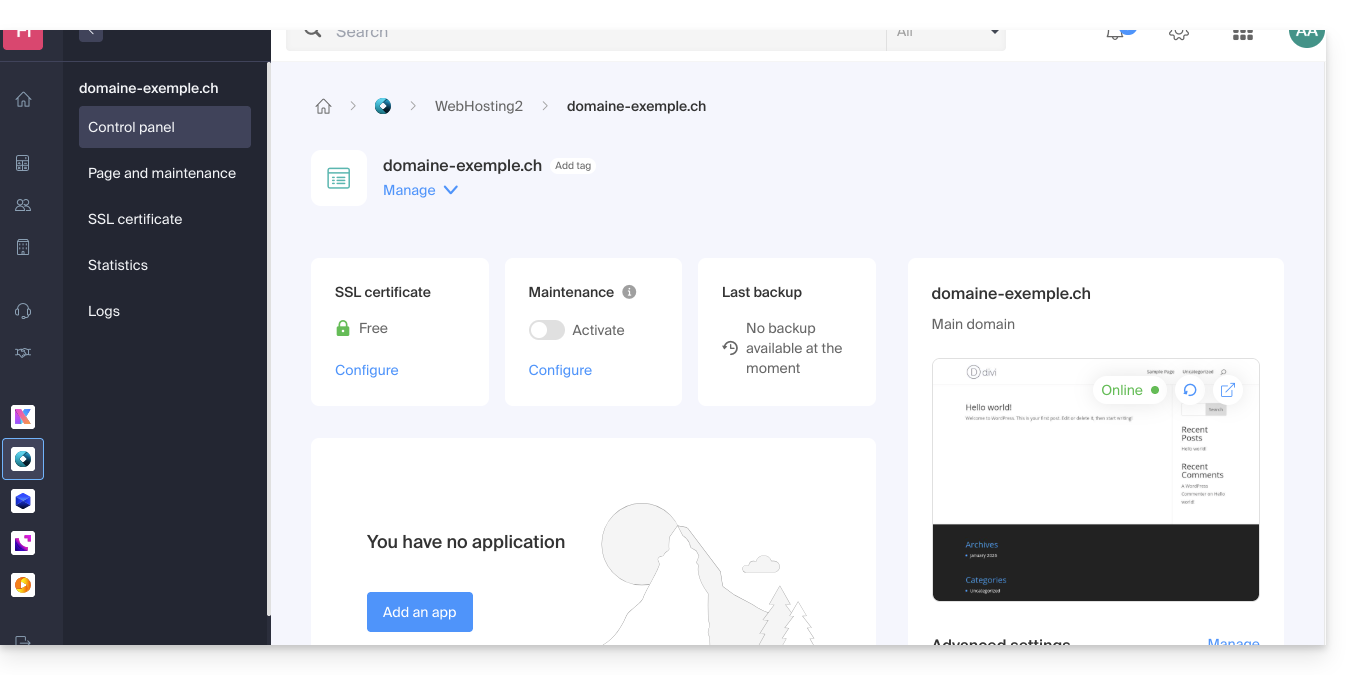
- Confirm the deletion and wait. Your hosting will still contain a website, but without any applications installed:
Learn more
Link to this FAQ: https://faq.infomaniak.com/1931
Has this FAQ been helpful?