Knowledge base
1000 FAQs, 500 tutorials and instructional videos. Here, there are only solutions!
Modify an Infomaniak website server configuration
This guide explains how to modify the server configuration of a website on Infomaniak Web Hosting.
Introduction
- Apache is the HTTP server.
- It is configured using an
.htaccessfile placed in the root directory of the website.
- It is configured using an
- PHP is a programming language used to create dynamic web pages via an HTTP server.
- It is possible to customize PHP directives with an
.user.inifile, which will be effective in the directory and subdirectories of the location of the .user.ini file.
- It is possible to customize PHP directives with an
- Consult this other guide on creating .htaccess and .user.ini files.
Modify a website's server configuration…
… via the Manager
To modify the PHP configuration and most parameters (max_input_vars, allow_url_fopen, memory_limit, post_max_size + upload_max_filesize, etc.):
- Click here to access your website management in the Infomaniak Manager (need help?).
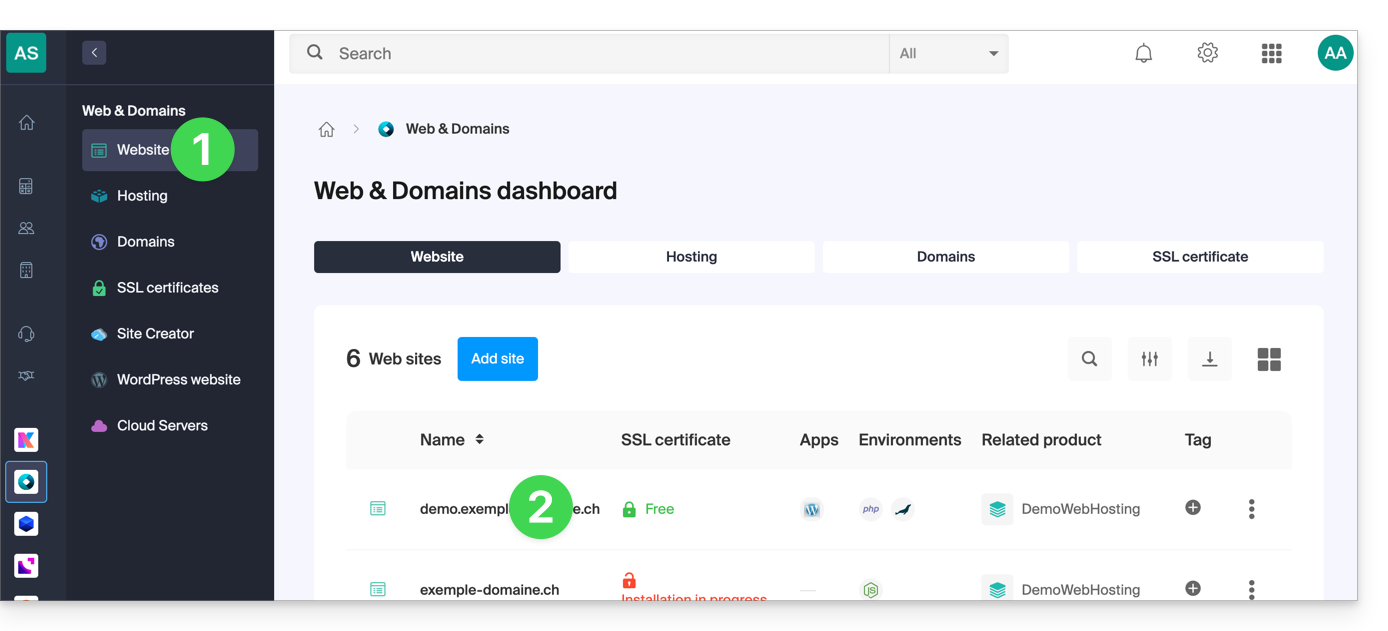
- Click directly on the name assigned to the website in question:
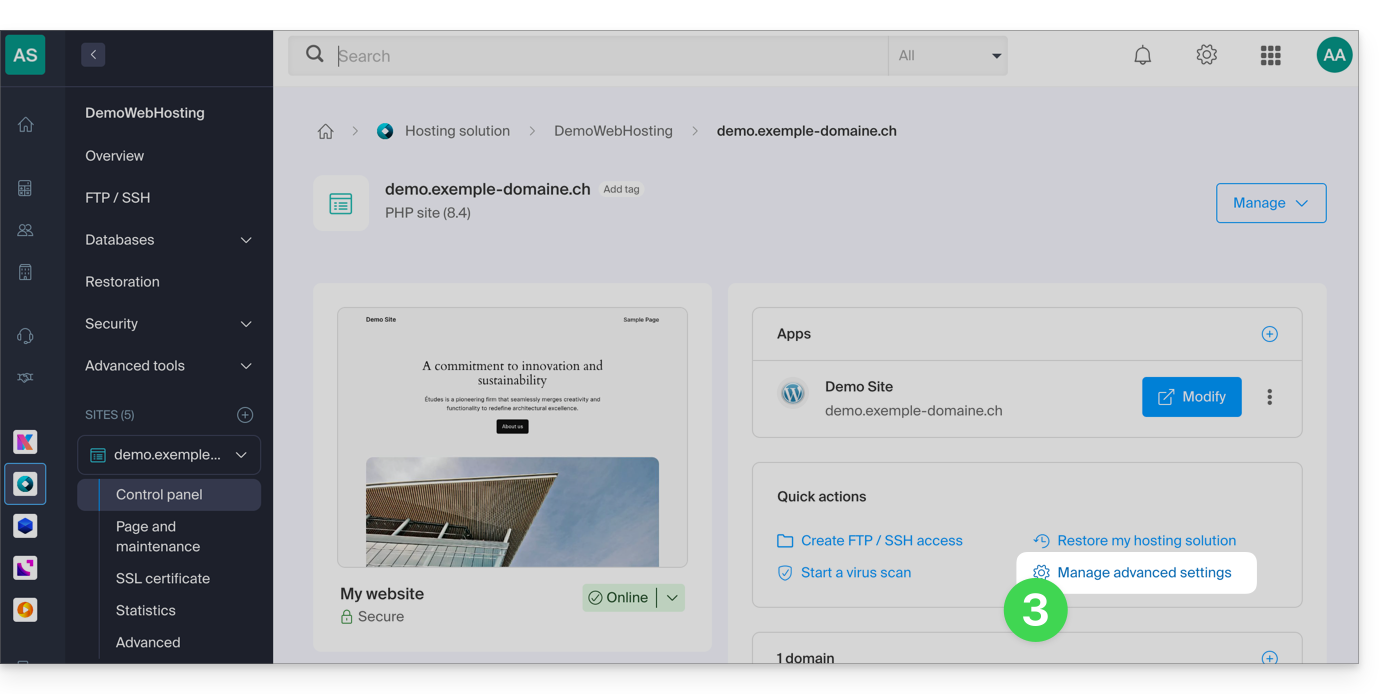
- Click on Manage advanced settings:
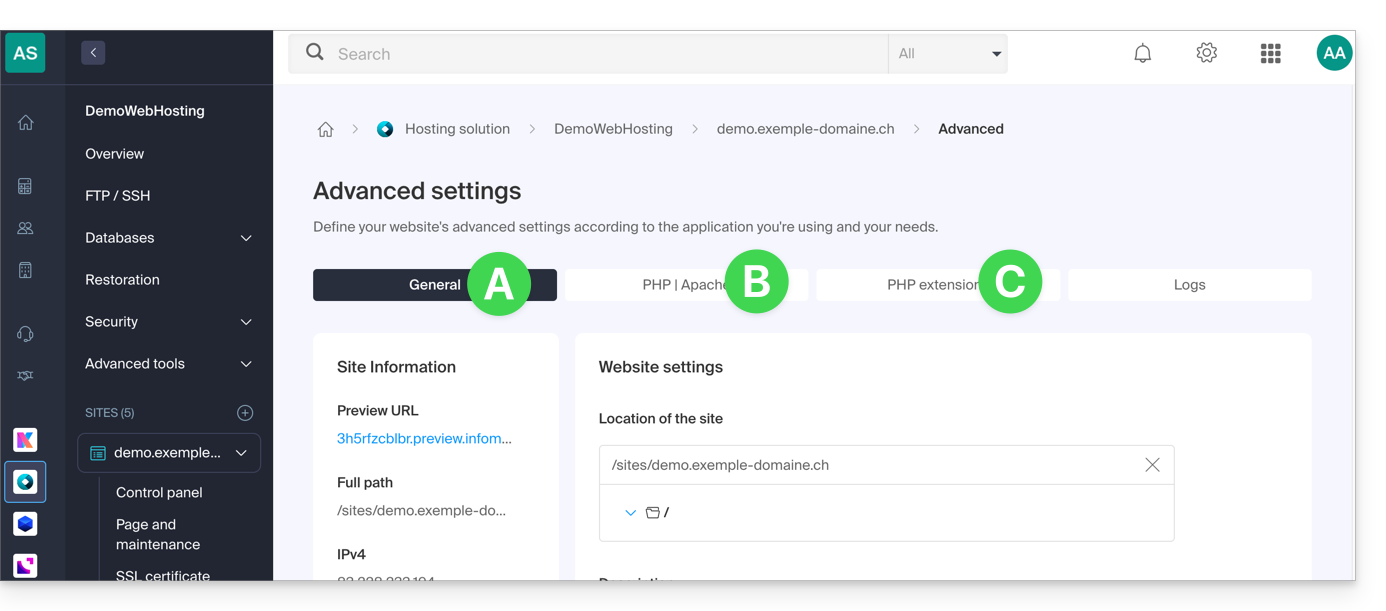
- Click on the different General, PHP / Apache, and PHP Extensions tabs to make the desired adjustments:
- Refer to this other guide if you are looking for information about limit values and the possibilities for unlocking them.
- If necessary, refer to this other guide regarding the fourth tab.
Don't forget to save the changes at the bottom of the page.
… via the .user.ini file
For PHP directives that are not available in the Manager, it is necessary to define the desired values in the .user.ini file, for example:
max_file_uploads = 20The list of existing directives can be found on the official PHP website, but the items with the PHP_INI_SYSTEM indication in the Modifiable column, as well as max_input_time, memory_limit, and mysqli.default_socket, cannot be used.
… via CLI
To customize PHP directives when running scripts via the command line interface (CLI) or in CRON tasks, it is necessary to specify the desired values in a .user.ini file.
Next, to apply these configurations, use the PHP executable with the -c option, followed by the path to the .user.ini file.
For example, to change the memory limit available for PHP to 1024M, you can create or modify the .user.ini file using the following command:
echo 'memory_limit = 1024M' > .user.iniThis command writes the memory_limit directive with the value 1024M into the .user.ini file.
Then, when running a PHP script from the command line or in a CRON task, the PHP command will be used with the -c option to specify the .user.ini file containing the custom configurations.
The following example enables allow_url_fopen for the WP CLI tool (which, among other things, allows you to retrieve extensions):
php -d allow_url_fopen=On ~/bin/wp package install trepmal/wp-revisions-cliphp: the PHP executable-d allow_url_fopen=On: the-doption allows you to define a PHP configuration directive (allow_url_fopen) with the valueOn~/bin/wp: path to the WP CLI executablepackage install trepmal/wp-revisions-cli: the specific command to install the WP CLI packagetrepmal/wp-revisions-cli
This ensures that the allow_url_fopen option is enabled during the execution of the specified WP CLI command. Enabling allow_url_fopen may be necessary for certain operations that involve opening remote URLs, such as downloading extensions or packages. Make sure that this option is enabled securely and in accordance with best security practices.
Link to this FAQ: https://faq.infomaniak.com/1928
Has this FAQ been helpful?