Knowledge base
1000 FAQs, 500 tutorials and instructional videos. Here, there are only solutions!
Manage the SMTP email sending method from Site Creator
Update 10/13/2026
This guide concerns messages sent from Site Creator (e.g., contact form or e-commerce module).
Introduction
- By default, emails are sent using the unauthenticated PHP mail() protocol (❓: help).
- It is recommended to use the authenticated SMTP method instead (❓: help).
Modify the sending method
Prerequisites
- Have a valid email address or create one (❓: help my kSuite | Mail/kSuite Service).
- Create a device password (❓: help my kSuite | Mail/kSuite Service) named, for example, “
Site Creator” (or “SC2026”, etc. – it doesn’t matter) for this email address: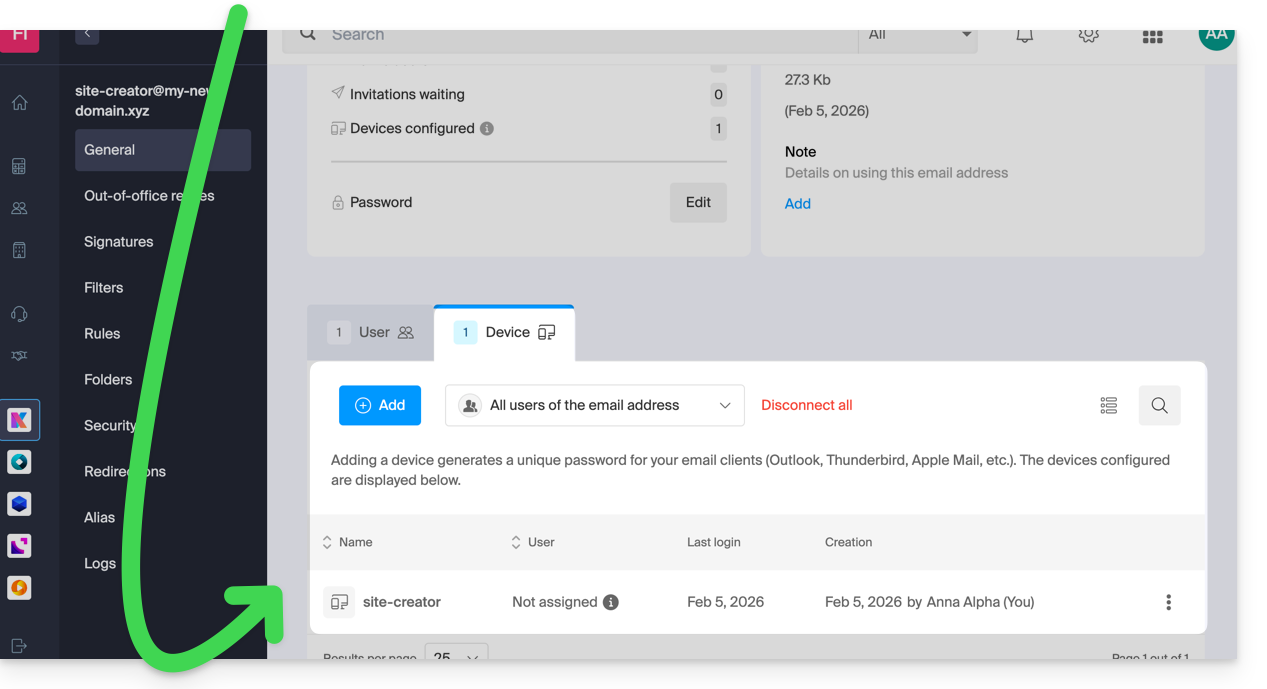
- Check that the domain is configured correctly (❓: help Mail/kSuite service).
Start by logging into the Infomaniak Manager with your login credentials (user with the necessary rights for the product in question):
- Click here to access the hosting & site management section (filtered to display only Site Creator).
- If nothing is displayed, you may not be in the Organization to which your site is linked (❓: help).
- Click on the name of the Site Creator in question:
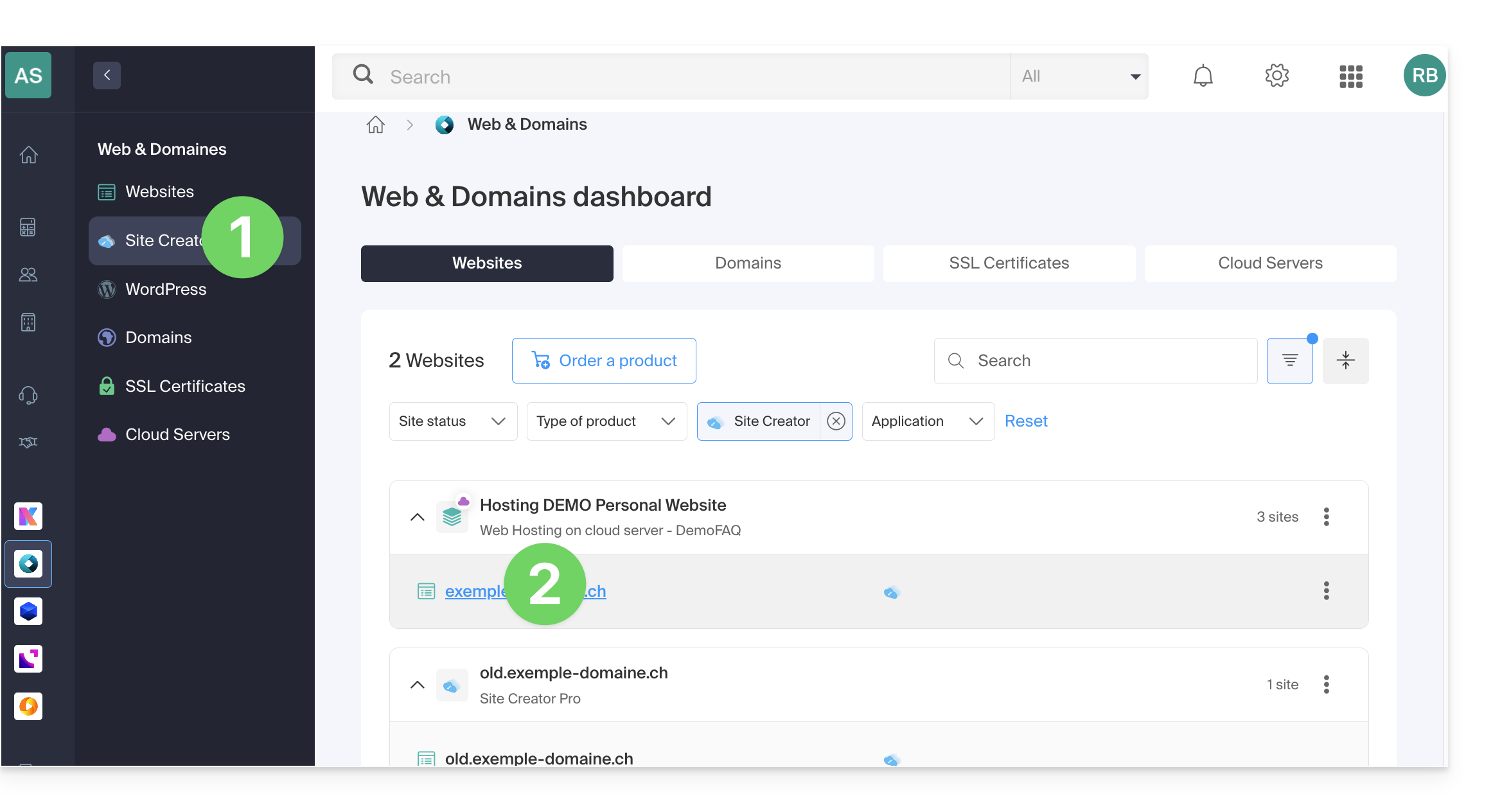
- Click on the button to edit your website:
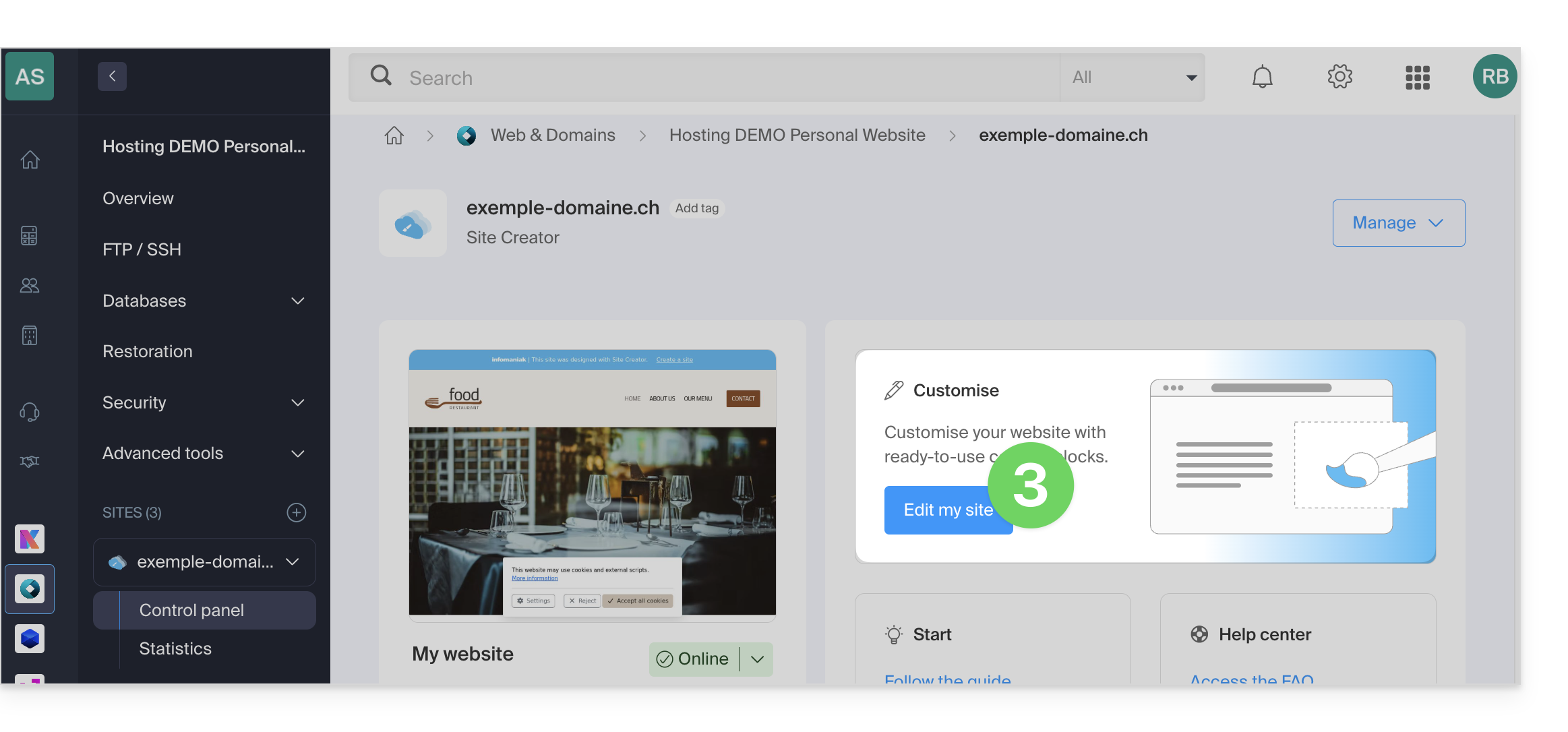
Once in Site Creator, to modify the email sending method:
- Click on the Settings button in the left-hand menu.
- Click on General Settings:
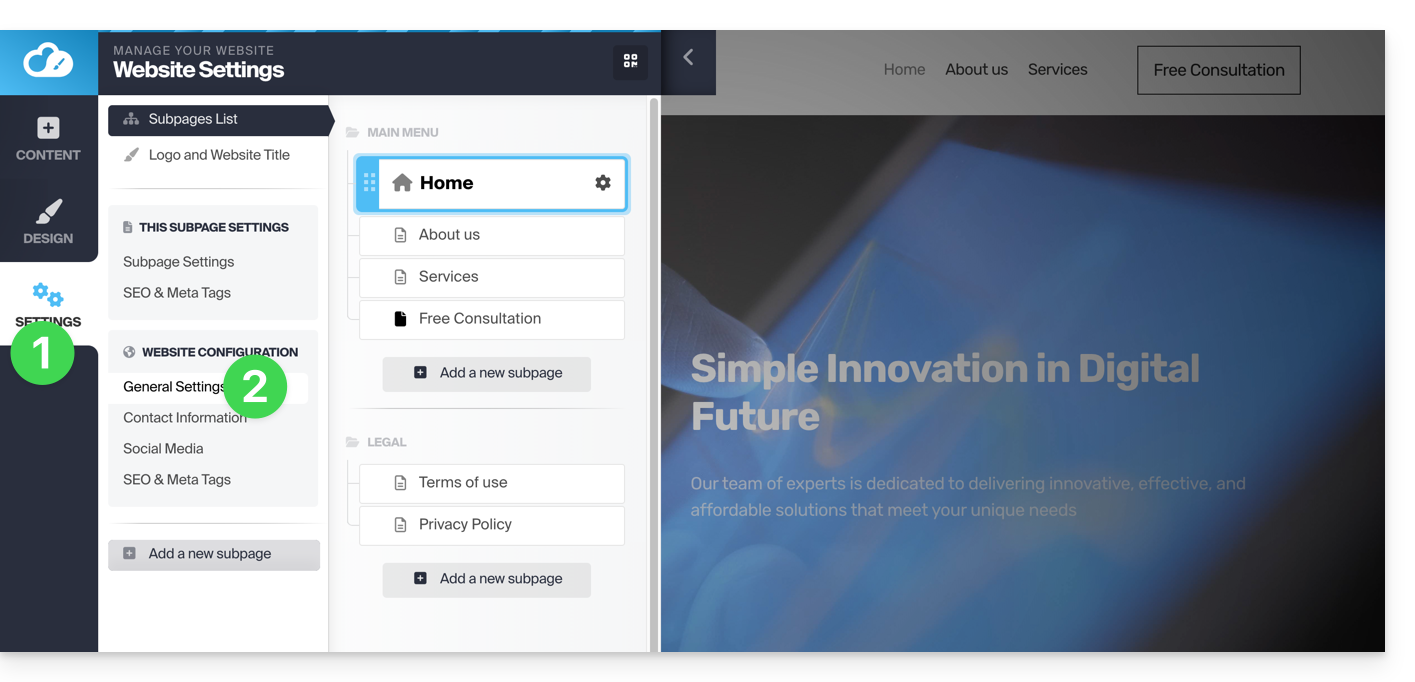
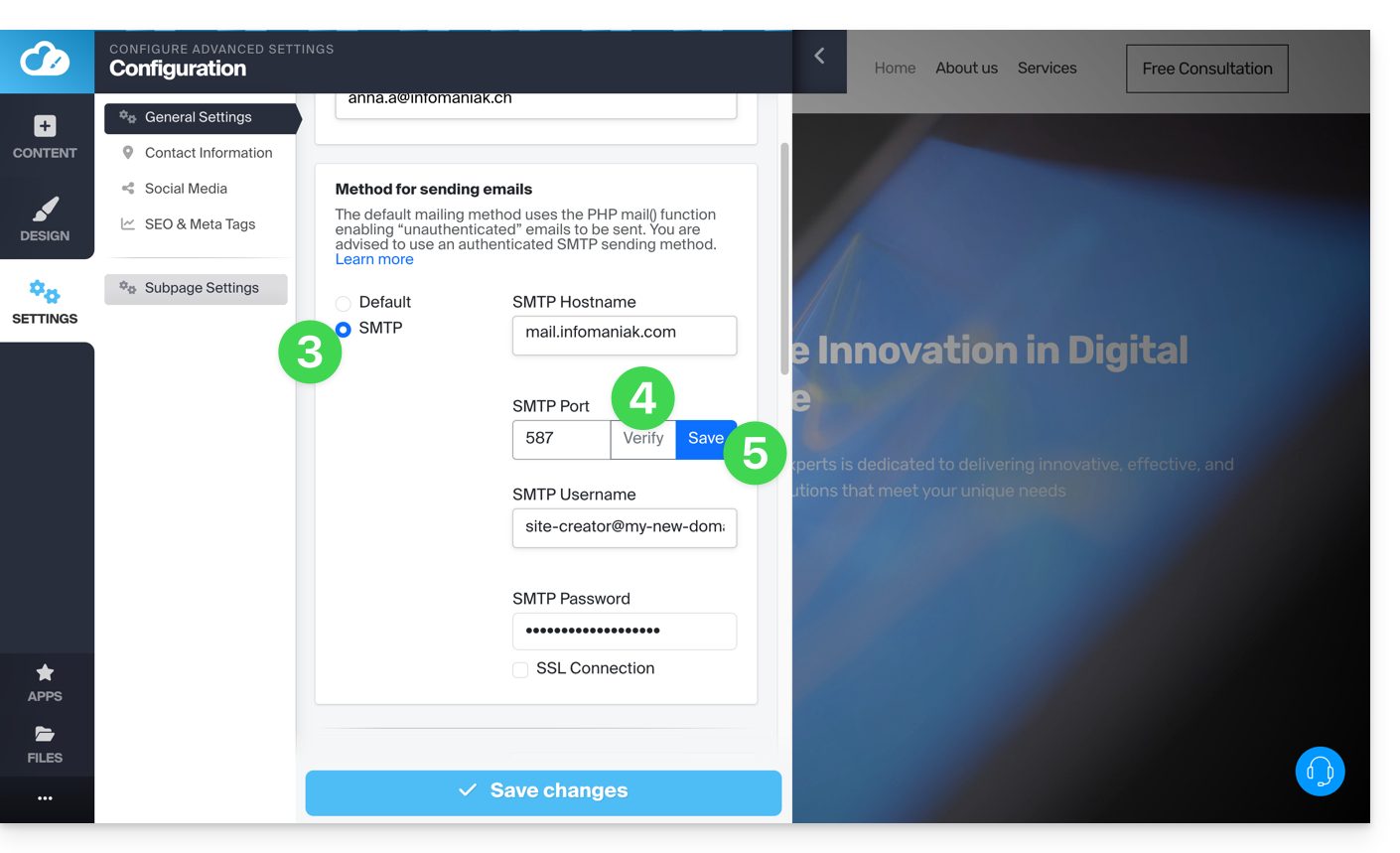
- Choose the SMTP method, then fill in the fields with the SMTP server details and the information related to your email address and its password:
- Outgoing SMTP server =
mail.infomaniak.com - SMTP port:
587 - Username = the complete email address (❓: help)
- Password = the password generated for the email address you want to access (❓: help my kSuite | Mail/kSuite Service).
- Refer to this other guide if you are looking for information about other compatible ports.
- Outgoing SMTP server =
- Once all the fields are filled in, click on the Verify button.
- If everything is correct, the Save button will appear, and you can click it to save your email settings:
Link to this FAQ: https://faq.infomaniak.com/1867
Has this FAQ been helpful?