Knowledge base
1000 FAQs, 500 tutorials and instructional videos. Here, there are only solutions!
Schedule a meeting on Infomaniak Calendar
This guide explains how to use the meeting scheduling assistant in the Infomaniak Calendar web app (online service ksuite.infomaniak.com/calendar) to schedule a meeting between several users.
Introduction
- Scheduling is limited to 7 days with the following plans:
- kSuite Free
- my kSuite (ik.me, etik.com, ikmail.com)
- Mail Starter service
- You can also access the feature while reading an email.
- To easily create and configure a new event, refer to this other guide.
- To instead suggest a meeting to several guests who can then vote, refer to this other guide.
Schedule a meeting for later
To create a new shared event using the scheduling assistant:
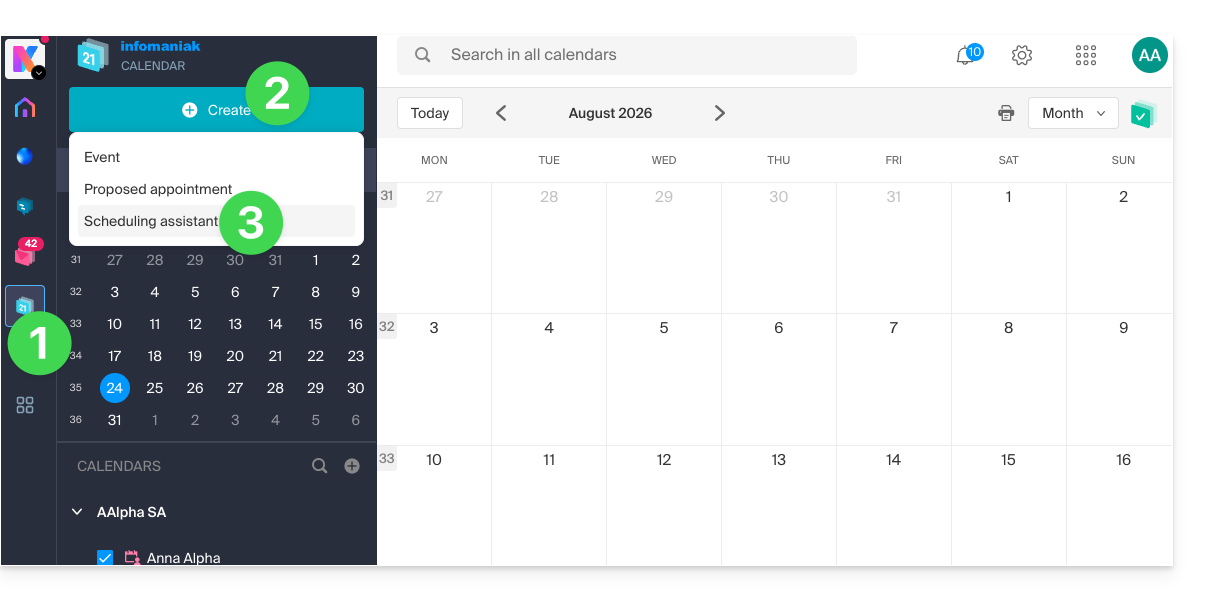
- Click here to access the Infomaniak Calendar web app (online service ksuite.infomaniak.com/calendar).
- Click the Create button in the upper left corner.
- Click on Scheduling Assistant:
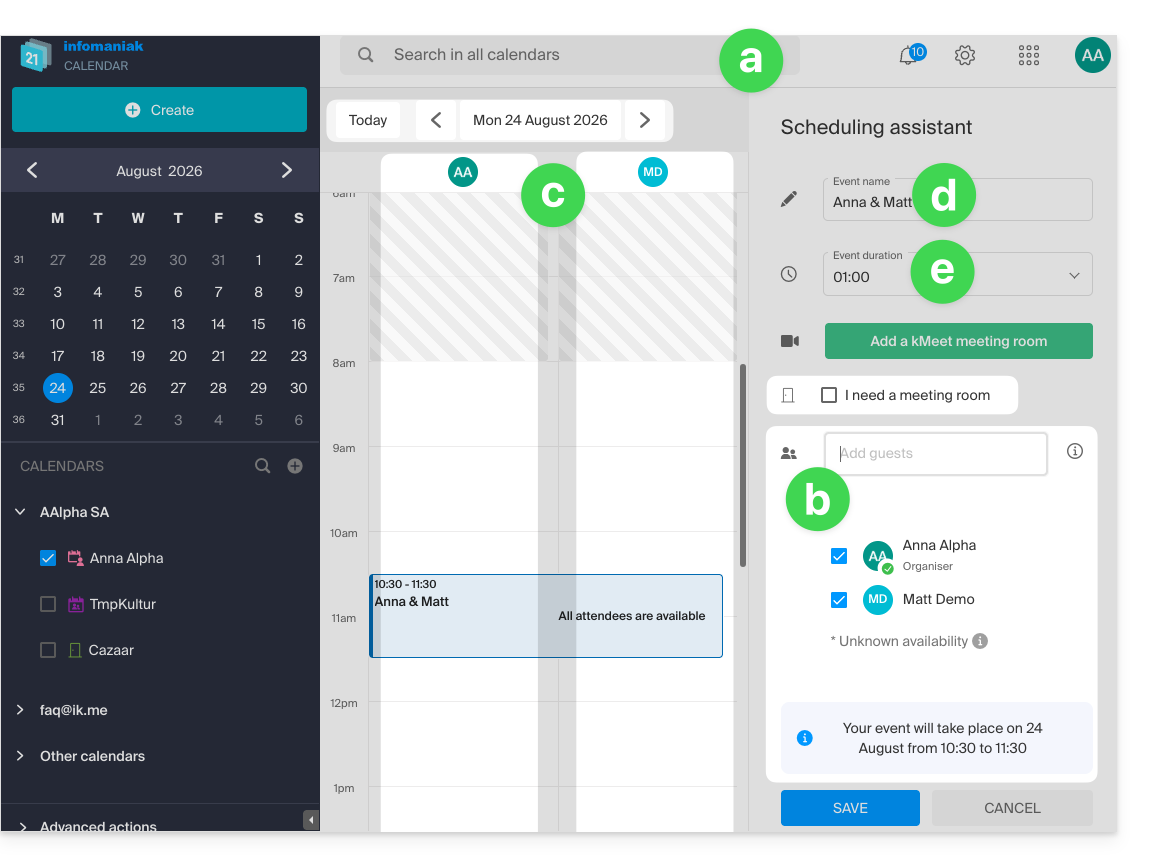
- The assistant appears on the right side of the screen, while the left side allows you to choose the day of the event.
- The principle, when you add one or more participants, is to automatically find the best time to schedule a meeting between several users in the Organization.
- Participants can be added, up to a maximum of 25.
- To do this, each person's availability (based on their schedule and the settings defined in the calendar preferences) is displayed in columns, including a column for the availability of a meeting room if available (an available room is automatically selected on the right, but it can be changed).
- The meeting title is automatically generated, but it can be modified.
- The duration of the event (and its position within the day) can be modified, including on the left side using the mouse cursor:
- Save your preferences using the button at the bottom of the page to create the event and the invitations.
Link to this FAQ: https://faq.infomaniak.com/1862
Has this FAQ been helpful?