Knowledge base
1000 FAQs, 500 tutorials and instructional videos. Here, there are only solutions!
Enable Auto DJ on an audio stream
Update 09/22/2026
This guide details the Auto DJ feature of Infomaniak's Streaming Radio service, which allows you to create a 24/7 live radio station using your own audio content (music, shows, podcasts, jingles, etc.) that you have previously uploaded to your storage space.
Introduction
- The Auto DJ uses the files stored in your Infomaniak AOD (Audio on Demand) space to create a linear stream.
- You can use this same space for your on-demand file storage needs.
- You organize your media, create your playlists, and schedule their broadcast via an intuitive calendar interface.
- This ensures continuous broadcasting without requiring an encoder to be active at all times.
Enable Auto DJ
Prerequisites
- You must have at least the right to manage the VOD/AOD service “autodj” and the relevant Audio Streaming service (or be an Administrator / Legal Representative within the Organization).
- To manage Auto DJ via API, the token created for managing the radio must include the following scopes:
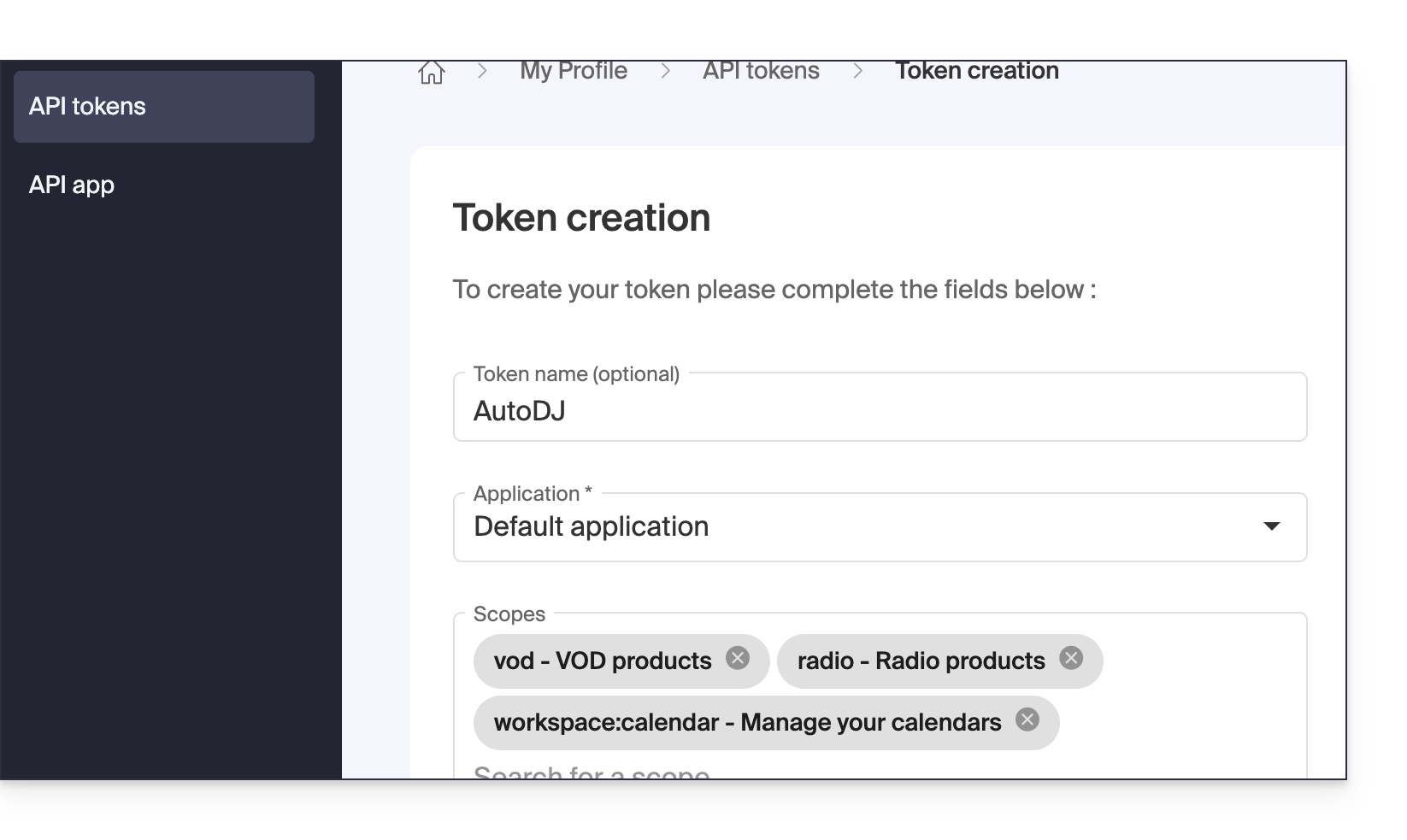
vodradioworkspace:calendar
To activate and start Auto DJ:
- Click here to access the management of your Streaming Radio in the Infomaniak Manager (need help?).
- Click directly on the name assigned to the Streaming Radio in question:
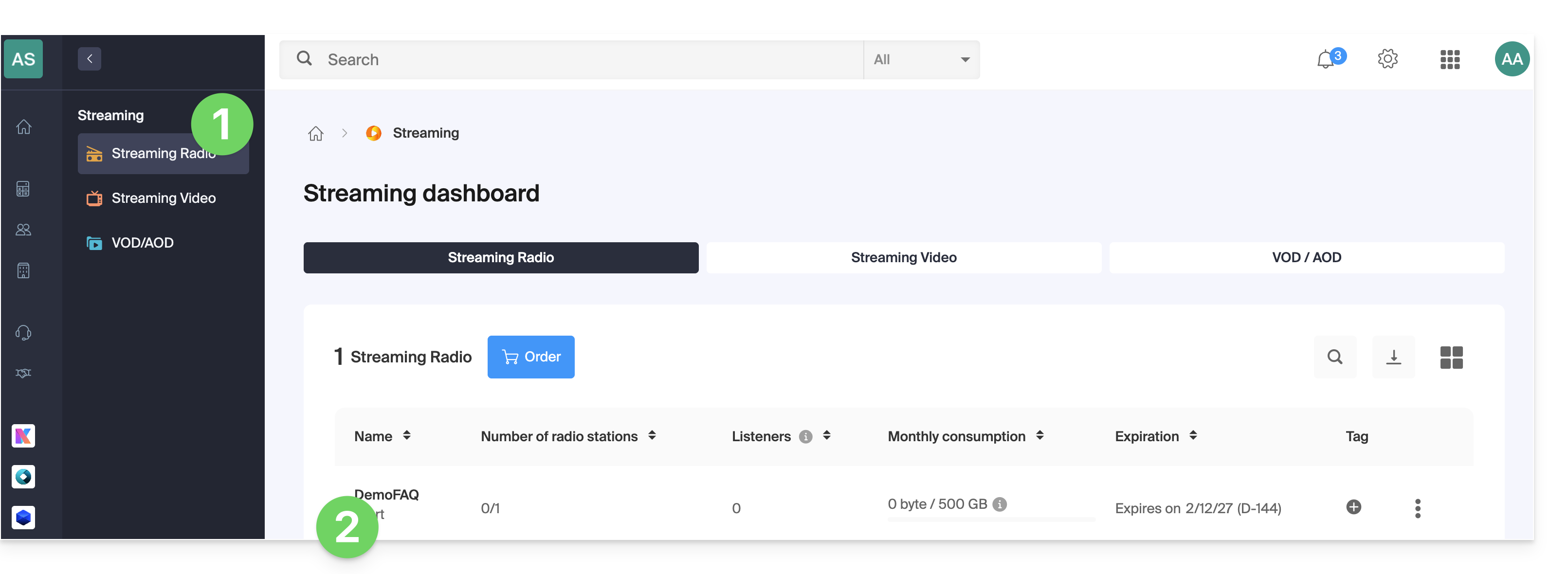
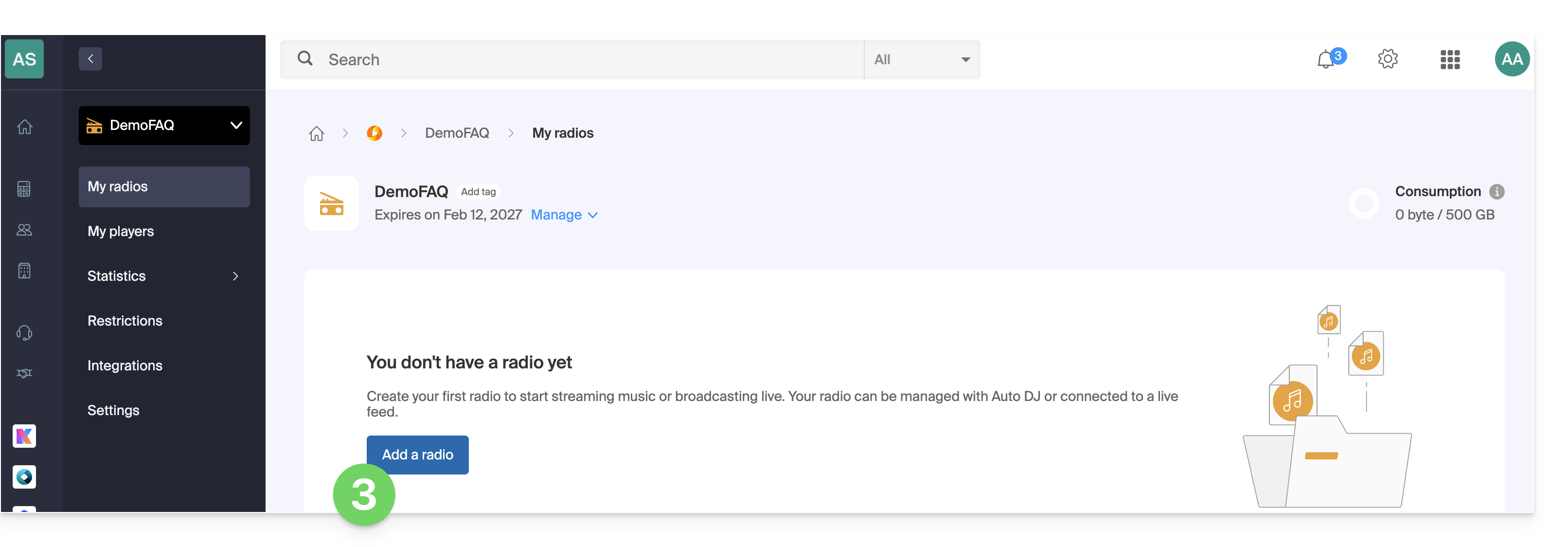
- If you already have a radio configured, click on its name and go to step 8; otherwise, add a new radio:
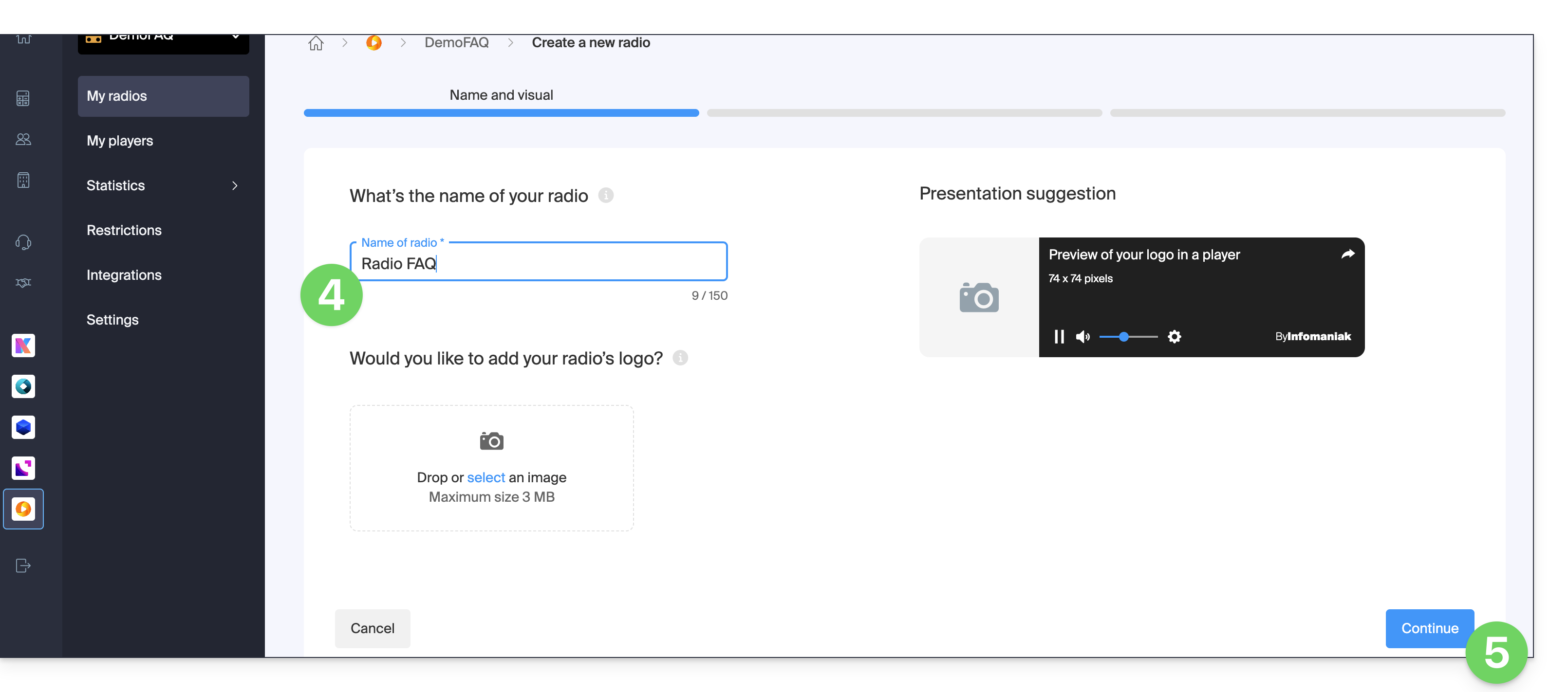
- Give the radio a name and an optional visual.
- Click Continue:
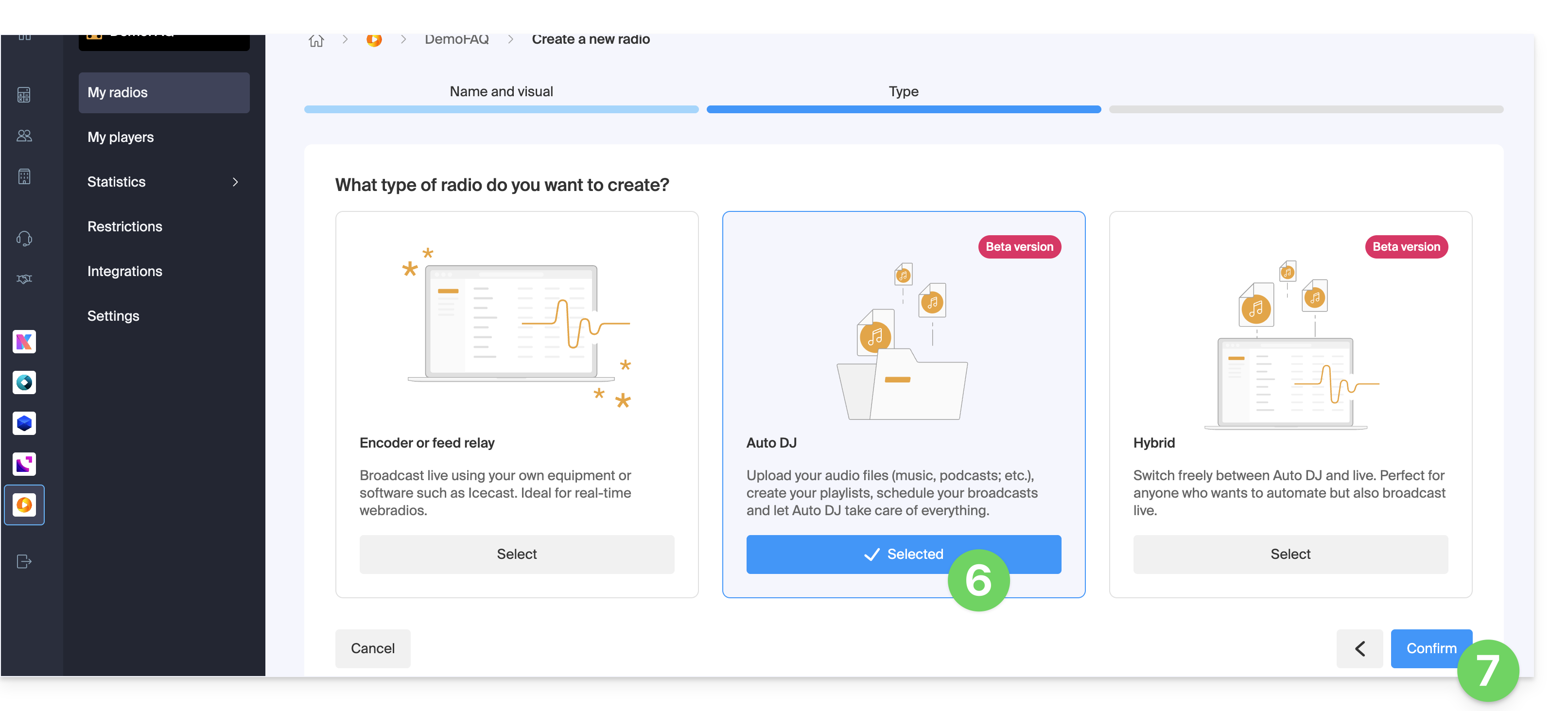
- Select Auto DJ.
- Click to Confirm and proceed to step 11:
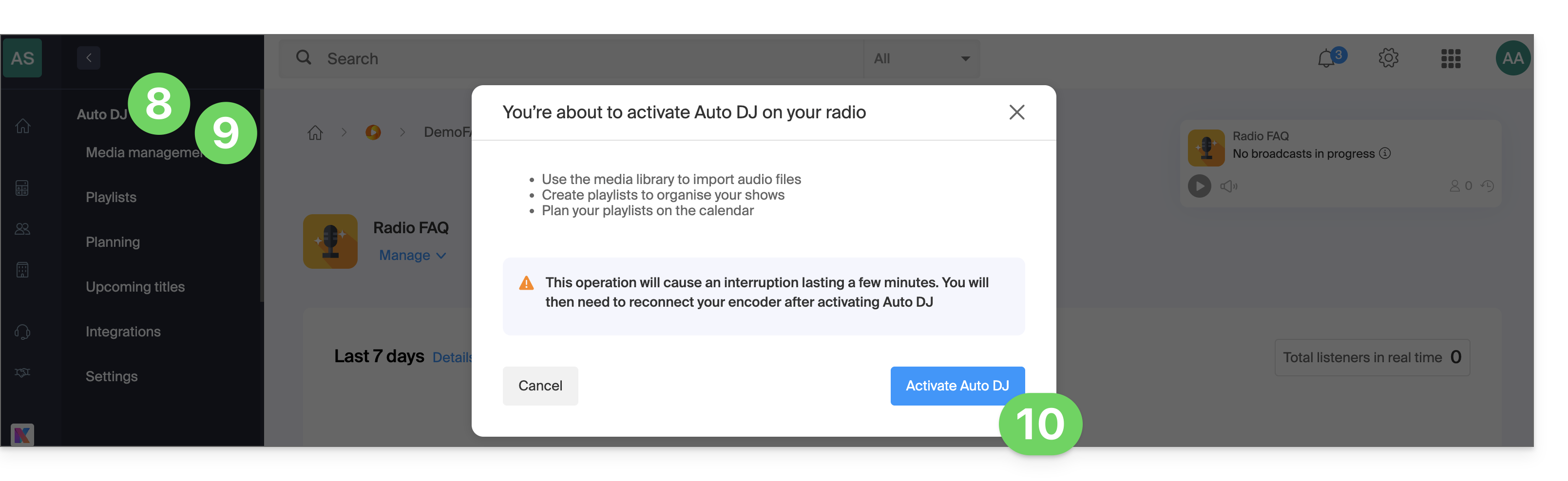
- Click on Auto DJ in the left-hand menu.
- Click on Media Management in the left-hand menu.
- Read the warnings and click to enable Auto DJ:
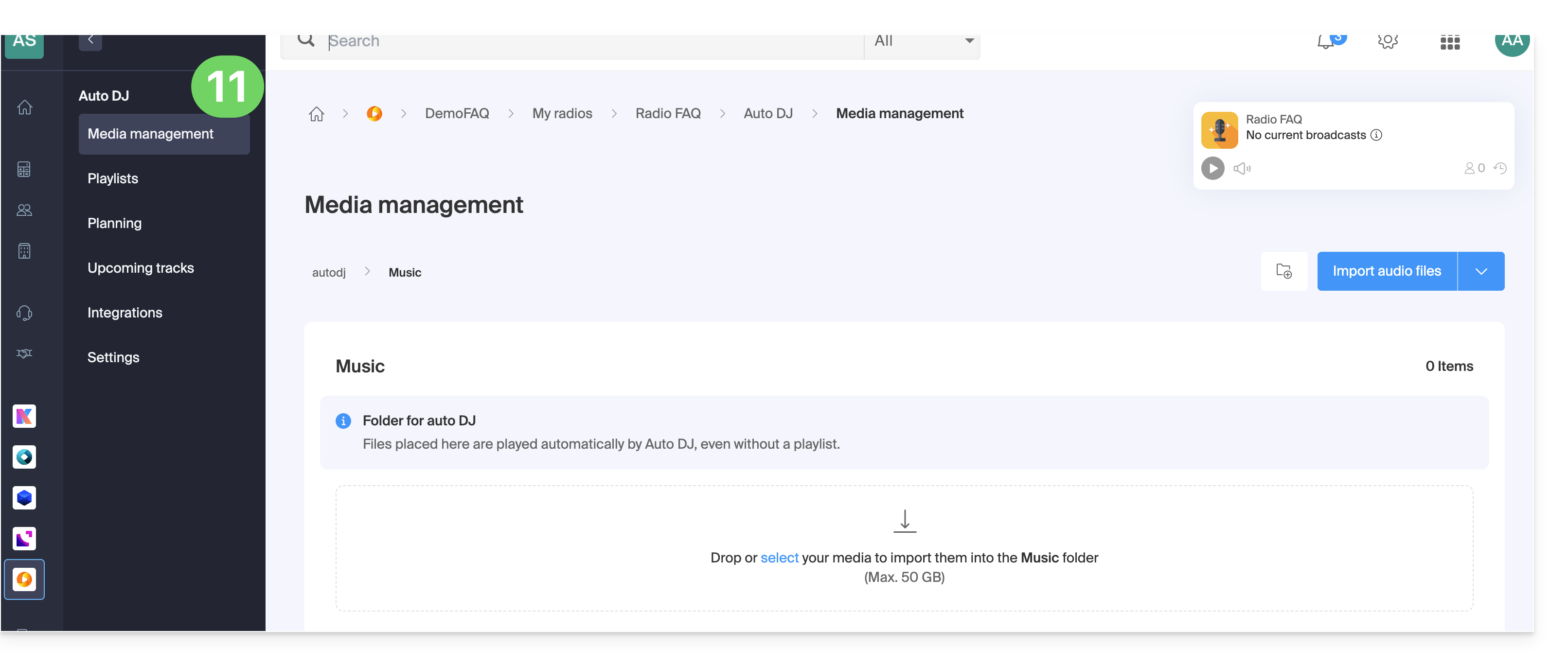
- Select the AOD space to use if you have several.
- Auto DJ is now enabled and linked to your AOD space for your audio files:
Refer to this other guide to organize and broadcast your audio files.
Link to this FAQ: https://faq.infomaniak.com/185
Has this FAQ been helpful?