Knowledge base
1000 FAQs, 500 tutorials and instructional videos. Here, there are only solutions!
Broadcast a list of files on audio streaming (Auto DJ)
This guide details the Auto DJ feature of Infomaniak's Streaming Radio service, which allows you to generate a live radio stream 24/7 from your own audio content (music, shows, podcasts, jingles, etc.) that you have previously uploaded to your storage space.
Introduction
- Auto DJ uses the files stored in your Infomaniak AOD (Audio on Demand) space to create a linear stream.
- You can use this same space for your on-demand file storage needs.
- You organize your media, create your playlists, and schedule their broadcast via an intuitive calendar interface.
- This allows you to maintain a continuous broadcast without needing an encoder active at all times.
Activate Auto DJ
Prerequisites
- You must have at least the right to manage the VOD/AOD service “autodj” and the Streaming Audio service in question (or be an Administrator / Legal Representative within the Organization).
- To manage Auto DJ via API, the token created to manage the radio must include the following scopes:
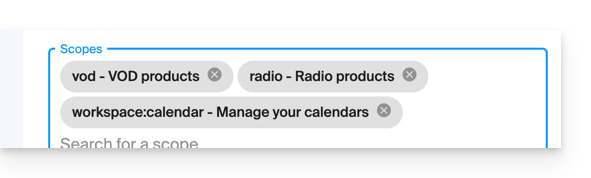
vodradioworkspace:calendar
To start Auto DJ:
- Click here to access the management of your product in the Infomaniak Manager (need help?).
- Click directly on the name assigned to the product in question.
- Click on the name of the audio stream in question:
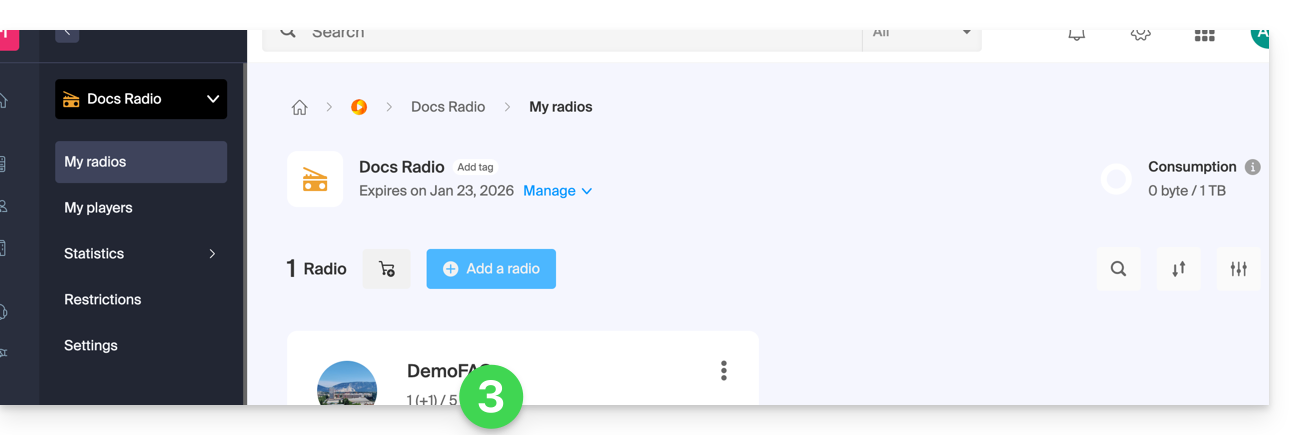
- Click on Auto DJ in the left-hand menu.
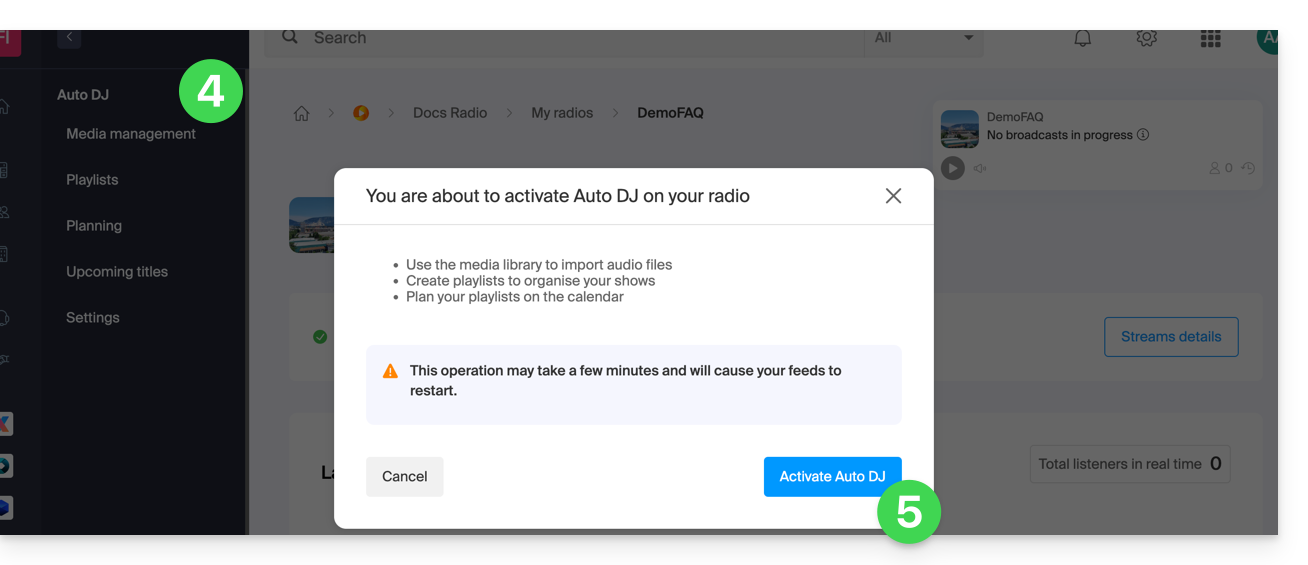
- Read the warnings and click the button to Enable Auto DJ when you are ready:
- Select the AOD space to use if you already have one.
- Apply your choice by clicking at the bottom right:
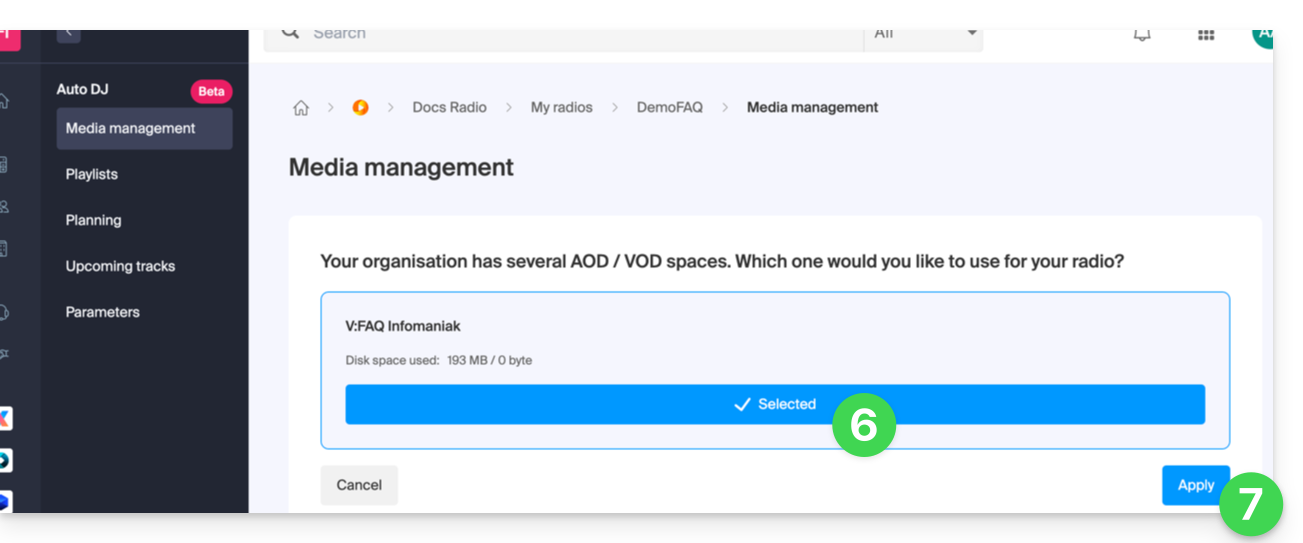
- There you go, the AOD space for your audio files to be broadcast is now available:
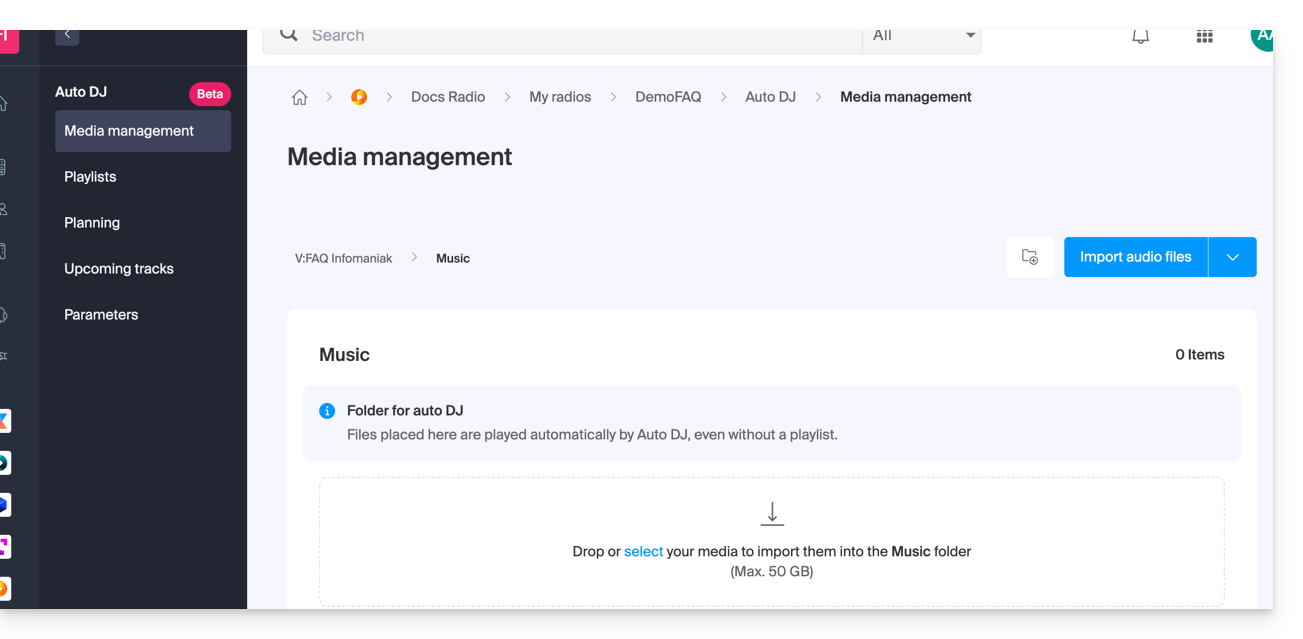
Organize, import your audio files
The first step is to prepare your content. The tool currently accepts files in .mp3 and .aac format. You can import an entire folder containing your audio files: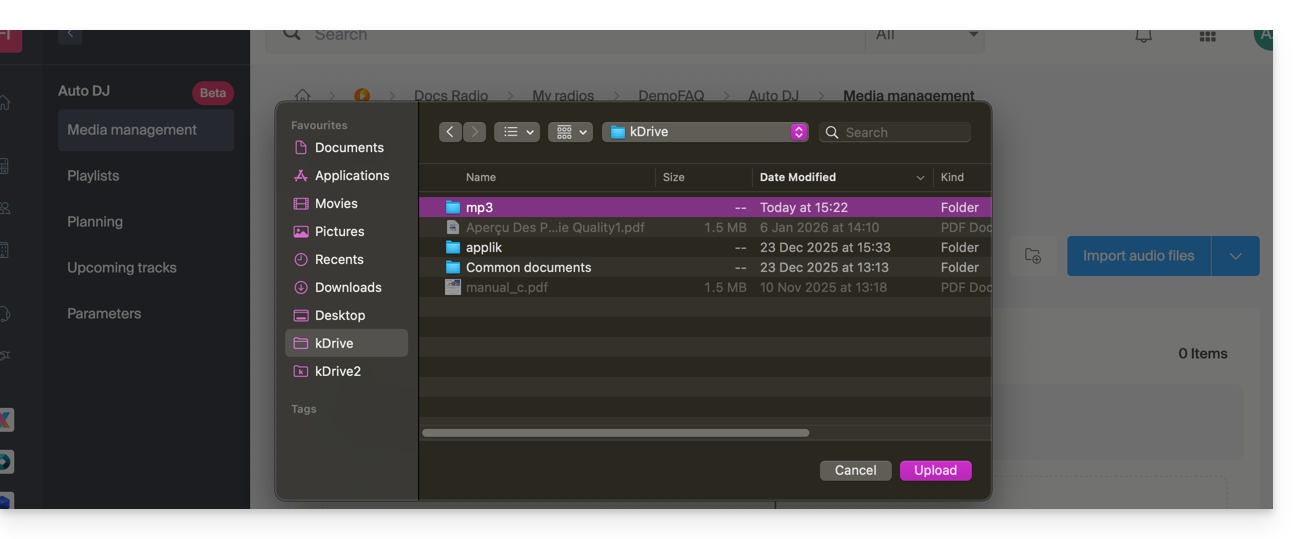
Once imported, you can structure your files into dedicated folders within your storage space to facilitate the management of your library: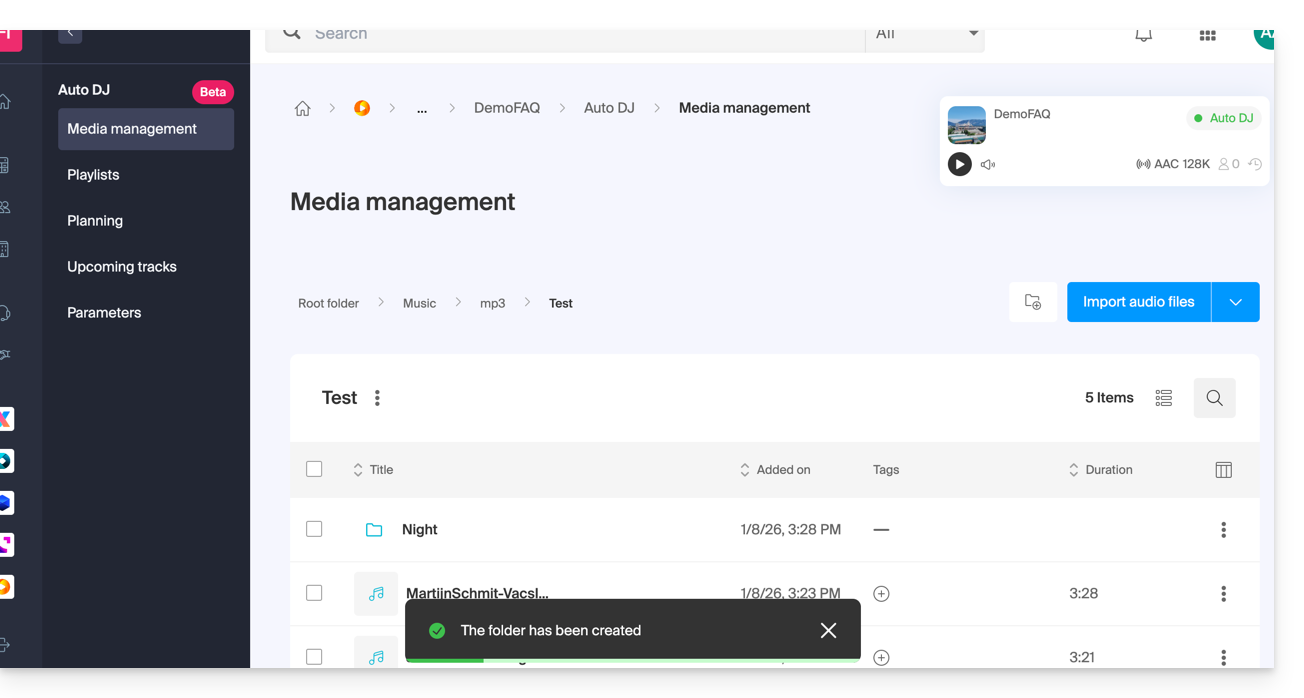
Metadata Management
It is possible to directly modify ID3 tags (title, artist, album, cover art) from the interface so that this information is displayed correctly on your playback devices: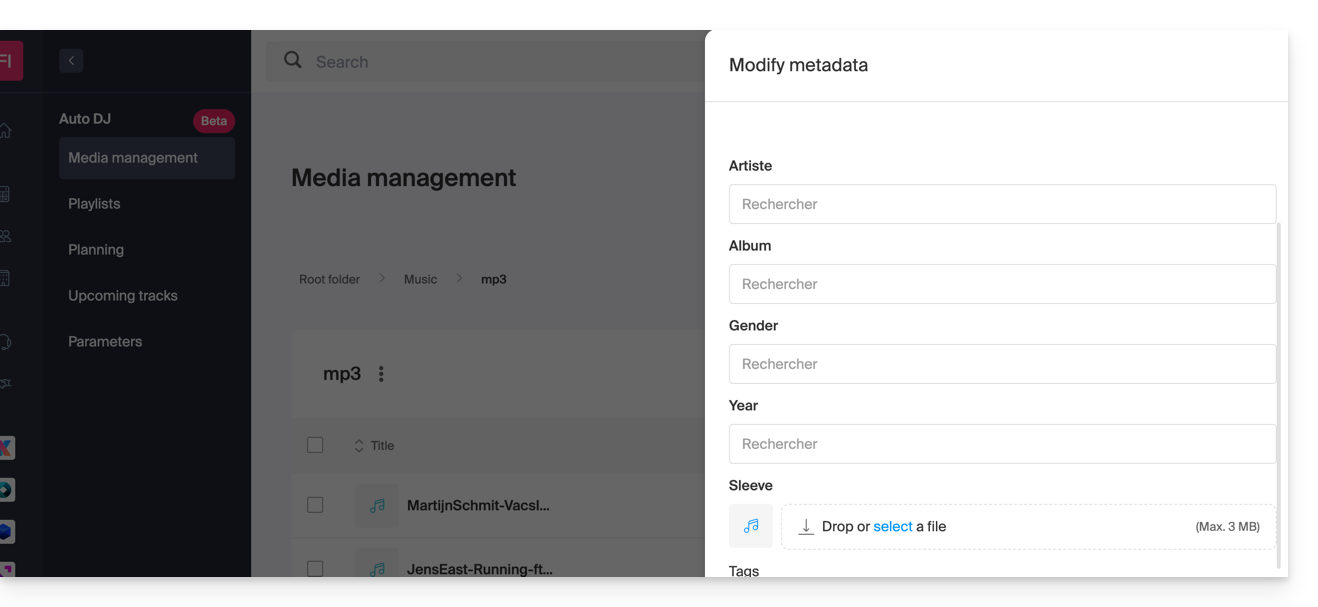
Create Playlists
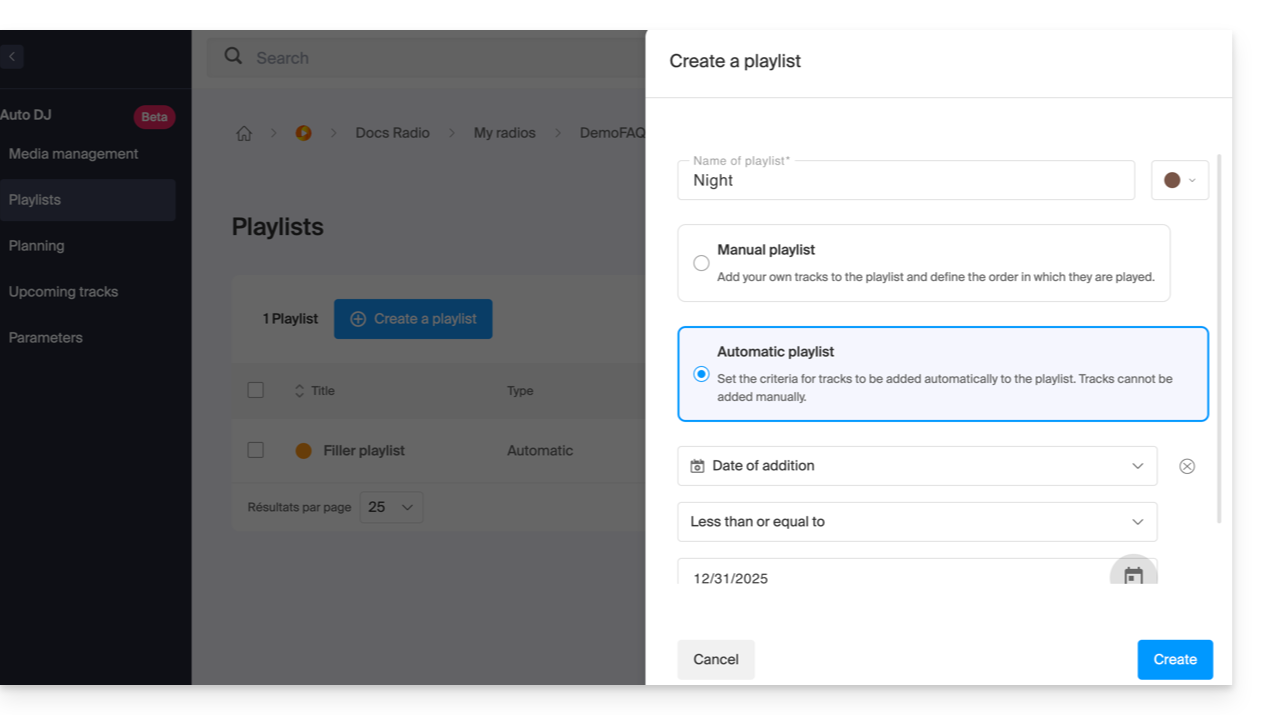
Once your files are imported, you can group them into playlists:
- Manual playlists: precisely select the tracks and their order.
- Automatic playlists: define smart criteria (by tags, genres, or artists) to allow the system to dynamically generate the playlist:
Schedule Broadcasts (Scheduling)
The scheduling tool allows you to manage your program schedule in detail:
- Scheduling by time slots: arrange your broadcasts by playlist or folder on a weekly calendar:
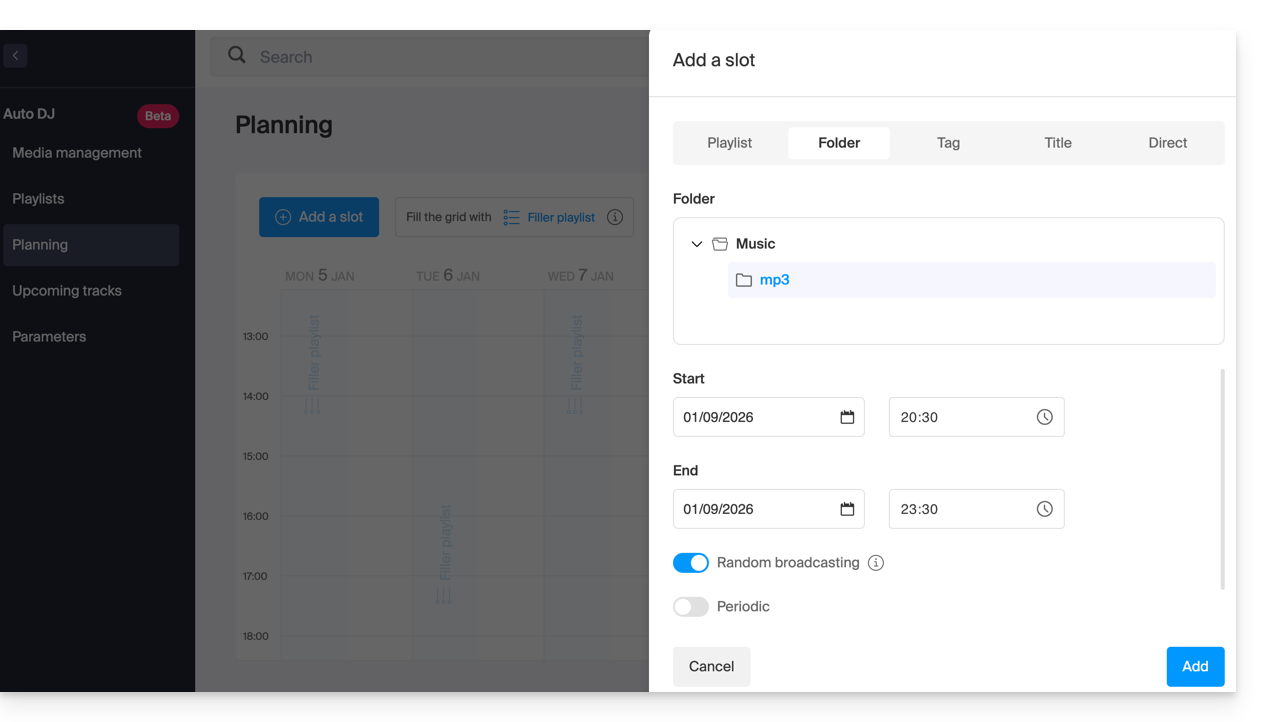
- Fallback playlist: configure a backup playlist that will be broadcast automatically when no specific program is scheduled, ensuring an uninterrupted stream.
- Live / AutoDJ transition: you can schedule time slots or automate the resumption of the Auto DJ stream as soon as an encoder (external source) stops pushing its stream.
Advanced Audio Settings
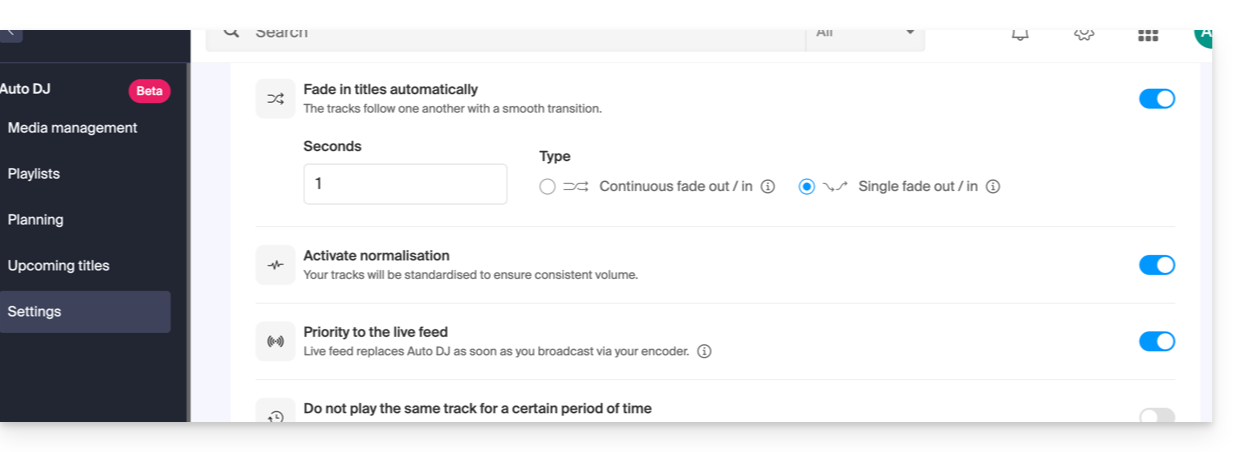
To ensure professional listening quality, several processing options are available:
- Audio Normalization: Uniforms the audio level of all your files to avoid volume differences between tracks.
- Transitions: Configure crossfades and overlaps between tracks:
Integration and Statistics
The stream generated by Auto DJ is a standard streaming stream that benefits from all the tools in the Infomaniak ecosystem:
- Infomaniak Player: Automatic display of currently playing tracks and broadcast history.
- Multi-format streaming: Support for HLS and stream transcoding.
- Advanced statistics: Precise tracking of your audience in real time and detailed reports.
Link to this FAQ: https://faq.infomaniak.com/185
Has this FAQ been helpful?