Knowledge base
1000 FAQs, 500 tutorials and instructional videos. Here, there are only solutions!
Change the password for a Web Application
Update 10/13/2026
This guide explains how to change the management password for WordPress or any other Web Application (Joomla, Drupal, Typo3, PrestaShop, ownCloud, etc.) installed using the Infomaniak tools included in the paid Web Hosting plans.
Introduction
- Some applications also allow you to change a user's password directly from their dedicated interface:
- Example: WordPress (manage users, names, passwords, roles, etc.).
Change the password for a web app
To change the password for accessing the administration panel of your web application, follow these steps:
- Click here to access the hosting & website management section in your Infomaniak Manager (❓: help).
- Click on the name of the website in question.
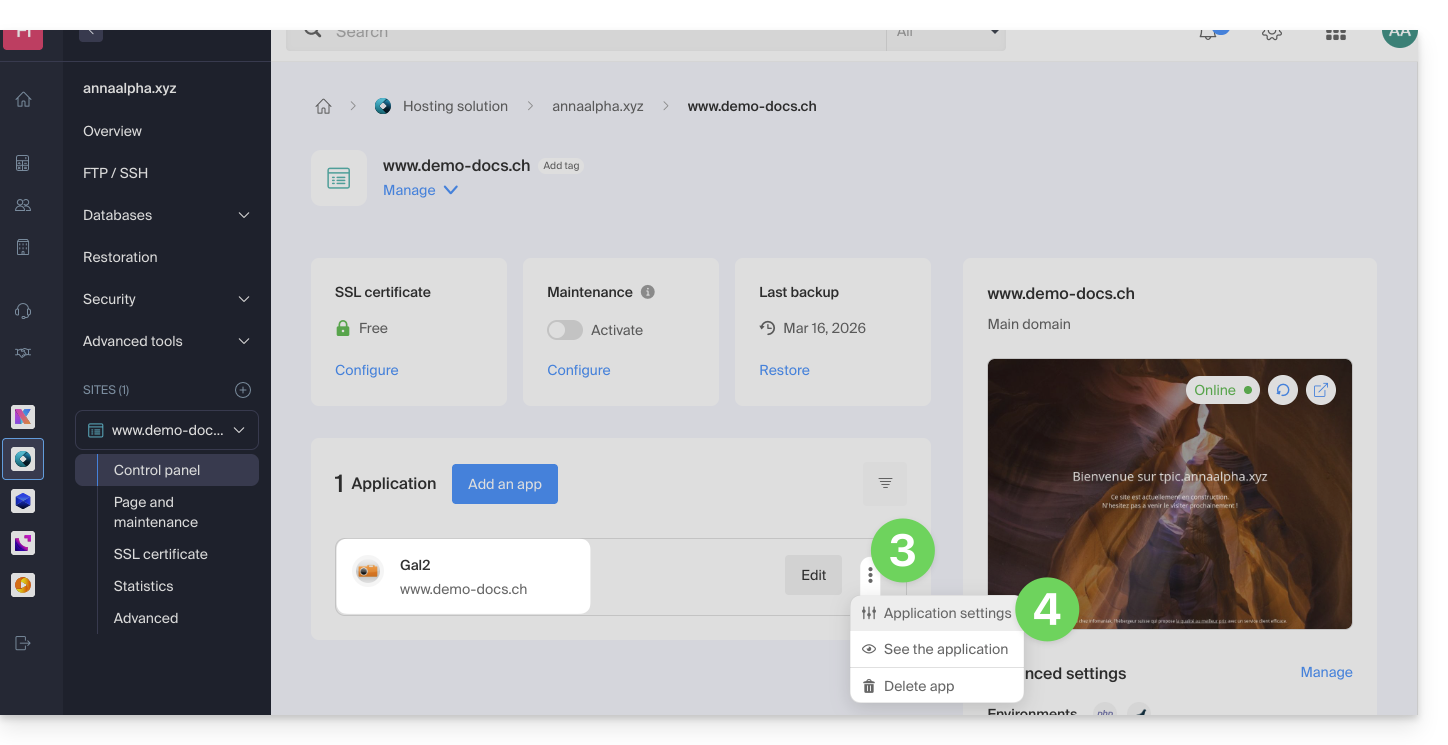
- Click on the action menu ⋮ located to the right of the relevant Web Application.
- Click on Settings in the application:
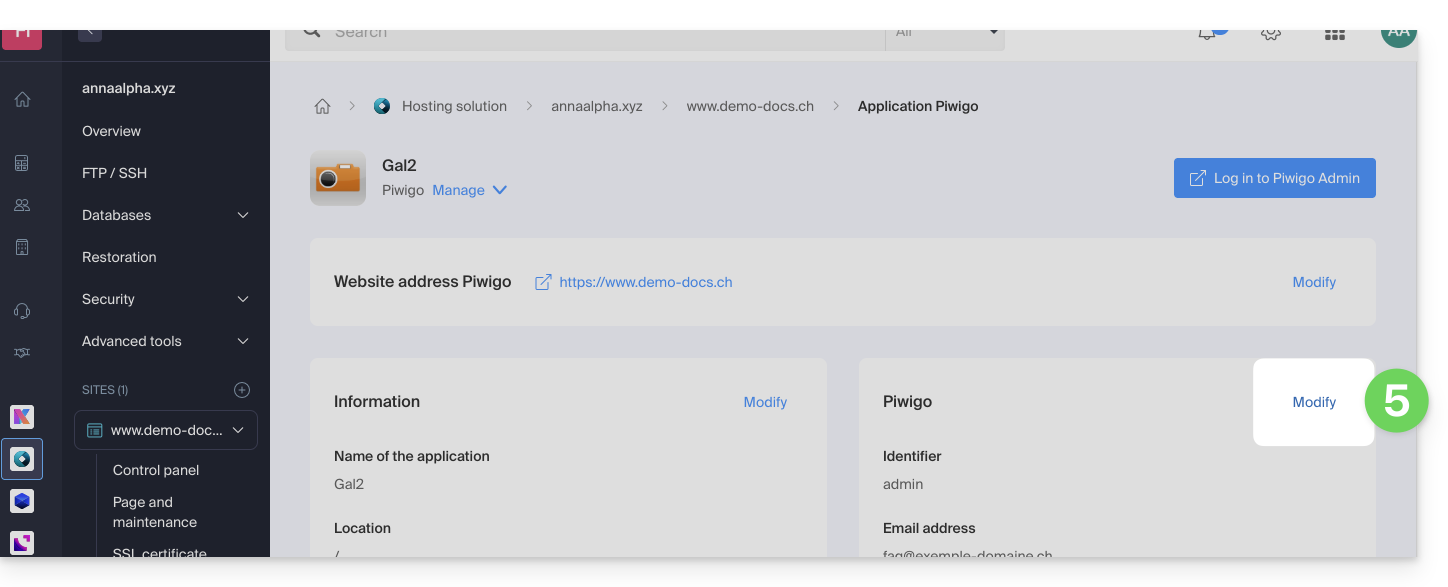
- Click on Edit to the right of the Application:
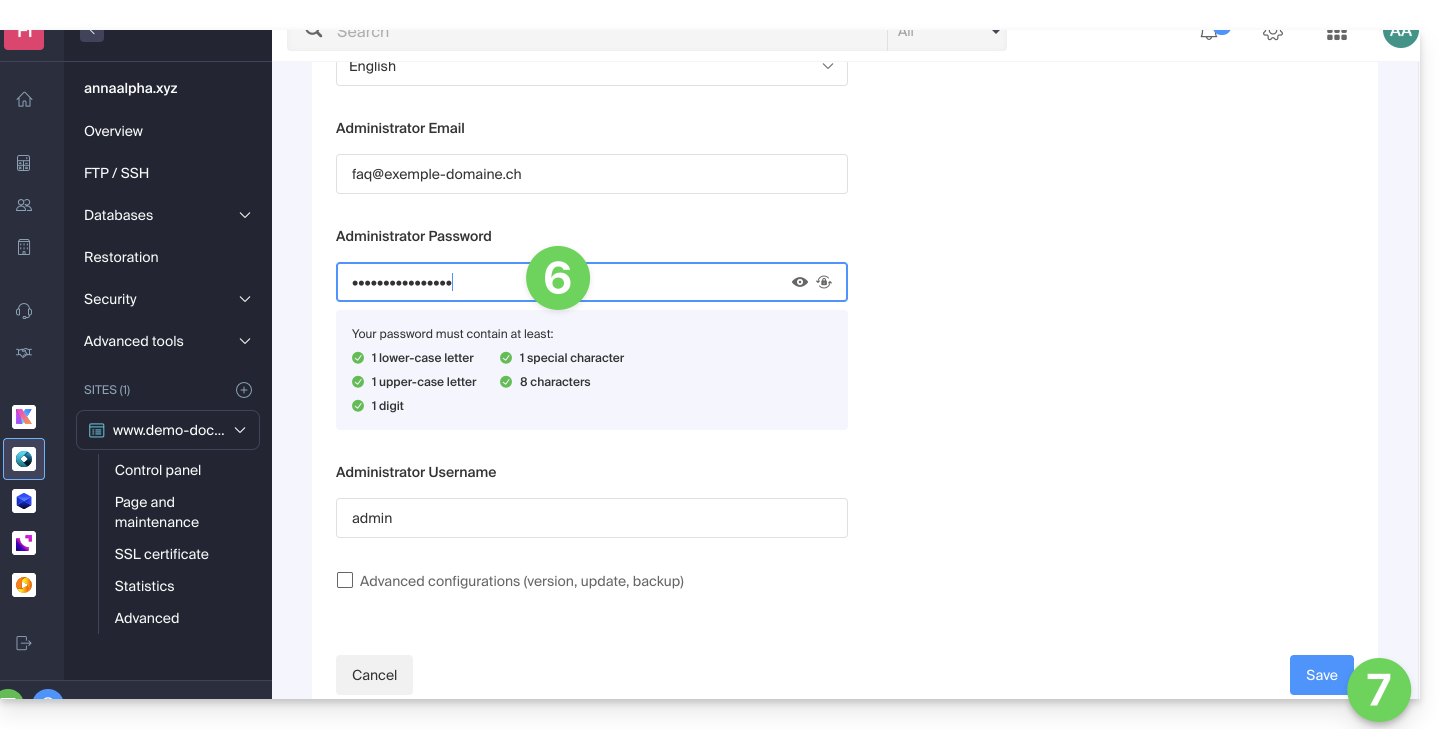
- Under Password, enter the new password (for logging in with the ID shown above).
- Click the Save button at the bottom of the page:
Link to this FAQ: https://faq.infomaniak.com/1848
Has this FAQ been helpful?