Knowledge base
1000 FAQs, 500 tutorials and instructional videos. Here, there are only solutions!
Filter incoming emails using the Sieve language
This guide explains how to create sorting rules in Advanced mode, scripts in Sieve language, to automatically categorize your incoming emails on Infomaniak based on certain conditions.
✘ NOT AVAILABLE with
kSuite Free
my kSuite (ik.me, etik.com, ikmail.com)
Mail Service Starter
Introduction
- If you do not have a compatible plan or prefer a simplified configuration, please refer to this other guide.
- ⚠️ No support is provided for the Sieve language (please refer to this documentation — also discover the role of the hosting provider).
- Unlike the sorting rules offered within email software/clients (❓: help), these rules will act directly on the server of your mailboxes even before the IMAP connection.
- It is possible to import Sieve files via a button.
- Enabling this mode will preserve existing standard rules but disable them.
- The
redirectcommand (which allows you to forward an email to another address) is not allowed in scripts.- If you import a Sieve script from another provider, be sure to remove this command.
- To forward emails, use the wizard in Standard mode or the Redirections section of your Mail Service.
Accessing rules from the Infomaniak Web Mail app
Prerequisites
- You may not have permission to manage rules: the Mail Service administrator may have removed this right from their admin account (❓: help).
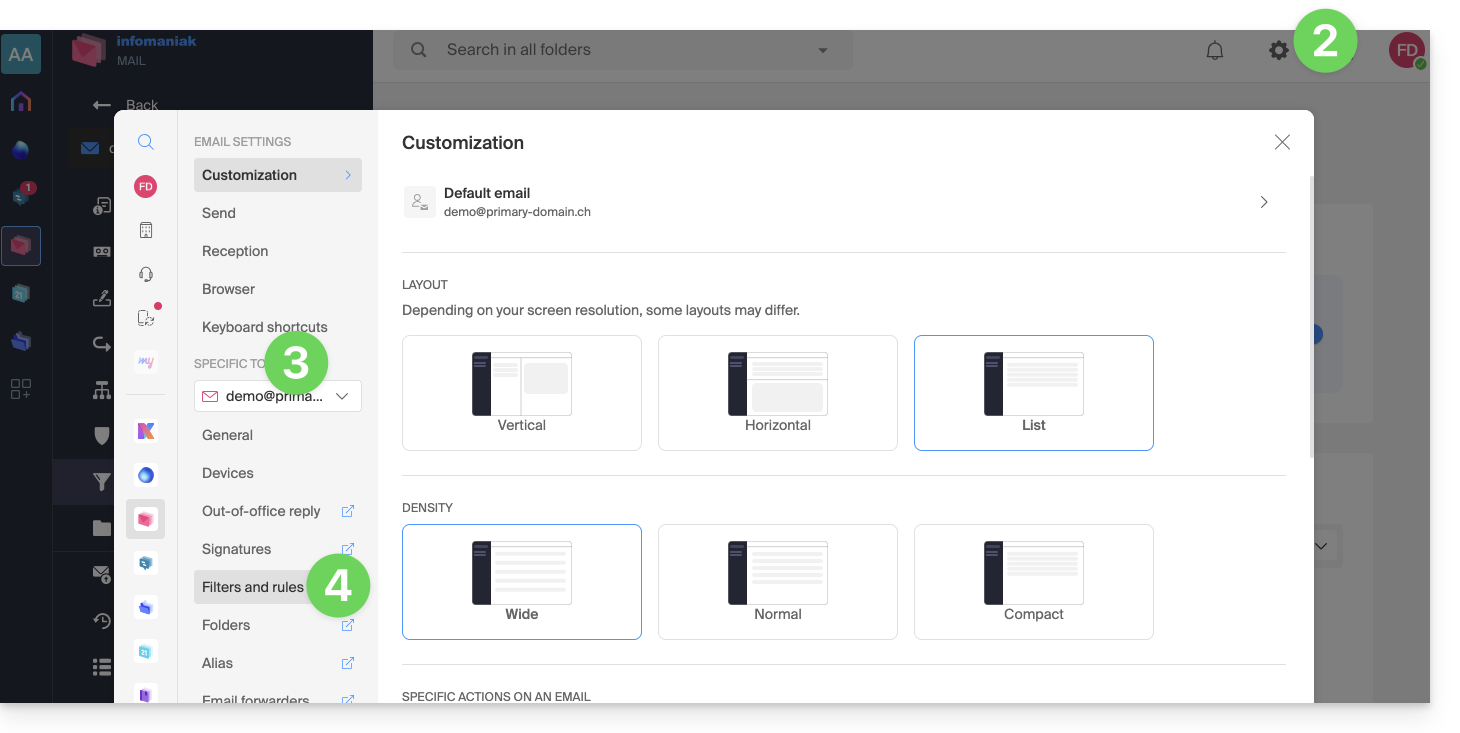
To access the sorting filters for your Infomaniak email:
- Click here to access your emails in your Infomaniak kSuite (❓: help).
- Click on Settings in the top right corner.
- Check or select the relevant email address from the drop-down menu.
- Click on Filters and rules:
Accessing rules from a Mail Service
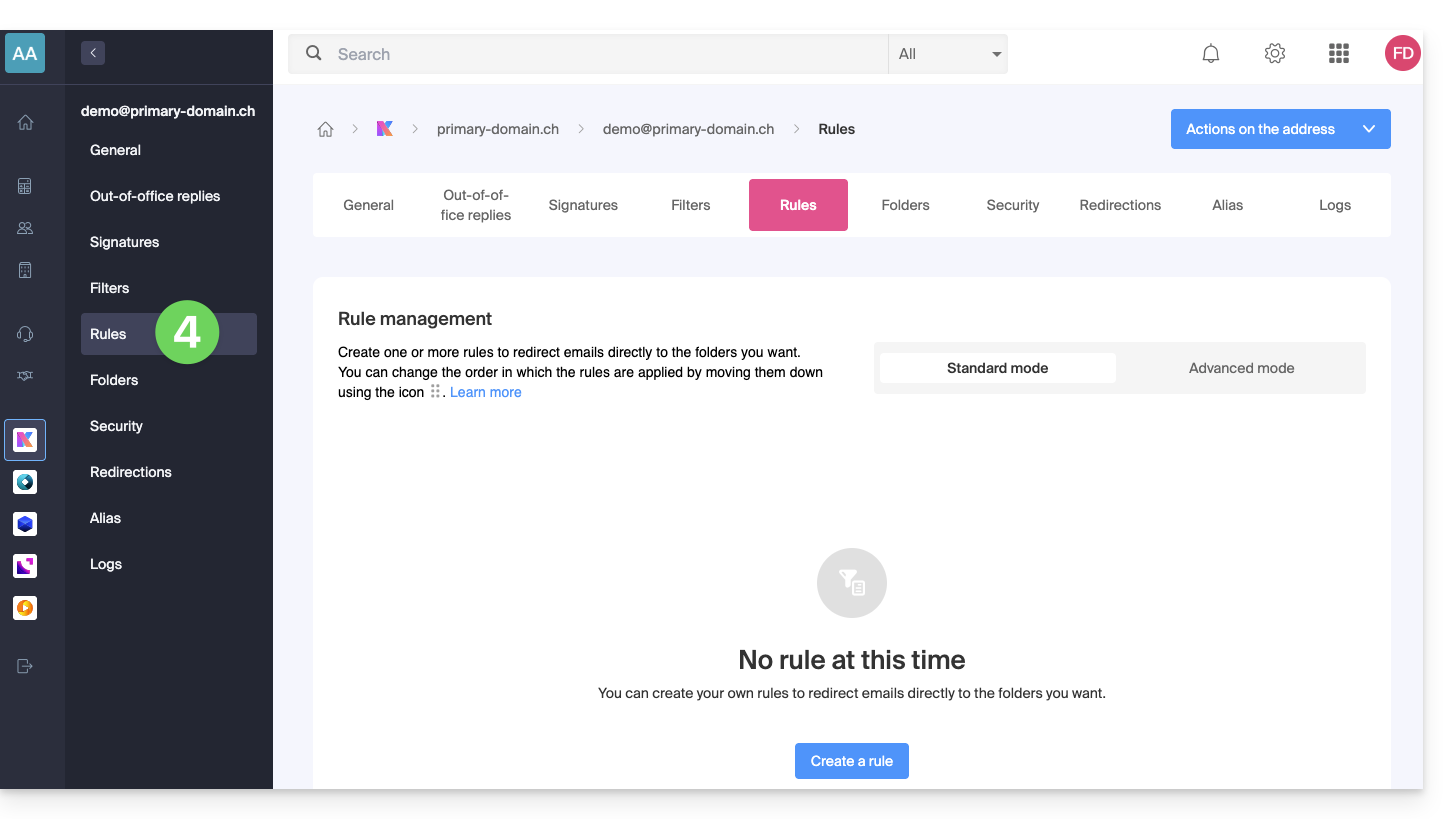
To access the sorting filters for your Infomaniak email:
- Click here to access the Mail Service management in your Infomaniak Manager (❓: help).
- Click on the name of the Mail Service in question.
- Click on the email address in question in the table that appears.
- Click on the Rules tab from the left-hand menu (or top bar):
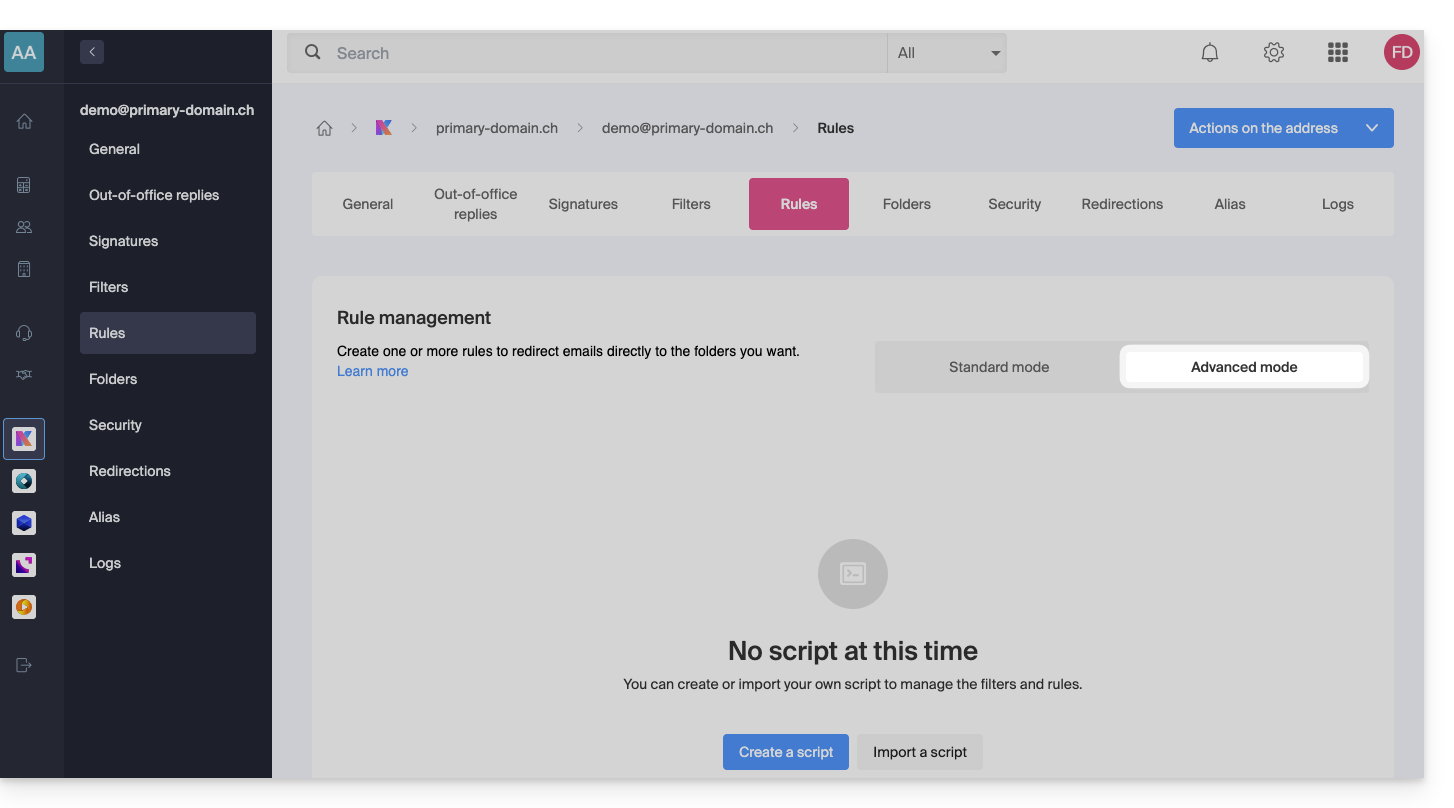
Create a new rule in Advanced (expert) mode
- Make sure to click on the Advanced mode:
First example of advanced sorting
Here is a simple example of a command using this language:
require ["fileinto"];
if address :contains "from" "facebook.com" {
    fileinto "fb";
} elsif header :matches "List-Unsubscribe" "*" {
    fileinto "nl";
} else {
    keep;
}
Explanation:
- Loading required extensions: use
require ["fileinto"];to indicate that you will be using thefileintofunction. - Filtering Facebook messages: use
if address :contains "from" "facebook.com"to check if the sender's address contains "facebook.com"; if so, the message is filed in the "fb" folder withfileinto "fb";. - Message filtering with an unsubscribe link: use
elsif header :matches "List-Unsubscribe" "*"to check if the "List-Unsubscribe" header is present in the message; if so, the message is classified into the "nl" folder withfileinto "nl";. - Saving other messages: use
else { keep; }to save all other messages that do not meet the previous criteria.
Note:
- If you need to specify a subfolder, use the separator
/(as in the second example), but it is not necessary to specifyINBOXin your codes. - Make sure that the folders "
fb" and "nl" already exist in your inbox; otherwise, messages may not be sorted correctly. - The filter
address :contains "from" "facebook.com"works correctly for addresses that contain "facebook.com" in the "from" field. - The filter
header :matches "List-Unsubscribe" "*"only checks for the presence of the "List-Unsubscribe" header, not its content.
Second example of advanced sorting
This code modifies the subject based on the sender (adds a prefix to the subject when an email passes the filter, for example):
require ["fileinto", "editheader", "variables", "regex"];
if address "sender" "owner-scientific-linux-devel at LISTSERV.FNAL.GOV" {
    if header :regex "subject" "((Re|Fwd): *)\\[SCIENTIFIC-LINUX-DEVEL\\] *(.*)" {
        deleteheader "Subject";
        addheader "Subject" "${1}${3}";
    } else {
        # Ajouter un préfixe si l'objet ne correspond pas déjà au modèle
        deleteheader "Subject";
        addheader "Subject" "[SL-Devel] ${1}";
    }
    fileinto "Mail List/SL-Devel";
}
Explanations:
- Required extensions:
fileinto: for filing messages into folders.editheader: for modifying email headers.variables: for using variables in expressions.regex: for regular expressions.
- Condition on the sender:
if address "sender" "owner-scientific-linux-devel at LISTSERV.FNAL.GOV": checks if the sender matches.
- Condition on the subject:
if header :regex "subject" "((Re|Fwd): *)\\[SCIENTIFIC-LINUX-DEVEL\\] *(.*)": checks if the subject matches the specified pattern.deleteheader "Subject";andaddheader "Subject" "${1}${3}";: deletes the existing subject and adds a new subject with the captured parts.
- Add a prefix if the subject does not already match the pattern:
addheader "Subject" "[SL-Devel] ${1}";: adds the prefix "[SL-Devel]" to the subject if it is not already present.
- Message sorting:
fileinto "Mail List/SL-Devel";: sorts messages into the "Mail List/SL-Devel" folder.
Note:
- Make sure the "
Mail List/SL-Devel" folder already exists in your inbox. - Verify that the script correctly modifies the email subject to add or adjust the prefix if necessary.
Link to this FAQ: https://faq.infomaniak.com/1839
Has this FAQ been helpful?