Knowledge base
1000 FAQs, 500 tutorials and instructional videos. Here, there are only solutions!
Restore kDrive to a previous state
This guide explains how to revert to a previous state in the organization of your kDrive files, especially if changes have been made and you have lost track.
✘ UNAVAILABLE with
kSuite Free
my kSuite (ik.me, etik.com, ikmail.com)
Introduction
- The restore or Rewind function allows you to revert to a previous state, like a time machine, and restore the order of the files of your choice or your entire kDrive up to 3 months in the past (linked to the file version retention period —❓: help).
- Files permanently deleted from your kDrive trash and deleted file versions cannot be restored.
- Restoration may take several minutes, during which kDrive will be inaccessible to all users, depending on the volume of data to be recovered.
- No action is performed on permissions and shares.
Access the kDrive restore tool
Prerequisites
- You must be at least an Administrator of the Organization (❓: help).
To open the restore interface:
- Click here to access kDrive on your Infomaniak kSuite (❓: help).
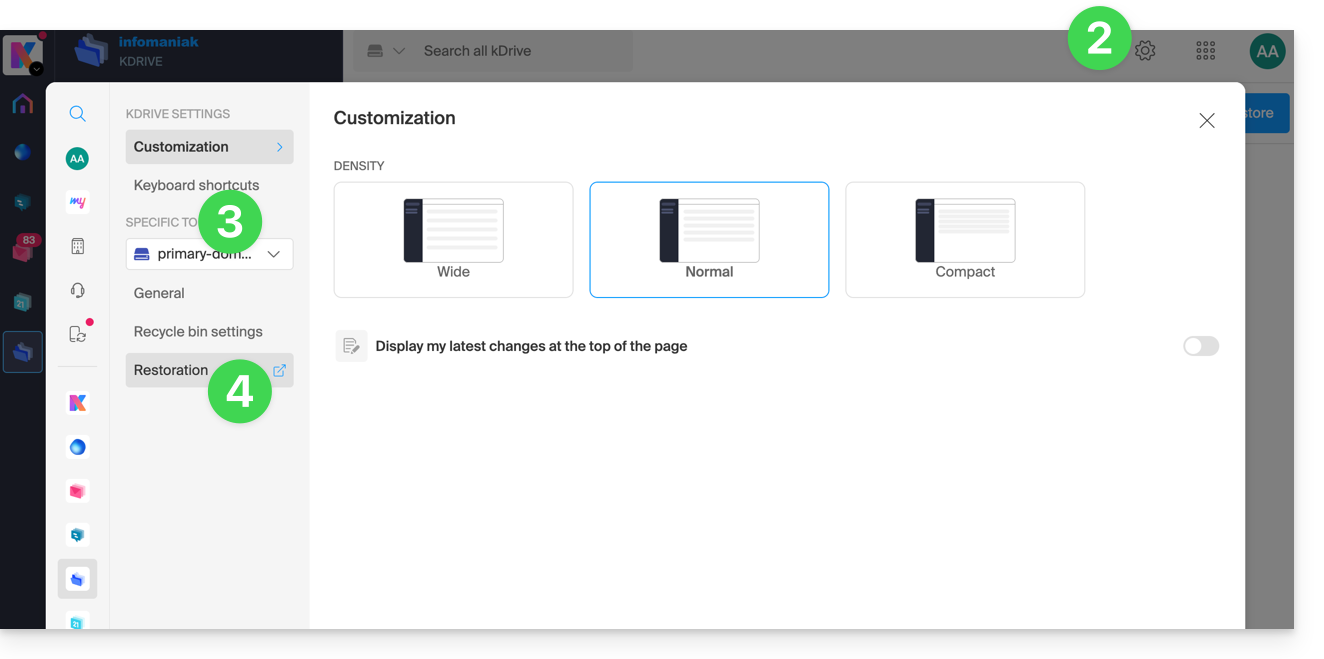
- Click on Settings in the top right corner.
- Check or select the relevant kDrive from the dropdown menu in the left-hand menu.
- Click on Restore:
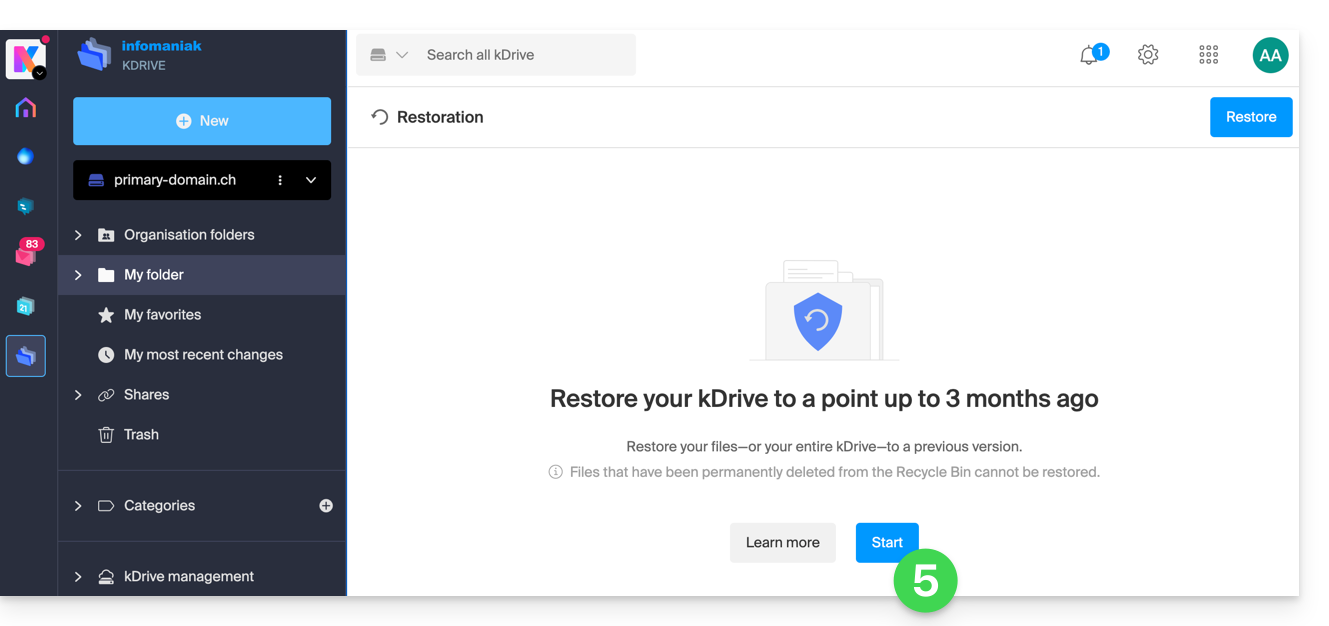
- Read the information on the screen, then click the button to start:
- Read the information in the modal window and then click the button to confirm.
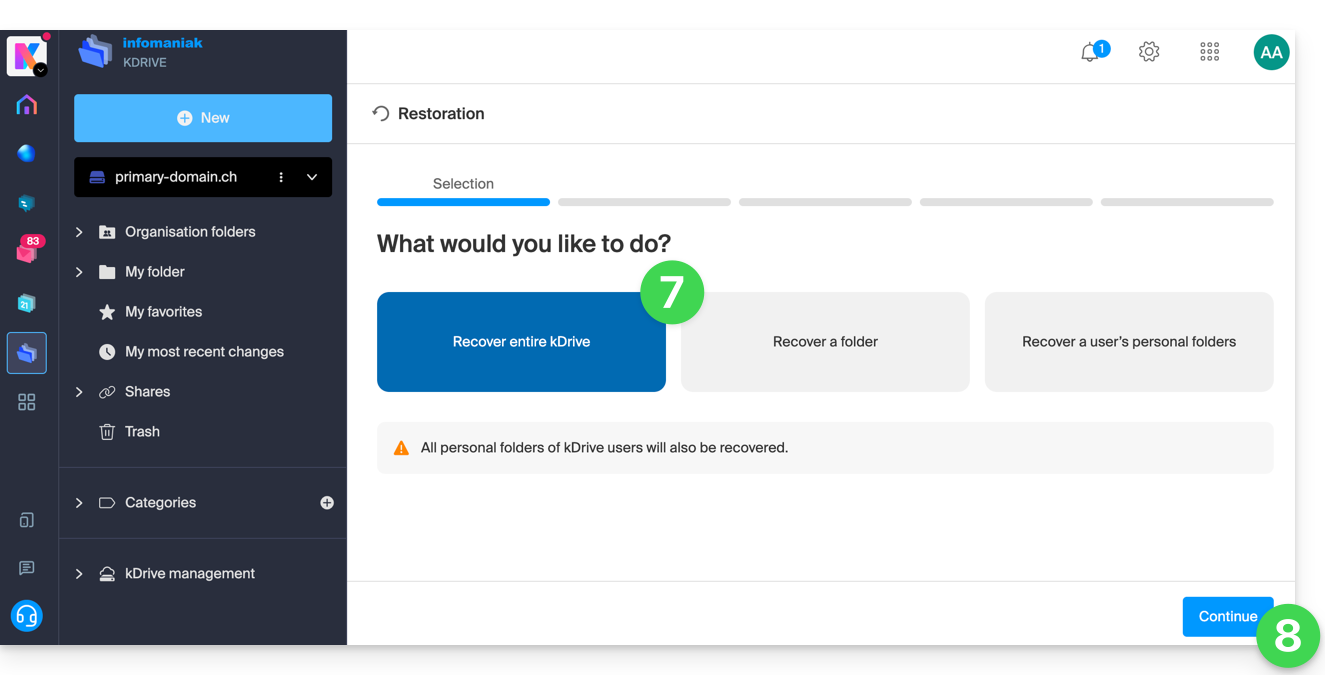
- Choose what will be affected by the rollback (the entire kDrive or only a part of it, and if so, for which user).
- Click on Continue:
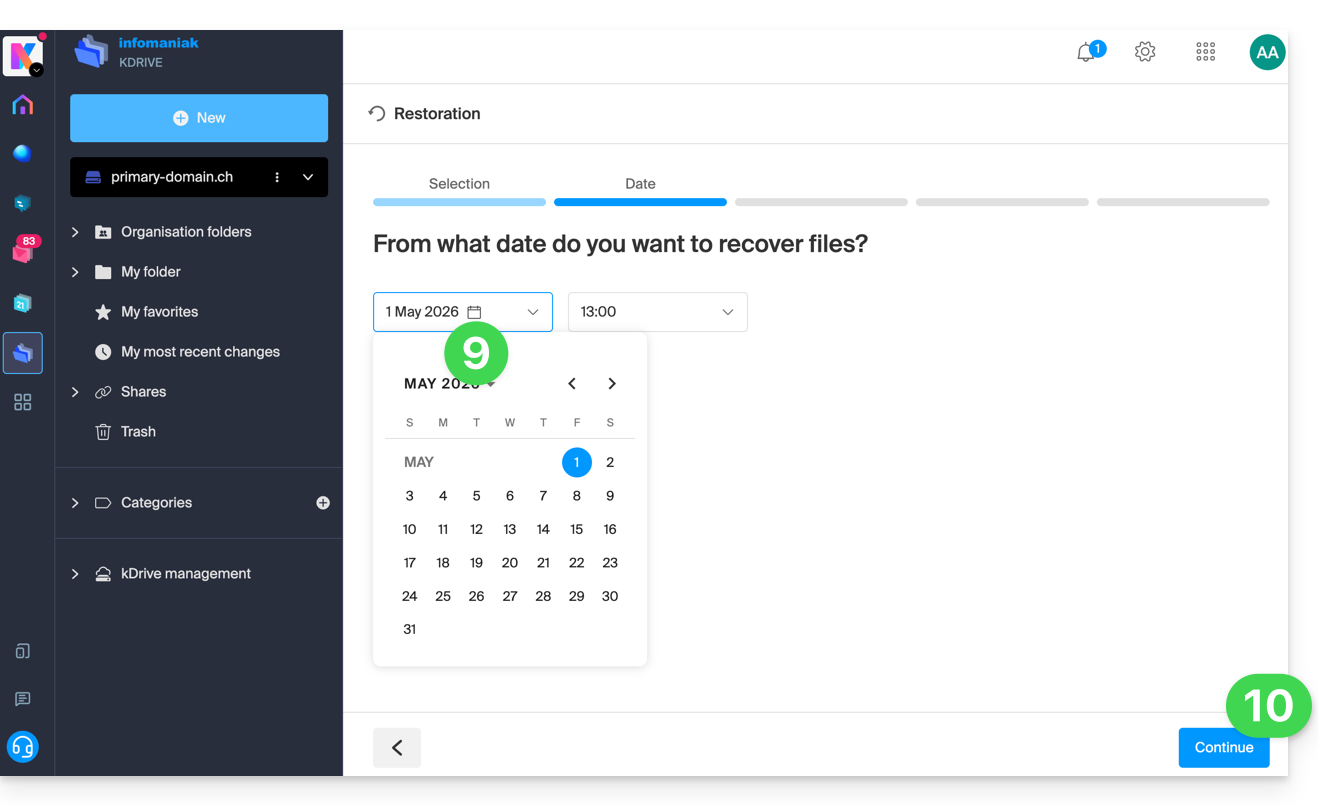
- Choose the date to which you want to revert (maximum 3 months / 90 days).
- Click on Continue:
- Start the analysis in the next step:
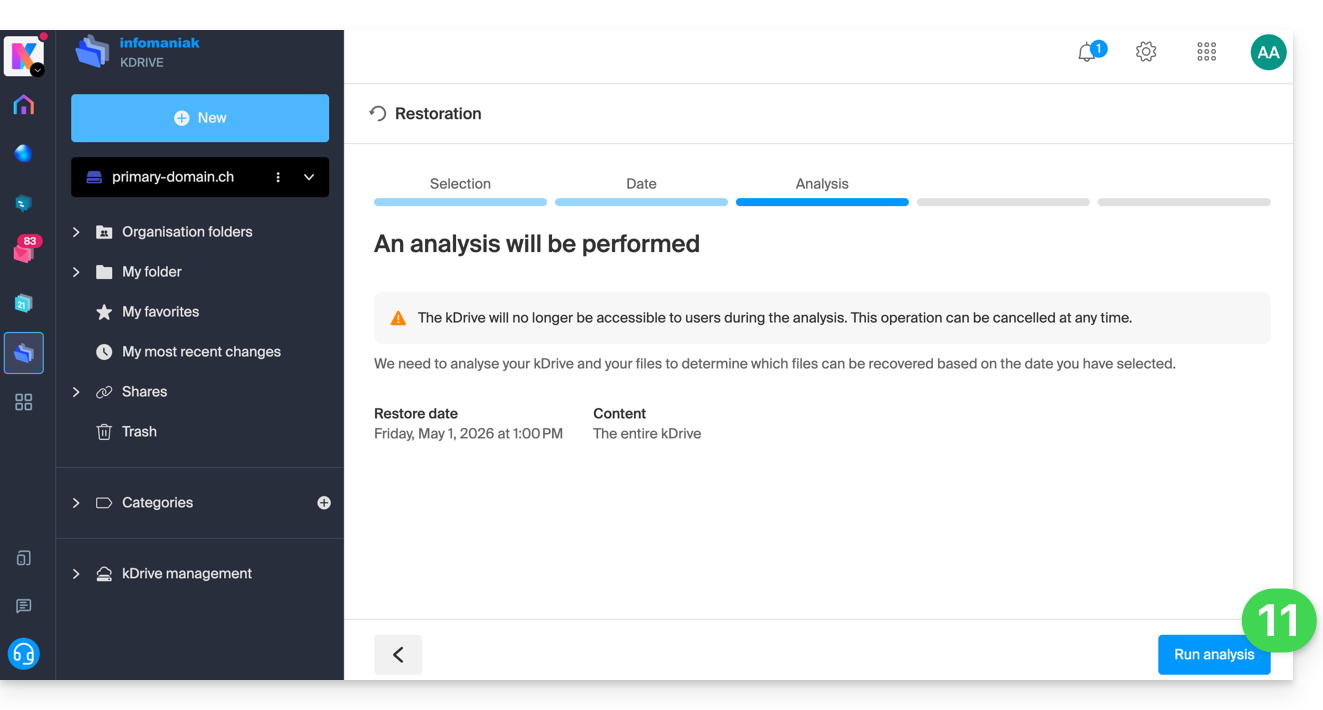
- If going back does not produce any results, the analysis will indicate this, and you can specify another date:
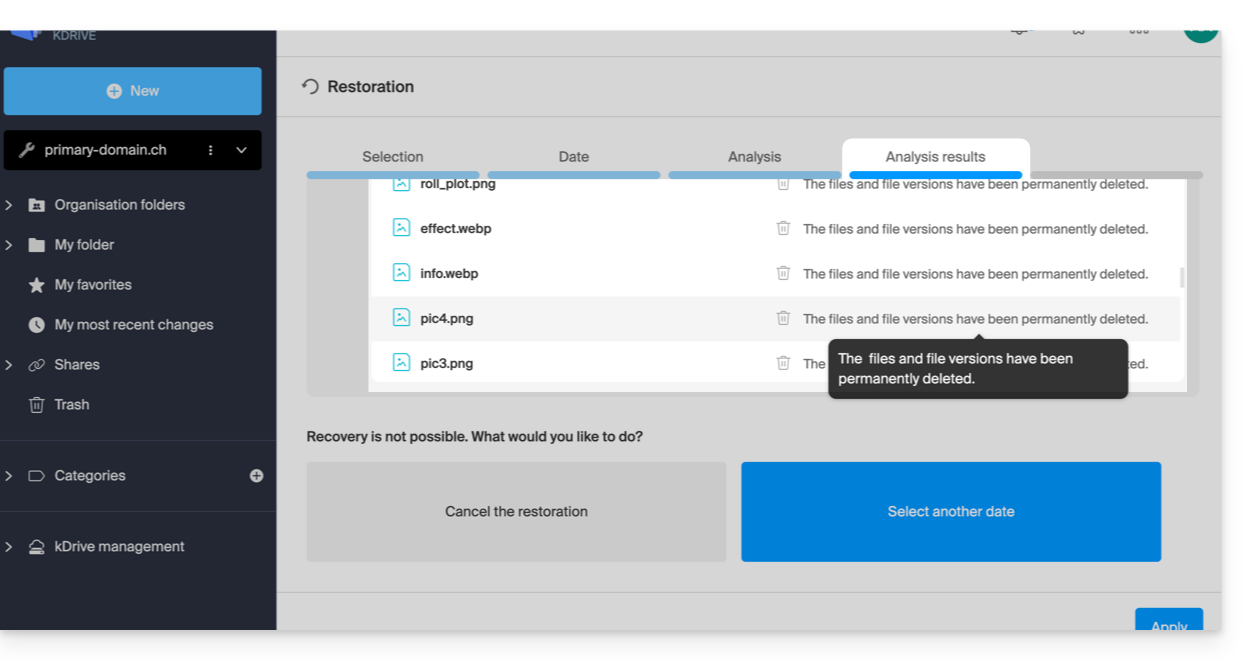
- If going back does not produce any results, the analysis will indicate this, and you can specify another date:
- Then determine the next steps based on the proposed result:
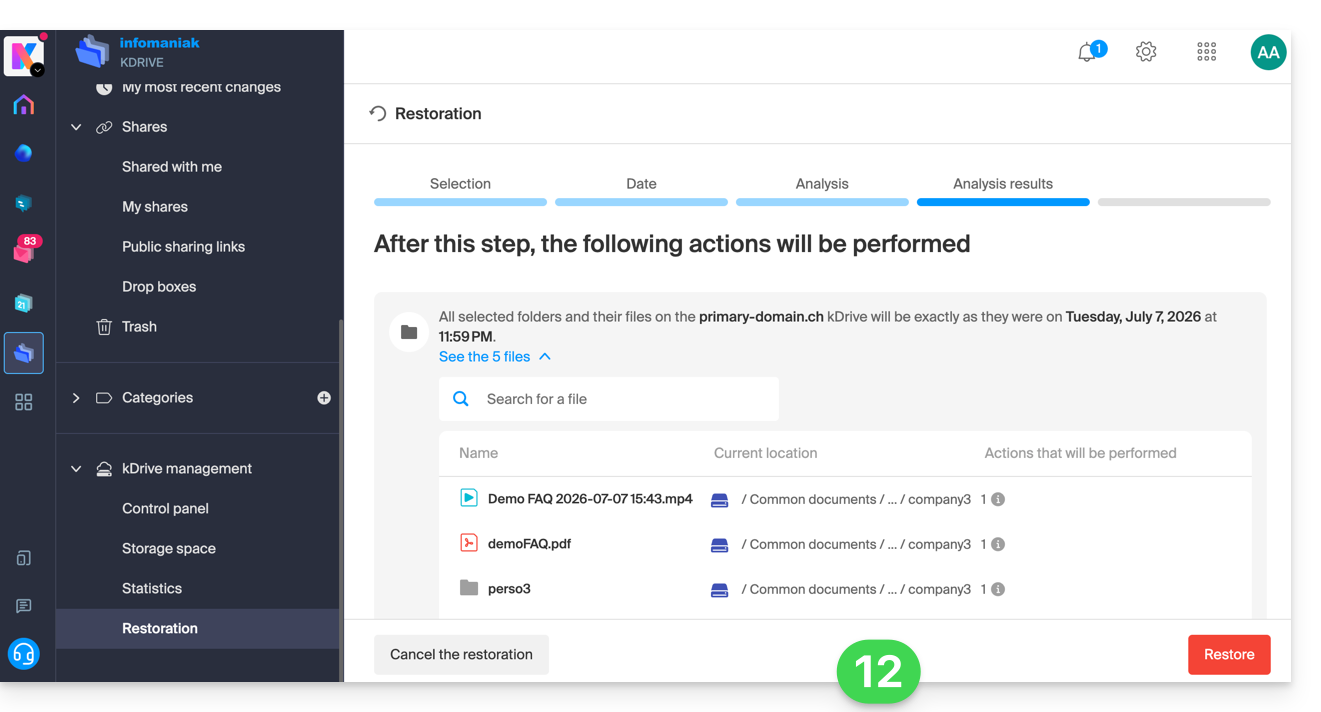
- A final security request will appear before the restoration begins:
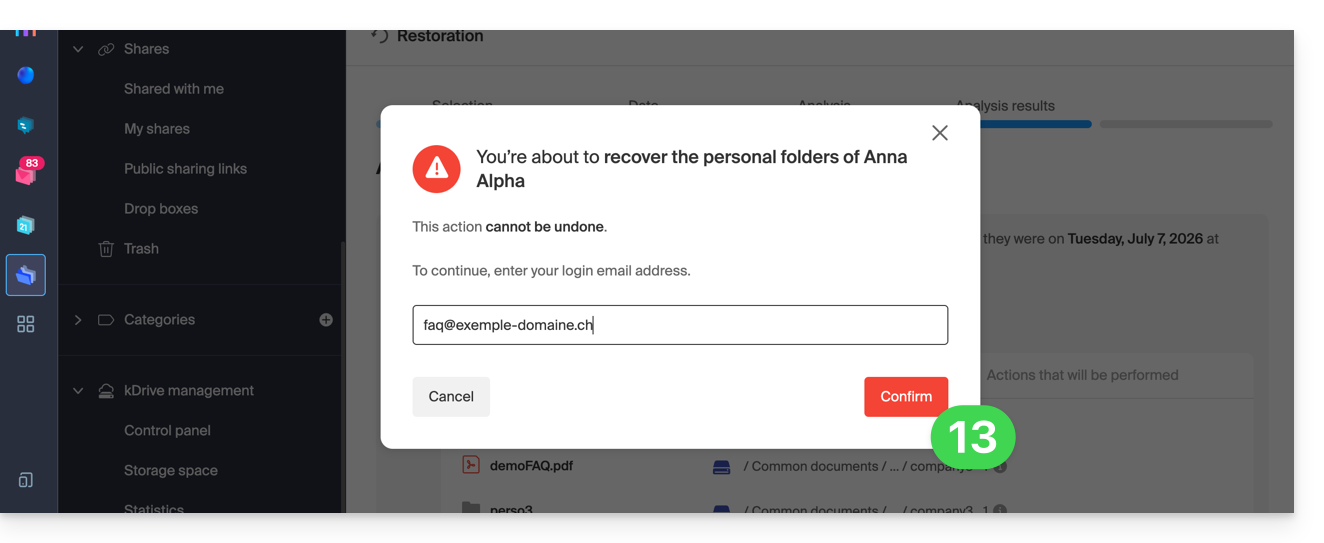
After the operation, an email is sent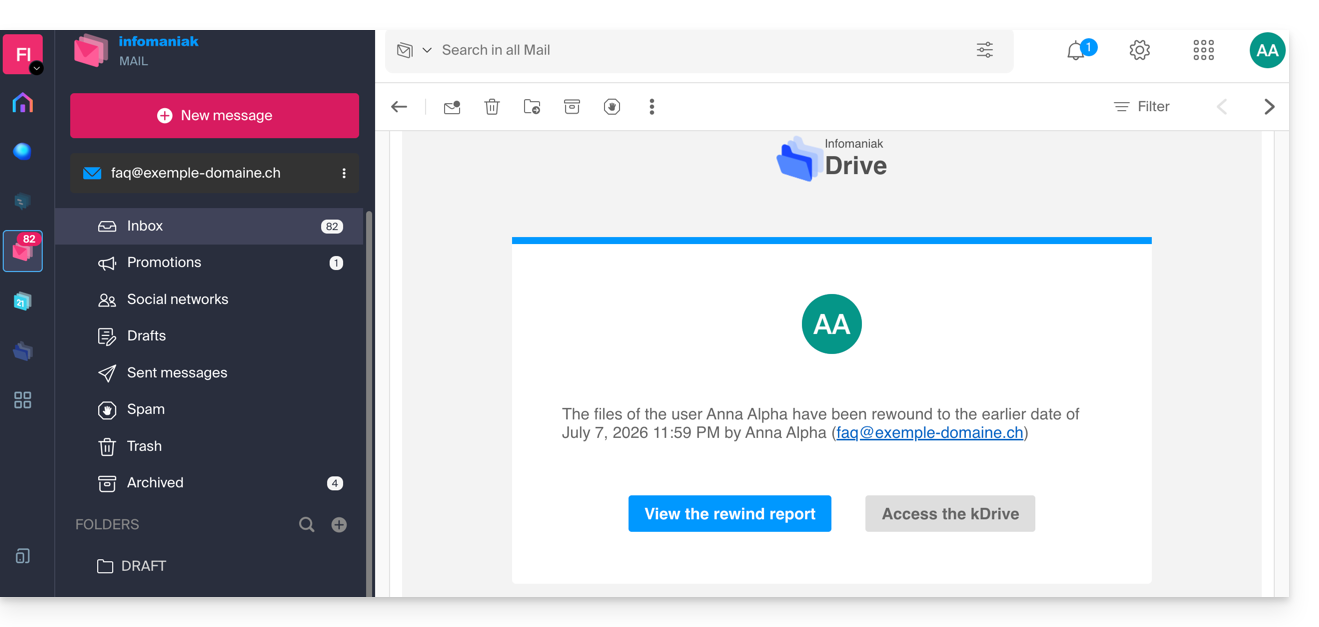
and a notification is displayed on the online kDrive: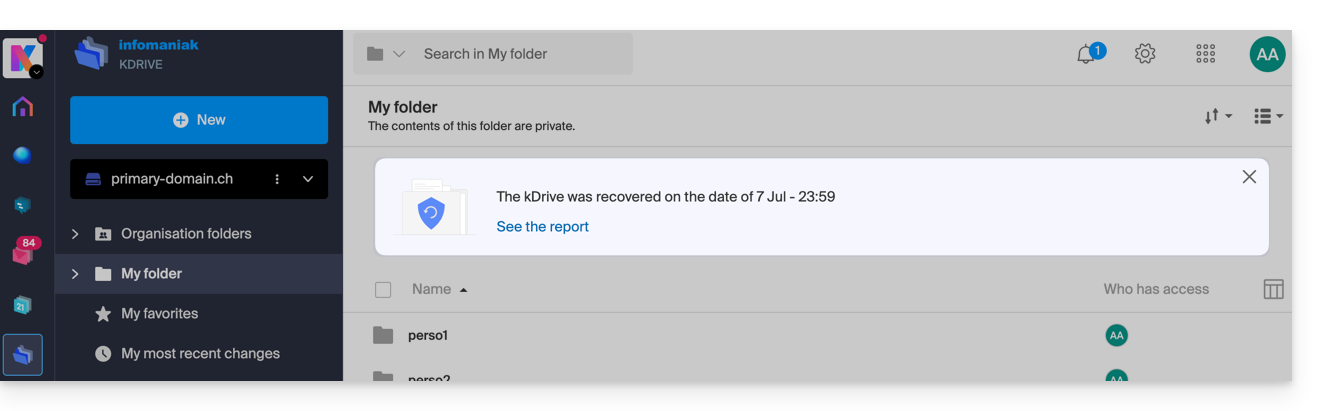
Analysis report
An administrator viewing a report for a restore initiated by another administrator will not see all information related to the initiating administrator's personal account: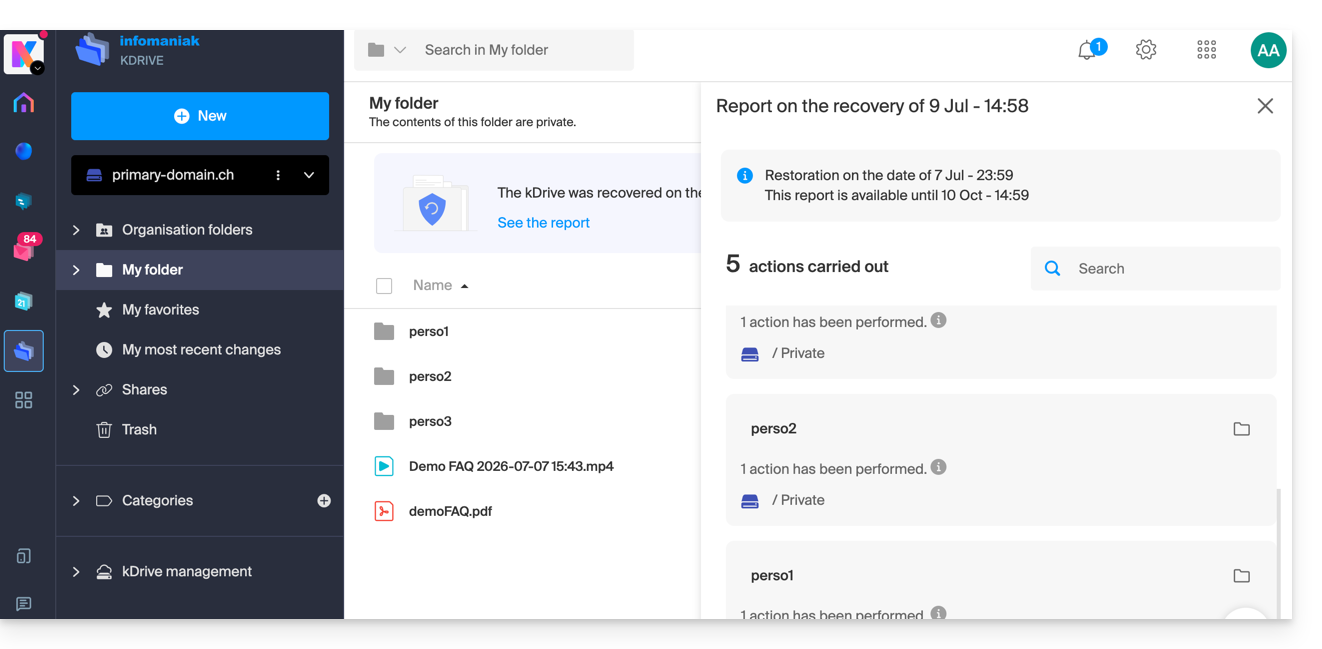
In the analysis report view, the data is listed and grouped according to the current location before the rollback.
In case of conflict
A folder named "Restoration (date and time)" will be created in the root of the administrator's kDrive (or in the relevant user's account). This folder will contain a subfolder with the conflicting files, called "Conflict", and another folder for the files that currently exist in the target location, called “Later elements”.
Link to this FAQ: https://faq.infomaniak.com/1838
Has this FAQ been helpful?