Knowledge base
1000 FAQs, 500 tutorials and instructional videos. Here, there are only solutions!
Block/allow senders globally on a Mail service
Update 10/12/2026
This guide explains how to block (or allow) email senders globally on an entire Mail Service. Refer to this other guide if you are looking for information on how blocked and allowed sender lists work.
Manage Security in the Global Configuration
A Service Mail administrator can add email addresses or even entire domains to the lists of approved or rejected senders, and these lists will be applied to all email addresses of a Service Mail (without modifying the existing settings already configured for each email address):
- Click here to access the Service Mail management section in your Infomaniak Manager (❓: help).
- Click on the name of the Mail Service in question:
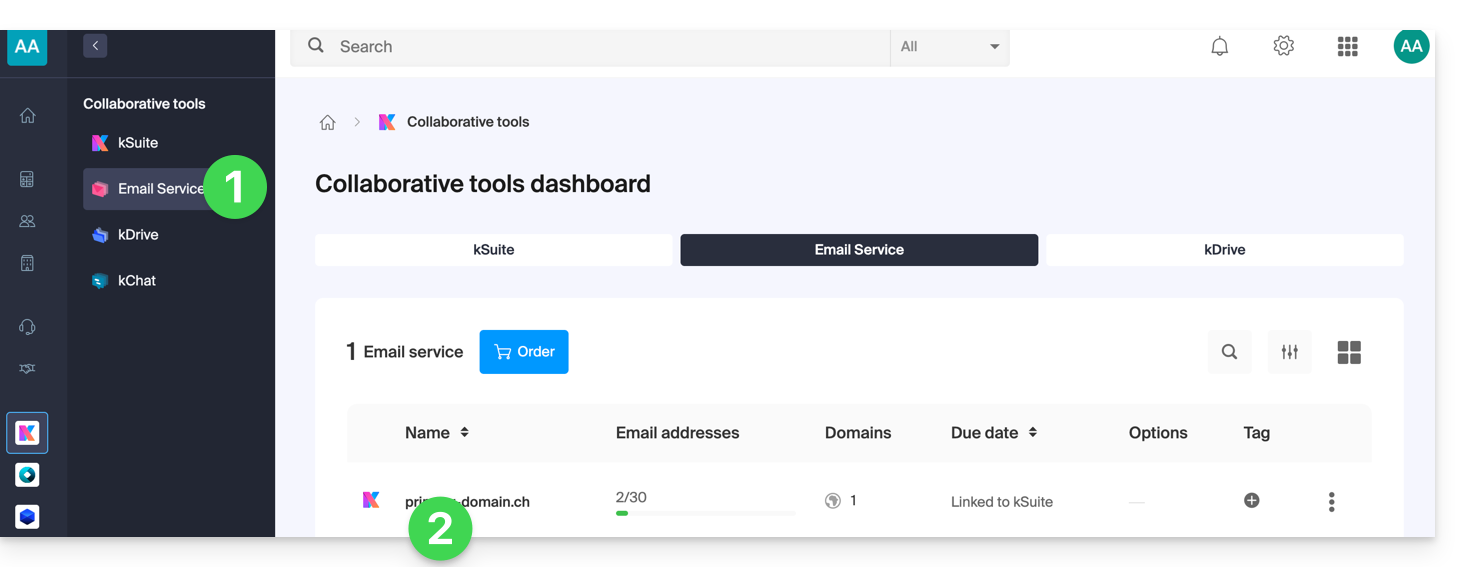
- Click on Global Configuration in the left-hand menu.
- Click on the Security tab.
- Click the Add address button in the Blocked address box to block incoming emails from an unauthorized sender.
- Do the same for the senders that need to be approved in the other box:
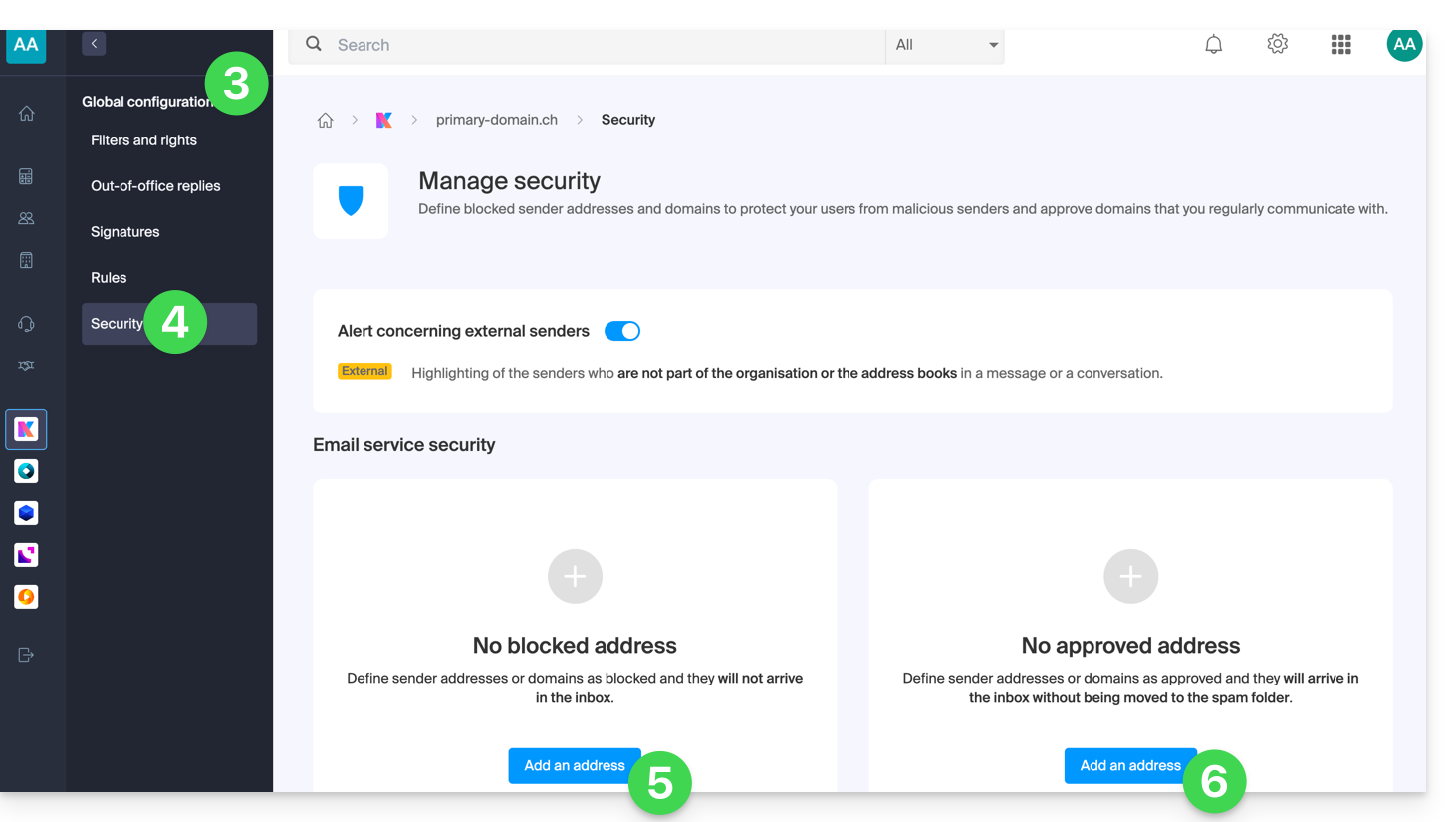
- Click Validate to activate these lists for all email addresses in the domain.
Regarding the top part of the page, please refer to this other guide.
Link to this FAQ: https://faq.infomaniak.com/1837
Has this FAQ been helpful?