Knowledge base
1000 FAQs, 500 tutorials and instructional videos. Here, there are only solutions!
Troubleshooting kDrive issues (antivirus, firewall, etc.)
This guide explains how to troubleshoot access or usage issues with kDrive on Windows and macOS when third-party software may be interfering with your synchronization.
Introduction
- The kDrive application may sometimes encounter interaction issues with Windows or macOS firewalls, as well as with certain antivirus, VPN, or cleanup solutions, which can lead to file synchronization difficulties, prevent PDFs from opening on the web, or make it impossible to use Lite Sync mode (on-demand files).
- It is necessary toallow kDrive within these applications and add the following three essential components to the whitelist:
kdrive.exe(orkdrive.appon macOS)kdrive_client.exe- The domain
*.infomaniakusercontent.com
- If you are experiencing a synchronization issue and missing folders, please refer to this other guide.
Avast
To do this:
- Open the Avast interface.
- Go to Menu > Settings.
- Under the General tab, click on Exceptions.
- Click on Add an exception and enter the domain:
https://*.infomaniakusercontent.com/* - Go to the File paths tab to add the kDrive executables (
kdrive.exe,kdrive_client.exeorkdrive.app).
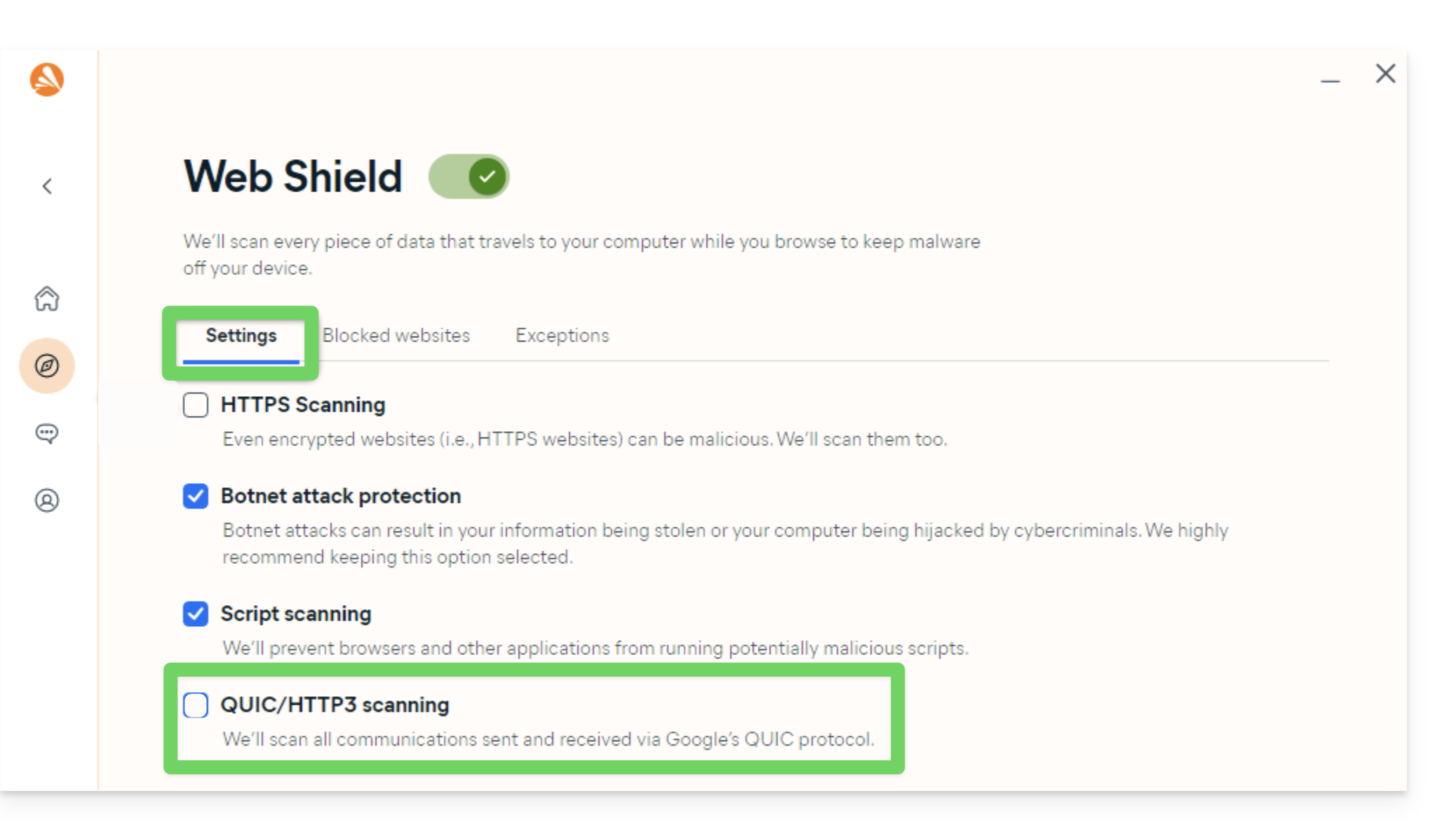
An additional action is recommended on Avast to prevent any blocking (especially when opening PDFs):
- Disable QUIC/HTTP3 scanning (refer to the official documentation under the Windows PC tab):
AVG
Refer to the official AVG documentation.
- Open AVG Antivirus.
- Go to Menu > Settings > General > Exceptions.
- Click on Add an exception and enter the domain
https://*.infomaniakusercontent.com/*. - Also, add the paths to the kDrive executables (
kdrive.exeandkdrive_client.exeorkdrive.app).
Avira
Consult the official Avira documentation.
- Right-click on the Avira icon and temporarily disable the protection.
- Go to Settings > PC Protection > Scan > Exceptions.
- Add the kDrive executable files (
kdrive.exe,kdrive_client.exe, orkdrive.app). - Repeat the operation in Real-time Protection > Exceptions.
- In the Web Protection section, add the domain
*.infomaniakusercontent.comto the list of allowed URLs.
Bitdefender
Consult the official Bitdefender documentation.
- Open Bitdefender and go to Protection > Online Threat Prevention > Settings.
- Click on Manage exceptions and add the domain
*.infomaniakusercontent.com(check the online prevention option). - If you are using the TrafficLight browser extension, also add this domain to its whitelist.
- To exclude kDrive executable files (
kdrive.exe,kdrive_client.exe, orkdrive.app), go to Protection > Antivirus > Settings > Manage exceptions.
CCleaner
Refer to the official CCleaner documentation.
- Open CCleaner and go to Options > Exclude.
- Click Add and select the kDrive executable files (
kdrive.exe,kdrive_client.exe) or the global installation folder to prevent any cache deletion or process interruption.
CleanMyMac
Refer to the official CleanMyMac (MacPaw) documentation.
- Open CleanMyMac.
- In the analysis results screen, hold down the Ctrl key and click on the items related to kDrive (
kdrive.app). - Select Add to exclusion list.
ESET
Refer to the official ESET documentation.
- Open ESET and press F5 (Advanced settings).
- Go to Antivirus > Exclusions and click Add to insert the paths to the kDrive executables (
kdrive.exe,kdrive_client.exe, orkdrive.app). - Go to Web & Messaging > Web Access Protection > URL Management and add
*.infomaniakusercontent.comto the list of allowed addresses.
Kaspersky
Refer to the official Kaspersky documentation.
- Open Kaspersky and go to Settings > Exclusions and threat management.
- Add the kDrive executable files (
kdrive.exe,kdrive_client.exe, orkdrive.app) to the list of trusted applications. - To resolve web access issues, exclude the
kdrive.infomaniak.comand*.infomaniakusercontent.comdomains from the scan:
- If you experience persistent issues with secure SSL/TLS connections, uncheck the following box:

macOS (firewall)
Refer to the official Apple documentation (macOS Firewall).
- Open System Settings (or System Preferences).
- Click on Privacy and Security.
- Select Firewall.
- Click on the Firewall Options button (enter your administrator password if prompted).
- Click on the Add Application (+) button.
- Select the kDrive application (
kdrive.app) to allow incoming connections. - Click Add, then click OK.
Malwarebytes
Refer to the official Malwarebytes documentation.
- Open Malwarebytes and go to Settings > Allowlist (Exclusions).
- Click Add to Allowlist.
- Select Exclude a file or folder and specify
kdrive.exe,kdrive_client.exe(orkdrive.app). - Select Exclude a website and enter the domain
*.infomaniakusercontent.com.
McAfee
Please refer to the official McAfee documentation.
- Open McAfee and go to Settings (gear icon) > Real-Time Scanning.
- Under Excluded Files, add the kDrive executable files (
kdrive.exeandkdrive_client.exeorkdrive.app). - In the Firewall / Web Protection section, add the domain
*.infomaniakusercontent.comto the list of allowed web addresses.
NordVPN
Consult the official NordVPN documentation (Threat Protection).
- Open NordVPN.
- Access the Pro Threat Protection feature (
Threat Protection). - Check the list of blocked files or activities to authorize the kDrive application (
kdrive.exe,kdrive_client.exeorkdrive.app). - Add the domain
*.infomaniakusercontent.comto the list of authorized domains in the Anti-Threat Protection settings. - If the active VPN interferes with local synchronization, configure Split Tunneling to exclude the kDrive application from the VPN tunnel.
Norton
Refer to the official Norton documentation.
- Open Norton and go to Settings > Antivirus > Scans and risks.
- In Exclusions / Low Risks, configure the "URLs to exclude from the scan" and add
*.infomaniakusercontent.com. - To exclude executable files (
kdrive.exe,kdrive_client.exe, orkdrive.app), configure the Security Scan Exclusions and Auto-Protect Exclusions sections.
Windows (firewall)
Learn about the official Microsoft documentation (Windows Firewall).
- Open the Start menu and click on Settings.
- In the search field, enter Firewall.
- Click on Allow an app through Windows Firewall.
- Click on the Edit settings button.
- Check the boxes next to the kDrive applications (
kdrive.exeandkdrive_client.exe). If they are not in the list, click on Allow another application... to browse and add them. - Check the boxes under the network types (Private and Public) and then click OK.
Windows Defender
Consult the official Microsoft documentation (Windows Security).
- Open Windows Security from the notification area or the Start menu.
- Select Virus & threat protection.
- Under *Virus & threat protection settings*, click Manage settings.
- Scroll down to Exclusions and click Add or remove exclusions.
- Click on Add an exclusion and select the files or folders from kDrive (
kdrive.exeandkdrive_client.exe).
Link to this FAQ: https://faq.infomaniak.com/1822
Has this FAQ been helpful?