Knowledge base
1000 FAQs, 500 tutorials and instructional videos. Here, there are only solutions!
Add a logo to emails with BIMI
BIMI (Brand Indicators for Message Identification) is a standard that provides brand indicators for message identification) allows businesses to incorporate their logo into the emails they send.
Introduction
- Infomaniak applications (and those of other companies worldwide - see the troubleshooting section below) are compatible with BIMI and will display logos next to received email messages.
- Infomaniak Mail Services allow you to configure your email with your logo; the benefits are numerous:
- increased trust: recipients can visually identify your emails, reducing the risk of phishing.
- brand reinforcement: a clearly visible logo in inboxes strengthens brand awareness.
- improved deliverability: emails that comply with DMARC are more likely to reach the main inbox.
1. Create a logo
Create a logo in SVG format (Scalable Vector Graphics). This format is required because it ensures optimal quality regardless of the device or display size.
To be imported into the Infomaniak interface (see below), it must not exceed 10 MB, but it can also be hosted on a secure server that is publicly accessible, in which case you will simply need to provide its URL for the BIMI DNS record.
2. Obtain the VMC certificate
A verified logo certificate (VMC) is required; it confirms that you are the legitimate owner of the logo. You can obtain this certificate from recognized certification authorities such as DigiCert and Entrust.
When your VMC certificate is issued, you will receive a PEM file containing the entity's certificate. This PEM file includes your logo in SVG format as well as the VMC.
3. Add the logo to the Mail Service
Prerequisites
- All indicators Global Securityfor your Mail Service must be green (SPF + DKIM + DMARC)!
To access the Mail Service and define your company's logo:
- Click here to access the Mail Service management in your Infomaniak Manager (❓: help).
- Click on the name of the Mail Service in question.
- Click on Global Security in the left-hand menu.
- Click on the Create button (in the BIMI section):
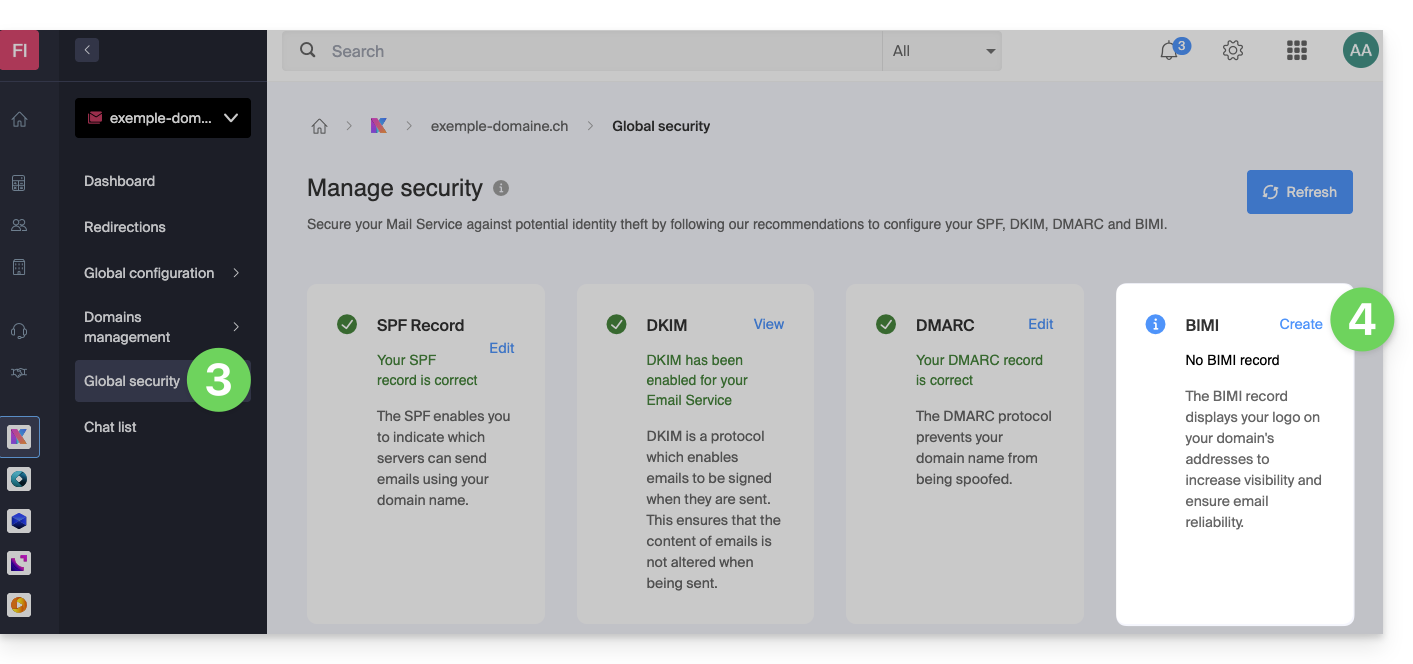
- Fill in the requested information using the documents you received (see chapter 2 above) and don't forget to save.
In case of a problem
- If the Create button in the BIMI box remains gray, carefully check the information messages: DMARC may exist but not be at the required rejection percentage, so adjust the settings according to the instructions.
- When there are multiple domains linked to the Mail service, make sure you have a certificate on each linked domain if you want BIMI to be enabled on those domains.
- Note that Apple Mail supports BIMI, unlike Microsoft Outlook, Thunderbird, and the Mail app from Samsung, which have not yet fully adopted it.
Disable BIMI
To disable BIMI, simply go to the domain name management page associated with the Mail service and delete the corresponding TXT record.
Link to this FAQ: https://faq.infomaniak.com/1816
Has this FAQ been helpful?