Knowledge base
1000 FAQs, 500 tutorials and instructional videos. Here, there are only solutions!
Customize the display of Infomaniak Calendar
Update 10/12/2026
This guide explains how to change the color of events in your calendars in the Infomaniak Calendar web app (online service ksuite.infomaniak.com/calendar) and customize the displayed period.
Define the default settings
To do this:
- Click here to access the Infomaniak Calendar web app (online service ksuite.infomaniak.com/calendar).
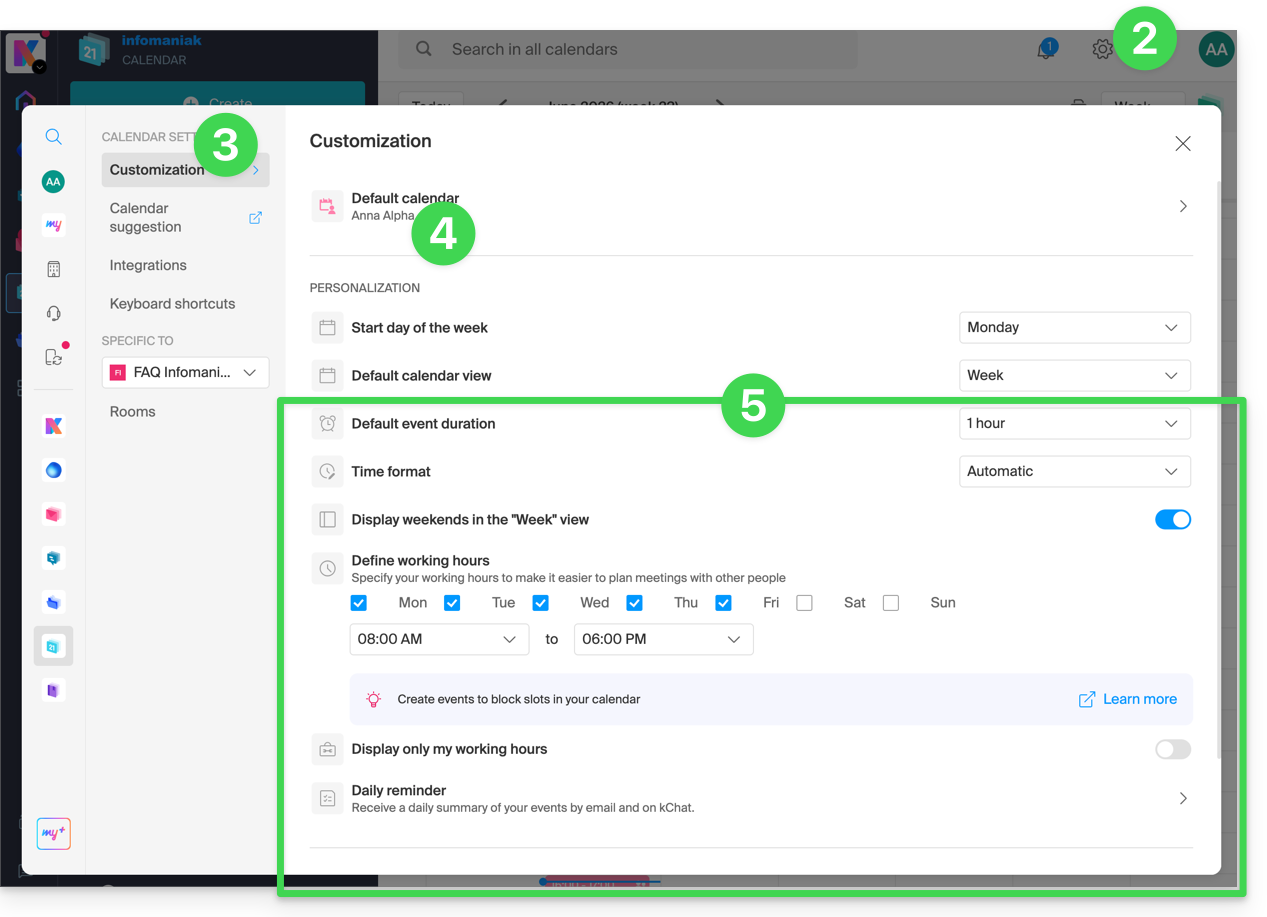
- Click on Settings in the top right corner.
- Click on Customization.
- Refer to this other guide regarding the default calendar feature.
- Settings such as the default event duration or the working hours to display on the calendar will help improve the use of the appointment scheduling assistant:
- Regarding these menu items:
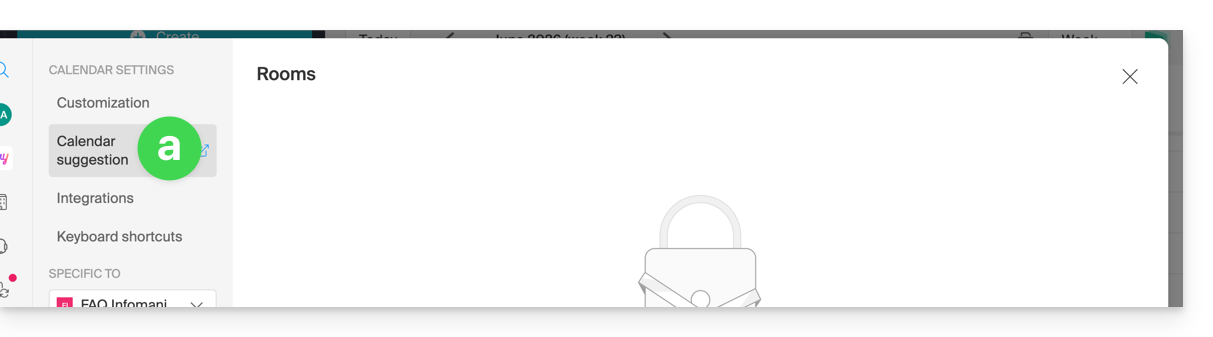
Please refer to this other guide.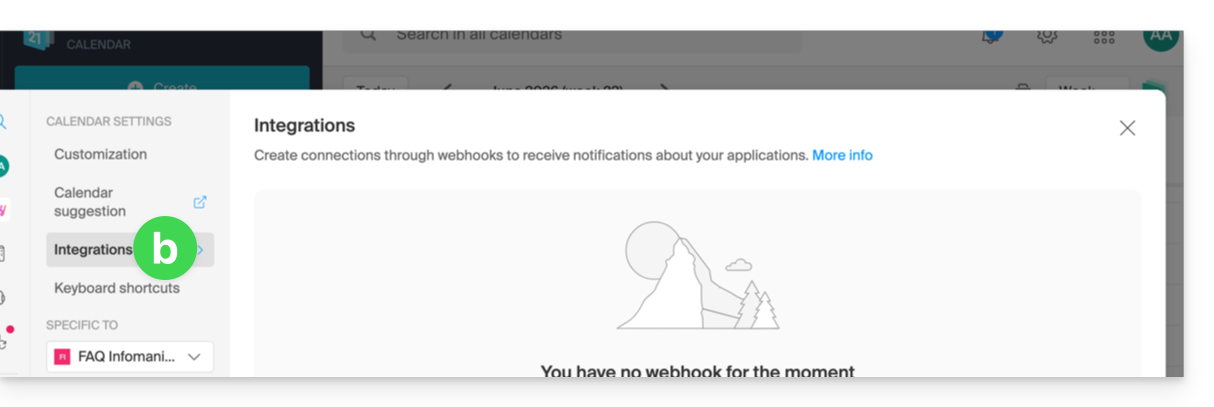
Please refer to this other guide.
Define the color of a calendar
To do this:
- Click here to access the Infomaniak Calendar web app (online service ksuite.infomaniak.com/calendar).
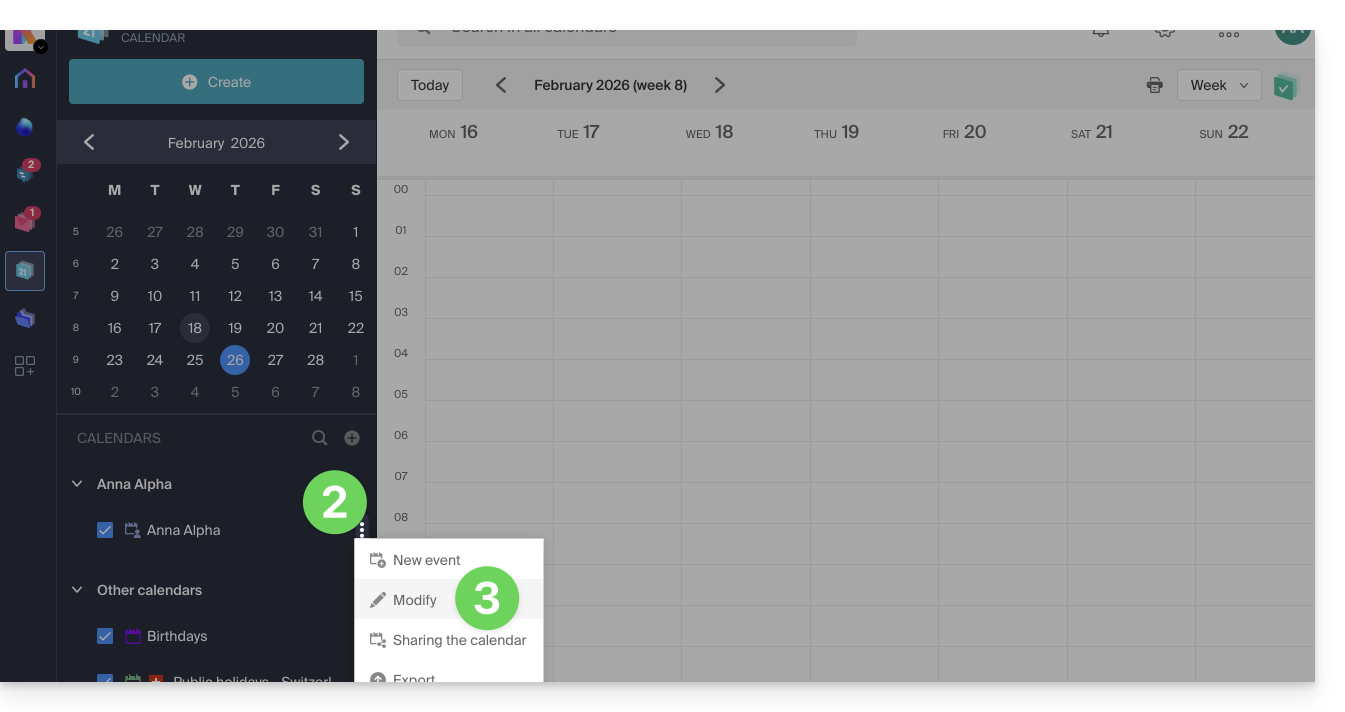
- Click on the action menu ⋮ to the right of the calendar in question.
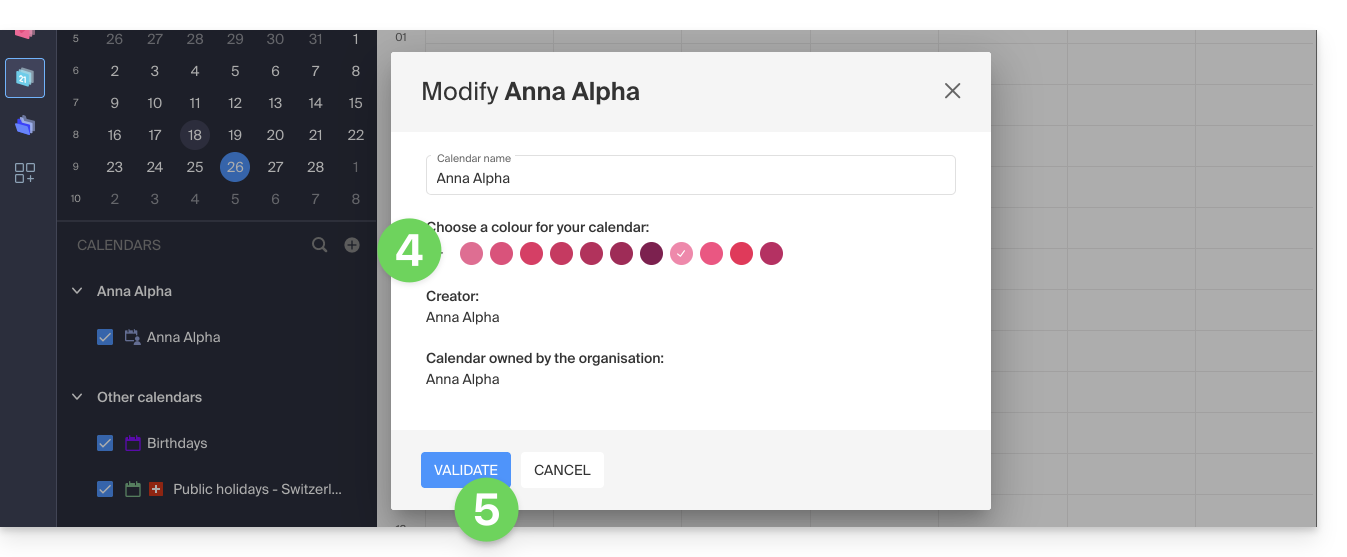
- Click on Edit:
- Choose the desired color.
- Click the button to Confirm:
- The specified color will then be visible:
- in the Calendar name,
- for fixed-time events in the monthly view,
- for all-day events in the monthly view,
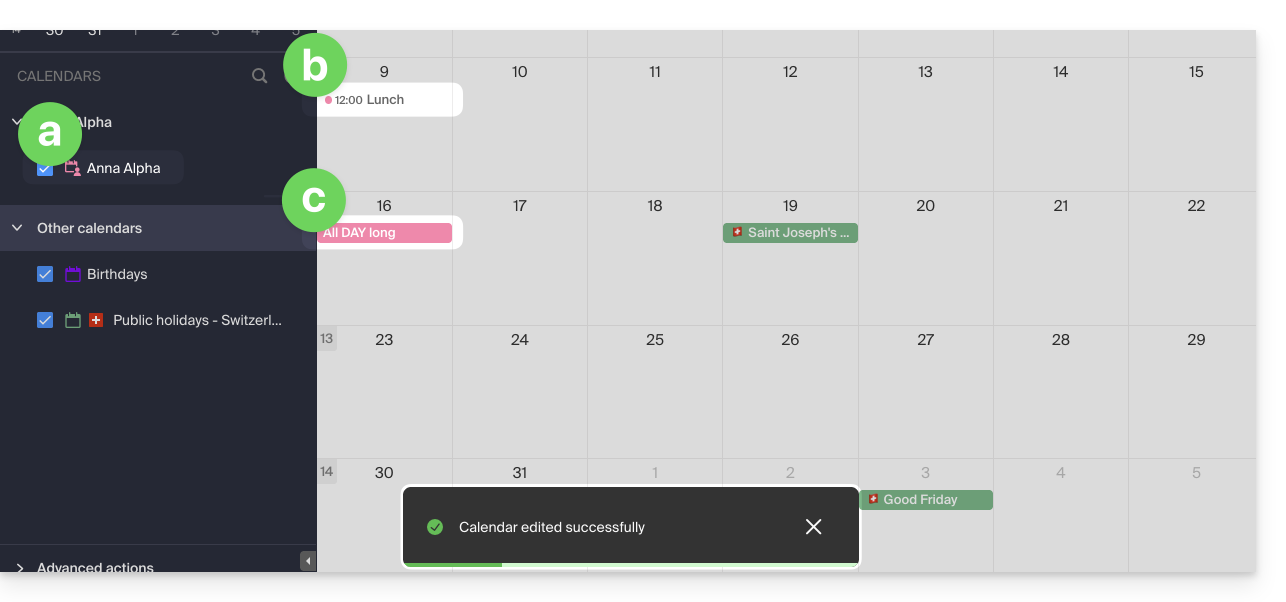
- in the daily view:

- in the agenda view:
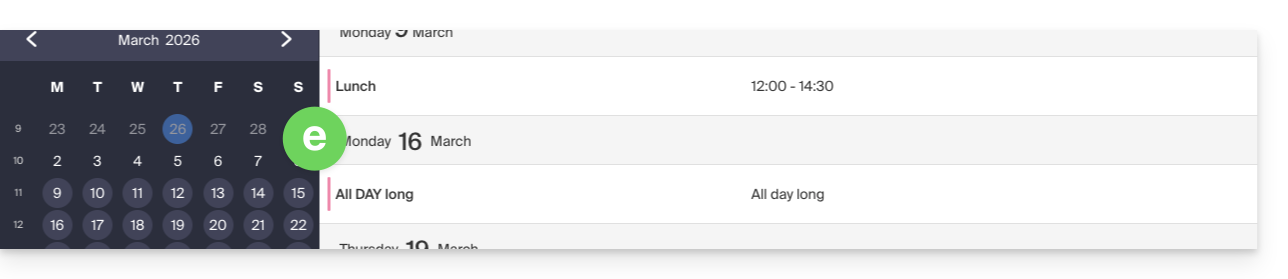
etc.
Define the color of an event
To manually change the color of a specific event, which will override the calendar's color:
- Click here to access the Infomaniak Calendar web app (online service ksuite.infomaniak.com/calendar).
- Create an event and choose its color, or click on an existing event and then click the pencil ✎ icon to edit the details, including its color:
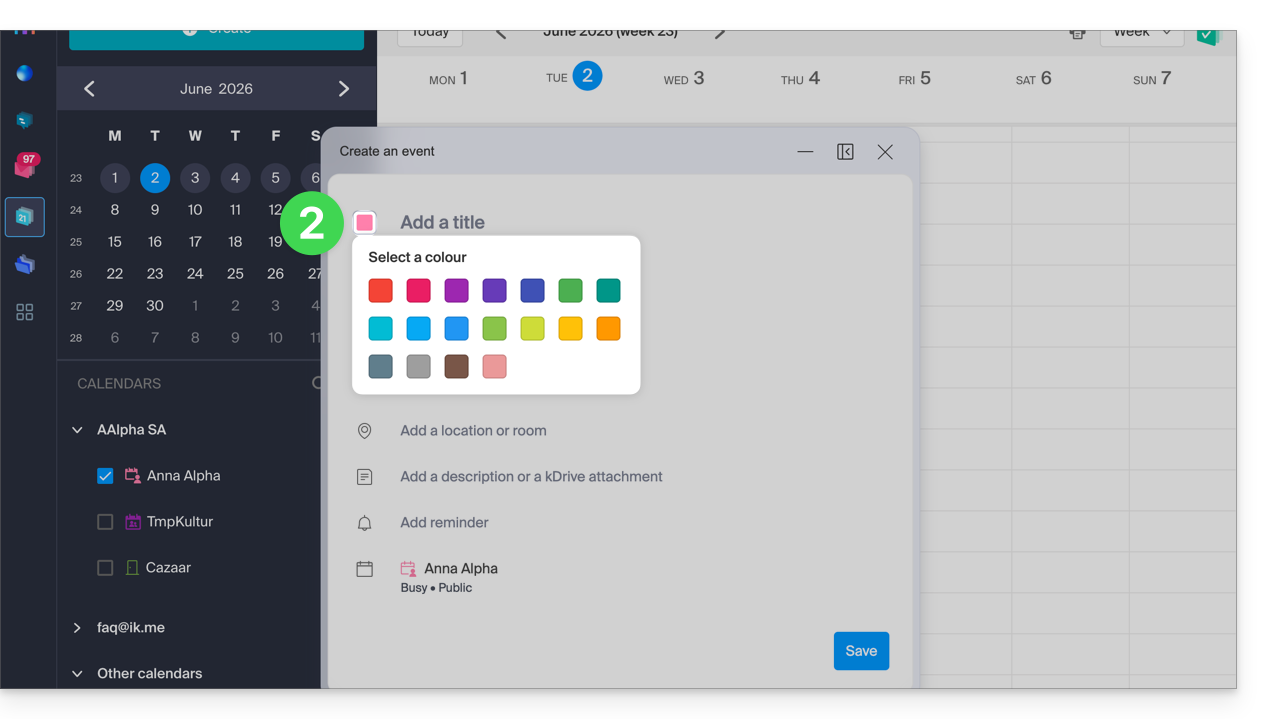
- Confirm at the bottom of the page.
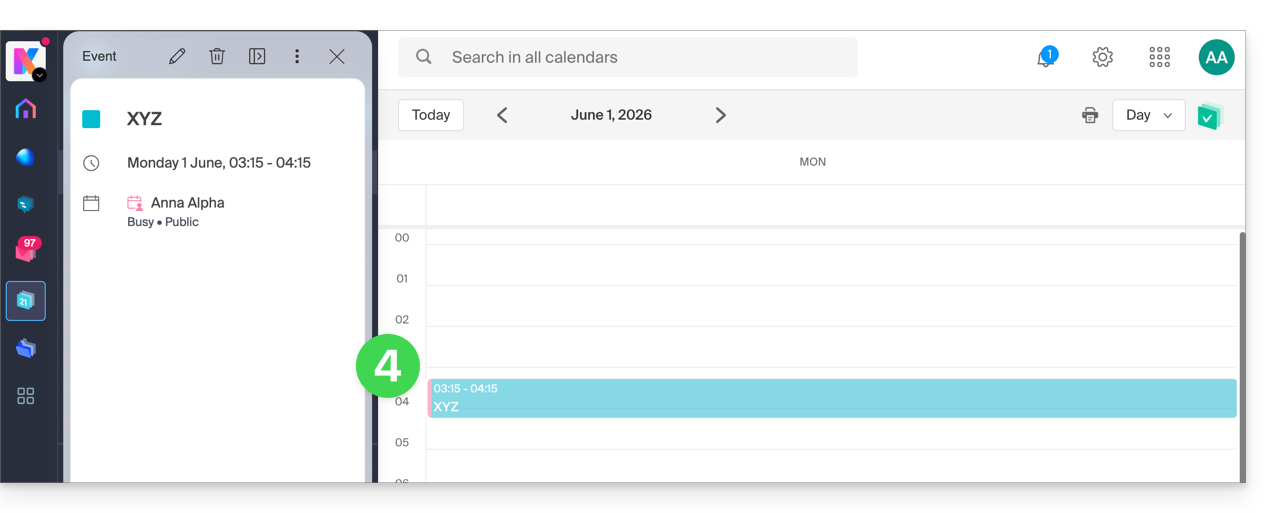
- The specified color will then be visible at the event level:
Customize the displayed period
To do this:
- Click here to access the Infomaniak Calendar web app (online service ksuite.infomaniak.com/calendar).
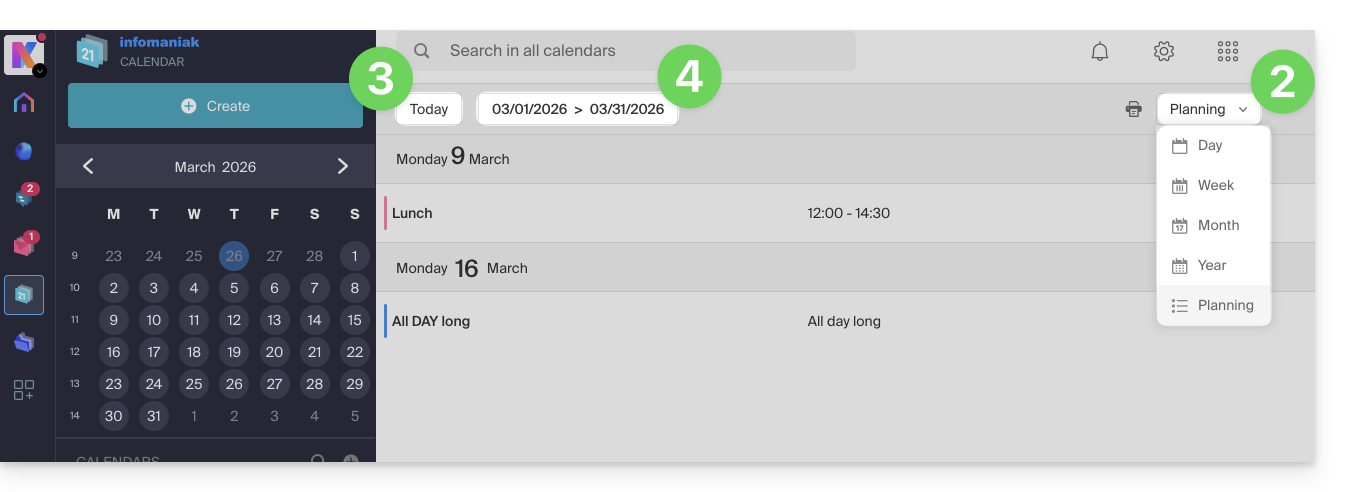
- Choose to display the calendar in Day, Week, Month, Year, or Planning view.
- At any time, click on Today to reset the current view.
- In the Planning view, you can choose the period to display ("this week", "next month", etc.):
Link to this FAQ: https://faq.infomaniak.com/1771
Has this FAQ been helpful?