Knowledge base
1000 FAQs, 500 tutorials and instructional videos. Here, there are only solutions!
Manage followed/favorite emails
This guide explains how to mark selected emails as "favorites" in Infomaniak's email service, allowing you to "track" these messages and display them separately if you choose.
Track one or more messages…
… from the Infomaniak Web Mail app
To add a message as a favorite:
- Click here to access your emails on your Infomaniak kSuite (❓: help).
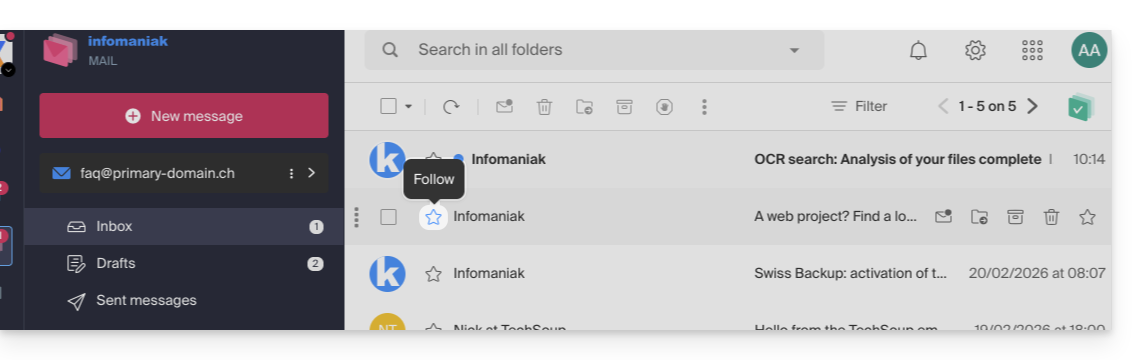
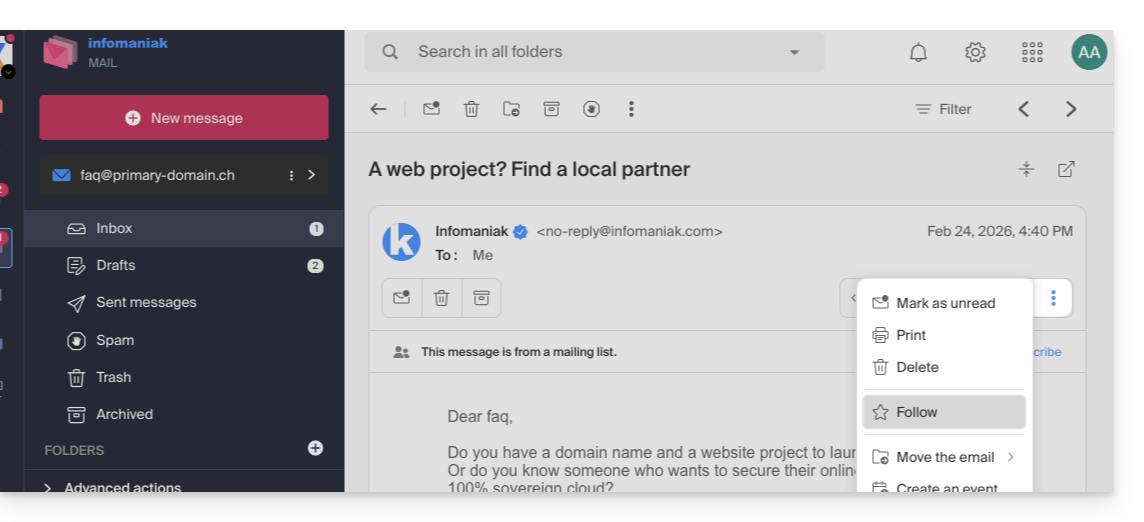
- Click on the ☆… icon:
- … to the left of a message in the message list
- … in the top right corner of the message reading window
- … to the left of a message in the message list
- Once tracking is enabled, a drop-down menu in the upper right corner allows you to display only a selection of your received messages based on several criteria: All, Read, Unread, Tracked, Not Tracked:
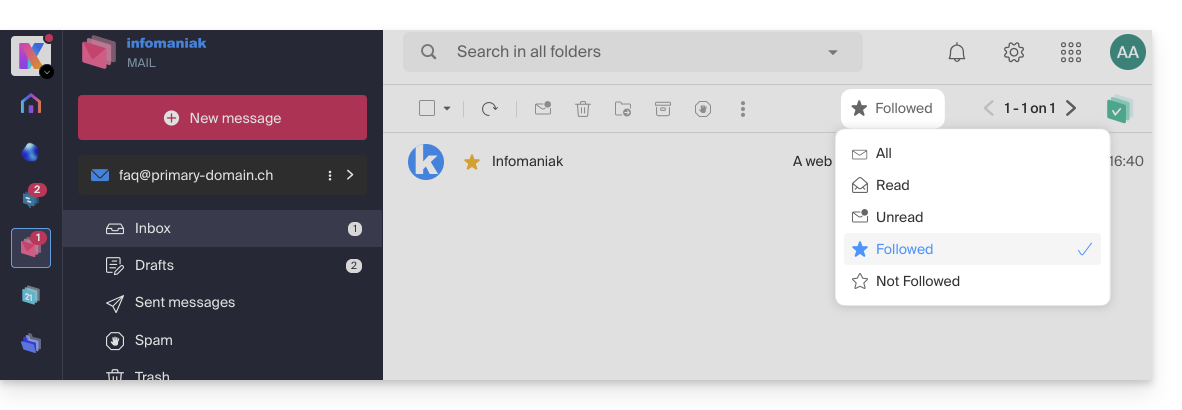
Please note that the Tracked / Not Tracked filtering is done only on the currently displayed folder. And in the case of conversation mode (multiple emails displayed one below the other — ❓: help), a message may belong to a received folder and another message from the same conversation may belong to a sent folder, so the filtering may not display the tracked conversation depending on where the tracked message and the current filter are located.
You can also define an action on hover or add a shortcut in the bar above the message lists (❓: help):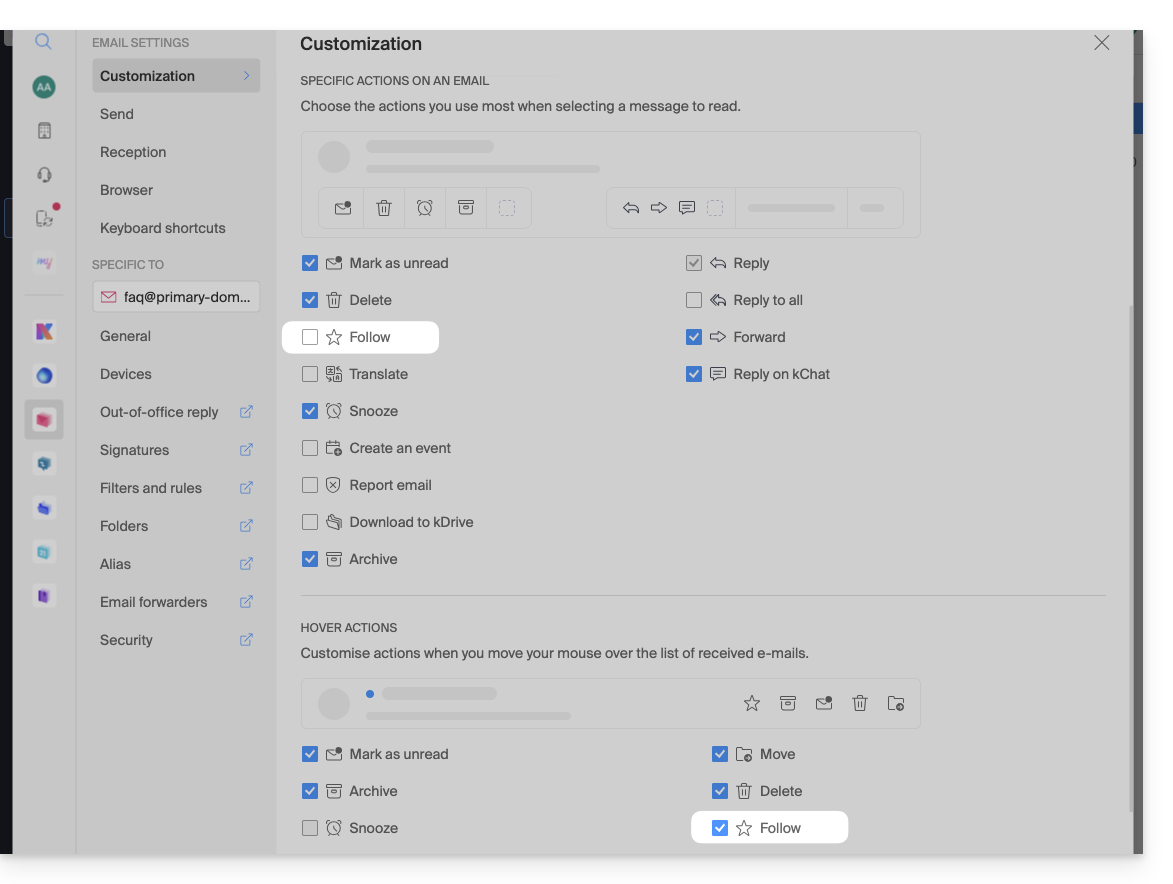
… from the Infomaniak Mail mobile app
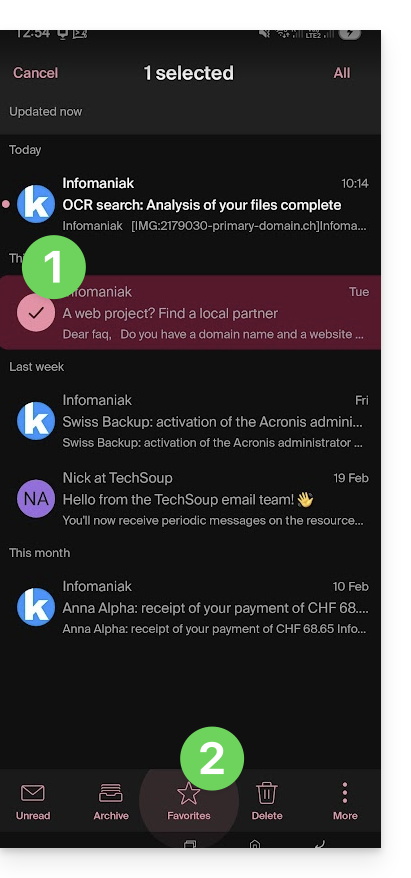
In the message list:
- Tap and hold a message.
- Tap the ☆ icon at the bottom of the screen:
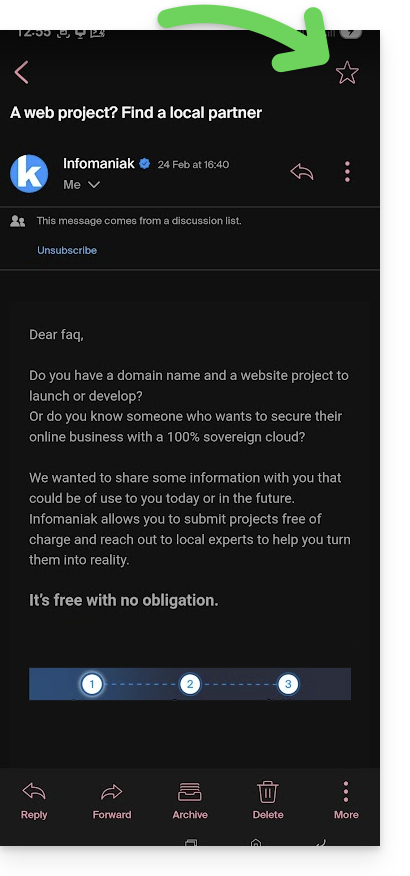
On an open message:
- Tap the ☆ icon in the top right corner of the message reading window:
You can also define a swipe gesture (❓: help) that will allow you to favorite a message with a swipe.
Link to this FAQ: https://faq.infomaniak.com/1761
Has this FAQ been helpful?