Knowledge base
1000 FAQs, 500 tutorials and instructional videos. Here, there are only solutions!
Manage your auto-reply (automatic reply email when you are away)
This guide explains how to activate an auto-reply (automatic "out of office" email message) for an email address managed with Infomaniak. This allows you to inform your contacts that you are unable to respond to them immediately because you are away, on vacation, etc.
Introduction
- The automatic reply for absences can be activated from the Infomaniak Mail web app (online service ksuite.infomaniak.com/mail) and from the Manager, where all addresses for a Mail Service are managed.
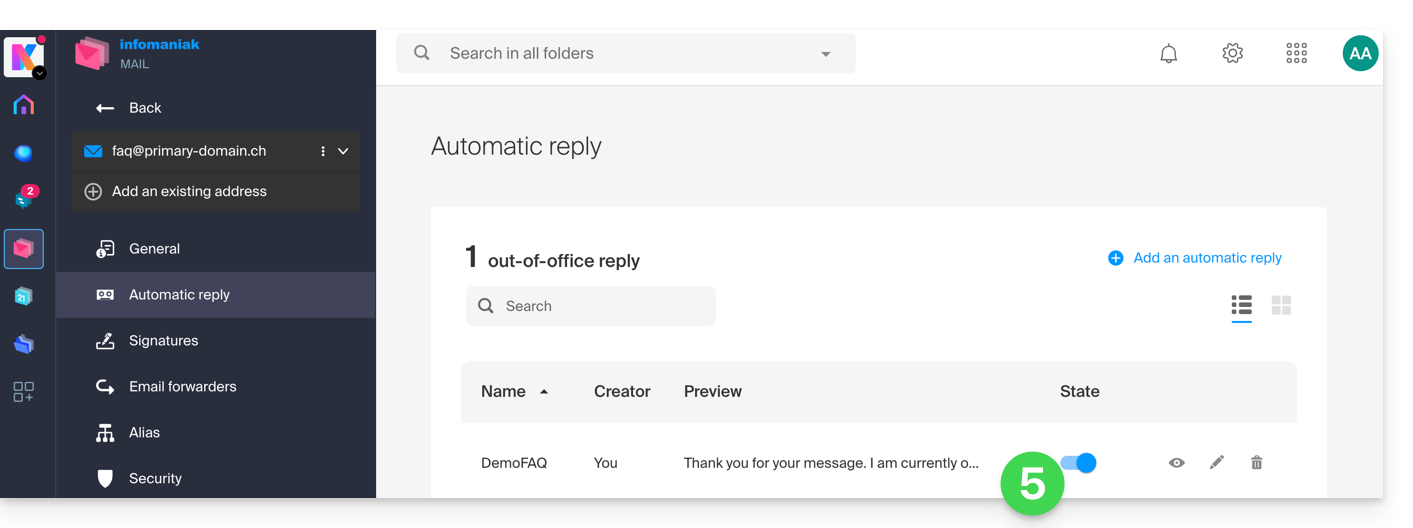
- You can activate or deactivate an already saved message, but there can only be one active auto-reply for a single email address: activating one message deactivates any other, if applicable.
Activate the auto-reply from the Infomaniak Mail web app
Prerequisites
- You must have permission to manage the auto-reply: if you were invited to the Infomaniak Mail web app (online service ksuite.infomaniak.com/mail) to manage your address, it is possible that the manager of the Mail Service has removed this right from their admin account.
To activate the absence message:
- Click here to access the Infomaniak Mail web app (online service ksuite.infomaniak.com/mail).
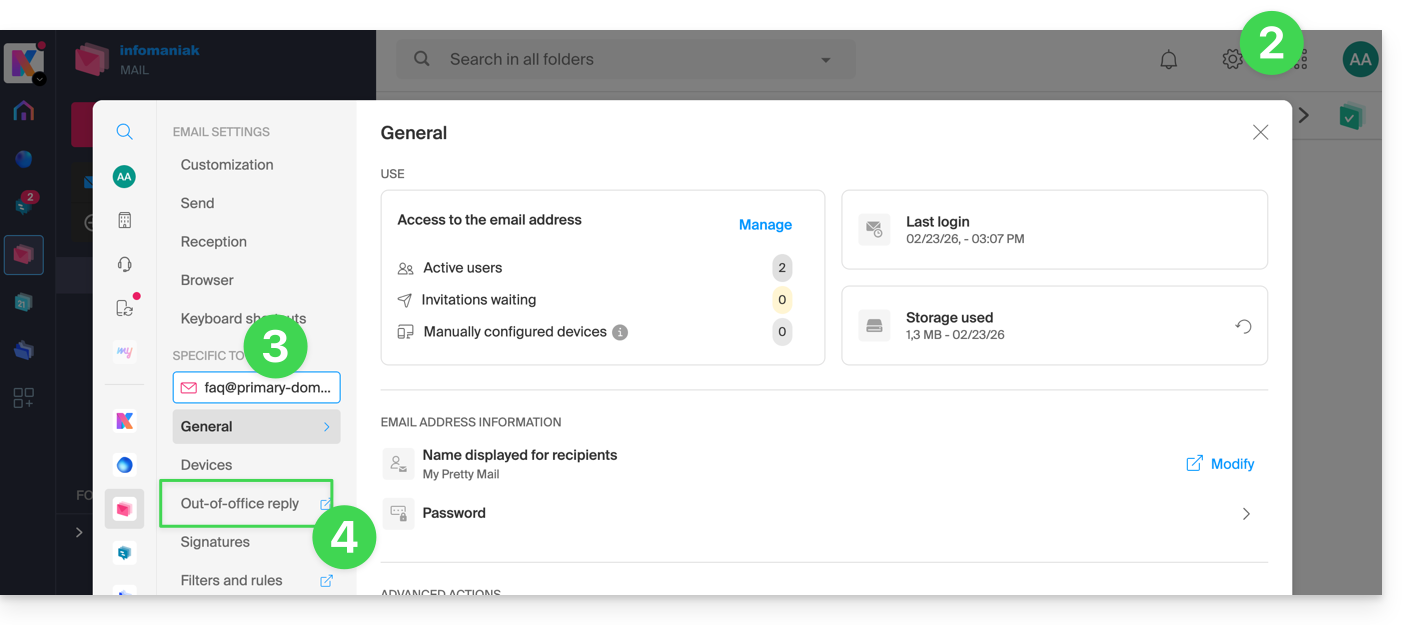
- Click on the Settings icon in the top right corner.
- Check or select the relevant email address in the dropdown menu on the left-hand sidebar.
- Click on Auto Reply:
- Activate the automatic message if necessary, or read more below:
Activate the auto-reply from the Infomaniak Manager
To activate the out-of-office message from the Manager:
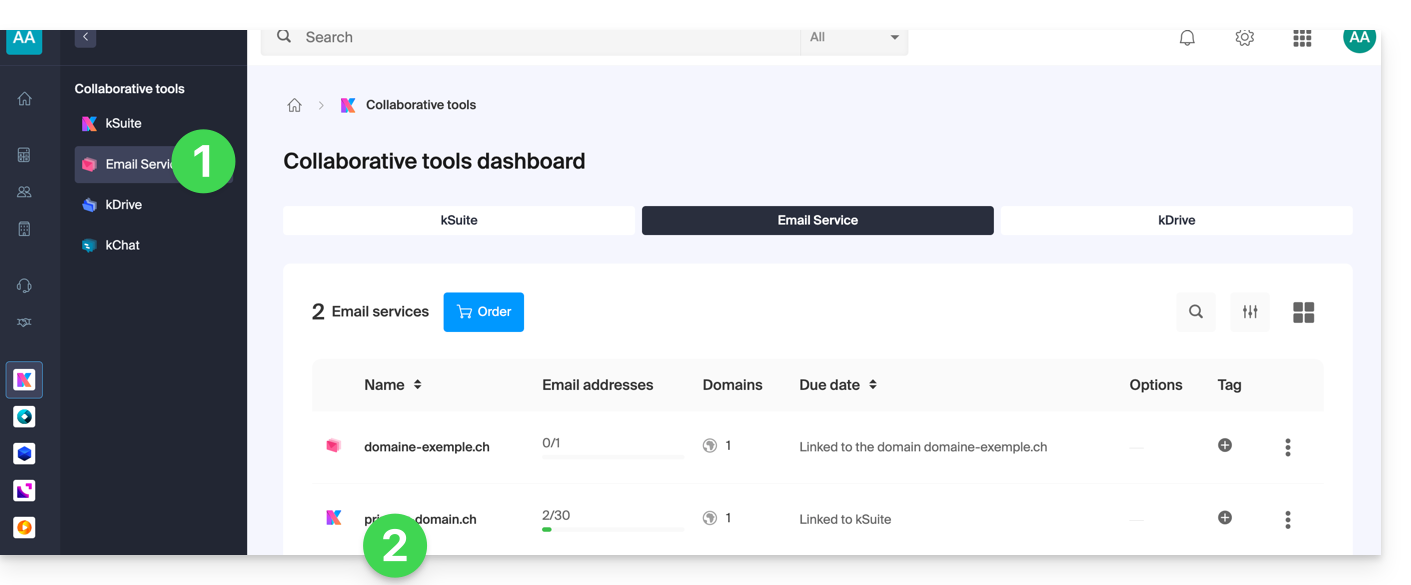
- Click here to access the management of your product on the Infomaniak Manager (need help?).
- Click directly on the name assigned to the relevant product:
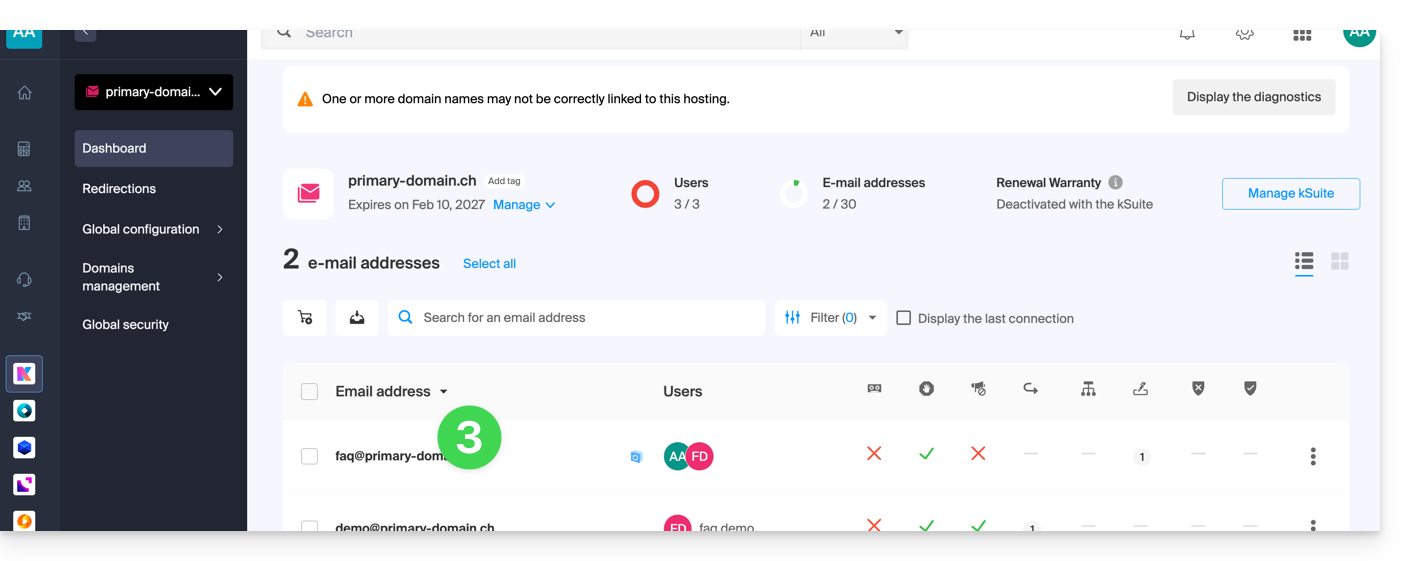
- Click on the relevant email address in the table that appears:
- Click on the Auto Reply menu in the left-hand sidebar.
- Activate the automatic message if necessary, or read more below:
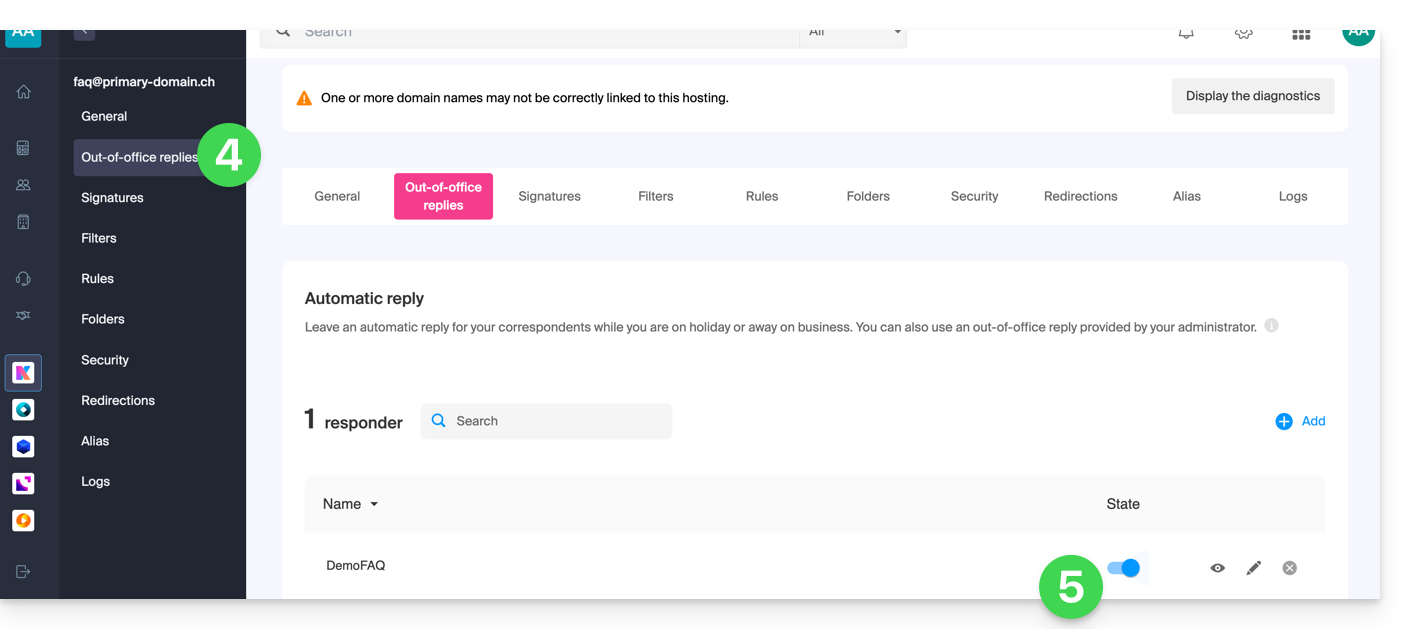
Compose the out-of-office message
To manage the message that will be automatically sent in response:
- Click on Add:
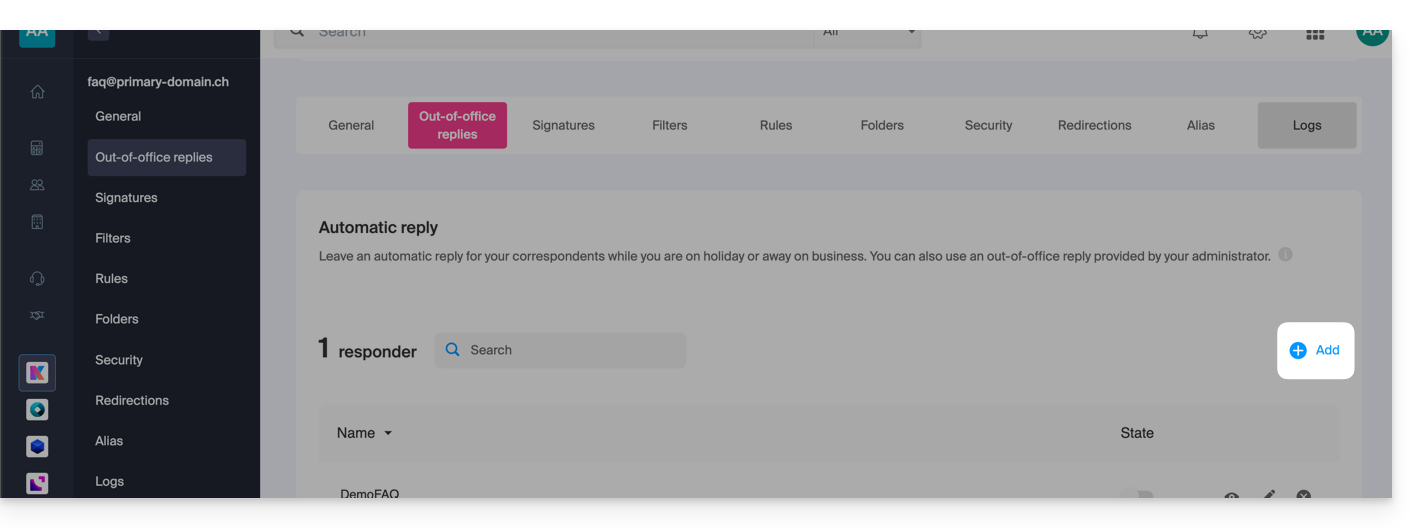
Then: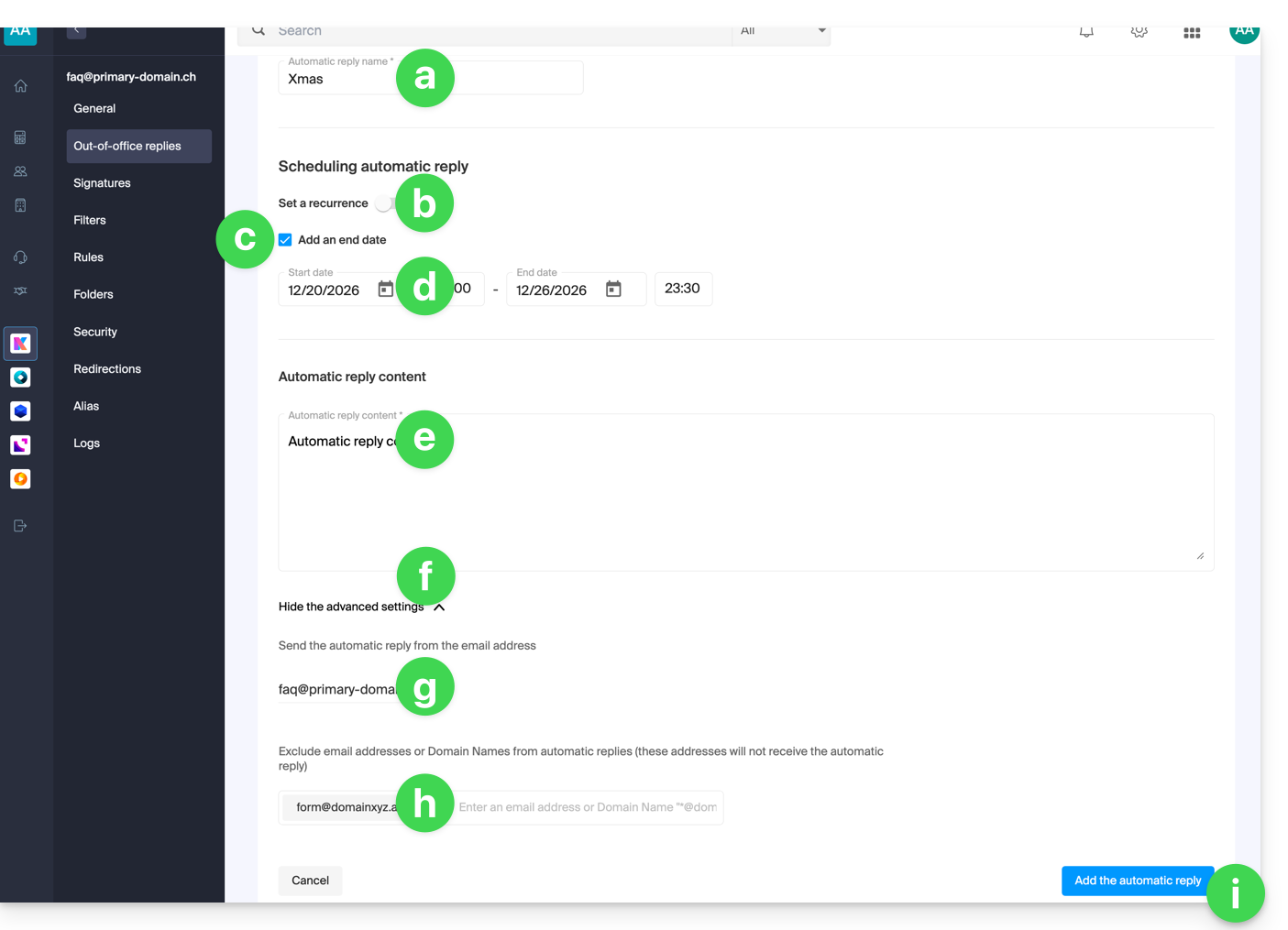
- Enter a name for your auto-reply (to distinguish it from other messages if you create several).
- Define whether the automatic reply should be sent repeatedly on specific days of the week.
- Define an end date/time if the message should no longer be sent after a certain period.
- Define a start date/time if the message is scheduled in advance for a specific period in the future.
- Write your out-of-office message.
- Display the advanced settings.
- Define any other email address that will be used to send your automatic out-of-office message; only the following types of addresses will appear:
- alternative email address (alias for example:
jean-francois@… /jf@…) - linked domain (alias for example jf@
domain1.abc/ jf@name.xyz)
- alternative email address (alias for example:
- Enter specific email addresses (or
@domain.xyzfor an entire domain) to prevent them from receiving this out-of-office message. - Click the blue button at the bottom right to Add the message.
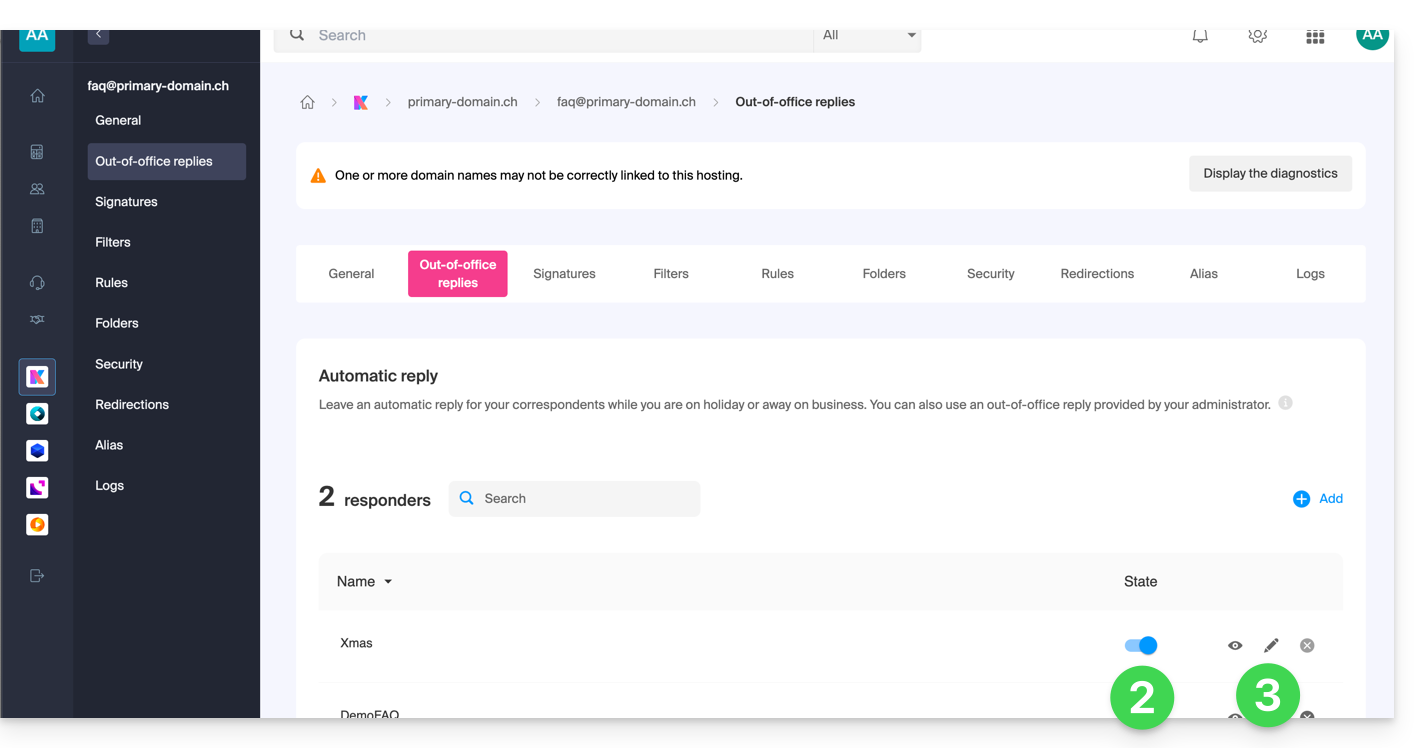
- Once added, you can activate or deactivate it.
- You can also edit an already saved message using the pencil ✎ icon on the right:
How often is the automatic reply sent?
Your reply is sent only once to the people who send you messages.
However, if the same sender sends you a new email 7 days after the previous one, and if your auto-reply is still activated, an automatic reply will be sent to them again to remind them that you do not have access to your mailbox.
Therefore, if you are testing it on your address, it is normal that it only works the first time. During subsequent tests, the auto-reply will no longer send the message when it detects that the message comes from an address that has already sent a message before. You will therefore need to try again from another email address.
You can reset the 7-day counter by clicking on Reset when you edit your message: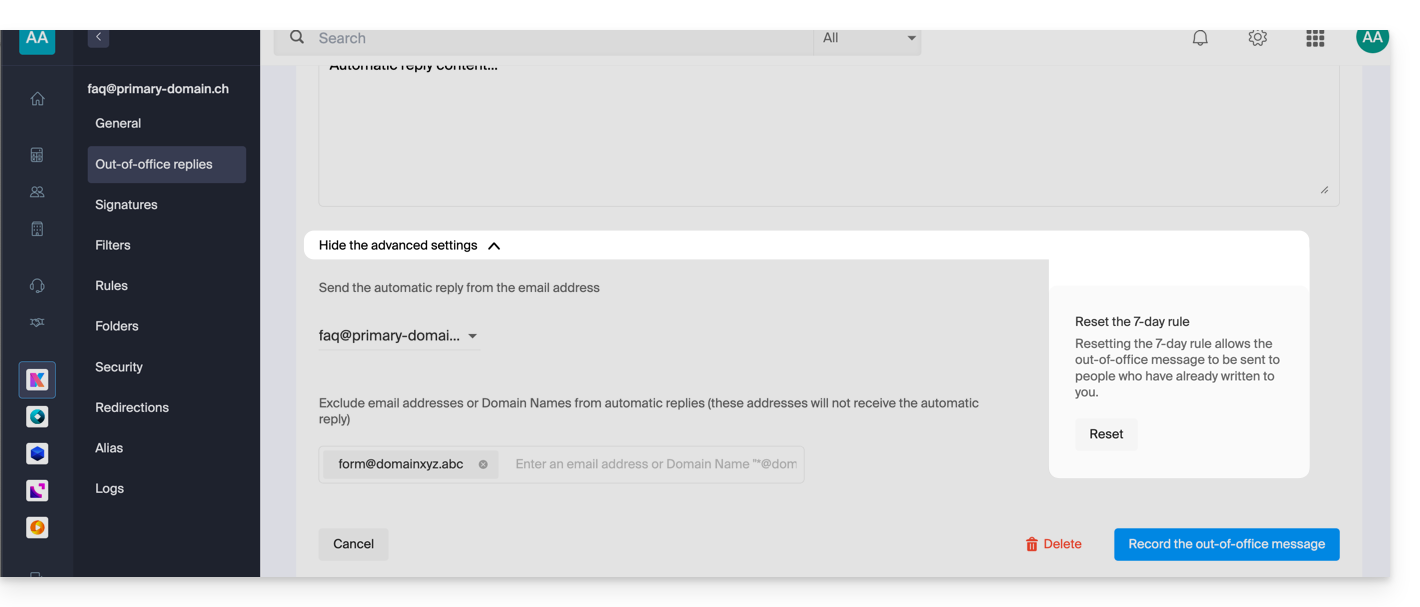
Go further with templates
Custom templates can be applied when creating a new email address on your Mail Service, for example, or in bulk on all addresses in your domain. Learn more
Link to this FAQ: https://faq.infomaniak.com/1759
Has this FAQ been helpful?