Knowledge base
1000 FAQs, 500 tutorials and instructional videos. Here, there are only solutions!
Manage favorite folders in Mail Infomaniak
This guide explains how to add a folder or subfolder as a favorite on the Infomaniak Mail web app (online service ksuite.infomaniak.com/mail).
Introduction
- Automatically placed at the top of your folder list, you will get quick and easy access to this folder.
- Multiple folders can be added to your favorites.
Mark a folder as favorite
To add a folder as a favorite or remove it:
- Click here to access the Infomaniak Mail web app (online service ksuite.infomaniak.com/mail).
- Click on the action menu ⋮ to the right of the folder in question in the left-hand menu.
- Choose the desired action:
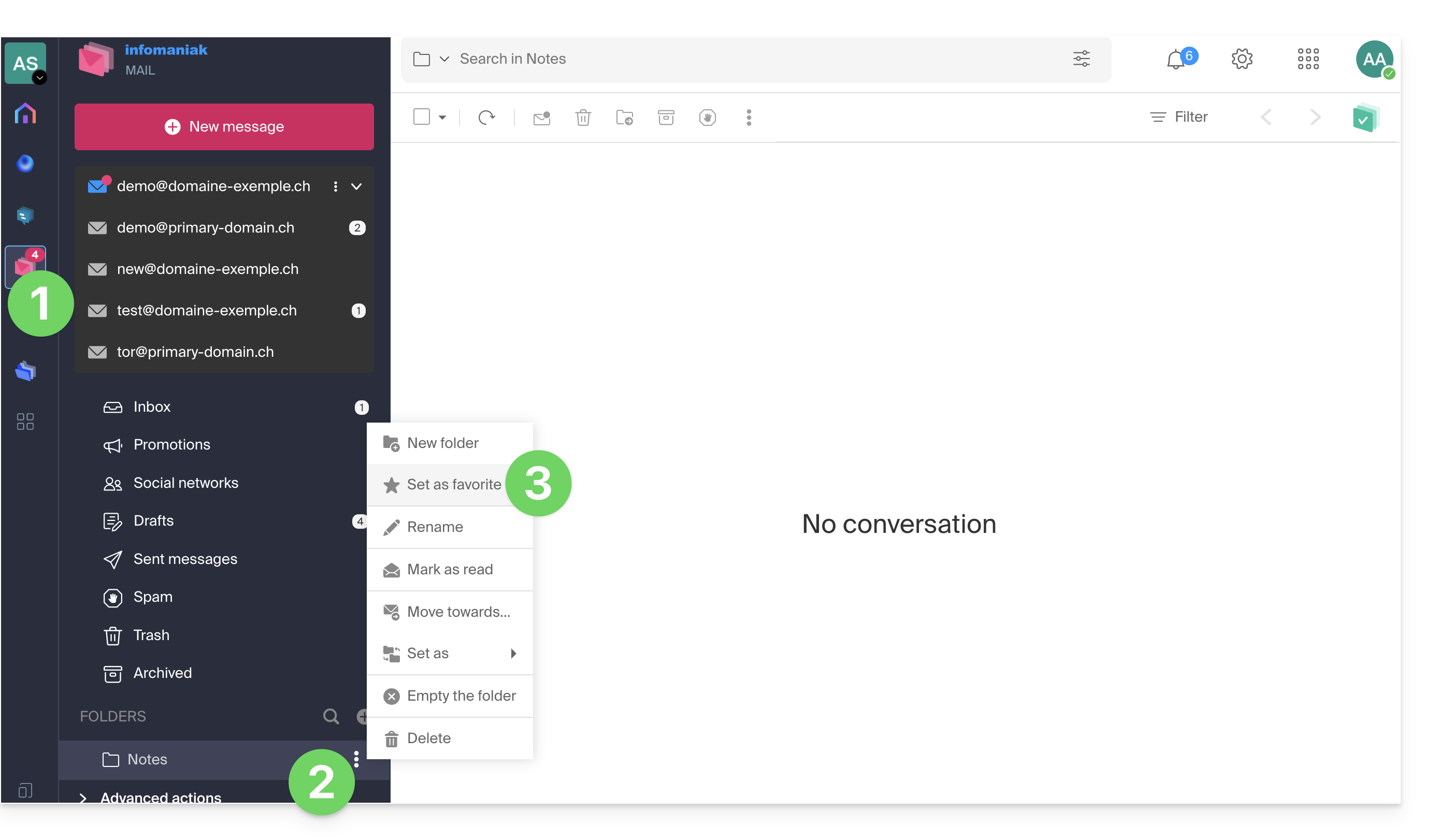
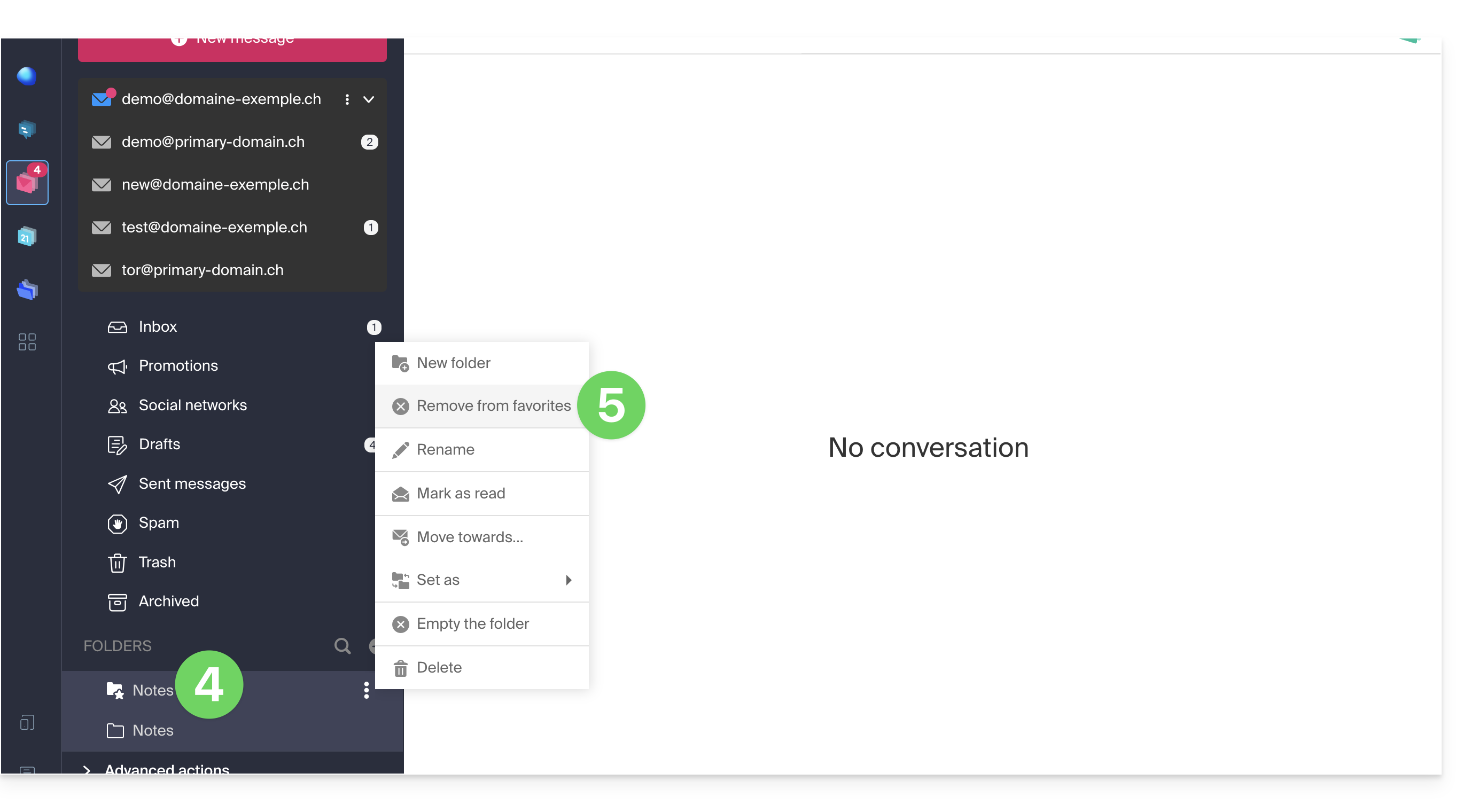
- The folder defined as a favorite is “duplicated” at the beginning of the folder list with a star on its icon (but it is the same folder as the one in the list below).
- You can remove a favorite at any time via the action menu:
And on the mobile app?
It is not possible to add a folder as a favorite from the Infomaniak Mail mobile app (application for iOS/Android smartphones or tablets).
You can mark messages as favorites to keep track of them.
Alternatively, to access your folders on the mobile app:
- Tap the icon in the top left corner of the Mail inbox.
- A panel slides in from the left and displays several sections.
- The collapsible “Folders” section displays your folders in alphabetical order; you can create new folders, then rename or delete them by long-pressing the folder name in the list.
Link to this FAQ: https://faq.infomaniak.com/1745
Has this FAQ been helpful?