Knowledge base
1000 FAQs, 500 tutorials and instructional videos. Here, there are only solutions!
Remove a user from an Organization
Update 10/12/2026
This guide explains how to delete one of the users in your Organization from the Infomaniak Manager.
Prerequisites
- Switch to the desired Organization beforehand if you cannot find the expected list of users (❓: help).
- You must be at least an Administrator of the Organization (❓: help).
- Please note that it is not possible to remove a Legal Representative if there is no other legal representative. (❓: help).
Remove a user from your Organization
If the user had access to kDrive or was invited to access a third-party email address, several intermediate steps will ask you what actions to take with their data and will inform you, if applicable, about what will happen to the calendars and address books. To remove one of the users from the Organization:
- Click here to access the organization's user management in the Infomaniak Manager (❓: help).
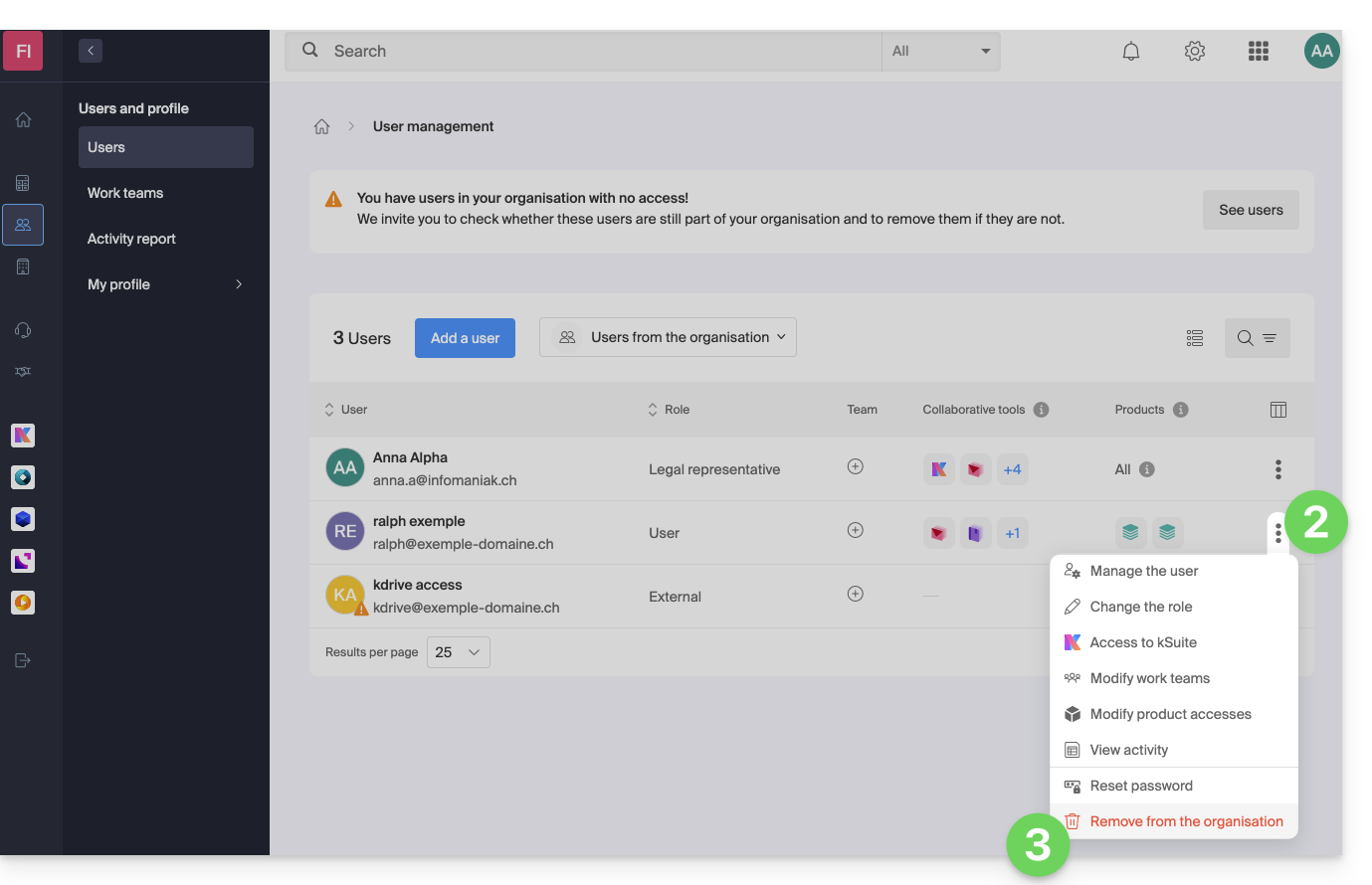
- Click on the action menu ⋮ to the right of the user in question.
- Click on Remove from Organization:
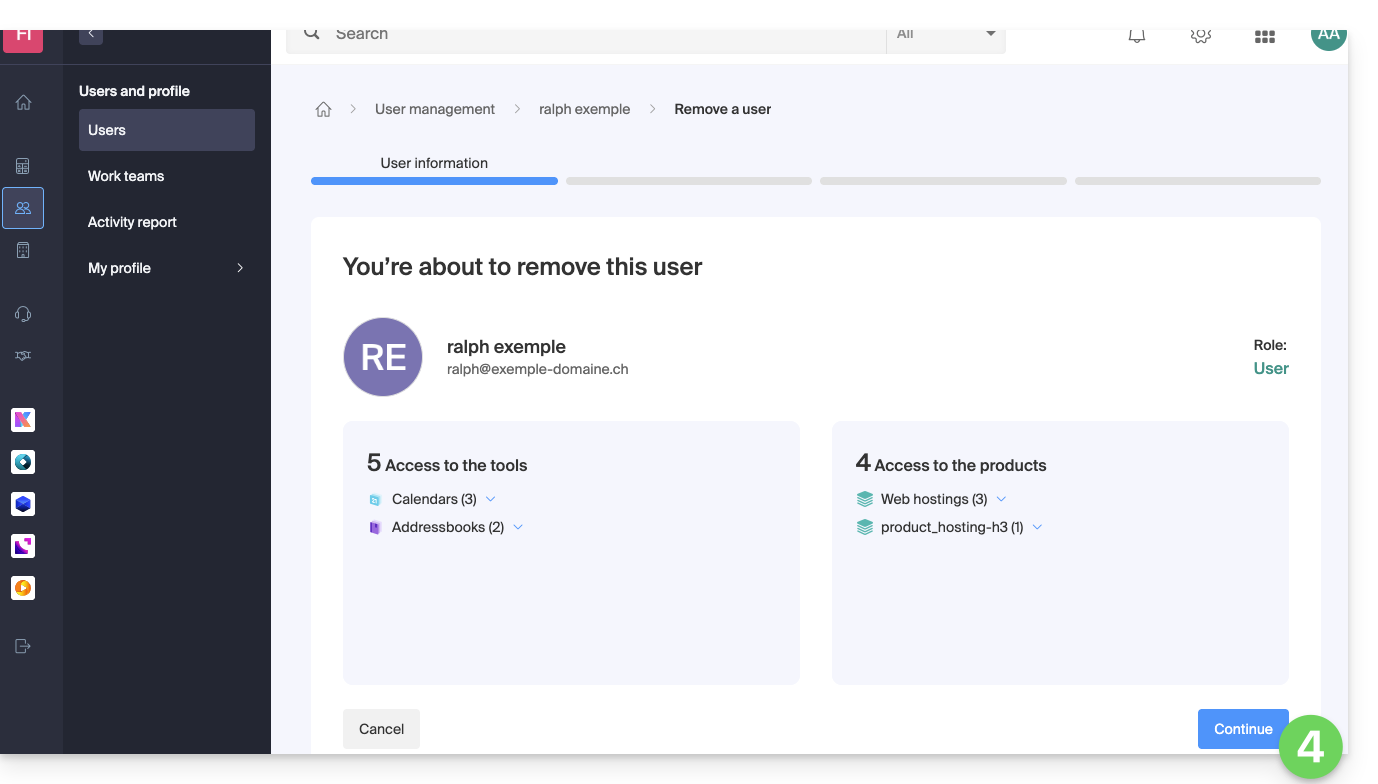
- Review the information (click on the down arrows if necessary to view the details of the deletions) and then click the blue Continue button:
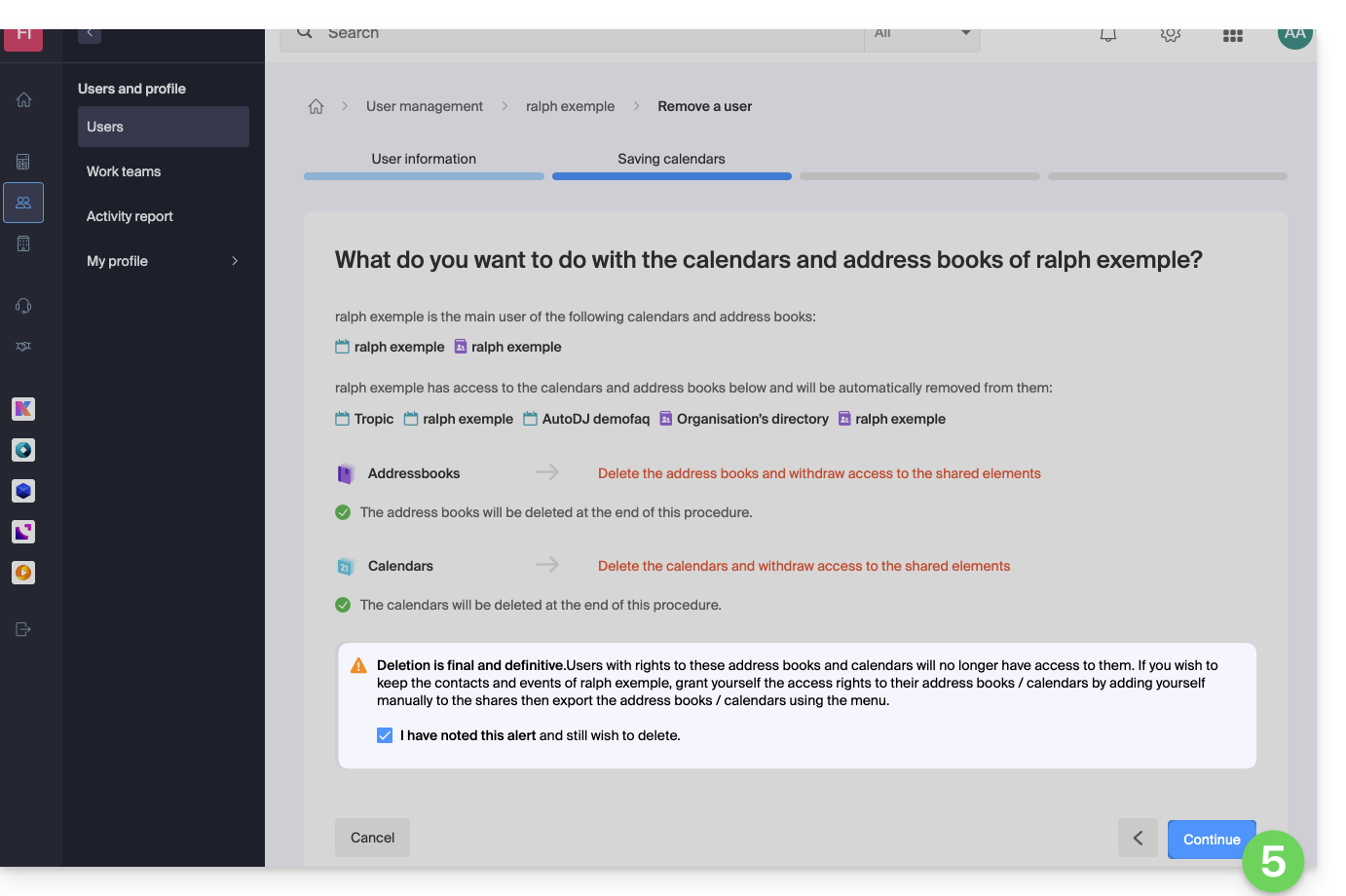
- Review the information, confirm the deletion by checking the box, and then click the blue Continue button:
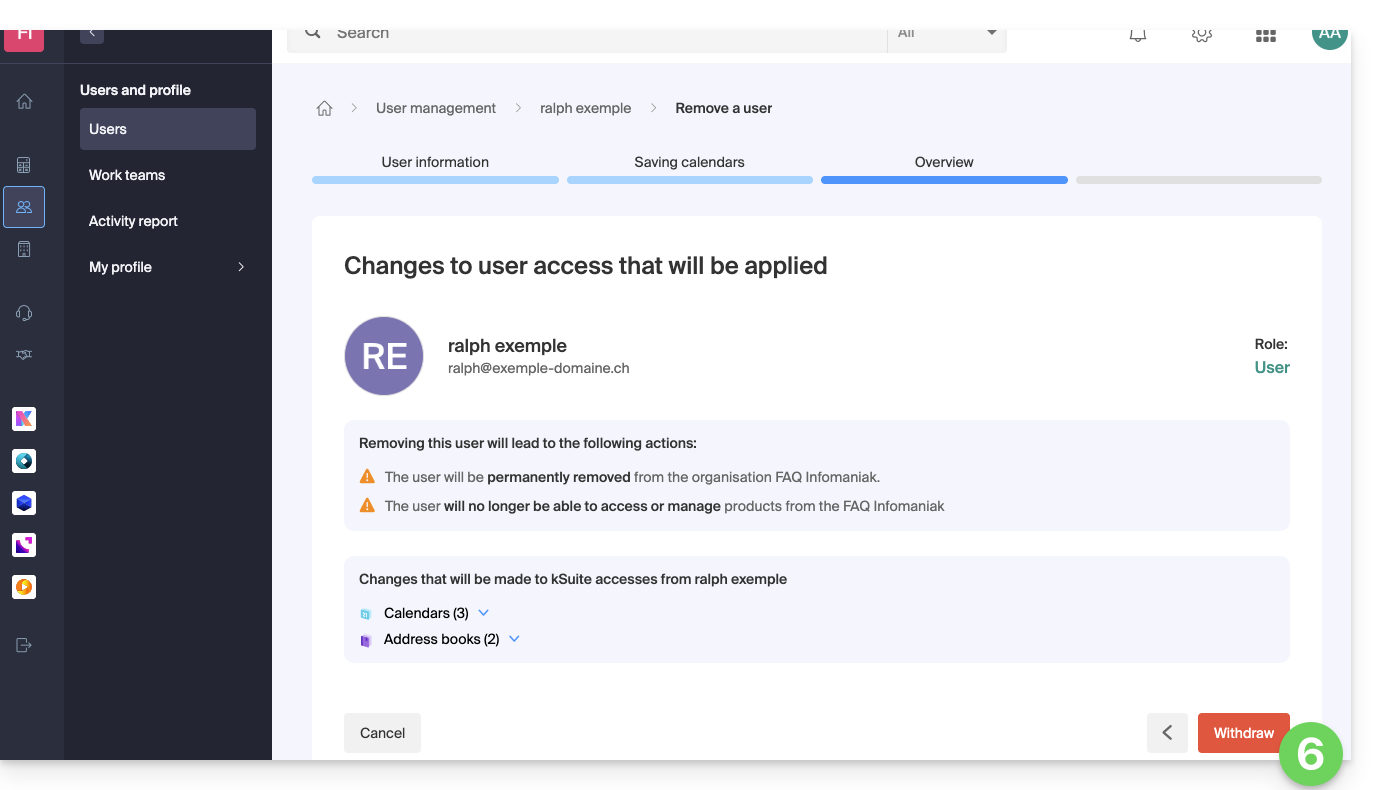
- Review the information (click on the chevrons if necessary to view the details of the deletions) and then click on the red Remove button:
- Enter your email address (login ID for the Manager), check the confirmation box, and then click the red Remove this user button to permanently remove the user, with no possibility of reverting the action.
Link to this FAQ: https://faq.infomaniak.com/1738
Has this FAQ been helpful?