Knowledge base
1000 FAQs, 500 tutorials and instructional videos. Here, there are only solutions!
Filter incoming emails with simple sorting rules
This guide explains how to create sorting rules (in Standard mode) to automatically categorize your incoming emails on Infomaniak based on certain conditions.
Introduction
- These rules enable the following automated actions:
- Delete or move messages from email addresses that you no longer want to receive.
- Forward emails from a specific email address to your partner so that you both receive them.
- Copy messages containing a specific keyword to a folder.
- etc.
- Unlike the sorting rules offered within email software/clients (❓: help), these rules will act directly on your email server before the IMAP connection.
- You can use it as a template for all the addresses in your Mail Service (❓: help).
- Warning: the rules are evaluated one after the other: if an email meets the conditions of several rules, each of them will be executed.
- For example, a message from Amazon and whose subject contains "Advertisement" could be processed by two different rules.
- To prevent the same email from being processed multiple times, add the action "Stop filter execution" to the end of the rule that should not be followed by subsequent rules:
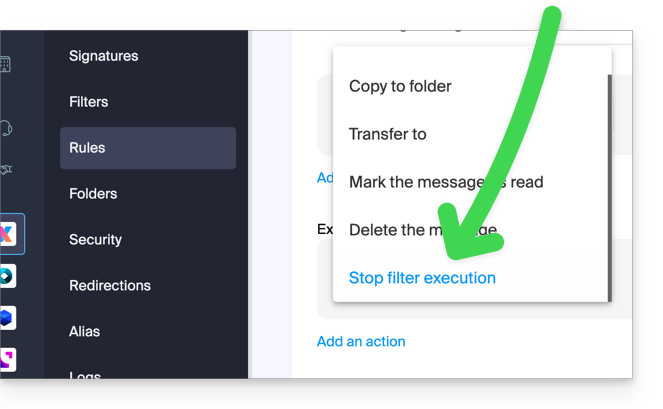
- Depending on your plan, there is an advanced mode (❓: help) for creating sorting rules in a dedicated language.
Accessing rules from the Infomaniak Web Mail app
Prerequisites
- You must have permission to manage rules: it is possible that the Mail Service administrator has removed this permission from their admin account (❓: help).
- To view archived messages, you will need to use the IMAP protocol (❓: help) or only Mail Infomaniak (because the POP protocol only retrieves messages that are in your main inbox).
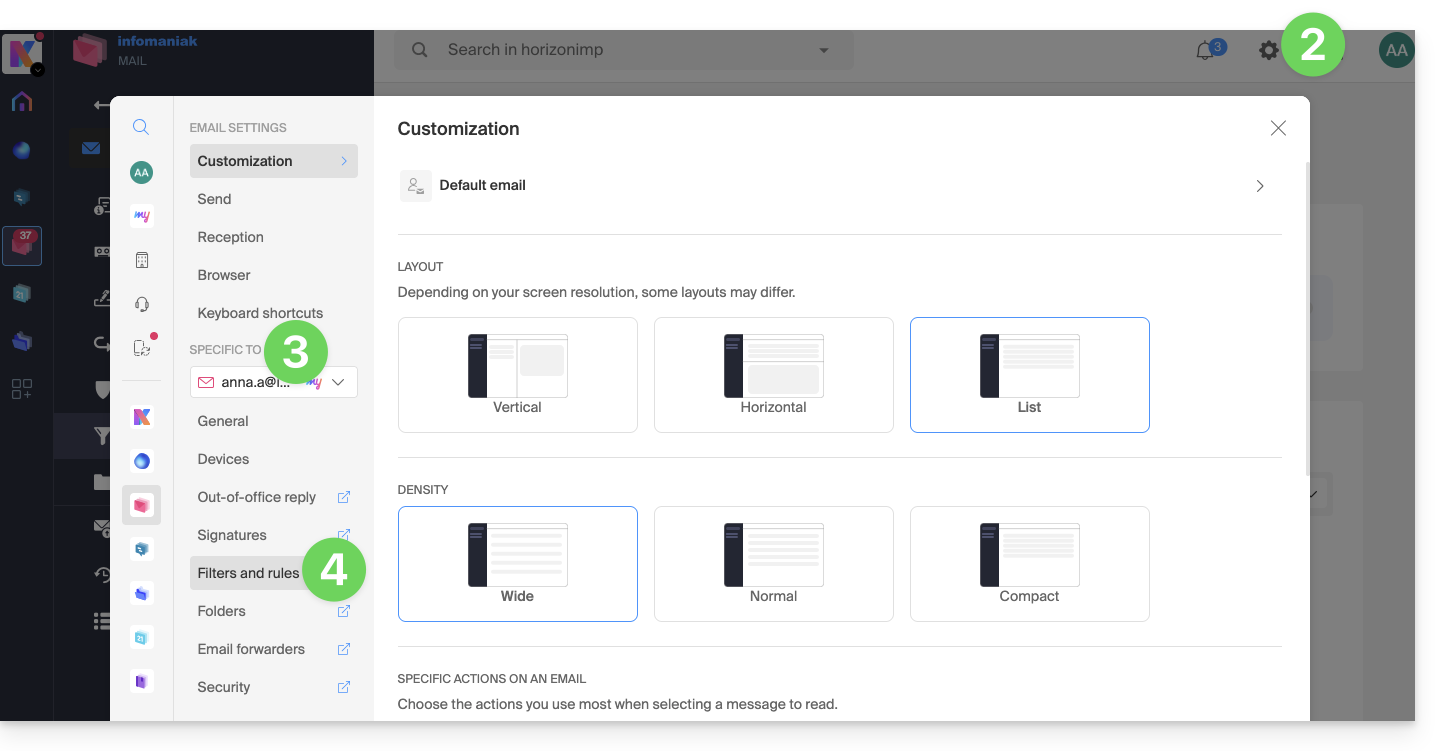
To access the sorting filters for your Infomaniak email:
- Click here to access your emails in your Infomaniak kSuite (❓: help).
- Click on Settings in the top right corner.
- Check or select the relevant email address from the drop-down menu.
- Click on Filters and rules:
Define a rule based on a received email
You can also create a rule directly from the email you received:
- Click here to access your emails in your Infomaniak kSuite (❓: help).
- Open the message from the sender in question.
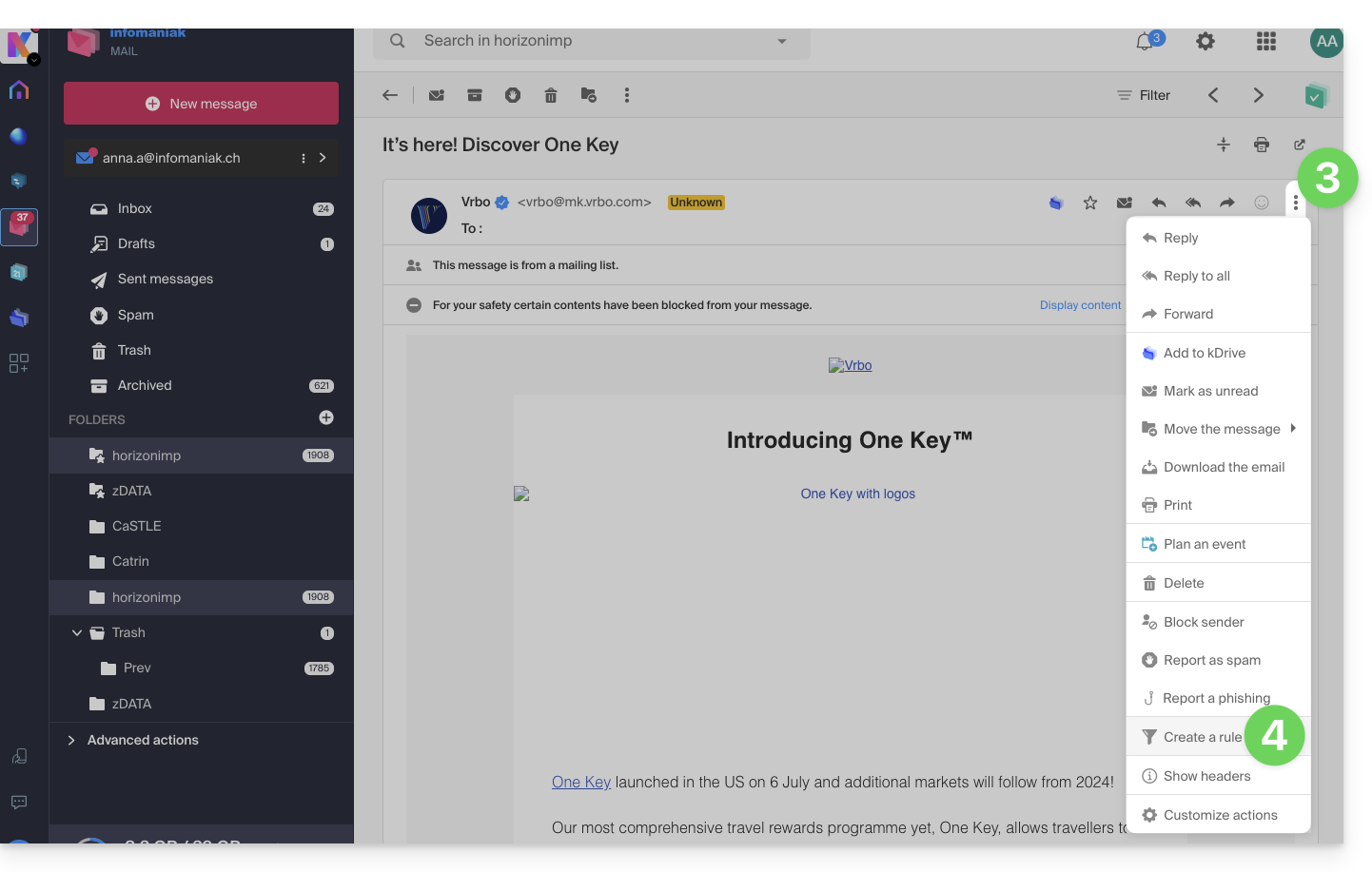
- Click on the action menu ⋮ in the upper right corner of the open message.
- Choose Create a ruleto open the creation wizard, which will be pre-filled with the message details:
Accessing Rules from a Mail Service
To access the sorting filters for your Infomaniak email:
- Click here to access the Mail Service management in your Infomaniak Manager (❓: help).
- Click on the name of the Mail Service in question.
- Click on the email address in the table that appears.
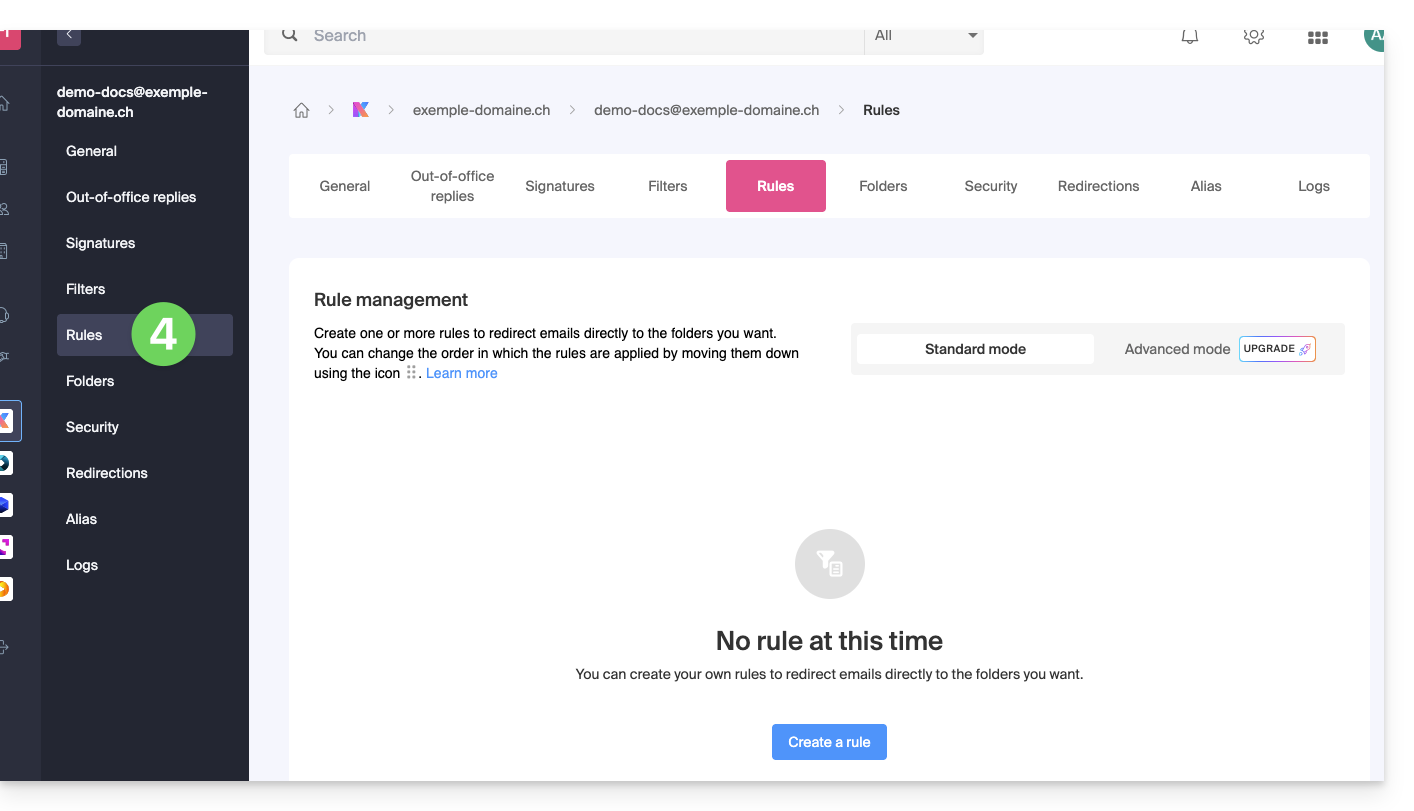
- Click on the Rules tab in the left-hand menu (or top bar):
Create a new rule in Standard mode
- Click on the Add a rule button in Standard mode to create a new rule using a wizard/creation form:

- The different conditions available for sorting filters are presented in this other guide.
- Once a filter has been created, click Continue to activate it.
Add, duplicate, or modify a rule in Standard mode
If filters already exist, the button to add a new one is located at the top right of the table: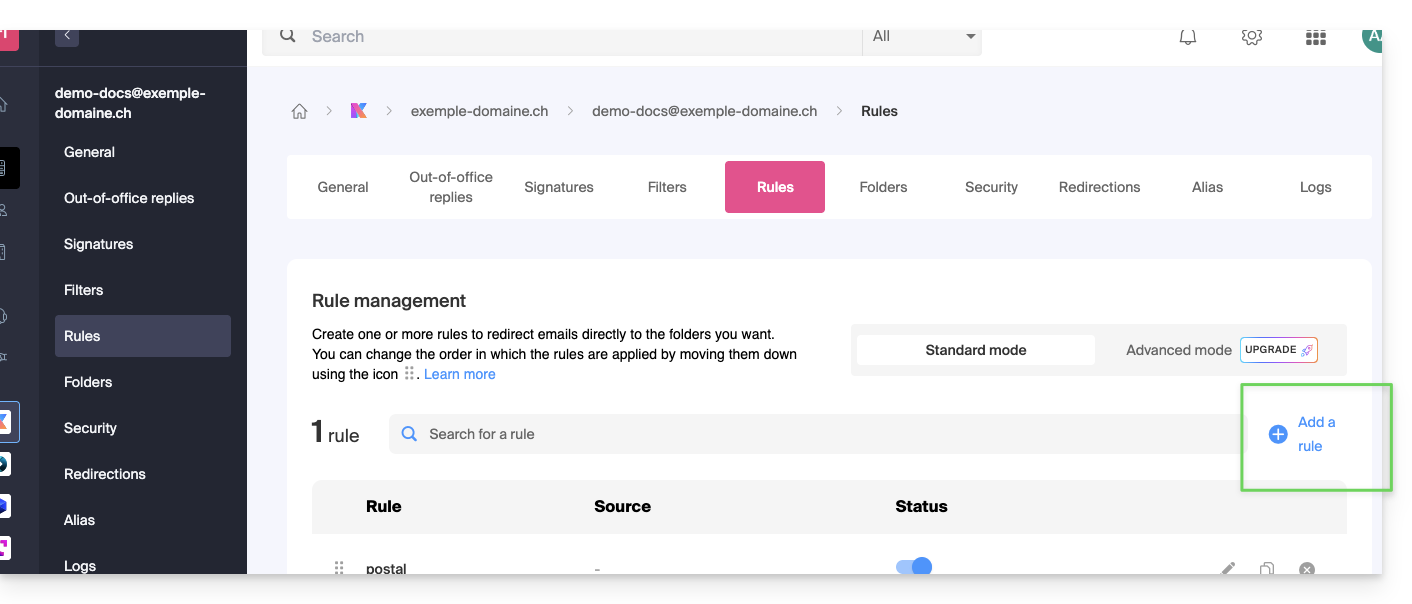
You can modify these settings at any time by clicking on the pencil ✎ icon to the right of the item in question.
You can also duplicate an existing rule to rework it as a copy without affecting the original: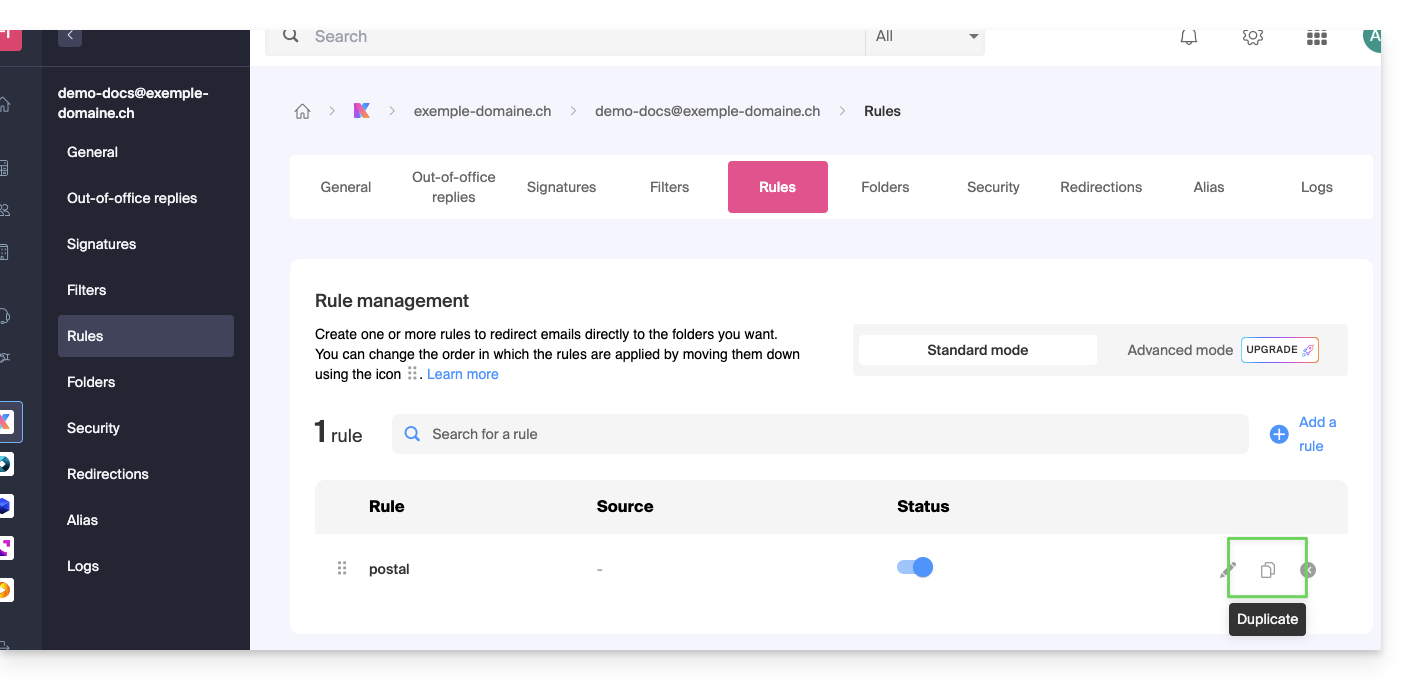
Link to this FAQ: https://faq.infomaniak.com/1729
Has this FAQ been helpful?