Knowledge base
1000 FAQs, 500 tutorials and instructional videos. Here, there are only solutions!
Add an address to Mail Infomaniak
This guide explains how to add an email address to the Infomaniak Mail web app (online service ksuite.infomaniak.com/mail), which allows you to manage one or more email addresses hosted by Infomaniak.
Introduction
- Any addition or removal of an email address visible in the Web Mail Infomaniak app will also be reflected in the Infomaniak Mail mobile app.
- This does not affect email/client software such as Outlook.
- Refer to this other guide if you are looking for information on permanently deleting an email address and its content.
- Refer to this other guide to unlink an email address.
Associate an email address
In this example, the administrator (a) will create an email address (b):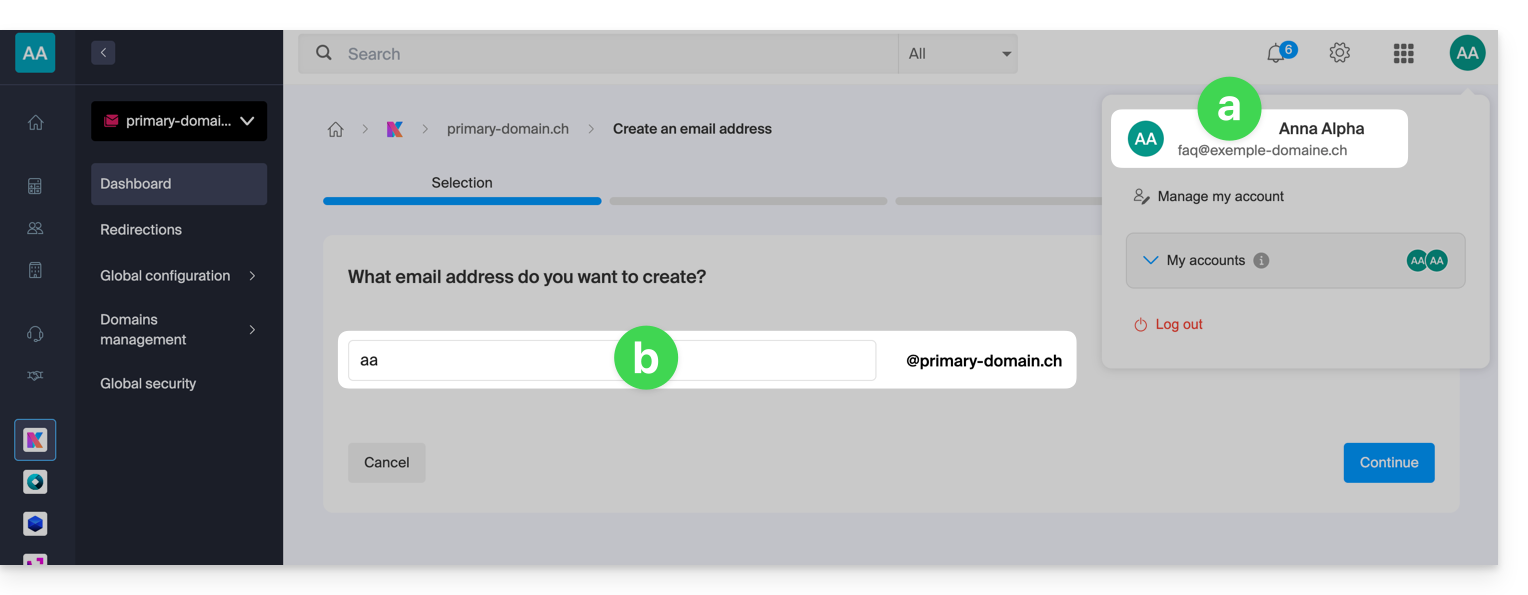
At the end of the creation process, he chooses to view the address himself (c):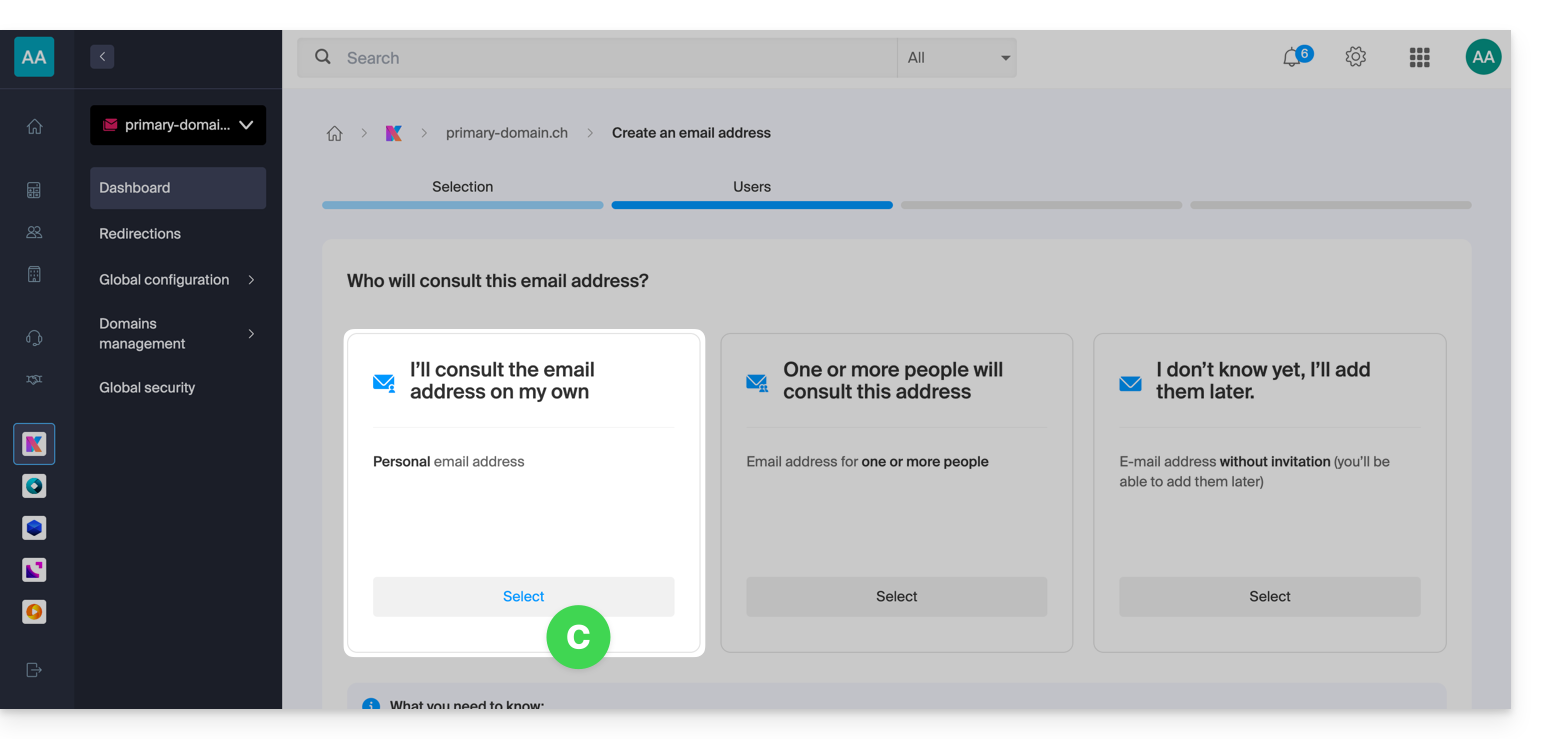
Result: the address is immediately visible on the Infomaniak Mail web app (online service ksuite.infomaniak.com/mail) for the administrator: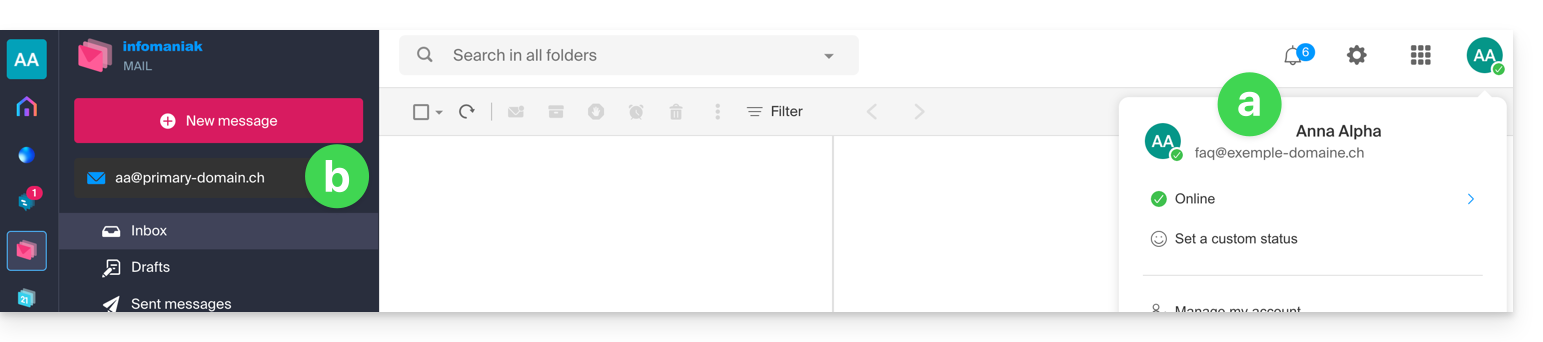
By returning to the Mail service where the email address was created, the administrator can grant access to this address to any other Infomaniak user (and therefore automatically link the address in the user's Mail web app):
- Click on the existing user:
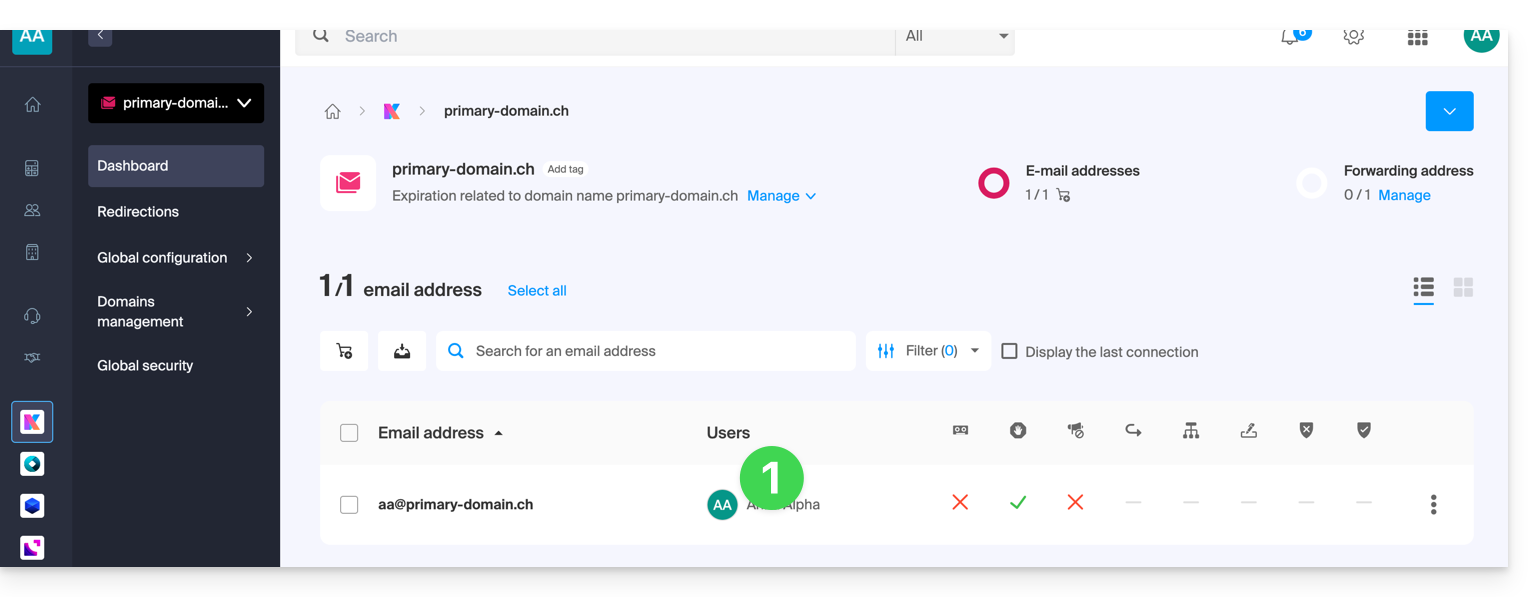
- Click on Add a user:
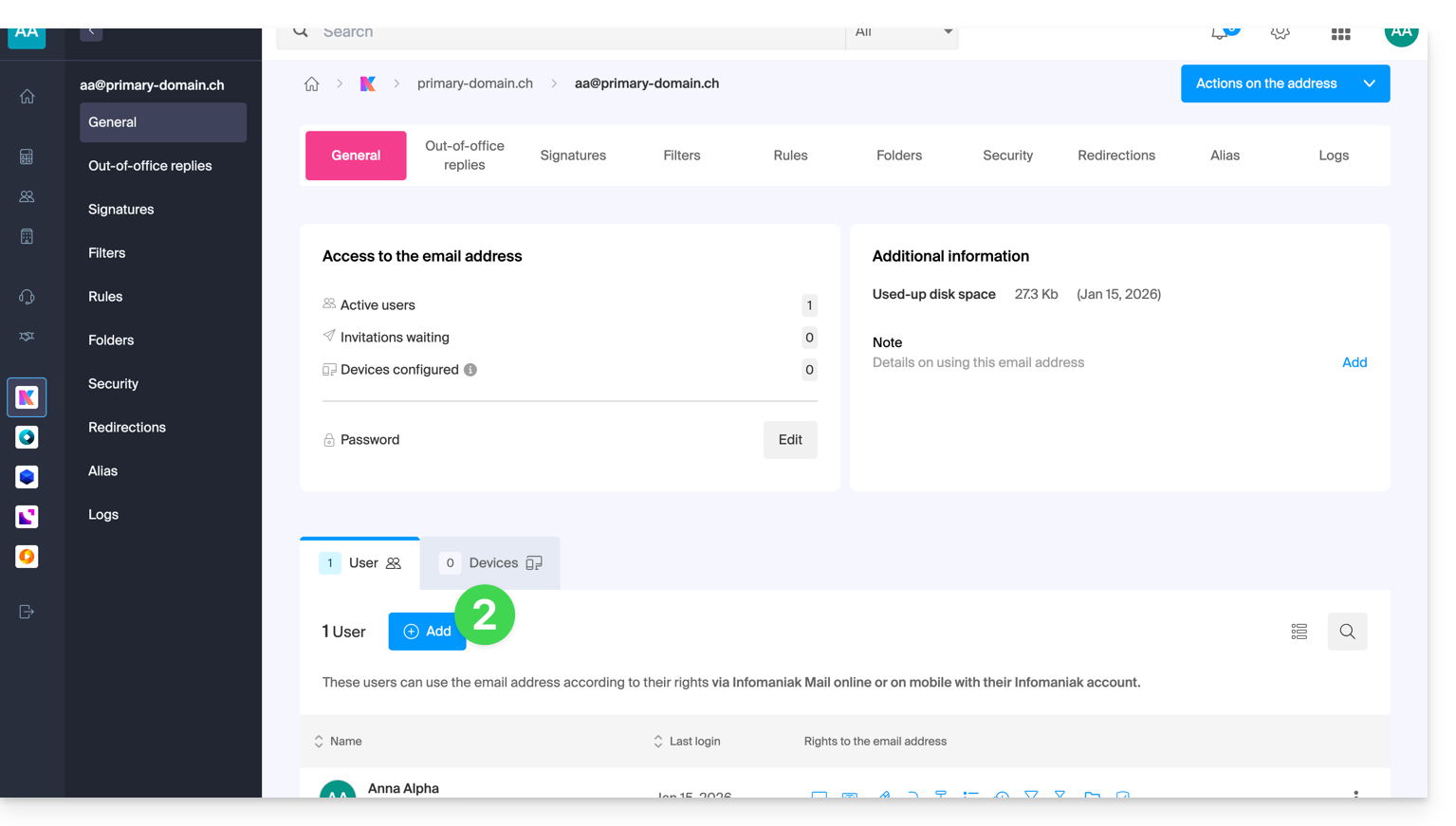
- Continue with the process (refer to this other guide if needed).
View the different associated addresses
To switch between addresses:
- Click here to access the Infomaniak Mail web app (online service ksuite.infomaniak.com/mail).
- Then, click on the downward-pointing chevron to the right of the email address displayed in the upper left corner:
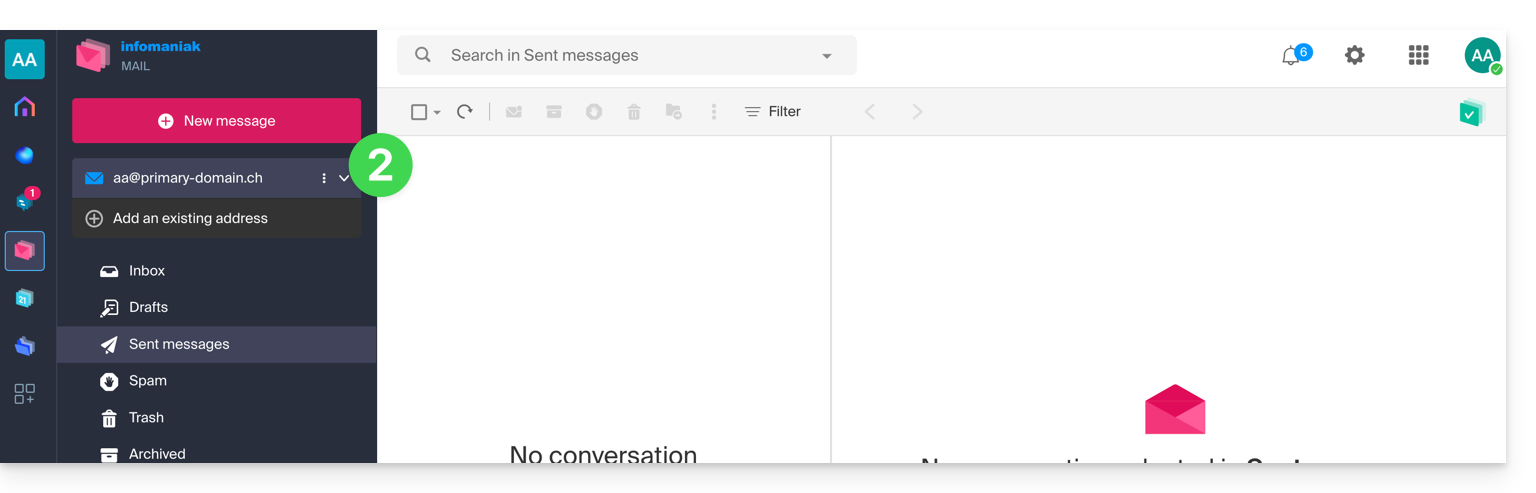
- Click on one of the addresses already associated.
The user can also switch between the various Organizations to which their Infomaniak account belongs, in order to access other addresses from other Mail Services (refer to this other guide).
Define the default way a new address opens
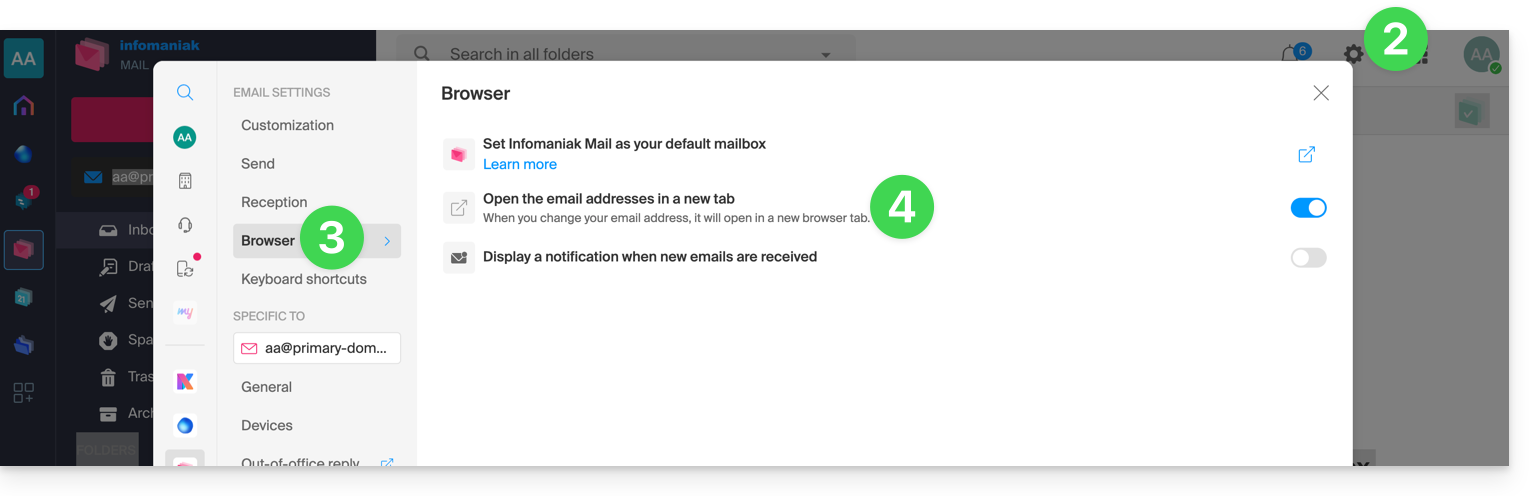
To choose whether a different address should be displayed by default in a new browser tab, or directly replacing the current display, in the same window:
- Click here to access the Infomaniak Mail web app (online service ksuite.infomaniak.com/mail).
- Click on the Settings icon in the top right corner.
- Click on Browser.
- Click on the toggle switch to enable opening a mailbox by default in a new tab instead of in the current window:
And to define which address should be displayed first by defaulton the interface, refer to this other guide under “Customization: Default Email Address”.
Link to this FAQ: https://faq.infomaniak.com/1714
Has this FAQ been helpful?