Knowledge base
1000 FAQs, 500 tutorials and instructional videos. Here, there are only solutions!
Ticketing: Import tickets from external resellers
This guide explains how to import tickets generated by another provider or external reseller for your event into the Infomaniak ticketing system.
Prerequisites
- Importing third-party tickets requires that the event has already been created in your Infomaniak ticketing system.
- You also need a list of tickets in a CSV file, including the barcode field that will be printed on the ticket.
Accessing the import options
To do this:
- Click here to access the management of your product in the Infomaniak Manager (need help?).
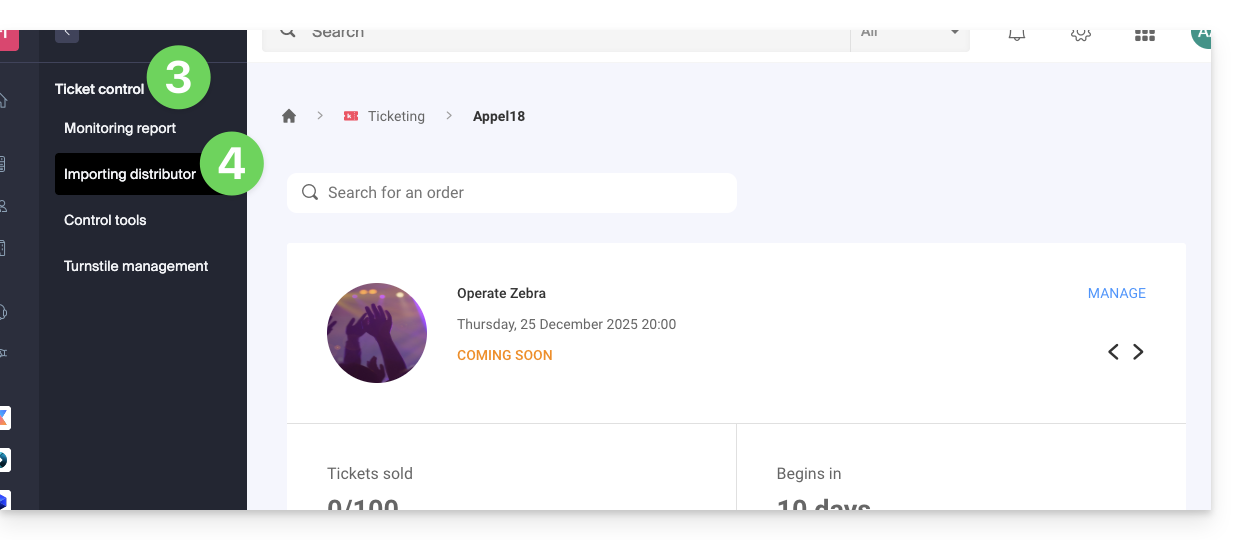
- Click directly on the name assigned to the ticketing system for the event.
- Click on Ticket Management in the left-hand menu.
- Click on Import Distributor in the left-hand menu:
Import the CSV file
To do this:
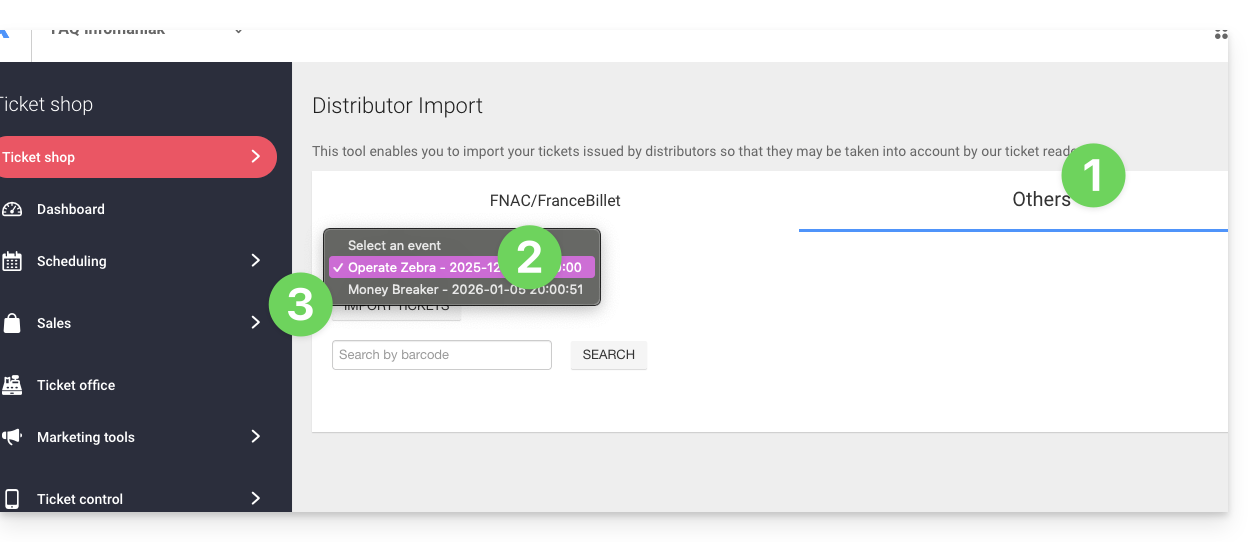
- Click on the FNAC/FranceBillet or Other tab, depending on the reseller.
- Choose an event for which to import tickets.
- Click on Import tickets:
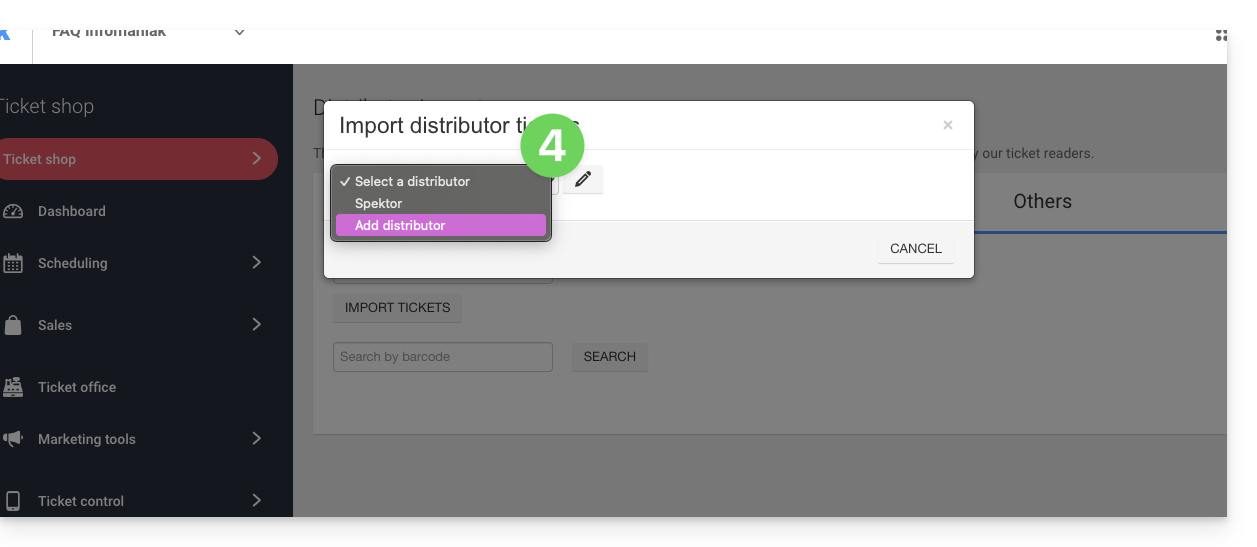
- Choose an existing distributor from the drop-down menu, or create one:
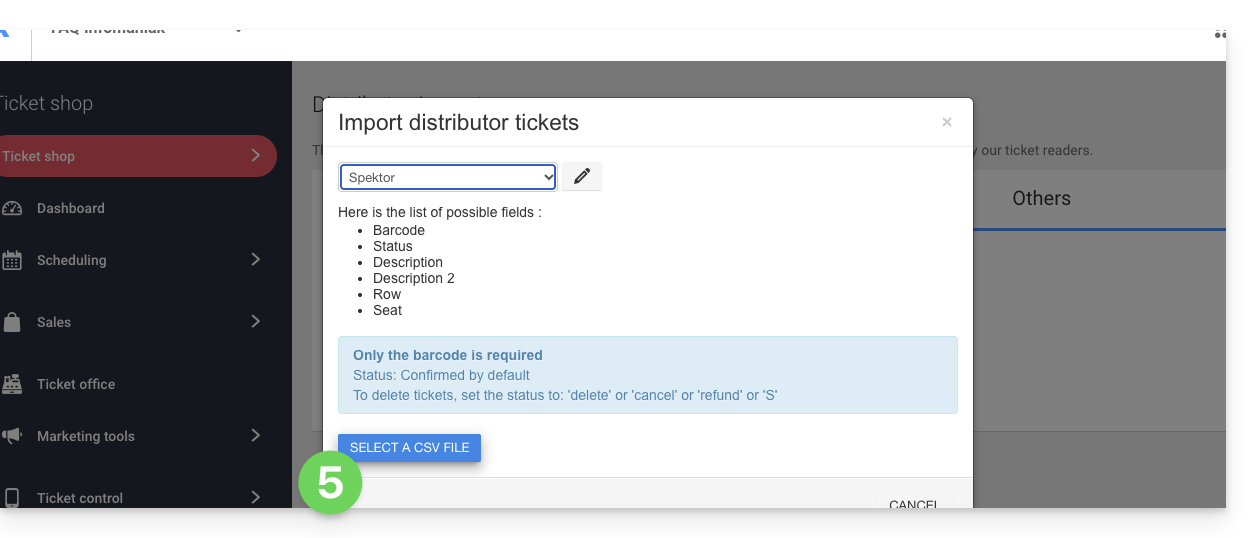
- Click on the Choose a CSV file button and upload the CSV file provided by the distributor:
- Select the rows to import. Warning:
- Check the first and last rows of the imported data.
- These may contain headers or blank lines that could cause an error during import.
- Use the options at the top of the page to define the number of first and last rows to ignore:

- Match the columns to the information to be imported.
- The ticket barcode is the only mandatory field.
- If you are importing tickets from another Infomaniak ticketing system, select column 8, which contains the QR code (in the format 2000000000A^0^100000000):

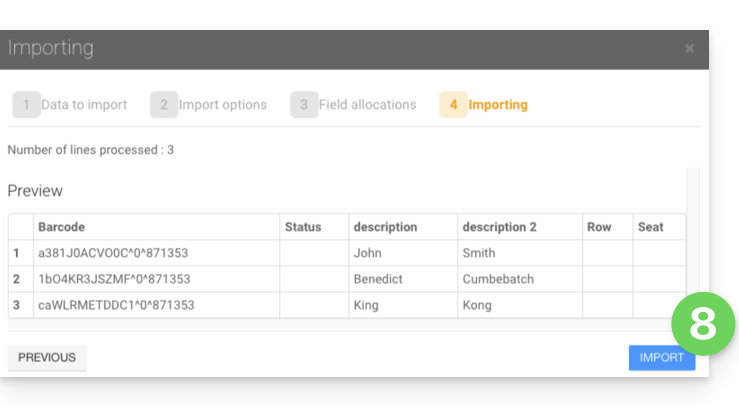
- Check the imported information and validate:
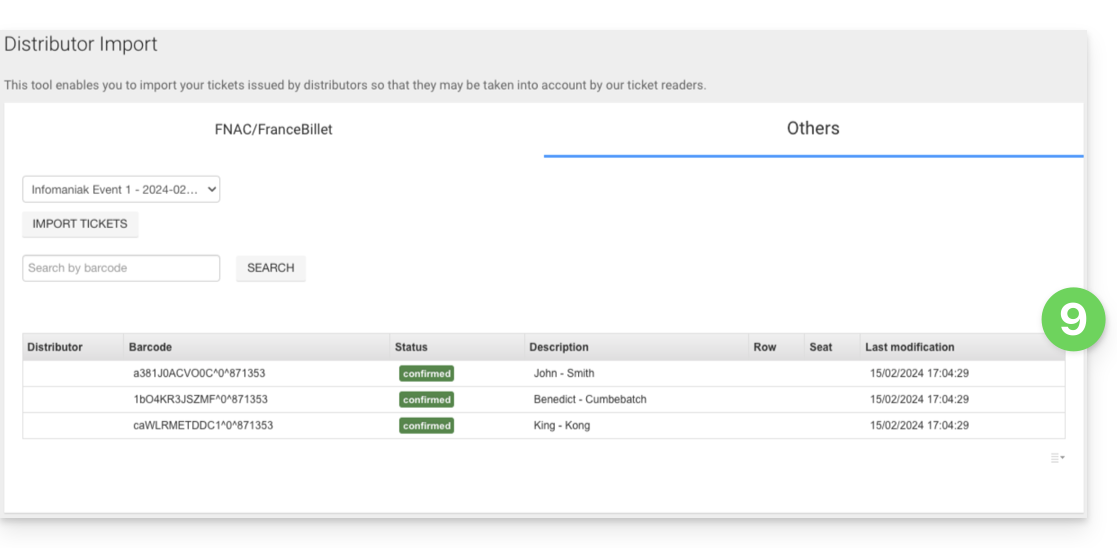
- The imported tickets will appear in a table at the bottom of the page:
Managing Imported Tickets
Once the tickets have been imported, they can be scanned using the ticket control application (available on iOS and Android).
They will also be counted in the FNAC or Other column in the control report tool, which is available from the left-hand menu: Ticket Control, Control Report:
Link to this FAQ: https://faq.infomaniak.com/1705
Has this FAQ been helpful?