Knowledge base
1000 FAQs, 500 tutorials and instructional videos. Here, there are only solutions!
Manually synchronize Contacts & Calendar (macOS apps) using CardDAV/CalDAV
This guide explains how to connect the desktop apps Contacts and Calendar on macOS (MacBook Pro, Neo…) with the contacts & calendars hosted by Infomaniak.
Introduction
- Rather than the manual configuration below, it is recommended to use the .mobileconfig configuration profiles offered by Apple.
- Infomaniak contacts & calendars are linked to your Infomaniak account; when you log in to ksuite.infomaniak.com/contacts or /calendar, you will likely need to perform two-factor authentication (2FA) during login.
- In this case, an application password is required to establish synchronization between your device and Infomaniak tools.
- But don't worry, creating such a password is offered as part of the configuration wizard.
Manual configuration (contacts & calendars)
To configure both services on macOS:
- Click here to access the Infomaniak configuration tool (online service https://config.infomaniak.com) — log in if necessary to your Infomaniak account for the Organization where your services to be synchronized are managed.
- Choose synchronization for this device.
- Choose to synchronise your contacts & calendars.
- Click on the Manual synchronisation tab.
- Click on the Generate button to obtain an application password:
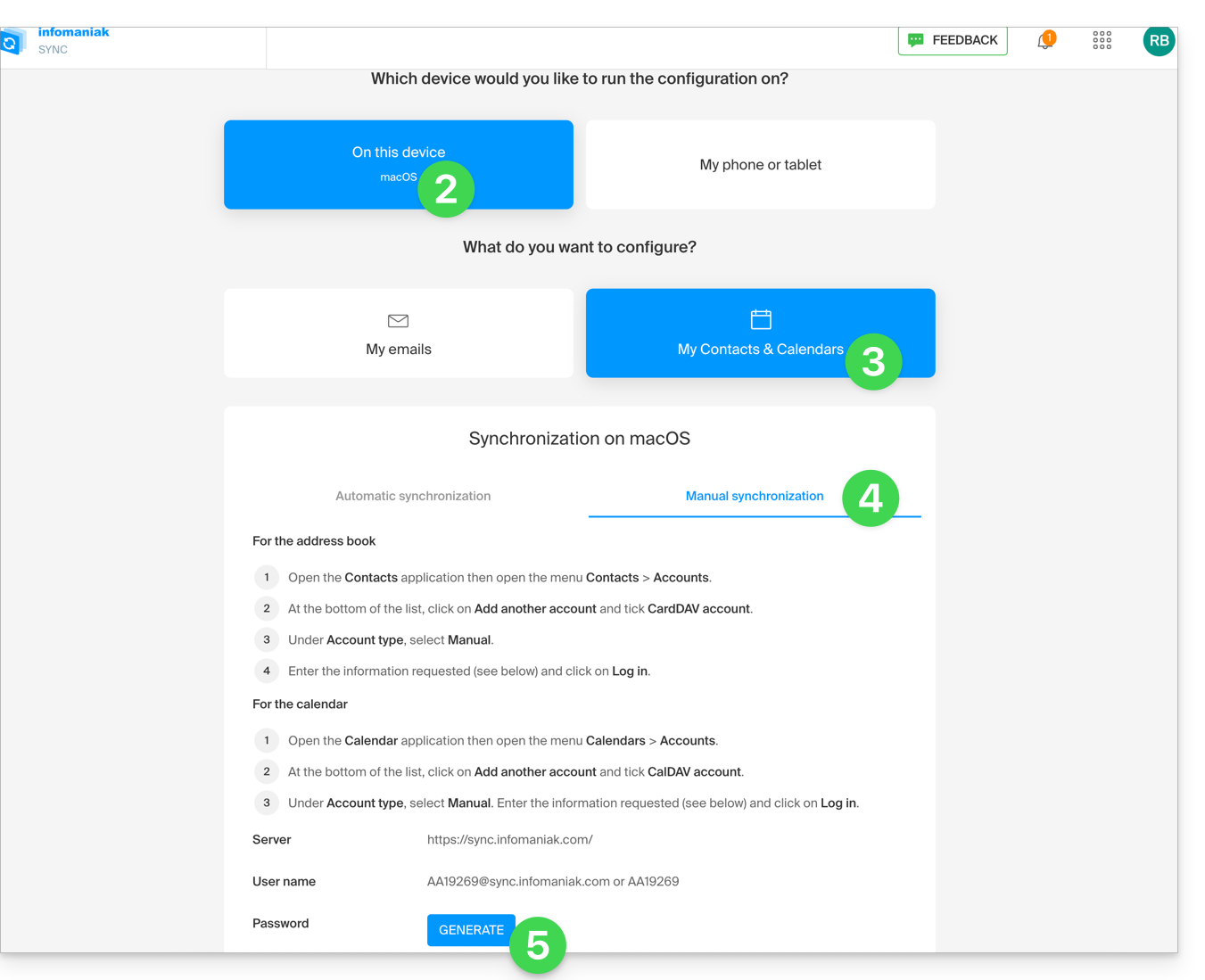
- Note the information that will be displayed on your screen.
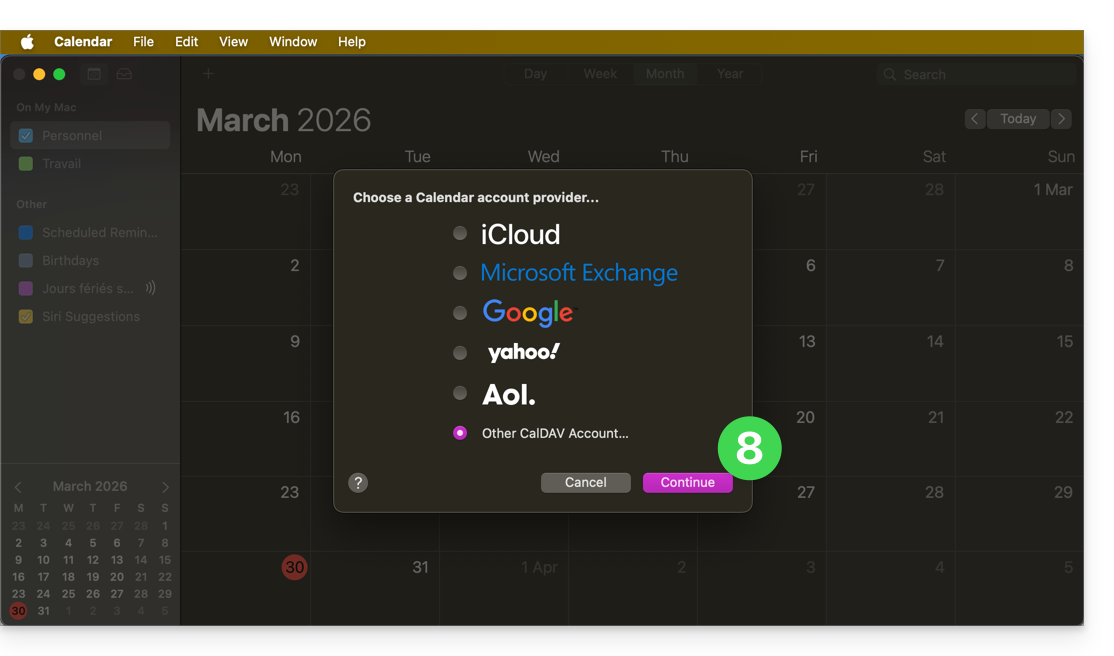
- Then, open the Calendar application on your device.
- Add a new account, making sure to select CalDAV:
- Enter the information noted in step 6 above:
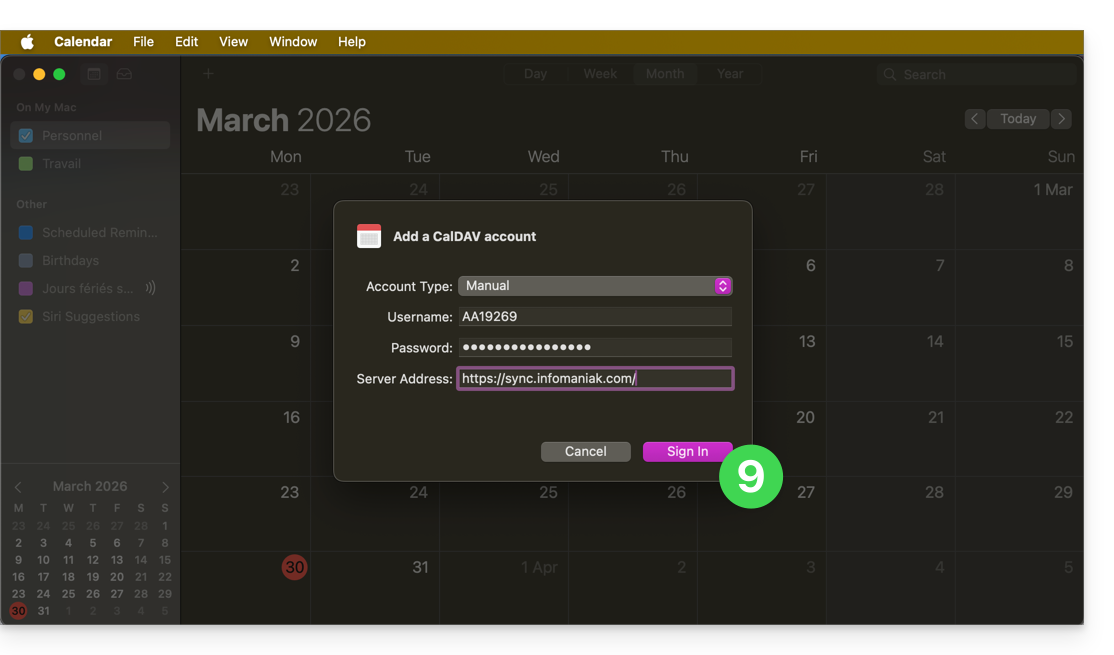
- Username: enter the username provided by the synchronisation assistant in uppercase (e.g.
AB12345)… - Password: the one from step 5 above (i.e. an application password if you have activated two-factor authentication) or the password for your Infomaniak user account if you have not activated 2FA…
- Server address:
https://sync.infomaniak.com/
- Username: enter the username provided by the synchronisation assistant in uppercase (e.g.
- That's it, you can now open your macOS Contacts and Calendar applications.
If your applications were already open, you need to restart them. You will then see the information added by the synchronisation: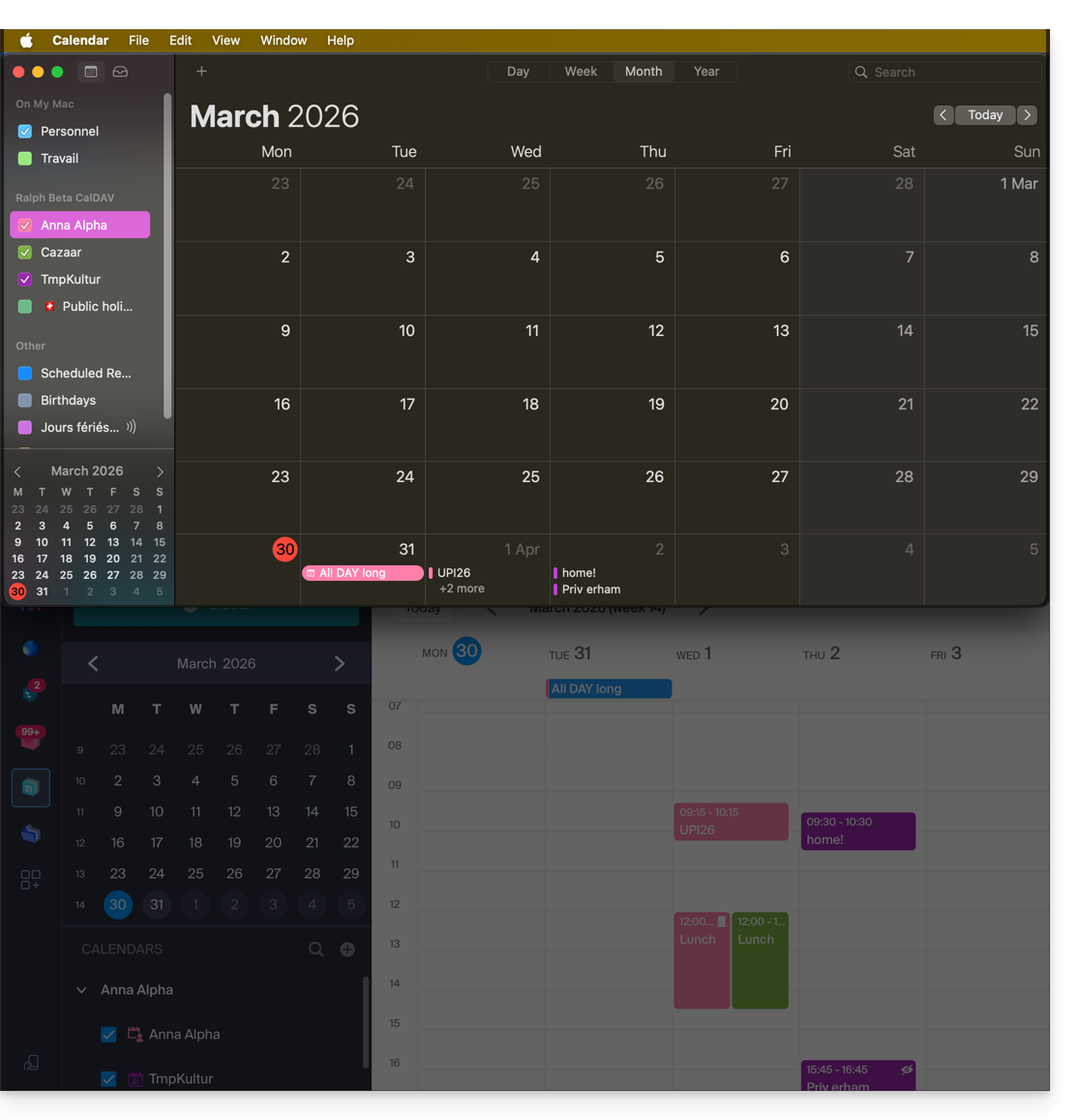
Specifics of synchronisation
Refer to this other guide.
Deleting a CardDAV or CalDAV account
Refer to the chapter "Stop using an account" and, at the top of the page, change the system version if necessary to match your own *.
*Why is it necessary to choose the guide version that exactly matches your macOS / iOS system version? Apple introduces subtle changes with each new version of its system, for example, a path on iOS 15…
… becomes this on iOS 18…
Link to this FAQ: https://faq.infomaniak.com/1701
Has this FAQ been helpful?