Knowledge base
1000 FAQs, 500 tutorials and instructional videos. Here, there are only solutions!
Add a signature to emails
This guide explains how to create and then automatically add a signature to messages sent from the Infomaniak Mail Web app (online service ksuite.infomaniak.com/mail).
Refer to this other guide regarding the limitations of the my kSuite offer.
Preamble
- The signature will also be visible when sending from the Infomaniak Mail app (iOS / Android).
- It will not be present with another sending method (a software like Outlook for example).
- It is also not added to voicemail messages; it is necessary to add one directly in the out-of-office message.
- One or more signatures can be added from Mail and from the Manager where all addresses of a Mail Service are managed; choose which signature to use when sending.
Access signatures from the Infomaniak Web Mail app
Prerequisites
- Have permission to manage signatures: if you had been invited to the Infomaniak Mail Web app (online service ksuite.infomaniak.com/mail) to manage your address, it is possible that the Mail Service manager has revoked this right from their admin account.
To access signature management:
- Click here to access the Infomaniak Mail Web app (online service ksuite.infomaniak.com/mail).
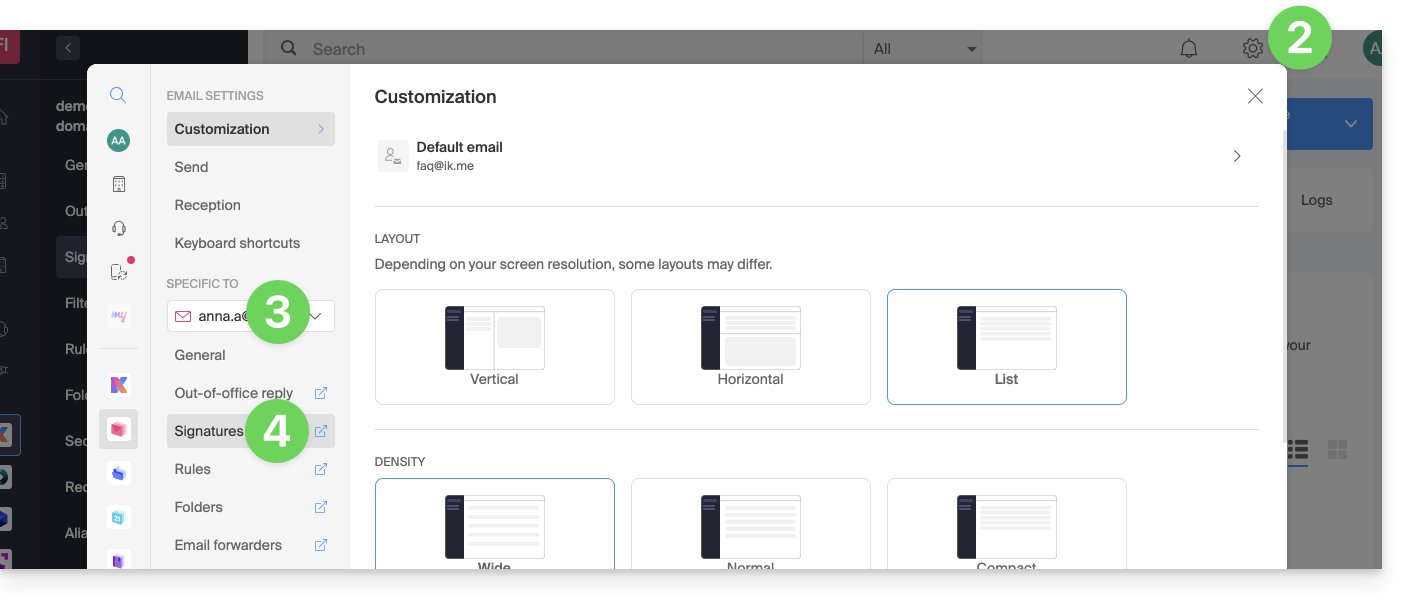
- Click on the Settings icon at the top right of the interface.
- Check or select the email address concerned in the dropdown menu of the left sidebar.
- Click on Signatures:
Access signatures from Mail Service
To access Mail Service and signature management:
- Click here to access the management of your product on the Infomaniak Manager (need help?).
- Click directly on the name assigned to the product concerned.
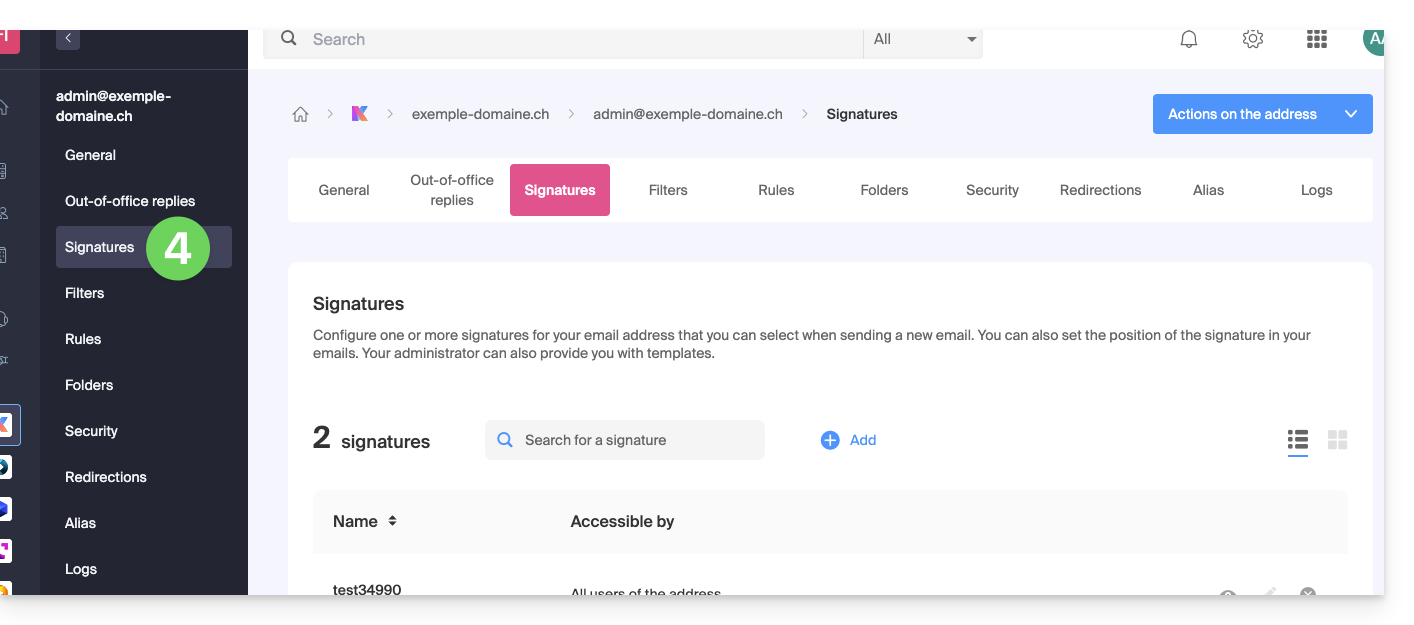
- Click on the email address concerned in the table that appears
- Click on Signatures in the left sidebar:
Create and edit the signature
You have two options:
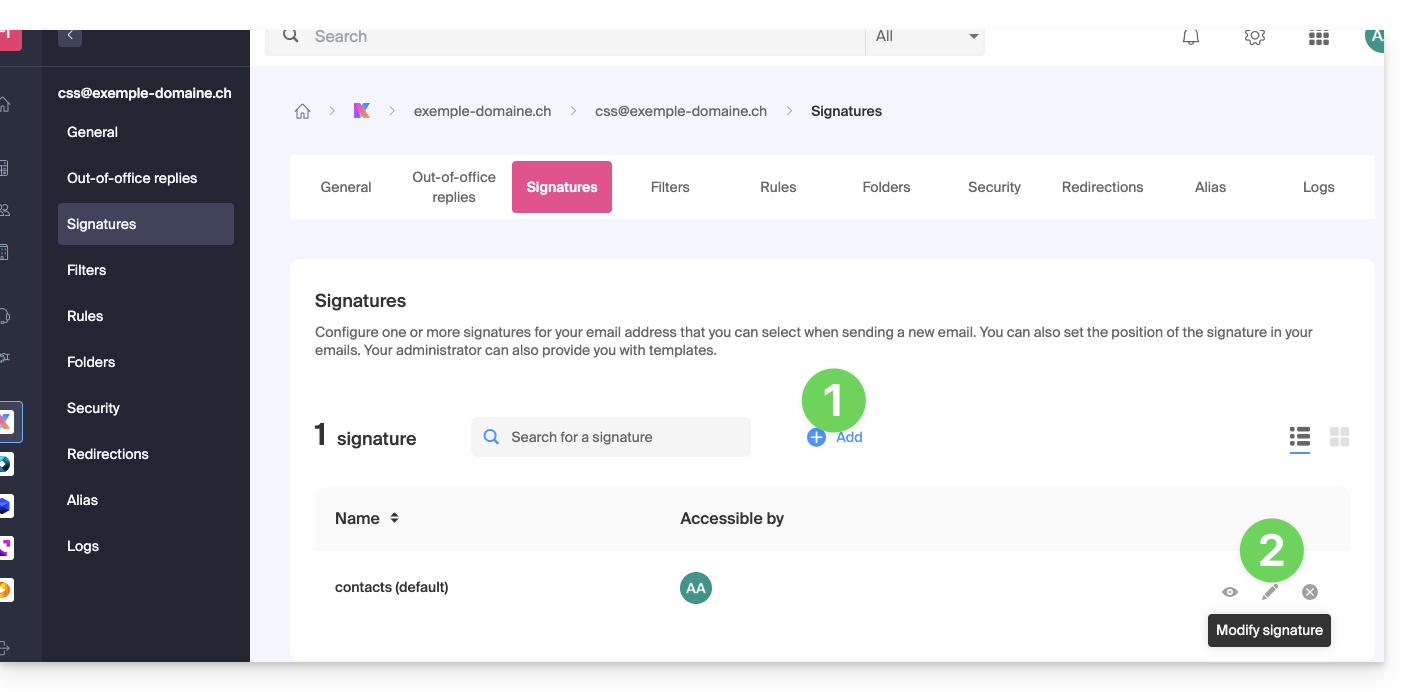
- Click on Add to create a new signature.
- Click on the pencil icon ✎ next to an existing signature to edit it.
Then:
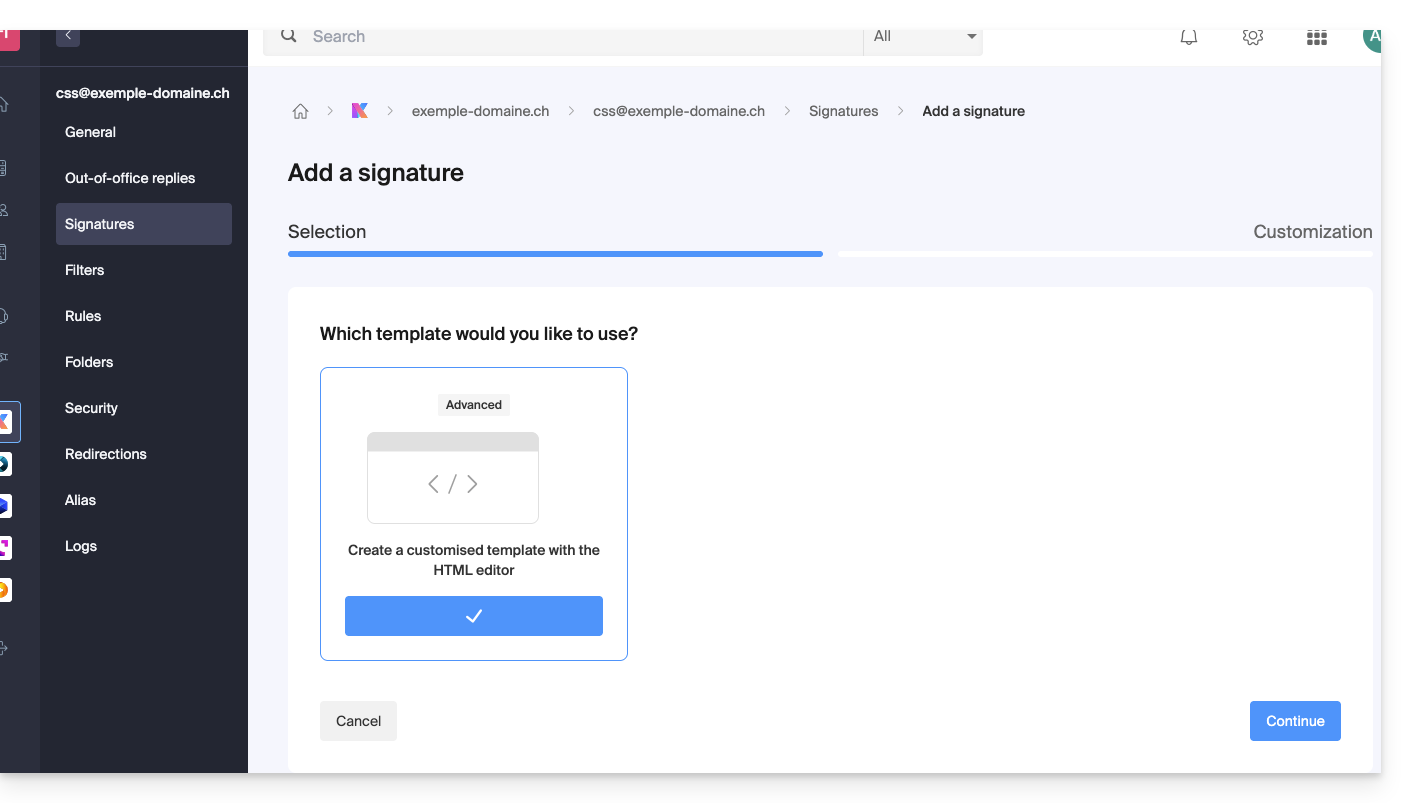
- Choose an existing template or a new one:
- Name the signature.
- Specify a name for your identity (it will be displayed next to your email address in messages received by your correspondents).
- Create the content of the signature in the designated area (see below for formatting options).
- Choose whether or not to share the signature with all users of the Mail address.
- Click on Advanced settings to choose the location to insert your signature: before the message (= header) or after the message (= signature)
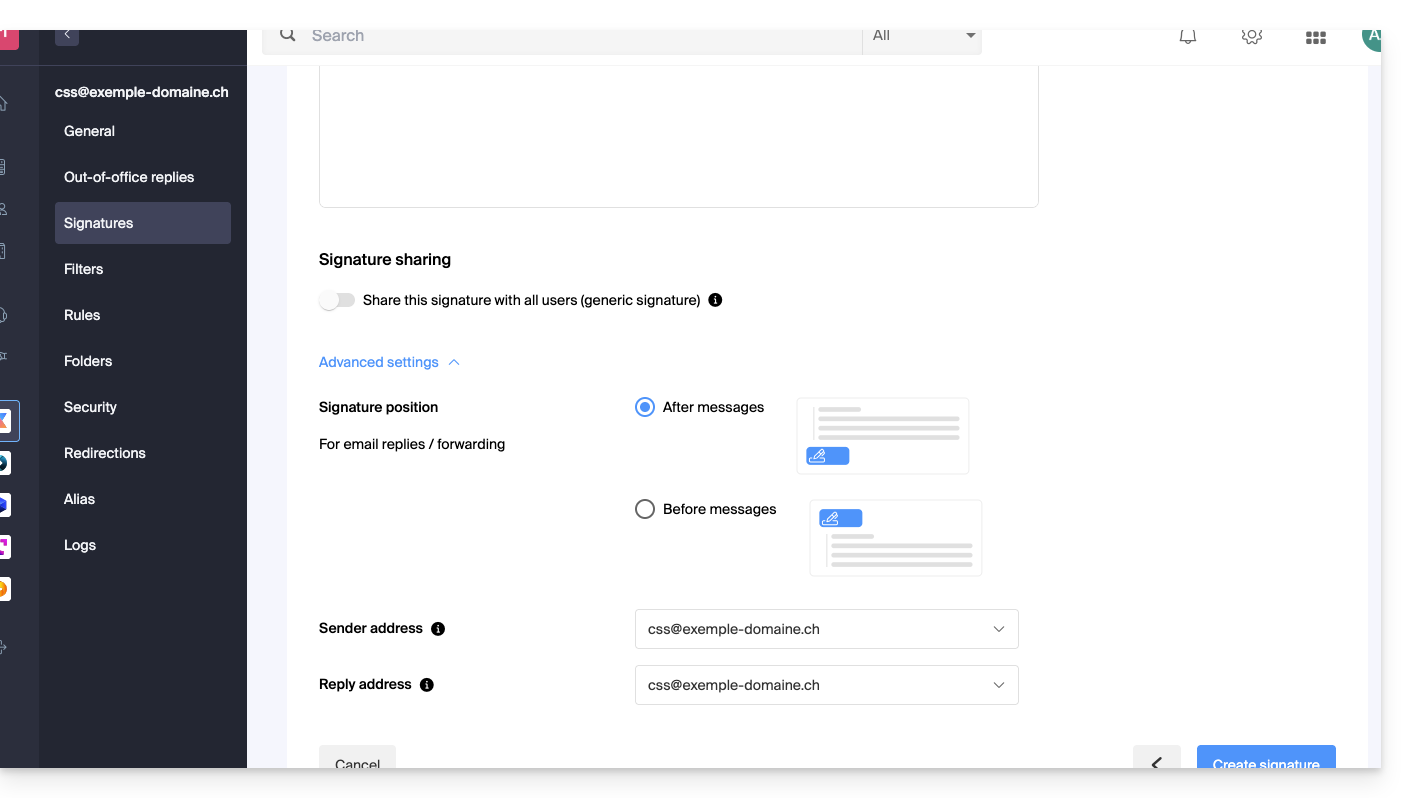
- Refer to this other guide regarding the choice of sending/replying addresses.
- Click on the Create the signature button.
Signature formatting
You can use an image, edit the HTML source code, and format your text using a set of tools.
To avoid excessive line spacing, use the shift key in conjunction with the ENTER key on your keyboard, which is equivalent to the HTML tag <br> that causes a line break instead of a new paragraph.
Set a default signature
To choose the signature used by default under certain conditions:
- Click here to access your signatures on the Infomaniak Mail Web app.
- Check or select the email address concerned in the dropdown menu of the left sidebar.
- Choose the signature that will be inserted by default when drafting:
- a new message
- a reply / forward
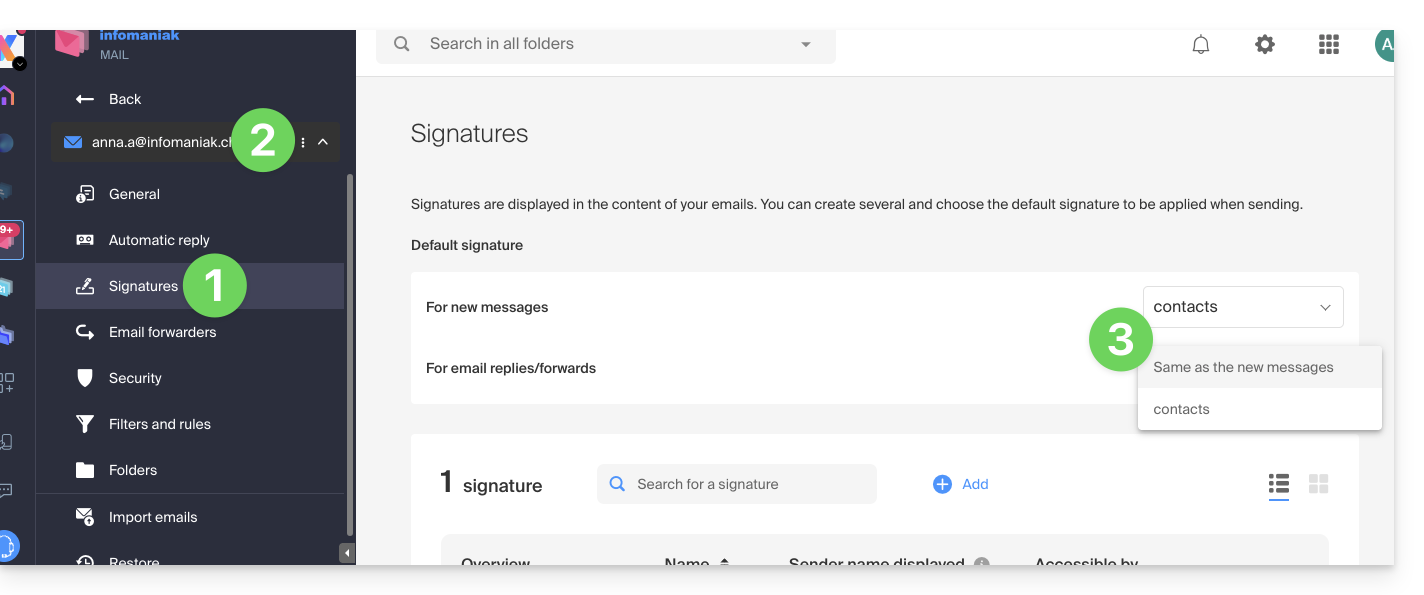
By setting a default signature from my kSuite+, it will be automatically displayed in the body of the email when drafting. You will still have the option to change the signature.
There is a case where the default signature will not be the one automatically inserted by default when drafting a message: see point 10 of this other guide.
Select or remove the signature when drafting
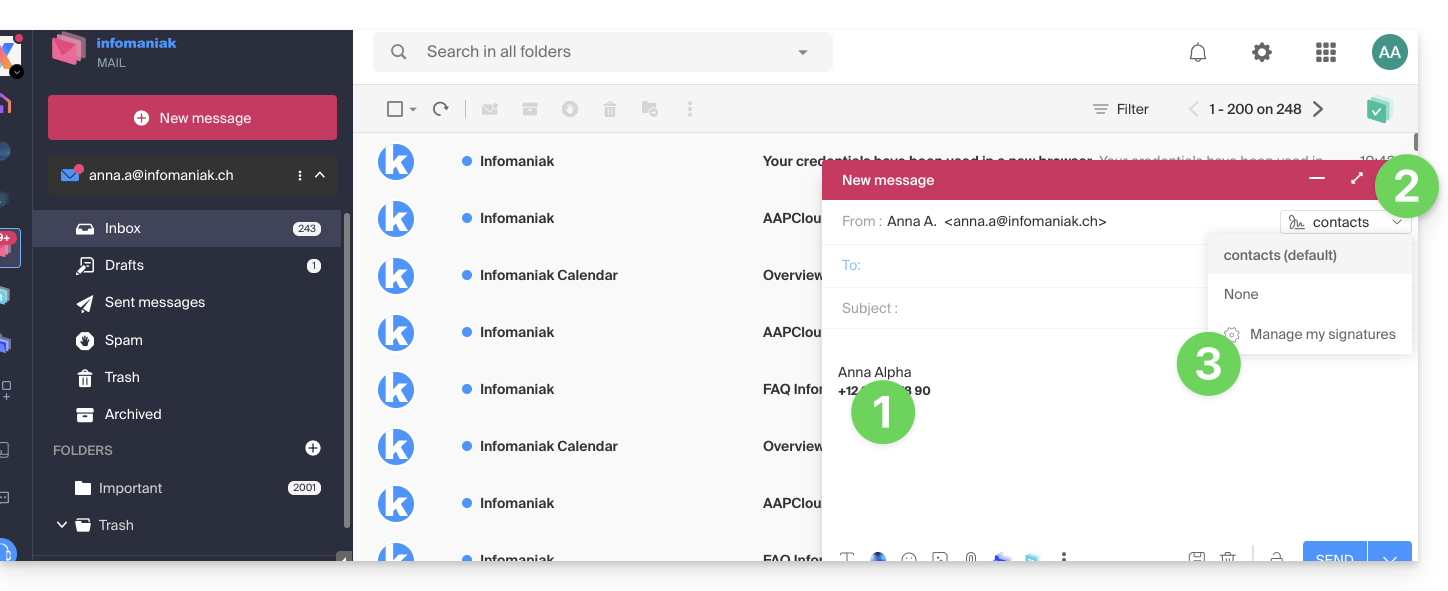
When you start drafting a new message:
- The signature is automatically inserted.
- If multiple signatures exist, you can choose another identity via the drop-down menu.
- You can also quickly access the signature settings via the button in the toolbar:
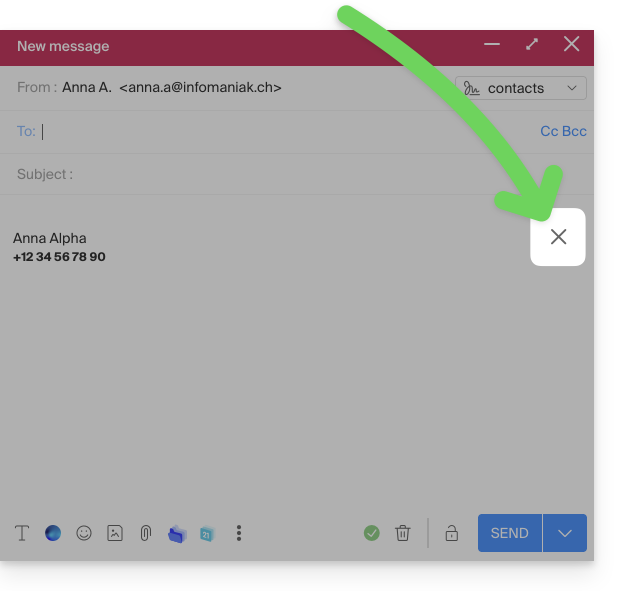
- You can remove the signature by hovering over it and clicking on the cross:
Associated addresses (multiple possible)
When a signature comes from a template (whether it was created from a model proposed by Infomaniak or generated with the advanced editor):
- users do not have access to the content of the signature in edit mode,
- they can enter dynamic values such as the sender's name or personal data that may be requested such as profession or phone number,
- they can also modify the advanced settings of the signature (such as the position of the signature in the context of a reply/forward) but to date, this setting is common to all users of the signature (1)
When a signature has been created directly without a template:
- if the signature is created from a predefined model:
- the behavior is the same as in the previous point, i.e., a signature created from a template
- if the signature was created via the advanced editor:
- users have access to the signature content in edit mode, but be careful, this content is shared; if Morgane modifies the content, Vanessa will have the same content once she has reloaded her Infomaniak Mail interface.
- Only the sender's name is specific to the user and there are no dynamic values in this kind of case.
- Advanced settings follow the same principle as in other cases: they are common to all users.
In all cases, assigning a default signature to an email account is at the user level. For example, within the same email account, the default signature chosen by Morgane is independent of the one chosen by Vanessa.
Go further with templates
Refer to this other guide if you are looking for how to define custom templates that can be applied as soon as a new email address is created on your Mail Service, for example, or in bulk to all addresses in your domain.
Link to this FAQ: https://faq.infomaniak.com/1700
Has this FAQ been helpful?