Knowledge base
1000 FAQs, 500 tutorials and instructional videos. Here, there are only solutions!
Modify the Infomaniak Mail mobile app settings
This guide concerns the configuration of the mobile app Infomaniak Mail (application for iOS/Android smartphones or tablets).
The language of the application is based on the language of your device on which the Infomaniak Mail mobile app is installed, and not on the language set in your user account.
Accessing the application settings
To open the settings of the Infomaniak Mail mobile app (application for iOS/Android smartphones or tablets) on your device:
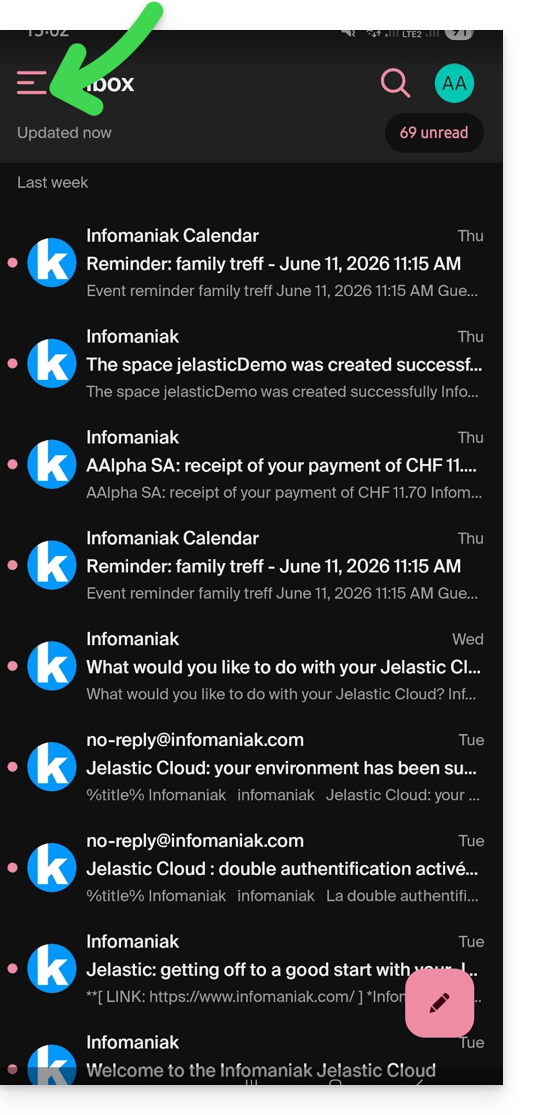
- Tap the top left of your inbox:
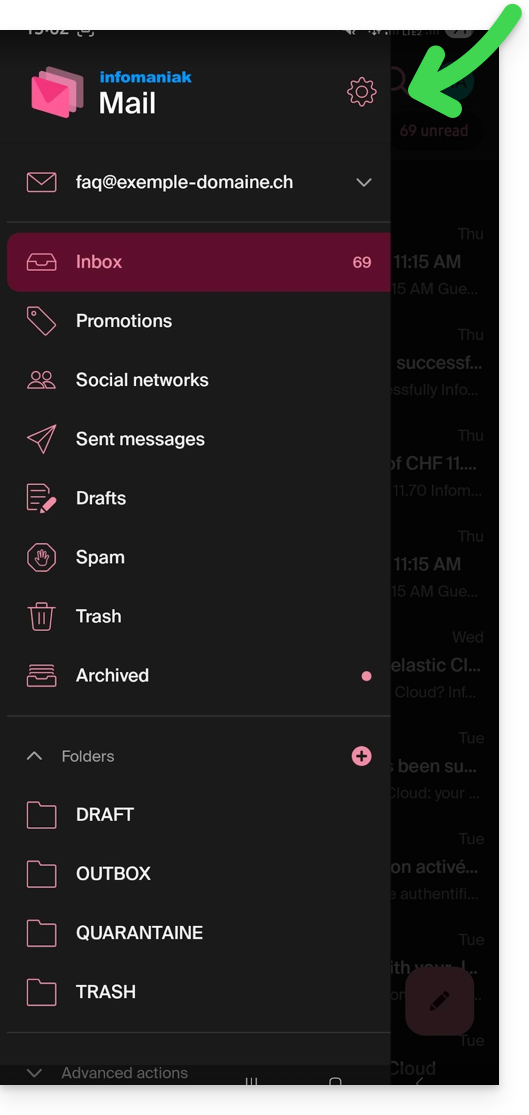
- Click on Settings in the top right corner of the panel that opens:
- You can manage the settings from the screen that appears:
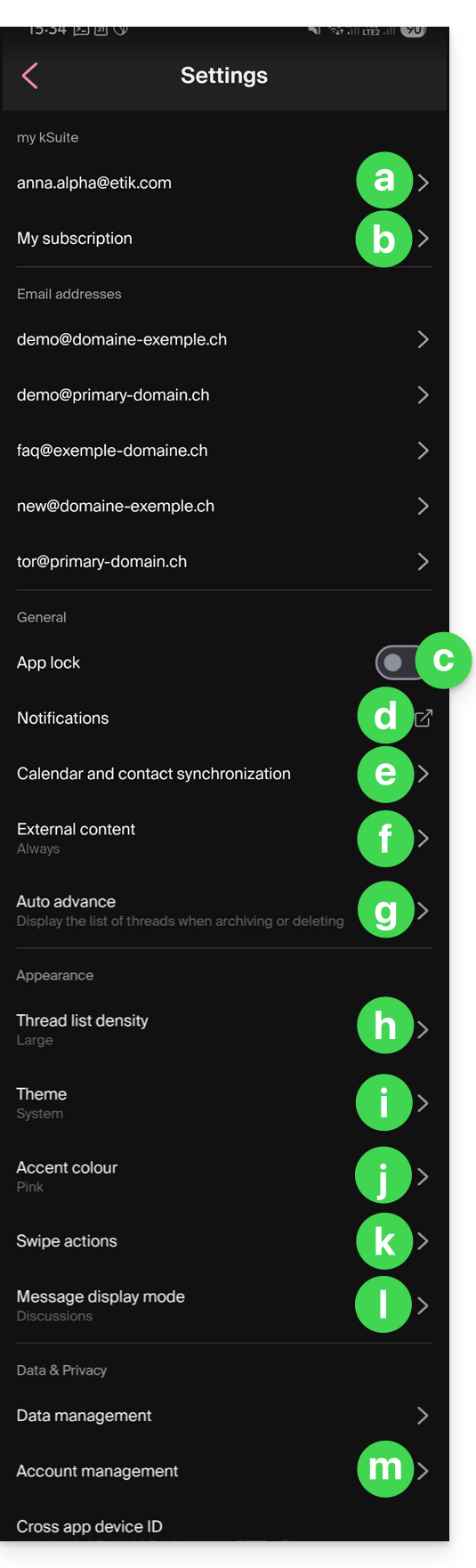
a. Signature selection
If you have multiple email addresses linked to your account, tap on the email address for which you want to change the signature. Then, choose a different signature from the configured signatures.
On iOS, you can also manage your read receipt requests.
b. my kSuite only
Provides information about the current subscription. Example: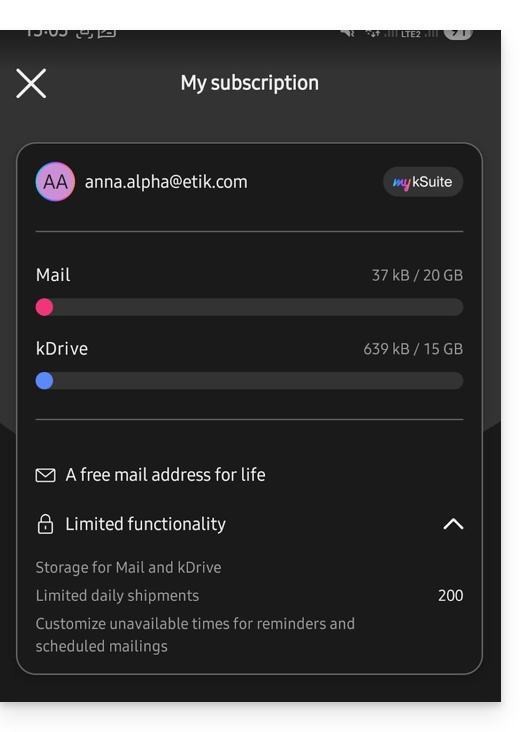
c. App Lock
This option allows you to protect the app using one of your device's lock methods. This ensures that you remain logged into your Infomaniak account, but prevents unauthorized access to Infomaniak Mail when the app is no longer in the list of open applications.
If your device has a fingerprint reader, you can use this method to activate the lock. The same applies to Face ID on iOS.
When you reopen the application, authentication will be required.
d. Device Notifications
You can configure notifications for each of the email addresses linked in the application.
e. Contact & calendar synchronization
This synchronization is currently managed externally; please refer to the https://config.infomaniak.com/ wizard.
f. External content
This section allows you to choose whether to automatically display all external content present in an incoming email that you are reading, or whether you prefer to hide it and only display it on demand.
g. Automatic advance
This section allows you to choose the action to be performed after an email is archived or deleted: open the next message, or the previous one, or return to the message list.
h. Conversion list density
The display mode can be compact, normal, or wide.
i. Theme
The theme allows you to choose between a dark mode display or, conversely, a light display with black text on a white background. This display can also be defined based on the device's theme, allowing it to adopt any system setting that changes the display based on the time of day.
j. Accent color
The accent color is either blue or pink.
k. Swipe actions
Swipe actions allow you to define which operation Infomaniak Mail should perform if you swipe your finger on a message from the right list to the left or from the left to the right (including the “long swipe” on iOS):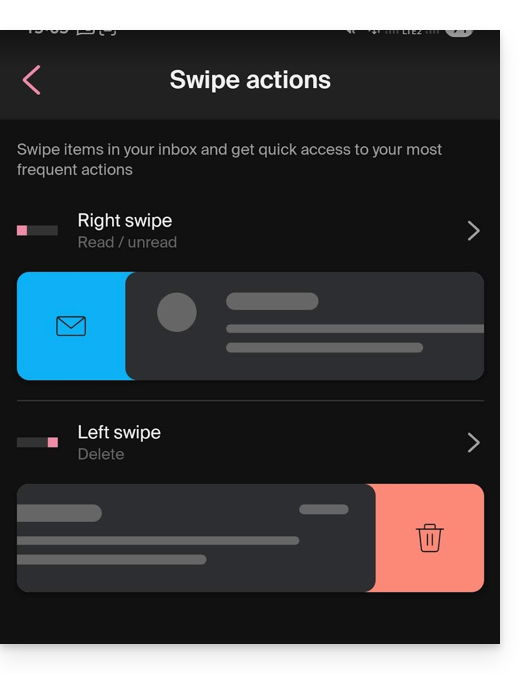
The available actions are:
- delete the message (it will be moved to the trash)
- archive the message (it will be moved to an archive folder)
- mark it as read or unread
- move the message (in which case, the list of folders is displayed after a scan)
- favorites (to enable tracking of the message)
- report as spam
- quick actions menu (also accessible from the message view, offering options to write a reply, forward, delete, print, etc.)
You can also choose "none" to prevent operations that may not be desirable if your device is not suitable for scanning: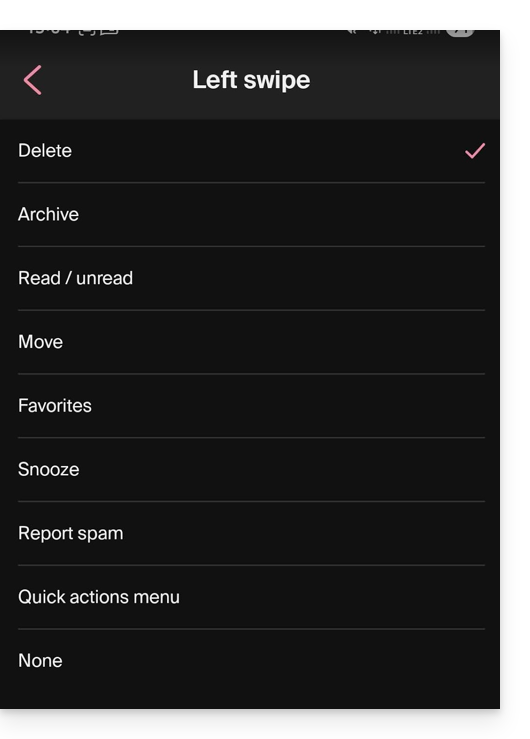
l. Message display mode
Choose between displaying messages individually or using “thread”/“conversation” mode, which groups your emails by topic/sender. This means emails received are grouped according to the subject of the discussion, making the inbox display cleaner and easier to follow the messages from the different participants in the conversation:
m. Account management
Allows you to delete your Infomaniak account (after confirming that you have read the important warning). Also, please refer to this other guide: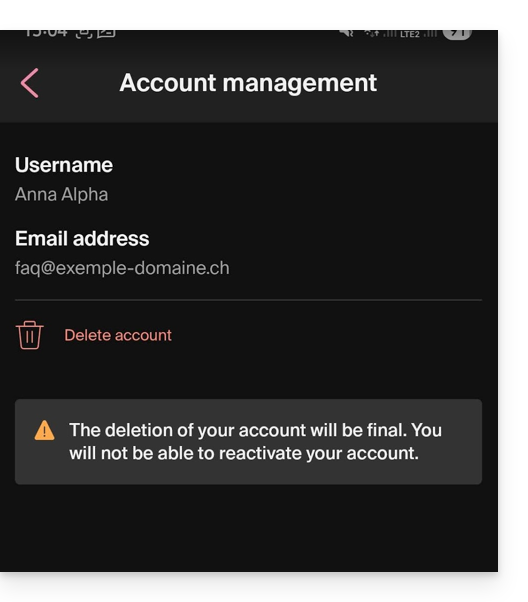
Link to this FAQ: https://faq.infomaniak.com/1696
Has this FAQ been helpful?