Knowledge base
1000 FAQs, 500 tutorials and instructional videos. Here, there are only solutions!
Copy Bluewin email content to Infomaniak
This guide explains how to transfer to Infomaniak email addresses currently hosted by Swisscom, using an IMAP import tool.
Introduction
- The email address spelling does not need to be the same.
- Once the import process has started, it is no longer possible to interrupt it.
- The entire external mailbox will be imported:
- This operation does not affect the data already present in the destination address, nor the data in the source address.
- Any potential duplicates are handled: identical content will only be copied once.
- There are alternatives to this process (❓: help).
Import Bluewin email content to Infomaniak
Infomaniak Prerequisites
- Have a Mail service in your Infomaniak Manager (❓: help).
- Have a sufficient number of addresses available or adjust the quota beforehand if necessary (❓: help).
- Create one or more addresses for this Mail service (❓: help).
- The destination email address must be linked to the user (= the Infomaniak account) you are using (❓: help).
Next, to import your email content:
- Click here to access the import tool (online service https://import-email.infomaniak.com).
- If necessary, log in to your Infomaniak account for the relevant organization; the import will be done to one of the email addresses associated with the Infomaniak Mail web interface (online service ksuite.infomaniak.com/mail) of the Infomaniak account you are using.
- Click on the IMAP import option.
- Click on single import.
- Fill in the field on the left with your source email address (from which the content will be copied).
- Fill in the field on the right with the password for this same source email address (see prerequisites).
- Click Confirm.
- If necessary, enter a second email address to be imported at the same time.
- Choose the email address from which to import emails; the drop-down menu lists the email addresses currently associated with your Infomaniak Web Mail interface (online service ksuite.infomaniak.com/mail) for the Infomaniak account you are logged into.
- After selecting the desired destination address from the list, click the blue Import Emails button.
- The copy process begins. You can wait and see the result on the page once the import is complete, or close the window (the import continues in the background, and progress can be tracked - see below).
- A confirmation email will be automatically sent to all email addresses involved in the operation once the import is complete, indicating the number of messages copied.
- A history (❓: help) allows you to view the import history for the address in question; it is available in the settings of the destination email address, on the Mail web app only.
Adjust application settings
Once your domain name is configured to work with your Infomaniak email, check the overall security of the Mail Service (❓: help) and adjust the settings of your email software/clients so that they connect correctly to the Infomaniak servers (❓: help).
Import all your contacts
To continue using your address book, you need to export the contacts from Bluewin:
- Log in to your Bluewin interface.
- Click on Contacts.
- Click on Settings in the toolbar.
- Click on Export contacts.
- Save the
contacts.csvfile to your device.
Then, you need to import them:
- Log in to your Infomaniak Address Book.
- Click on Advanced actions at the bottom left.
- Click on Import.
- Select your
.csvfile that you downloaded in step 5 above. - Click Next and start the import.
Redirect emails to Infomaniak
If your Bluewin address will continue to exist for some time, you can set up a forwarding rule for incoming messages. This will automatically redirect them to your new Infomaniak address:
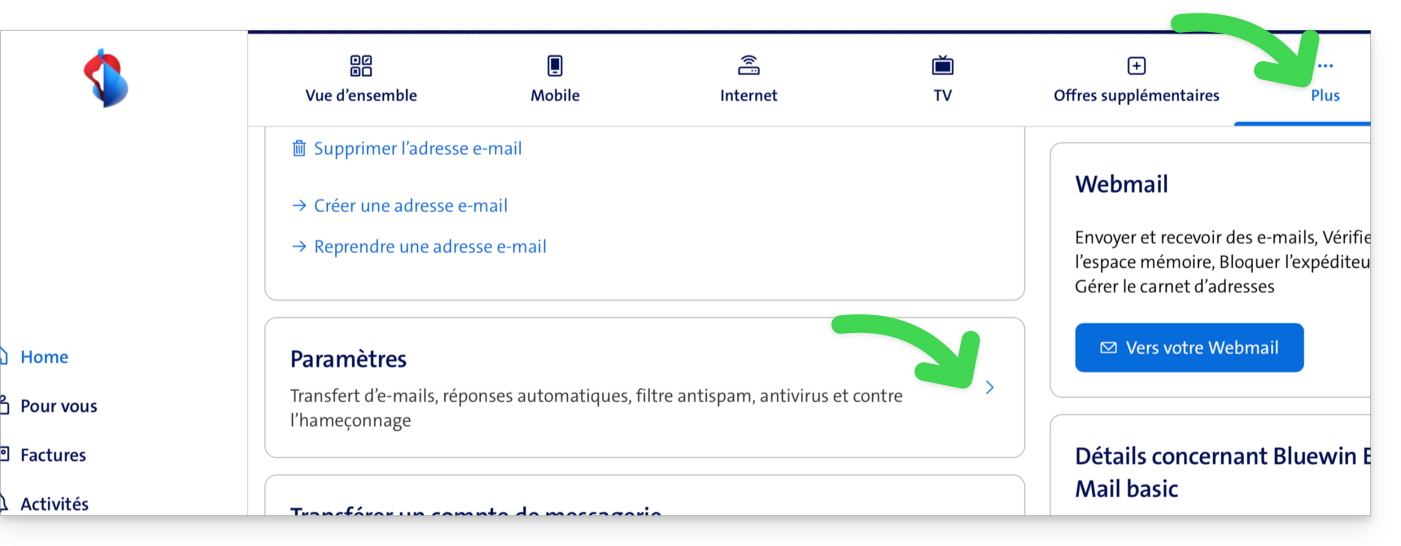
- Log in to “MySwisscom”, click on the "More" box, then “Settings”:
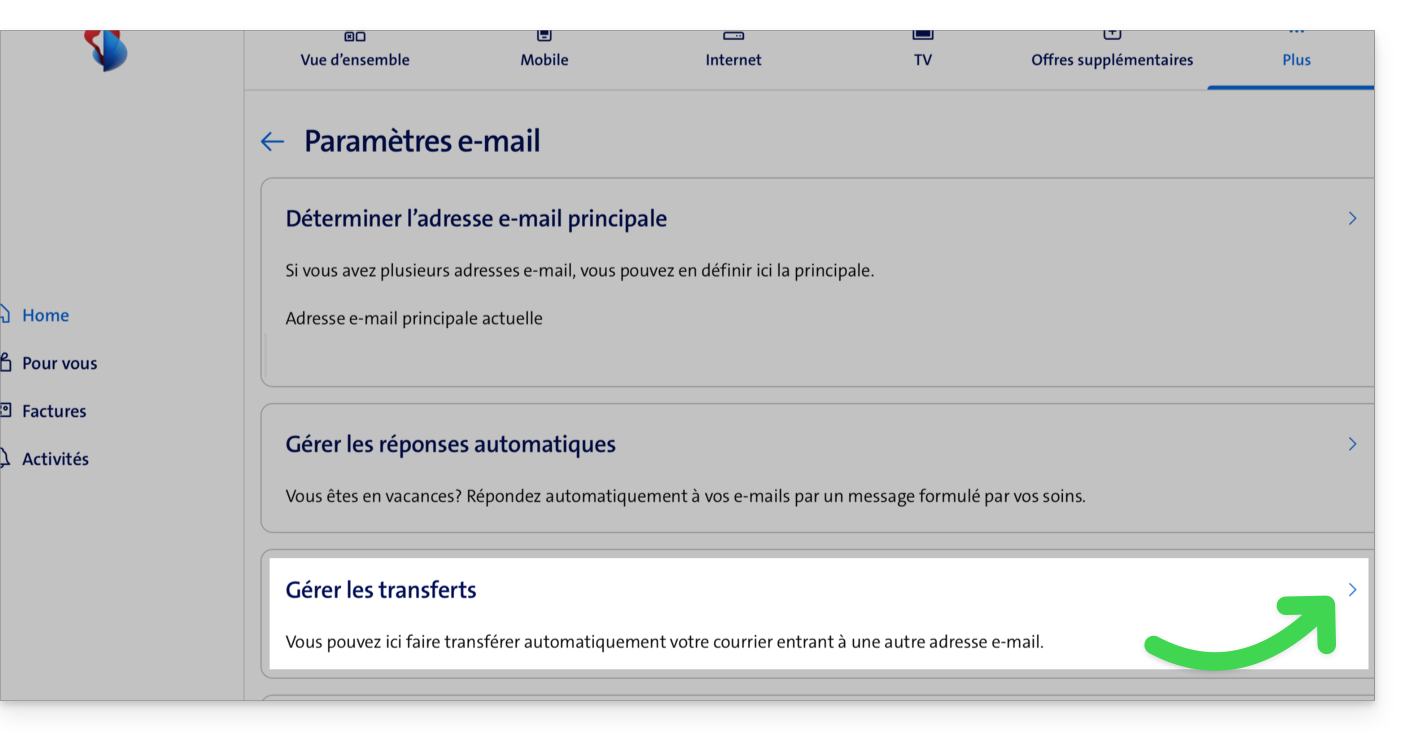
- Then click on “Manage transfers”:
- Specify the email address created with Infomaniak as the destination for all your future incoming emails.
Link to this FAQ: https://faq.infomaniak.com/1693
Has this FAQ been helpful?