Knowledge base
1000 FAQs, 500 tutorials and instructional videos. Here, there are only solutions!
Block a product/user from the Manager
This guide explains how to suspend the administrative management of a product so that no user in the Organization can use it within the Infomaniak Manager. It is also possible to block a user from your Organization without deleting them.
Introduction
- By blocking the management of a product:
- Only administrators and the legal representative will be able to unblock it.
- Users with limited rights (collaborators and clients) who have access to this product will no longer be able to manage it.
- An email is sent to the users of the Organization.
Block a product
Prerequisites
- Be an Administrator or Legal Representative within the Organization (❓: help).
- Users with limited rights (collaborators and clients) who have access to this product will not be able to do so.
To block or unblock certain products for the entire Organization:
- Click here to access the product management section in the Infomaniak Manager (❓: help).
- Access the service you wish to block.
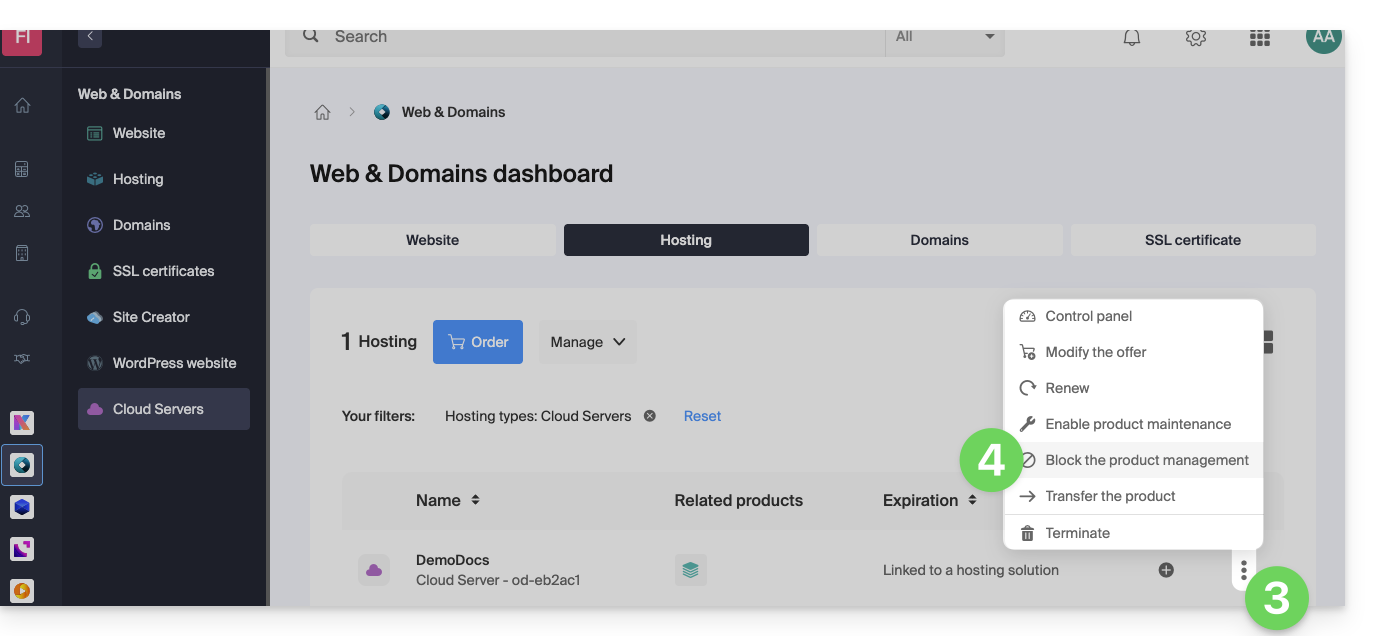
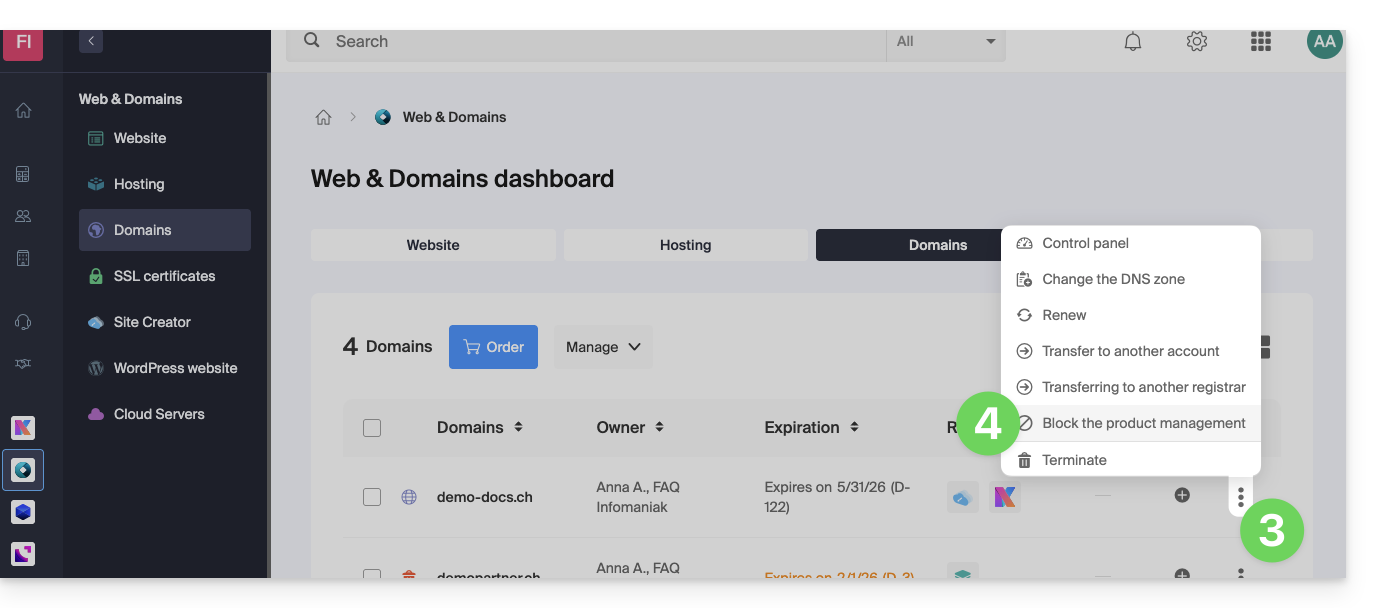
- Click on the action menu ⋮ located to the right of the item in question.
- Click on Block product management:
- Example 1, Cloud Server:
- Example 2, domain name:
- Example 1, Cloud Server:
- Confirm the suspension.
Suspend emails
A Mail service cannot be blocked in the manner described above, but it can be put into maintenance mode.
Prerequisites
- You must be an administrator or legal representative; users with limited rights (collaborators and clients) who have access to this product will not be able to do so.
To suspend email addresses:
- Click here to access the management interface for your product in the Infomaniak Manager (❓: help).
- Click directly on the name assigned to the product in question.
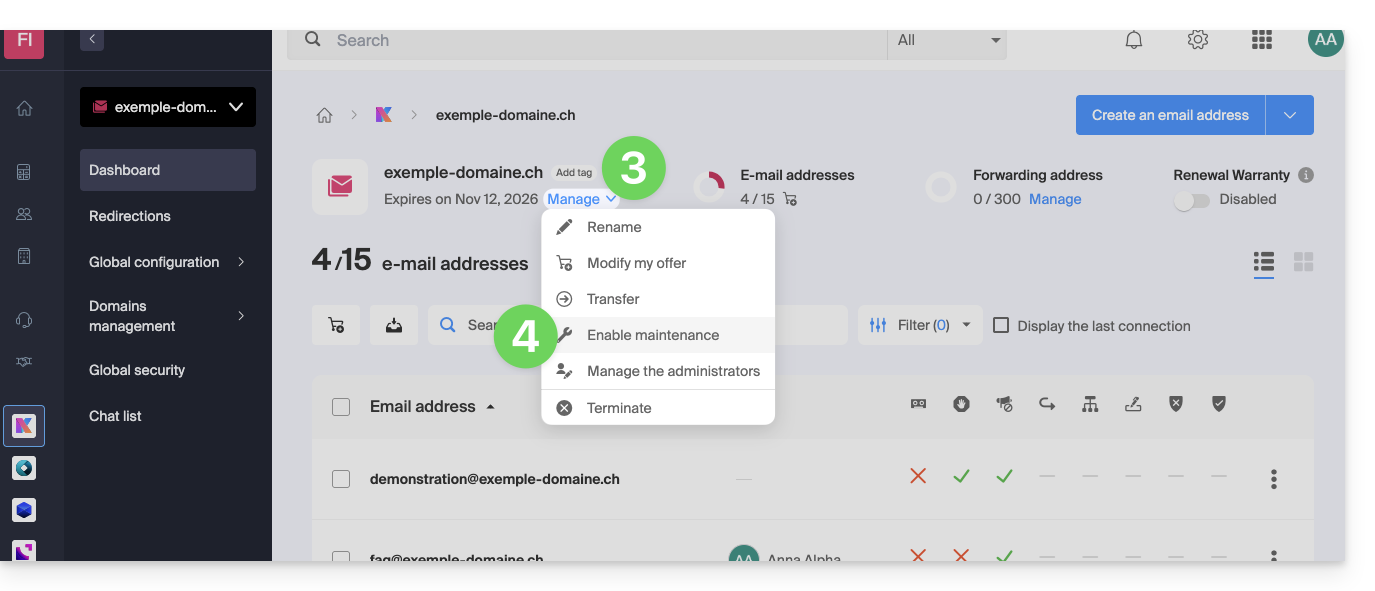
- Click on Manage.
- Click on Enable maintenance:
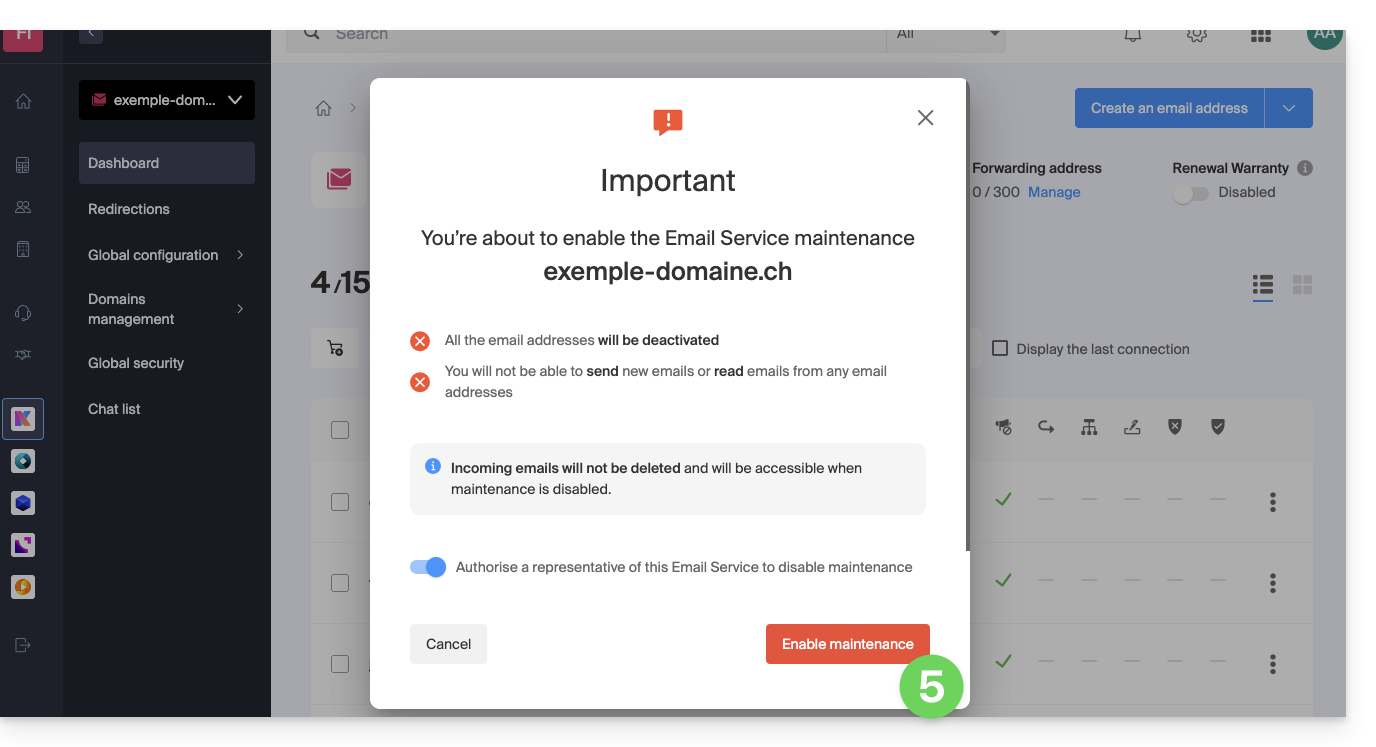
- Confirm the suspension of email address usage by clicking on the red button (sending is not interrupted, but viewing is impossible):
Block a User from the Organization
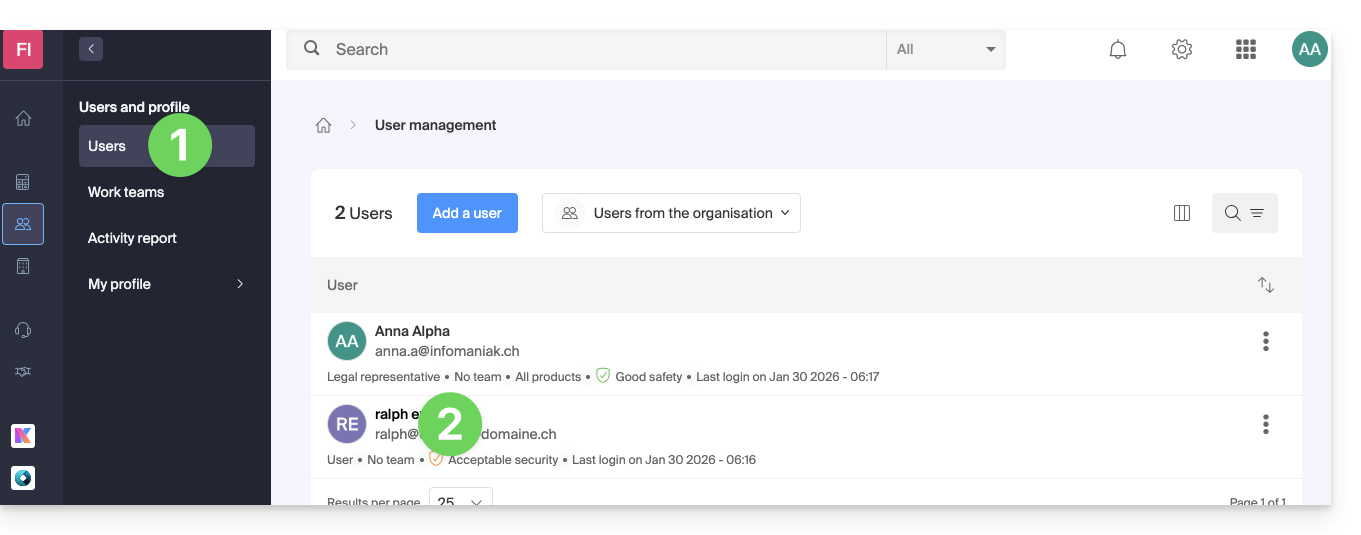
To quickly block a user from the Organization, in case of a security incident, log in to your user management as an Administrator or Legal Representative of the Organization:
- Click here to access user management in the Infomaniak Manager (❓: help).
- Click on the user in question:
- From the Manage button at the top of the page, you can remove the user from the Organization (which also removes their various management access rights to the products they had access to).
- Further down, you can manage in more detail the products to which the user should have access:
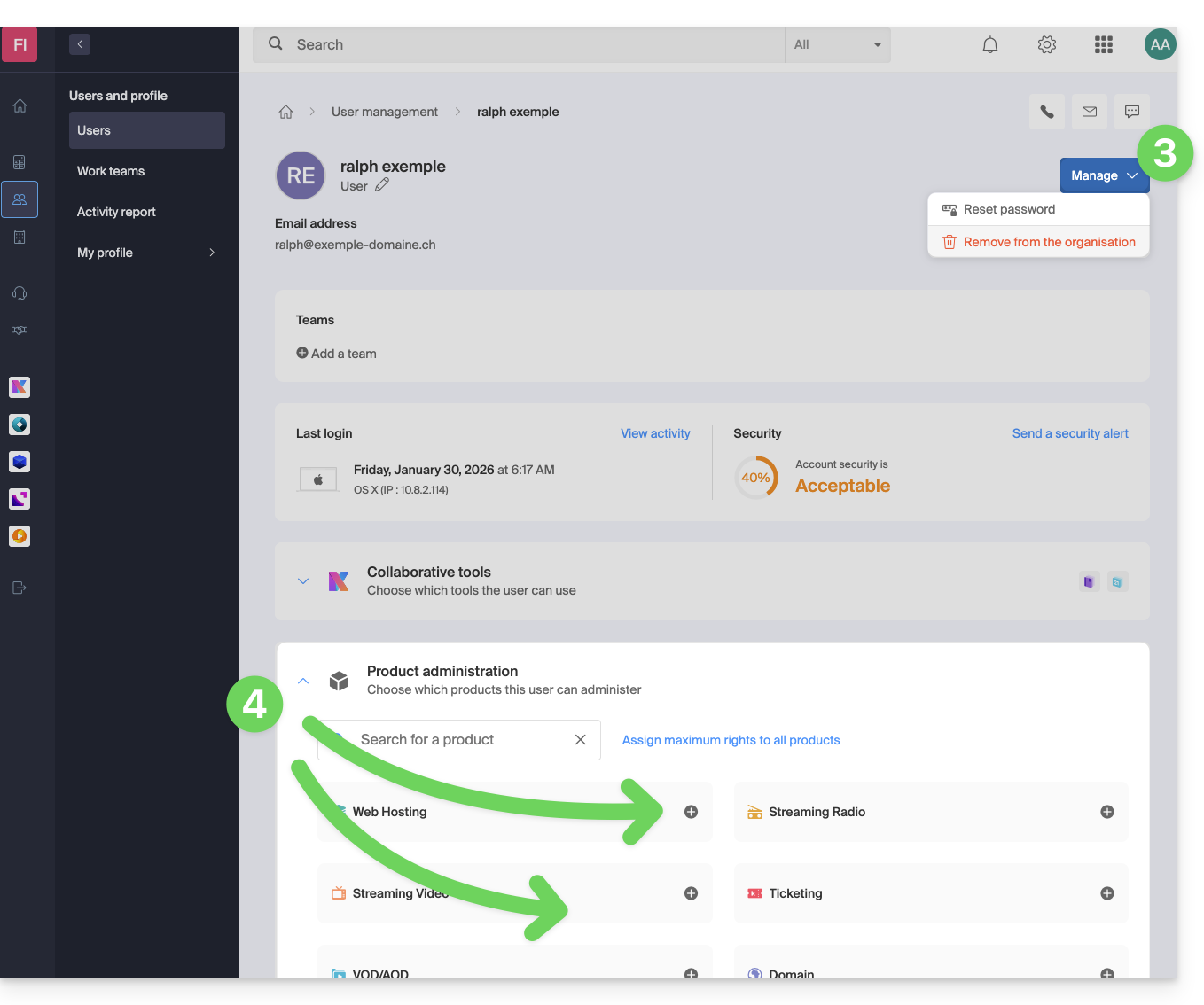
As a result, critical services such as the Manager interface for your Organization, the kDrive web app, and the Mail web app may become inaccessible to this user.
Depending on the situation, you can block other services such as web services (❓: help) or messaging, and more specifically IMAP (❓: help) and/or SMTP (❓: help).
To avoid blocking the user yourself, you can provide them with instructions on how to secure their account (❓: help).
Link to this FAQ: https://faq.infomaniak.com/1689
Has this FAQ been helpful?