Knowledge base
1000 FAQs, 500 tutorials and instructional videos. Here, there are only solutions!
Share a calendar on Calendar Infomaniak
This guide explains how to share one of your calendars with other Infomaniak users or collaborators from the Infomaniak Calendar web app (online service ksuite.infomaniak.com/calendar).
Introduction
- Consult this other guide to configure synchronization for your calendars, or this other guide to integrate a read-only calendar into a third-party tool.
Share an Infomaniak calendar
To enable sharing for one of your calendars:
- Click here to access the Infomaniak Calendar web app (online service ksuite.infomaniak.com/calendar).
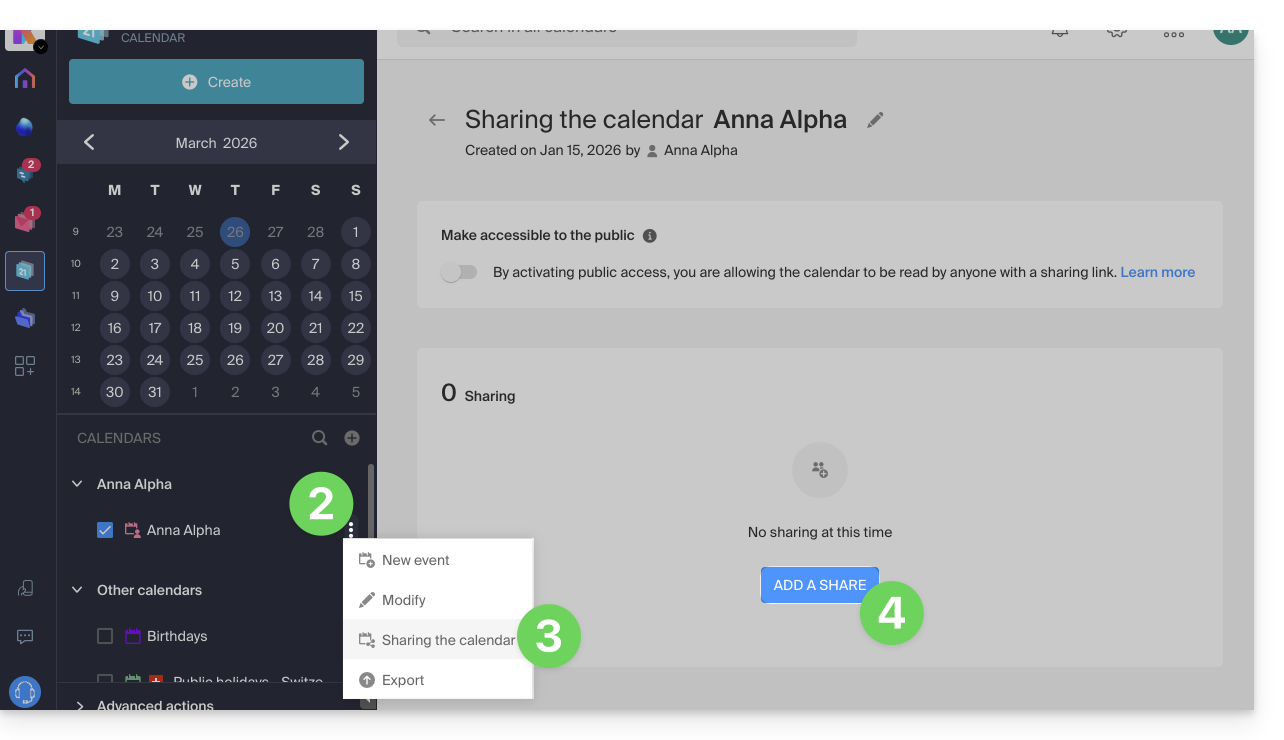
- Click on the action menu ⋮ to the right of a calendar.
- Click on Share calendar.
- Click on the button to Add a share:
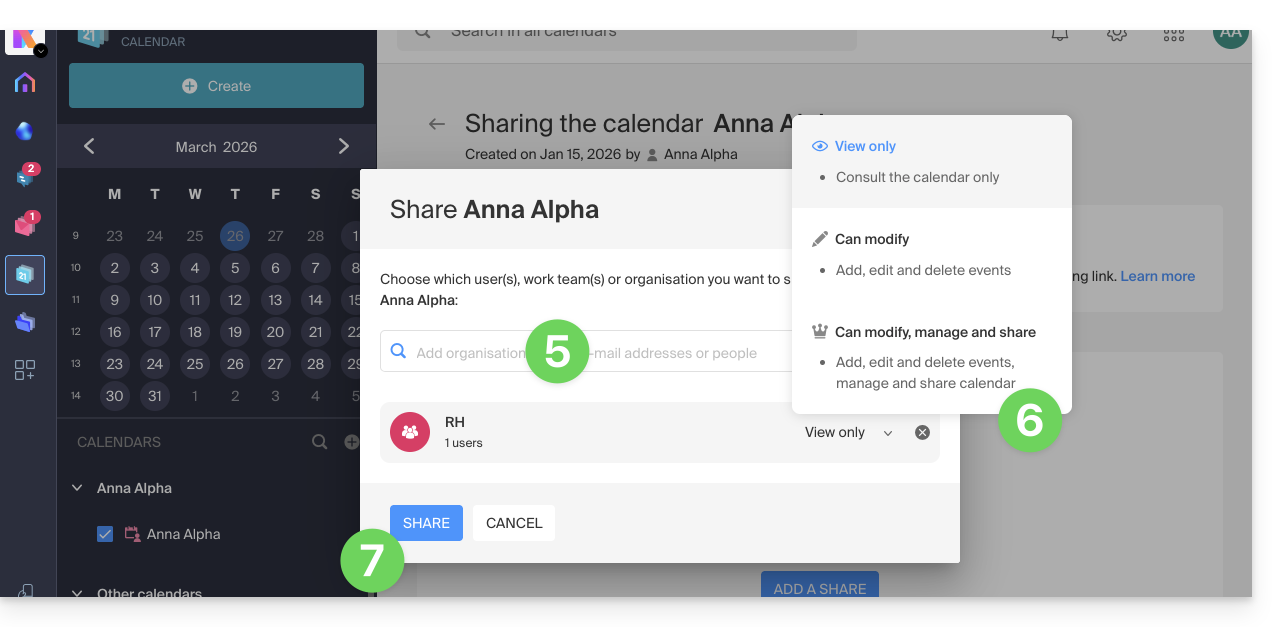
- Enter the Organization, group, orthe email address corresponding to the Infomaniak user accountthat will access the calendar (if the user does not yet have an account, they can create one for free with the invitation they receive).
- Define the user permissions for this calendar (Can view, Can edit, Can edit and share).
- Finish by clicking on the button:
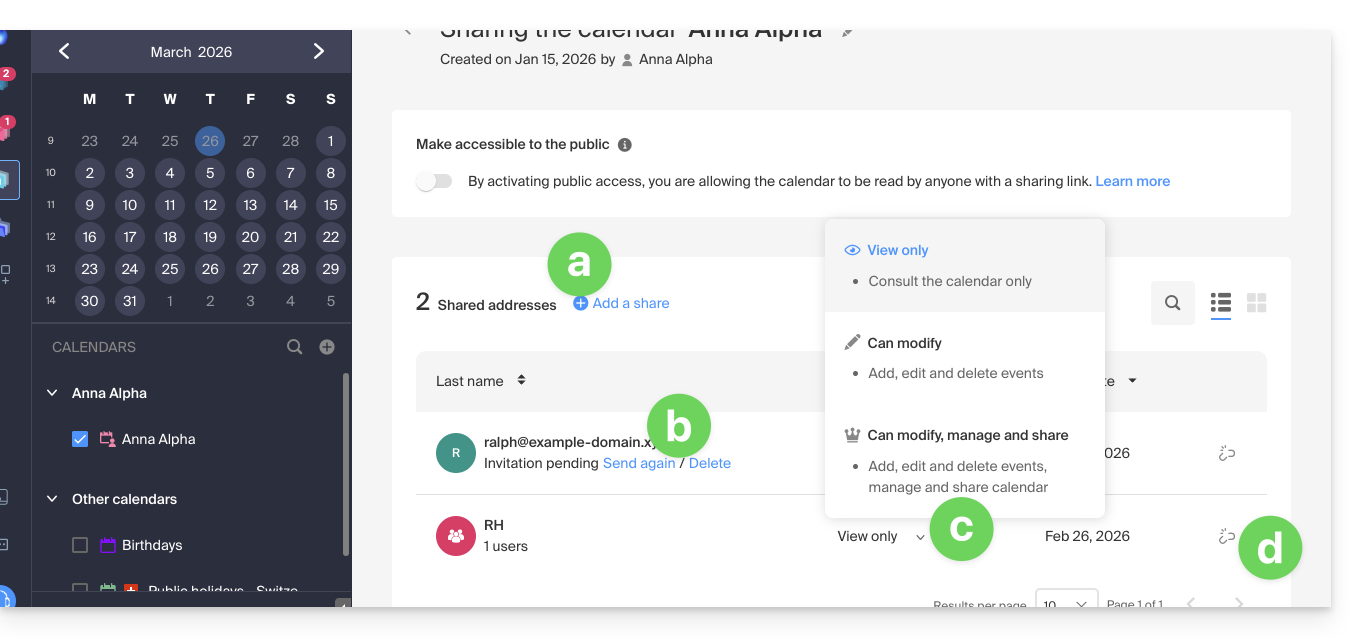
- You can perform other actions from the same page at any time:
- add another share
- resend or delete an access invitation
- modify the permissions related to calendar sharing
- delete/revoke the share
Share a meeting room calendar
To share the calendar for meeting rooms, the principle of sharing and assigning rights is based on the same principle as above: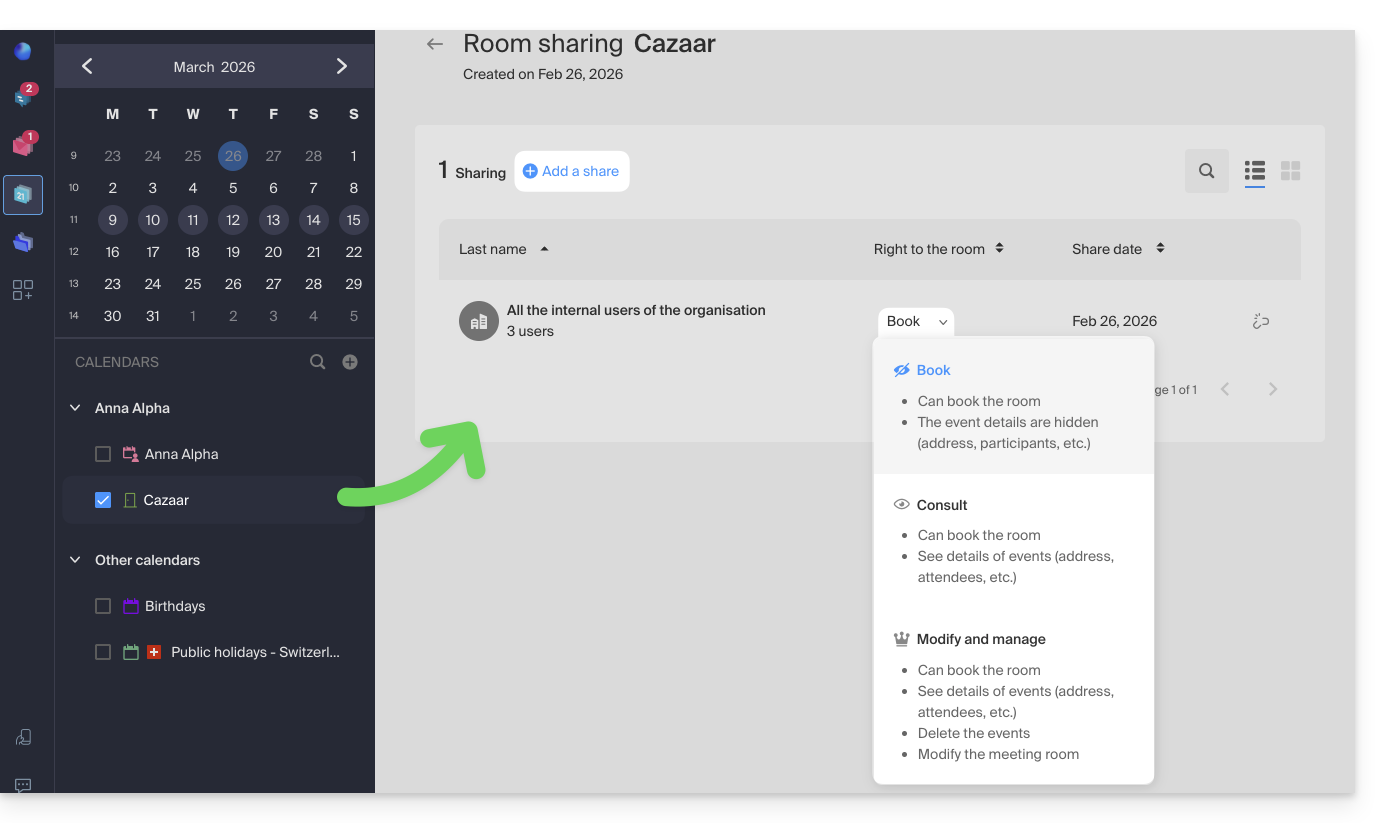
Link to this FAQ: https://faq.infomaniak.com/1679
Has this FAQ been helpful?