Knowledge base
1000 FAQs, 500 tutorials and instructional videos. Here, there are only solutions!
Manage the sender name in Mail Infomaniak
Update 10/19/2026
This guide explains how to add or modify a sender name that will be used when sending your emails from the Infomaniak Mail web app (online service ksuite.infomaniak.com/mail).
Introduction
- This full name (usually a first name and last name) is linked to your email address, your Infomaniak account, and any signatures you may have.
- It is displayed instead of or next to your email address for the recipient of your email.
- Please note that if the sender has already added you to their address book with a name/first name, these saved details will often take precedence.
Add/modify the sender's name
Without signature
If you do not use a signature when sending your message,the credentials used are those of your Infomaniak account:
- Click here to access your emails on your Infomaniak kSuite (❓: help) and compose a new message.
- Check the From: field, i.e., the sender.
- Make sure you are not using a signature:
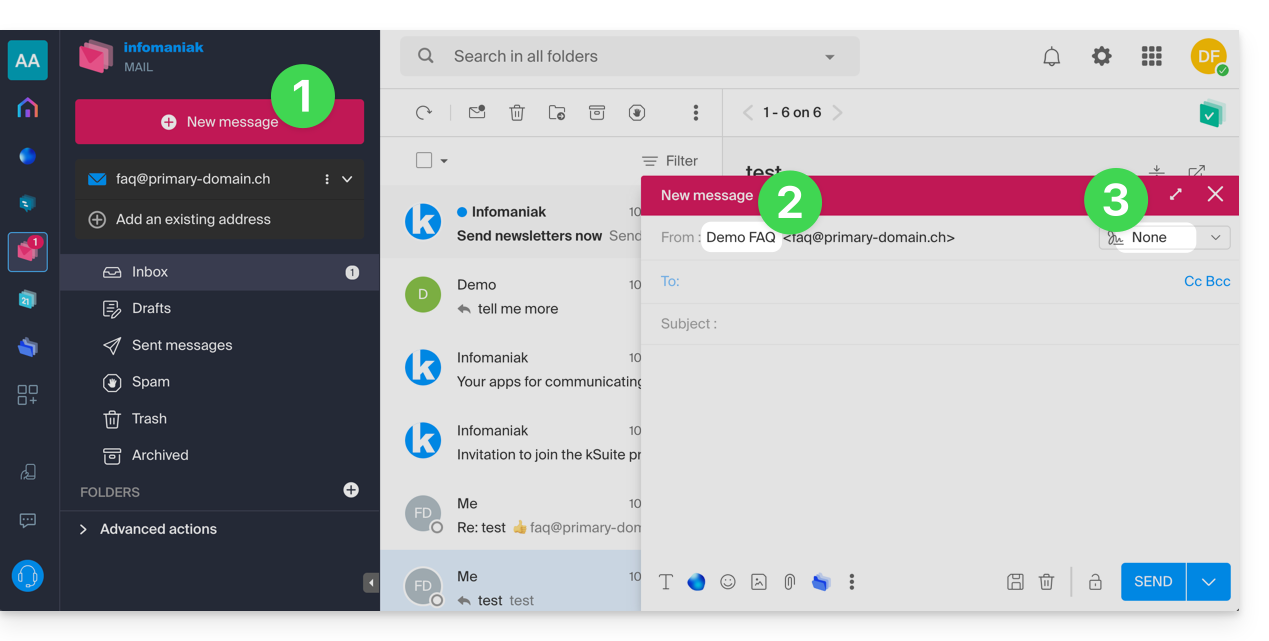
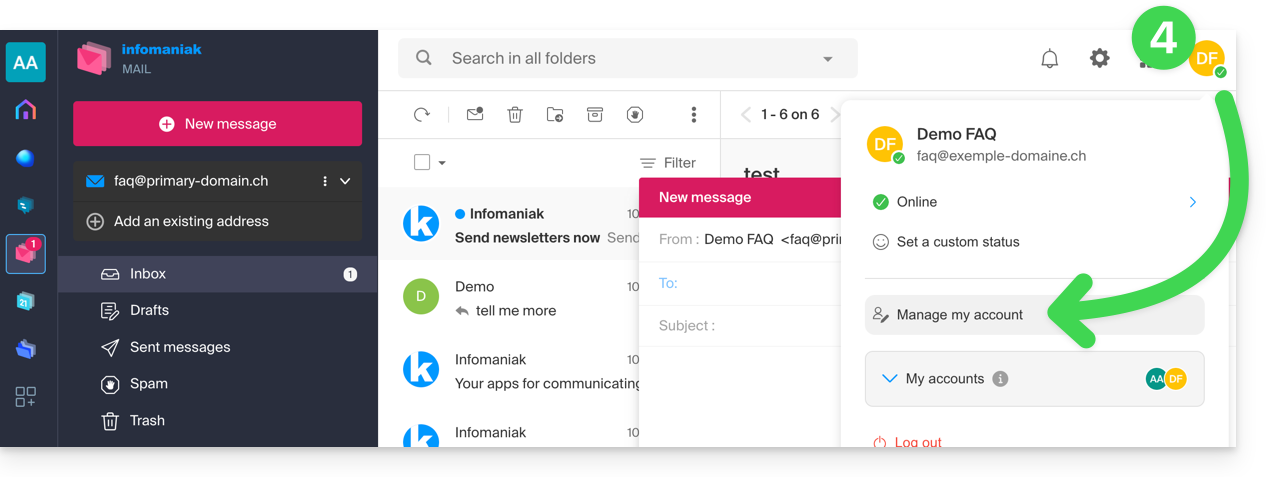
- In this case, click here or at the top right on your initials/avatar to "Manage my account".
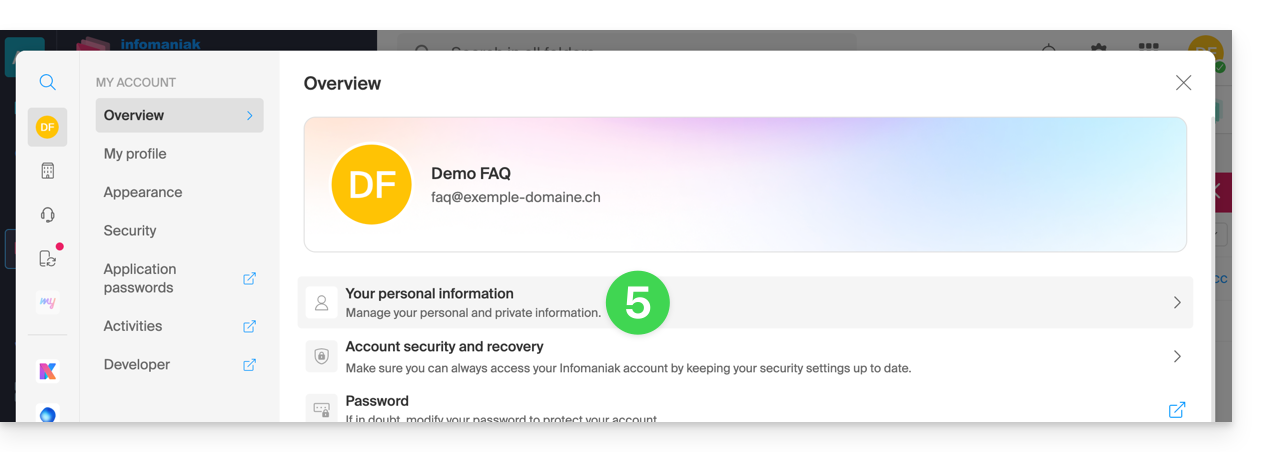
- Click to edit your personal information:
- Edit the first and last name, then validate by clicking to the right of the corresponding line:
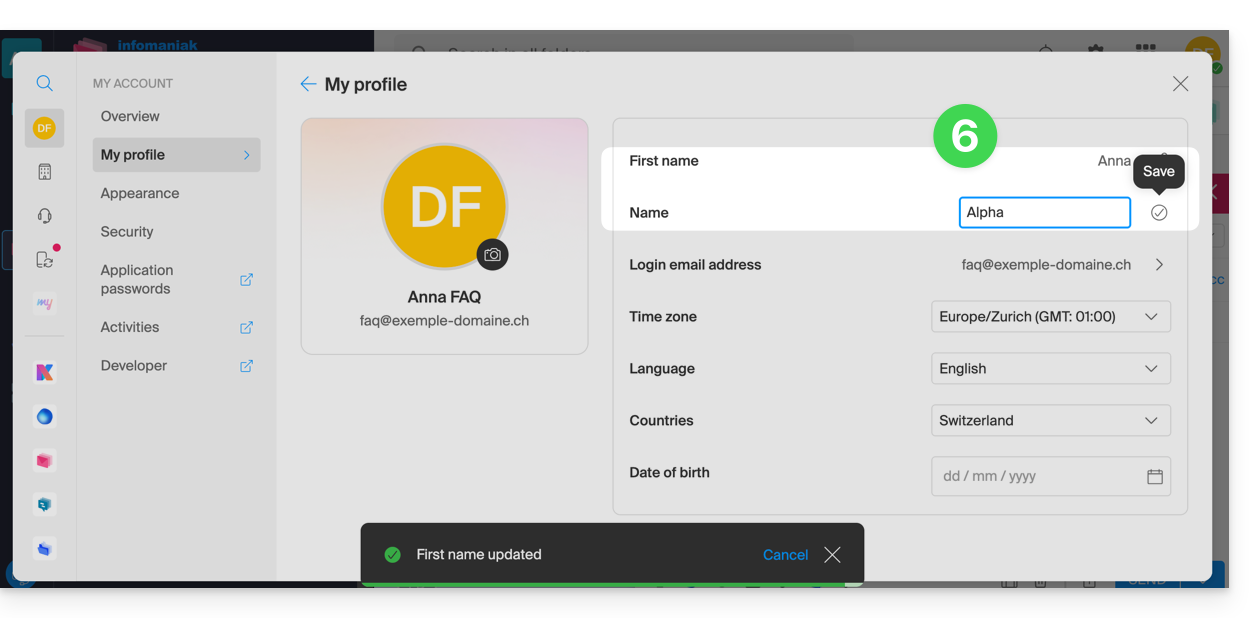
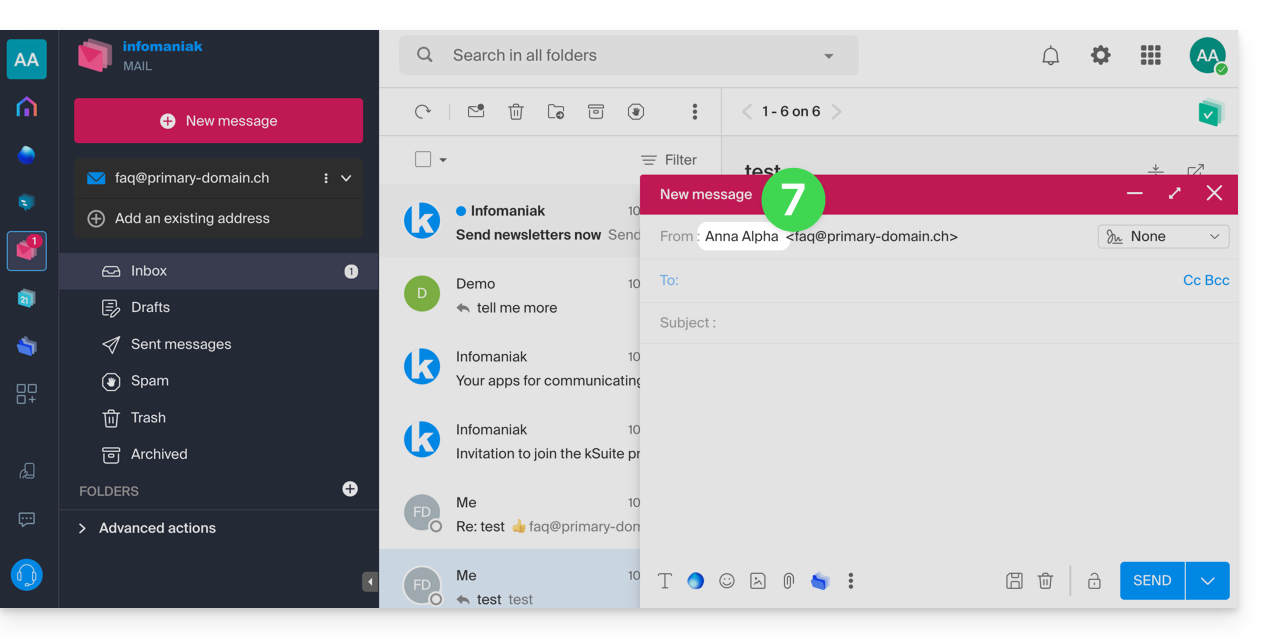
- Go back to composing a new email, refresh the browser window if necessary, and check that the from address has been correctly modified:
With signature
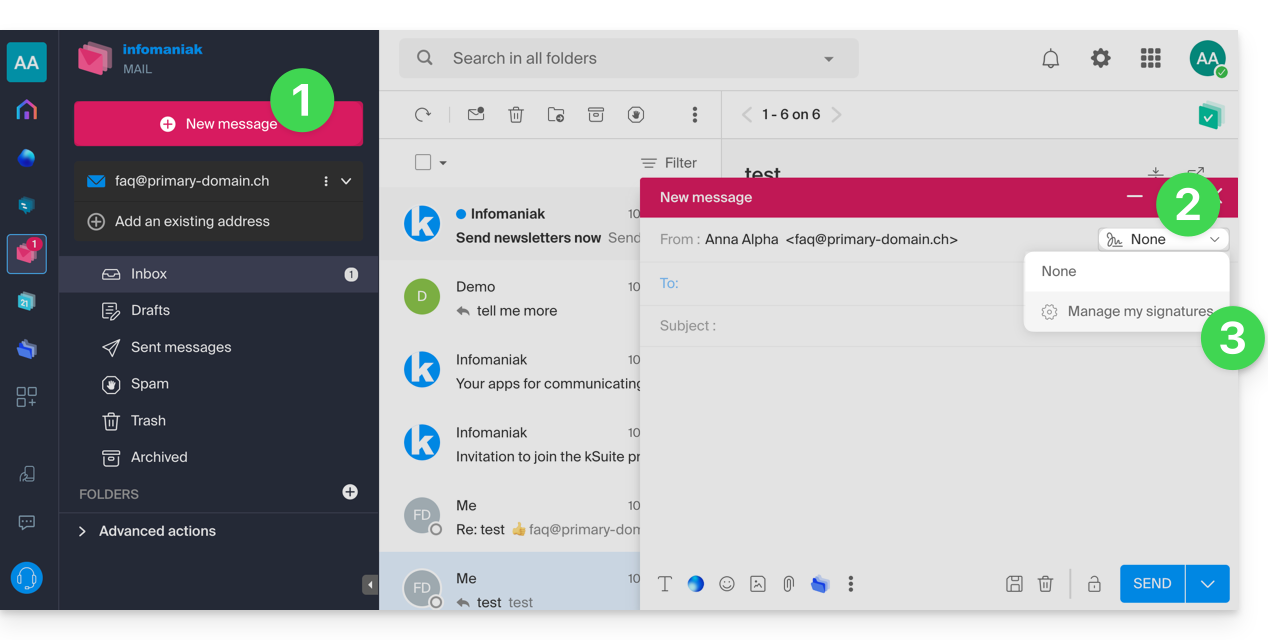
- Click here to access your Infomaniak kSuite emails (❓: help) and compose a new message.
- Click on the signatures menu.
- Click on Manage my signatures:
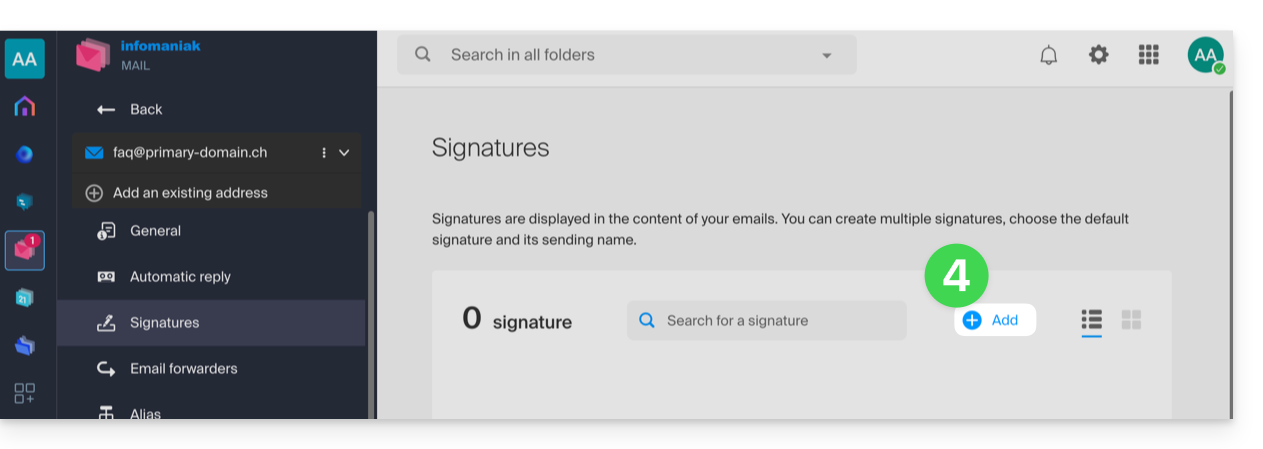
- Add a new signature:
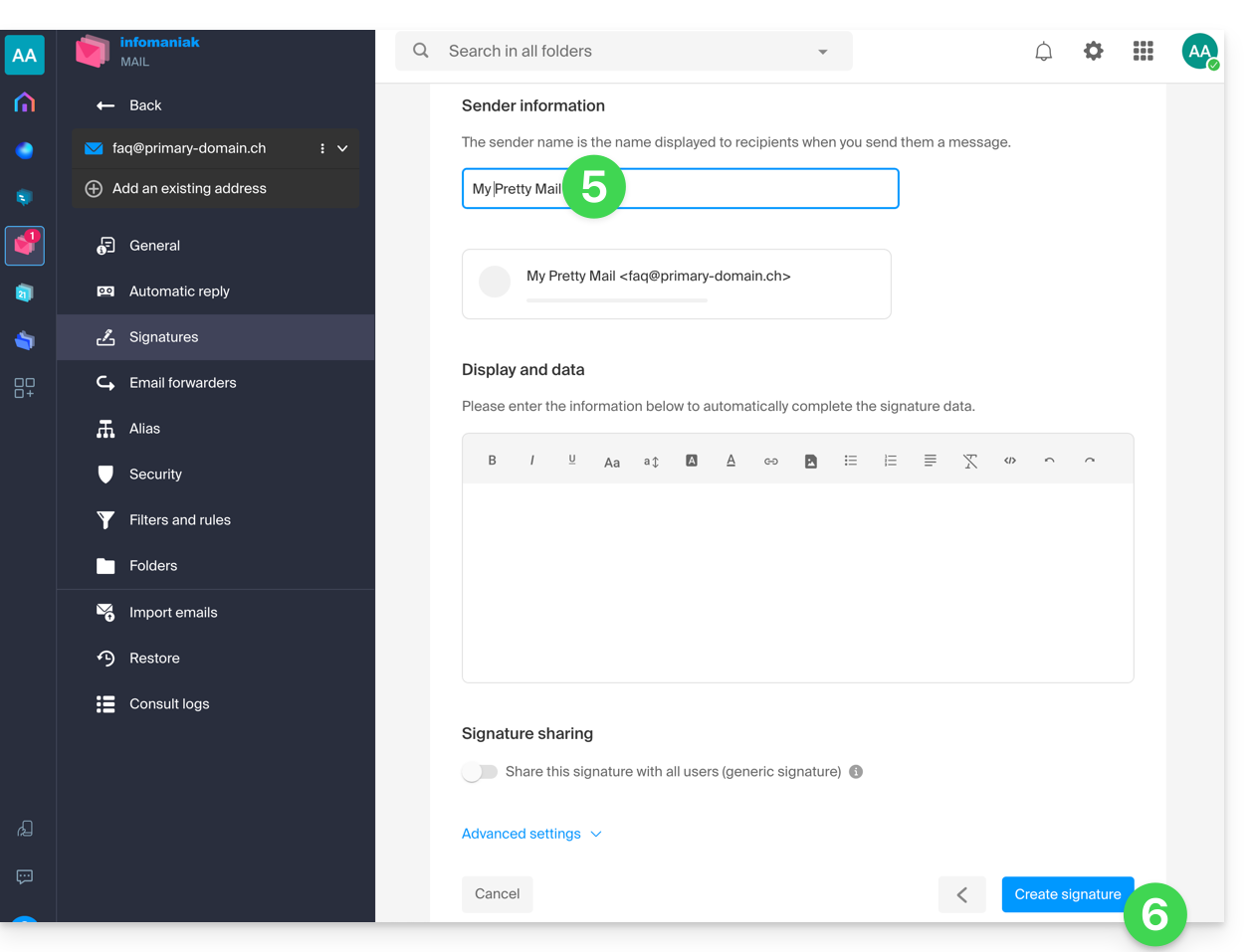
- Choose the template to use, then on the editing page, enter the name that should appear as the sender.
- Save your signature:
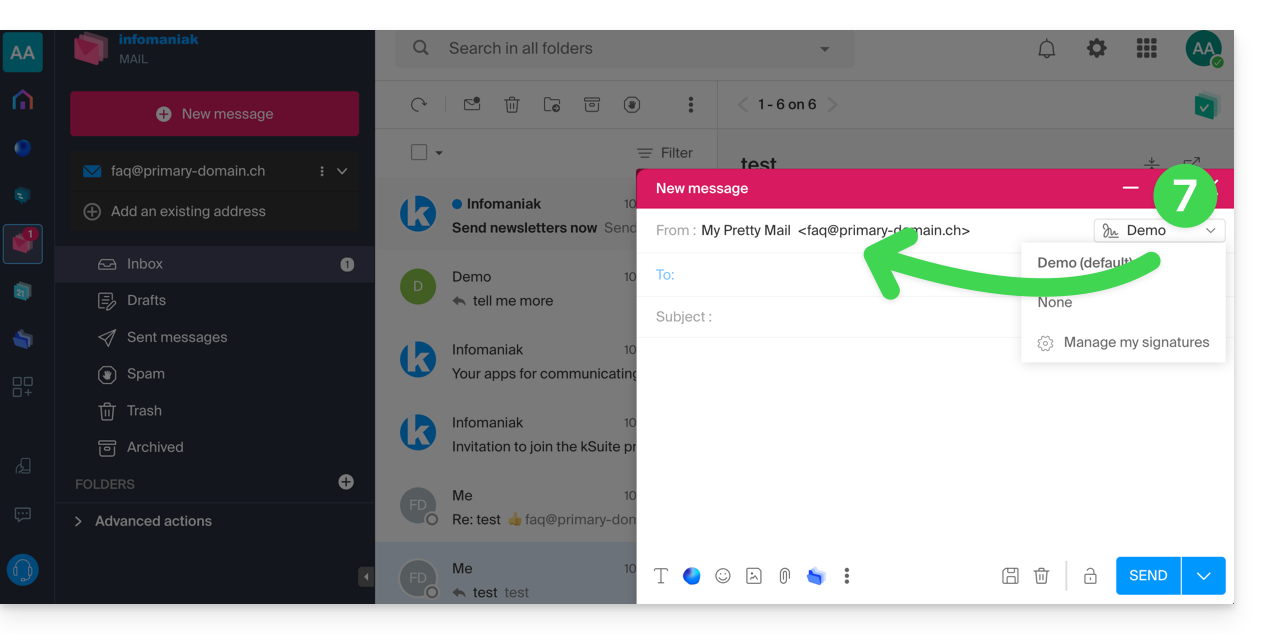
- Select your new signature; it will complete the from field of your message with the name you have customized:
Refer to this other guide if you are looking for information on editing Mail signatures and on how the full name is displayed for different users in a signature template.
Link to this FAQ: https://faq.infomaniak.com/1662
Has this FAQ been helpful?