Knowledge base
1000 FAQs, 500 tutorials and instructional videos. Here, there are only solutions!
Manage VOD media subtitles
This guide explains how to add subtitles to the media in your Infomaniak VOD space.
Introduction
- The subtitles for your videos do not alter the video itself; the video remains unchanged. The subtitles are simply a
.srtfile uploaded by the Player. - You can manage the automatic start of subtitles directly from the Player (tab #1).
Manage subtitles
To access a media file in the VOD space:
- Click here to access the management of your VOD/AOD in the Infomaniak Manager (need help?).
- Click directly on the name assigned to the product in question:
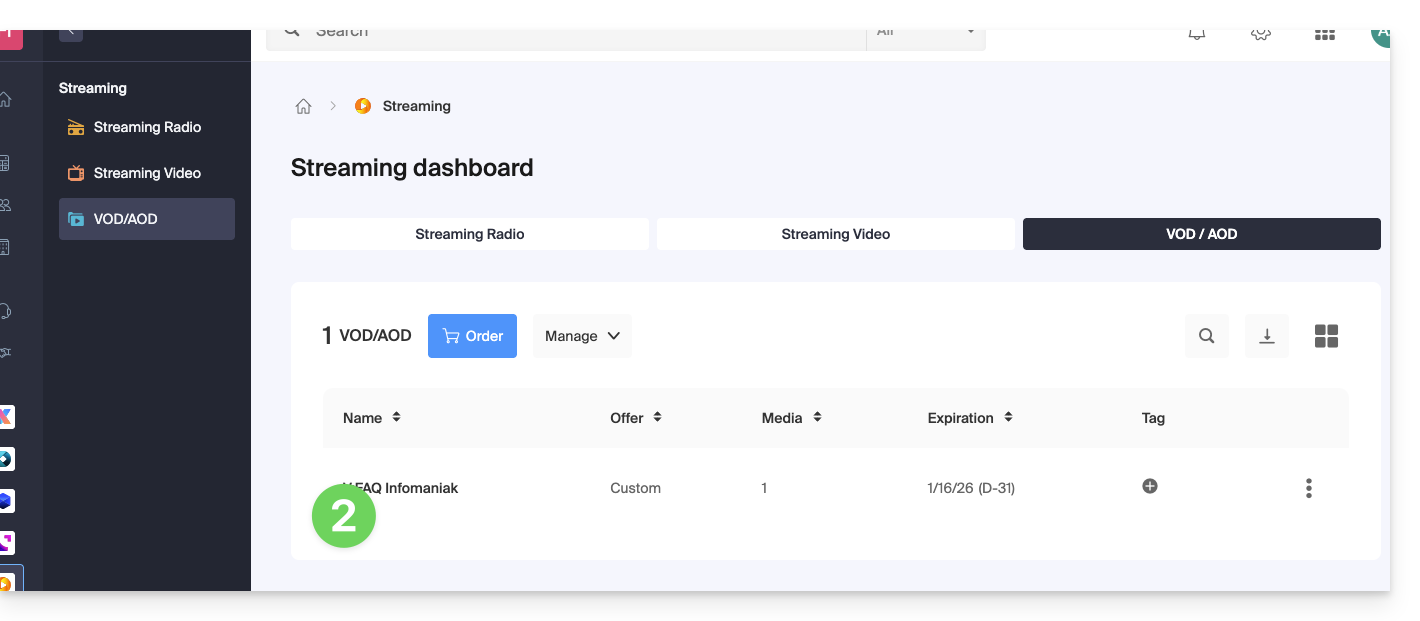
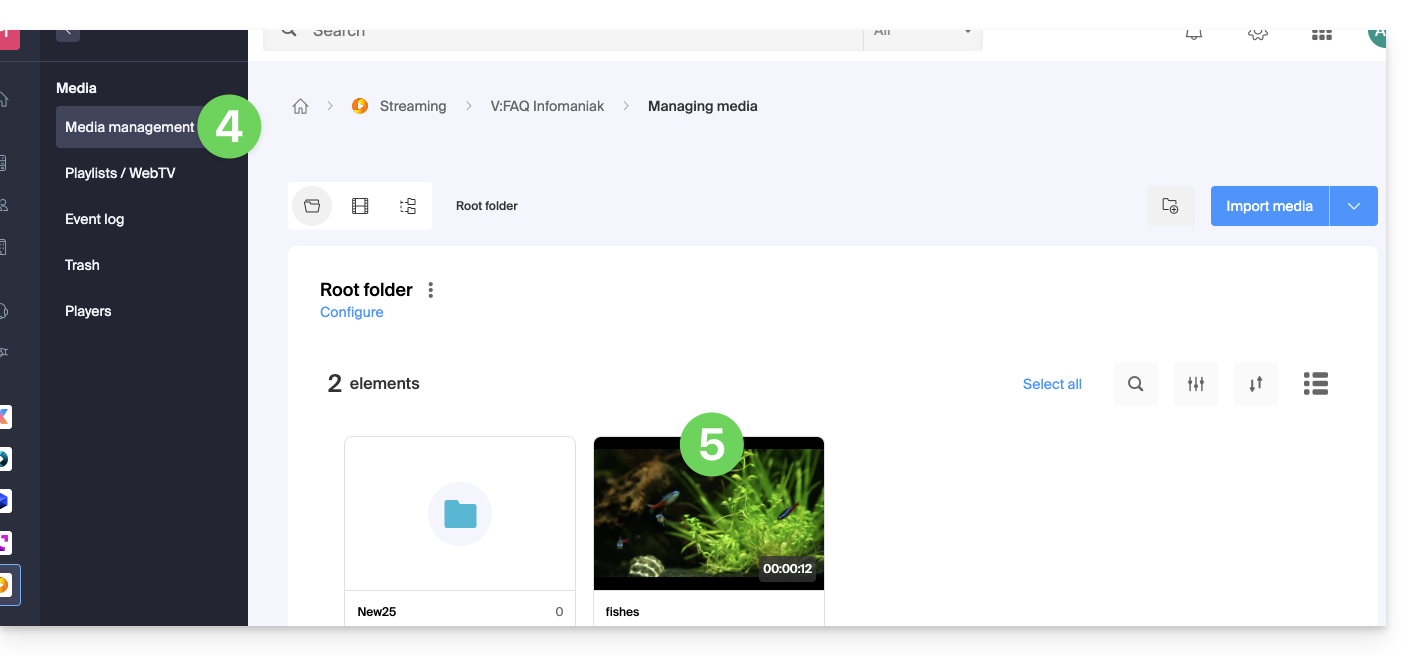
- Click on Media in the left-hand menu.
- Click on Media Management in the left-hand menu.
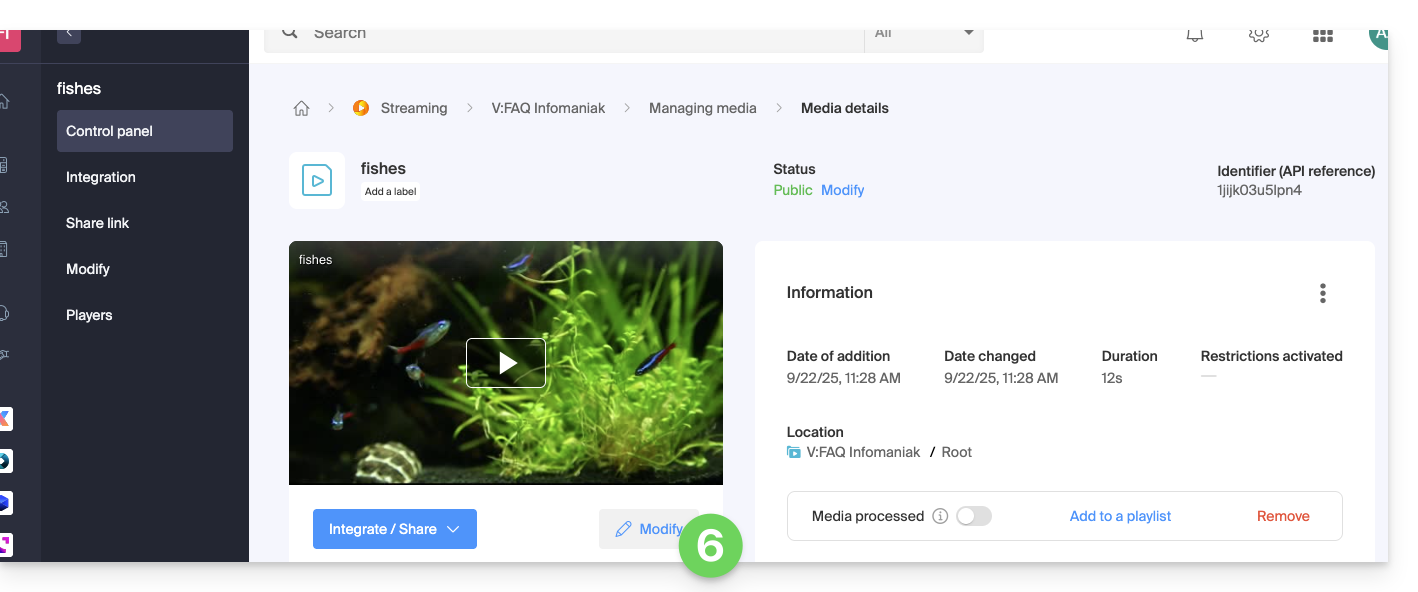
- Click on the relevant media:
- Click on the Edit button:
- Click on the Subtitles tab.
- Click on the Add language button to choose one of the 3 subtitle generation methods:
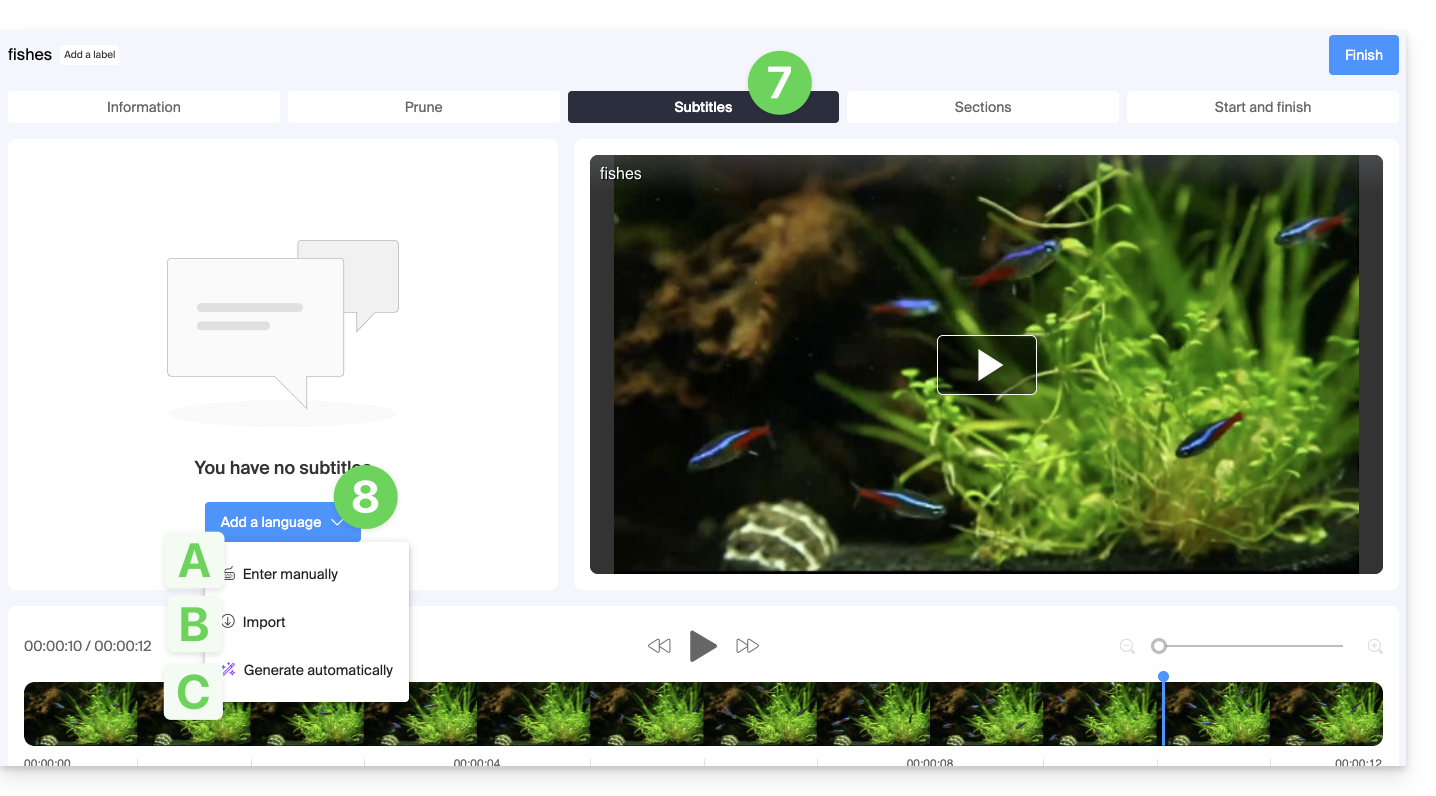
A. Creating subtitles manually
With this subtitling mode, you manually enter each of the texts that should be displayed at the specified timecode, and this for each language: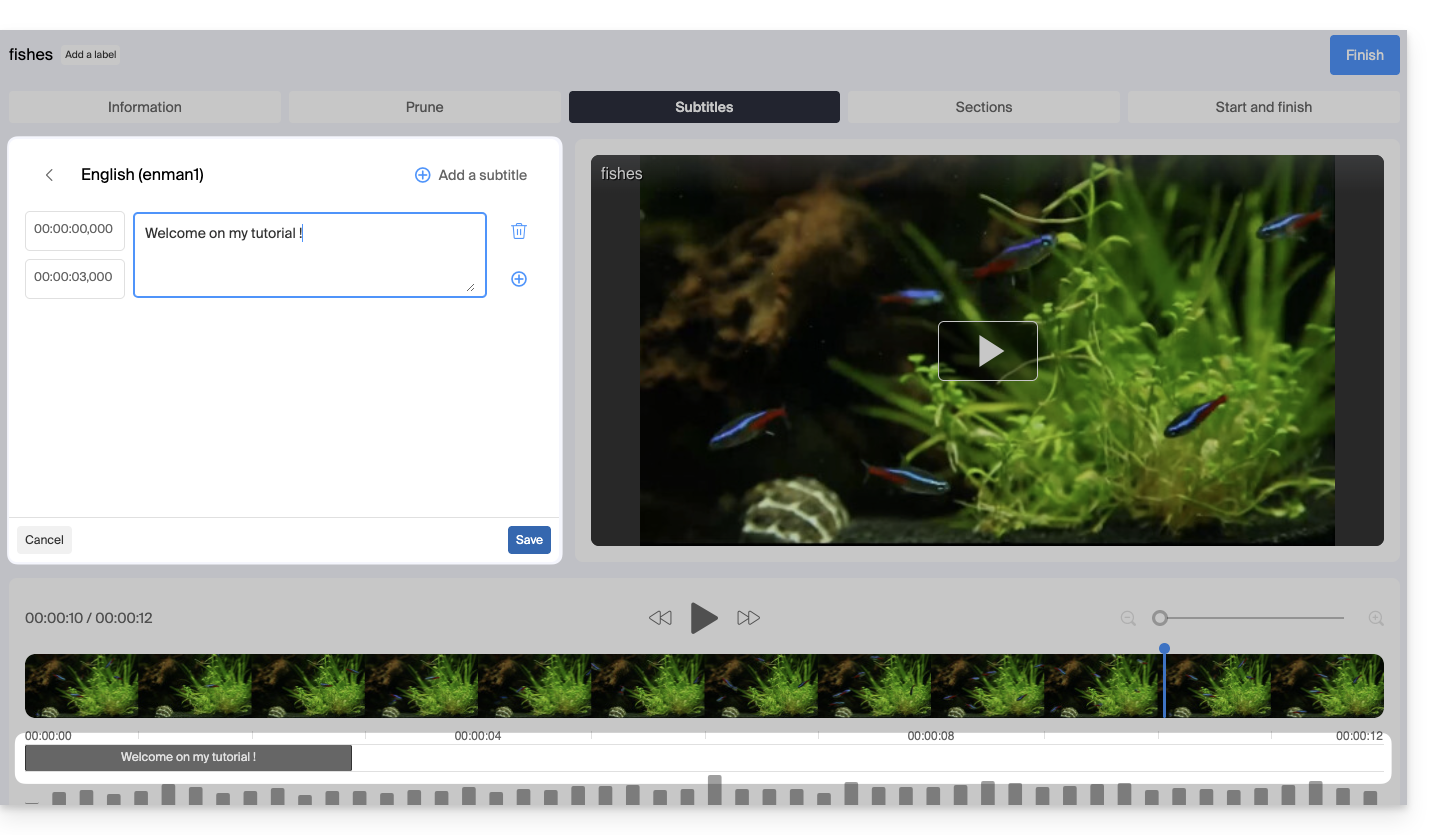
B. Importing a subtitle file
You can import a SubRip (*.srt) or SubViewer (*.sbv and *.sub) file to add subtitles to your video, using subtitles prepared in advance in a separate file: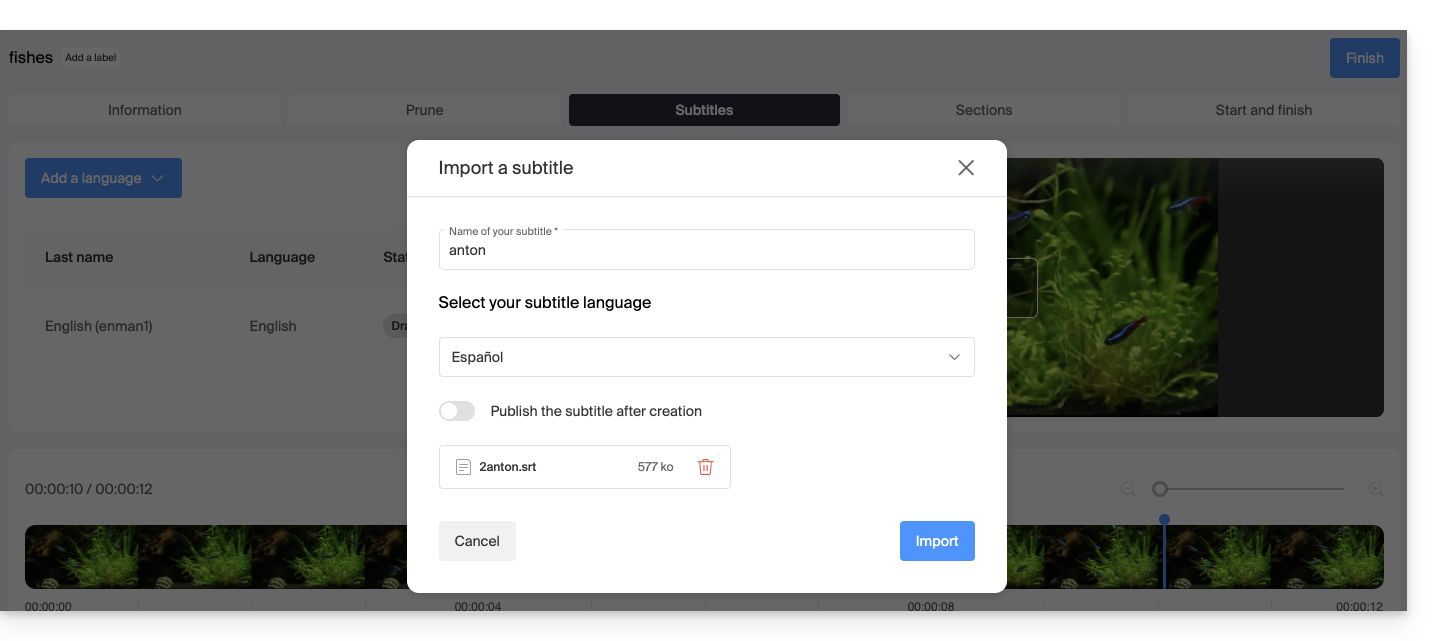
The toggle switch allows you to enable or disable the publication of subtitles on the Player. This allows you to verify that the content is correct before publishing and sharing the video.
C. Generate subtitles automatically
You can create subtitles directly from the audio available in your media. The text is generated using artificial intelligence (AI).
Read and understand this other guide about the model used and the responsibilities of each party. It is also recommended to manually check the generated content, especially proper nouns, which are sometimes misspelled.
Automatically translate subtitles
If subtitles are available, you can add an additional language in the same location, and have the text automatically translated (specify the current language):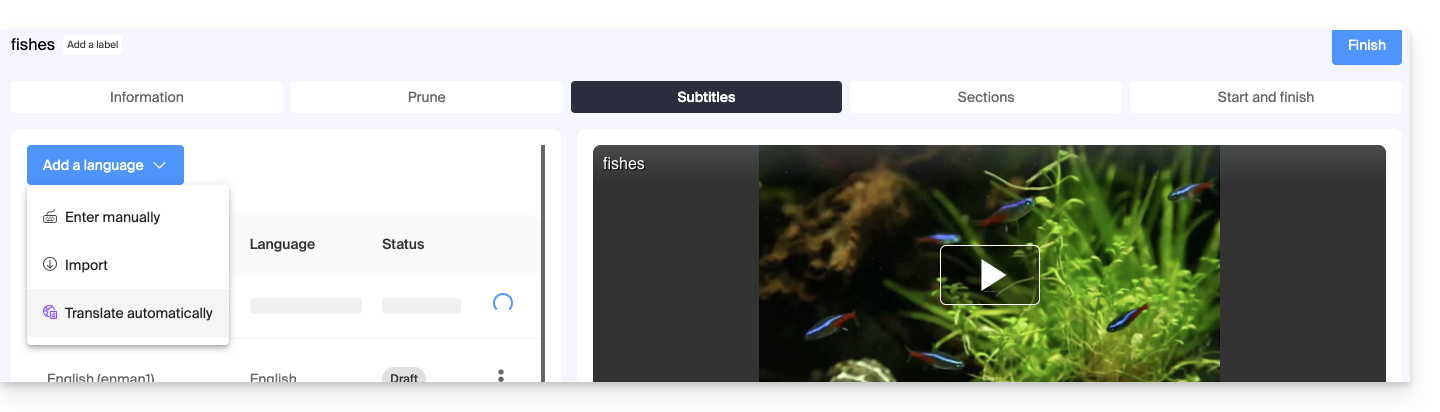 This will generate the appropriate subtitles in the desired language: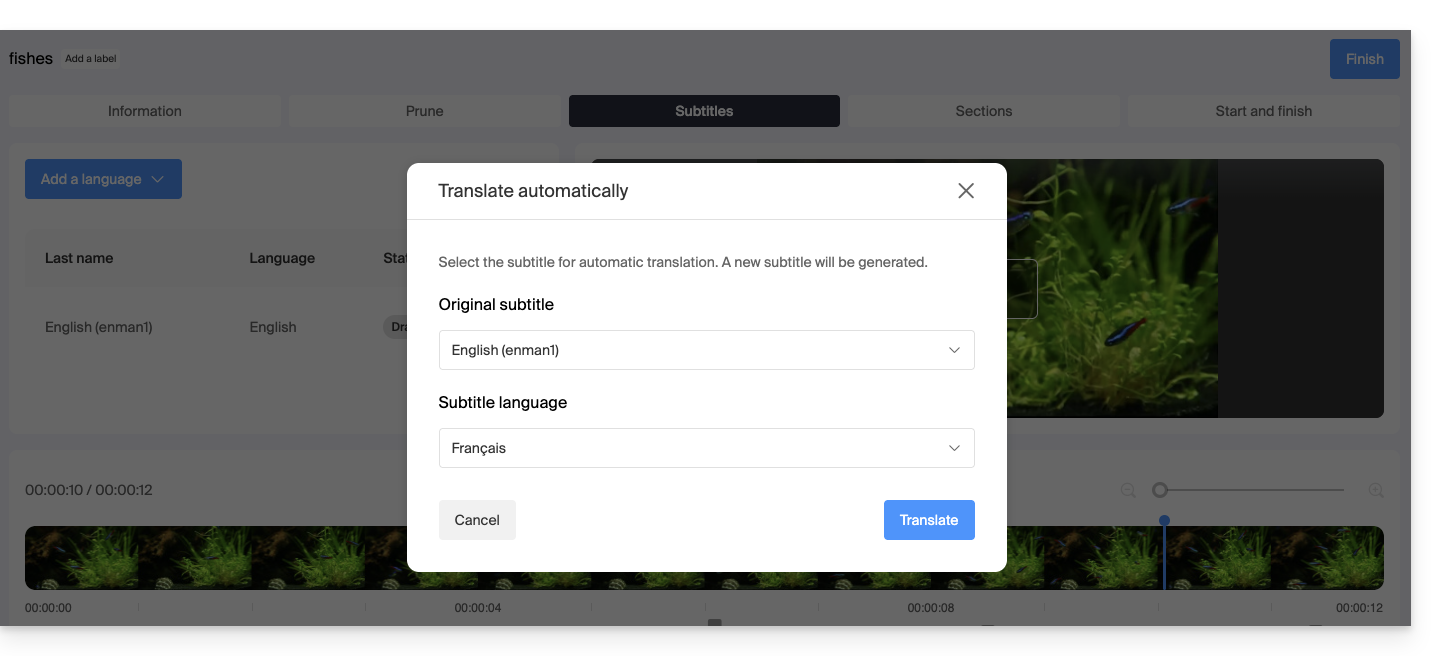
Actions on a subtitle
Click on the action menu ⋮ located to the right of a subtitle language to access additional options such as duplication or automatic translation: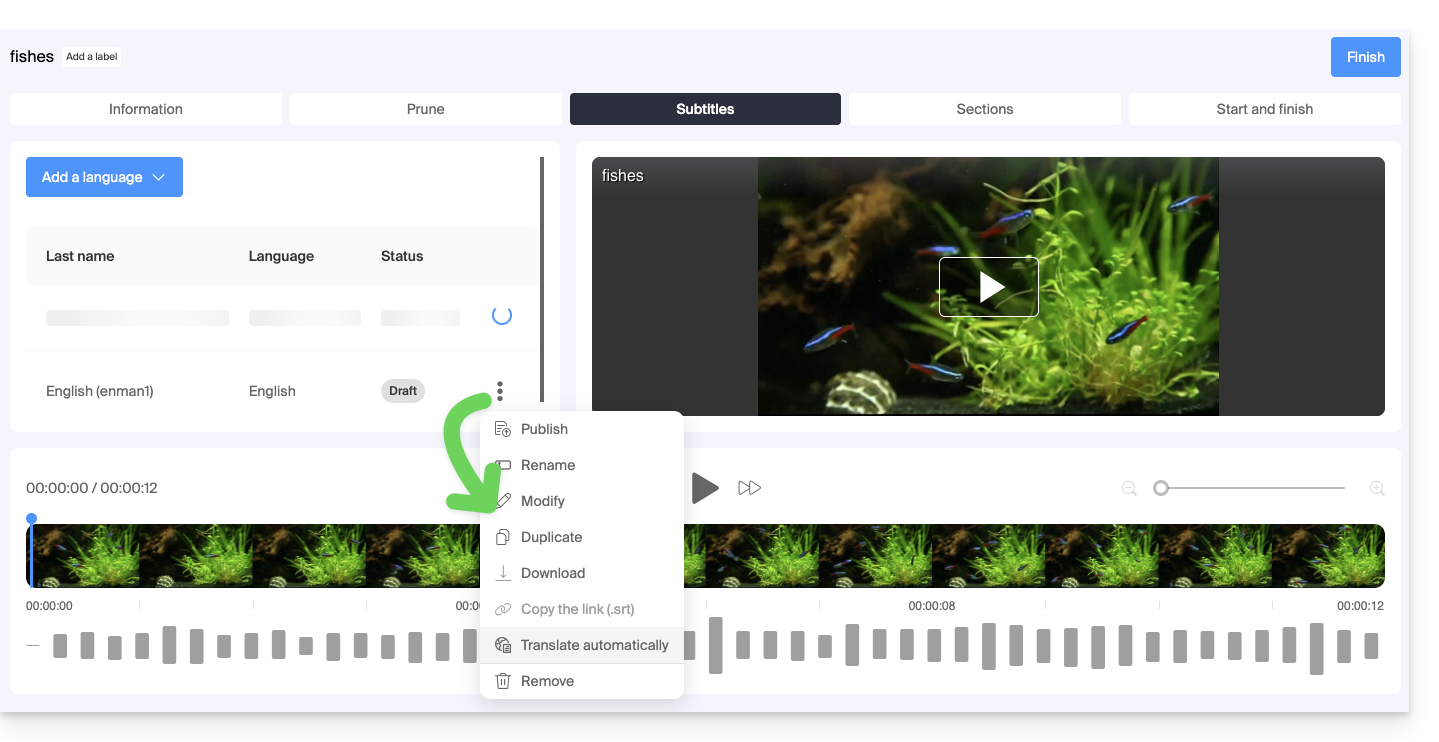
Automatically generate subtitles for new videos
The Root folder or its subfolders in your VOD space can have rules that are executed whenever new media is added to them. One of these rules instructs the system to automatically generate subtitles using the C method described above. To set up this rule:
- Click here to access the management of your VOD/AOD in the Infomaniak Manager (need help?).
- Click directly on the name assigned to the product in question.
- Click on Media in the left-hand menu.
- Click on Media Management in the left-hand menu.
- Click on Configure on the Root folder page or the folder of your choice:
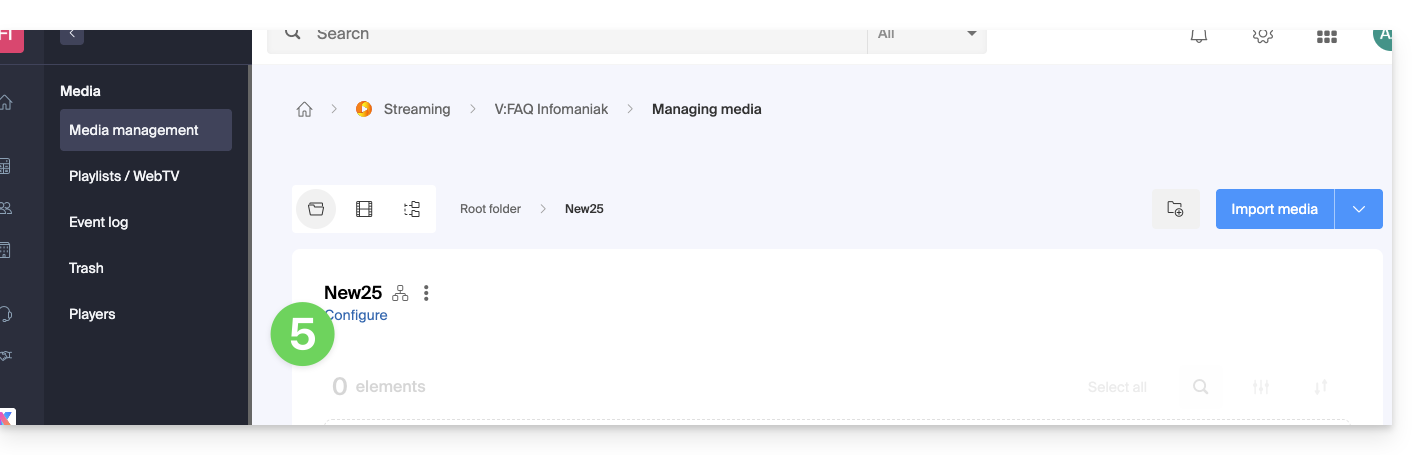
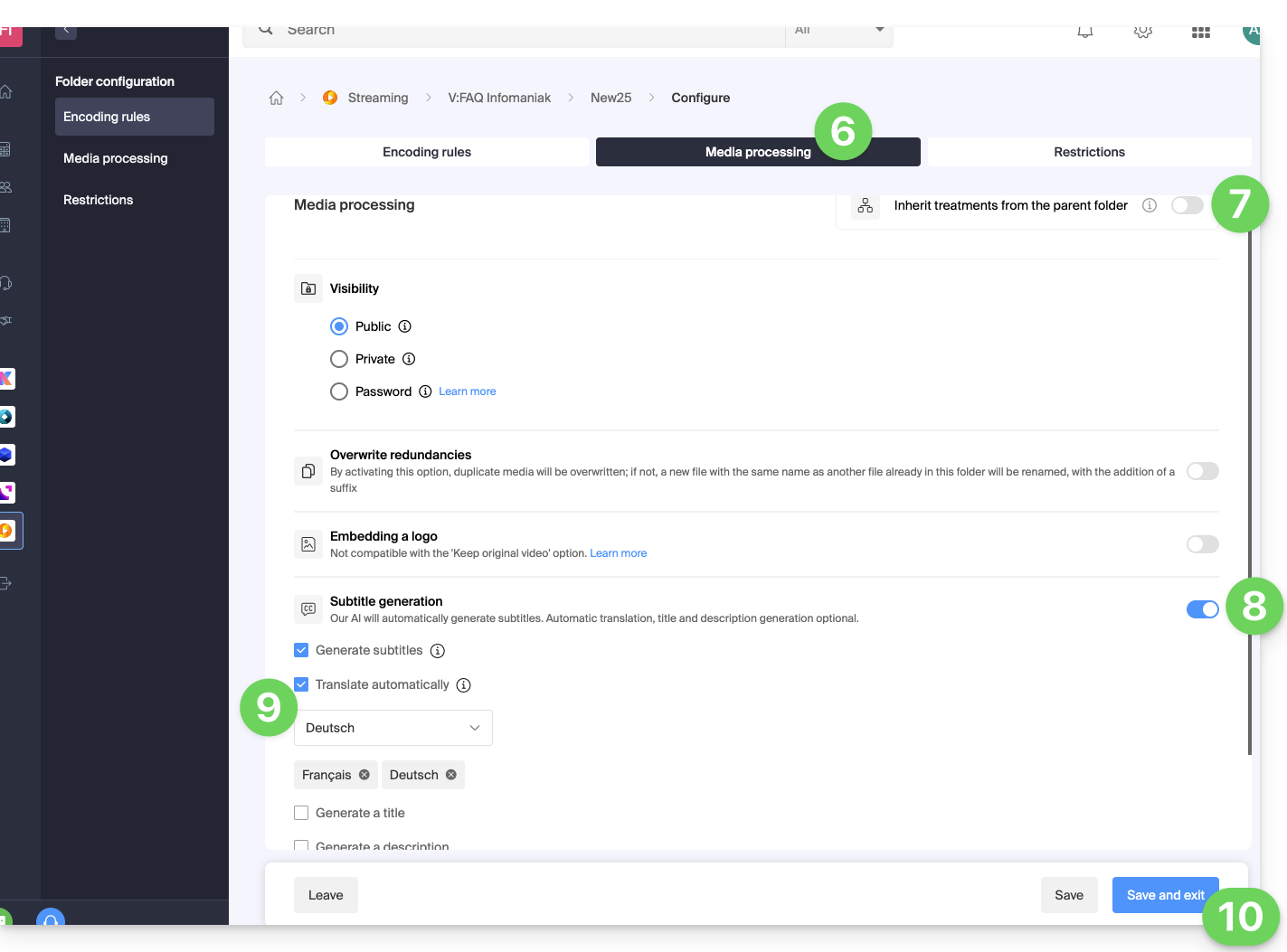
- Click on the Media Processing tab.
- Make sure that the settings are not configured to be inherited from the parent folder (or configure the parent folder directly) and then save the changes if necessary (point 10 below).
- Enable text generation.
- Configure what should be generated (subtitles, video title, summary/description, and any translations based on the visitor's language).
- Save the changes:
Link to this FAQ: https://faq.infomaniak.com/1628
Has this FAQ been helpful?