Knowledge base
1000 FAQs, 500 tutorials and instructional videos. Here, there are only solutions!
Schedule a reminder if no response is received
Update 10/12/2026
This guide explains how to schedule a follow-up alert if you do not receive a response to an email sent from the Infomaniak Mail web app (online service ksuite.infomaniak.com/mail).
Introduction
- You can also configure a reminder in the Infomaniak Mail mobile app (application for iOS/Android smartphones or tablets).
- Furthermore, if the recipient belongs to the same Organization (e.g., a remote colleague), a notification will appear directly above the original message to inform them of your request.
Schedule a reminder if no response is received
To configure a follow-up alert while composing your email:
- Click here to access your emails on your Infomaniak kSuite (❓: help).
- Compose a new message as usual.
- Click on the reminder icon or access the additional actions (often located next to the Send button or via a downward-pointing chevron ).
- Define the desired time to trigger the follow-up alert if no response is received.
- Send the message. The reminder is now scheduled, and internally, your colleague will immediately see that a response is expected.
Simply indicate that the message is important
Without triggering an automatic reply if no response is received, you can also indicate that the sent message has a slightly higher priority than usual. To do this:
- Click here to access your emails in your Infomaniak kSuite (❓: help).
- Compose a new message as usual.
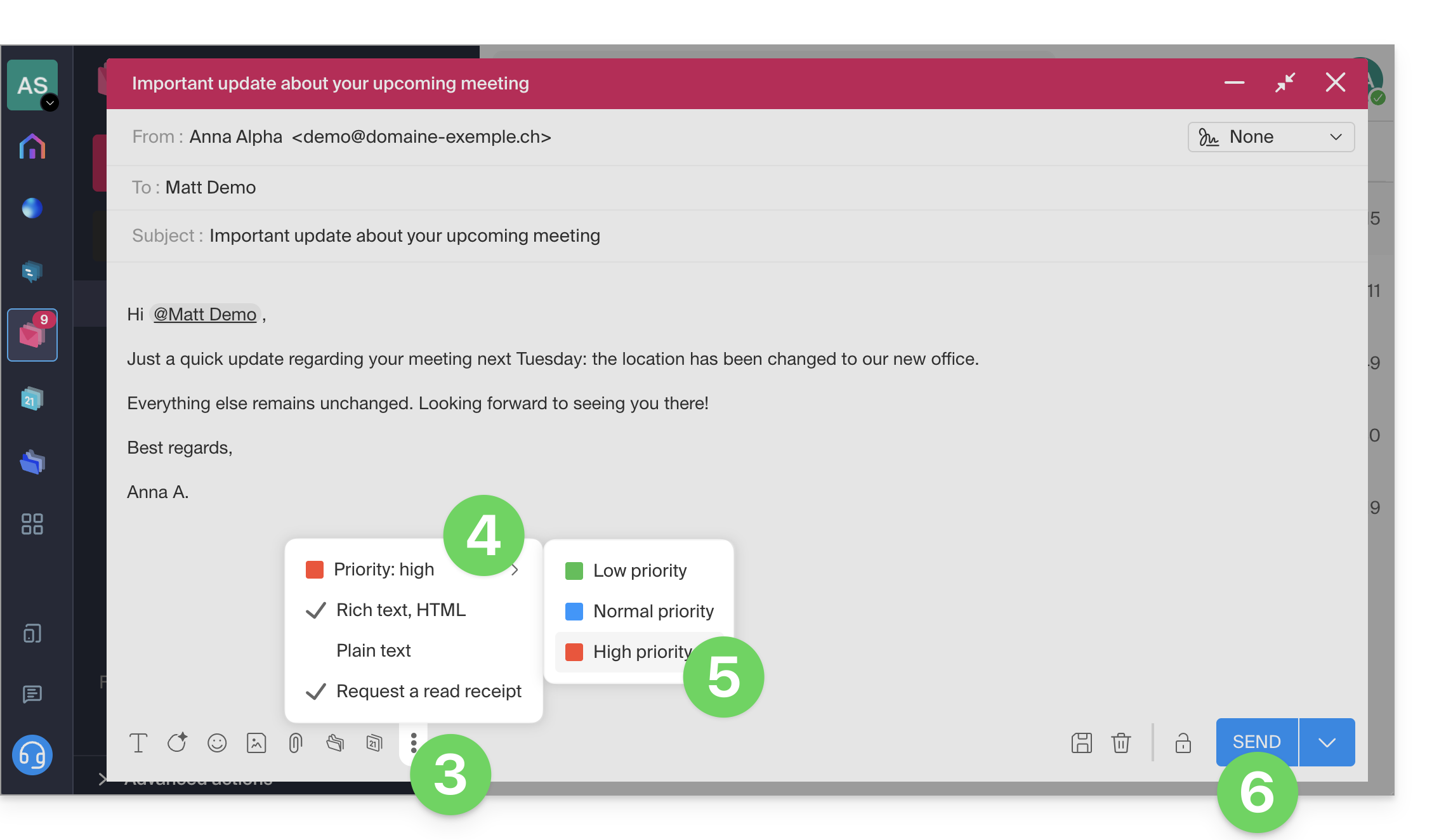
- Click on the action menu ⋮ in the toolbar of the composition window.
- Click on the priority menu.
- Choose the priority to assign to your message, between low, normal, and high.
- Click to send your message:
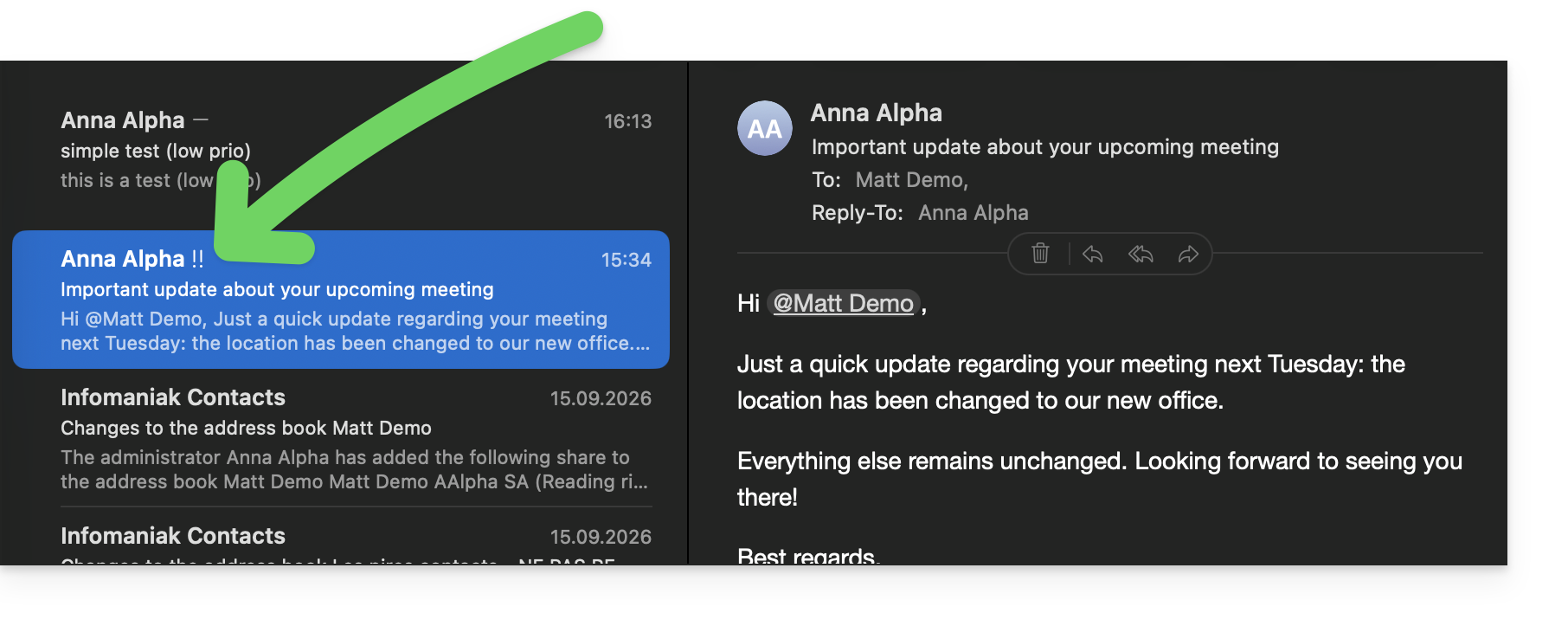
- An email client such as Apple Mail will indicate this important message with a subtle notification:
Link to this FAQ: https://faq.infomaniak.com/1623
Has this FAQ been helpful?