Knowledge base
1000 FAQs, 500 tutorials and instructional videos. Here, there are only solutions!
Manage a user's product access within an organization
This guide explains how to modify the access rights to products for a user in your Organization on the Infomaniak Manager.
Introduction
- Since you opened your account with Infomaniak, you have been part of at least one Organization (❓: help).
- If you were the only user and it wasn't an invitation, an Organization was created in your name, and you automatically become its legal representative.
- Otherwise, you belong to the Organization that invited you (to join its kSuite, to manage a product, etc.).
- It is possible to change a user's role within your Organization (❓: help).
- You can then define whether a user…
- … is part of your Organization and whether they should become:
- Legal Representative
- Administrator
- Collaborator (this section is detailed below…)
- … is external to your Organization (limited rights):
- External users are not included in calendar and address book sharing with the entire Organization.
- … is part of your Organization and whether they should become:
Who can access what…
Prerequisites
- First, switch to the desired Organization if you cannot find the expected list of users (❓: help).
- Be at least an Administrator of the Organization (❓: help).
- Haveadded a user as a collaborator (❓: help).
The guide below explains how to manage access to products for collaborators and external users. Indeed, a legal representative or an Administrator always has access to all existing products within the Organization, as displayed in the Infomaniak Manager.
To modify a user's product access within the Organization:
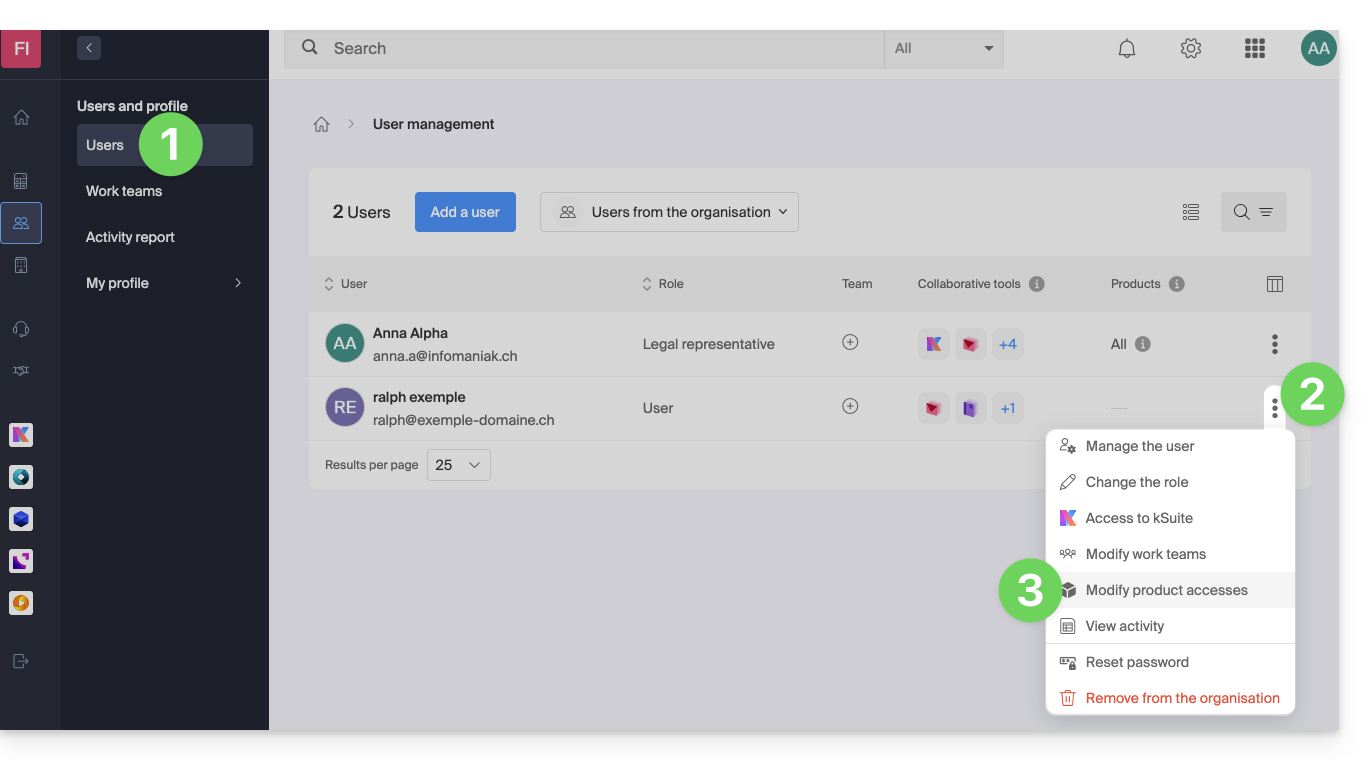
- Click here to access user management in the Infomaniak Manager (❓: help).
- Click on the action menu ⋮ located to the right of the user in question.
- Click on Modify product access:
- You can grant access to everything with maximum permissions in one click.
- Otherwise, click on the product category you want to grant access to.
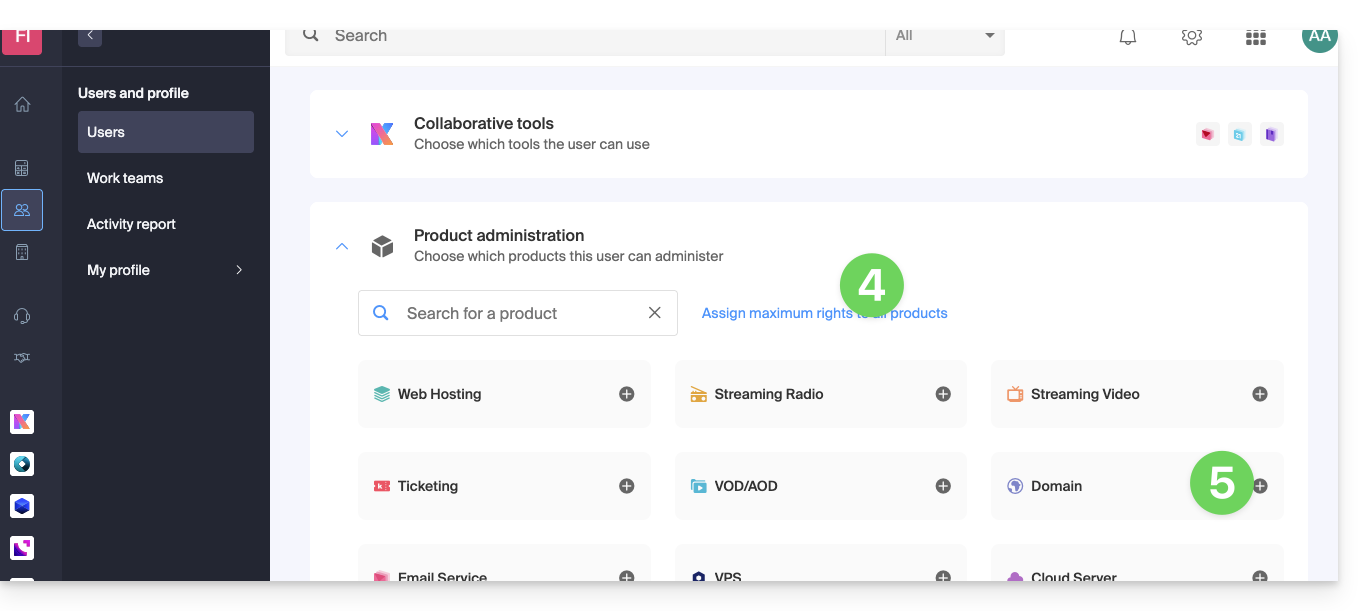
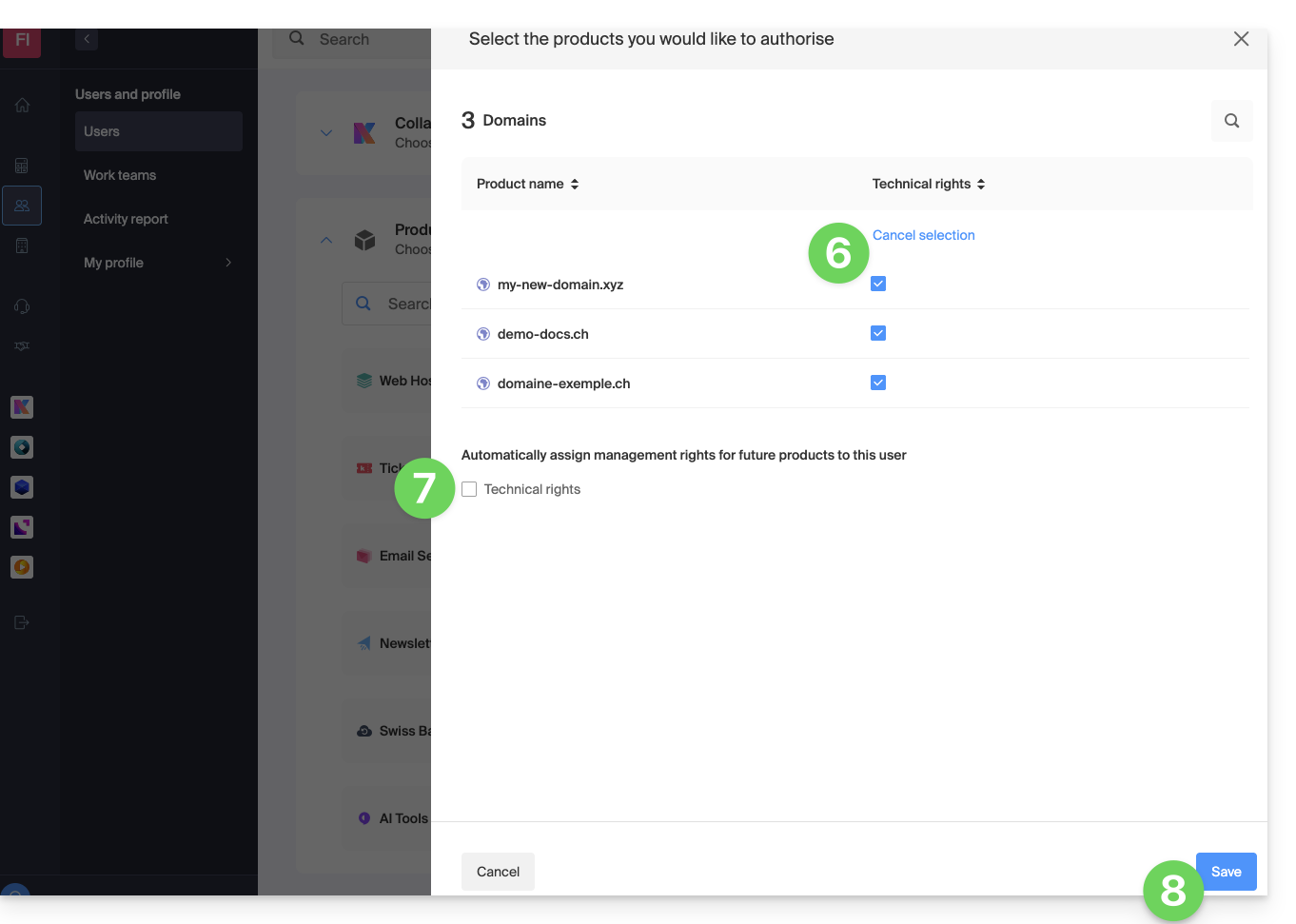
- Select the product(s) you need.
- If you have selected multiple products, decide whether a future additional product should automatically be visible to the user (and with what type of permissions❓: help).
- Click the Save button:
- Permissions are granted immediately.
- Click on the pencil ✎ icon to modify the permissions:
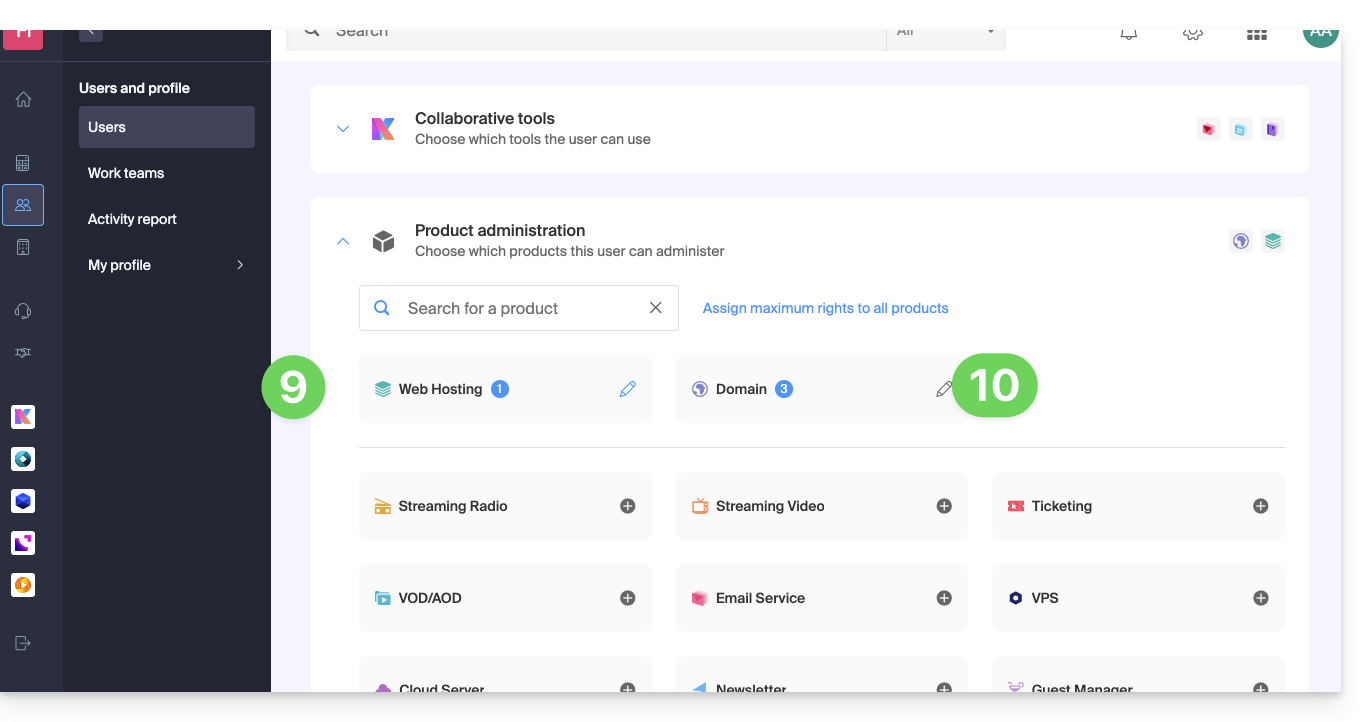
- If you need to grant access to multiple products, start again from step 5.
Using the service / Managing the service
Please note that in the product table, it is important to distinguish between access to the products (e.g., kDrive within kSuite) and access to product management: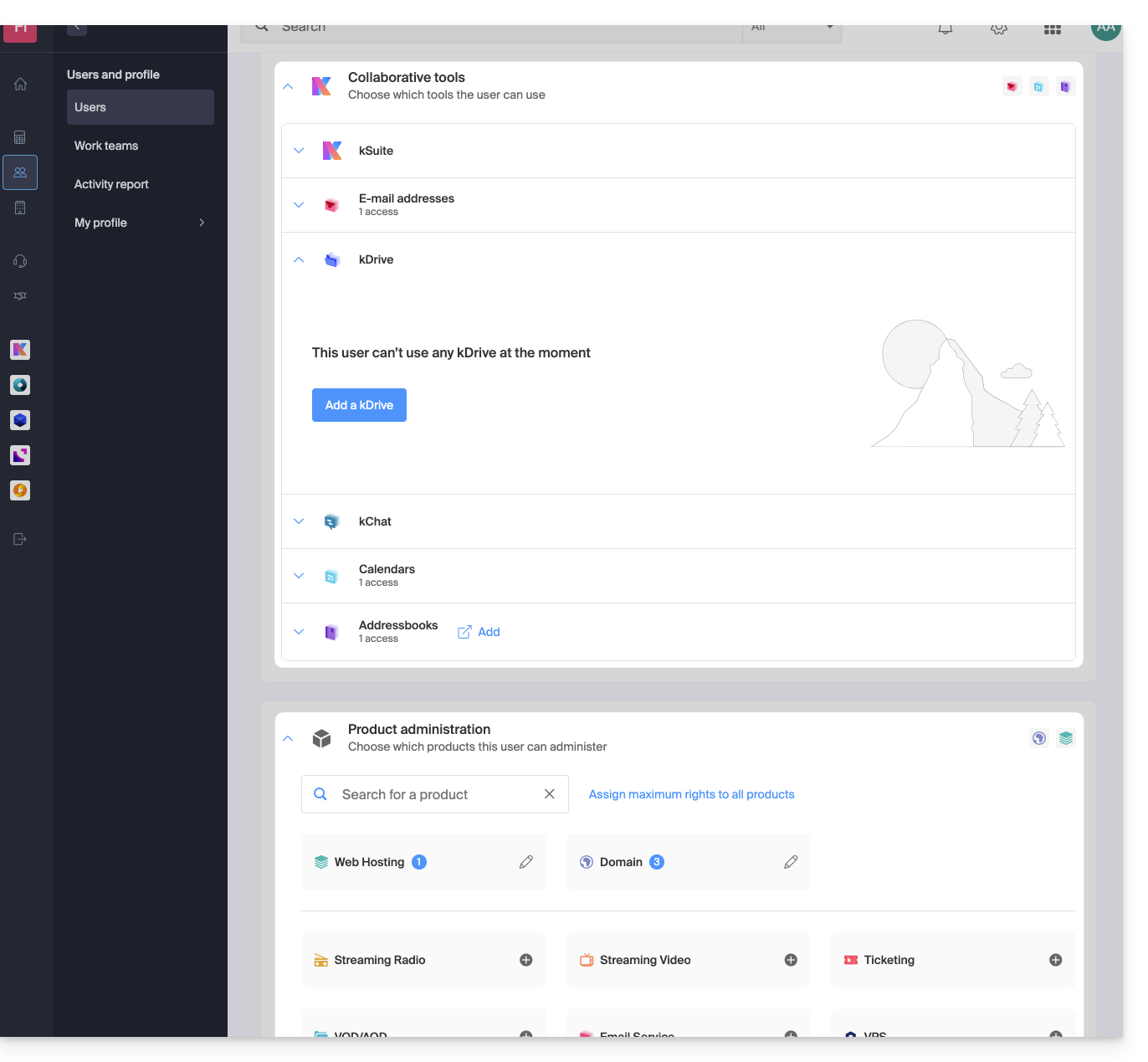
It is possible to authorize a user to use kDrive (e.g., create a PDF) without granting them management rights for the kDrive service (they will not be able to change the plan, invite a new user, cancel, etc.).
Technical rights / Statistical rights
With certain services like kDrive, it is possible to grant a collaborator TECHNICAL and/or STATISTICAL rights (adds access to the dashboard, sharing links, storage statistics, active users, connected devices, activity on the kDrive):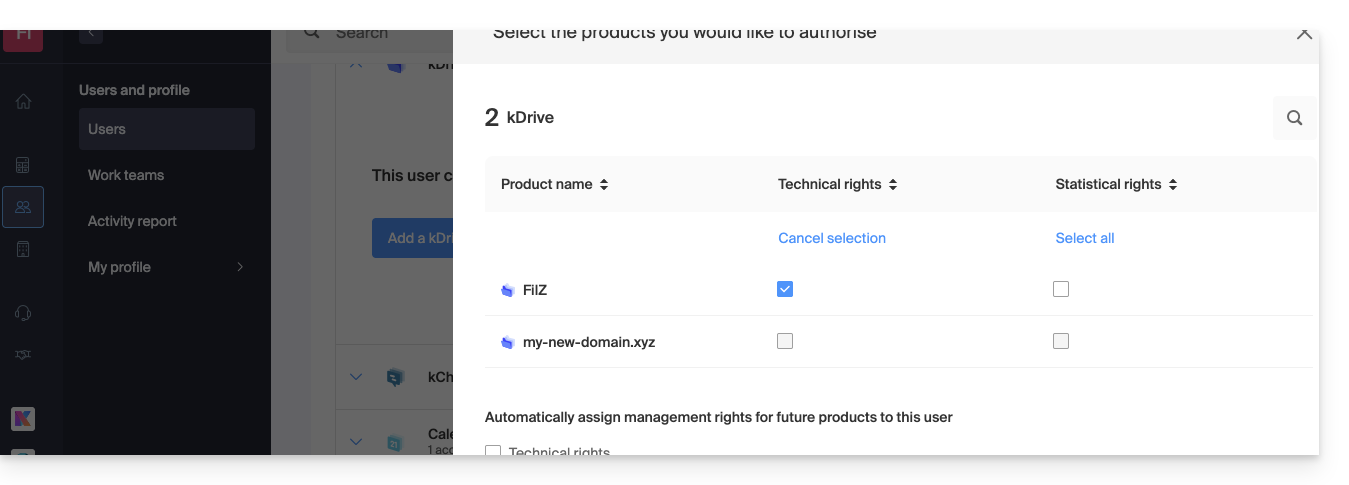
Other services, such as domain names, do not have a STATISTICS section: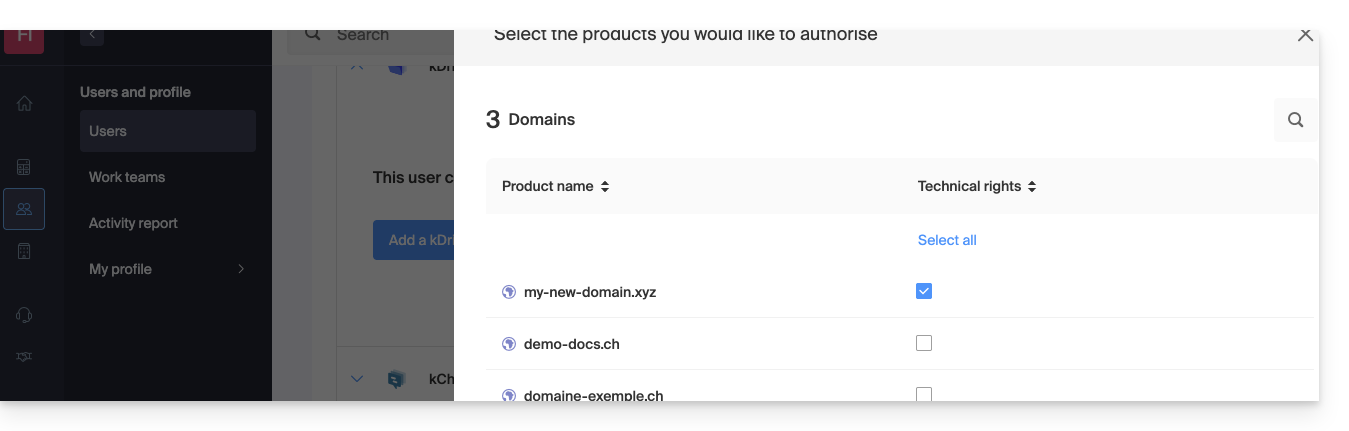
Some specific services, such as ticketing, allow for even more detailed permissions: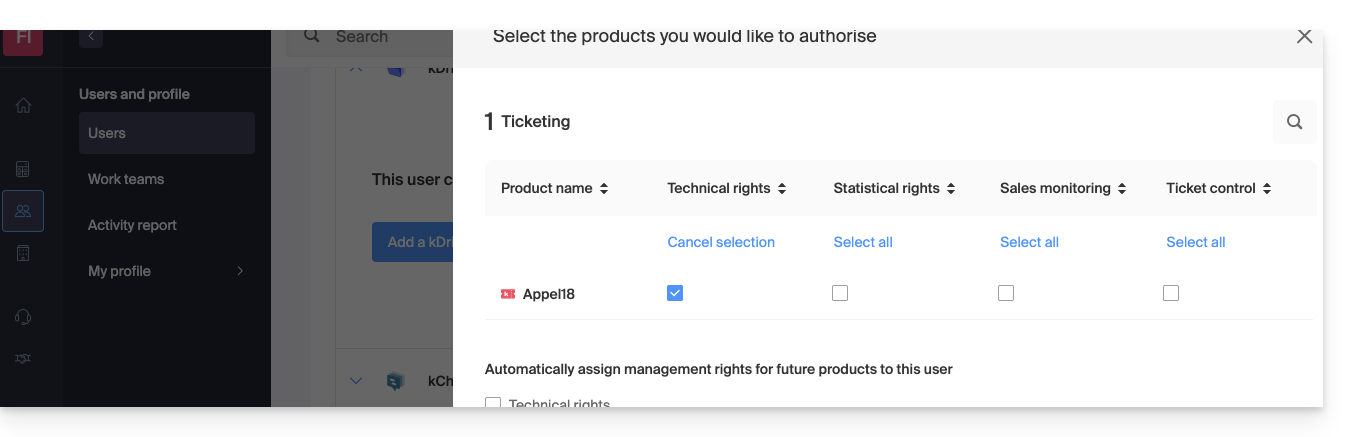
Easy Access: Groups
To simplify the process of adding access rights to a product within your Organization, there are Groups (❓: help). These allow you to create teams that are linked to Infomaniak products with the desired rights, which is very useful for granting a new member of your Organization access to the products they will need in their daily work.
Link to this FAQ: https://faq.infomaniak.com/1610
Has this FAQ been helpful?