Knowledge base
1000 FAQs, 500 tutorials and instructional videos. Here, there are only solutions!
Import contacts into Infomaniak Contacts
This guide explains how to import contacts into the address books of the Infomaniak Web app Contacts (online service ksuite.infomaniak.com/contacts).
Introduction
- An assistant facilitates the import of contacts from various sources, such as Outlook, macOS address books, Thunderbird, Gmail, etc.
- Import can be done using a file in
VCARDorCSVformat. - The file must not exceed 50 MB and must not contain more than 10,000 lines.
Import contacts
To do this:
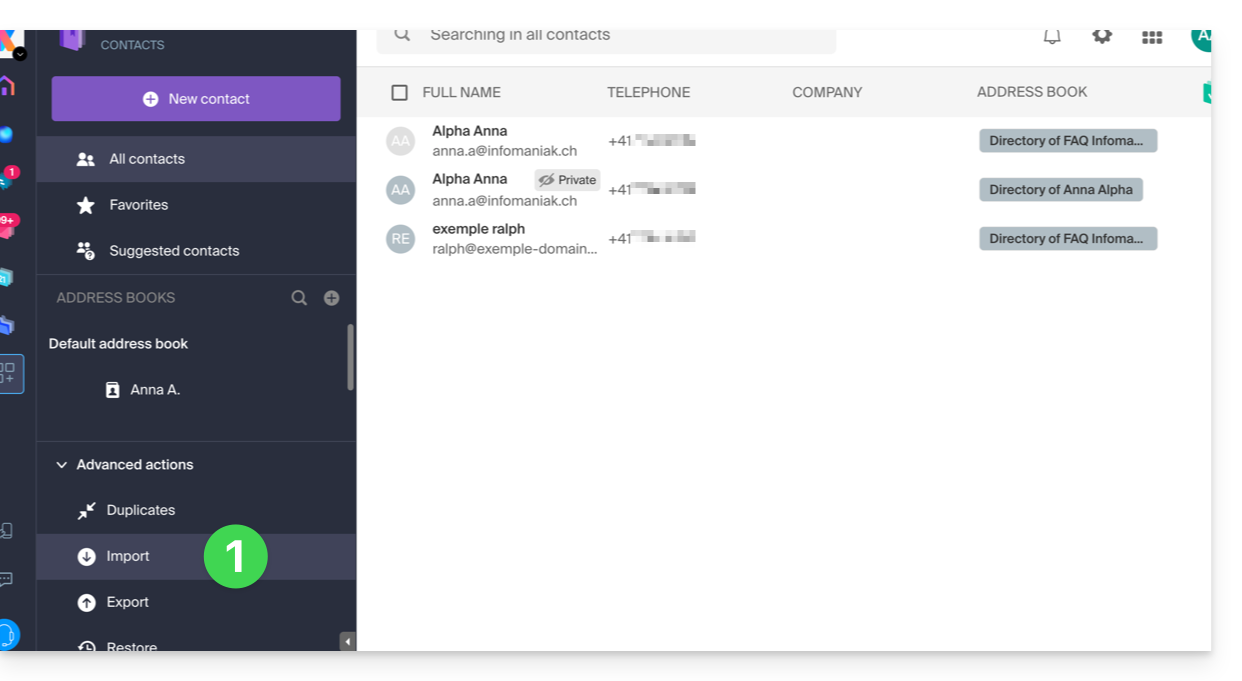
- Click here to access the Import section of the Infomaniak Web app Contacts (online service ksuite.infomaniak.com/contacts):
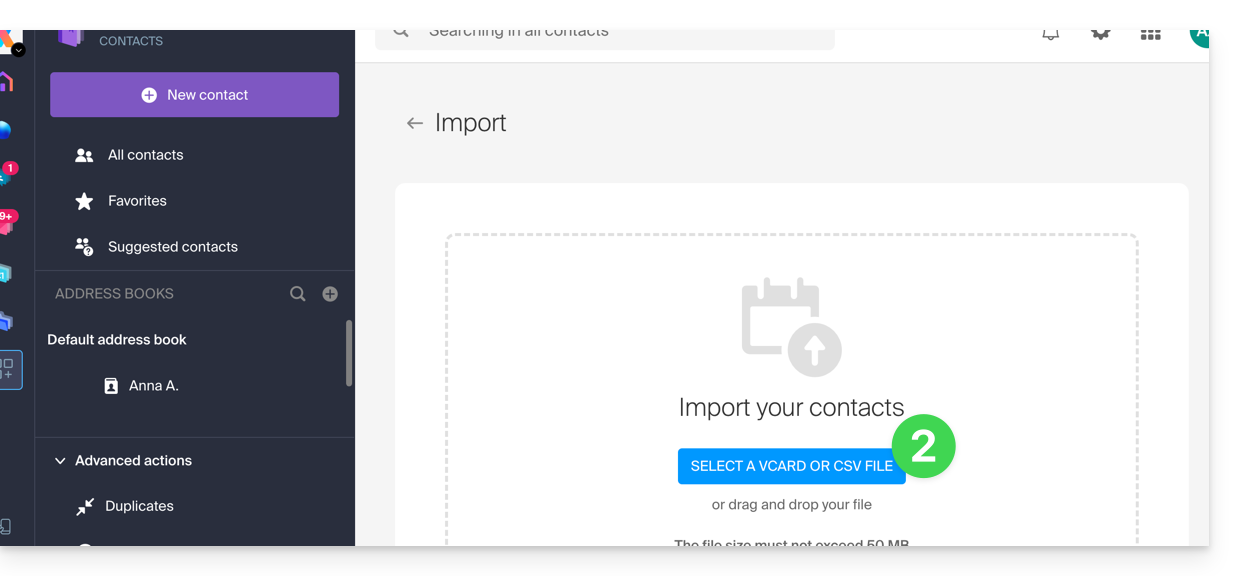
- Click on the blue Select a VCARD or CSV file button:
Import from a vCard (.vcf) file
The content of a contacts export in vCard format looks like this:
BEGIN:VCARD
VERSION:3.0
FN:John Smith
N:Smith;John;;;
EMAIL;TYPE=INTERNET:john.smith@example.com
TEL;TYPE=CELL:+41791234567
ORG:Example Ltd
END:VCARD
BEGIN:VCARD
VERSION:3.0
FN:Jane Miller
N:Miller;Jane;;;
EMAIL;TYPE=INTERNET:jane.miller@example.com
ORG:Freelance
END:VCARD
...
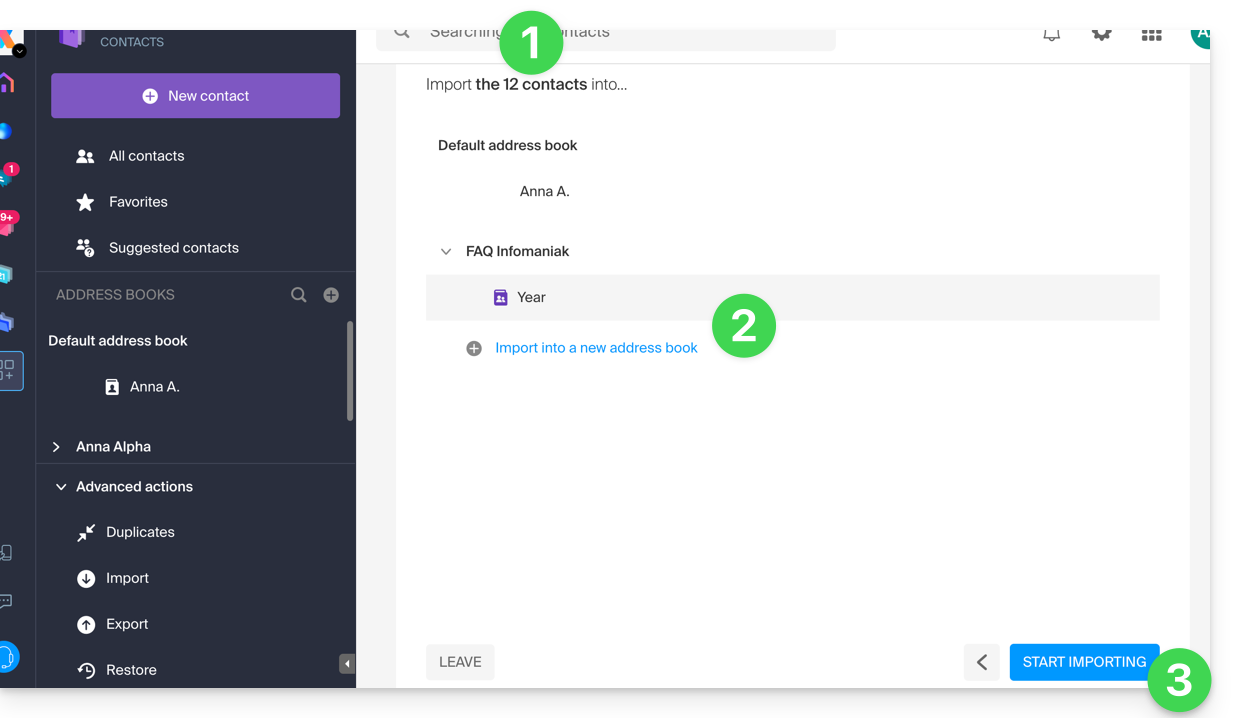
When you select your .vcf file in the import tool, here are the next steps:
- The assistant indicates the number of contacts detected in your file.
- Choose an address book (or create a new one) to store your contacts.
- Click the button to start the import:
Import from a CSV file (.csv)
The content of a contacts export in CSV format looks like this:
Name,First name,Email,Phone,Organization,Notes
Smith,John,john.smith@example.com,+41791234567,Example Ltd,VIP customer
Miller,Jane,jane.miller@example.com,,Freelance,
Brown,Mark,,+41792345678,,Former colleague
Taylor,Sarah,sarah.taylor@example.com,+41793456789,City Hall,
Wilson,Lucas,lucas.wilson@example.com,,,Quote request in March
Moore,Elise,,+41794567890,BioShop,
Walker,Thomas,thomas.walker@example.com,+41795678901,InnoTech,Python expert
Young,Julie,julie.young@example.com,,,
...
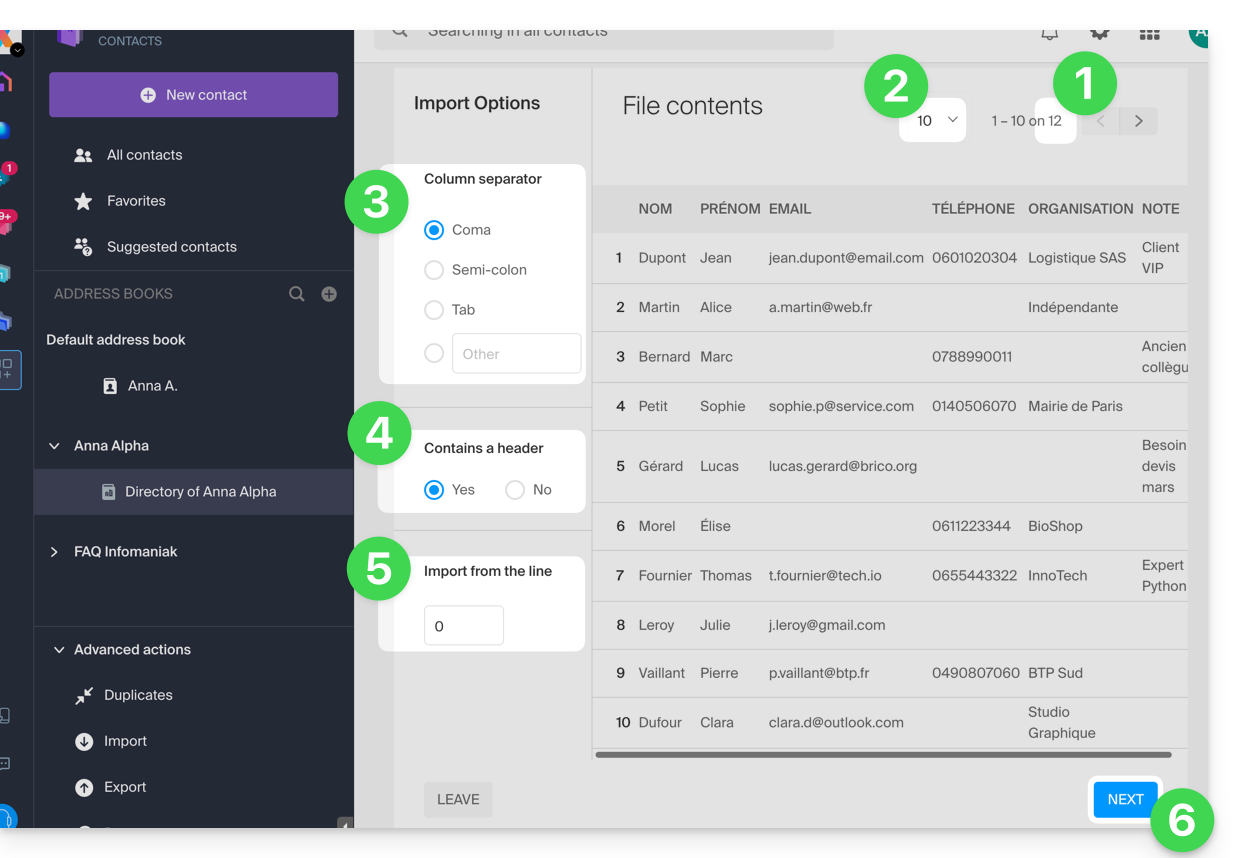
When you select your .csv file in the import tool, here are the next steps:
- The assistant indicates the number of contacts detected in your file.
- You can increase the number of contacts displayed per page, which allows you to better preview them in their entirety if needed.
- Choose the separator used to delimit the information in your text file.
- Specify whether the file containsFirst row without contact information (only column headers).
- Specify if you want to import contacts starting from a specific row.
- Click the button to continue:
- Assign the information detected in the file to each contact using the available fields in your address book:
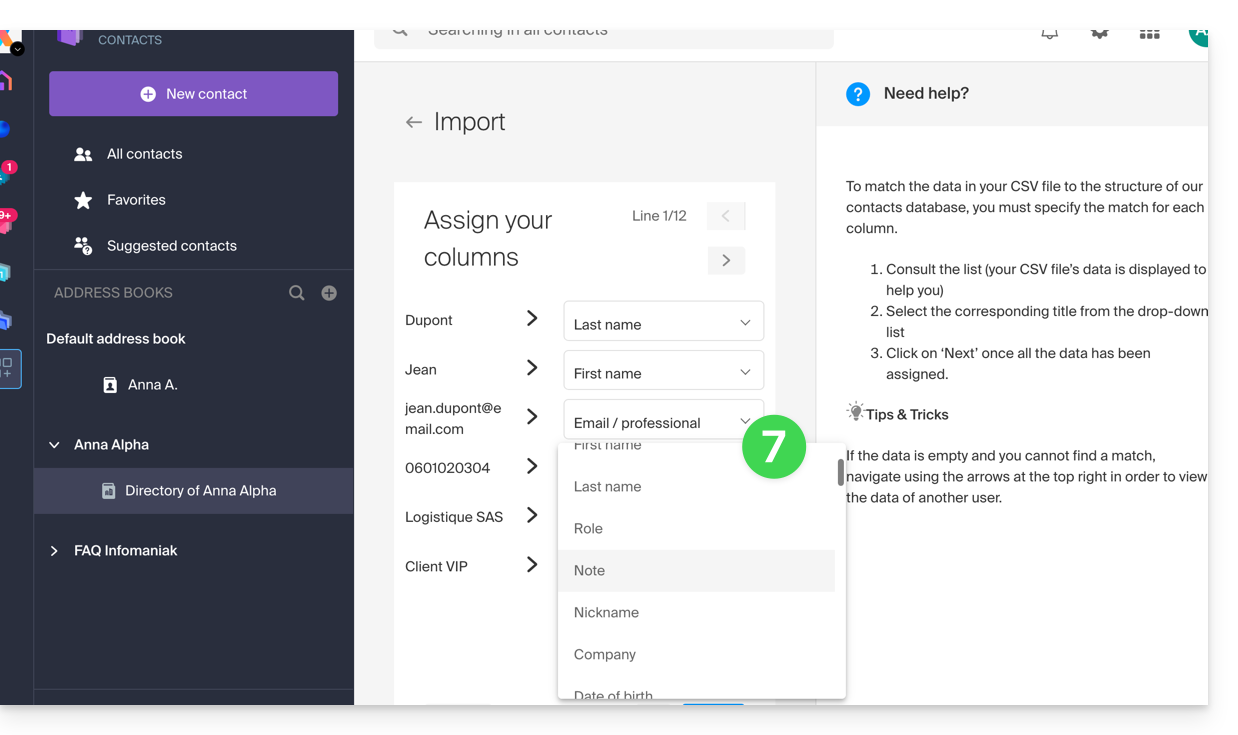
- Browse the contacts to import and specify any additional fields if necessary.
- Go back to check the impact of your changes, then click the button to continue:
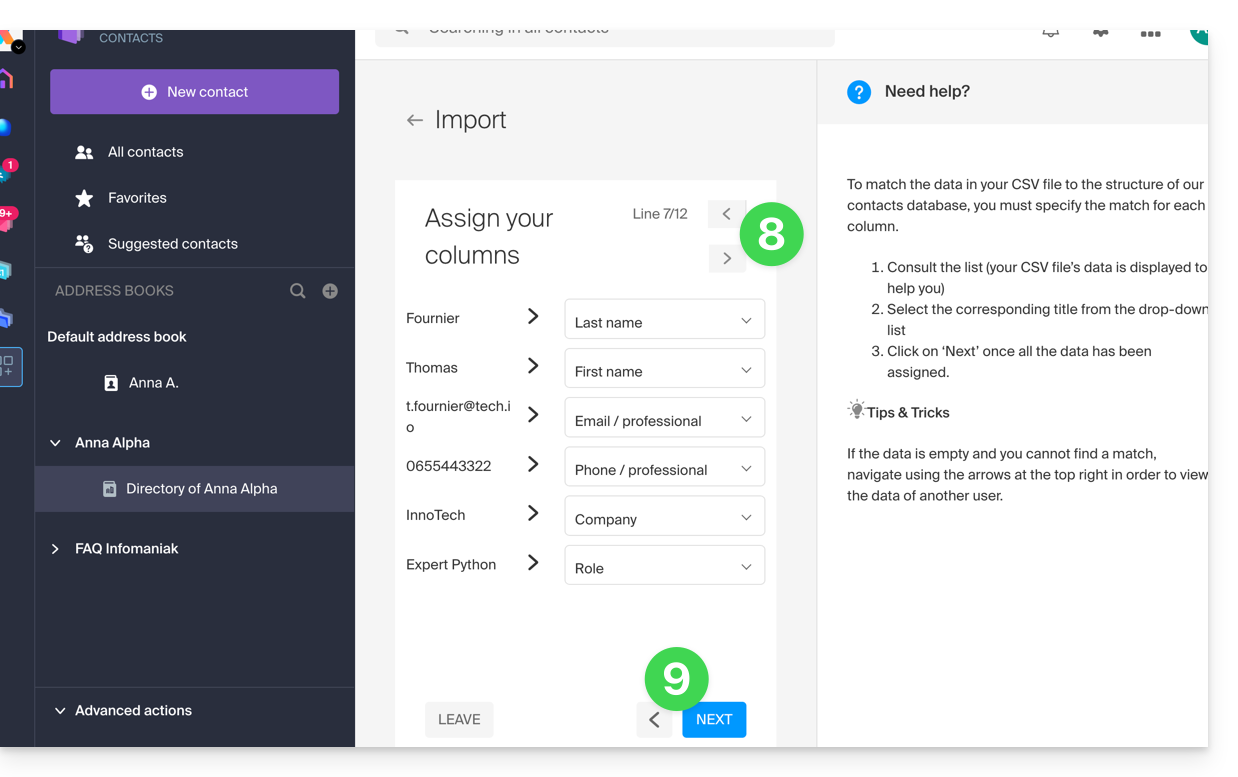
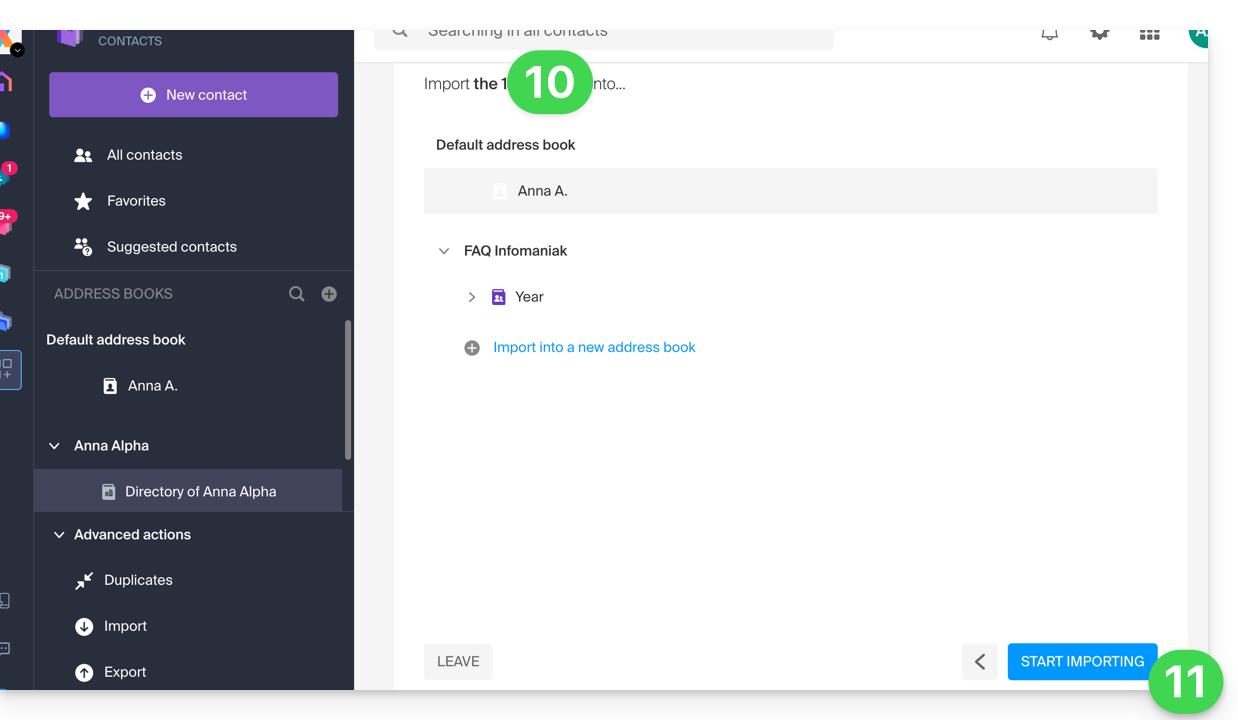
- Choose the address book (or create a new one) to store your contacts.
- Click the button to start the import:
Imported contacts
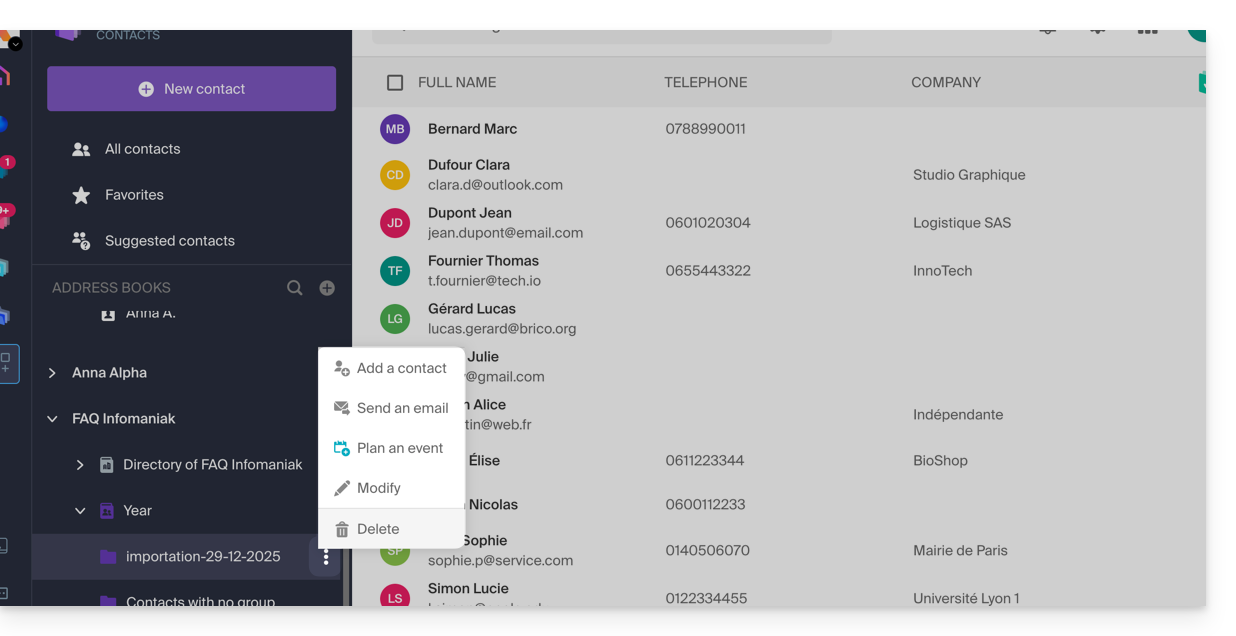
The contacts are imported into the specified location, within a group. If necessary, you can delete this folder, which was created for this purpose (this will not delete the contacts unless you enable this option when deleting the folder):
- Click on the action menu ⋮ located to the right of the name of the group created with the import date.
- Click on Delete:
In case of a problem
- Complete the contact details:
- A contact containing only the first and last name may be ignored by the system for security reasons.
- Make sure that at least one additional piece of information is present (email address or phone number).
- Check the header of your (CSV) file:
- The columns must be clearly named (e.g., "Name", "First Name", "Email").
- If the headers are missing or incorrect, the system will not be able to read the data.
- Data format:
- Check that phone numbers do not contain unusual special characters and that email addresses are spelled correctly (presence of the
@and the period).
- Check that phone numbers do not contain unusual special characters and that email addresses are spelled correctly (presence of the
- File encoding:
- For optimal results, save your CSV file in UTF-8 format; this ensures that accents and special characters are displayed correctly.
If you need to export them from...
... Outlook (older version)
- From your Outlook software, go to your address book.
- Select the contacts to export.
- In Actions, click Transfer as vCard.
- Send the email containing the vCard.
- Retrieve the email in the Infomaniak Mail web app (online service ksuite.infomaniak.com/mail).
- Click on Add all contacts.
... macOS (or refer to this other guide)
- In your Contacts application, go to File and select Export.
- Choose Export vCard.
- Save your vCard file to your computer.
... Thunderbird (or refer to this other guide)
- From your Thunderbird software, go to Window and select Address Book.
- In Tools, select Export.
- In the save options, choose Comma-separated as the format.
- Save your CSV file.
... Gmail (or refer to this other guide)
- From your Gmail interface, go to the Contacts section.
- Click the Export button.
- Select vCard format.
- Save your vCard file to your computer.
... Office 365 (or consult this other guide)
- From your Outlook software, go to the Contacts section.
- Click on Manage and choose Export.
- Save your CSV file to your computer.
... Yahoo Mail: refer to this other guide
... Proton Mail: check out this other guide
... Bluewin: check out this other guide
Refer to this other guide to import other data.
Link to this FAQ: https://faq.infomaniak.com/1599
Has this FAQ been helpful?