Knowledge base
1000 FAQs, 500 tutorials and instructional videos. Here, there are only solutions!
Create a business card to share from the Infomaniak Mail mobile app
Update 10/13/2026
This guide explains how to create and share a digital business card (QR code) containing your contact details and social media links from the Infomaniak Mail app (iOS / Android).
Create the QR code and share it with your contacts
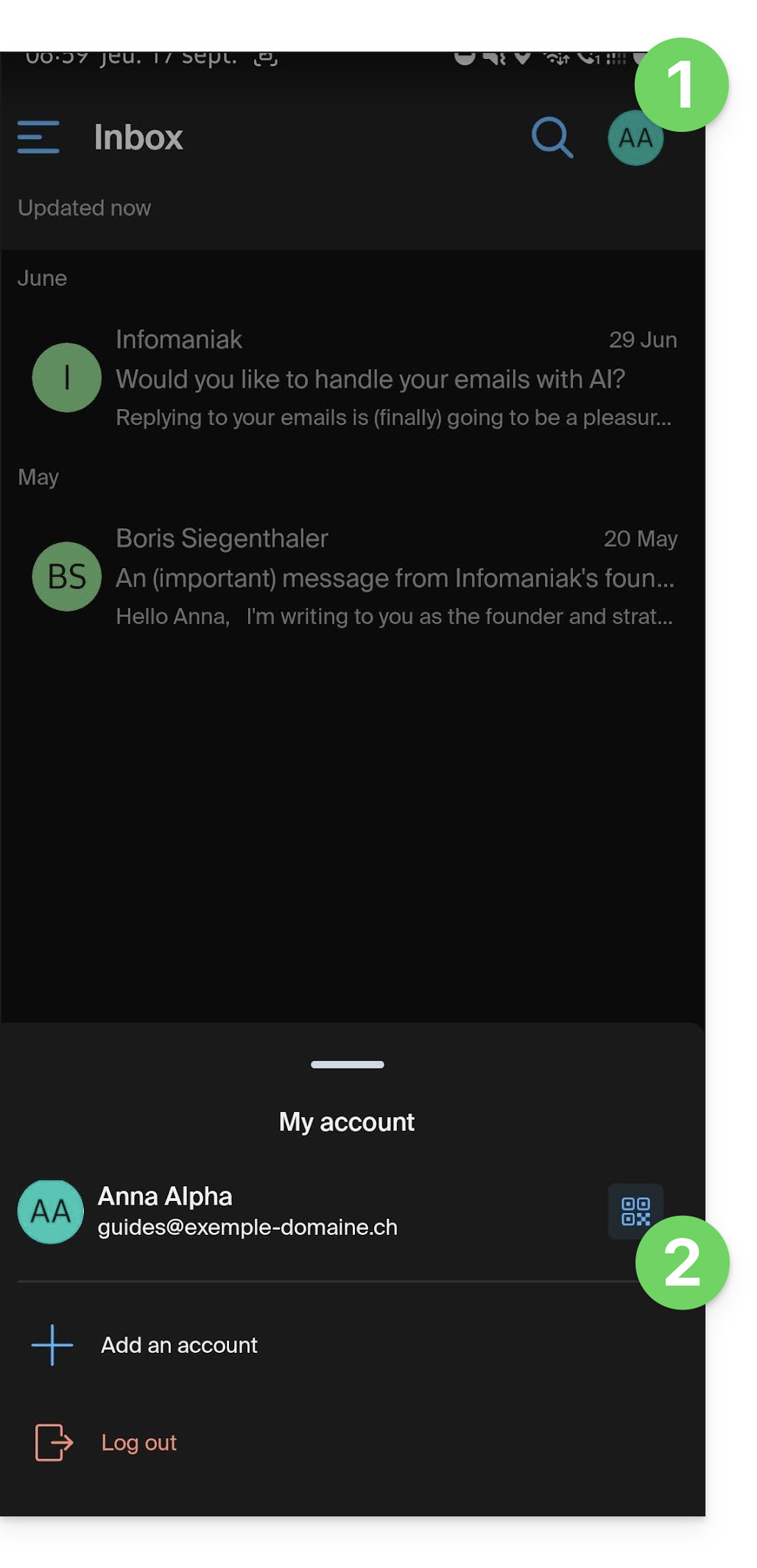
To access the QR code feature in the Infomaniak Mail app on your device:
- Click on the badge with your initials / avatar in the top right corner of the app.
- Click to the right of your Infomaniak account name in the bottom menu:
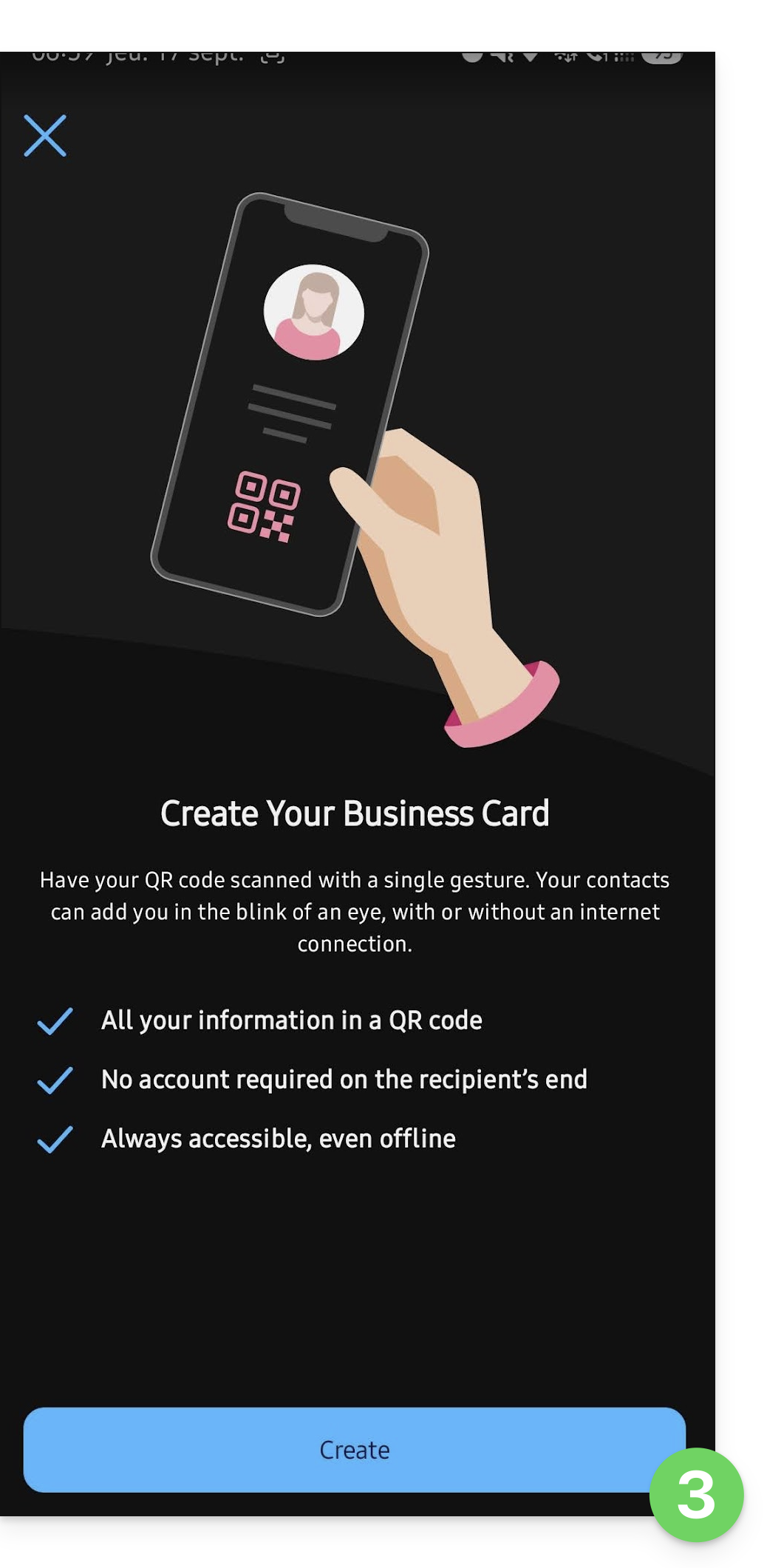
- The first time you use it, a screen will introduce you to the feature; click the button to start creating your business card:
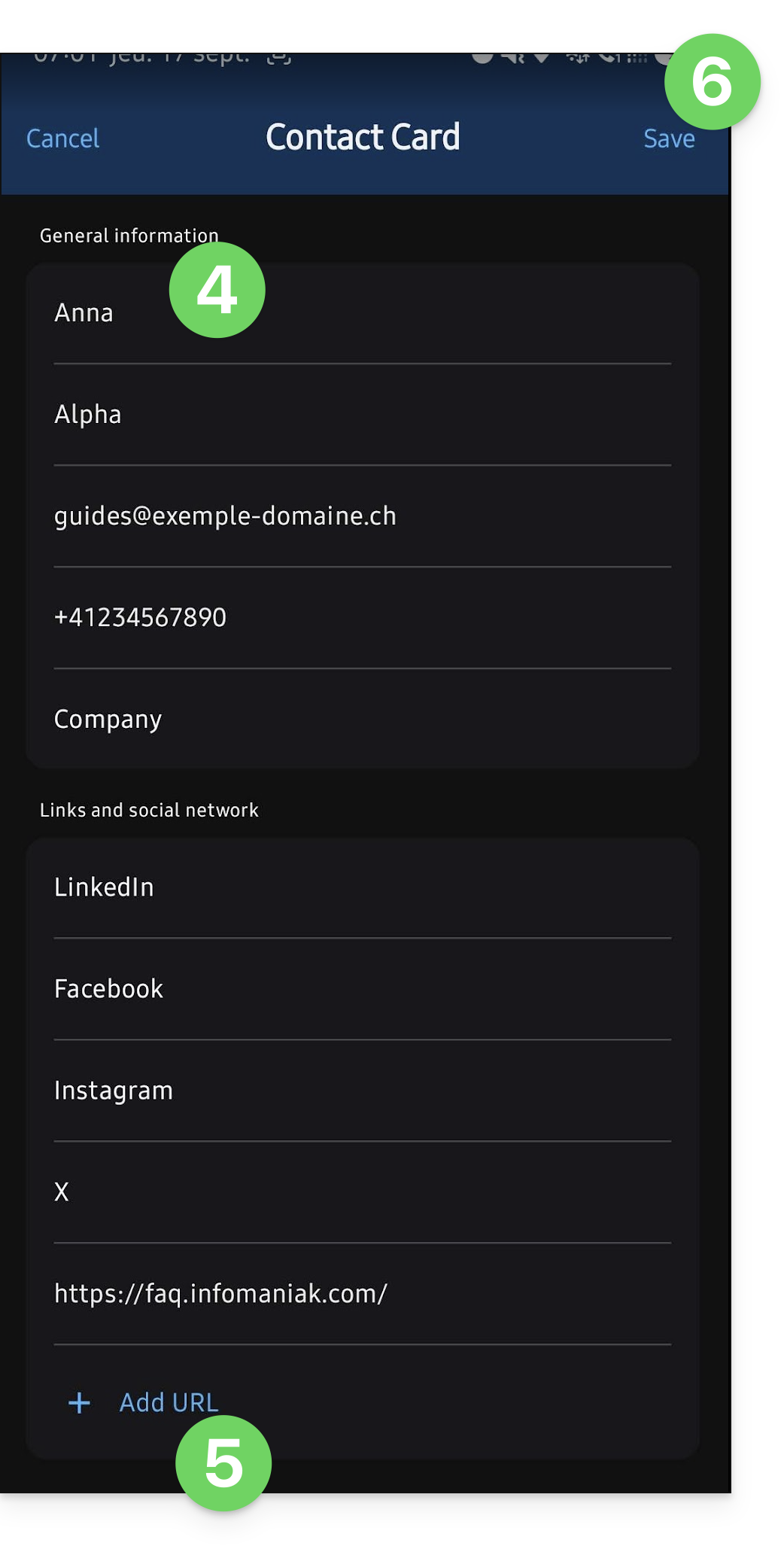
- Enter the information you want to display on your contact details page.
- If necessary, add other links to include (website, social media).
- Save your contact card by clicking Save:
- The QR code appears and can be scanned directly by another device to save the associated contact card.
- This contact information can be sent via other means by clicking on the Share button.
- The
.vcfformat, which works on the same principle as, for example, exporting contacts, is automatically recognized by contact management applications: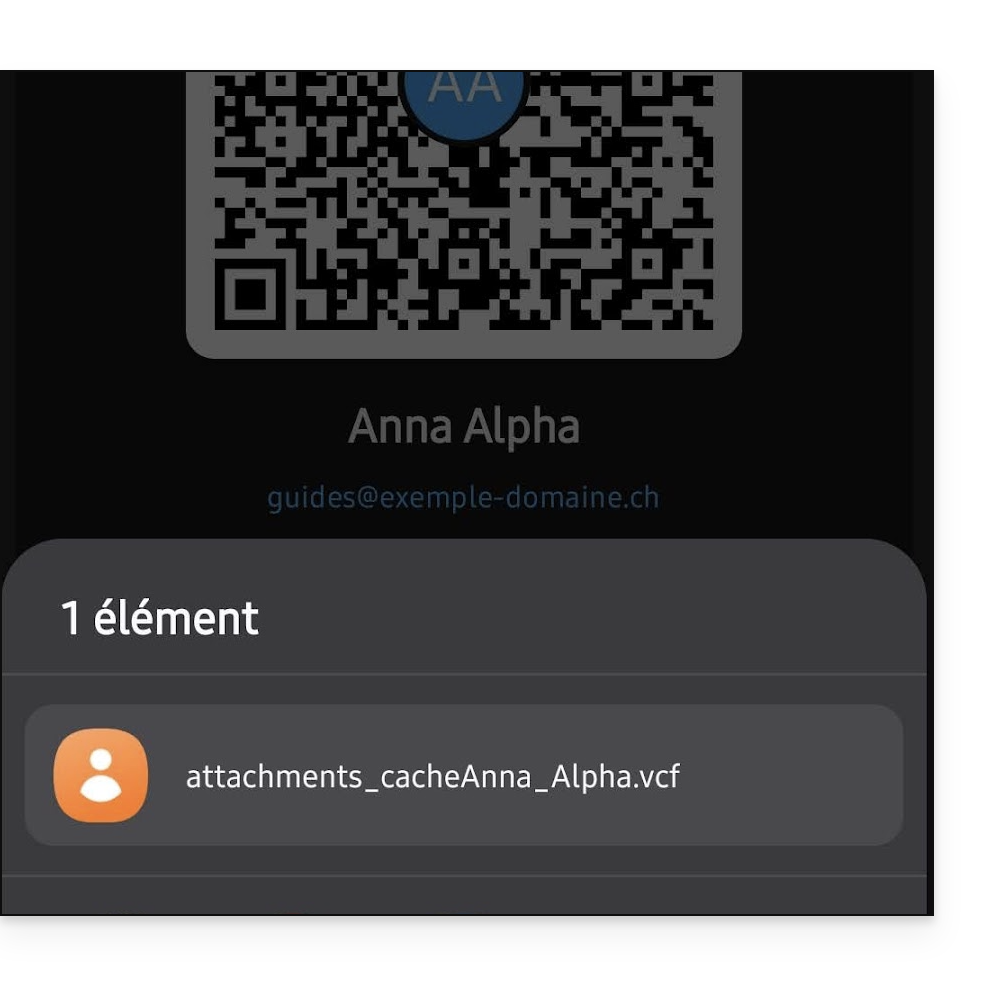
- The
- You can edit your information at any time from the action menu ⋮ in the top right corner:
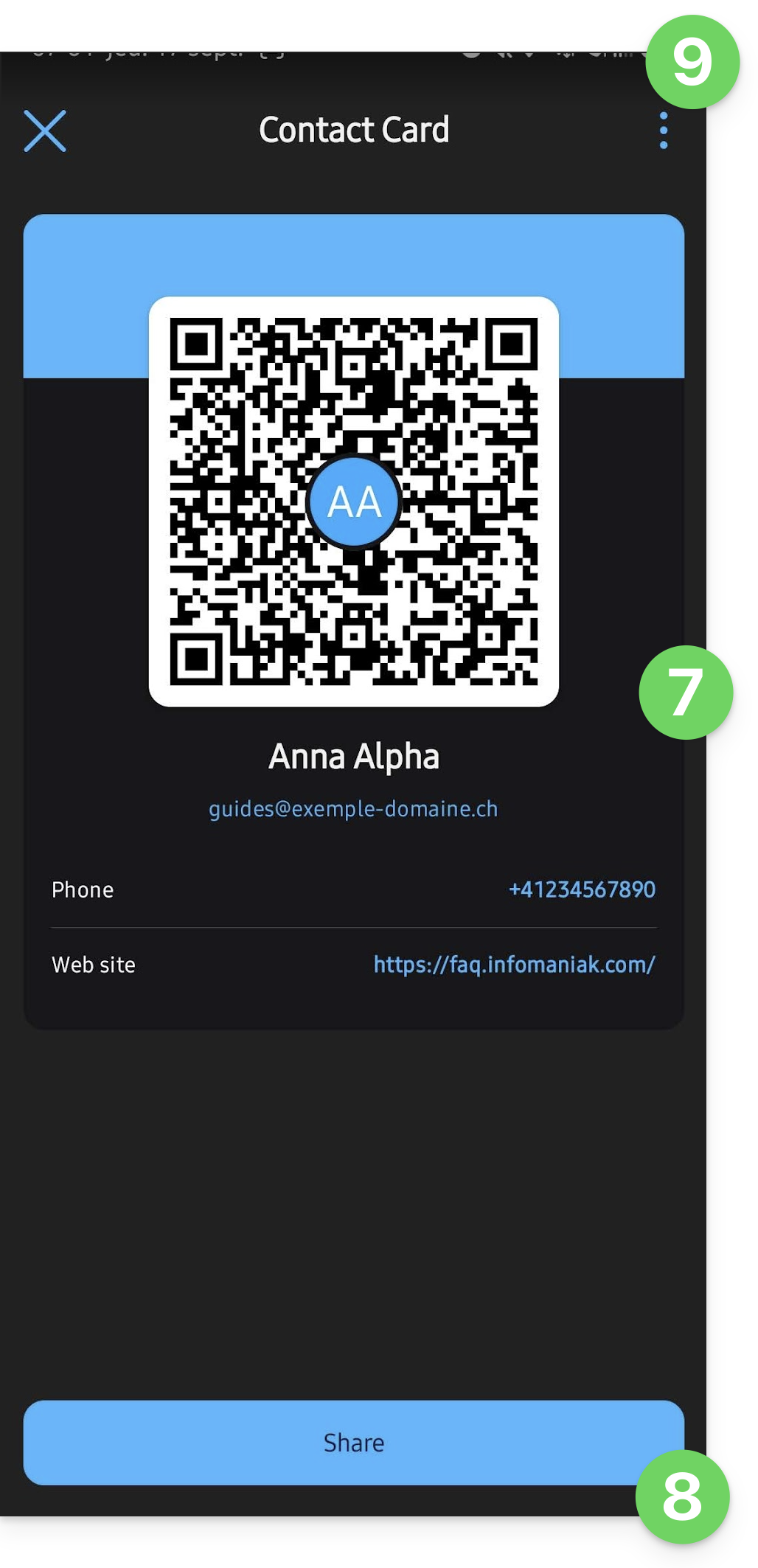
- Now, to display the generated QR code directly, follow steps 1 & 2 above.
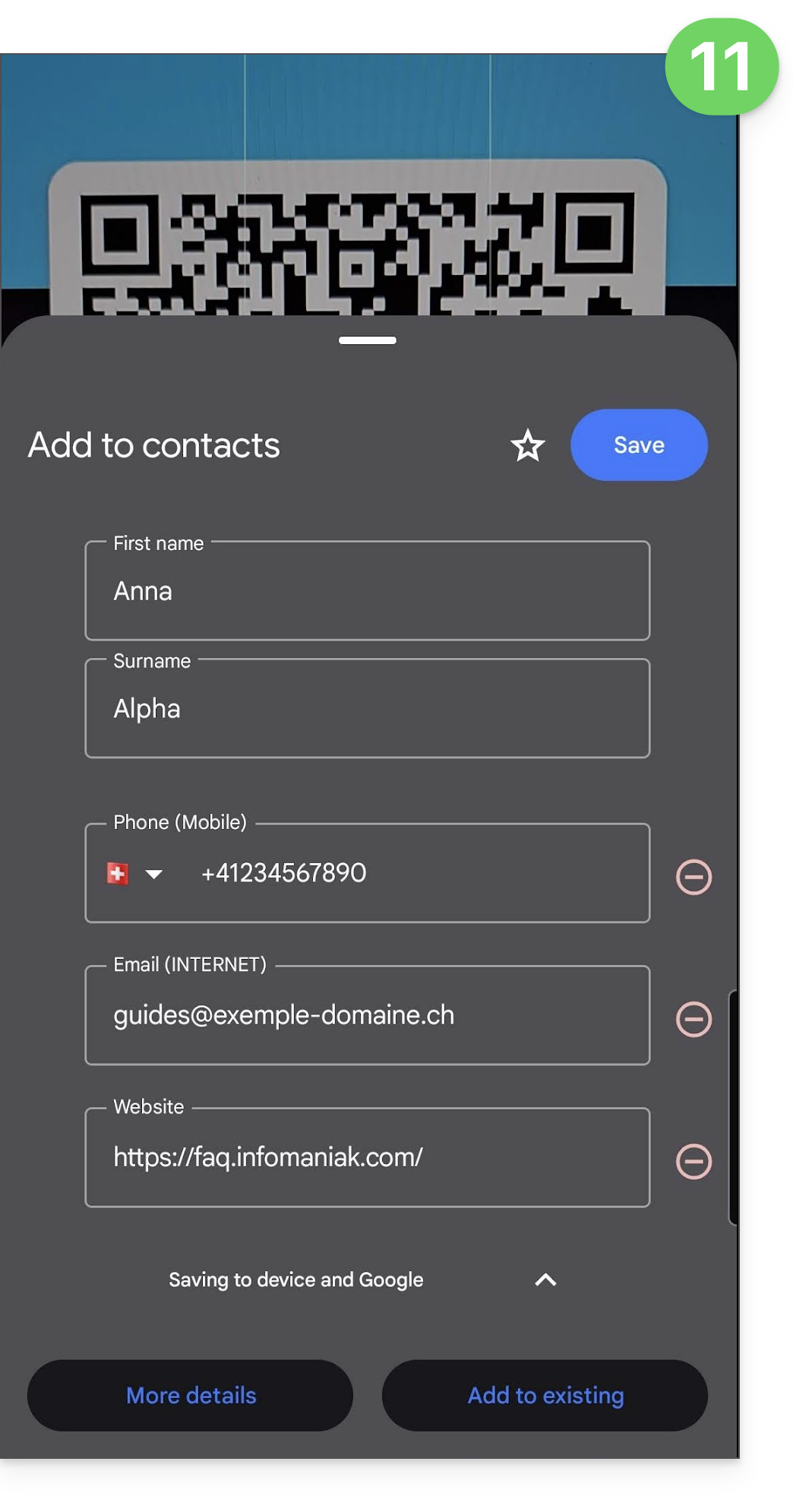
- The person scanning the QR code can directly save your contact information to their device:
Link to this FAQ: https://faq.infomaniak.com/1584
Has this FAQ been helpful?