Knowledge base
1000 FAQs, 500 tutorials and instructional videos. Here, there are only solutions!
Secure an email sending with an encryption key
This guide for the Infomaniak Mail web app (online service ksuite.infomaniak.com/mail) or the Infomaniak Mail mobile app (application for iOS/Android smartphones or tablets) explains how to enable encryption for emails sent from the Infomaniak web and mobile services.
Introduction
- When encryption is enabled, emails and attachments are encrypted as soon as they are received on Infomaniak servers, using the public keys of the senders and recipients.
- Each email address generates a key the first time it is used, which is stored securely in Infomaniak's data centers.
- The keys are based on elliptic-curve cryptography (ECC) and use the OpenPGP standard.
- They are themselves encrypted in AES-256-GCM with automatic decryption via Infomaniak authentication.
- In search results, only the subject of encrypted messages will be visible, while their content will remain secure during storage.
Enable email encryption…
… from the Infomaniak Web Mail app
To automatically encrypt a message sent to an email address:
- Click here to access the Infomaniak Mail web app (online service ksuite.infomaniak.com/mail).
- Compose a new message as usual.
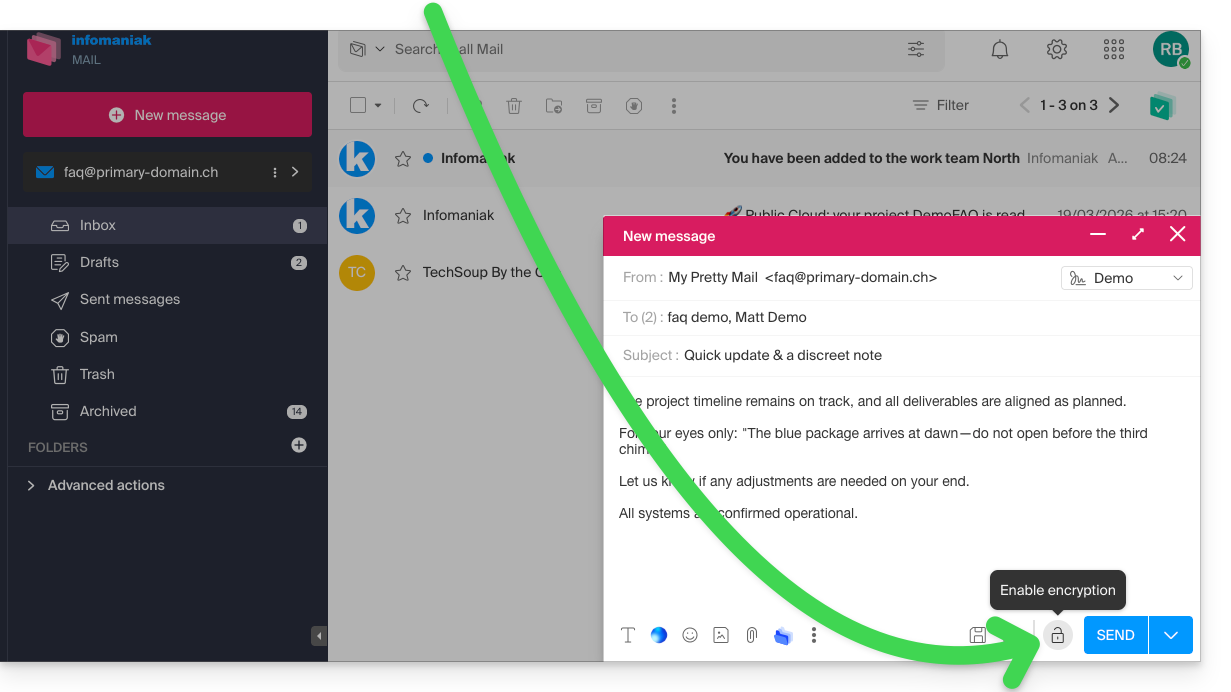
- Click on the lock icon to the left of the Send button to enable encryption:
- Confirm the action if a confirmation window appears.
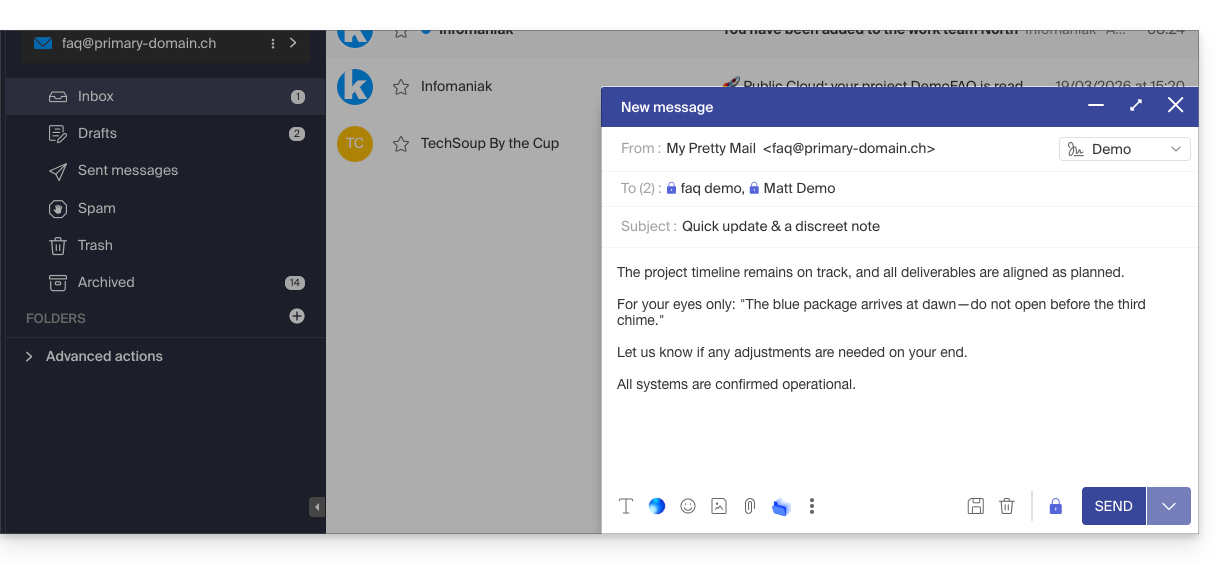
- The icon now represents a closed padlock, and the overall color has been changed:
- Click the Send button.
This action must be performed each time you send a new email.
A. Recipient whose email is managed with Infomaniak
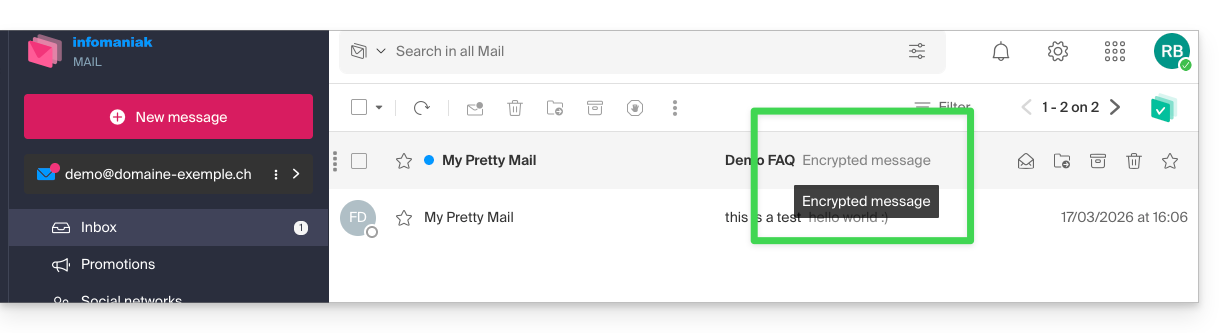
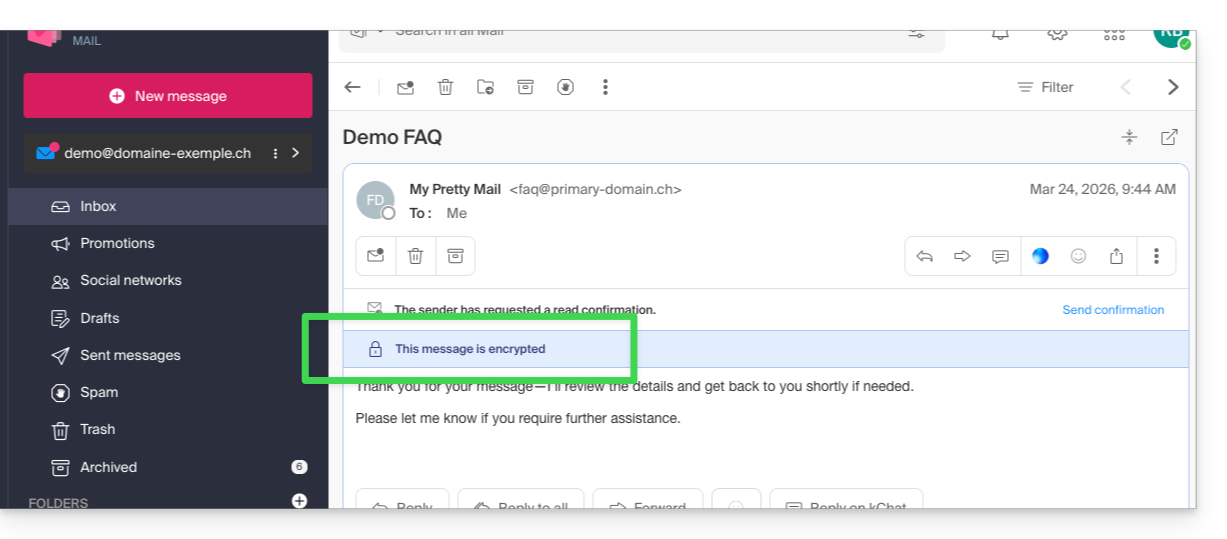
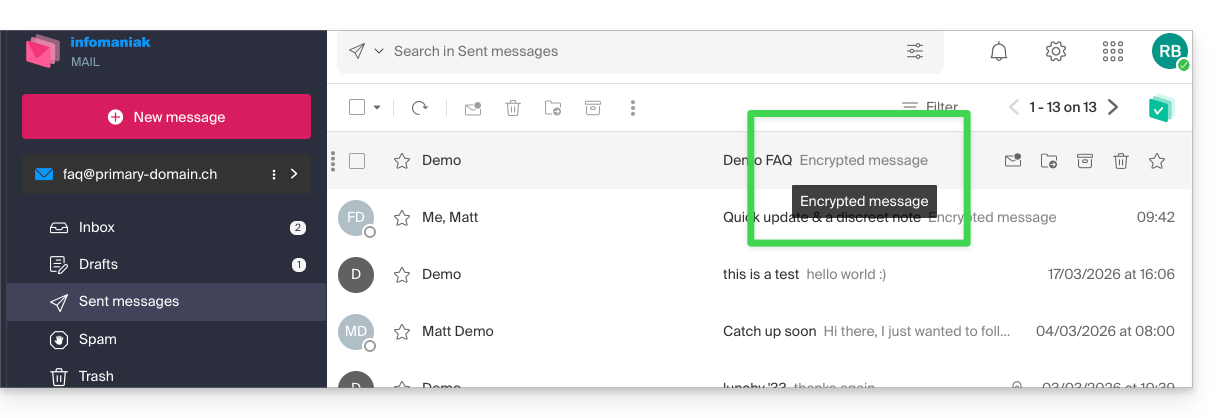
If the recipient of the encrypted email has an email address managed with Infomaniak, the encryption process is completely transparent for both the sender and the recipient. A notification will indicate that the message is encrypted…
- … in the recipient's inbox:
- … when opening the received message:
- … and in the folder containing messages sent by the sender:
B. External recipient
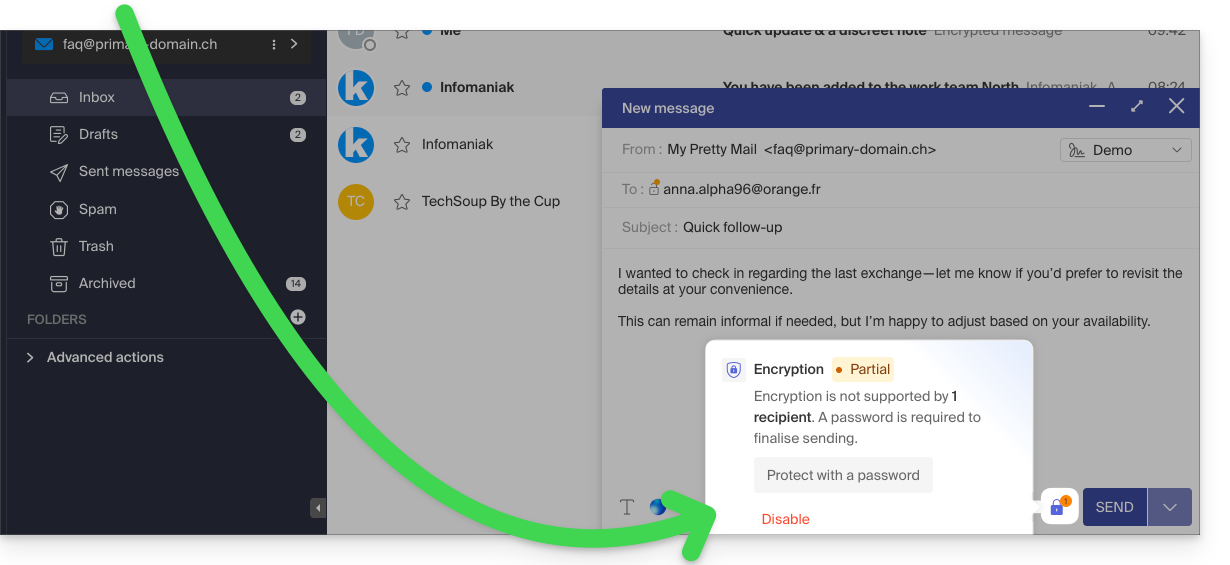
If the recipient of the encrypted email has an email address managed outside of Infomaniak's services, encryption is still possible, but it requires setting a password:
- Click here to access the Infomaniak Mail app (online service ksuite.infomaniak.com/mail).
- Compose a new message as usual, but address it to an email address outside of Infomaniak.
- Click on the lock icon to the left of the Send button to enable encryption.
- A modal window will open, allowing you to create a password:
- Enter a password and copy it to send it to the recipient using your own means (kPaste for example) (you can agree on a password in advance so that the recipient is already informed):
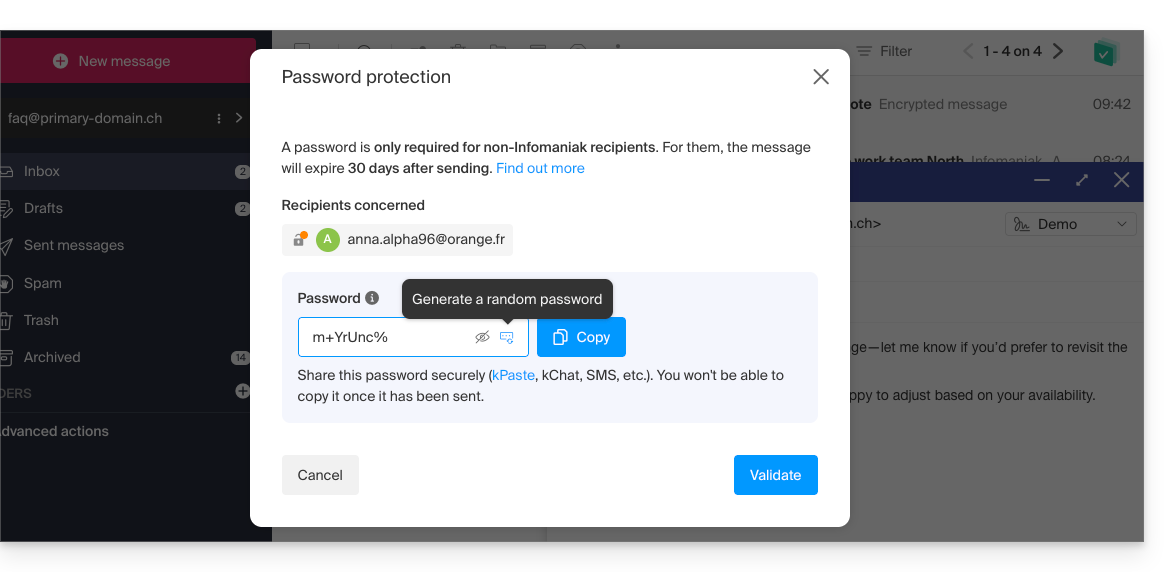
- Enter a password and copy it to send it to the recipient using your own means (kPaste for example) (you can agree on a password in advance so that the recipient is already informed):
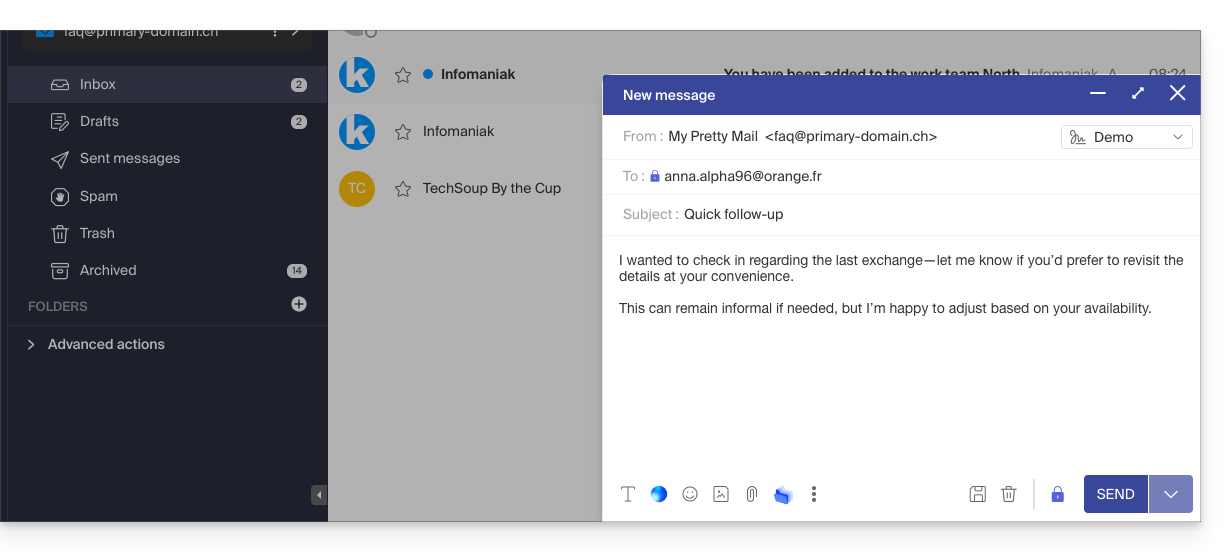
- The icon now represents a closed padlock without the orange chip, and you can send the email as usual:
- Recipients will then receive a message informing them that an encrypted email is waiting for them:
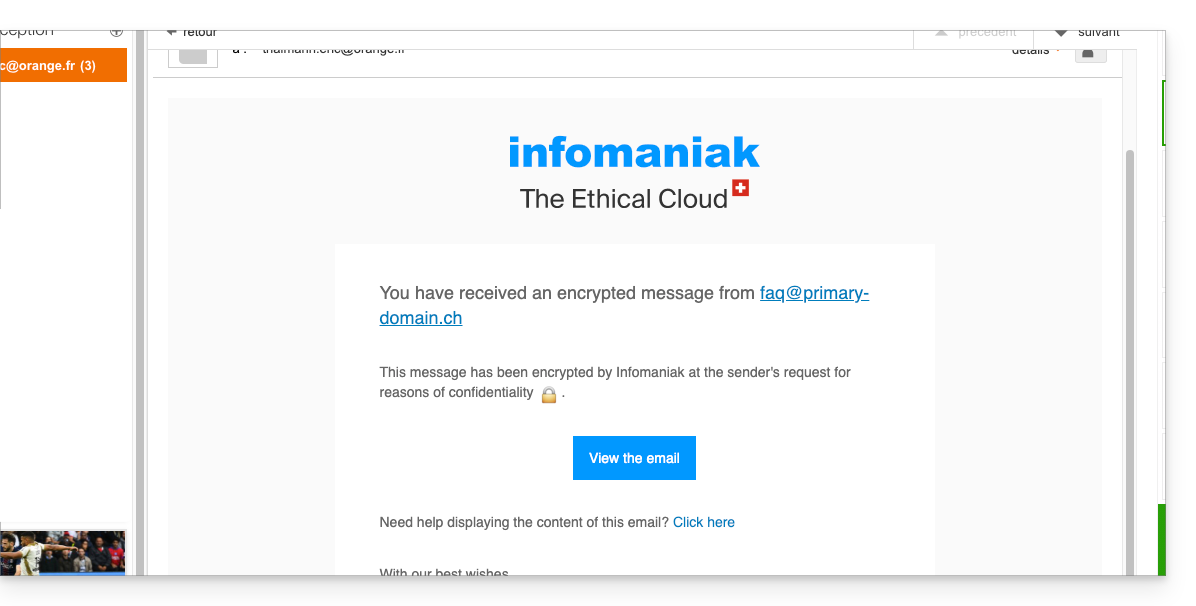
- By clicking on the provided button, they will be redirected to a secure web page where the password must be entered.
- Once the password has been validated, the encrypted message can be viewed on the same page, valid for 30 days.
… from the Infomaniak Mail mobile app
To automatically encrypt a message sent to an email address:
- Open the Infomaniak Mail mobile app (application for iOS/Android smartphones or tablets).
- Compose a new message as usual.
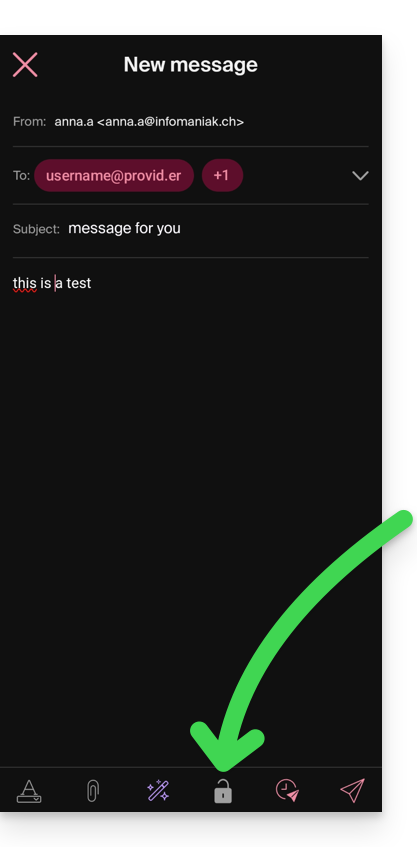
- Click the lock icon at the bottom of the composition window to enable encryption:
A. Recipient whose email is managed with Infomaniak
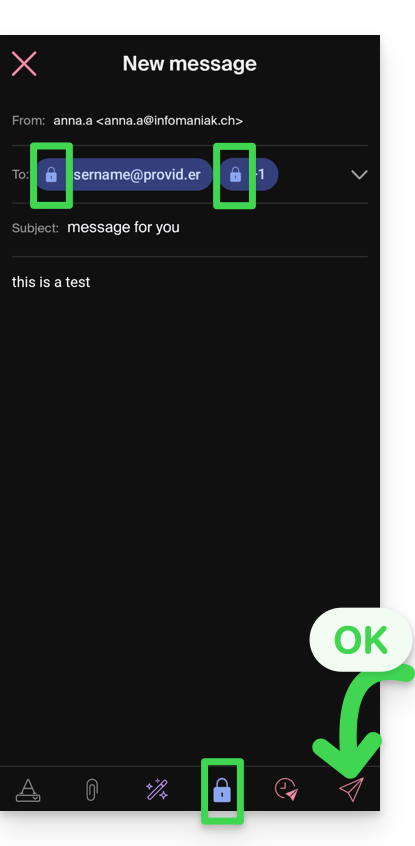
If the recipient of the encrypted email has an email address managed with Infomaniak, the encryption process is completely transparent for both the sender and the recipient:
- Closed padlock icons are displayed on the screen.
- Tap the send icon:
B. External recipient
If the recipient of the encrypted email has an email address managed outside of Infomaniak services, encryption is still possible, but it requires setting a password:
- Sending will not be possible because the send icon will remain grayed out and symbols will appear on the locks:
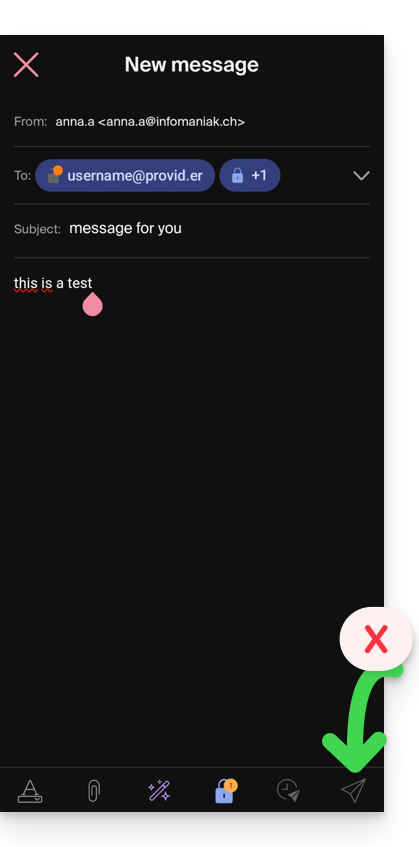
- Tap the padlock icon.
- A modal window will open, allowing you to create a password.
- Use the suggested password or enter a new password and copy it to send it to the recipient using your own means (e.g., kPaste). You can agree on a password in advance so that the recipient is already informed.
- Press the cross in the upper left corner if you have finished managing the password.
- The sending process can now be performed in encrypted mode:
Link to this FAQ: https://faq.infomaniak.com/1582
Has this FAQ been helpful?