Knowledge base
1000 FAQs, 500 tutorials and instructional videos. Here, there are only solutions!
Reply to an email in Mail Infomaniak
Update 10/12/2026
This guide explains how to quickly respond to an email on the Infomaniak Mail web app (online service ksuite.infomaniak.com/mail).
Introduction
- Reactions are not possible if:
- you were a recipient of the message but in the BCC field
- you have already added 5 reactions
- the message has more than 20 recipients and/or is a newsletter or mailing list
- the sender is
no-reply/postmaster/catchall(❓: help) - the message is encrypted or is in spam, drafts, the trash, or scheduled messages (❓: help)
- the message is the one announcing a previous reaction
- It is possible to cancel sending a reaction, even if you have not enabled a cancellation period for sending emails (❓: help).
Send a reaction in the form of an emoji
Prerequisites
- You may not have permission to manage sending: the Mail Service administrator may have removed this right from their admin account (❓: help).
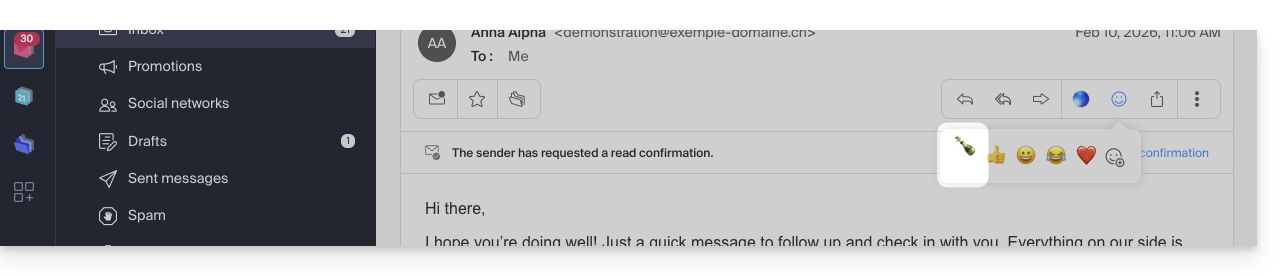
To quickly send an emoji reaction to a received email:
- Click here to access the Infomaniak Mail web app (online service ksuite.infomaniak.com/mail).
- Open the email you want to reply to.
- Click on the “Smiley” emoji in the list of quick actions at the top right of the message:
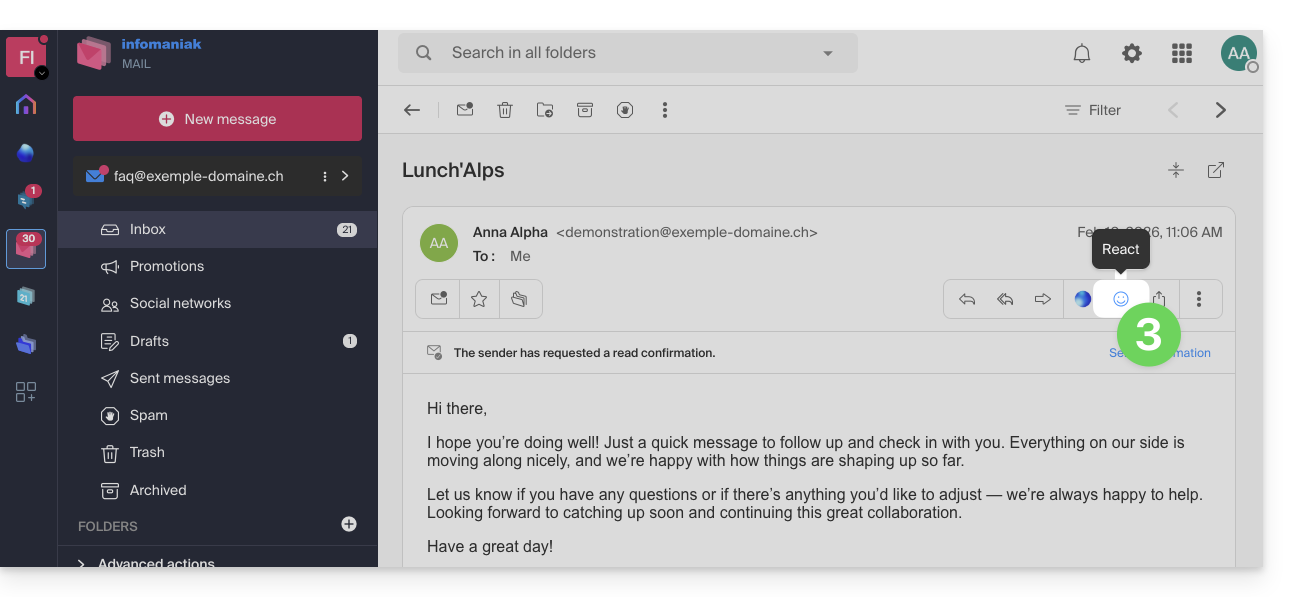
- You can also access this feature via a button below the message:
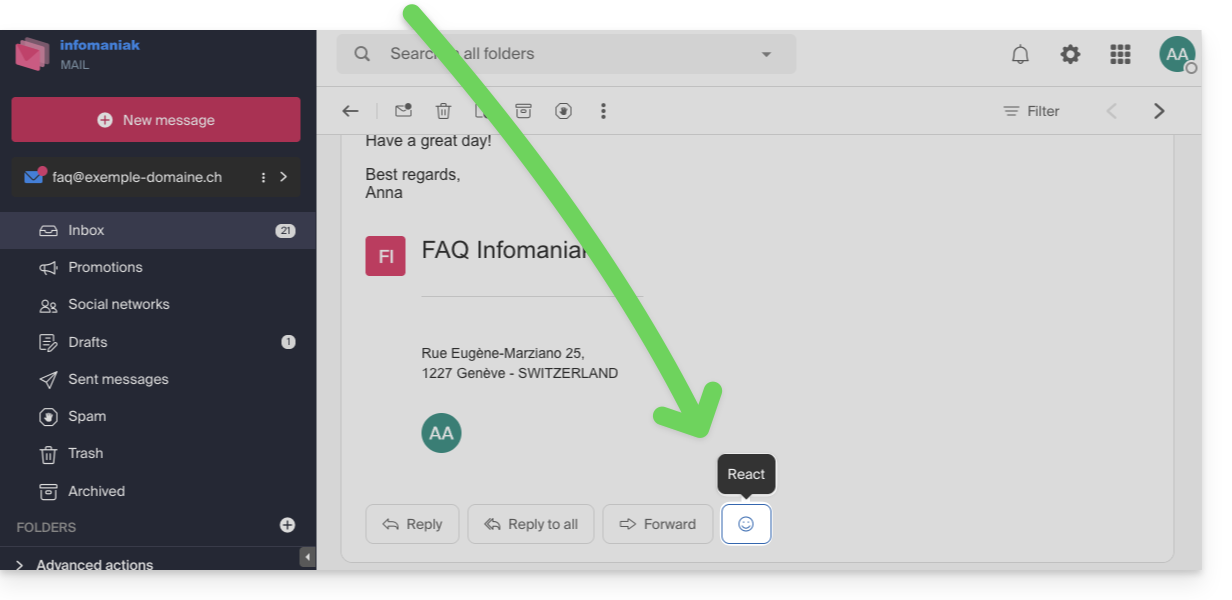
- You can also access this feature via a button below the message:
- Click on the emoji that best represents your reaction. It will be added below the message and immediately sent to your contact.
- You can cancel the sending while it is in progress from the notification displayed at the bottom of the screen:

- You can cancel the sending while it is in progress from the notification displayed at the bottom of the screen:
- The emoji will be displayed on the message in question.
- A record of your reaction is also stored in the sent messages folder.
- If several people have reacted, you can hover over the emoji to see who added which reaction:
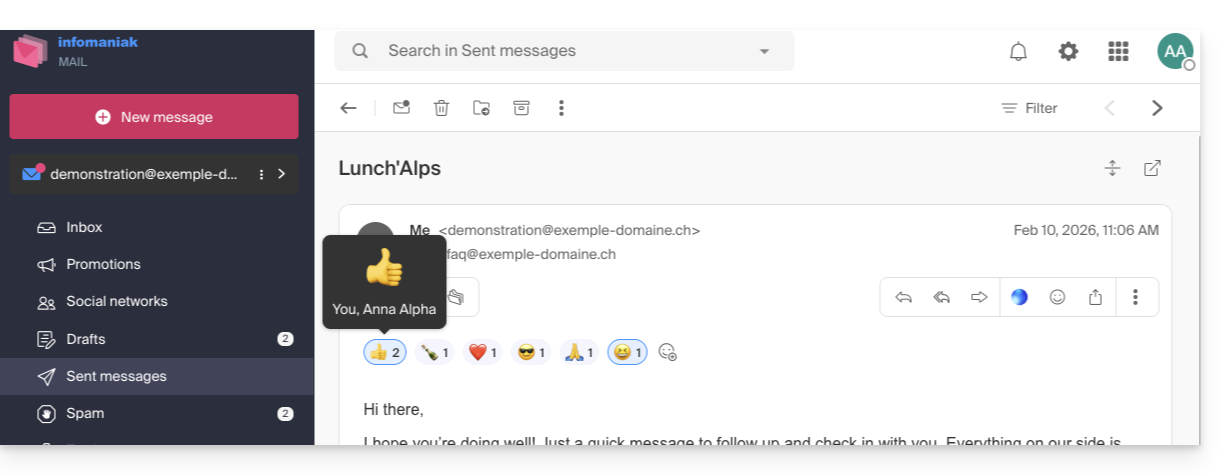
- The emoji is displayed to your recipient, who receives a notification as usual when they receive a reply to their email:
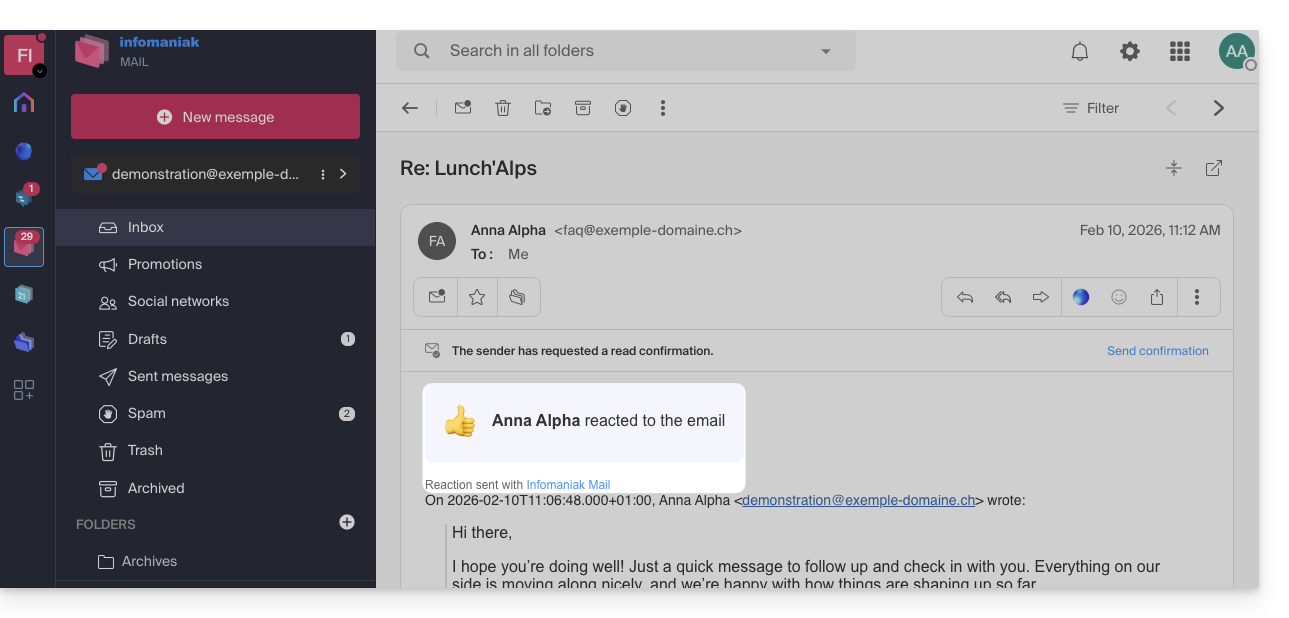
- They can also reply to the reaction via email (but not with a new reaction) as usual when receiving a new message.
- The user who reacted to the email can quickly find the last emoji used in their list of reactions in the app, avoiding having to search for it each time:
Link to this FAQ: https://faq.infomaniak.com/1573
Has this FAQ been helpful?