Knowledge base
1000 FAQs, 500 tutorials and instructional videos. Here, there are only solutions!
Manage the online stores in the ticketing portal
This guide details the integration tool for your ticketing system (as part of the Infomaniak ticketing system) to best promote your events.
Introduction
- You only need a few clicks to configure all the options for your online store and publish it to start making sales.
- No need to update links for each season or edition of your event: keep the same link and simply update the content within it.
If you have them, your old ticketing URLs will continue to work and will automatically redirect to your new online store. However, it is recommended to migrate to this new tool for any new season or edition of your events.
Manage the presentation of your online events
To access the online ticketing options:
- Click here to access the management of your product on the Infomaniak Manager (need help?).
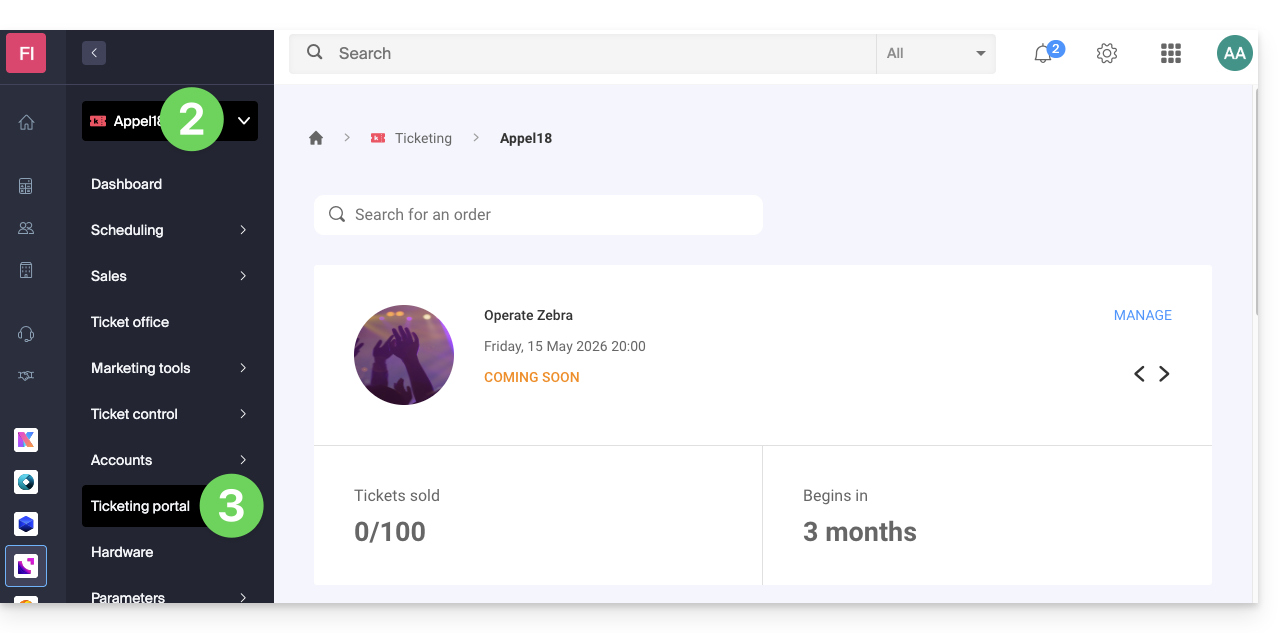
- Click directly on the name of the ticket office in question.
- Click on Ticket Office Portal in the left-hand menu:
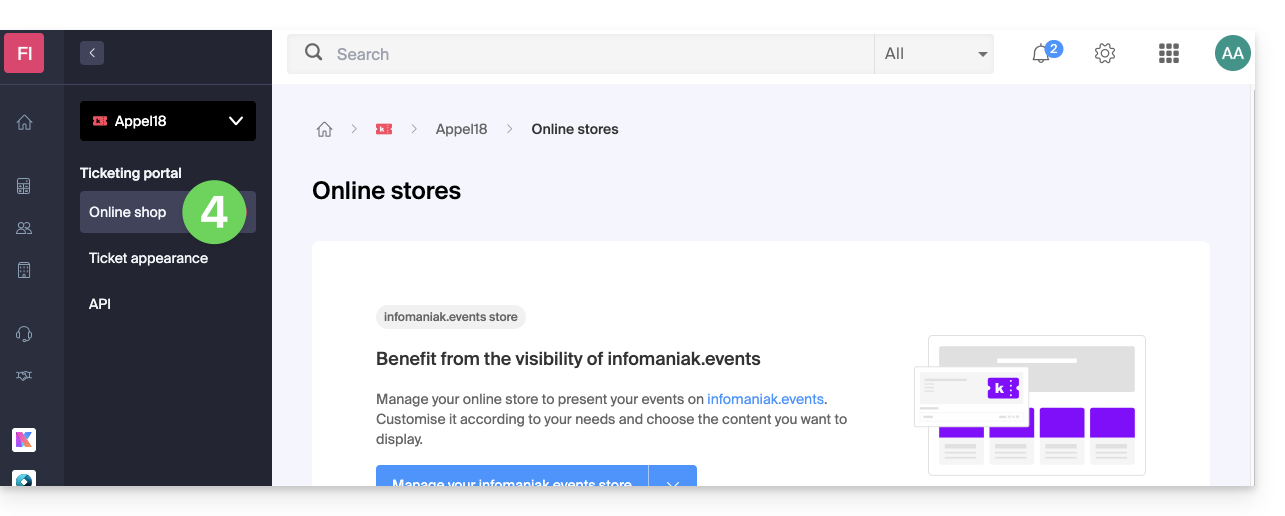
- Click on Online Store in the left-hand menu:
You will be taken to the online store page of the Ticketing Portal: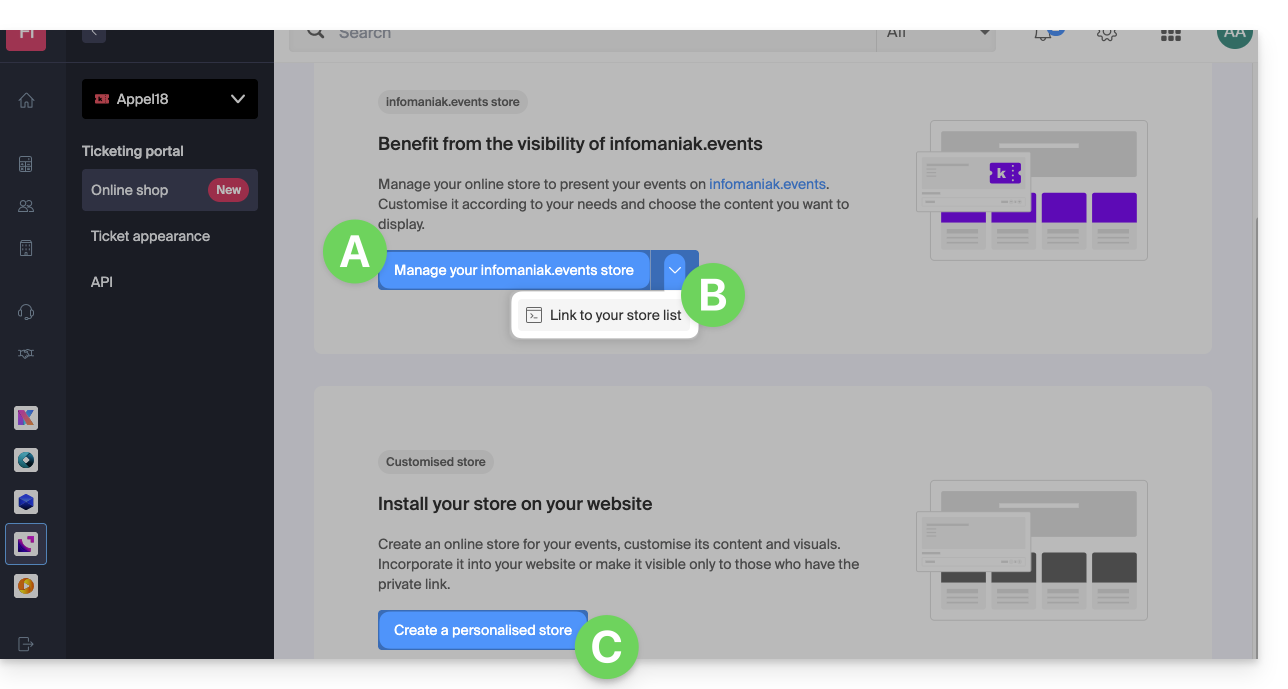
A. Create a store visible on infomaniak.events
- Make your events visible in the Infomaniak event portal search.
- Allow traditional search engines to index your events.
- Customize the appearance of your ticketing platform's main storefront.
B. Combine your multiple ticketing systems
- Access a page that brings together all of your Organization's "infomaniak.events" stores.
C. Create a custom store
- Create stores tailored to your specific needs (e.g., for integration on your pages).
- Add HTML/JavaScript or CSS scripts (for advanced users/developers).
Link to this FAQ: https://faq.infomaniak.com/1563
Has this FAQ been helpful?