Knowledge base
1000 FAQs, 500 tutorials and instructional videos. Here, there are only solutions!
Manage addresses in the Infomaniak Mail mobile app
This guide explains how the Infomaniak Mail mobile app (application for iOS/Android smartphones or tablets) works when it is first opened after installation and during subsequent logins.
Starting the configuration wizard
When you open the app for the first time, a step-by-step assistant will guide you through choosing a theme (pink or blue accent color), which you can also change later: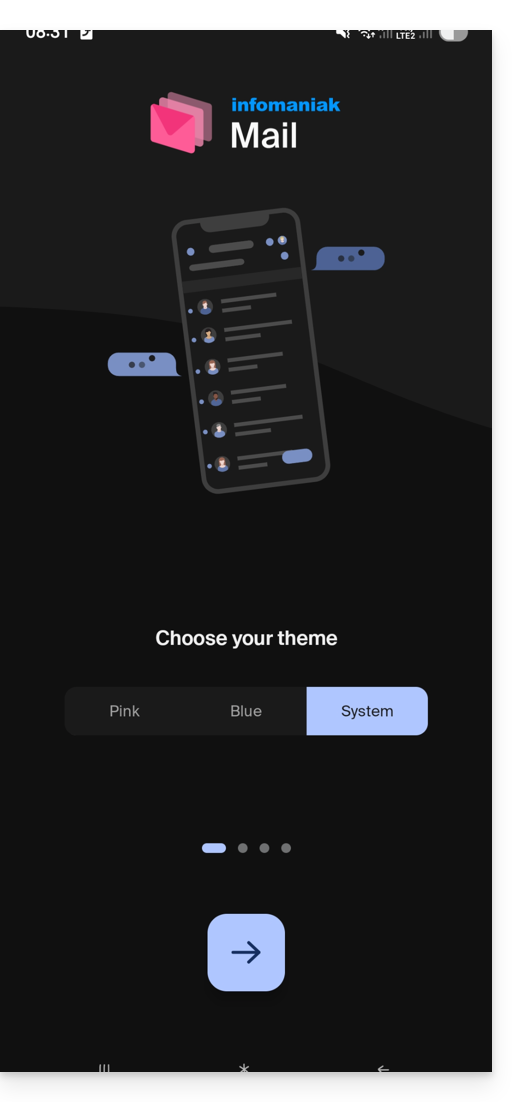
It also shows you the main ergonomic functions available with the application (long press, swipe).
In the last step, you can…
- … create an account, which means getting a new, free email address…
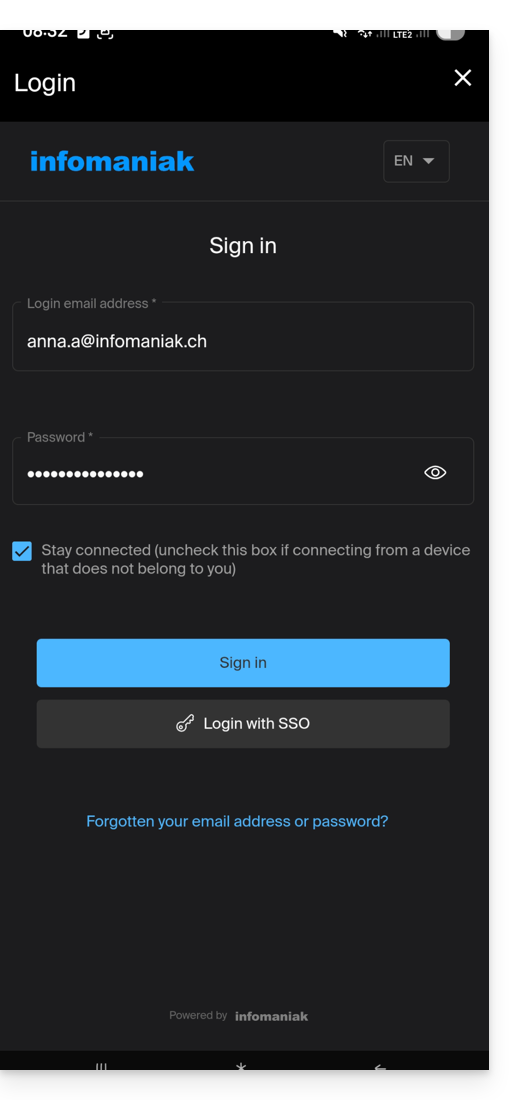
- … or simply log in to your Infomaniak account using your usual credentials(your email address for logging into Infomaniak):
Multiple email addresses
Once logged in, after completing two-factor authentication (2FA), you still need to authorize access to your device's contacts and notifications: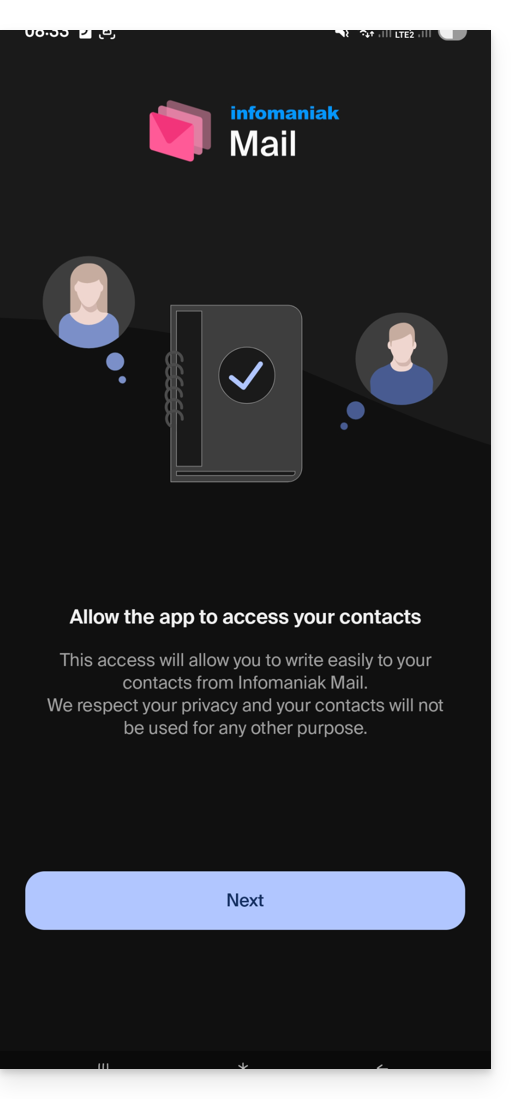
You will then find all email addresses already linked to Infomaniak Mailthat you used to access via a browser such as Brave, Chrome, Edge, Firefox, Opera, Safari… using the address ksuite.infomaniak.com/mail.
You can switch between addresses…
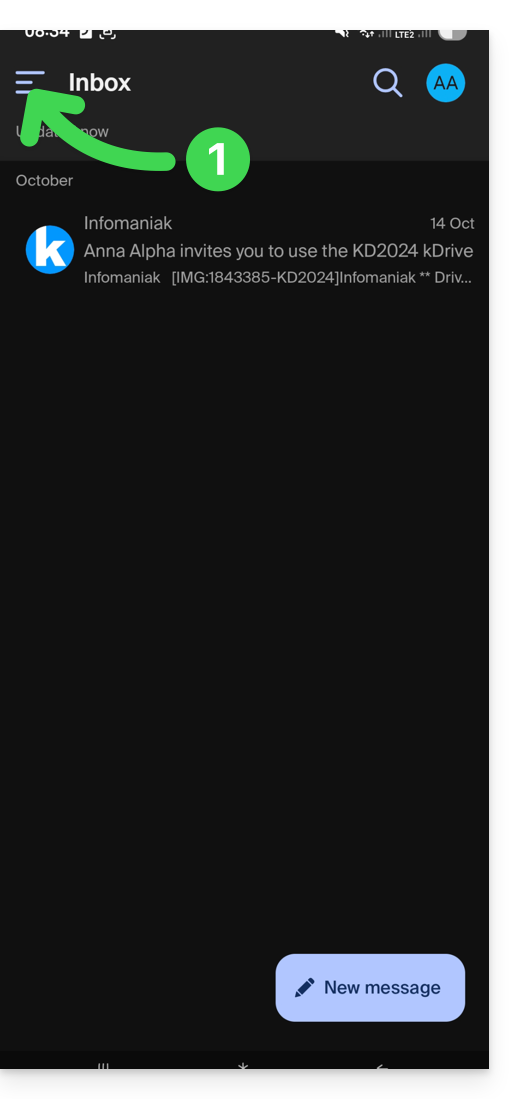
- … by tapping the icon in the top left corner of your inbox:
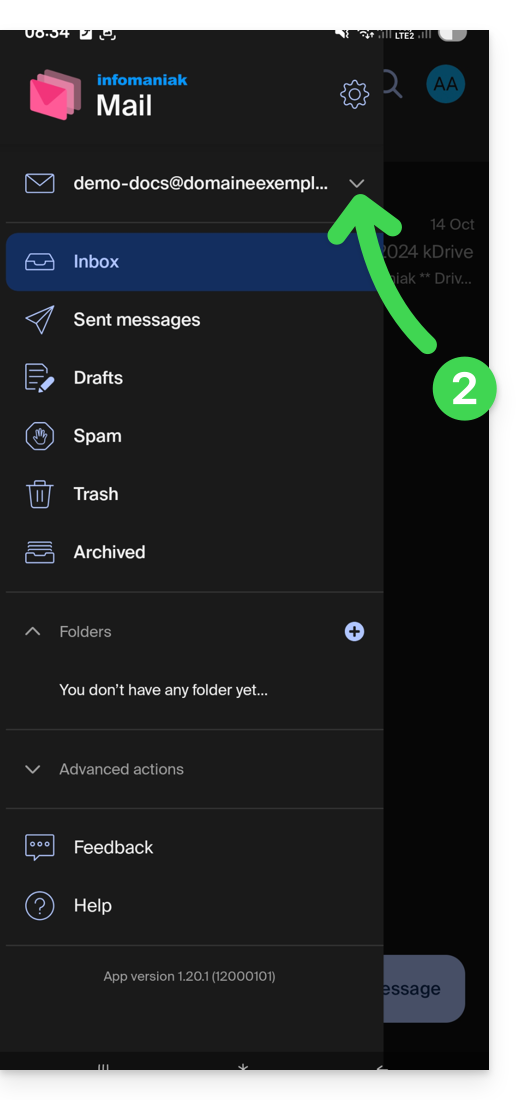
- … then click on the downward-pointing chevron to the right of your email address:
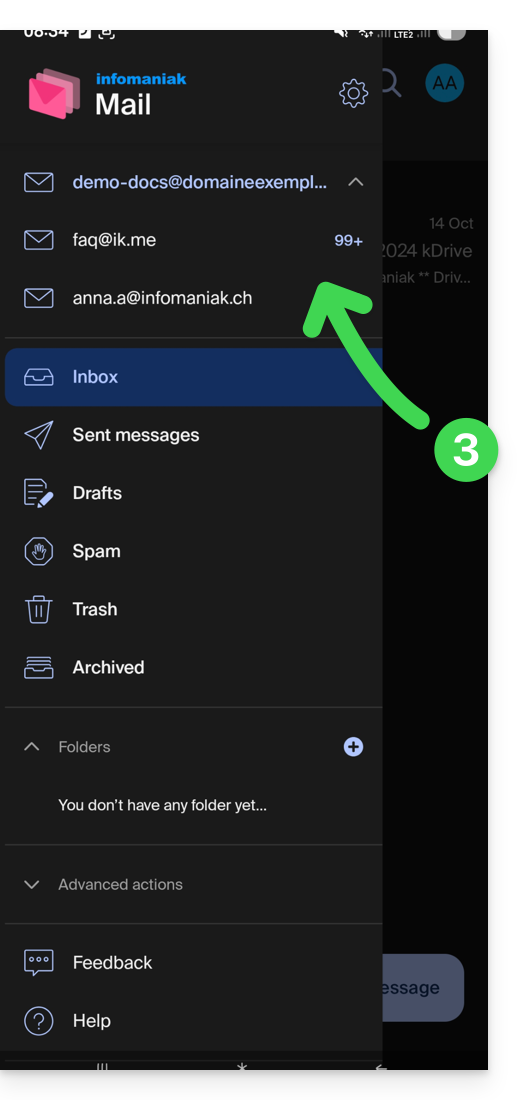
- … then click on the address you want to view:
To add another one, please refer to this other guide.
To remove one, please refer to this other guide.
Multiple Infomaniak Accounts
Imagine that in addition to your personal Infomaniak account with your favorite email addresses, your employer provides you with login credentials for a user account with different company email addresses within this professional account…
To add an additional Infomaniak account:
- Tap the icon in the top right corner of the inbox:
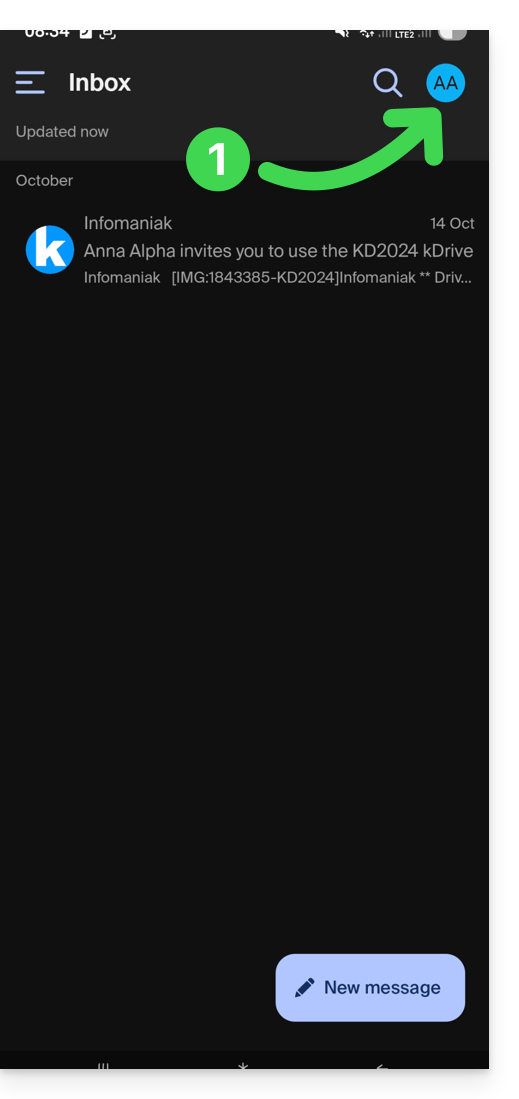
- Tap Add account to connect to the desired Infomaniak user account:
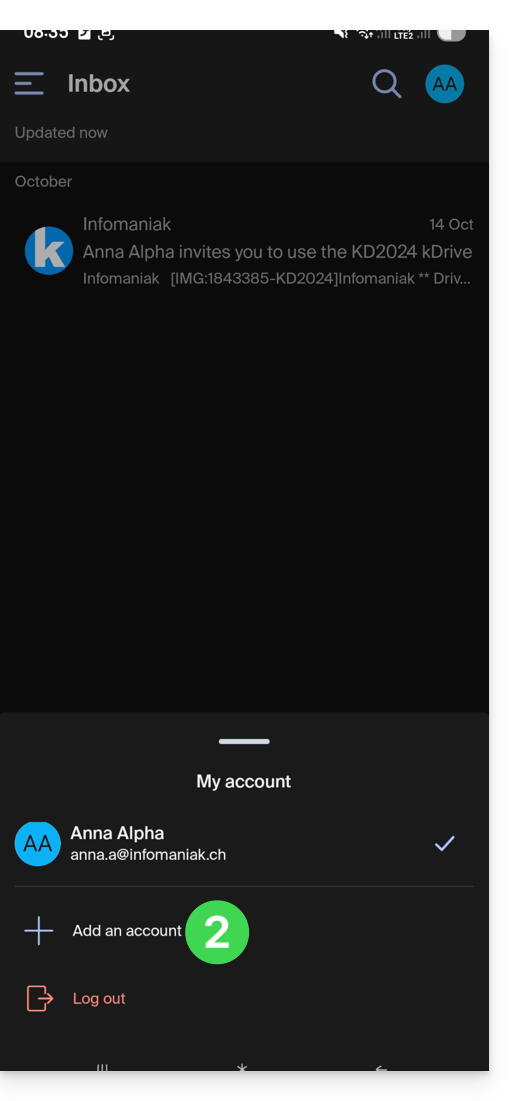
- Tap the button to enter the login details for your Infomaniak account:
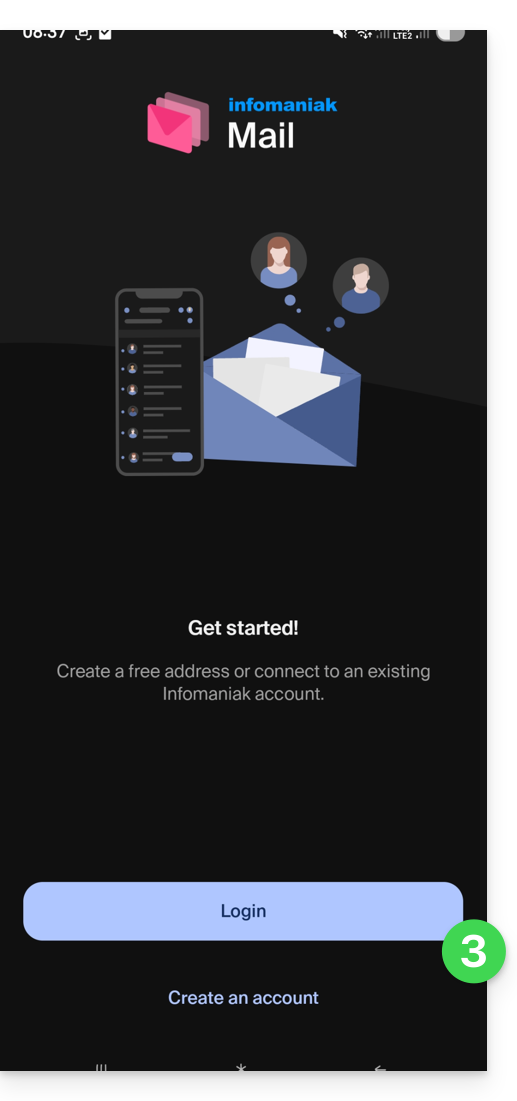
To easily switch between user accounts:
- Click on one of the associated user accounts to view the email addresses associated with those accounts:
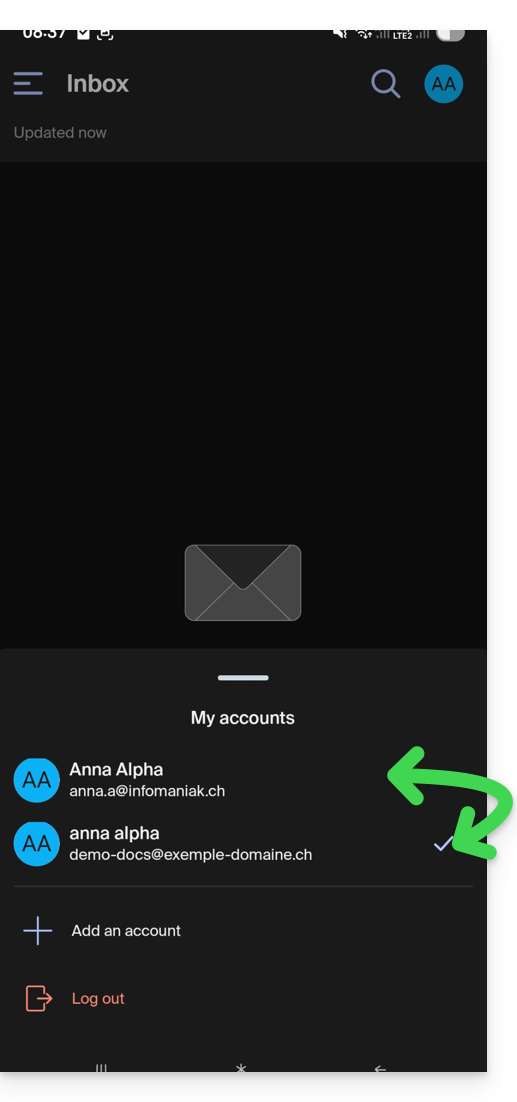
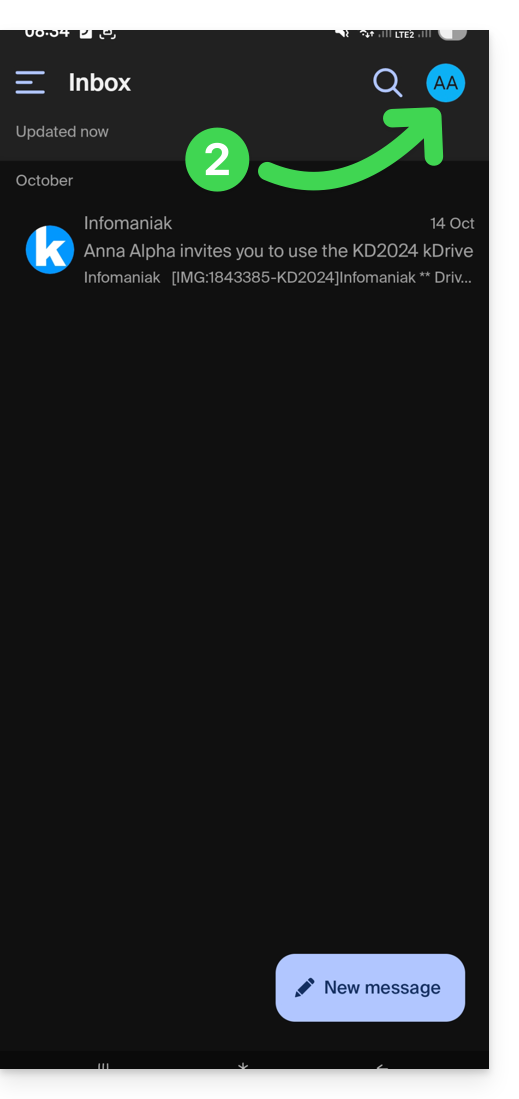
To detach an Infomaniak account linked in the application and no longer be able to view the email addresses associated with that account, simply…
- … access it one last time
- … then tap the user menu in the top right corner:
- … then log out at the bottom of the screen:
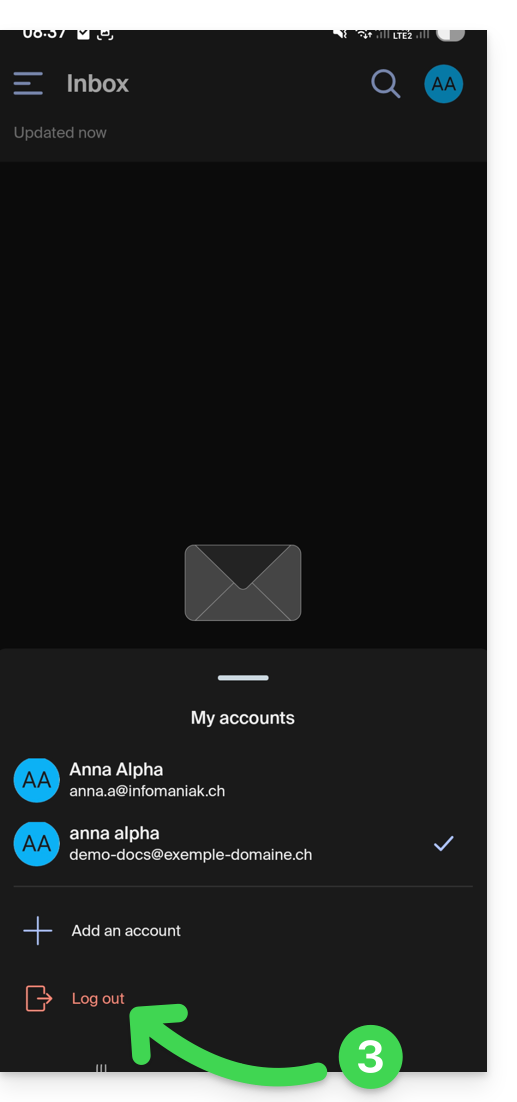
You will be automatically redirected to one of the remaining accounts.
Link to this FAQ: https://faq.infomaniak.com/1553
Has this FAQ been helpful?