Knowledge base
1000 FAQs, 500 tutorials and instructional videos. Here, there are only solutions!
Manage DMARC records
This guide explains how to set up a DMARC policy for your email hosted by Infomaniak, an essential step to prevent potential delivery issues.
Introduction
- The DMARC (Domain-based Message Authentication, Reporting, and Conformance) protocol enhances the security of your domain by relying on SPF and DKIM checks.
- It instructs recipient servers on how to handle emails that fail these authenticity tests, with three protection policies (None, Quarantine, Reject) detailed below.
- If authentication fails, the recipient may send you a DMARC report (❓: help); this data is essential for identifying configuration errors or stopping phishing attempts using your domain name.
DMARC policy and acceptance rate
For the actions that can be taken on recipient servers when a suspicious message is detected, 3 policies (p = policy) exist and can be refined with a percentage (pct):
None: The email is delivered normally (observation mode)
With "p=none", no emails are rejected or placed in quarantine based on DMARC verification. However, the reception percentage can be used to collect data on unauthenticated emails, indicating how many of these emails should be subject to the DMARC policy. For example, "p=none; pct=10" means that 10% of unauthenticated emails will be subject to the DMARC policy, while the remaining 90% will be accepted.
Quarantine: The email is sent to spam
With "p=quarantine", unauthenticated emails can be placed in quarantine, but the percentage of reception determines the proportion actually subject to this policy. For example, "p=quarantine; pct=50" means that 50% of unauthenticated emails will be placed in quarantine, while the remaining 50% will be accepted.
Reject: The email is simply blocked/deleted
With "p=reject", unauthenticated emails are rejected. The percentage of reception determines the proportion of unauthenticated emails that will actually be rejected. For example, "p=reject; pct=20" means that 20% of unauthenticated emails will be rejected, while the remaining 80% will be accepted.
Create a DMARC record
There are 2 ways to manage DMARC.
If you have a Mail service with Infomaniak, the easiest way is to go to the Global Security tool (❓: help) to manage your DMARC security policy and reports: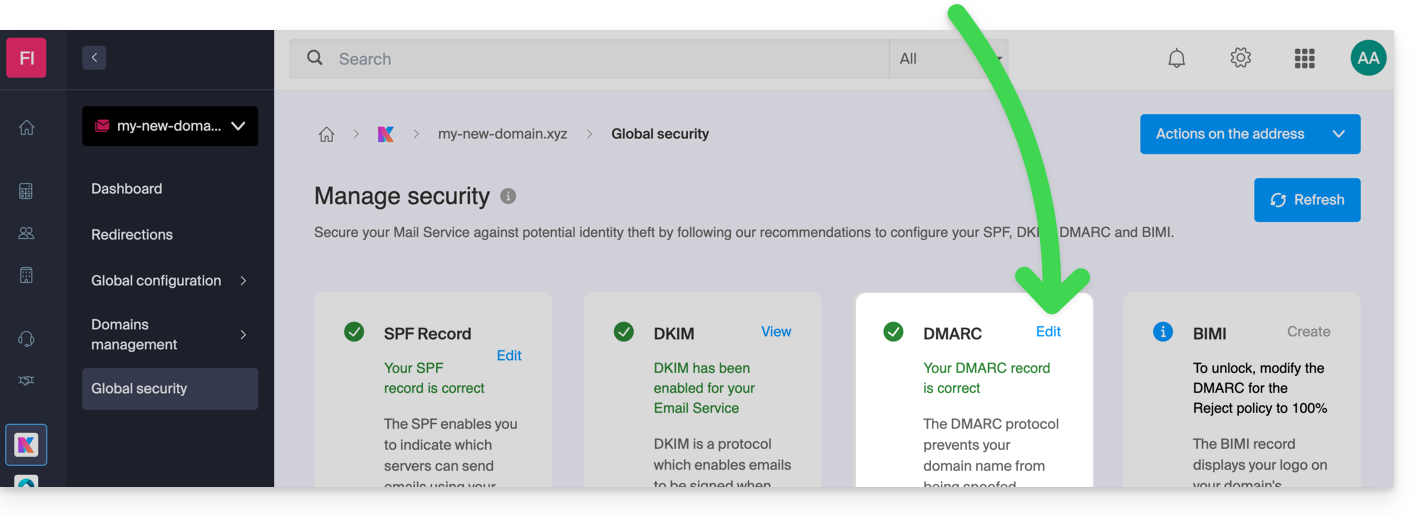
Since the DMARC record is a type of DNS record, generally of the TXT type, you can also manage it from the domain name's DNS zone:
- Click here to access the domain management section in your Infomaniak Manager (❓: help).
- Click on the name of the domain in question.
- Click on DNS Zone in the left-hand menu.
- Click the button to add a record:
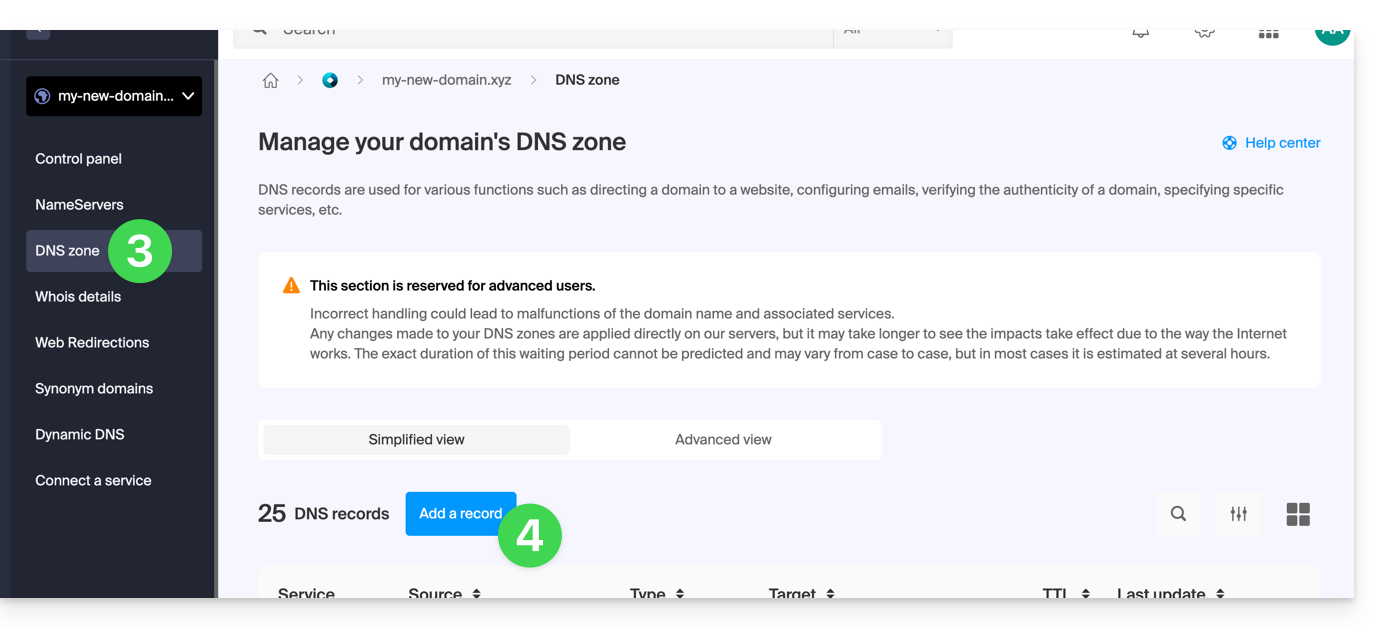
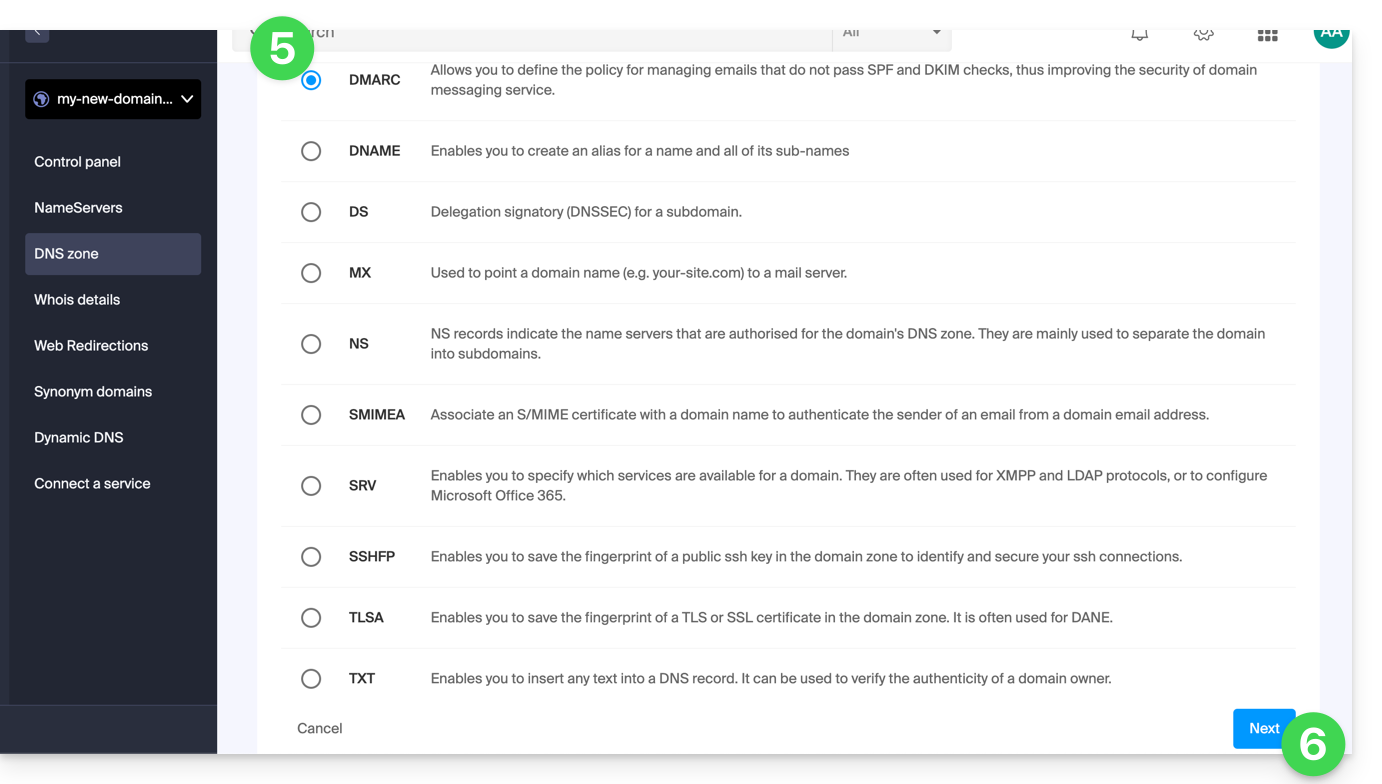
- Click the DMARC radio button to add a record.
- Click on the Next button:
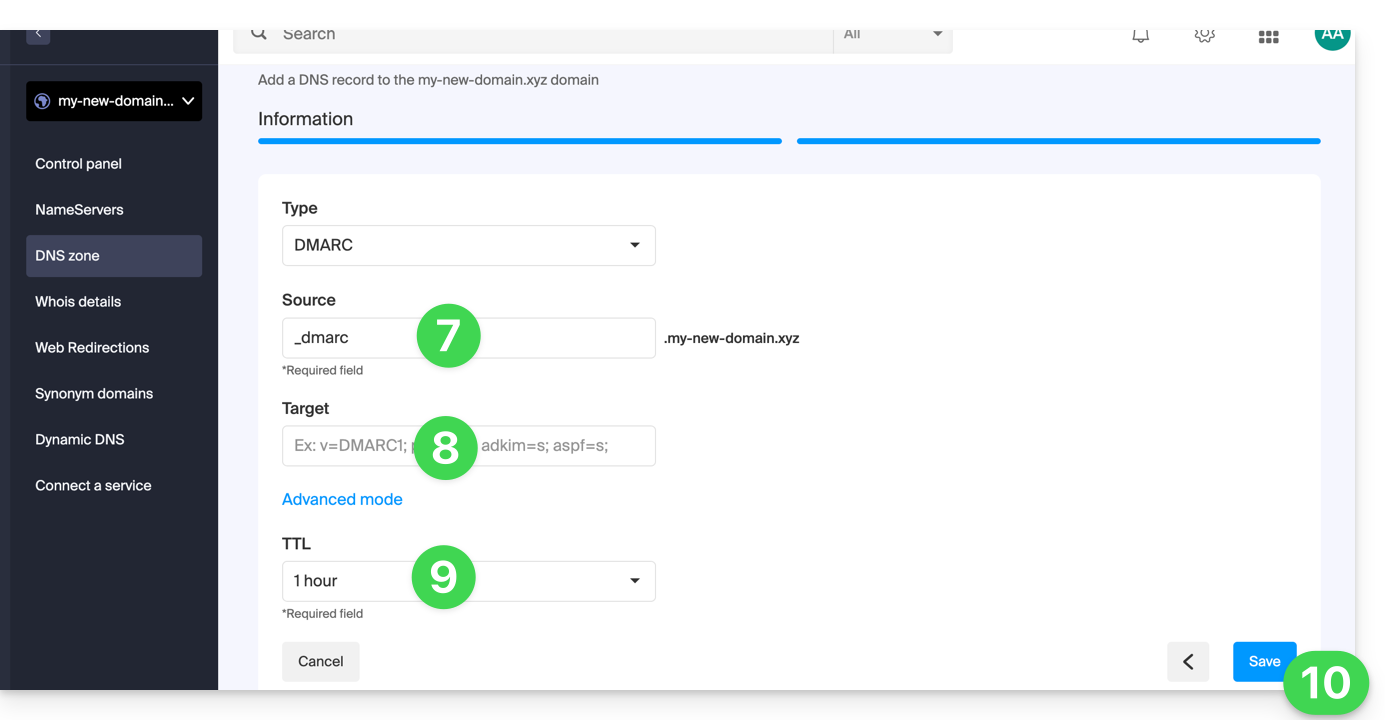
- Leave (or add if necessary) the
_dmarcvalue in the Source field. The Target field must contain the parameters you want to use, separated by
;:Tag Name Purpose Example v Protocol version v=DMARC1pct Percentage of messages subject to filtering pct=20ruf Reporting URI for forensic reports ruf=mailto:authfail@domain.xyzrua Reporting URI for aggregate reports rua=mailto:aggrep@domain.xyzp Policy for the organizational domain p=quarantinesp Policy for subdomains of the organizational domain sp=rejectadkim Alignment mode for DKIM adkim=saspf Alignment mode for SPF aspf=rThis can result in something like
v=DMARC1;p=reject;pct=100;rua=mailto:postmaster@dmarcdomain.com(❓: help).- Leave the default value for the TTL.
- Click on the Save button:
Any DNS addition/modification may take up to 48 hours to propagate (❓: help).
Link to this FAQ: https://faq.infomaniak.com/1552
Has this FAQ been helpful?