Knowledge base
1000 FAQs, 500 tutorials and instructional videos. Here, there are only solutions!
Add yourself as a mail address user from the Mail service
This guide explains how, from a Mail service, you can access a mail address on the Infomaniak ecosystem (using your login credentials for your Infomaniak account) by using only the Infomaniak Mail web app (online service ksuite.infomaniak.com/mail) and/or the Infomaniak Mail mobile app (application for iOS/Android smartphones or tablets), without creating a specific password for the address.
Other access and management options are presented in the main guide.
Prerequisites
- Order a Mail Service from Infomaniak.
- Create one or more addresses on this Mail service.
- Have at least the right to manage the Mail service in question (or be Administrator / Legal Representative within the Organization).
Accessing an email address
To use the existing email address demonstration@exemple-domaine.ch:
- Enter your Infomaniak account login ID and password on the page https://manager.infomaniak.com/:
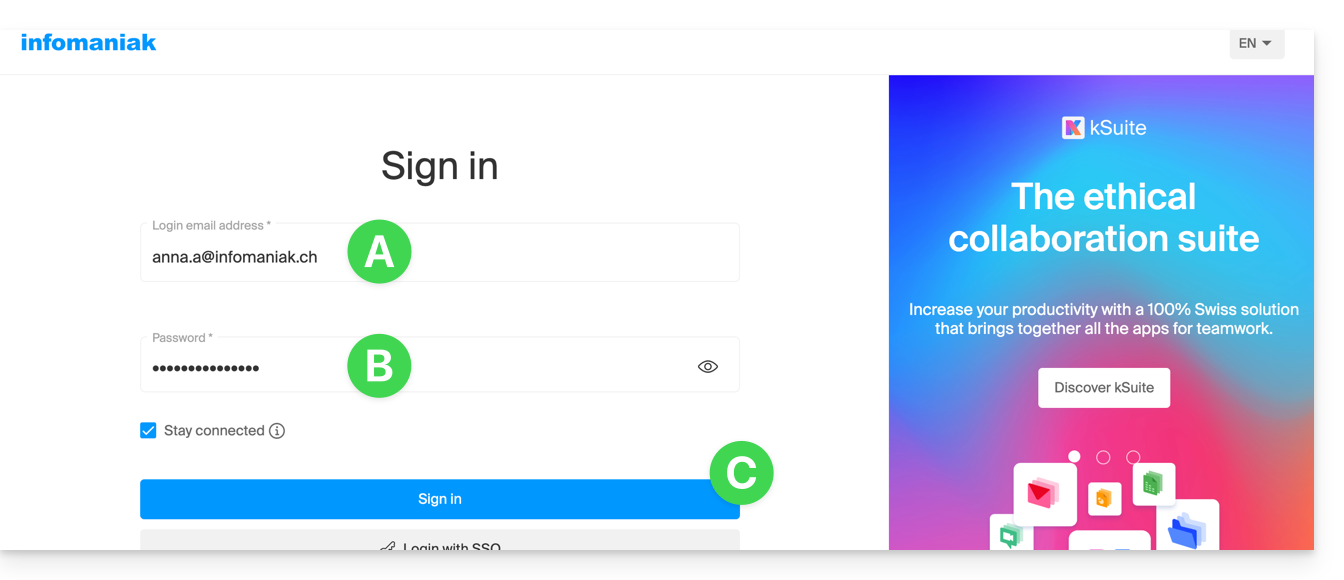
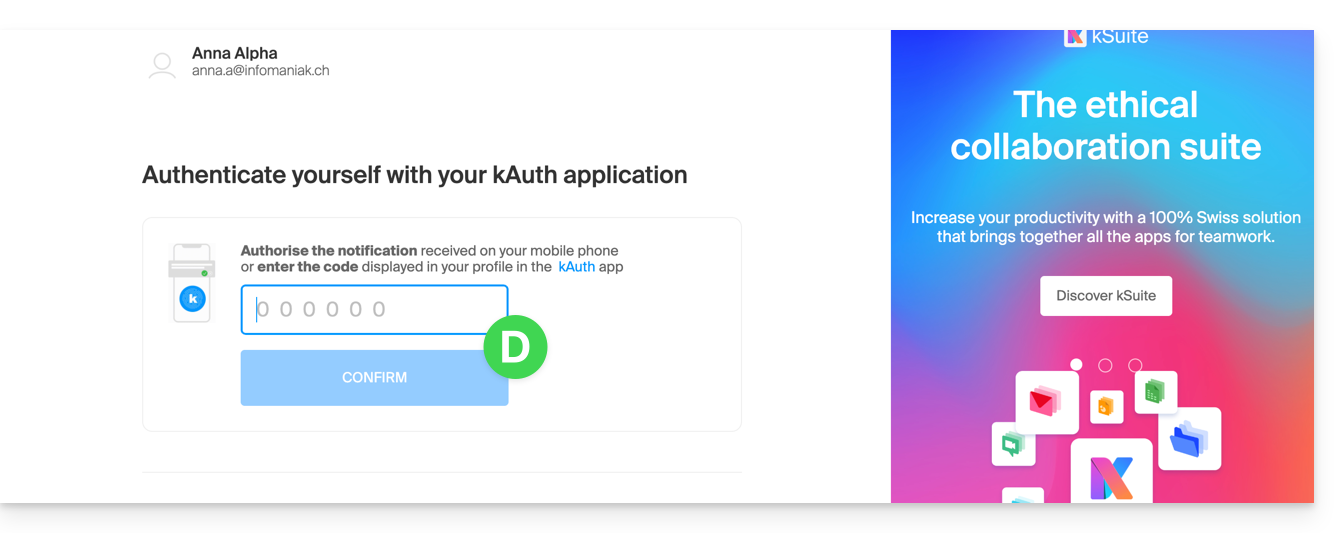
- Confirm the login on the Manager using the 2FA (two-factor authentication) method that you initially set up:
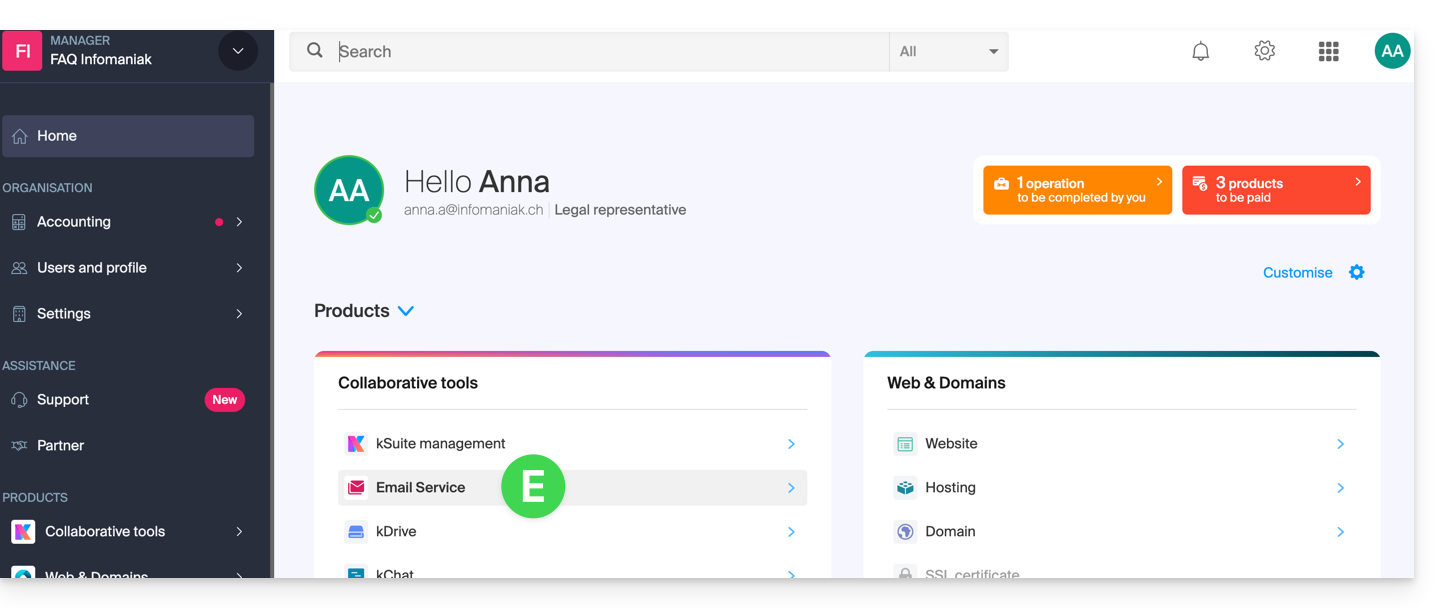
- Once on the dashboard, click on Mail Service:
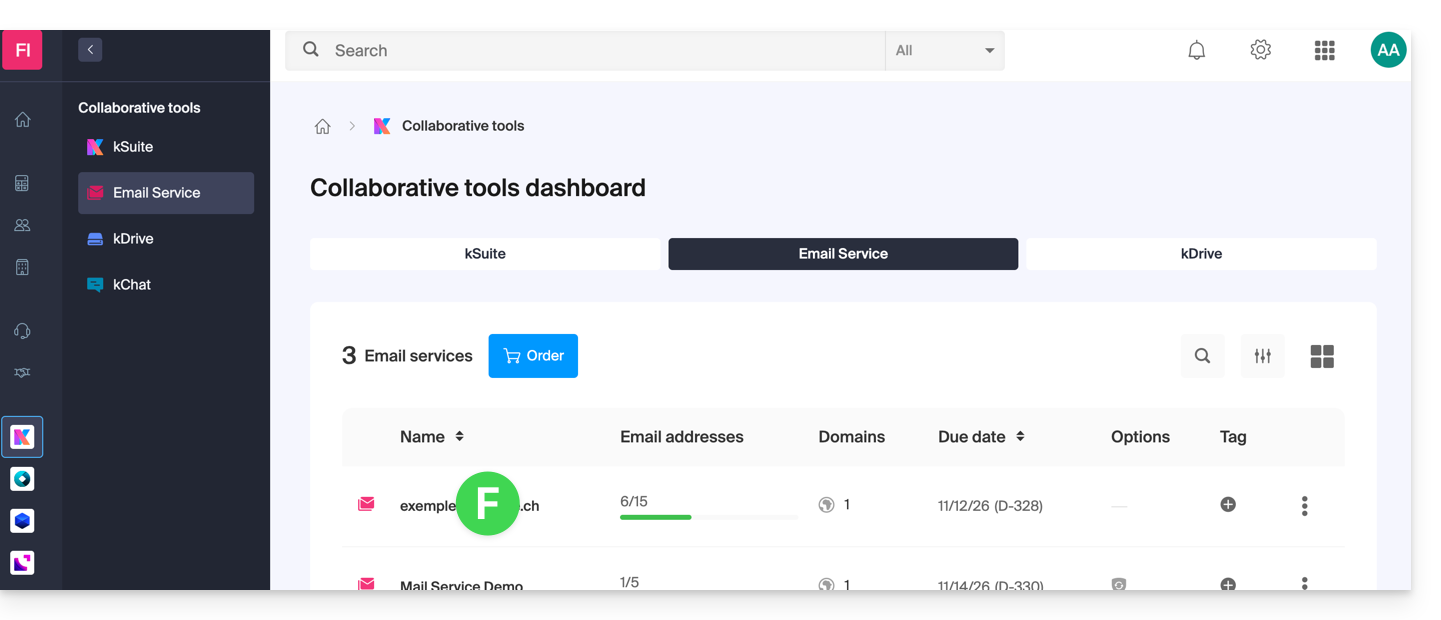
- Once on your Mail Services page, click on the name / domain name to which the email address in question belongs:
- Once you are on the Mail service to which the address belongs, click on the email address in question:
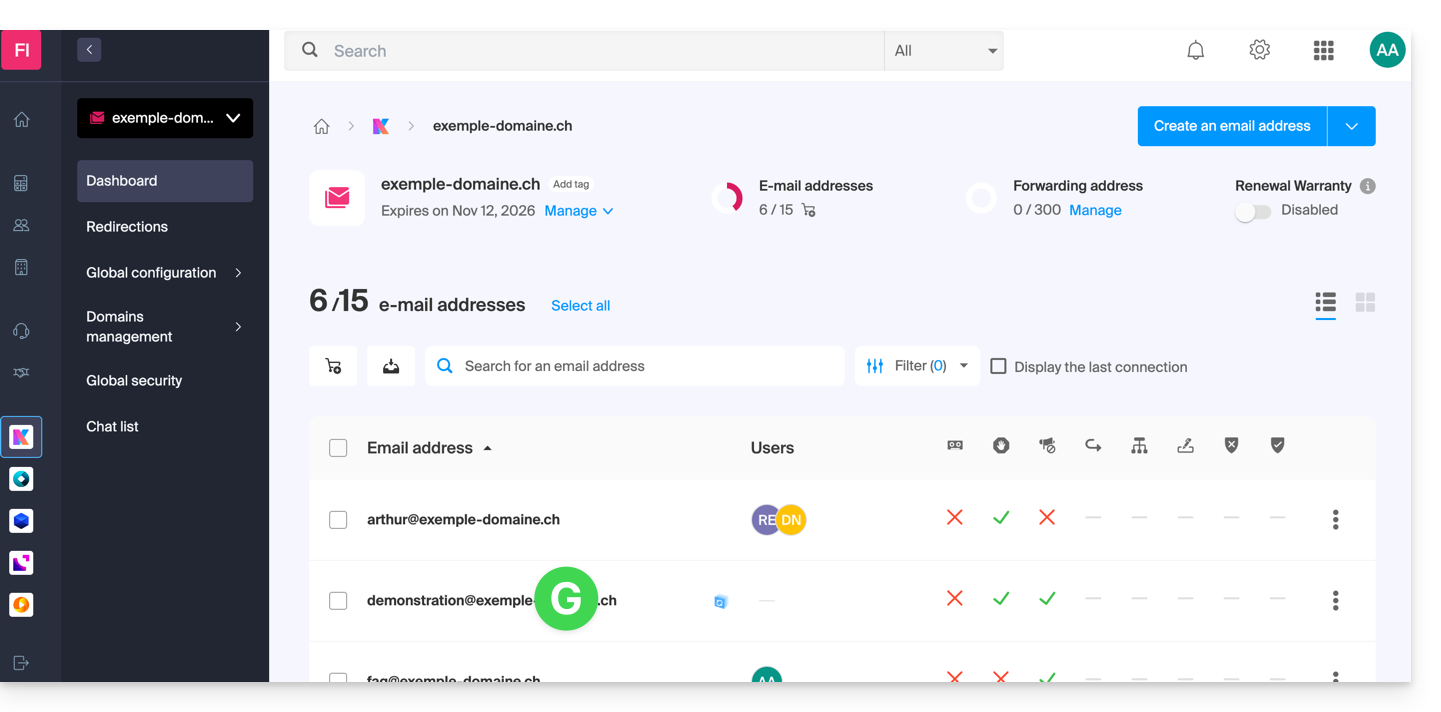
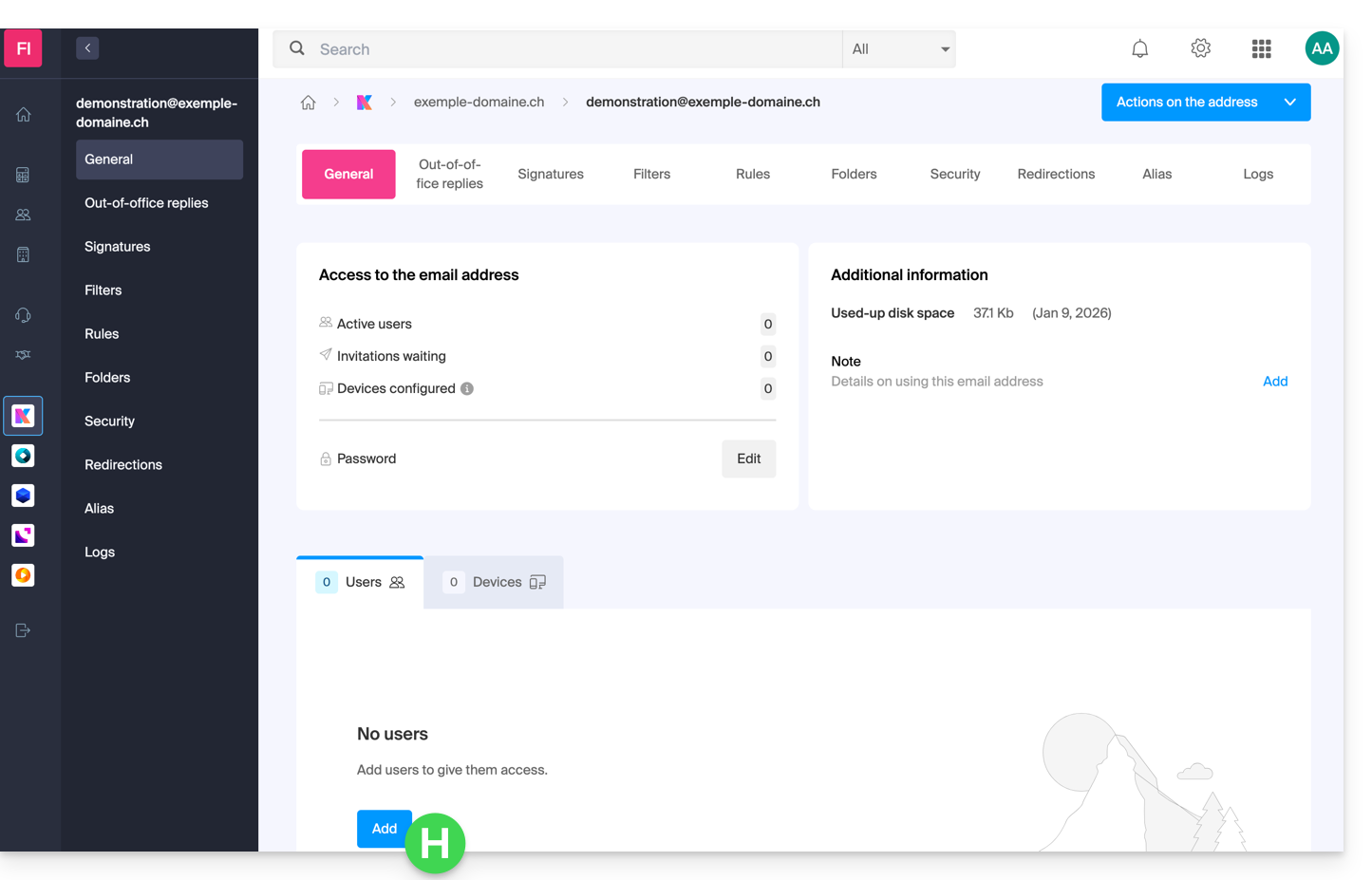
- Once you are on the email address in question, click on the Add user button:
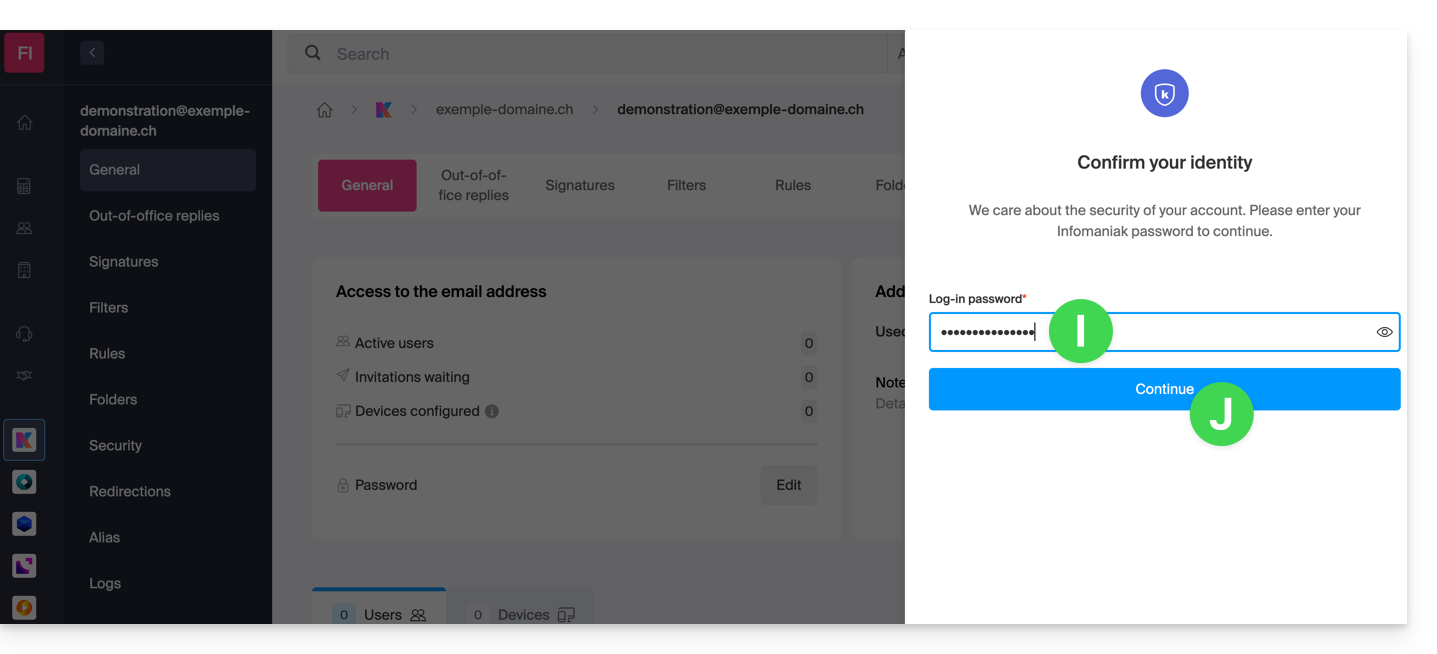
- At this stage, it may be necessary to re-enter the login password (the one from point B above):
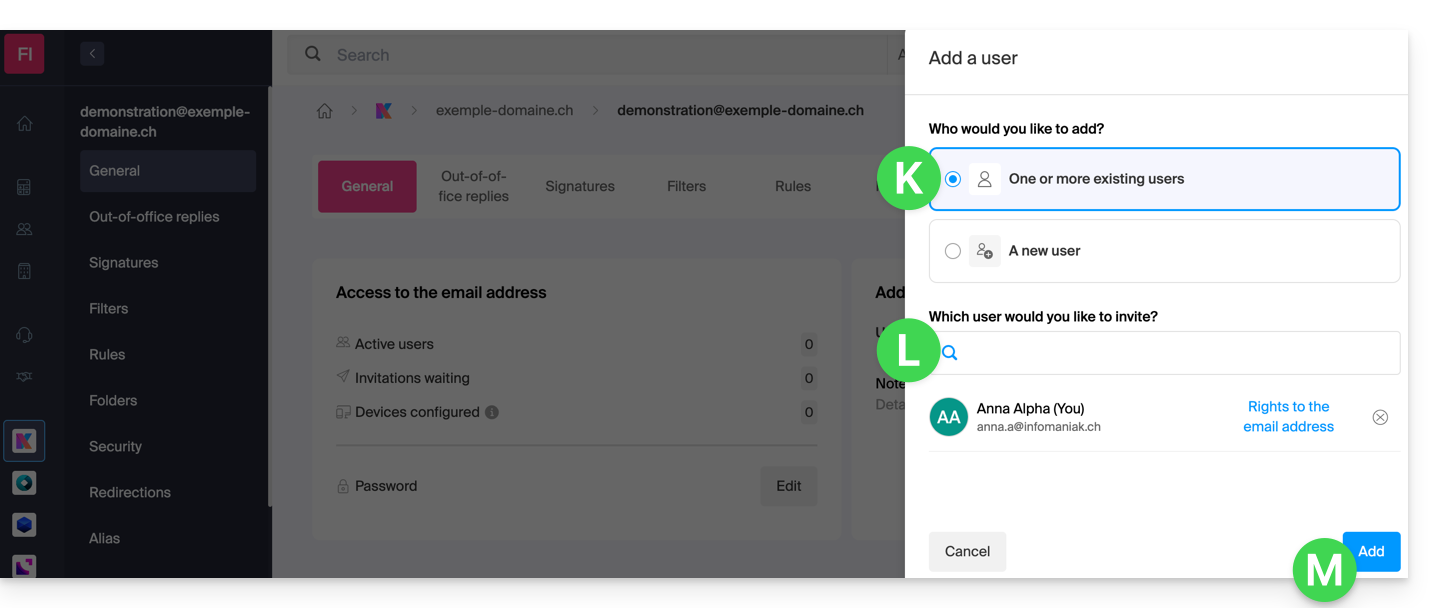
- Then, choose the option to add an existing user, then click on the field below, which will display the list of users in the Organization you are connected to, and click on your username (your login ID for your Infomaniak account). Confirm the addition using the button in the bottom right corner:
- Done, your user has been added:
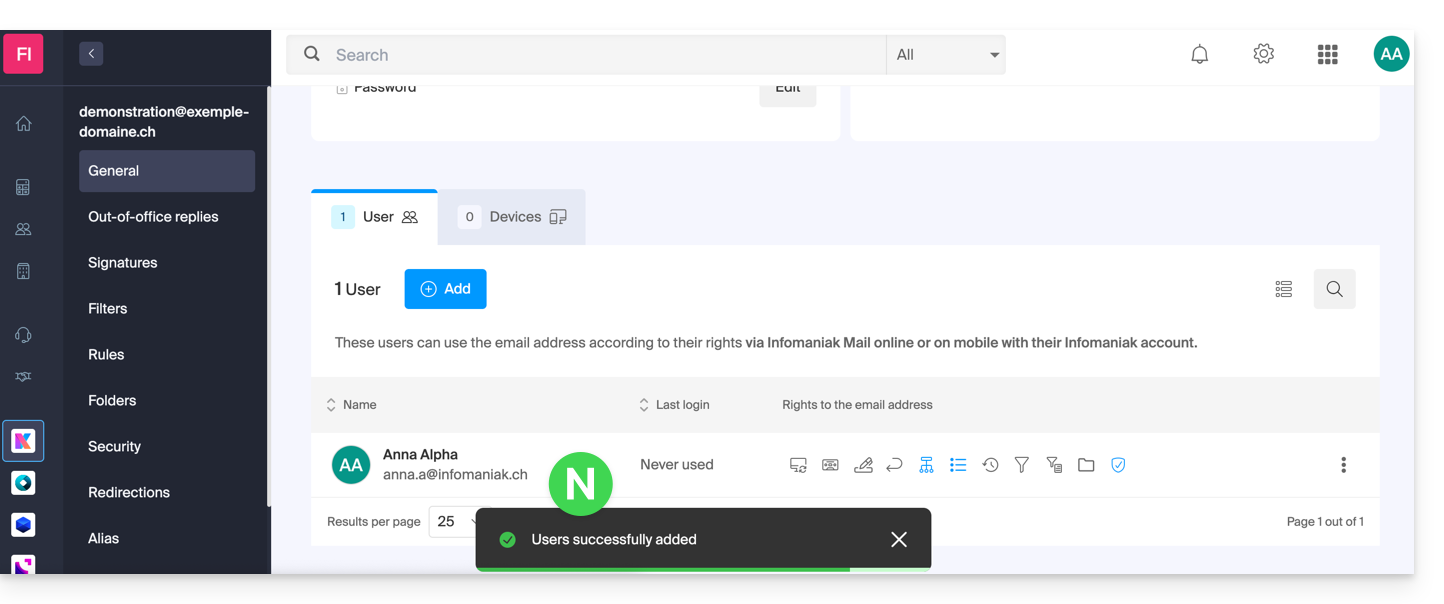
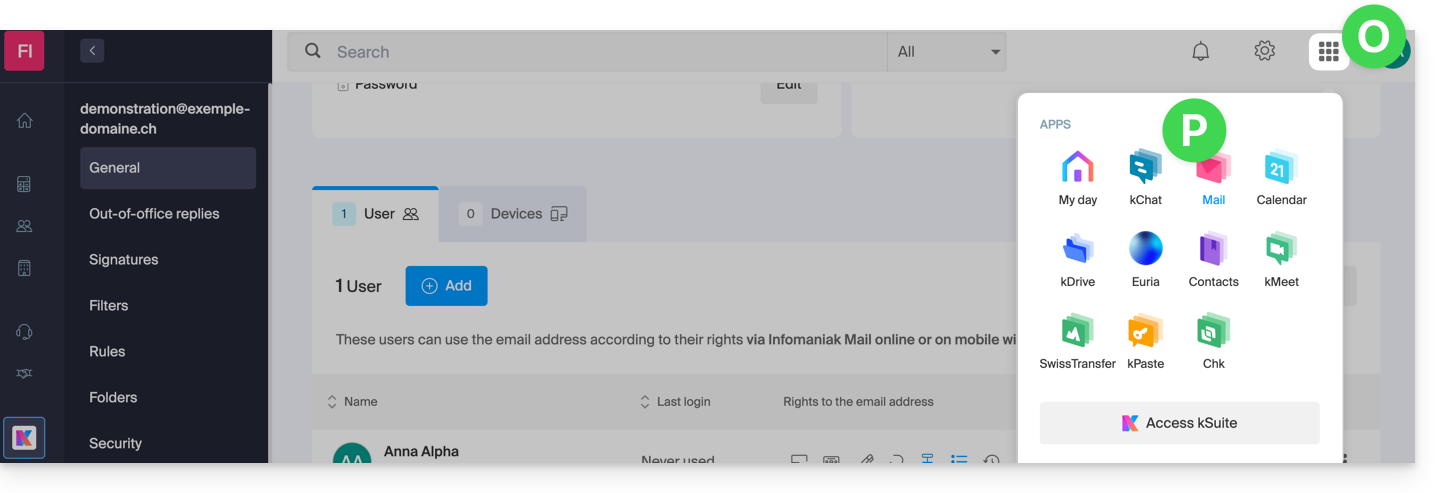
- Next, click on the icon at the top of the screen to open the kSuite tools, and then click on the Mail Infomaniak web app:
- The email address has been successfully added to the Mail web app (click on the down arrow if necessary to expand the address menu and access it). An informational email has been sent to the user (you in this case) to notify them of the operation:
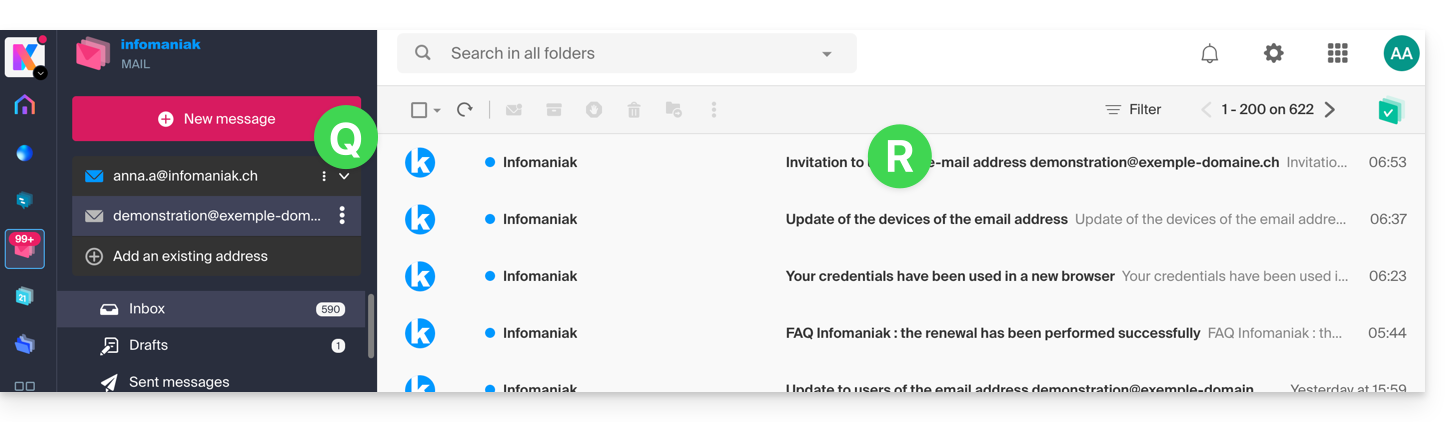
When your user ID is added as a user with access to the email address, the mailbox is automatically added to your Infomaniak Mail apps: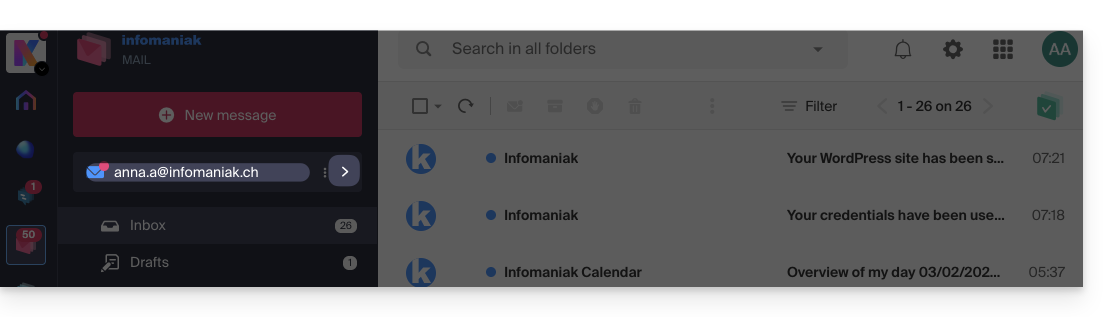
You can switch between your addresses at any time using the chevron located in the top left corner of the screen: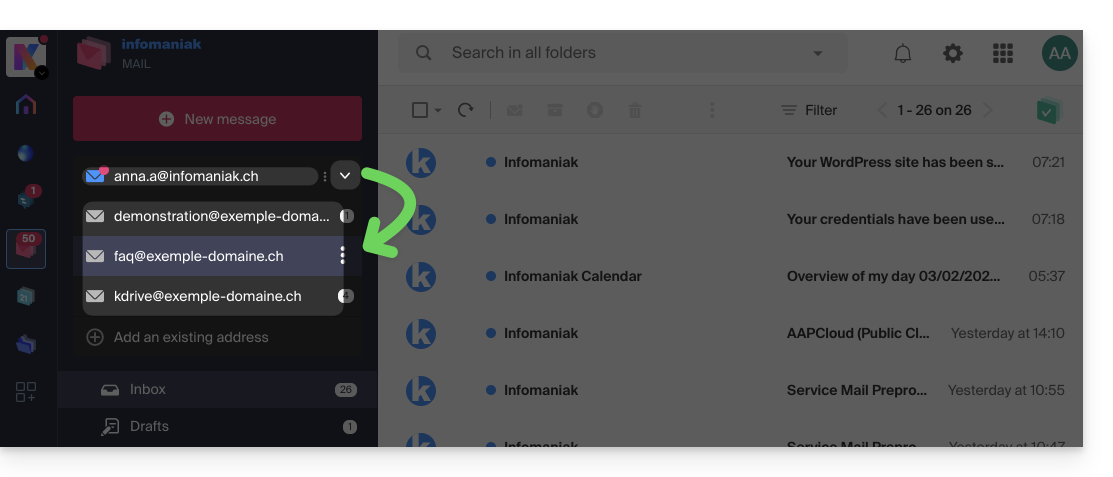
If the address is not displayed, try refreshing the browser page (Command ⌘ + R on macOS and Ctrl + F5 on Windows).
Link to this FAQ: https://faq.infomaniak.com/1547
Has this FAQ been helpful?