Knowledge base
1000 FAQs, 500 tutorials and instructional videos. Here, there are only solutions!
Customize the display of an Organization in the Infomaniak Manager
Update 10/12/2026
This guide explains how to customize the display of the Organization you are in within the Infomaniak Manager.
Introduction
- You can, for example, add a logo to the organization's name and completely replace the display of the name with a small banner.
- For advanced customization of URLs and certain interfaces, including login pages, discover Custom Brand (❓: help).
Accessing the Customization Page
Prerequisites
- First, switch to the desired Organization (❓: help).
- You must be at least an Administrator of the Organization (❓: help).
To customize the Manager interface:
- Click here to access the Organization customization settings in the Infomaniak Manager.
- The left Customize button allows you to edit the section displayed in the upper left corner of the Manager:
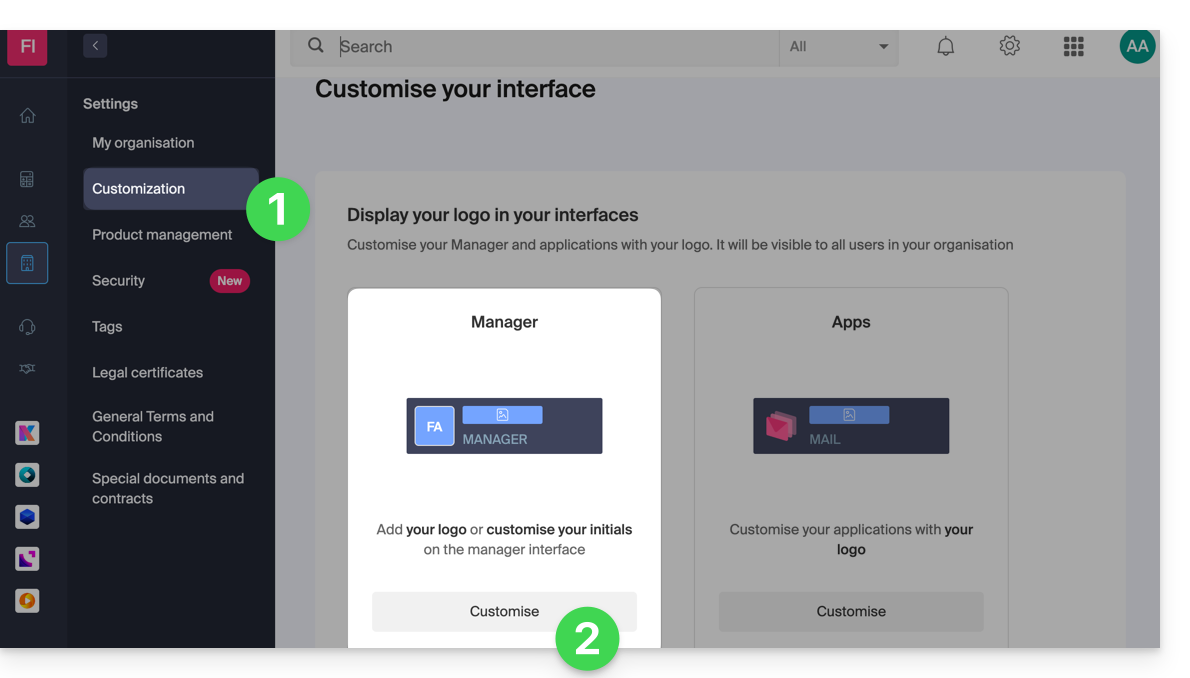
- Choose a square logo only (in this case, no rectangular logo).
- Choose to display initials in the square (in this case, it is possible to have a rectangular logo in addition, or no rectangular logo).
- The right Customize button allows you to add a rectangular logo (only) to applications such as kDrive and Mail:
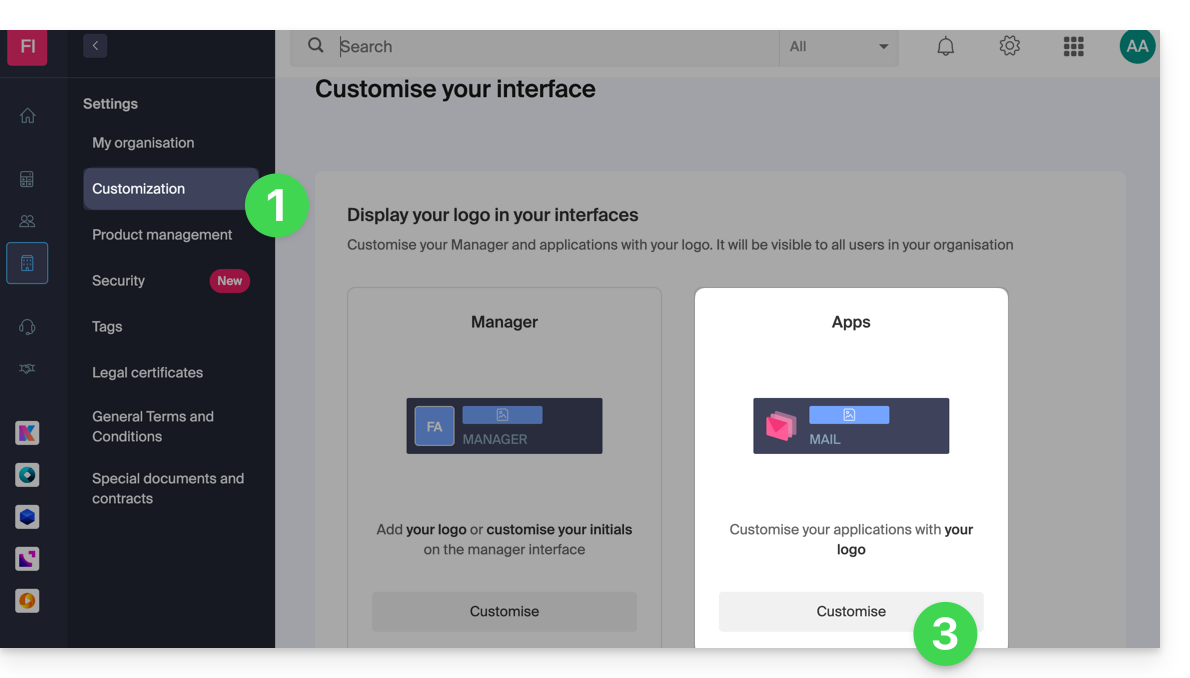
- Note that the rectangular logo will also be taken into account on the Manager side (it is not possible to have a different rectangular logo between these different services).
- If no rectangular logo is configured on the Manager, then it is simply not displayed.
Link to this FAQ: https://faq.infomaniak.com/1534
Has this FAQ been helpful?