Knowledge base
1000 FAQs, 500 tutorials and instructional videos. Here, there are only solutions!
Discover kSuite Spaces
This guide introduces you to the kSuite spaces, the suite of productivity and online collaboration tools developed in Switzerland by Infomaniak.
Preamble
- A kSuite space groups access to your applications and offers an intelligent dashboard to quickly access essential information:
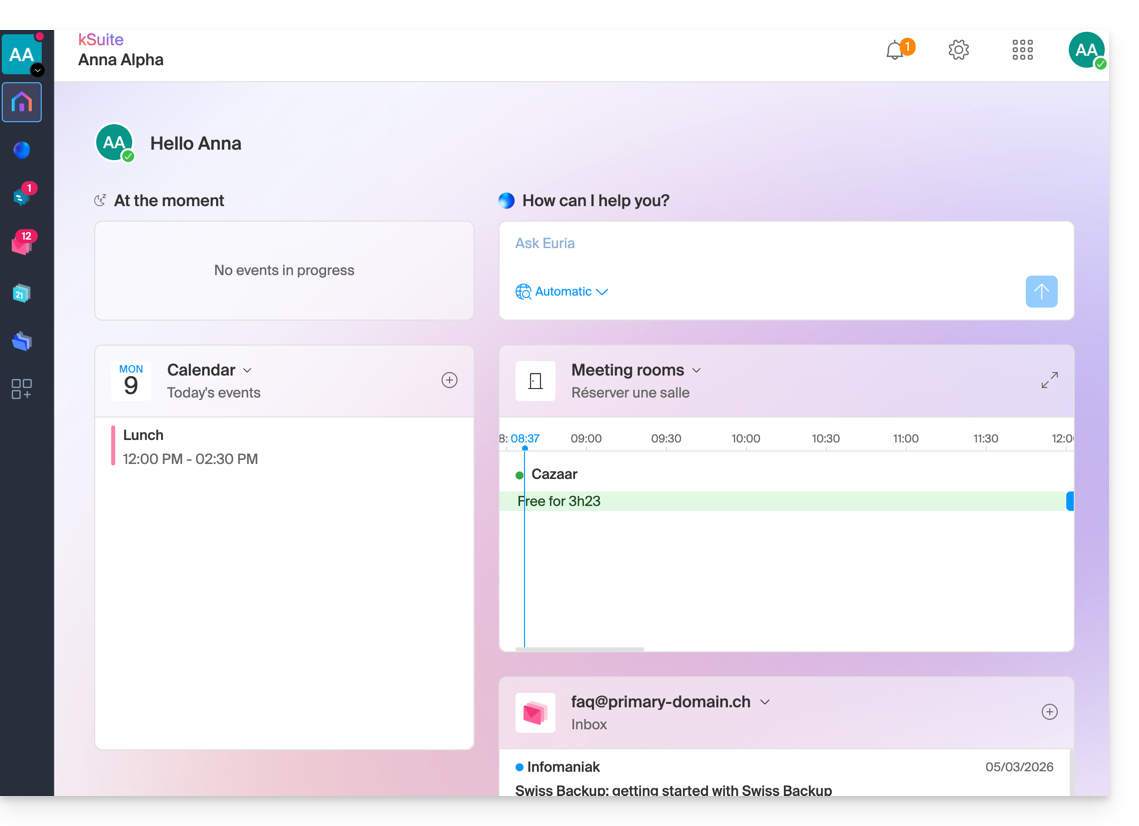
- Widgets like "At the moment" display your appointments (location, participants, kMeet link).
- The widget "Euria" allows you to request AI with one click.
- your last received emails...
- navigation is designed to switch from one application to another smoothly within a single browser window.
- The interface allows you to manage your status and your presence to collaborate more effectively with other users.
- You can switch between the kSuite spaces of your different Organizations in the same way as on the Infomaniak Manager.
- If you have my kSuite, this space will always be offered first.
Access the kSuite page from the Manager
Click on the icon at the top right of the interface, then on My Day to switch between the Infomaniak Manager and the kSuite space as well as the kSuite apps: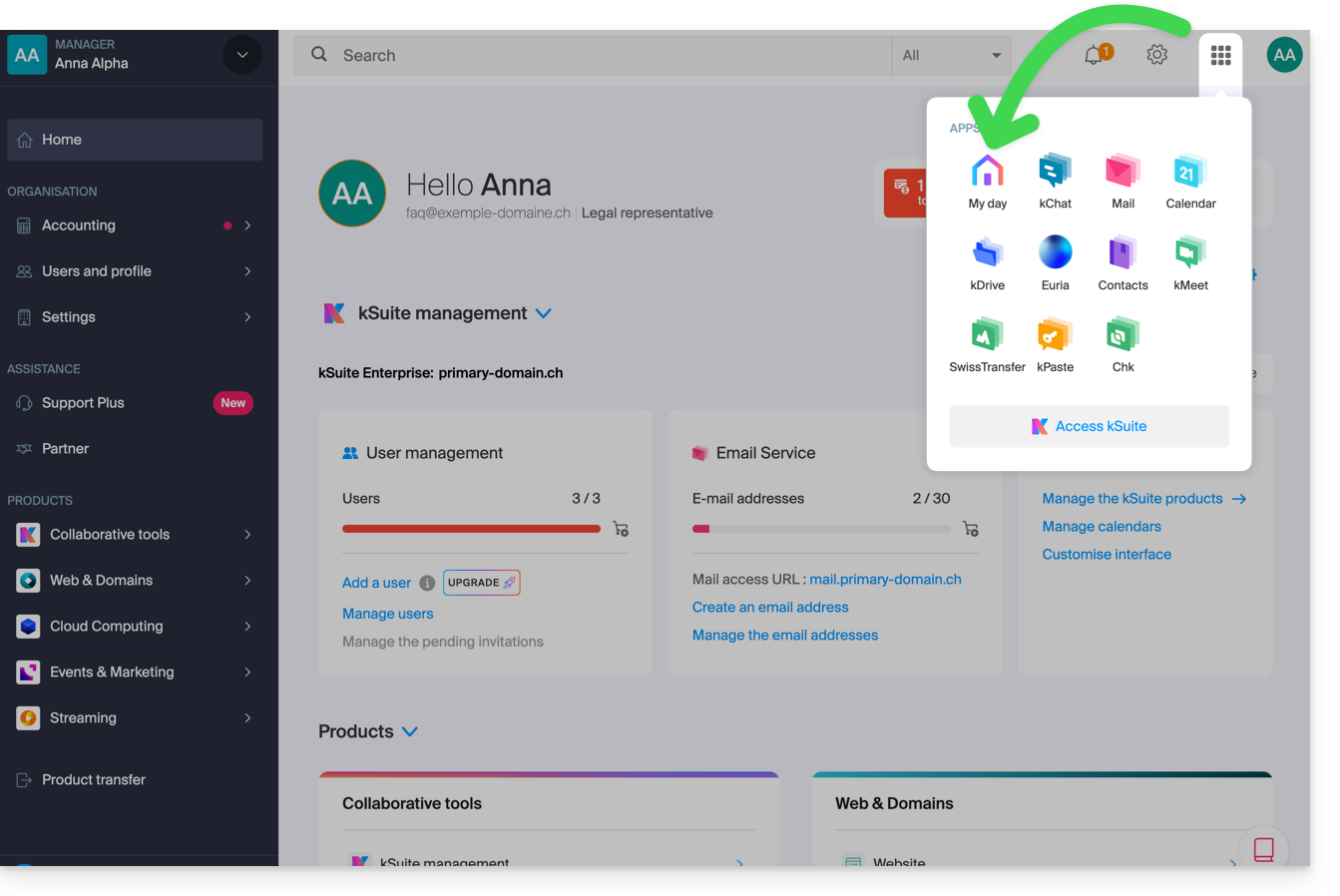
Access the kSuite space from an app
If you are already on a kSuite app, click on the colored house in the left sidebar menu or click on the icon at the top right of the interface, then on My Day: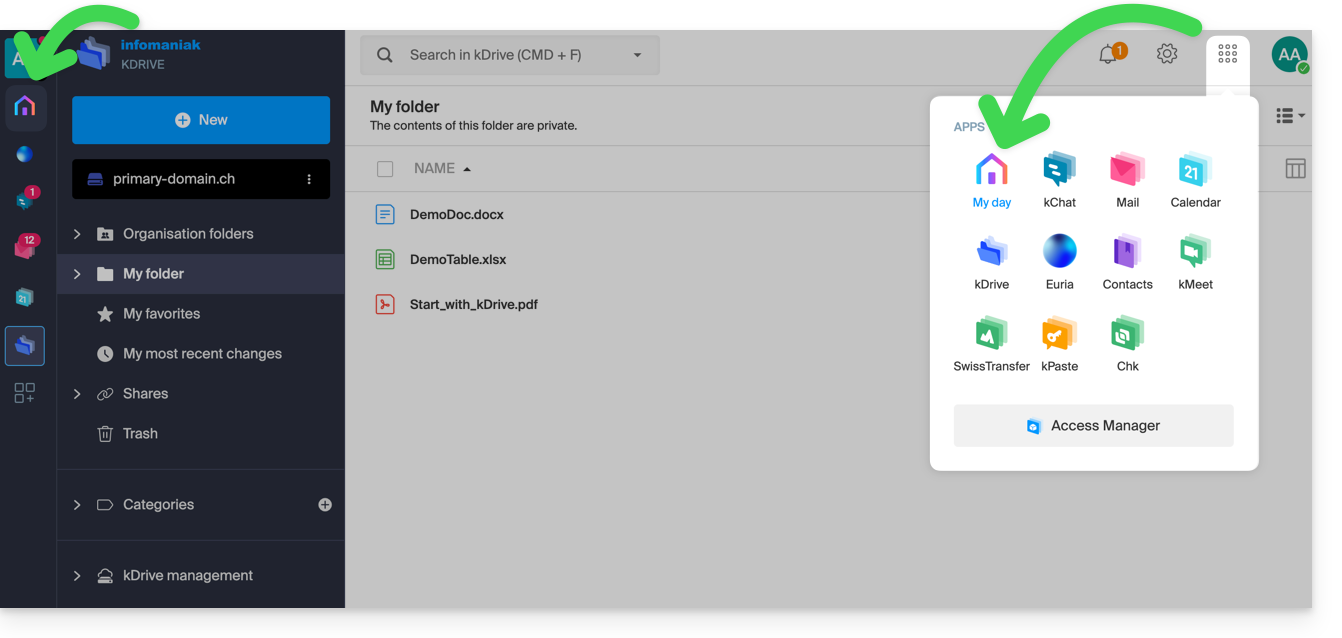
Split the screen for 2 kSuite apps
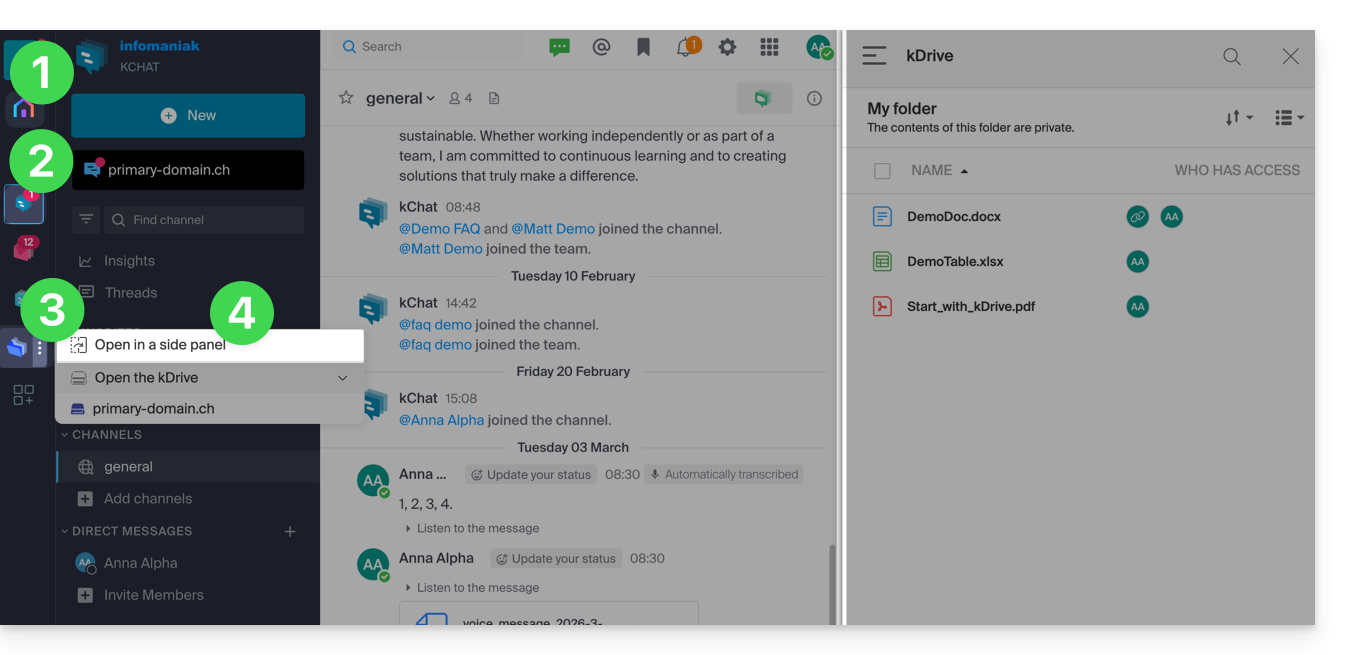
To work with 2 kSuite apps side by side:
- Click here to access the kSuite space of your Organization.
- Click on the icons in the left sidebar menu to access a 1st kSuite app like kChat for example.
- Click on the action menu ⋮ located to the right of a 2nd kSuite app like kDrive for example.
- Choose to open the app in a sidebar panel to have the 2 apps side by side:
Learn more
Link to this FAQ: https://faq.infomaniak.com/1496
Has this FAQ been helpful?