Knowledge base
1000 FAQs, 500 tutorials and instructional videos. Here, there are only solutions!
Add a user to an email address from the Mail service
This guide explains how, from a Mail service, to allow a person to access an email address within the Infomaniak ecosystem, i.e., by using only the Infomaniak Mail web app (online service ksuite.infomaniak.com/mail) and/or the Infomaniak Mail mobile app (application for iOS/Android smartphones or tablets), without creating a specific password for the address.
Other access and management options are presented in the main guide.
Prerequisites
- Order a Mail service from Infomaniak (❓: help).
- You must have the necessary permissions to manage the Mail service in question (❓: help).
- Create one or more addresses for this Mail service (❓: help).
Invite a user to use an email address from the Mail service
To allow a user who is already active to access the email address you want to share:
- Click here to access the Mail Service management in your Infomaniak Manager (❓: help).
- Click on the name of the Mail Service in question.
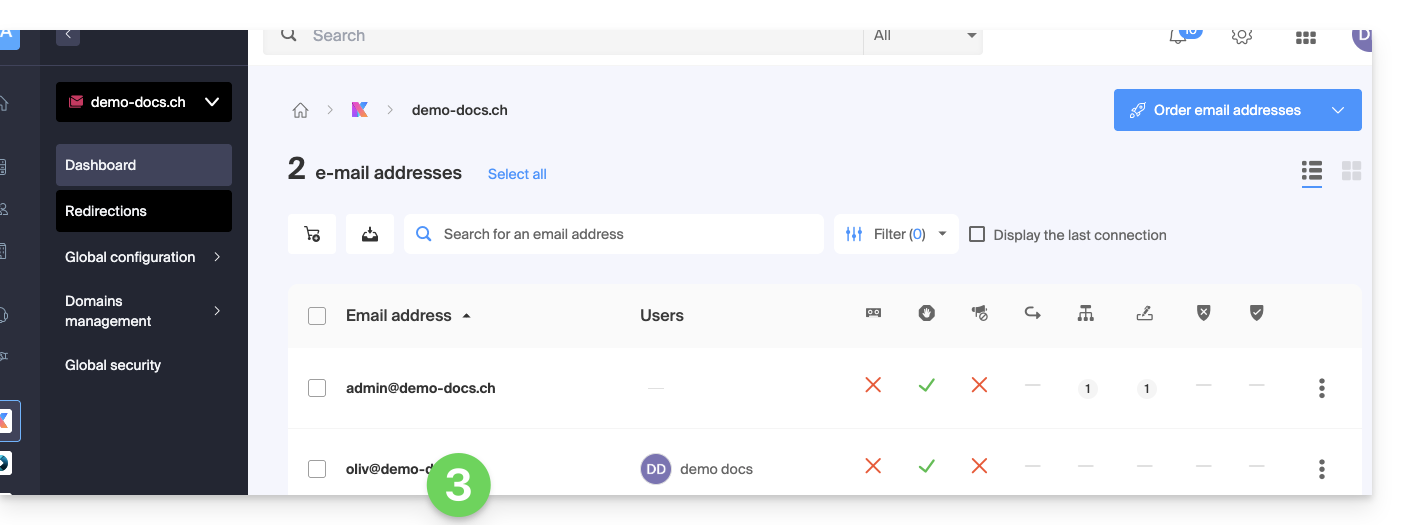
- Click on the email address in the table that appears:
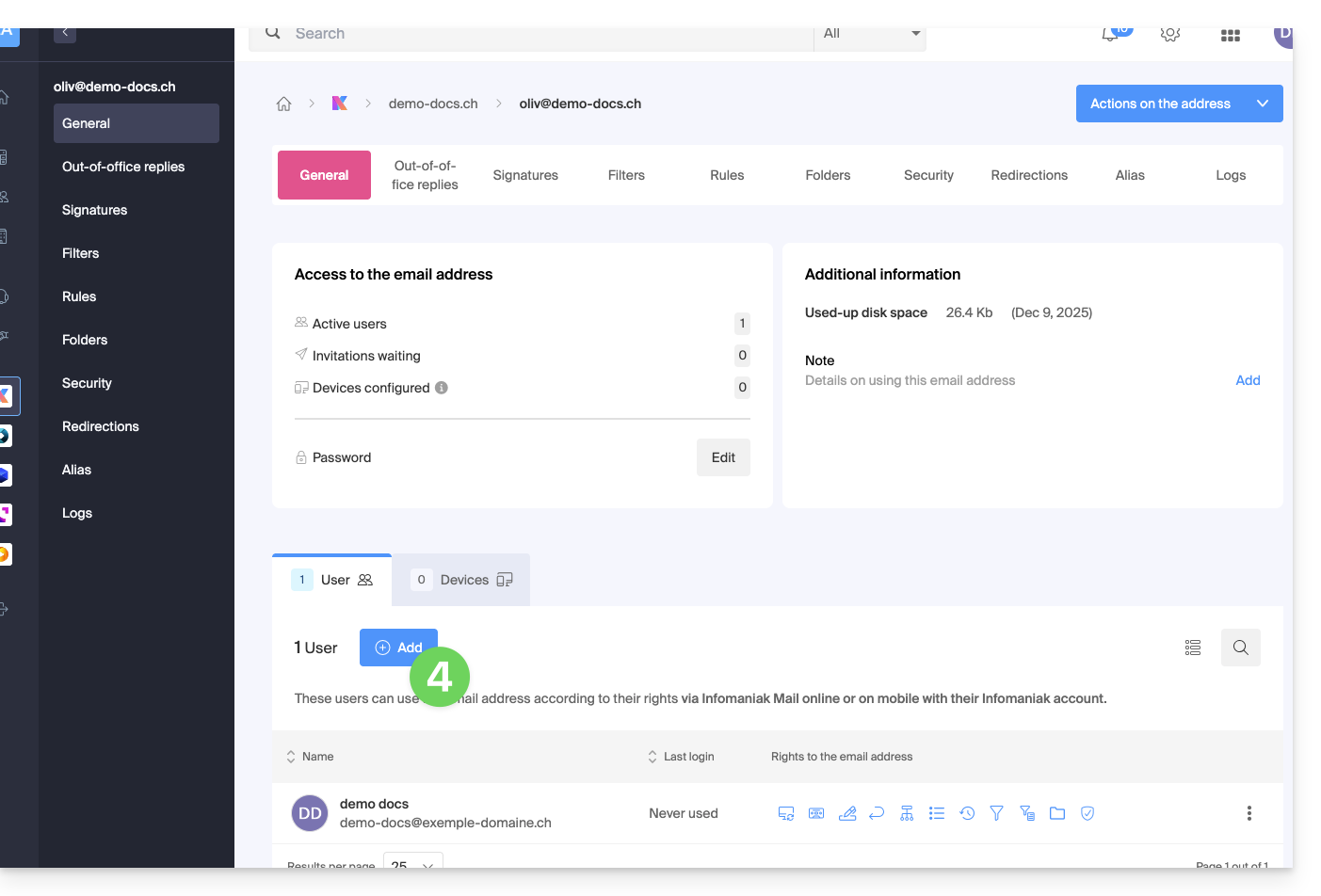
- Click on Add above the table of users who currently have access to the email address in Mail:
- Enter the password to log in to your Infomaniak account if prompted.
- Choose (a) one of the existing users within your Organization or (b) an external user:
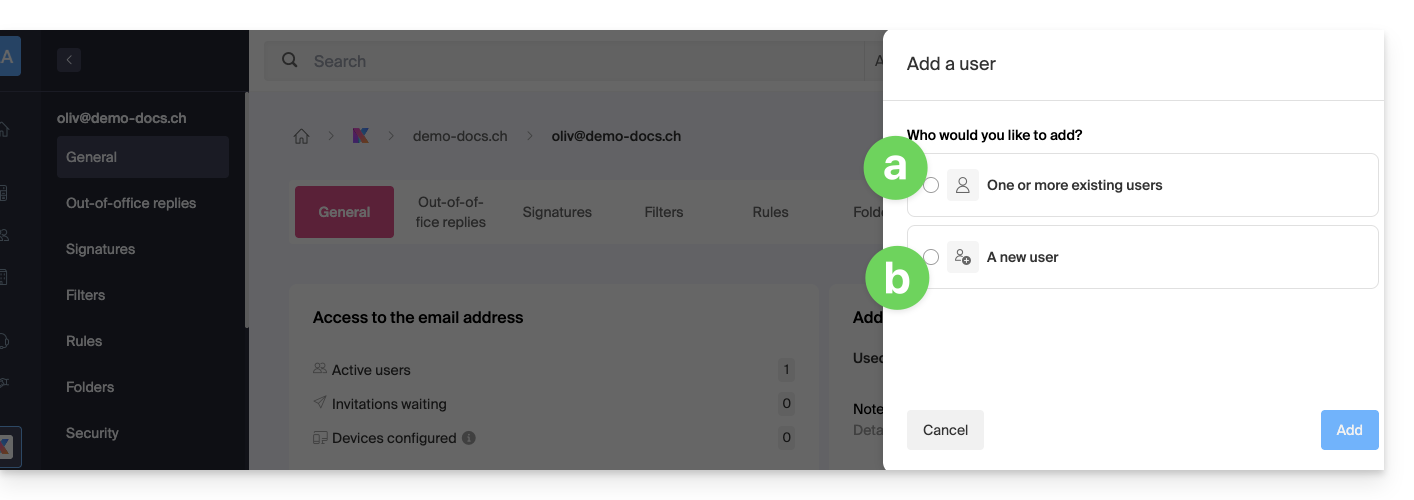
Option [a]: Existing user in the Organization
When the third party who needs access to the email is already part of the Organization, it's very simple:
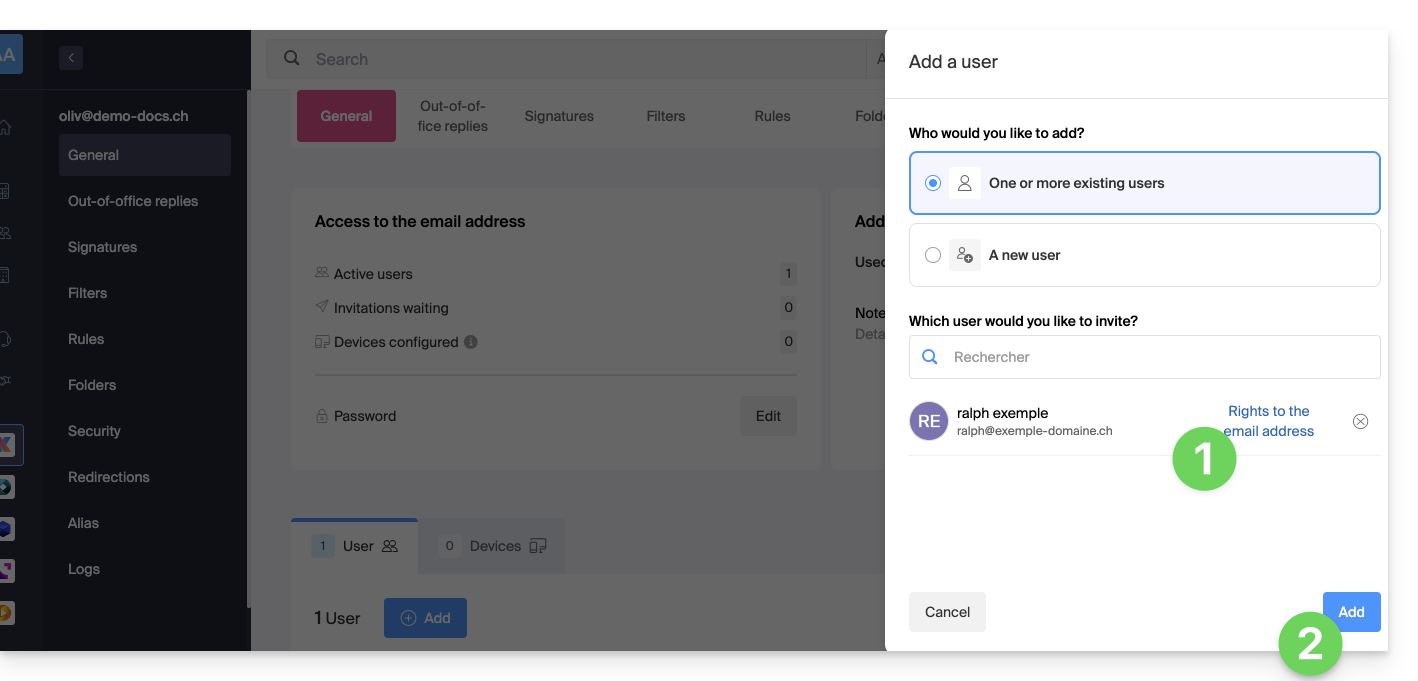
- The email address in question will automatically be visible and accessible to the selected user on the Infomaniak Mail web app (online service ksuite.infomaniak.com/mail) with the specified permissions.
- Click the button to Add the user:
- After adding the user, you can still restrict their access by clicking on the icons corresponding to the permissions…
- …or even remove their access to the email address:
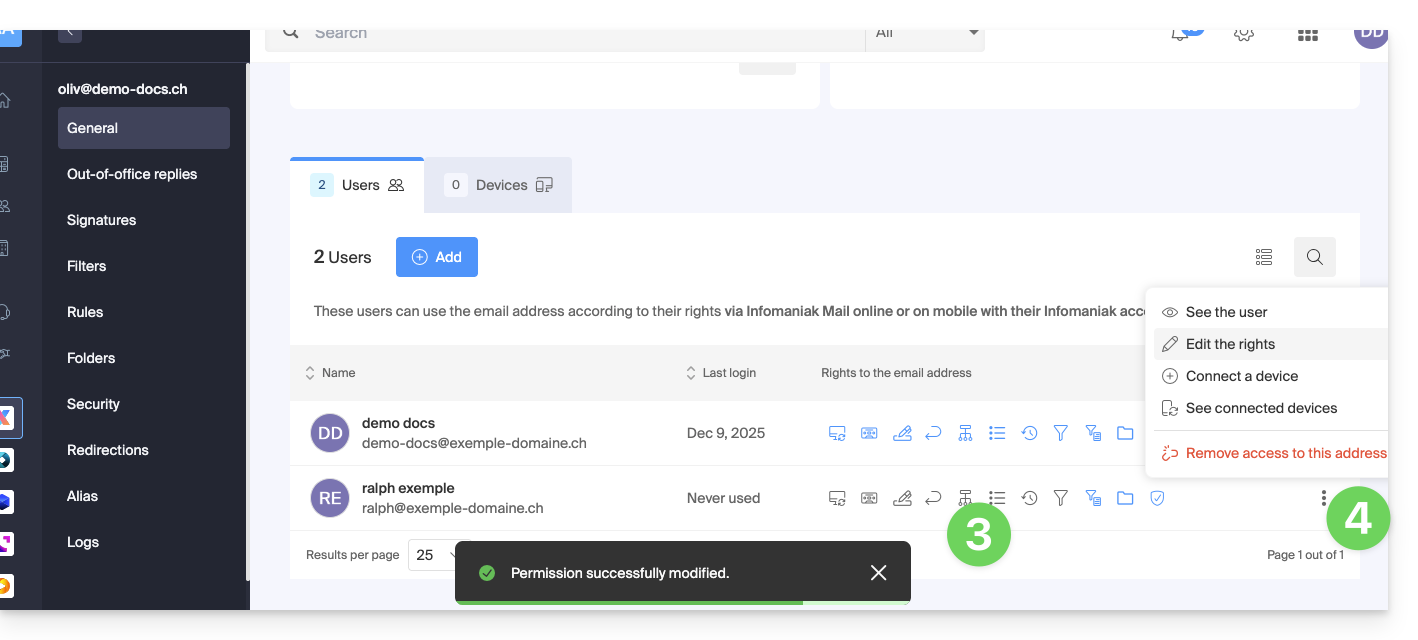
The user in question does indeed have access to the email address in question: 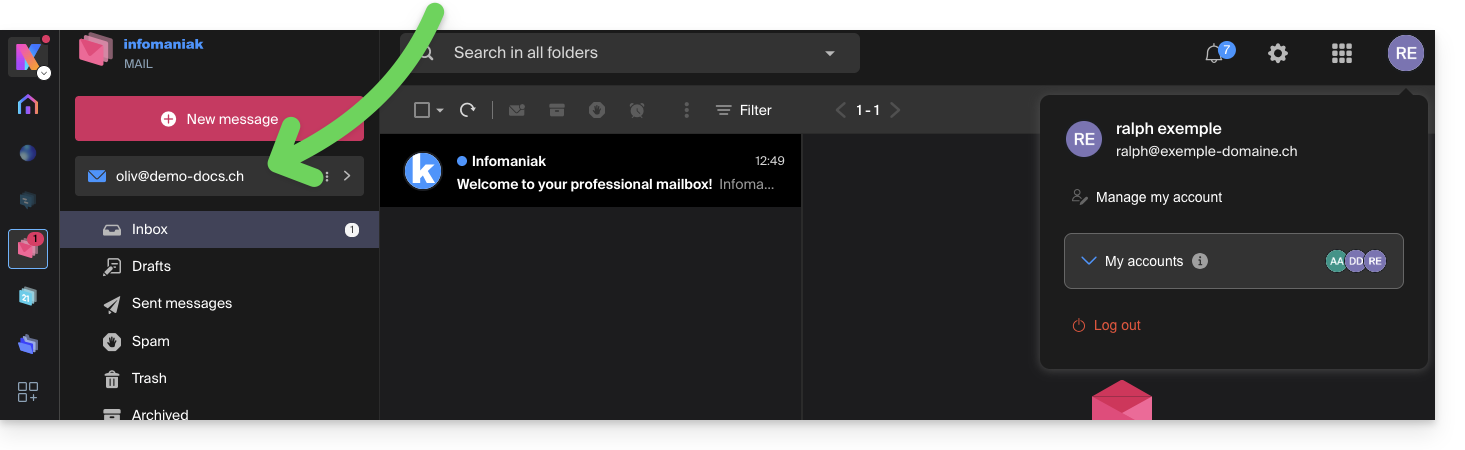
Option [b]: User external to the Organization
If the third party is not at all affiliated with the Organization, either because they are not yet familiar with Infomaniak, or because they have their own Organization:
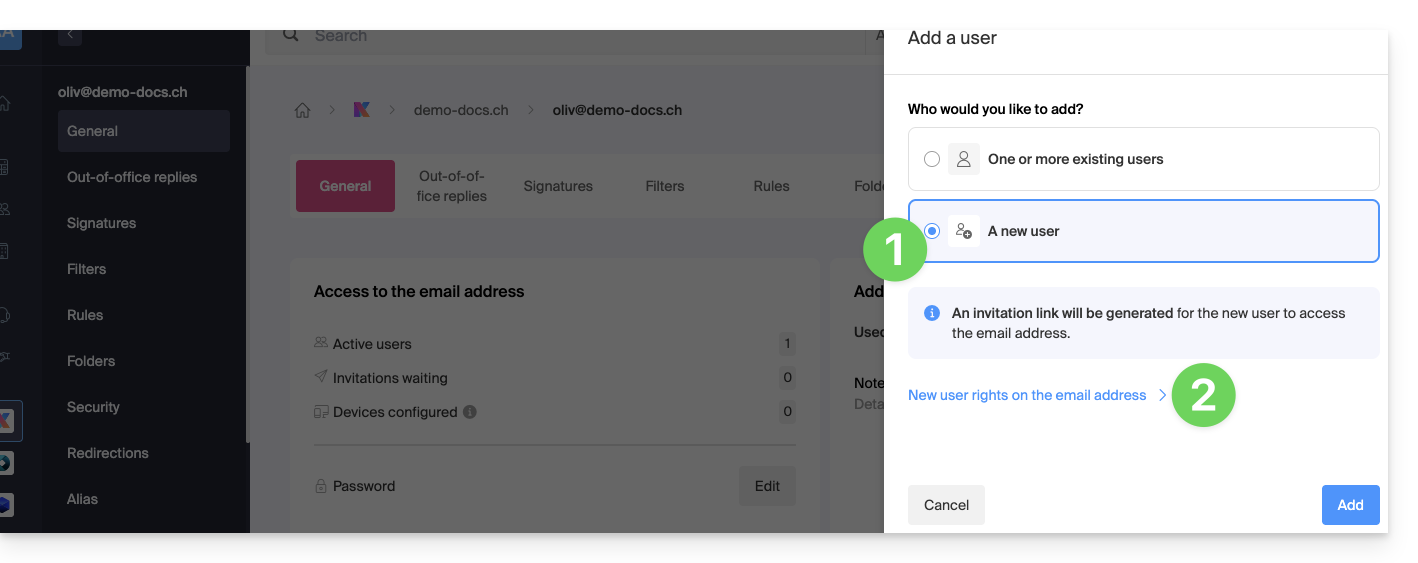
- Click the radio button to select the new user option.
- Click to configure the user's permissions:
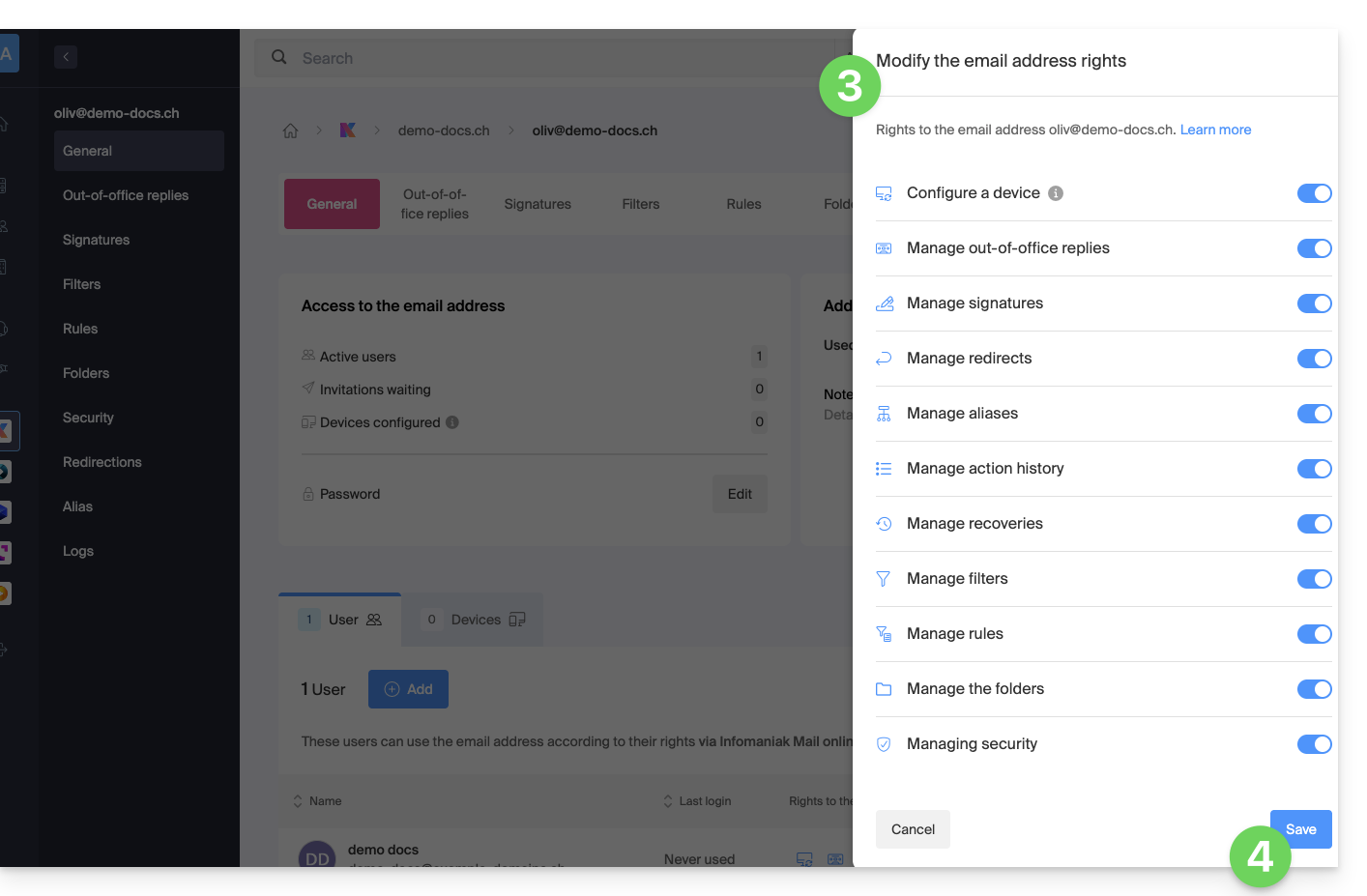
- If necessary, modify the permissions granted to the user for the email address in question.
- Save the changes:
- Click the button to Add the user:
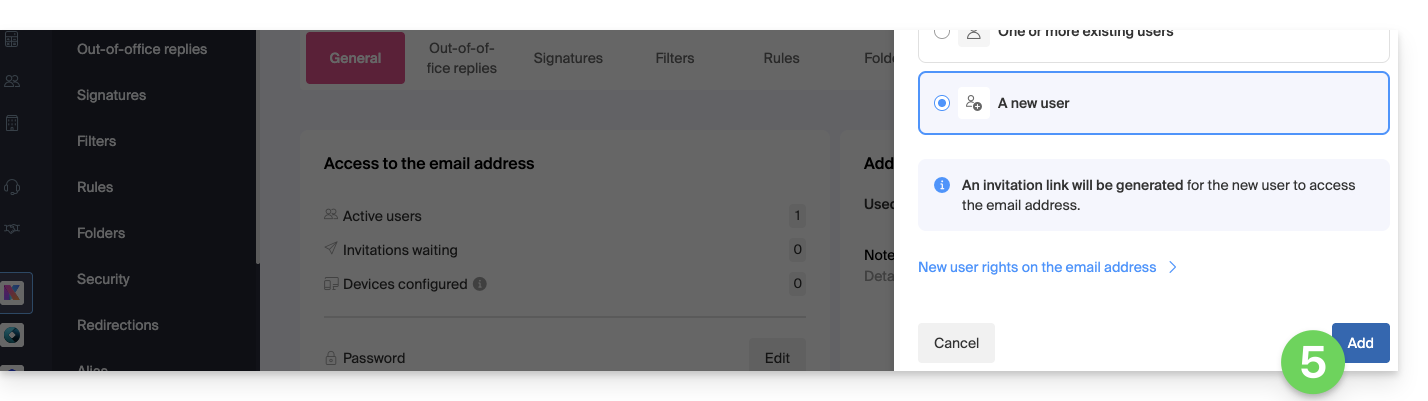
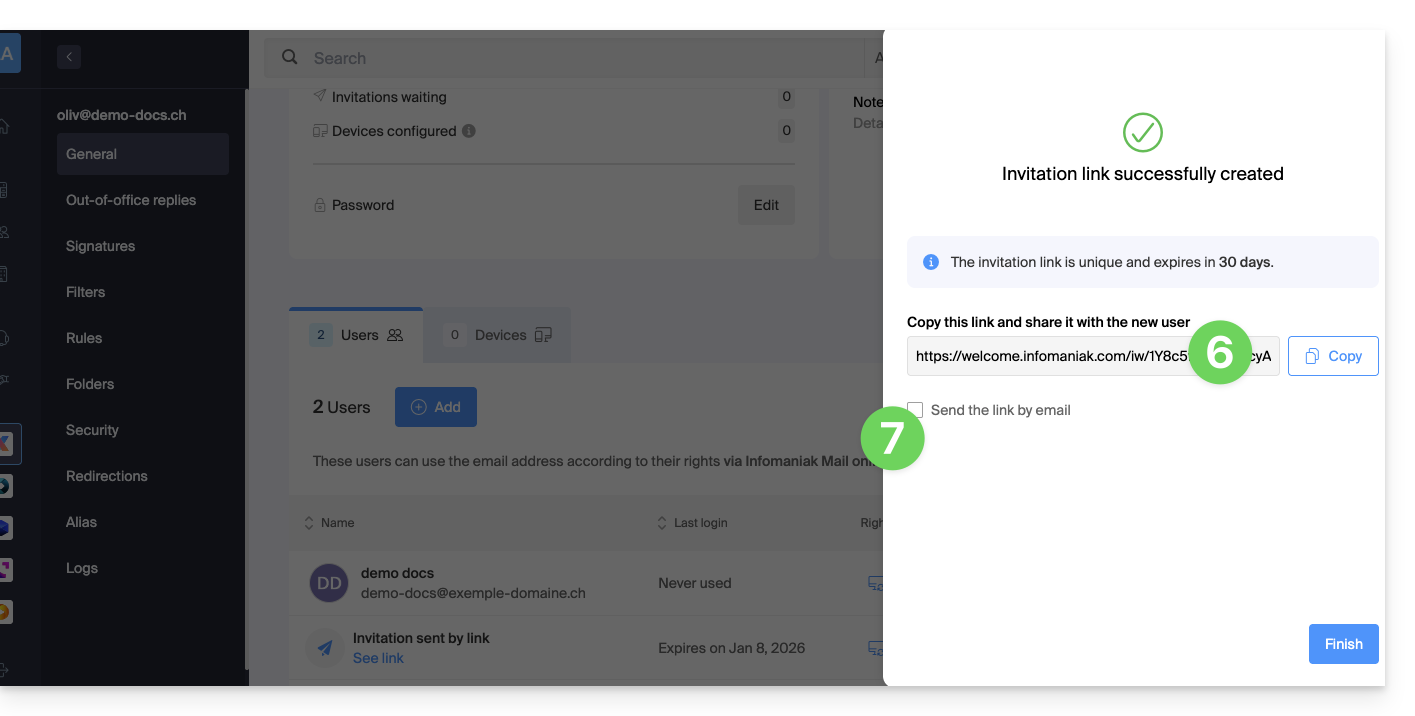
- The invitation is created (in the form of a URL, such as
https://welcome.infomaniak.com/iw/abcdef-12345..…), and the user simply needs to click the link (see below) to add the email address to their Infomaniak Mail account. - It is possible to send the invitation by email:
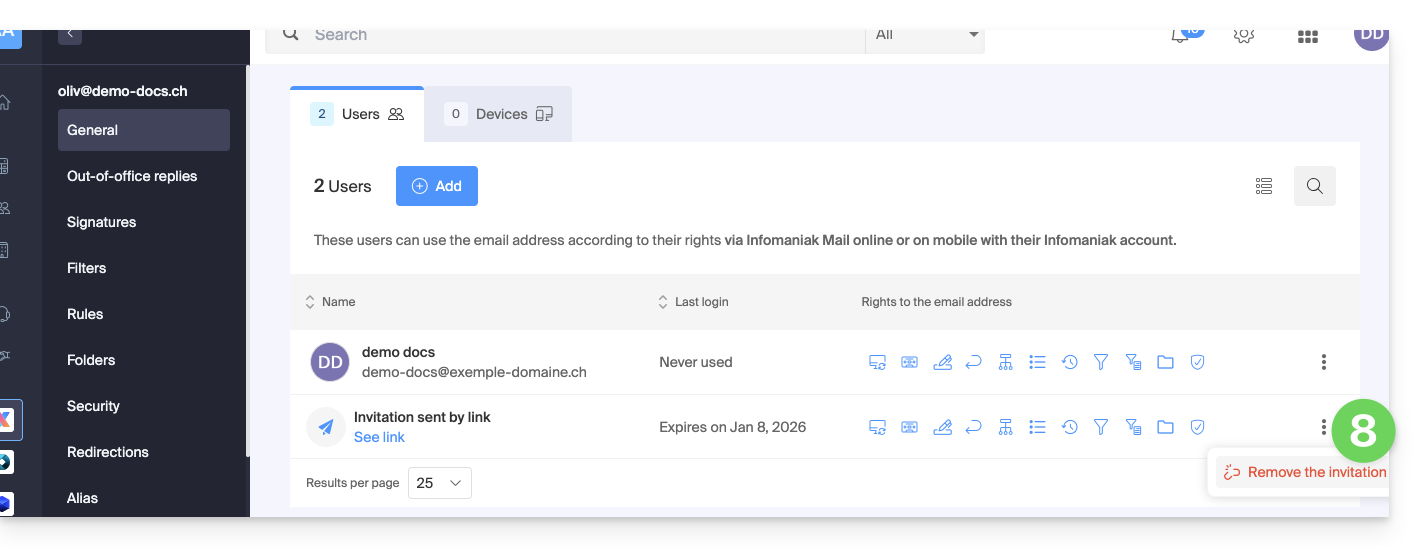
- The invitation is visible in the user tab of the email address, and it can be deleted at any time:
If the third party is already using the Infomaniak Web Mail app…
The user (third party) clicks on the invitation link while logged in to their Infomaniak account…
- … or if they log in to their account after clicking on the invitation link:
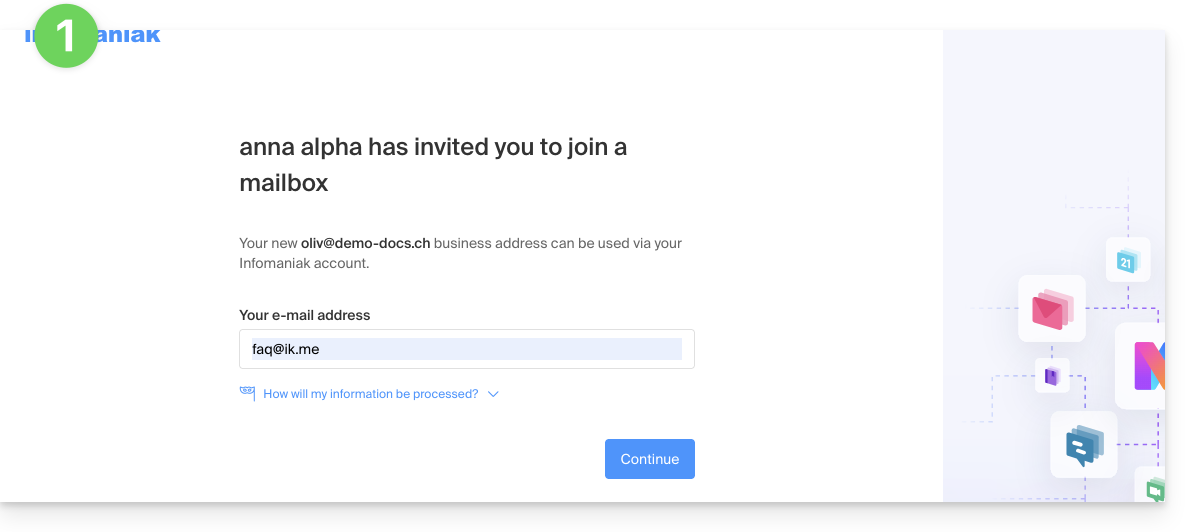
- If necessary, the user can still switch accounts before associating the address if needed:
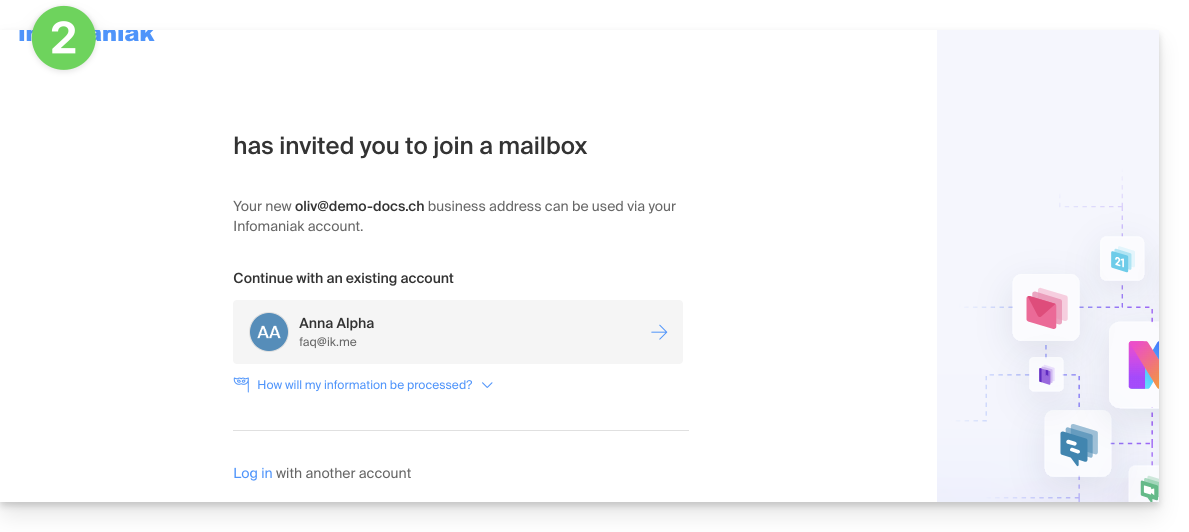
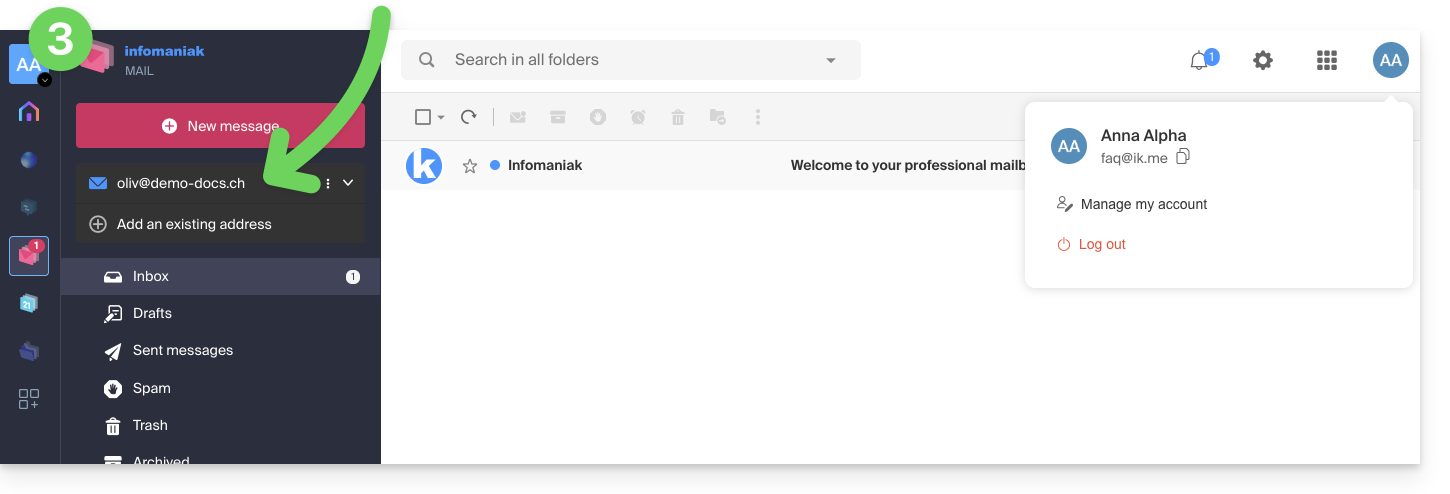
- The user in question can access the email address once they have chosen the organization:
If the third party is not yet using Infomaniak…
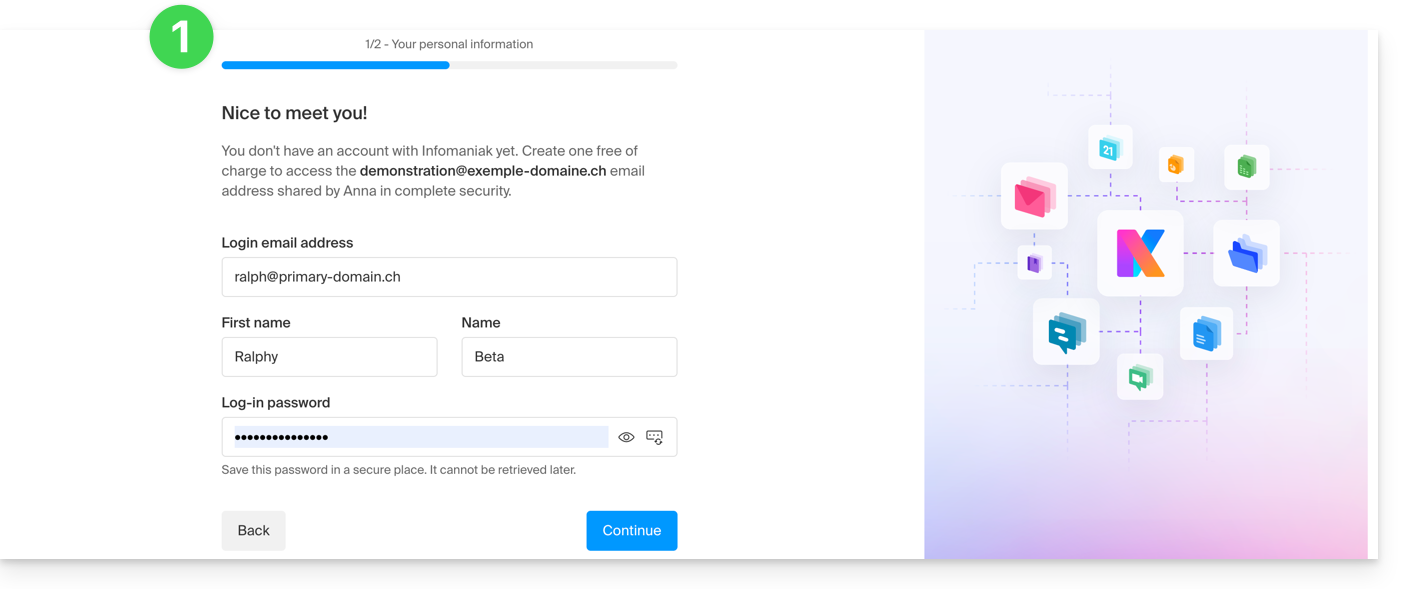
After clicking on the invitation link received and entering their email address, the third party will be prompted to create an Infomaniak account:
- She will need to enter her contact details and create a password to log in to her Infomaniak account:
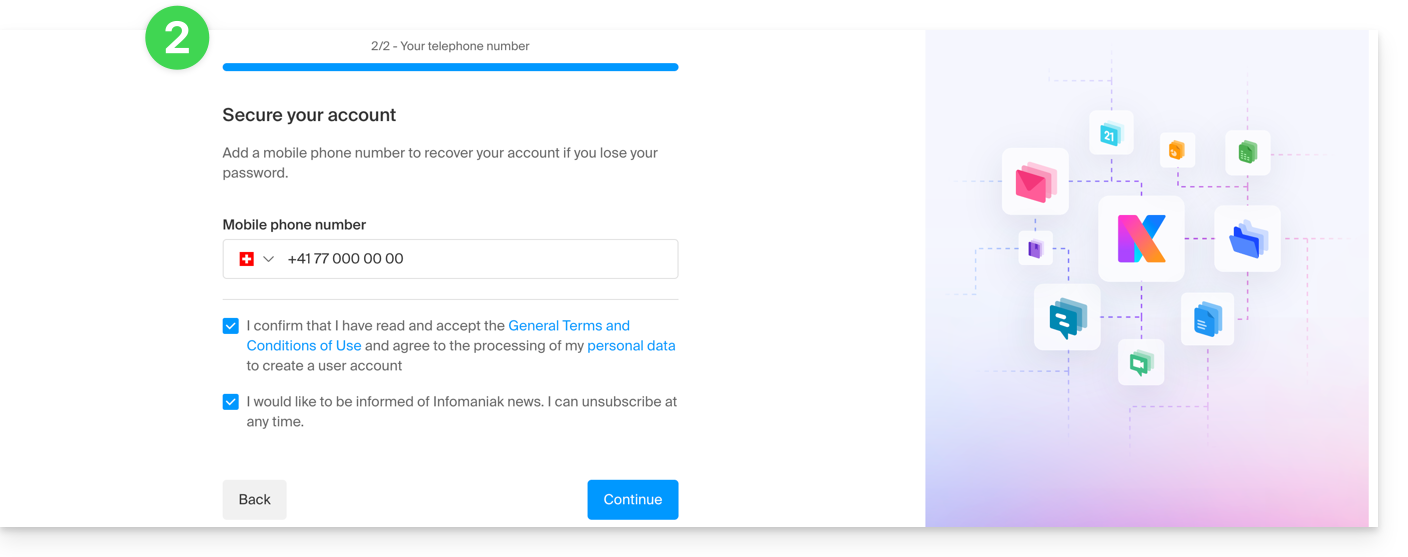
- She will need to provide a phone number and accept the terms and conditions:
- They will need to add a two-factor authentication (2FA) method to secure access to their Infomaniak account:
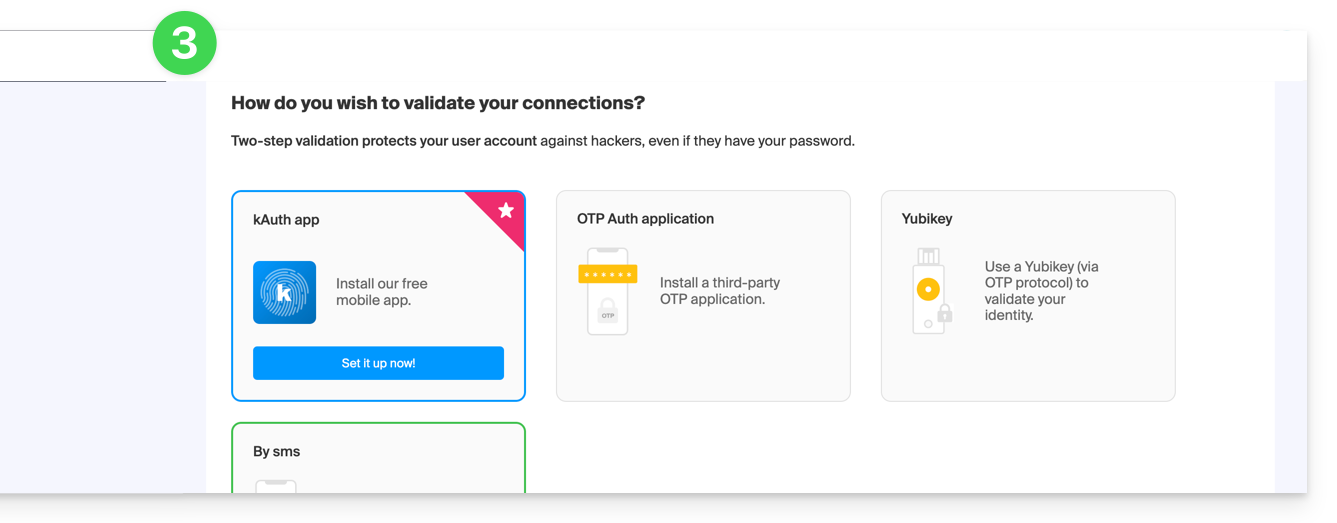
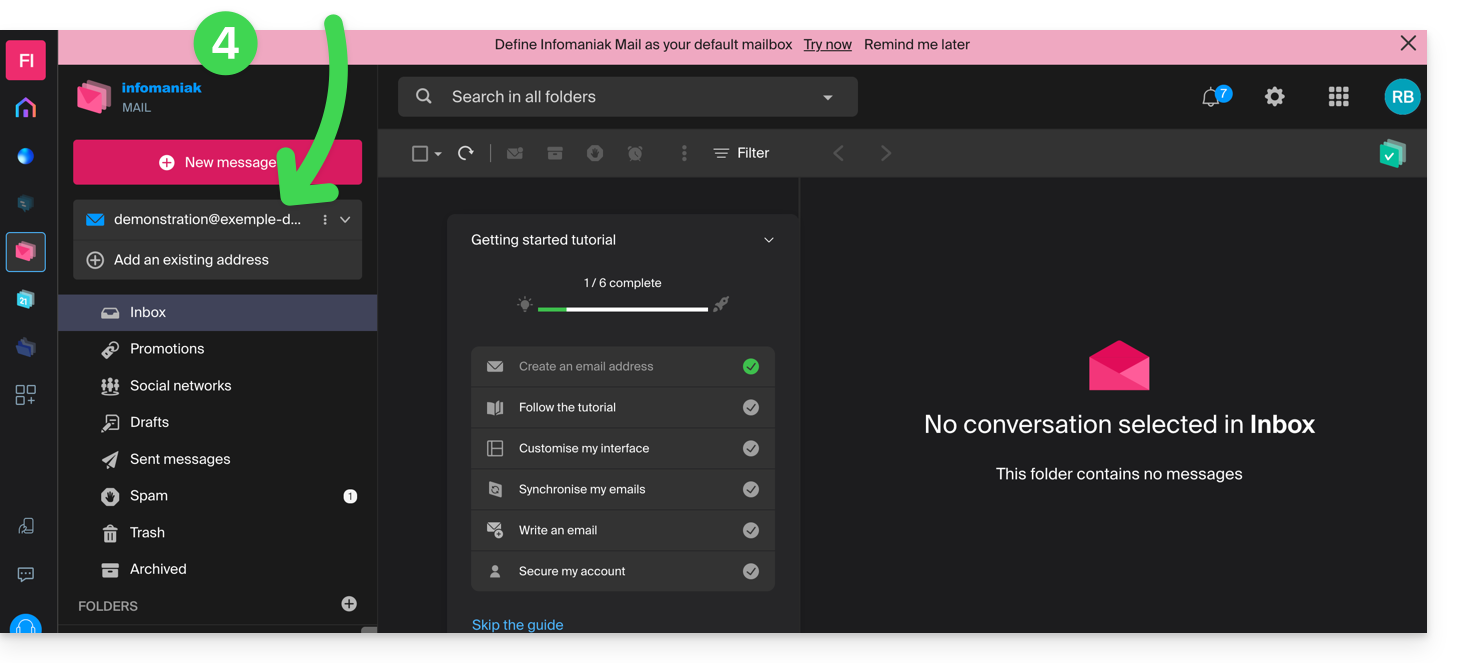
- Once the 2FA method has been added, that's it: the user is redirected to the Mail Infomaniak web app, which will display the email address to which the invitation link referred:
In case of a problem
If the Invite button is not visible or remains grayed out, check that:
- your user account has sufficient permissions to manage the product in question
- the email address in question does not yet exist as a login ID for an Infomaniak Organization
- the table below the button does not mention a user with an email address identical to the email address in question.
Example: you want to invite someone to view the address anna.a@domain.xyz, but the button is grayed out because a user anna.a@domain.xyz is listed in the table.
Solution: to be able to invite a new user to view the address in question (or if a message indicates that it is not possible to proceed further for security reasons), please refer to this other guide.
If the user cannot access the address
When a user is added, the email address is automatically added to their Mail Infomaniak apps: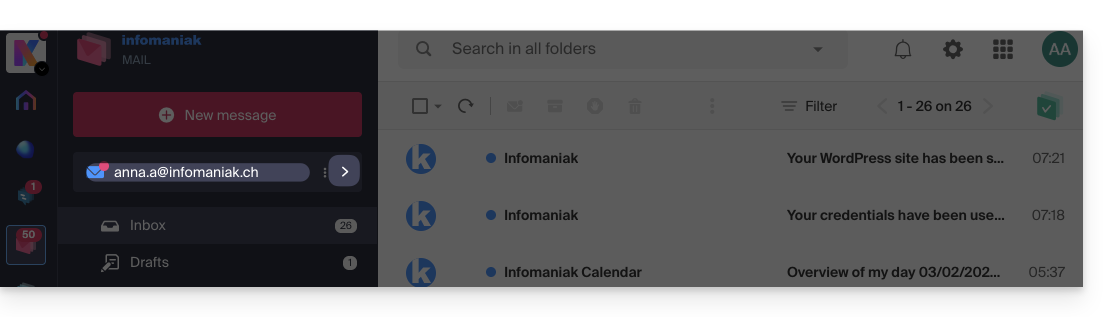
They can switch between their addresses at any time via the chevron located in the upper left corner of the screen: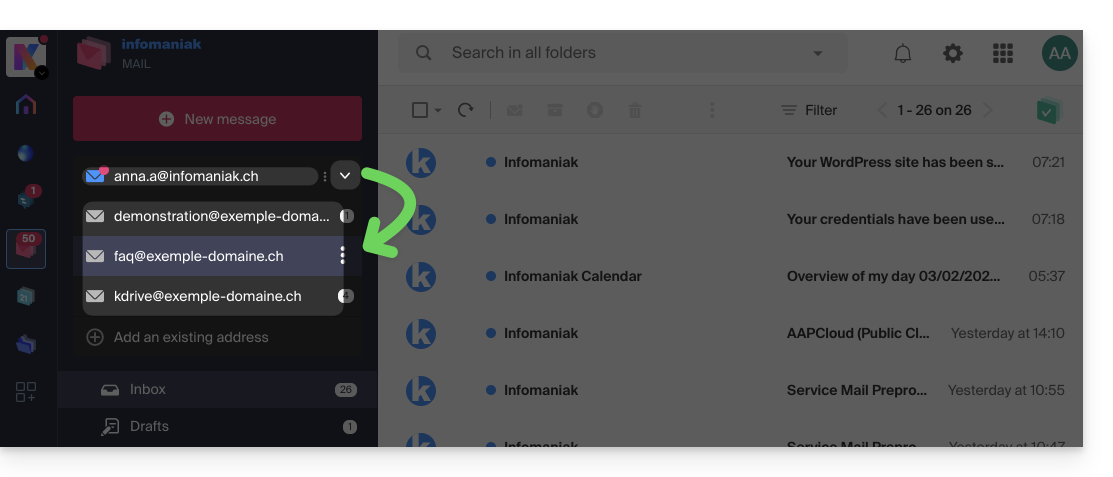
It can also switch between the various Organizations to which its Infomaniak account belongs, in order to access other addresses for other Mail Services (refer to this other guide).
If the address associated with the invitation does not appear, try refreshing the browser page (Command ⌘ + R on macOS and Ctrl + F5 on Windows).
Link to this FAQ: https://faq.infomaniak.com/1478
Has this FAQ been helpful?