Knowledge base
1000 FAQs, 500 tutorials and instructional videos. Here, there are only solutions!
Manage kMeet meeting subtitles
Update 10/13/2026
This guide explains how to use the kMeet feature, Infomaniak's ethical and free video conferencing solution, which allows you todisplay real-time subtitles during meetings, making it easier to understand the exchanges and meeting accessibility needs, and even enabling translation at a later stage.
Prerequisites
- The meeting moderator must have at least kSuite (Business or Enterprise plans only).
- If subtitles are enabled, all participants (even anonymous users or those without kSuite) can enable the automatic transcription feature.
Automatically caption participants' speech
You can display an automatic transcript of the speech of participants in a kMeet meeting:
- Click here to access kMeet in your Infomaniak kSuite (or launch the mobile/desktop app — ❓: help).
- Start a meeting (❓: help) or join one (❓: help).
- Allow access to your microphone.
- Click on the ○○○ icon in the toolbar.
- Click on Enable subtitles.
- What is spoken by the participants is displayed at the bottom of your kMeet window:
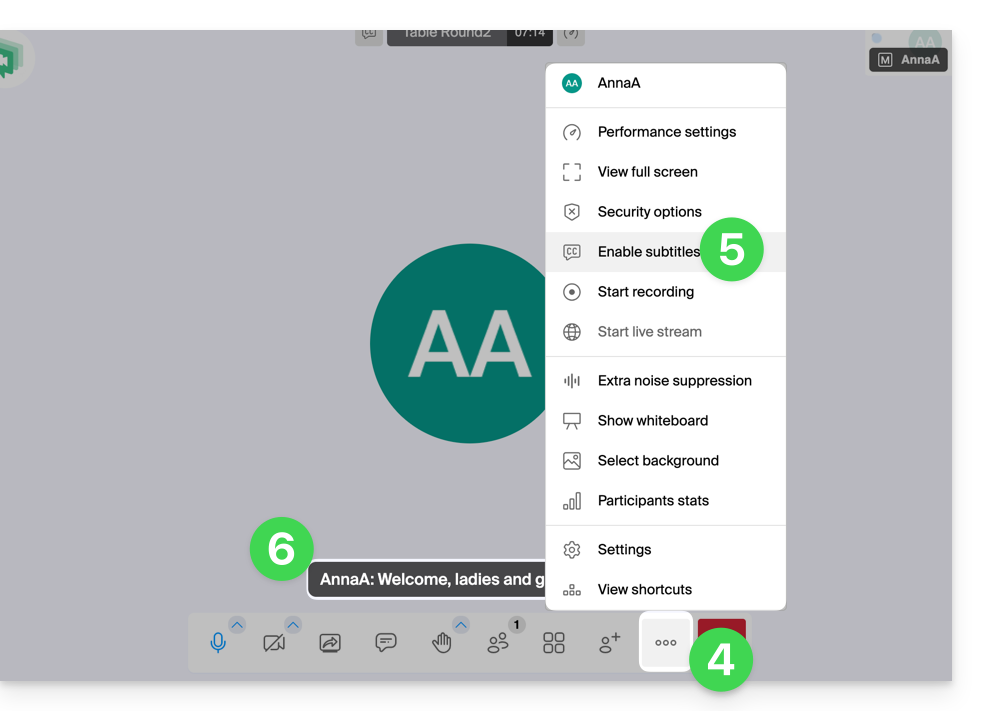
- To stop displaying subtitles on your screen, click on the appropriate menu again (see point 5 above).
If you encounter any problems, please refer to this other guide.
Link to this FAQ: https://faq.infomaniak.com/1431
Has this FAQ been helpful?